Creating Workflow Automations
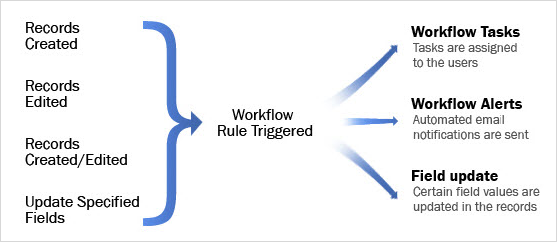
Workflow Rules are a set of actions (alerts, tasks, field updates and custom functions) that are executed when certain specified conditions are met. These rules automate the process of sending email alerts, assigning tasks and updating certain fields of a record when a rule is triggered. Workflow automation consists of the following components:
Deleting Workflow Rules
Zoho CRM Training Programs



Zoho DataPrep Personalized Demo











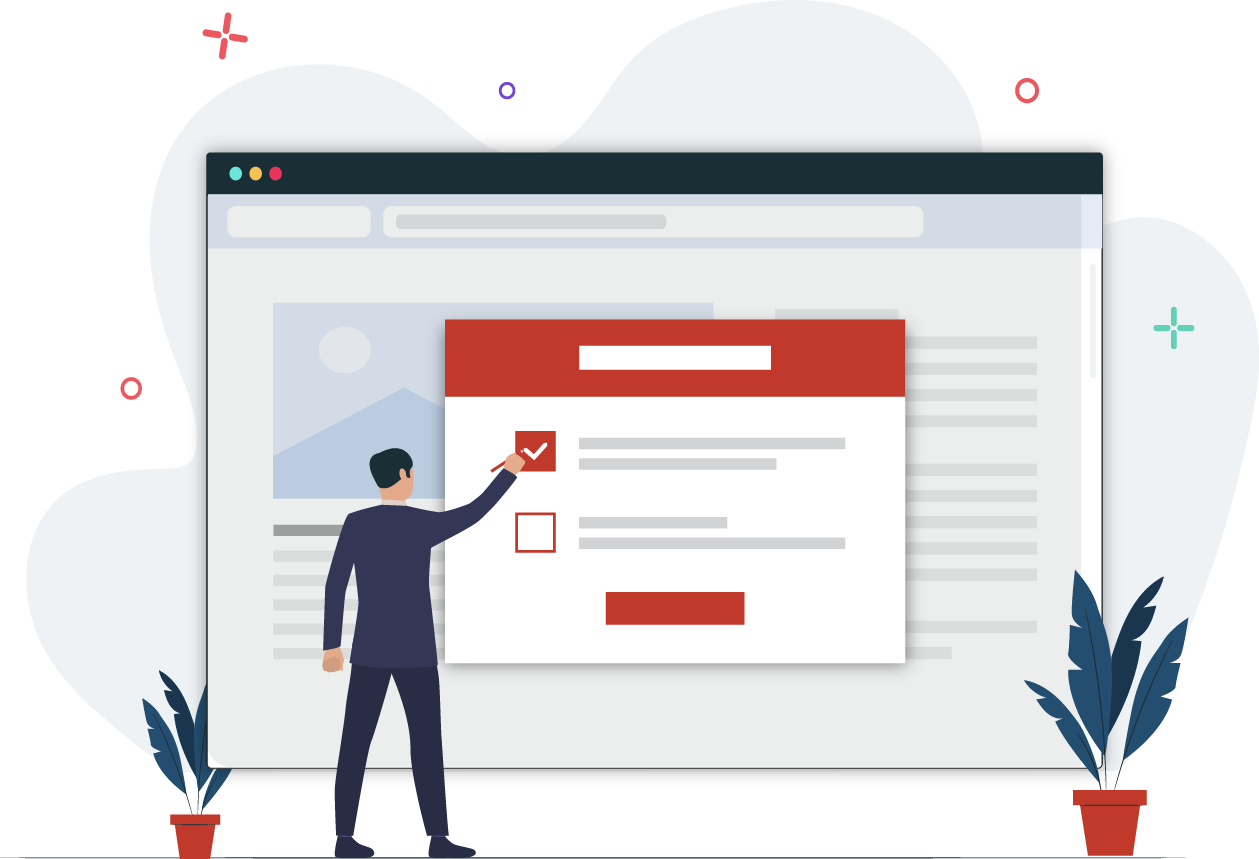


















- Workflow Rules: A set of rules that are executed when specified conditions are met.
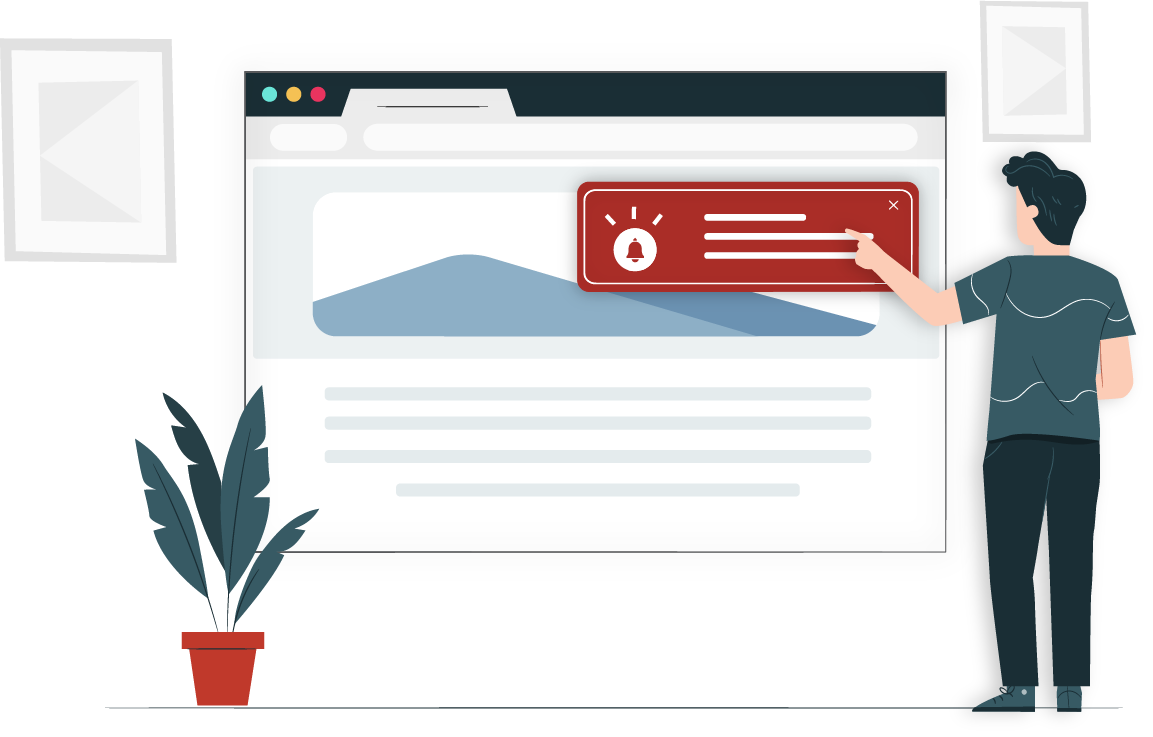
- Workflow Alerts: Automated email notifications sent on triggering a workflow rule.
- Workflow Tasks: Tasks that are assigned to the users when workflow rules are triggered.
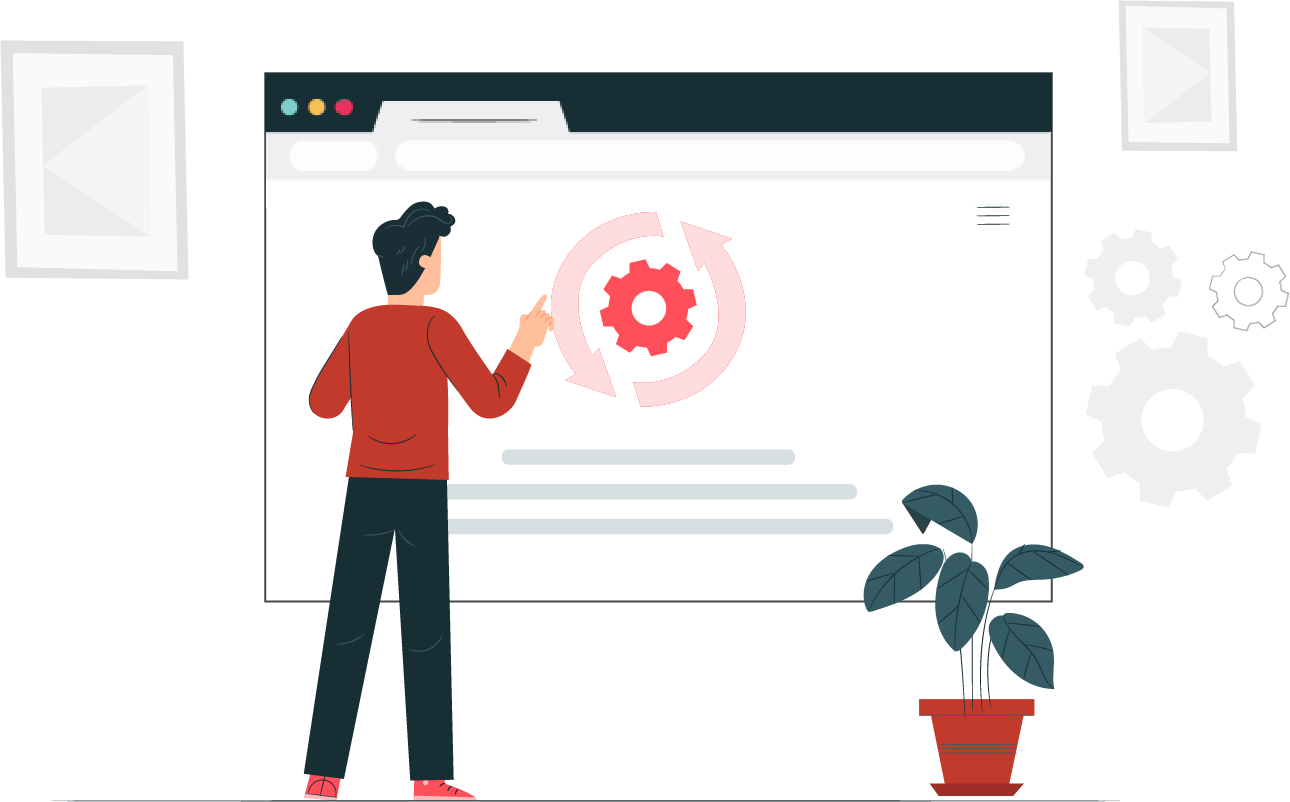
- Workflow Field Updates: Automatically update the specified field values on triggering a workflow rule.
Workflow rules help you to improve efficiency by eliminating the manual work of performing certain tasks. It also improves help desk processes through standardized working methods, thereby reducing operating costs.
In Zoho Desk, a typical workflow rule will consist of the following four elements:
- Basic Information - Specify details on the module type for which the rule applies, rule name, description, and option to activate the rule.
- Execute On - Specify when the rule should be triggered for a record and based on what. Rules can be triggered when: records are created, edited, created/edited; specific fields are updated; receiving customer reply; responding to tickets; sending/receiving private email threads; receiving happiness ratings; or deleting tickets.
The rule triggers like Customer Reply, Agent Response, Private Thread, Happiness Ratings and Delete are available only for the Tickets module. - Rule Criteria - List out the criteria to filter out records that meet the criteria. Workflow rule is triggered to these records.
- Actions - Add alerts, tasks, field updates, and custom functions that run immediately when the rule is executed.
Note:
- Only users with Profile permission for managing Help Desk Automation can access this feature.
- Workflows are not available on the Free edition.
- You can create a maximum of 5 rules/15 rules/30 rules per module per department in the Standard, Professional, and Enterprise editions, respectively.
- In each workflow rule, you can configure up to 10 emails, 10 tasks, and 10 field updates.
- If your Zoho Desk account is downgraded or the subscription expired, the workflow rules will be disabled. You are required to enable the rules when you renew the subscription manually.
Creating Workflow Rules
You must create workflow rules from scratch according to your help desk requirements. The steps to create a workflow rule is divided into 4 parts.
To create a workflow rule:
Part 1: Basic Information
- Click the Setup icon (
) in the top bar.
- In the Setup Landing page, click Workflows under Automation.
- In the Workflows List page, click Create Rule in the upper-right area.
- In the New Workflow page, do the following:
- Select the Module to which the rule applies from the drop-down list.
- Enter the Rule Name.
- Select the Active checkbox if you want the rule to be active.
- Enter the Description for the workflow rule.
- Click Next.
Part 2: Execute On
The execution option lets you specify an action (Create, Edit, etc.) based on which workflow rules will be triggered.
- In the Execute On section, select one of the following:
- Create: Executes the rule when records are created.
- Edit: Executes the rule when existing records are modified.
- Field Update: Executes the rule when the values of the specified fields are modified in a record.
Please note, this option is available only in the Enterprise edition. - Customer Reply: Executes the rule when a new reply is received from the customer.
- Agent Response: Executes the rule when agents send a new reply to tickets.
- Private Thread: Executes the rule when agents send and receive private email threads.
- Happiness Ratings: Executes the rule when a rating is received for a ticket.
- Delete: Executes the rule when existing records are deleted.
- When you select the Field Update option, do the following:
- Choose the field name from the drop-down lists.
- Click the All/Any link to execute the rule when all or any of the selected fields are updated.
- When you select the Private Thread option, you can choose to execute the rule for incoming or outgoing email responses or both.
- When you select the Happiness Ratings option, specify the rating from the drop-down lists.
You can choose to execute the rule for All Ratings or a particular rating. - Click Next.
Note:
- The rule triggers like Customer Reply, Agent Response, Private Thread and Happiness Rating are available only for the Tickets module.
Part 3: Rule Criteria
- In the Criteria section, specify the rule criteria details.
Select an operator between AND / OR to add multiple criteria. - Click Next.
Note:
- You can specify a maximum of 25 criteria for a workflow rule.
- Rule criteria are not mandatory for creating a workflow rule or triggering its related events.
Part 4: Actions
Workflow rules are meaningful only if an alert, task, field update, custom functions, or Custom Actions Gallery is associated with it. You must associate one or all of the actions, which are triggered immediately when the rule is executed. Also, you can associate the existing workflow actions or create new actions to be associated with your workflow rules.
Workflow Alerts
Workflow Alerts are automated, predefined email notifications that are triggered when certain conditions are met. These conditions are specified while creating the workflow rules.
To create a workflow alert:
- In the New Workflow page and under Actions, do the following:
- Click the Add icon (
) and select New from the drop-down list corresponding to Alerts.
- In the New Alert window, specify a Name for the Alert.
- Choose an Email Template from the drop-down list.
The selected email template will be used to send emails when the workflow rule is triggered. - Specify who should be receiving this Alert.
You can choose between Groups, Roles, Roles and Subordinates or Agents. - Enable the following options if you will like to notify other users:
- Record Owner: Owner of the record
- Record Creator: User who created the record
- Notify Contact: Requestor who submitted the ticket
- Additional Recipients: Enter the email addresses, separated by a comma
- Click the Add icon (
- Click Save.
Note:
- The Notify Contact option for Alerts is available only for the Tickets and Contacts module.
Workflow Tasks
Assign tasks to users automatically when certain conditions are met. These conditions are specified while creating the workflow rules.
To create a workflow task:
- In the New Workflow page and under Actions, do the following:
- Click the Add icon (
- In the New Task window, specify the task related details like Subject, Status, Priority, Assignee, Due Date, etc.
- Click Save.
A new workflow task is created, which will be associated with the workflow rule.
Note:
- When you enable 'Assign ticket owner as task owner', the task will be assigned to the specified owner only when its corresponding ticket is unassigned.
Workflow Field Updates
The Field Update option helps you to automatically update certain field values in the tickets when the associated workflow rule is triggered.
To create field updates:
- In the New Workflow page and under Actions, do the following:
- Click the Add icon (
- In the Create Assignment Value window, specify a Name for the Assignment Value.
- Optionally, enter a description in the Description field.
- Select the field from the Assignment Values drop-down list that needs to be updated.
- Specify the value for the field that you want to be updated.
- Click Save.
The fields will be updated with the specified values when the workflow rule is triggered.
Note:
- Workflow tasks and workflow field updates are available only for the Tickets module. For all other modules, you can only associate workflow alerts and workflow custom functions.
Custom Actions Gallery
Custom Actions Gallery includes a set of custom actions that allow you to automate key tasks like assigning tickets, adding and removing tags, adding followers/comments, sending email replies, and more, when integrated with the workflow rules in addition to alerts, tasks, field updates, and custom functions that are available.
By default, the following are the custom actions we support.
- Assign Ticket
- Add Comment
- Send Email Reply
- Add Tags
- Remove Tags
- Add Followers
- Mark Ticket as Spam
- Share Ticket
- Send Cliq Notification
- Reply via Instant Messaging
- Notify via Instant Messaging
- Extension Custom Actions
To work with Custom Actions Gallery and to integrate them into your workflow rules, click here.
Associating Existing Actions to Rules
When you create a workflow rule, you must add certain actions (like alerts, tasks, field updates, etc.,) to it. These actions once created, can be associated with many rules.
To associate an existing action
- Click the Setup icon (
- In the Setup Landing page, click Workflows under Automation.
- In the Workflows List page, click the Edit icon (
) corresponding to a workflow rule.
- In the Edit Workflow page and under Actions, do the following:
- Click the Add icon (
- In the Associate Existing <Action> page, select an existing Action and associate it to the rule.
- Click Save.
Deactivating Workflow Rules
You can activate or deactivate the workflow rules at any time. When you deactivate a rule it will be removed from the Active Workflows list. Workflow rules can be reactivated, when needed.
To deactivate workflow rules:
- Click the Setup icon (
- In the Setup Landing page, click Workflows under Automation.
- In the Workflows List page, click the Deactivate icon (
 ) for the corresponding rule.
The workflow rule will be deactivated instantly. You can head over to the Inactive Rules List and click the Activate icon (  ) to re-activate the rule.
) to re-activate the rule.Deleting Workflow Rules
Workflow rules can be deleted when not in use. When you delete a rule, it will be permanently removed from your help desk and cannot be recovered.
To delete workflow rules
- Click the Setup icon (
- In the Setup Landing page, click Workflows under Automation.
- In the Workflows List page, click the Delete icon (
) for the corresponding rule.
- Click Ok to confirm.
Zoho CRM Training Programs
Learn how to use the best tools for sales force automation and better customer engagement from Zoho's implementation specialists.
Zoho DataPrep Personalized Demo
If you'd like a personalized walk-through of our data preparation tool, please request a demo and we'll be happy to show you how to get the best out of Zoho DataPrep.
- Zoho Workerly Home
- Forums
- Connect With Us:


- Zoho Recruit Home
- Forums
- Connect With Us:
You are currently viewing the help pages of Qntrl’s earlier version. Click here to view our latest version—Qntrl 3.0's help articles.
New to Zoho Survey?





Zoho Sheet Resources
Zoho Forms Resources
New to Zoho Sign?
Zoho Sign Resources
Sign, Paperless!
New to Zoho TeamInbox?
Zoho TeamInbox Resources
New to Zoho ZeptoMail?
Zoho DataPrep Resources
Design. Discuss. Deliver.
New to Zoho Workerly?
New to Zoho Recruit?
New to Zoho CRM?
New to Zoho Projects?
New to Zoho Sprints?
New to Zoho Assist?
New to Bigin?
Related Articles
Creating Ticket Assignment Rules
Assignment rules help you automatically assign the tickets that are received in your Zoho Desk. The rule based on certain specified conditions can route tickets to the appropriate department and further assign ownership to it. While this makes sense ...FAQs: Workflow Rules
What is a workflow Rule and why do we need it in Zoho Desk? Workflow rules are used to automate and streamline the support processes, ticket management, and customer interactions. They help ensure consistent and efficient handling of tickets and ...Creating Time-based Automations
Time-based rules are similar to Workflow rules for the reason that both define actions that will trigger alerts, create tasks and update fields in Zoho Desk. However, time-based rules are triggered when a timed event occurs, and not immediately after ...FAQs: Automation
What is automation and why do we need it in Zoho Desk? The process of minimizing or eliminating manual effort for doing a task is called automation. At times, we require a task to be done automatically without any manual input of data. For example, ...FAQs: Working on Tickets
What are Tickets Tabs in Zoho Desk? Tickets Tabs in Zoho Desk are designed to organize and provide contextual information about support tickets within the help desk system. These tabs enable users to connect tickets with other standard modules of ...
New to Zoho LandingPage?
Zoho LandingPage Resources