Dropbox integration
With Zoho Projects Dropbox Integration, you can now share files that matters the most from your Dropbox account into Zoho Projects documents area and vice versa to simplify your work and ramp up your productivity.

Integrate Dropbox account
- Select the required project in Projects and click the Documents tab.
- Click Dropbox and then click Configure your Dropbox sync.
- Click Configure New Dropbox Account in the Configure Dropbox Account tab to create your Dropbox account.
- Click Add New Sync if you've already configured more than one Dropbox account. Now, select the Dropbox account to integrate into Zoho Projects.
- Select the Dropbox Folder in Select Folders and then in Zoho Docs Folder choose the folder to associate the Dropbox account.
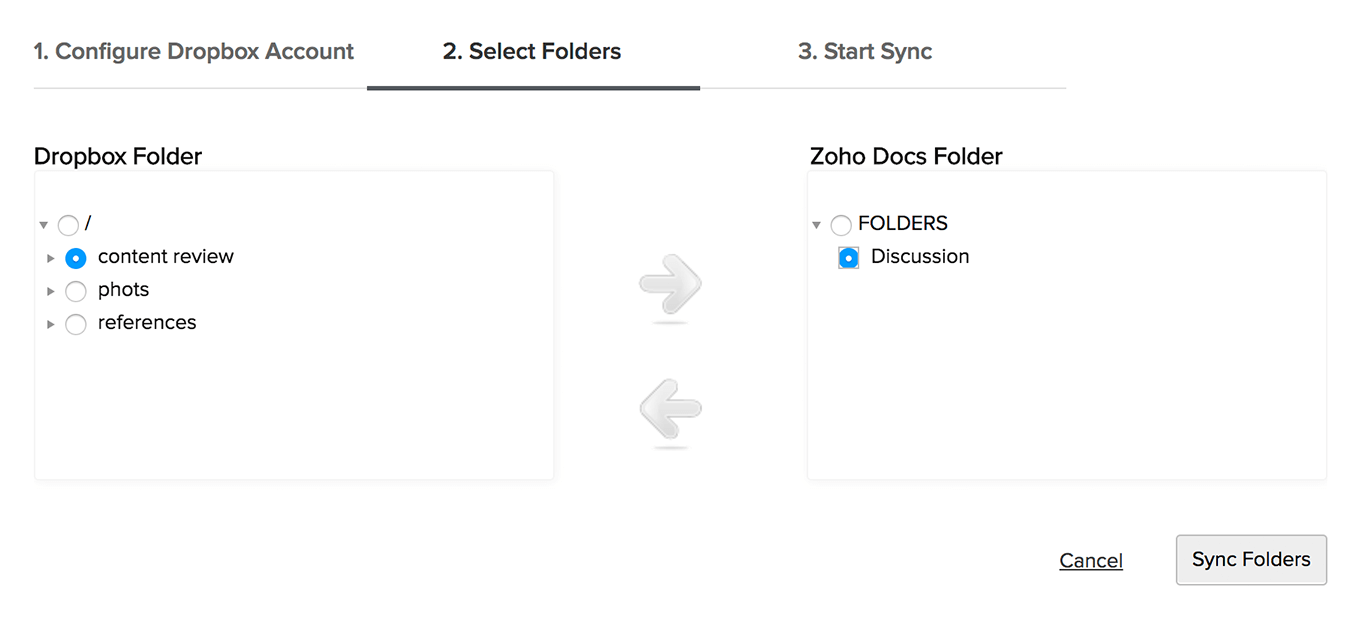
- Click Sync Folders.
- Click Start Sync to initiate the synchronization.
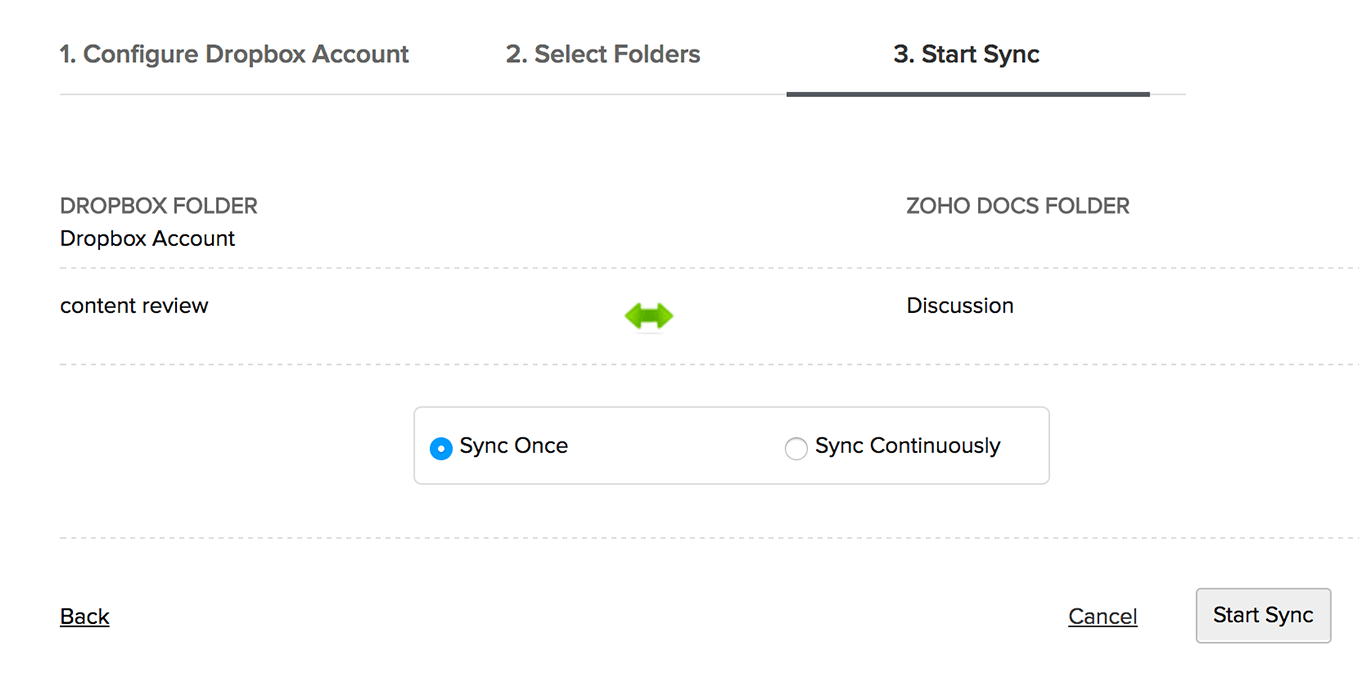
The sync process supported by Zoho are Sync Once and Sync Continuously.
- Sync Once - Files are synced from your Dropbox into Zoho Projects and vice versa only once.
- Sync Continuous - Files are synced from your Dropbox into Zoho Projects and vice versa as and when files are uploaded or updated in Zoho Projects and Dropbox.
The sync status is displayed in Dropbox Configuration view along with 4 different status buttons
- Sync Once - Single-headed arrow in Green indicates that you've set Sync Once for file updates.
- Sync Continuous - Double headed arrow in Green indicates that you've set Sync Continuously for file updates.
- Stop Sync - Blue color button when clicked stops the sync operation for this project.
- Delete Sync - Red color button when clicked deletes sync operation for this configuration.
Details about folders and file upload
- Select any number of subfolders from your Dropbox and map them to any particular folder in Zoho Projects.
- Only one-to-one mapping of folders is supported in Zoho. But you can map folder from the same Dropbox account.
- Supports mapping of folders between two different languages in Zoho.
- Latest updates get synced for every one-minute time interval between Zoho Projects and Dropbox and vice versa.
- File names are unique in Dropbox, so every update of the same file is maintained as next version of Dropbox.
- File names are not unique in Zoho Projects, so every version of Dropbox file is added as a new file in Zoho.
- Max file limit per upload is 125MB in Zoho Projects.
- Max file transfer limit is 125MB for instant upload and 300MB for scheduled upload i,e for Sync Once / Continuously.
Messages with explanations for Dropbox Integration
| Messages | Description |
| Sync schedule starts | The sync operation has started. |
| Dropbox Fetch Success | Your files from Dropbox are successfully copied into documents area. |
| Dropbox Push Success | Your files from Zoho Projects are successfully copied in Dropbox. |
| Dropbox Sync Success | Your files from Dropbox are properly synced in Zoho Projects. |
| Sync stopped | The sync operation is successfully completed. |
| Disk Space exceeded | Maximum allocated disk space reached for your portal. |
| Folder not found | The folder you specified is not present or must have been deleted. |
| Unauthorized to delete | You are not authorized to uninstall Dropbox configuration in Zoho Projects. |
| Path not found | Sorry, the specified folder path is not found. Please provide the correct path. |
| Too many entries | Your file size in the folder has crossed the maximum allocated file limit of 10000. |
| Unable to access file | Unable to access your file in Zoho Projects. |
| User Over Quota | You've crossed your maximum allocated space for this account. |
| File size more than allocated | Your file is too large to be uploaded in Zoho Projects. |
| Dropbox not reachable | Cannot access the Dropbox account specified by you. Please try again. |
| Account already exists | The account you are trying to configure has already been configured by another user. |
- You can configure a Dropbox account only once.
- You can view the Dropbox account configured only by you.
Zoho CRM Training Programs
Learn how to use the best tools for sales force automation and better customer engagement from Zoho's implementation specialists.
Zoho DataPrep Personalized Demo
If you'd like a personalized walk-through of our data preparation tool, please request a demo and we'll be happy to show you how to get the best out of Zoho DataPrep.
- Zoho Workerly Home
- Forums
- Connect With Us:


- Zoho Recruit Home
- Forums
- Connect With Us:
You are currently viewing the help pages of Qntrl’s earlier version. Click here to view our latest version—Qntrl 3.0's help articles.





Zoho Sheet Resources
Zoho Forms Resources
Zoho Sign Resources
Sign, Paperless!
Zoho TeamInbox Resources
Zoho DataPrep Resources
Design. Discuss. Deliver.
Related Articles
Integration
Do you support Office 365 integration? Yes, we do. You can import your Office 365 users to Zoho Projects at both project and portal levels. Learn More. Do you support CRM task integration? Yes, we do. You can add tasks in Zoho Projects and save it to ...Zoho WorkDrive Integration
Integrate Zoho WorkDrive with Zoho Projects to collaborate with your co-workers and manage files together in a secure space. Feature Availability: Latest user based Enterprise plan. Benefits: Create files and team folders using Zoho WorkDrive Invite ...Dropbox for Zoho Projects
The Dropbox extension for Zoho Projects helps you access files managed in your Dropbox account and associate them with the respective tasks of a project, all from within your Zoho Projects. You can also easily disassociate a file whenever it's no ...Bitbucket Integration
Having multiple lines of code and changing versions can be difficult to track. Commit codes in Bitbucket and view the changesets inside Zoho Projects. You can integrate Zoho BugTracker with Bitbucket using webhooks. You must be an Admin to integrate ...Github Integration
Github integration allows you to host your repositories, see source commits, and make code changes. And so, now you can view all the changes made in your Github repository in Zoho Projects. Feature Availability: Premium and Enterprise plans Copy ...