Understand list report
A list report enables you to present or view your records in the traditional list format. It organizes records in different layouts that make the data comprehensible. By default, the records are presented in a table grid as rows of information, placing the fields in the column header and the field values in the rows. If you require a different angle to the same data, changing the layout will translate the tabular arrangement into strips or cards of records. For instance, if you have a tourism application in place and you have a list of destinations that your user can view, a list report in a non-tabular layout provides a good visual aid. Each record can have an image of the destination, the name, highlights, cost of travel, and so on. A user can easily skim through to get a good amount of information.
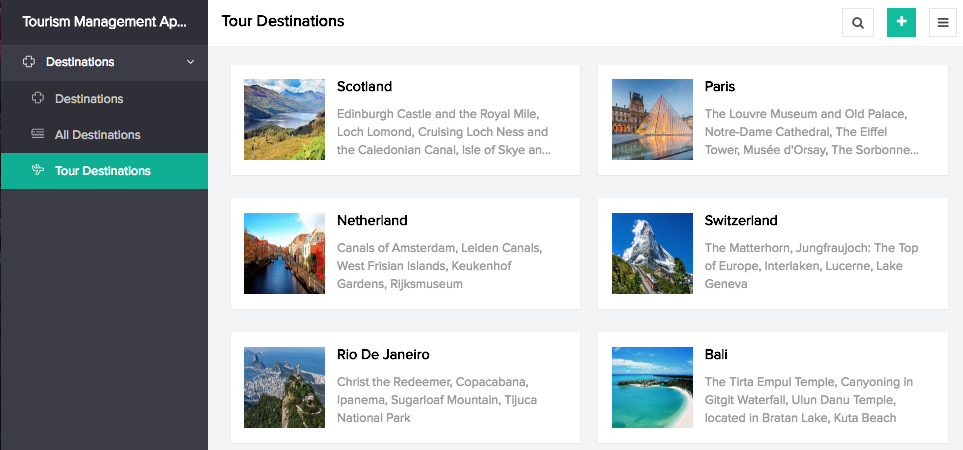
List report is often used when you want to see a number of records at one glance. It is a simple yet powerful tool that can display any number of data you want and in the required order. You can perform actions that could be applied to more than a single record. For instance, you have a documentation management application with the documents in different phases of review. If you have a many records that must be changed from Peer Review status to Technical Review, you can select all those records and edit the values in that field to Technical Review in one attempt.
Layouts
Your list report is presented in specific layouts based on how you require your records to be organized, providing you with the suitable results. Your records can be structured into sequences in a regular table kind of report or in a list of cards kind of presentation, thus allowing you to explore more than a tabular manner of arrangement.
Actions
Types of views
There are two views to records: Quick view and Detail view. Quick view is the high level view of the report in its entirety. It gives you all the records of the list report. Detail view is the descriptive view of a single record. The default layout provides the field names and the corresponding values of a particular record. In a different appearance, it can also provide information that is related to the selected record, incorporating blocks of records or data into it. This predefined view facilitates more information wrapped into a single record.
List report equips you with searching, filtering, grouping, and sorting capabilities.
- Search enables you to search for specific data within the report
- Filter feature, which is a predefined option, enables you to narrow down to particular records based on field values that belong in choice or date field types. There is another Custom Filter, which again is predefined but not based on choice fields values. It has predefined criteria that serve as filters. Those records that match the chosen criteria (custom filter) alone will be filtered and displayed.
- Group feature enables you to categorize your records based on stipulated fields.
- Sort feature enables you to sort the records in ascending or descending order based on the required field.
Related Topics
Zoho CRM Training Programs
Learn how to use the best tools for sales force automation and better customer engagement from Zoho's implementation specialists.
Zoho DataPrep Personalized Demo
If you'd like a personalized walk-through of our data preparation tool, please request a demo and we'll be happy to show you how to get the best out of Zoho DataPrep.
- Zoho Workerly Home
- Forums
- Connect With Us:


- Zoho Recruit Home
- Forums
- Connect With Us:
You are currently viewing the help pages of Qntrl’s earlier version. Click here to view our latest version—Qntrl 3.0's help articles.





Zoho Sheet Resources
Zoho Forms Resources
Zoho Sign Resources
Sign, Paperless!
Zoho TeamInbox Resources
Zoho DataPrep Resources
Design. Discuss. Deliver.
Related Articles
Understand reports
Note: To optimize efficiency and security, support for XLS format has been deprecated, and instead, the XLSX format will be supported with effect from 21-March-2024. We insist you to replace any instance of .xls to .xlsx across Deluge scripts in your ...Understand quick view layouts for list report
A layout is the structure that you assign to a report. It decides what part of the content goes where. It makes your application visually organized and comprehensible. The reports in Zoho Creator can be set in suitable layouts that best provides you ...Understand detail view layouts for list report
A layout is the structure that you assign to a report. It decides what part of the content goes where. It makes your application visually organized and comprehensible. The reports in Zoho Creator can be set in suitable layouts that best provides you ...Create a list report
To create a list report: Navigate to the Design page. Click Create icon (+) at the top of the Design page. Click Report. Select the List report type. Select the form the report will be based on. Name your report. Click Create Report button. The ...Understand common actions in list report
There are some common actions that are available in the report without having to predefine them. These actions are available in default position. They are often required because of which they mandatorily appear in the report. The following are the ...