


Pay Groups

Pay Groups help you process payroll separately for specific employees within the same pay schedule, based on their work location, department, employee type, or reporting tag.
Instead of processing payroll for all employees in a single regular pay run, you can group employees using one of these criteria and create separate pay runs for each group. This is useful when payroll inputs for all employees are not ready at the same time.
For example, one group of employees may be ready for payroll by the 25th, while another group may need to be processed later in the same month after attendance, LOP, or other payroll inputs are finalized.
Note: This feature is only available in early access. Reach out to support@zohopayroll.com and we’ll enable it for you.
Scenario: Zylker has employees in Chennai, Bengaluru, and Delhi. Payroll inputs for Chennai and Bengaluru are ready by the 25th. Inputs for Delhi, such as LOP, and attendance adjustments, are finalized only at month-end. To avoid delaying payroll for all employees, Zylker creates two Pay Groups based on Work Location:
- South Zone Payroll for Chennai and Bengaluru
- North Zone Payroll for Delhi
Zylker then creates separate pay runs for each Pay Group and processes them on different dates.
Similarly, you can use pay groups when:
- payroll inputs for all employees are not ready at the same time
- one work location is ready for payroll earlier than another
- one department’s payroll inputs are finalized later than others
- different employee types need to be processed separately
- employees under different reporting tags need separate payroll processing
Create a Pay Group
You create a Pay Group when you want to process payroll for a defined set of employees separately within the same pay schedule.
Note: If a pay run for the month is already in progress, you cannot create a new Pay Group until that pay run is completed.
To create a Pay Group:
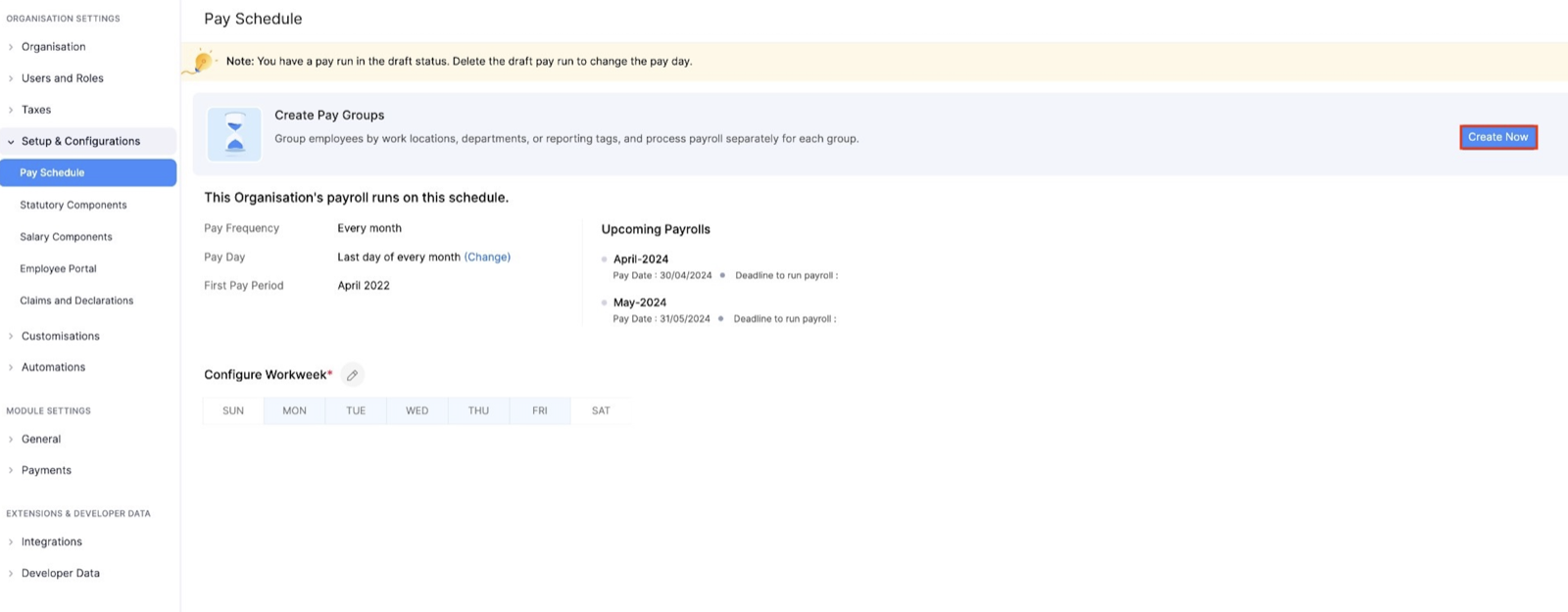
- Go to Settings and select Pay Schedule under Setup and Configurations.
- Click Create Pay Group if you’re using this feature for the first time.
- Select how you want to group your employees for payroll processing.
| Grouping criterion | When to choose this |
|---|---|
| Work Location | Choose this when employees in different work locations need to be processed separately. |
| Department | Choose this when employees in different departments need to be processed separately. |
| Employee Type | Choose this when different employee categories need separate payroll processing. |
| Reporting Tag | Choose this when employees need to be processed separately based on a reporting tag, such as business unit, division, or another configured reporting tag. |
Now that you’ve chosen to group employees based on the selected criterion, you need to associate the options of a criterion to a pay group.
For example:
- if you choose Work Location, select a pay group and map one or more work locations to it
- if you choose Reporting Tag, select a pay group and map the required reporting tag options to it.
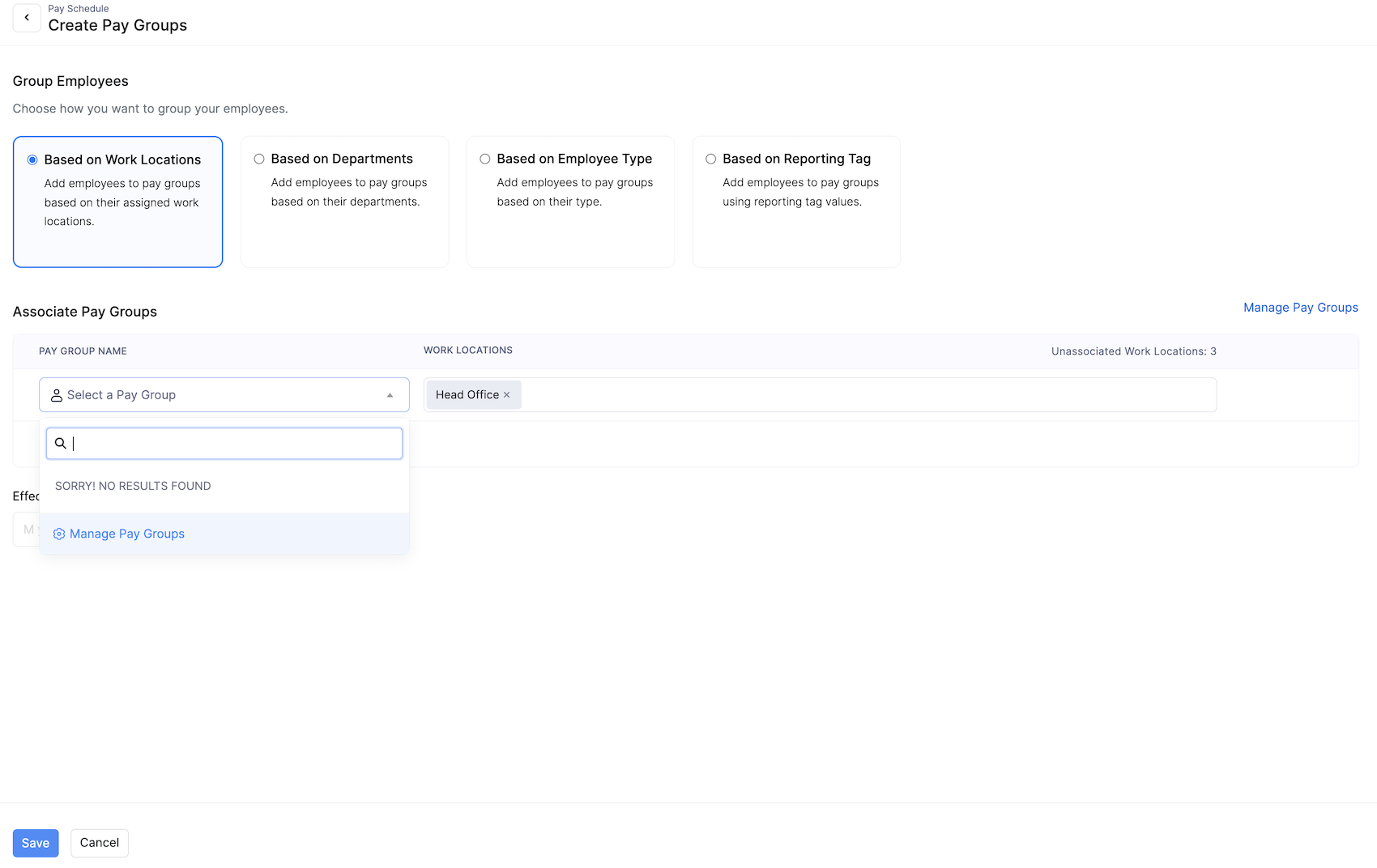
You can click + Add to add multiple rows to associate different values with different pay groups.
When you click the Pay Group field, the dropdown shows the available pay groups. If no matching pay group is available, you can click Manage Pay Groups from:
- the top-right corner of the Associate Pay Groups section, or
- the + Create New Pay Group option shown inside the dropdown
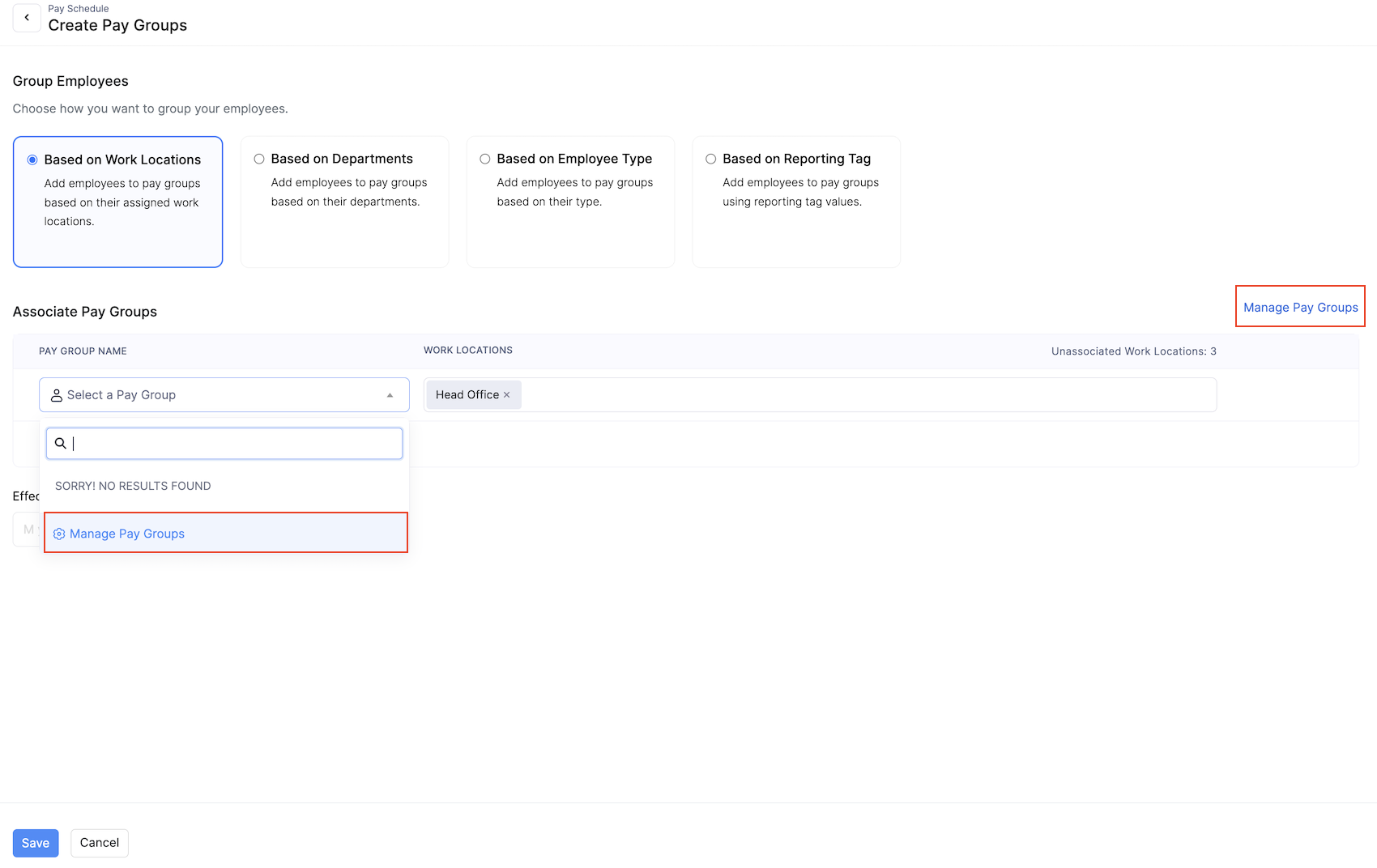
You can use the latter option to create a new pay group without leaving the setup.
- Next, select the Effective Month from which a new pay group setup should take effect.
- Click Save.
You can now process pay runs separately for these pay groups.
Note: Once you save these details, you will be able to process pay runs based on these pay groups.
Create a Pay Run for a Pay Group
Once you create a Pay Group, you can use it to create a pay run.
To create a pay run:
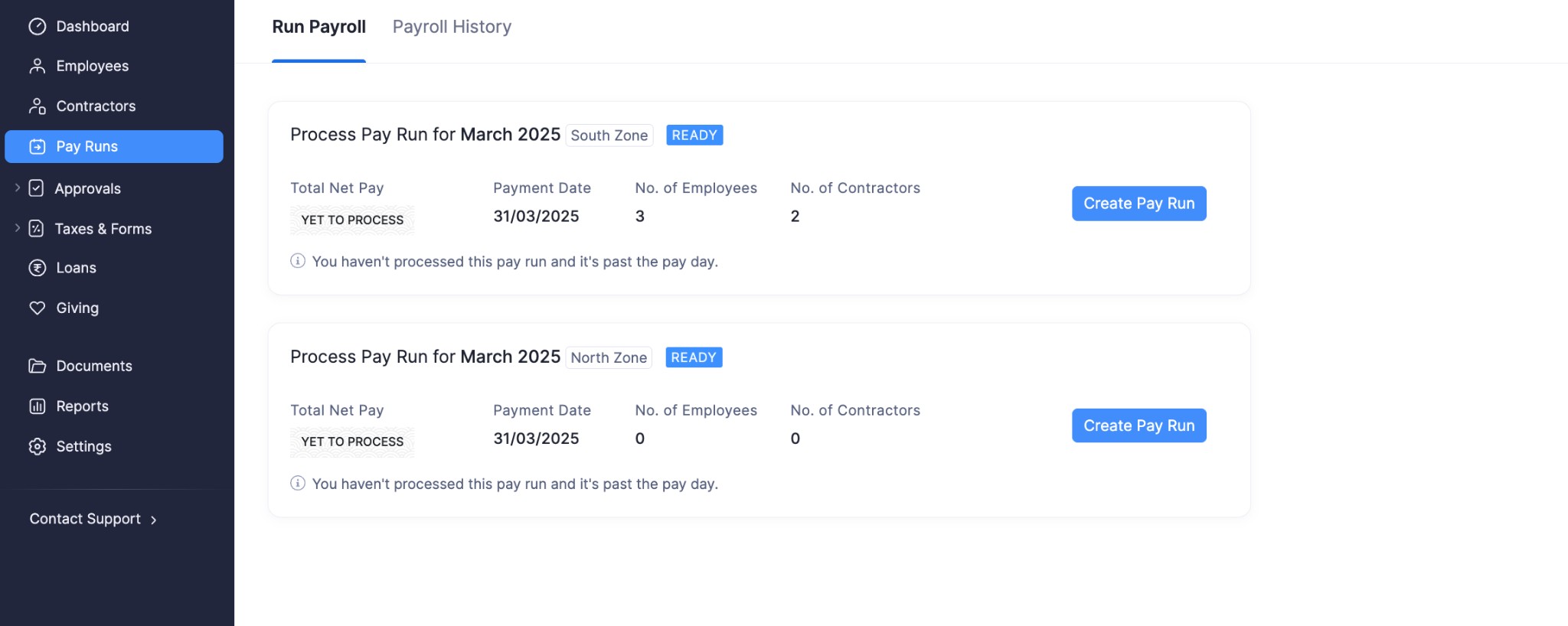
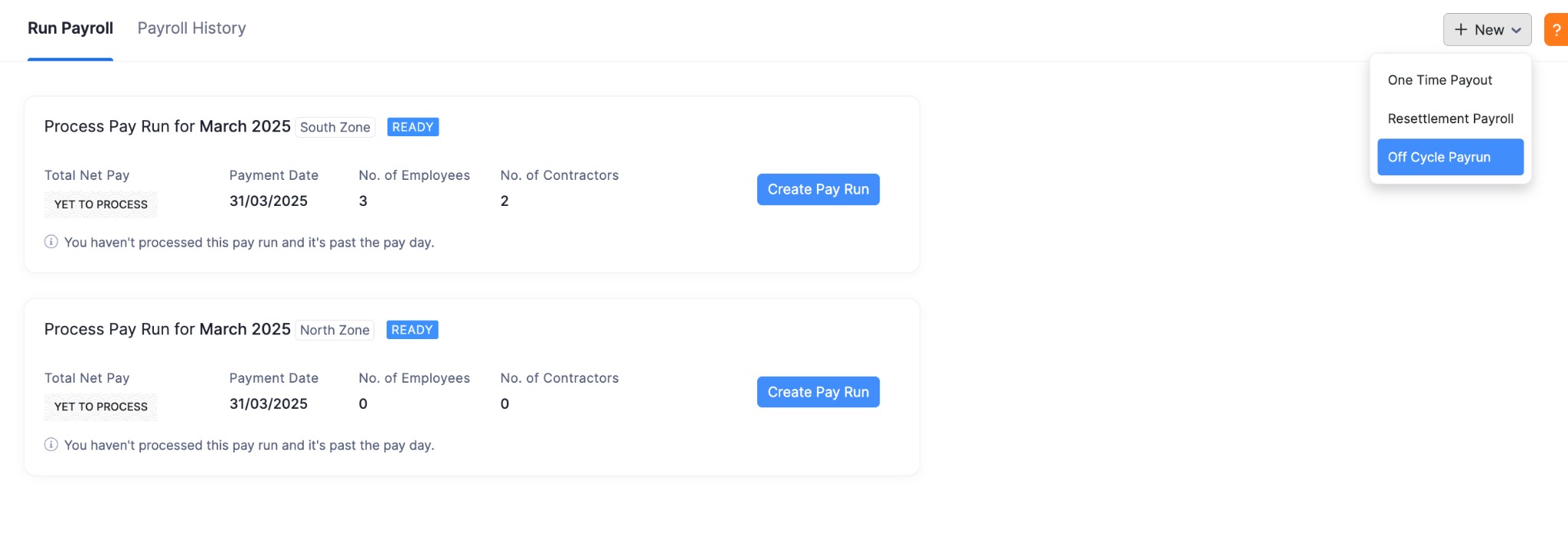
- Go to Pay Runs on the left sidebar.
You will see that regular pay runs are already created separately for each pay group.
If you want to create a one-time payout / resettlement / off cycle pay run:
- Click + New in the top right corner.
- Select a pay run.
- Select the Pay Group for which you want to process the pay run.
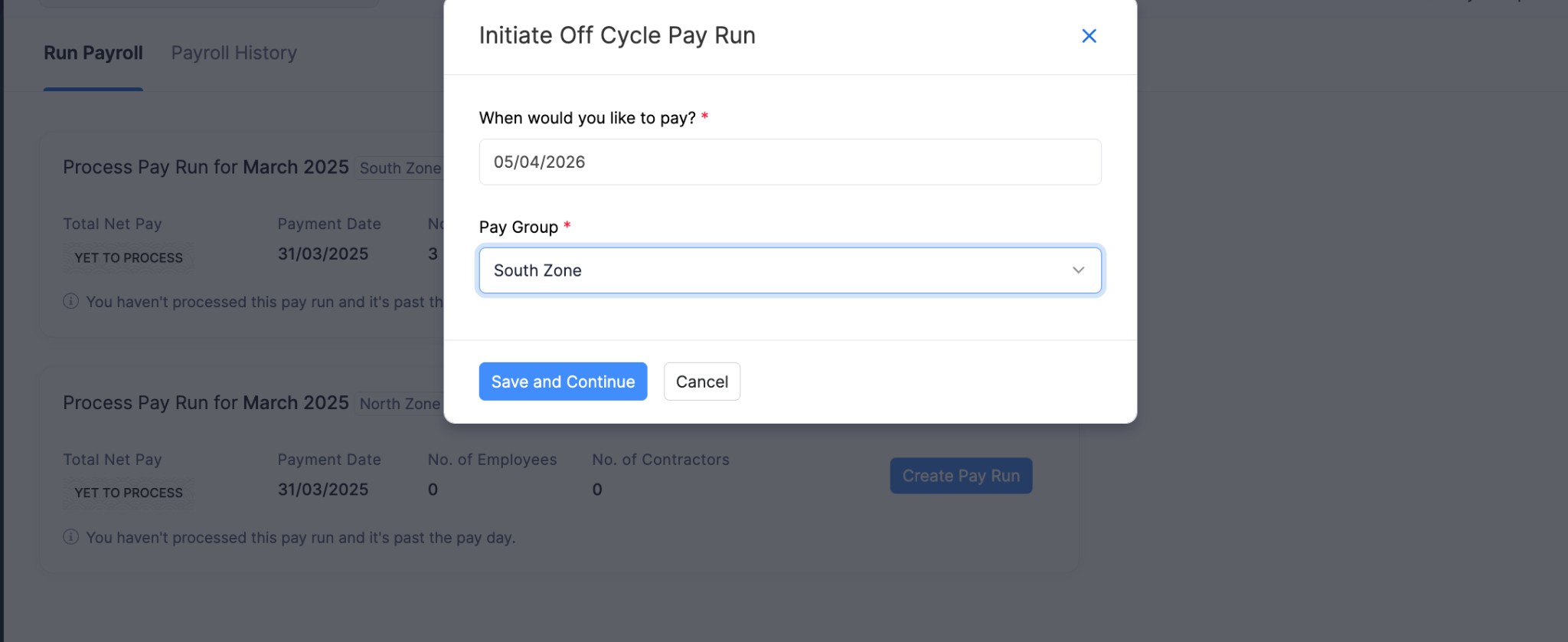
- Review the employees included in the pay run.
- Continue processing payroll.
Only the employees in the selected Pay Group will be included in that pay run.
Revise a Pay Group
You revise a Pay Group setup when you want to change how employees are grouped for payroll processing within the same pay schedule.
Note: If a pay run for the selected effective month is already in progress, you cannot revise the Pay Group setup for that month. You can choose a later effective month instead.
To revise a Pay Group:
- Go to Settings and select Pay Schedule under Setup and Configurations.
- Click the Edit icon next to Pay Groups.
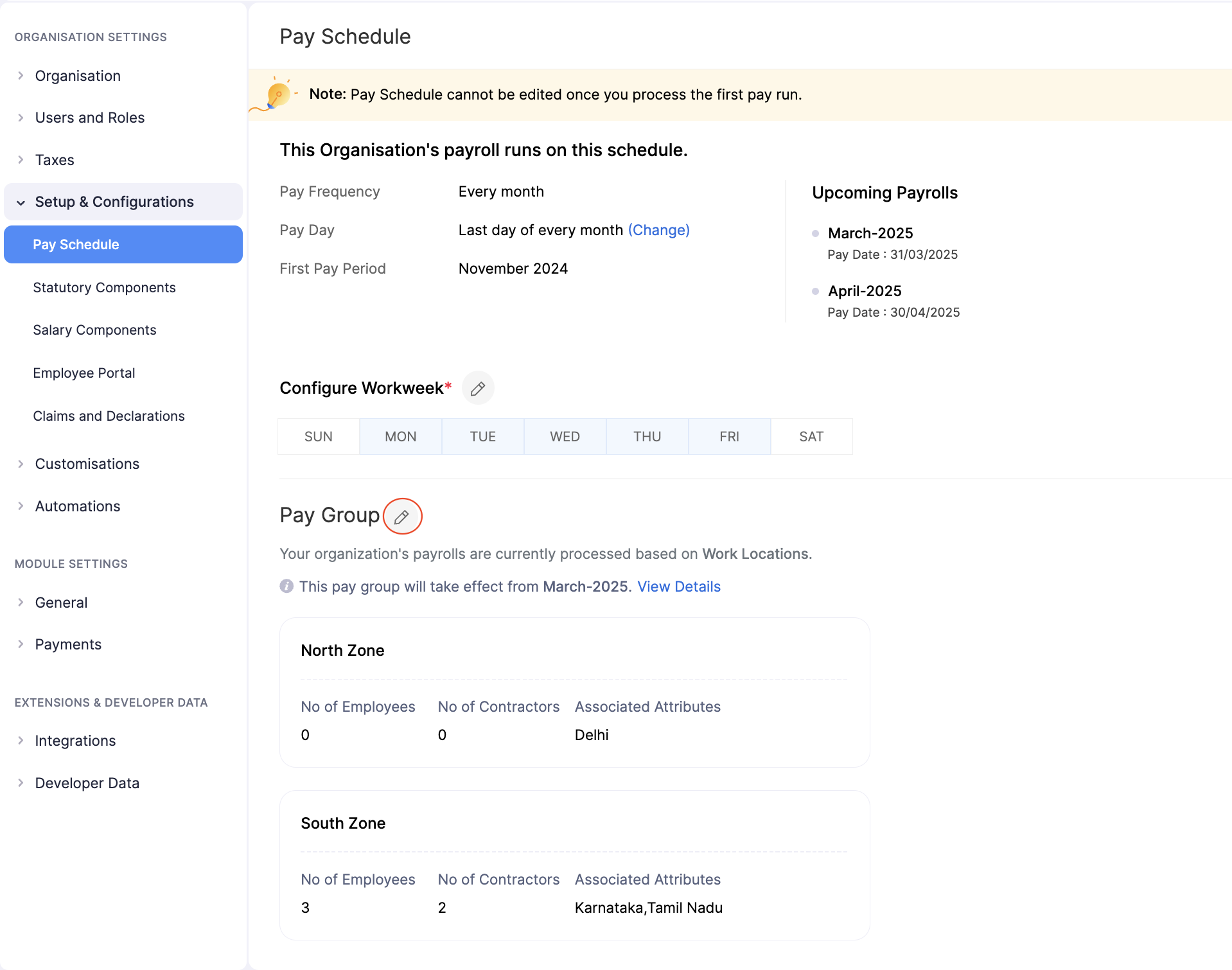
- Make the necessary changes, manage pay groups if needed, and click Save.
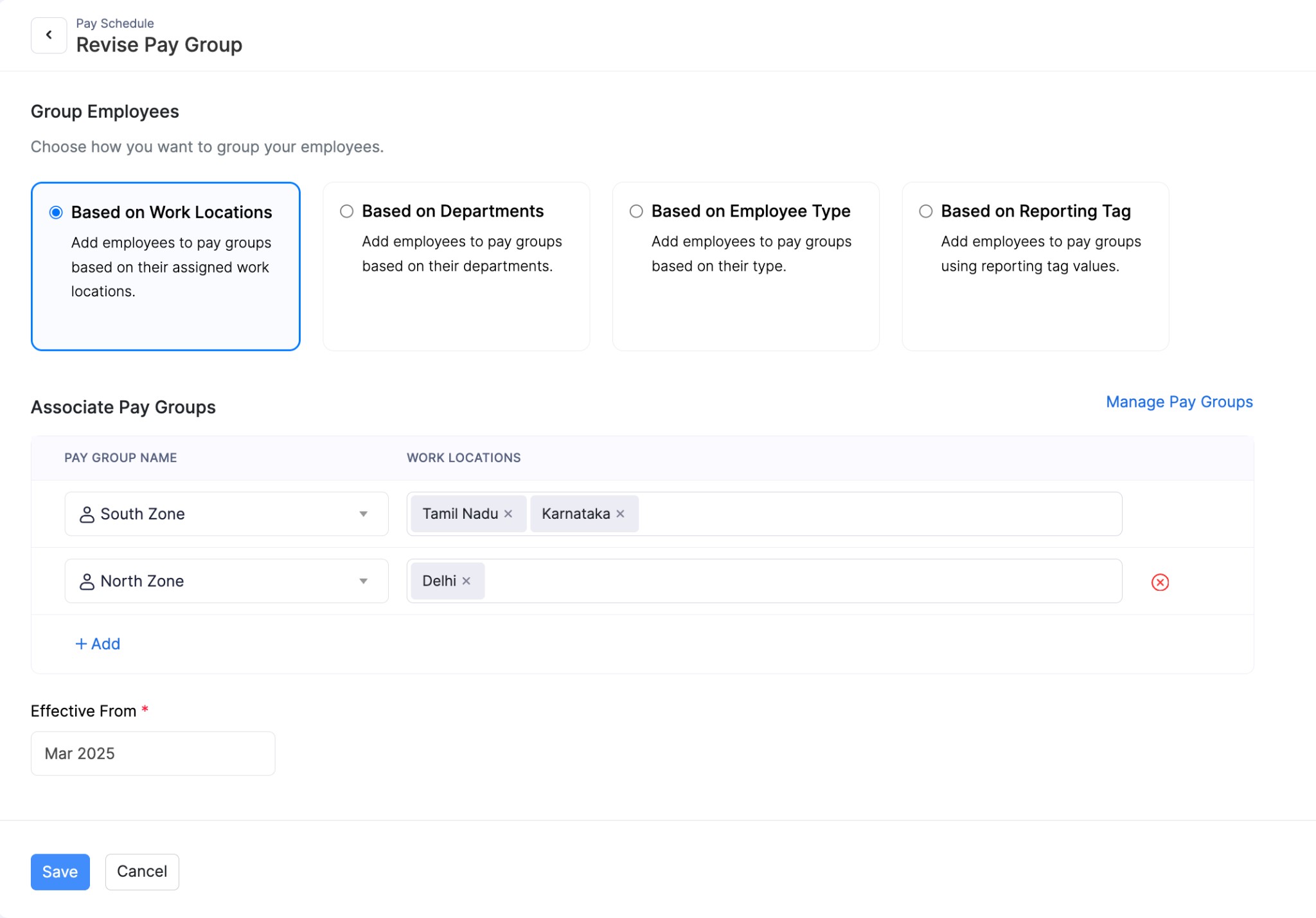
Your Pay Group setup is now revised, and the updated grouping will be used for payroll processing from the selected effective month.
Edit a Pay Group
You edit a Pay Group when you want to update its name without changing the way employees are grouped for payroll processing.
Editing a Pay Group only updates the Pay Group name.
Note: Editing a Pay Group only changes its name. If you want to change how employees are grouped or when the grouping should apply, revise the Pay Group setup instead.
It does not change:
- the grouping criterion
- the values associated with the Pay Group
- the effective month
- the payroll grouping setup
To edit a Pay Group:
- Go to Settings and select Pay Schedule under Setup and Configurations.
- Click the Edit icon next to Pay Groups.
- Click Manage Pay Groups.
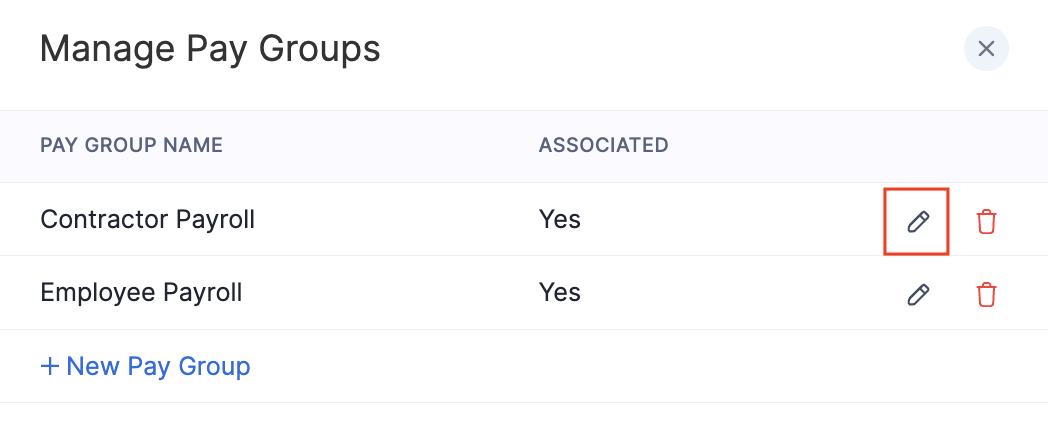
- Find the pay group you want to edit.
- Click the Edit icon next to the pay group.
- Update the Pay Group name.
- Click Save.
The Pay Group name will be updated wherever it is used in the setup.
Delete a Pay Group
You delete a Pay Group when it is no longer needed and has not been used in payroll processing.
You can delete a Pay Group only if:
- it is not associated with the current Pay Group setup, and
- it has not been used in any past or current pay run
This restriction helps preserve payroll history and prevents issues with previously processed payroll data.
To delete a Pay Group:
- Go to Settings and select Pay Schedule under Setup and Configurations.
- Click the Edit icon next to Pay Groups.
- Click Manage Pay Groups.
- Find the pay group you want to delete.
- Click the Delete icon next to the pay group.
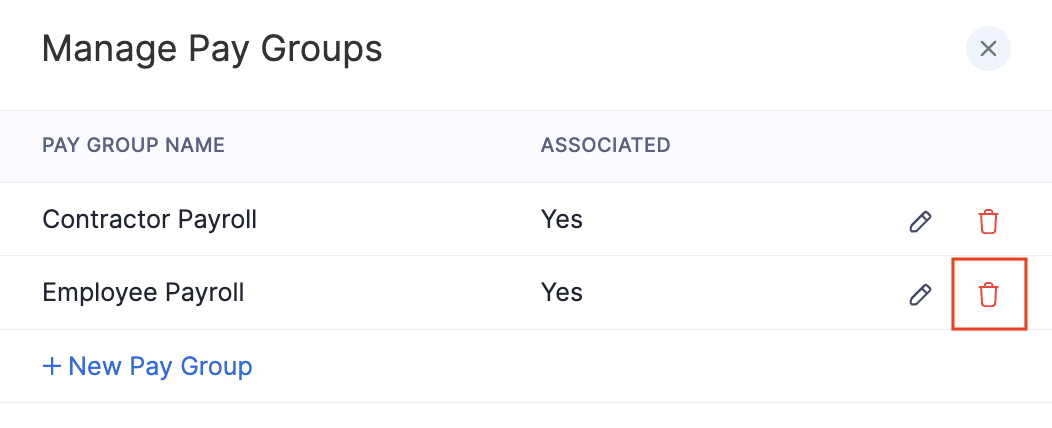
Keep the following in mind when deleting a pay group:
Note: If the pay group is associated with the current setup or has already been used in payroll, you will not be able to delete it.