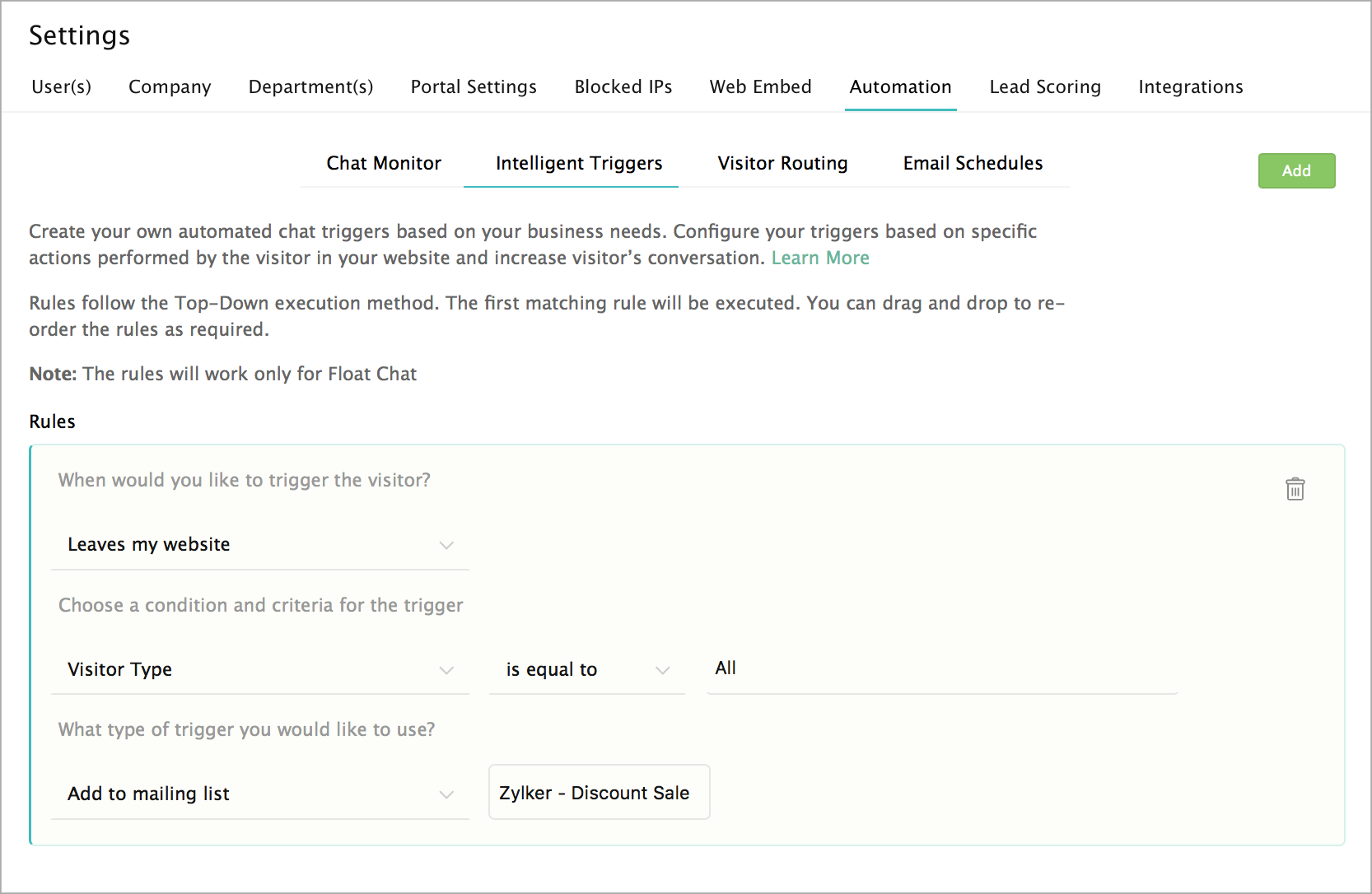
How to automate the process of adding the leaving website visitors to the email campaign list?
With the "Add to mailing list" option, you can add the visitors directly to the campaign email list when they leave your website.
- In Settings -> Automation -> Intelligent Triggers ->When the Visitor drop-down, select the "Leaves the Website" option. Then, set a condition and criteria.
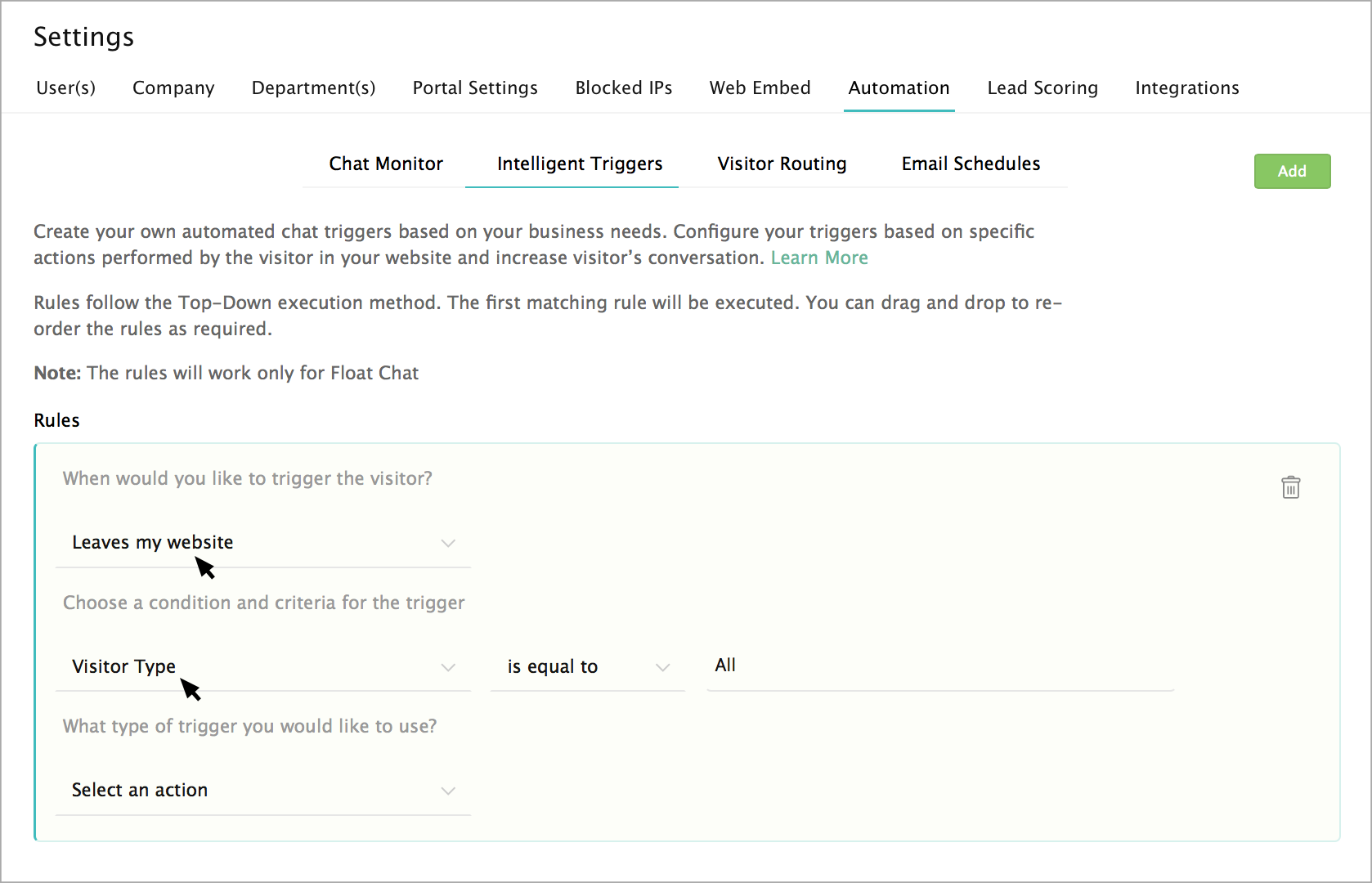
- Choose the “Add to mailing list” option in the select an action drop-down.
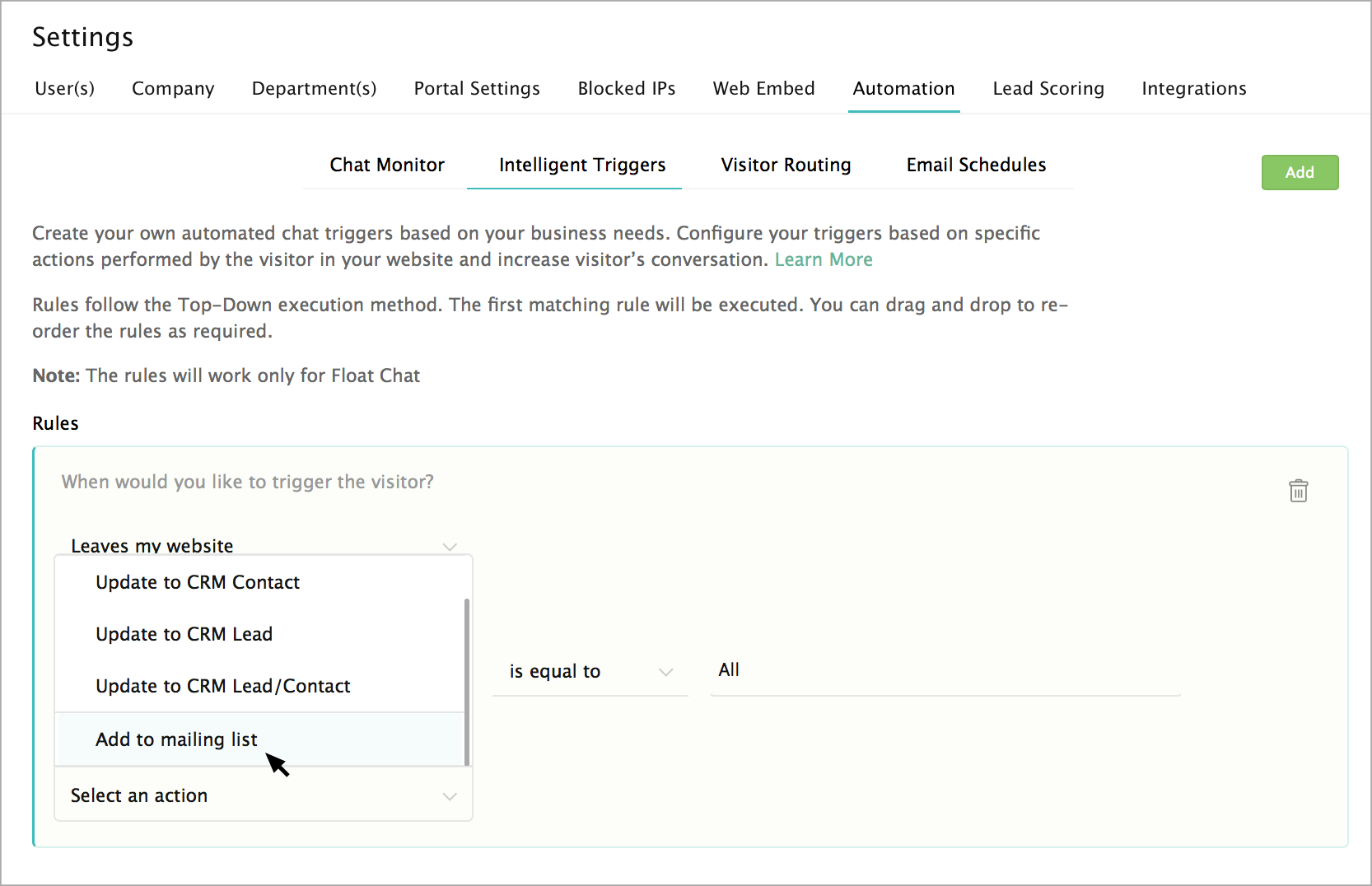
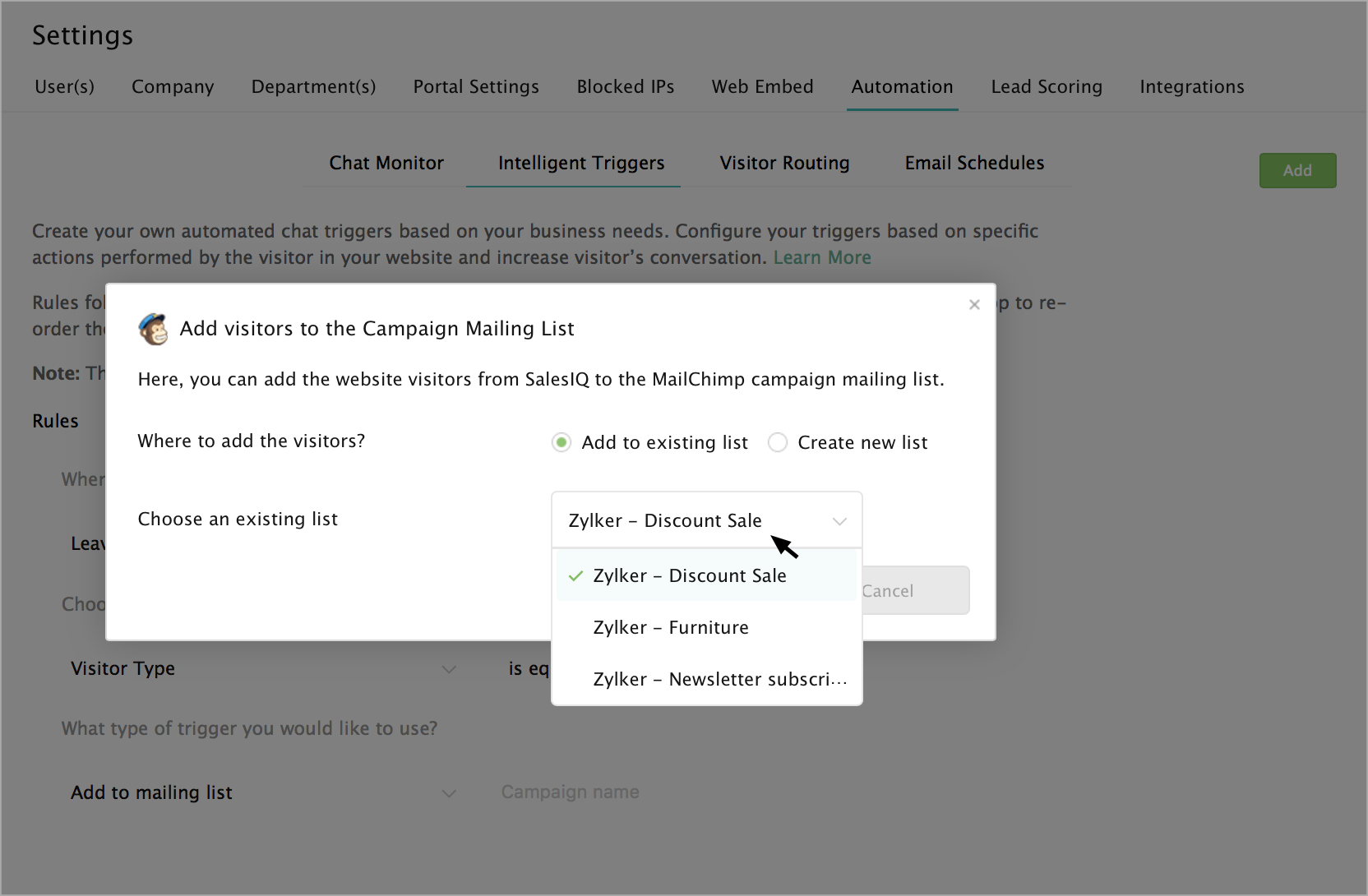
- The "Add visitors to the campaign mailing list" window will appear, which has two options:
- Add to the existing list
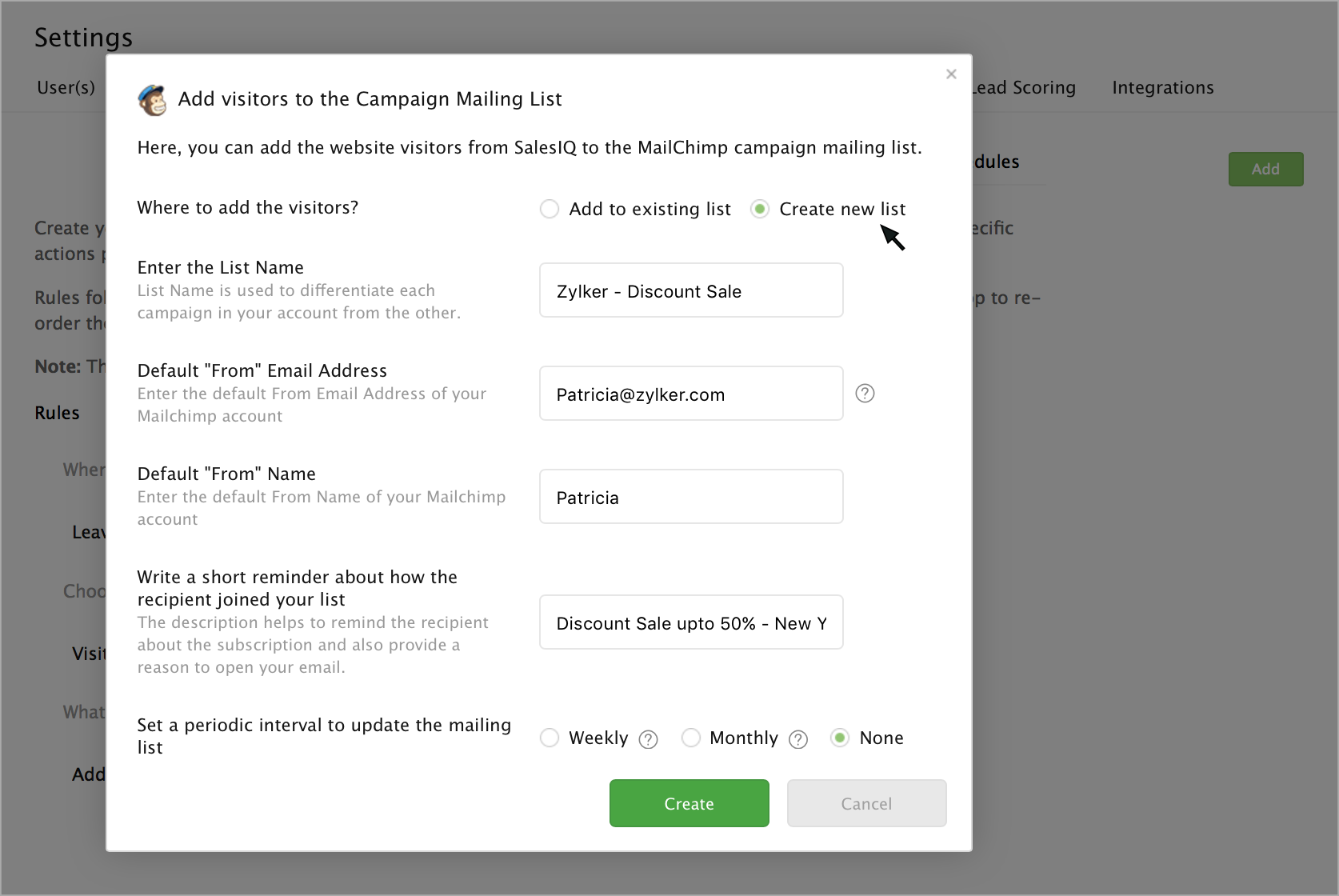
- Create a new list
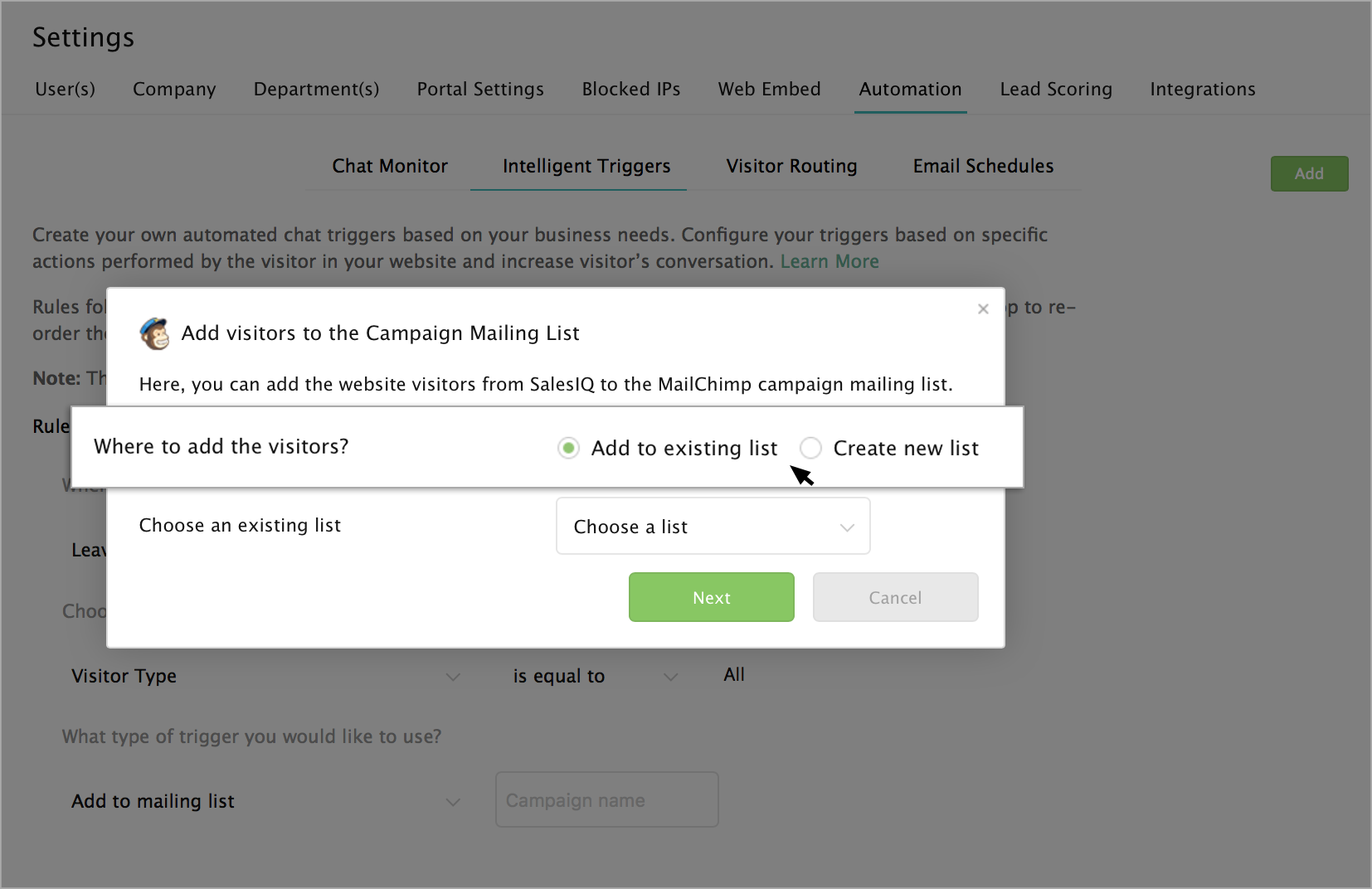
- Choose the "Add to existing list" option to view the list of campaigns available. You can select existing campaign from the "In which existing campaign you would like to add the visitors" drop-down.
- Choose the "Create a new list" option to generate a new list, and then enter a name for the new mailing list in the "Enter the list name" text box.
- In the "Default From Email Address" and "Default Name," enter the default email address and Name of your MailChimp Campaigns account.
- Then, provide a description you would like to remember about the recipient who joins this list.
- If you wish to accumulate and update the visitors at a periodic interval, choose between weekly and monthly. By default, "None" option is selected.
- Click on the Save button.
- If the condition and criteria of the visitor match then the visitor will be added to the email campaign list when they leave your website.