ZeptoMail integration in Zoho Mail Admin Console
Zoho Mail Admin Console supports integration with Zoho ZeptoMail, a dedicated transactional email service. This allows organizations to send transactional emails directly from their domain. ZeptoMail ensures faster delivery and higher inbox placement by maintaining IP addresses that are used exclusively for transactional email.
ZeptoMail supports transactional emails only and does not allow bulk or marketing emails. If you are looking to send bulk or promotional emails, visit Zoho Campaigns.
What is a Transactional Email?
Transactional emails are automated emails triggered by a specific action a user takes on your website or application. For example, when a user requests a password reset, signs up for an account, or completes a purchase, an automated email is sent in response. Since the recipient is actively waiting for these emails, speed and reliable inbox placement are critical.
Transactional emails are different from the other two common types of organizational email:
- Business email refers to day-to-day professional communication between individuals, such as conversations with colleagues, clients, or vendors. Zoho Mail is designed for this purpose.
- Marketing email refers to bulk emails sent to a large group of recipients at once, such as newsletters, promotional offers, or campaign announcements. These are not triggered by user actions and are typically scheduled by a marketing team. Zoho Campaigns is designed for this purpose.
Note:
Transactional Emails integration is available only for organizations that use one of our paid plans in Mail and Workplace.
How to configure Transactional Emails in Zoho Mail
Zoho Mail allows you to configure transactional emails at different stages of your setup, depending on your organization's needs. You can enable transactional email during the initial Zoho Mail hosting setup, giving you the advantage of configuring both business email and transactional email at the same time.
Transactional Emails can be configured based on the following scenarios:
- Configure Transactional Email during Zoho Mail hosting setup
- Configure Transactional Email after Zoho Mail onboarding
- Link an existing Transactional Email organization
Steps to configure Transactional Emails during Zoho Mail hosting setup
During the initial Zoho Mail hosting setup, you can enable transactional email for your organization as part of the same workflow. This allows you to configure both your business email and transactional email in one step, without having to set it up separately after onboarding.
- Visit the Zoho Mail homepage, fill in the required details, and click SIGN UP to create your account.
- Choose the appropriate plan for your organization from the hosting page and click Buy Now to continue with the domain setup.
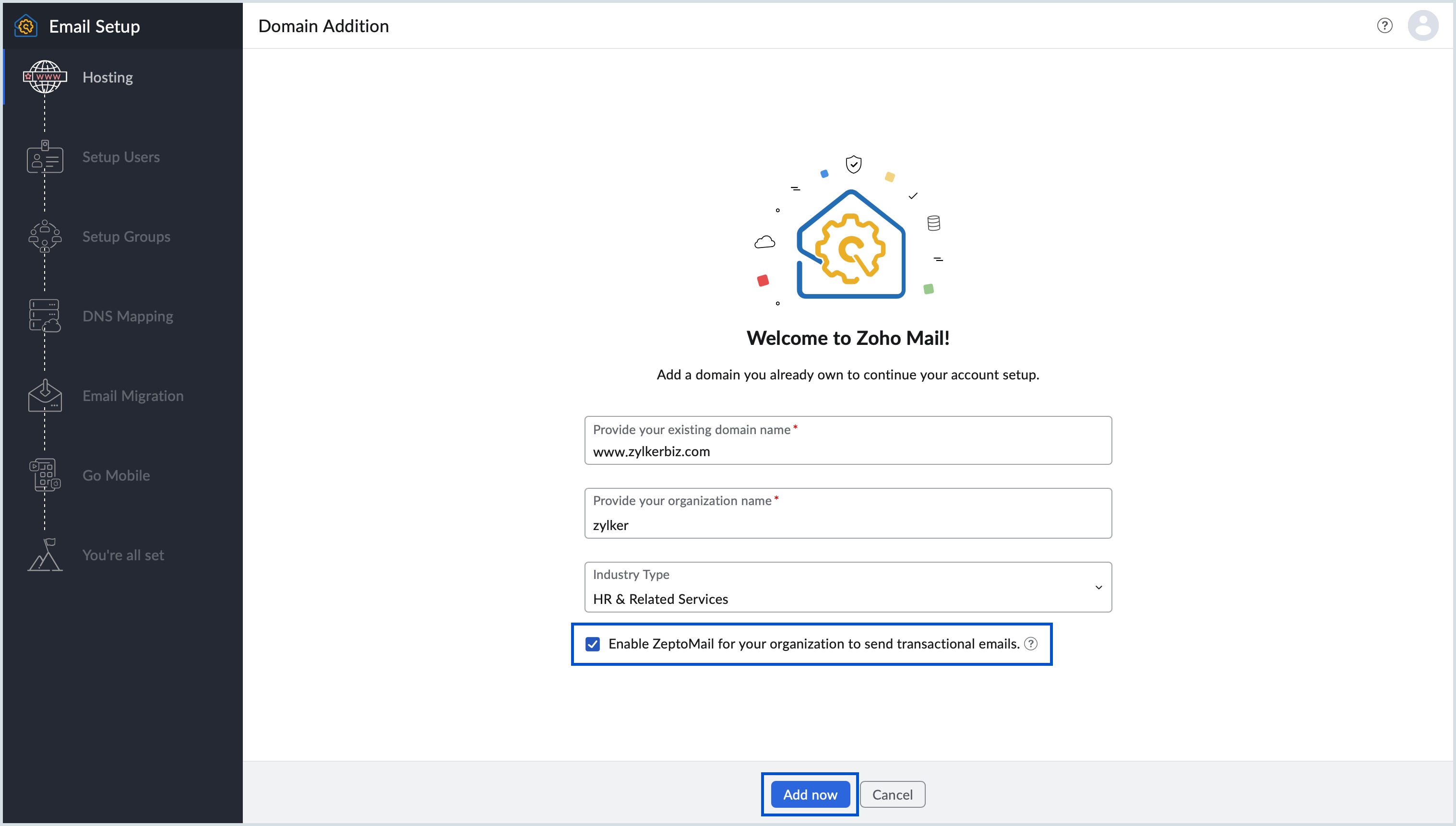
- Select Add now and provide your existing domain name, organization name, and industry type in the corresponding fields to add your existing domain for email set up.
- Select the checkbox Enable ZeptoMail for your organization to send transactional emails. to allow your organization to send transactional emails.
- Click Add now.
- You will be redirected to the payments page. Fill in the required details and complete the payment.
- Once the payment is successful, the next step is to verify your domain ownership. Follow the steps to complete your domain verification.
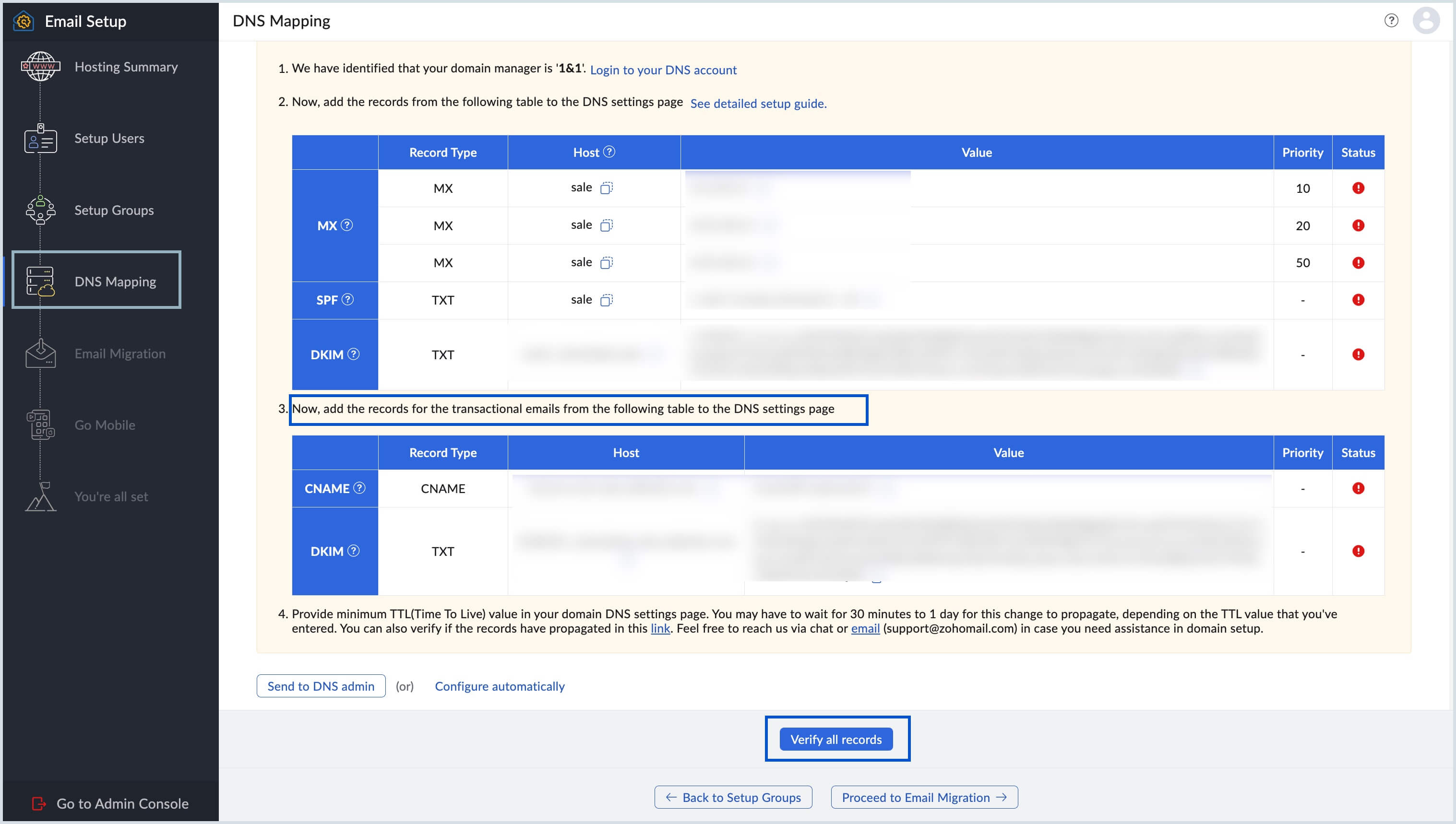
- In the DNS Mapping section of Email Setup, DNS records (CNAME and DKIM) of the Transactional Emails will be listed. Verify these records to complete the domain verification for Transactional Emails. This is done in addition to verifying the DNS records (MX, SPF, and DKIM) for your Zoho Mail domain.
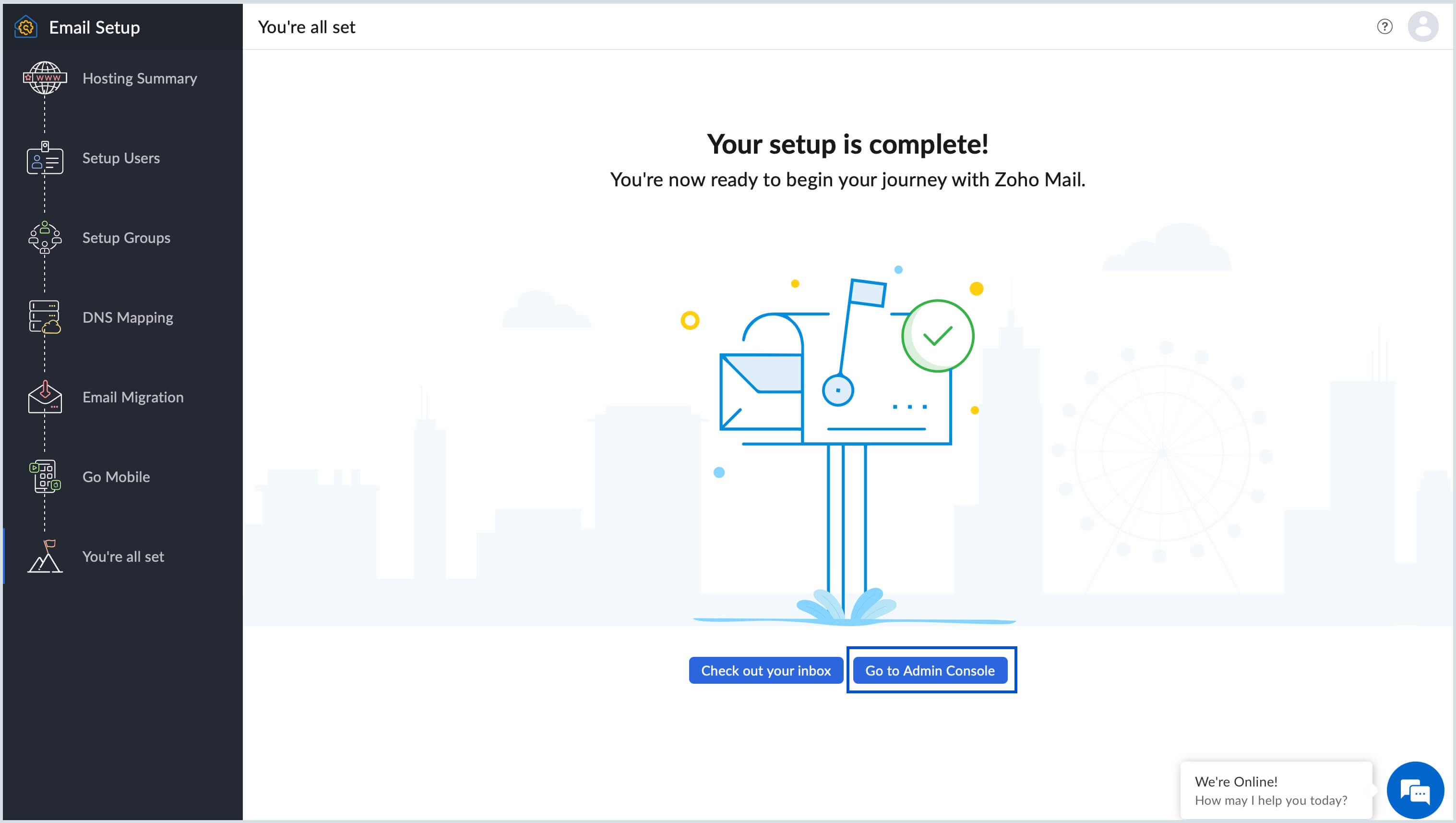
- After completing all the steps mentioned in email hosting set up, select Go to Admin Console to navigate to the Zoho Mail Admin Console page.
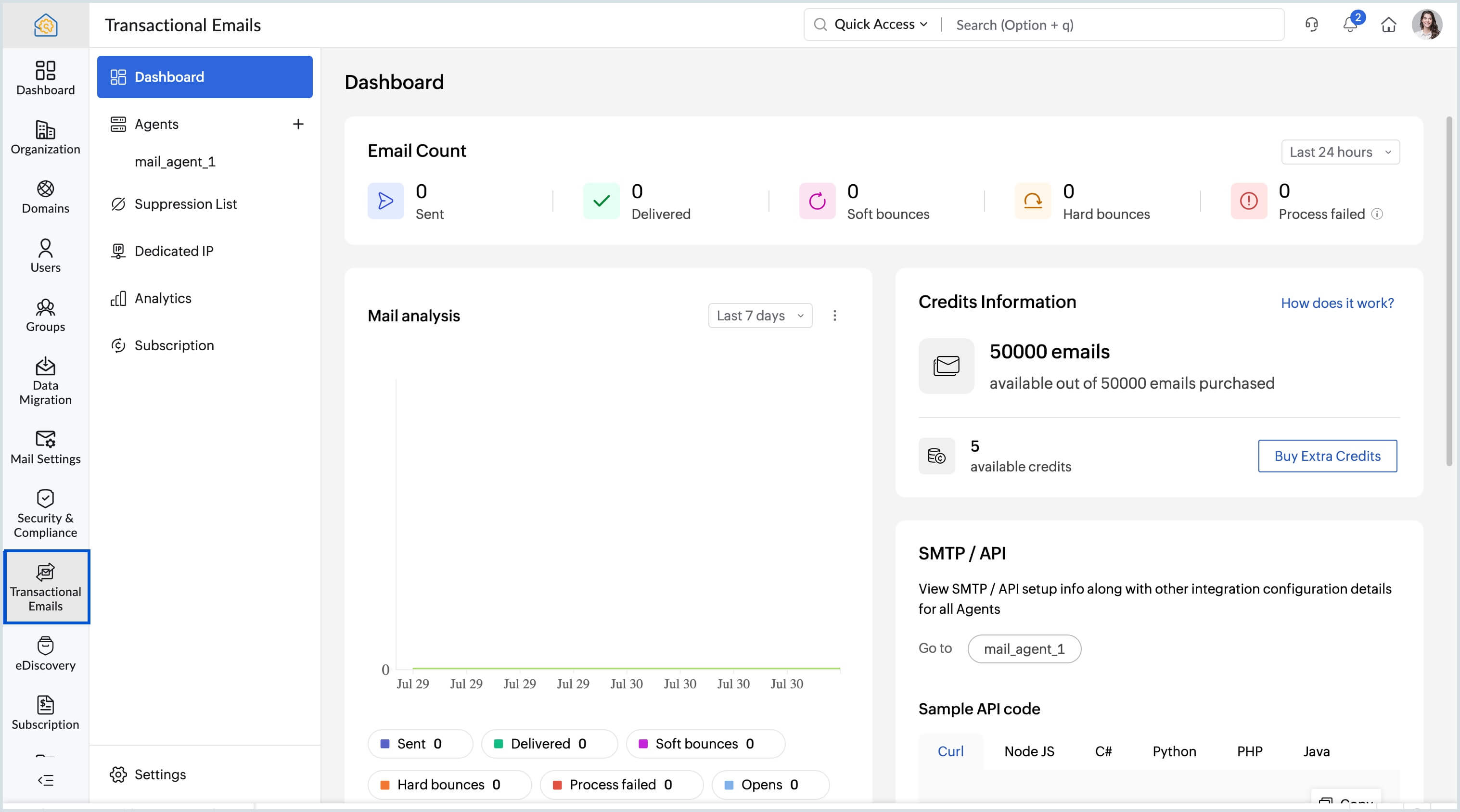
- Navigate to Transactional Emails on the left pane to access your ZeptoMail console.
Steps to configure Transactional Emails after Zoho Mail onboarding
If you skipped enabling Transactional Emails during the initial Zoho Mail hosting setup, you can still configure it from the Admin Console after onboarding is complete. This allows you to set up Transactional Emails independently, without having to redo your hosting configuration.
Follow the steps below to configure Transactional Emails from Zoho Mail Admin Console:
- Login to Zoho Mail Admin Console.
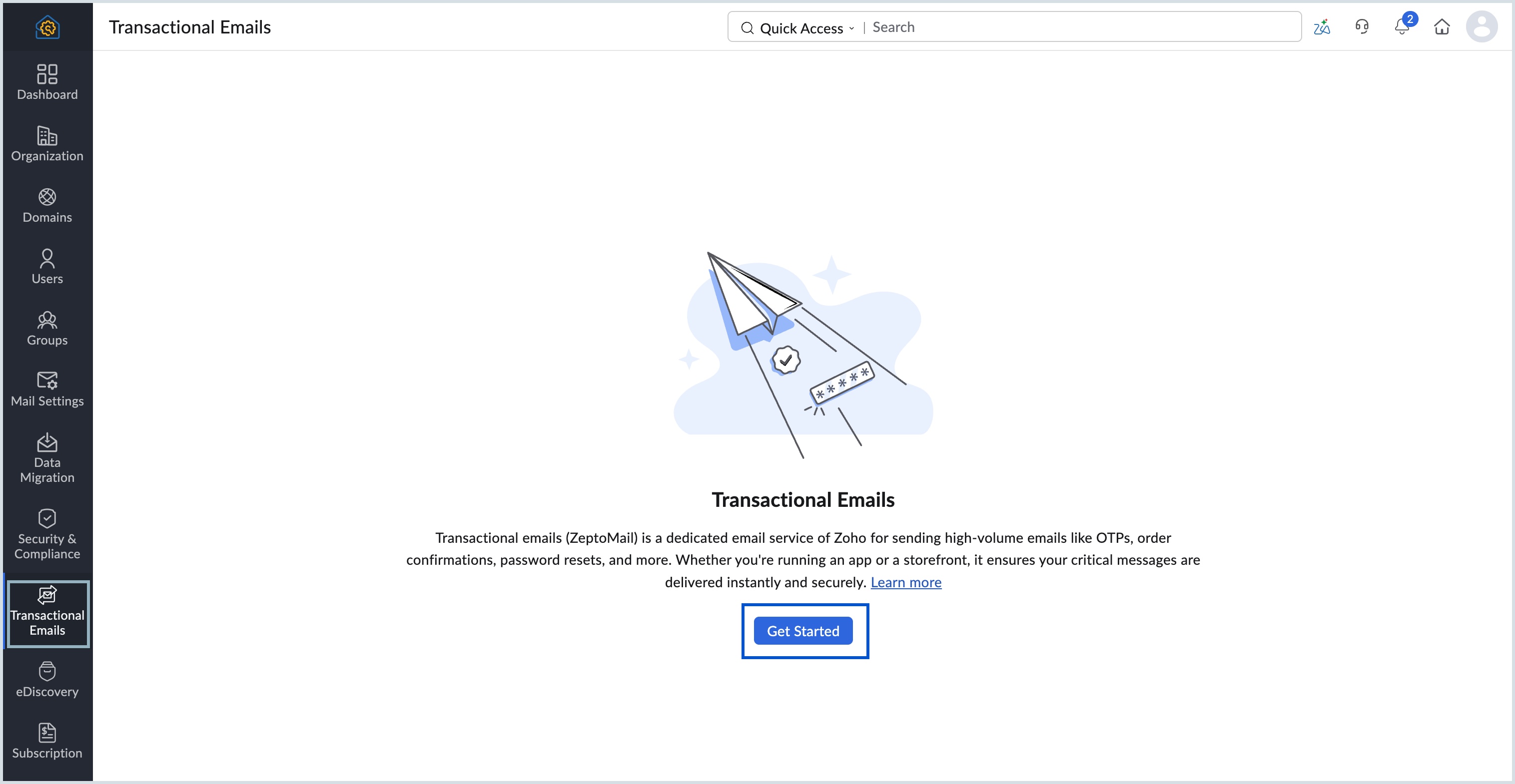
- Navigate to Transactional Emails on the left pane.
- Select Get Started to continue configuring your ZeptoMail account.
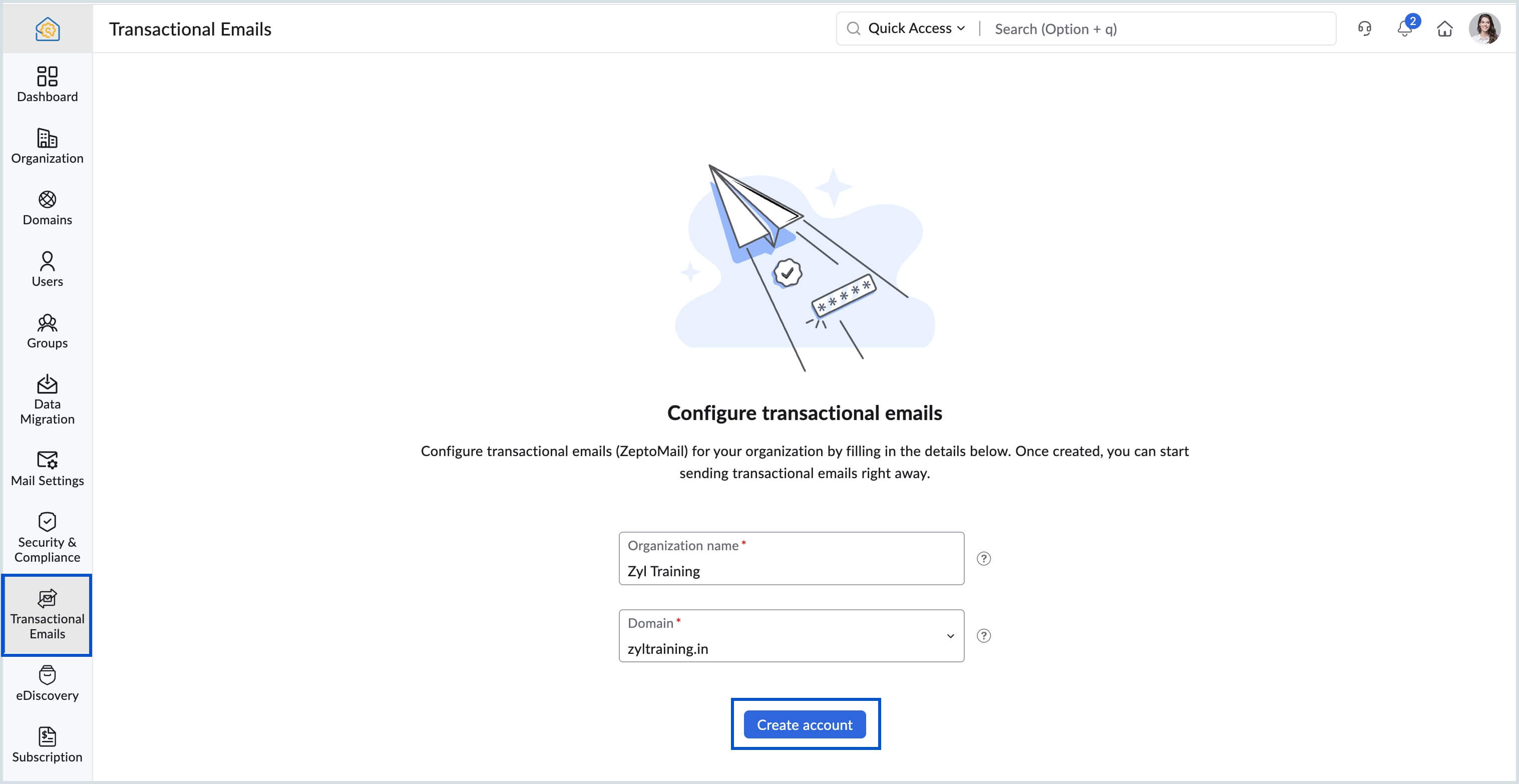
- Enter your Organization name and select your available Domain name in the Configure transactional emails page and click Create account.
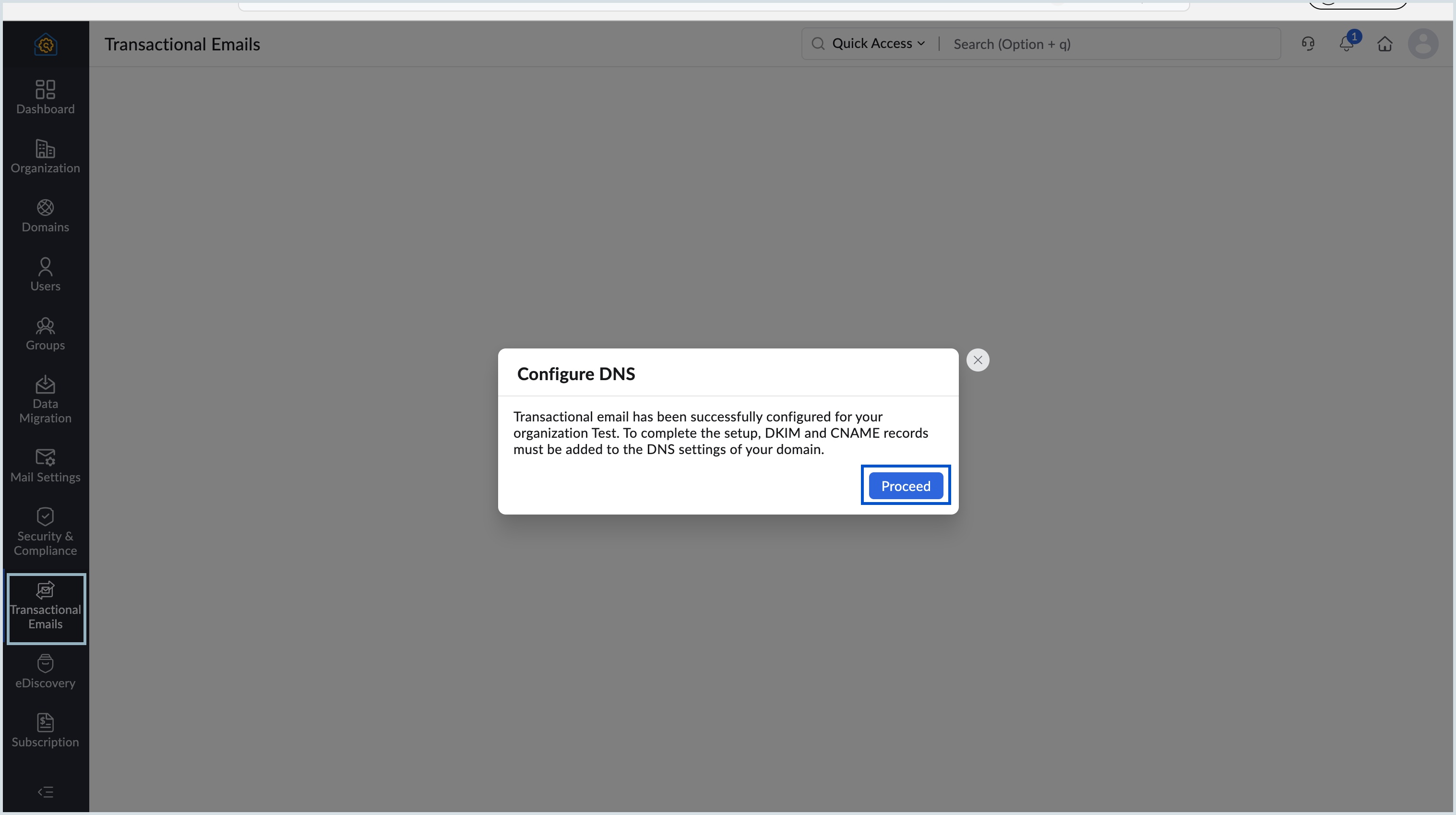
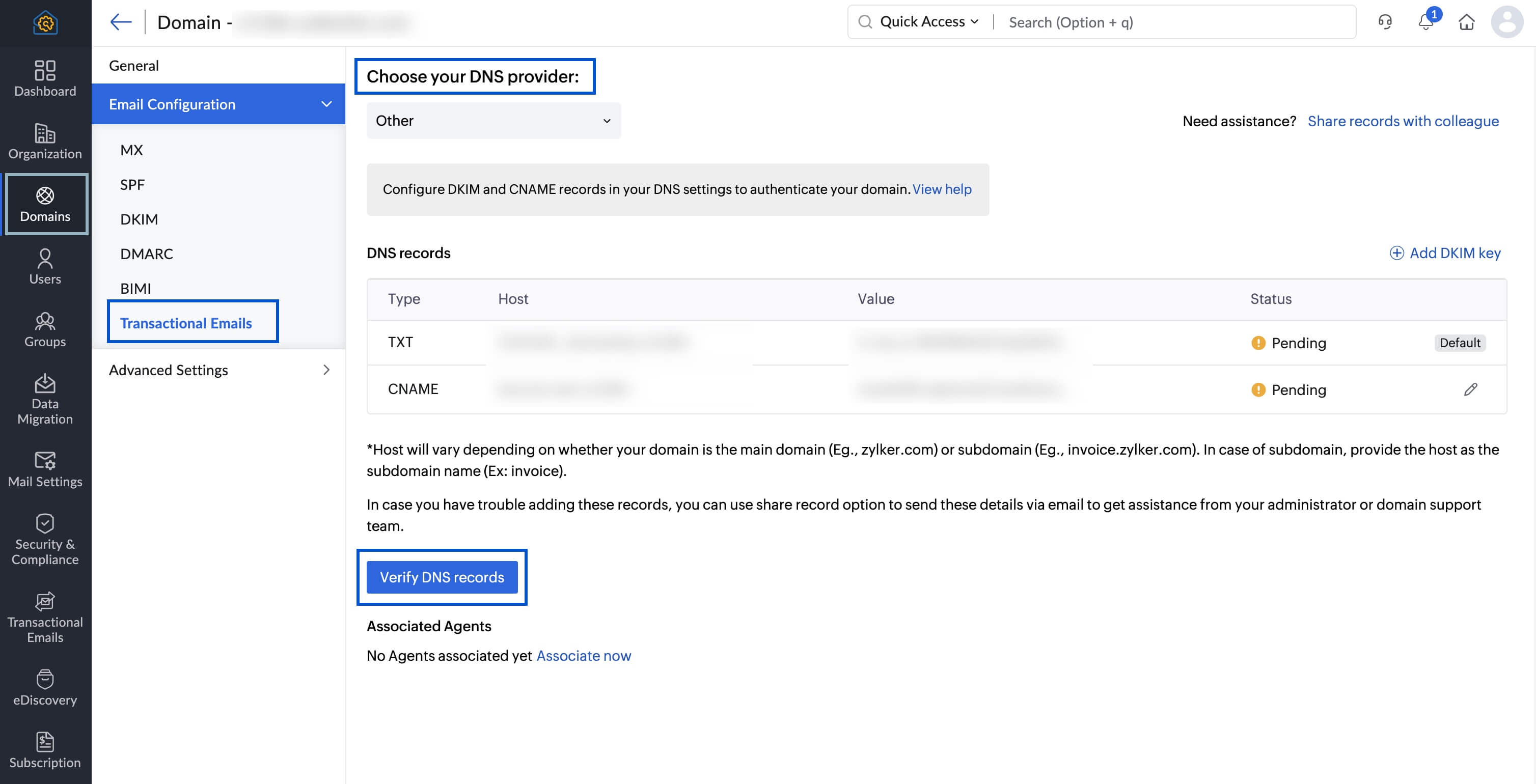
- Click Proceed in the Configure DNS dialog box to complete your Transactional Email's DNS records configuration under Domains section.
- Copy and verify the TXT and CNAME records in your DNS provider's page. You can select your DNS provider from the Choose your DNS provider drop-down to access the configuration steps.
- Click Verify DNS records to verify and complete the DNS records configuration for your Transactional Emails.
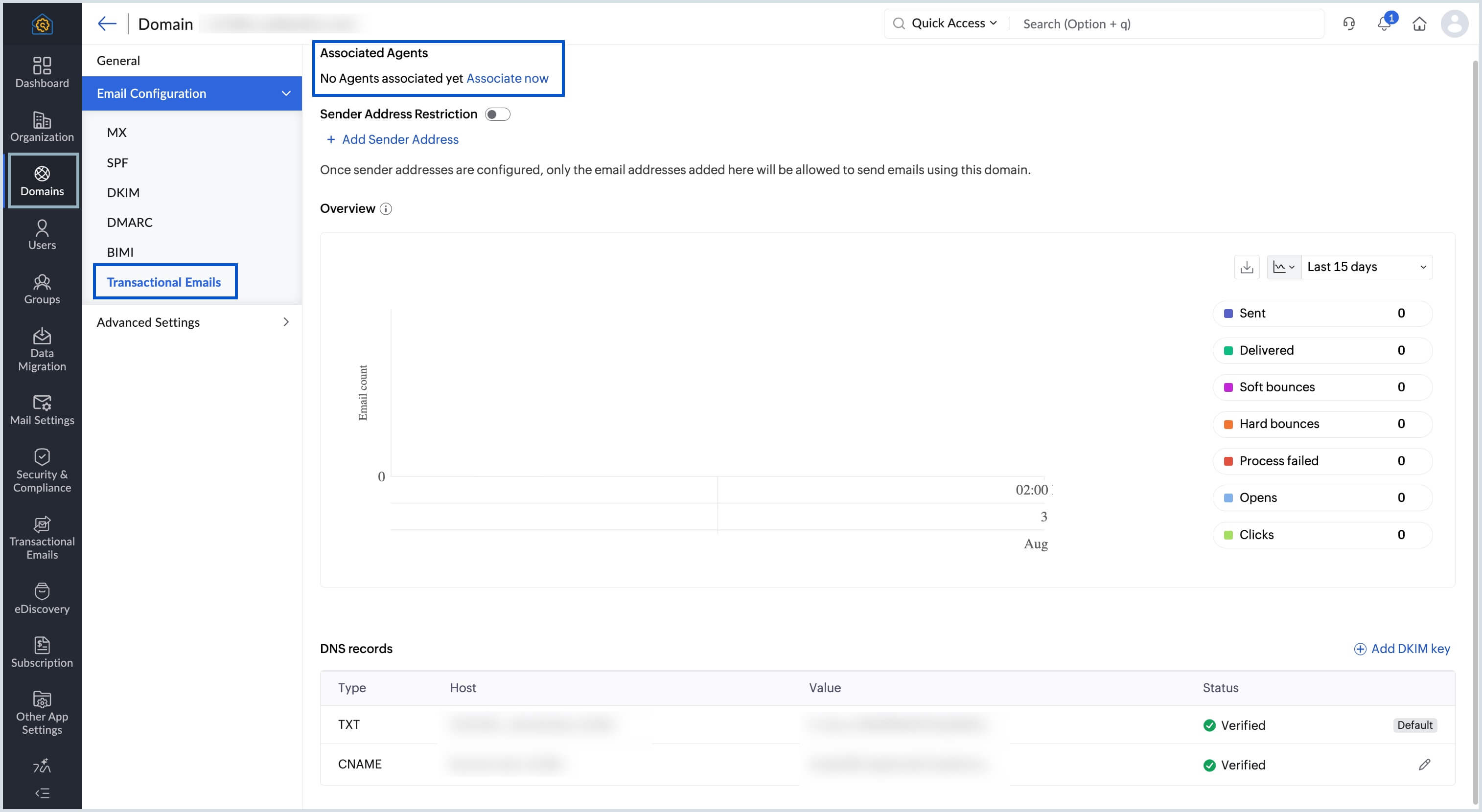
- Once the domain verification is successful, you can add your ZeptoMail agents by selecting Associate now in the Associated Agents section.
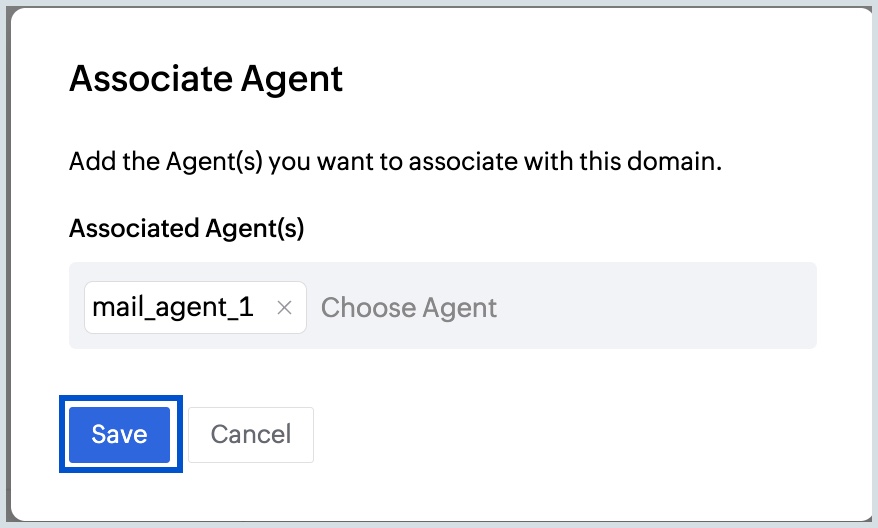
- Select the desired agent from the drop-down and click Save in the Associate Agent dialog box.
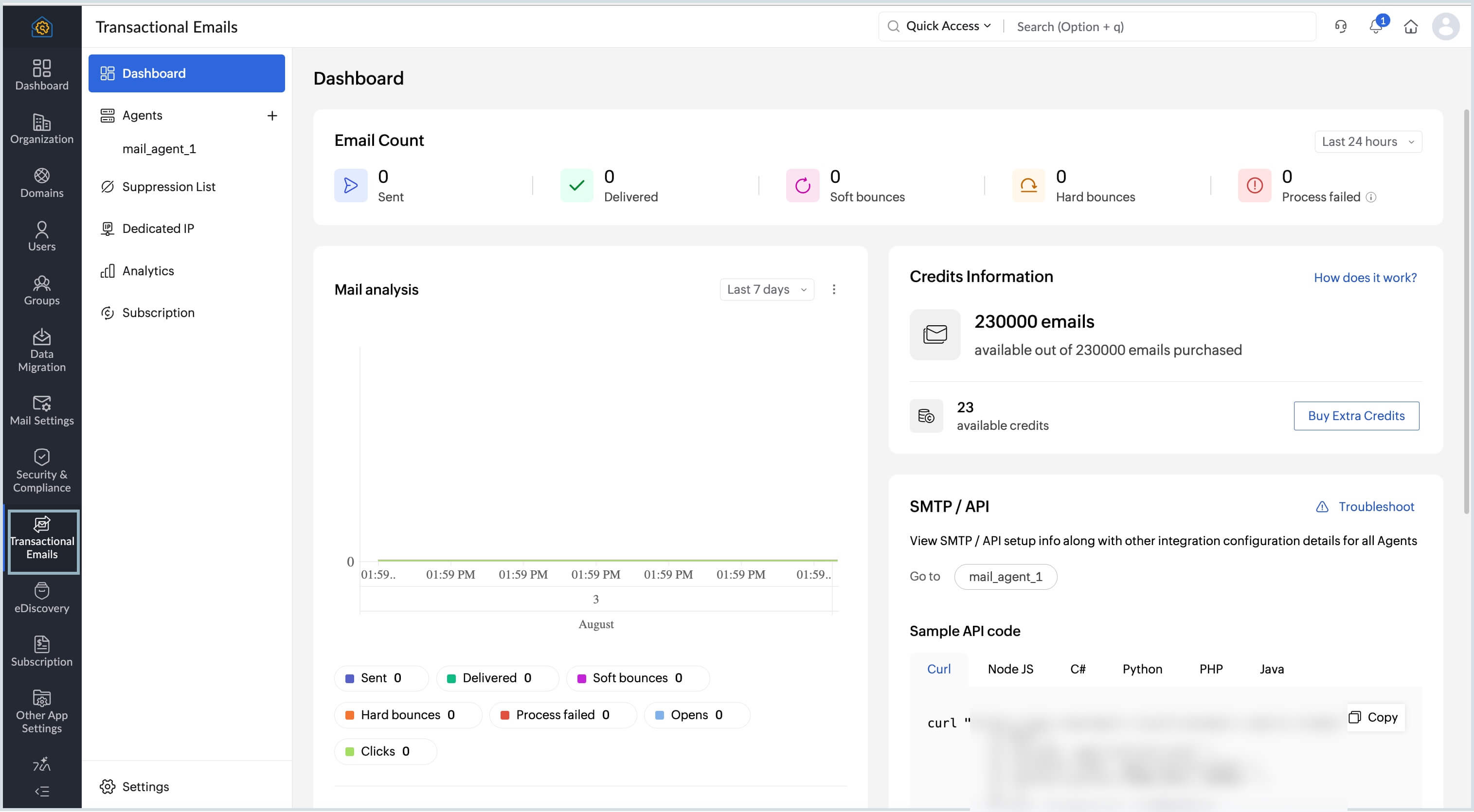
- Now, navigate to the Transactional Emails module from the left pane to access your ZeptoMail account.
Only a Super Admin can create or link a ZeptoMail account.
Steps to link an existing Transactional Email account to Zoho Mail Admin Console
If your organization already has an existing ZeptoMail account, you can link it directly to the Zoho Mail Admin Console instead of creating a new one. Organizations that have an existing ZeptoMail account without a Zoho Mail account can purchase and set up Zoho Mail first, and then access Transactional Emails from the Admin Console.
This gives you unified access to both Zoho Mail and Transactional Emails from a single console.
Follow the below steps to link your existing ZeptoMail account from Zoho Mail Admin Console:
- Log in to Zoho Mail Admin Console.
- Navigate to Transactional Emails on the left pane.
- All the accounts associated with the organization will be listed. Select the account you wish to link to the Transactional Email in Zoho Mail Admin Console.
- Click Link account to proceed.
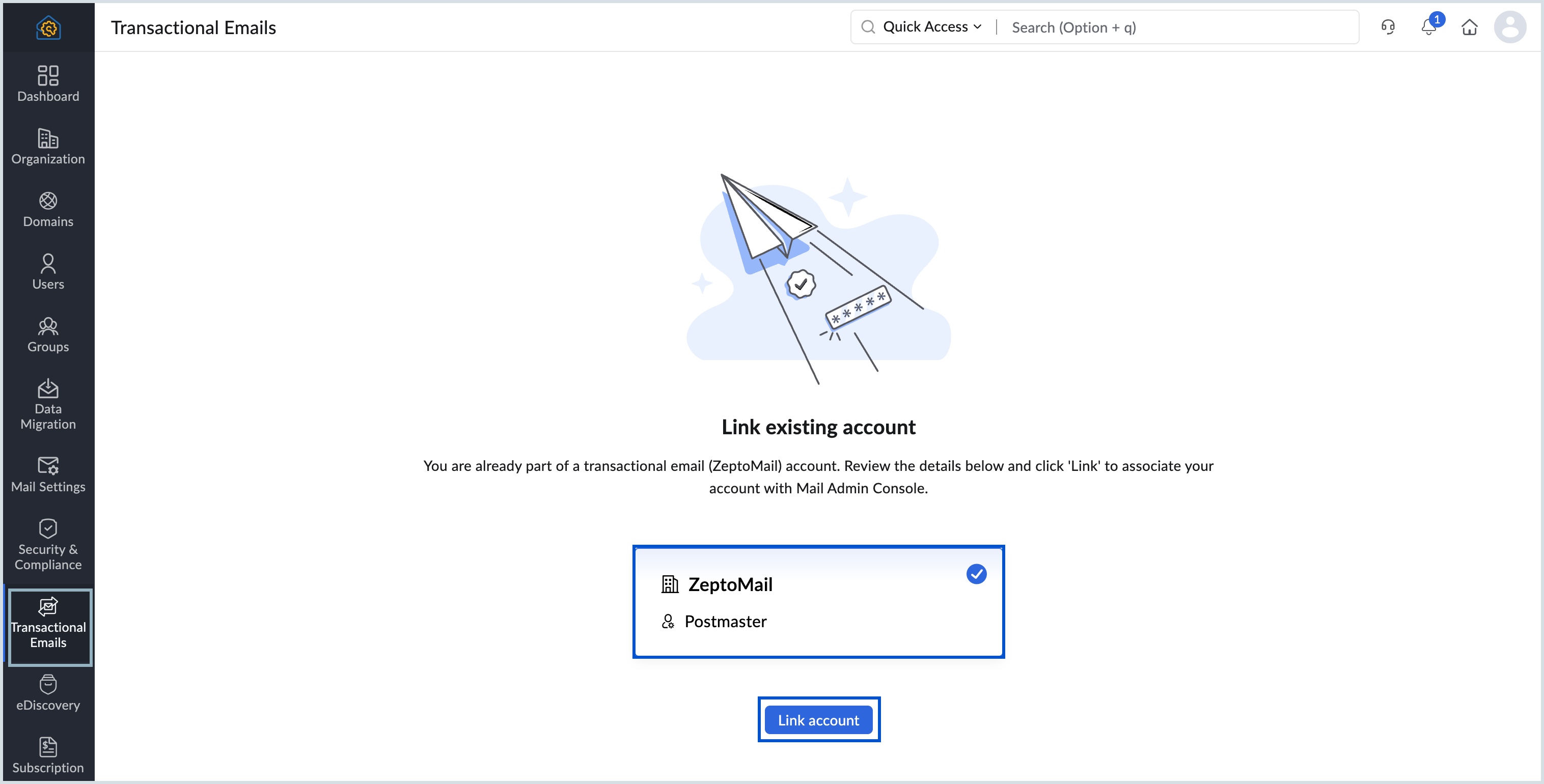
- Once the account is linked, all the corresponding details will be displayed under Transactional Emails module.
- If your DNS records have not been verified, you can navigate to the Domains section to verify the DNS records of Transactional Emails.
- Once the DNS records are verified successfully, you can proceed to access your ZeptoMail account.
What is Transactional Email in Zoho Mail Admin Console
The Transactional Email module in Zoho Mail Admin Console gives you access to the key features of Zoho ZeptoMail directly from your Admin Console. This includes managing Agents, monitoring email activity, tracking performance, and controlling your subscription, all without switching between products.
The module consists of the following sections:
Transactional Email Dashboard in Zoho Mail
The Transactional Email Dashboard provides a centralized overview of your organization's transactional email activity. It gives you a quick snapshot of key metrics including emails sent, delivered, and bounced, along with a visual mail analysis report to track performance over time. You can also view your credit balance, manage connected SMTP/API agents, and monitor the verification status of your domains, all from a single screen.
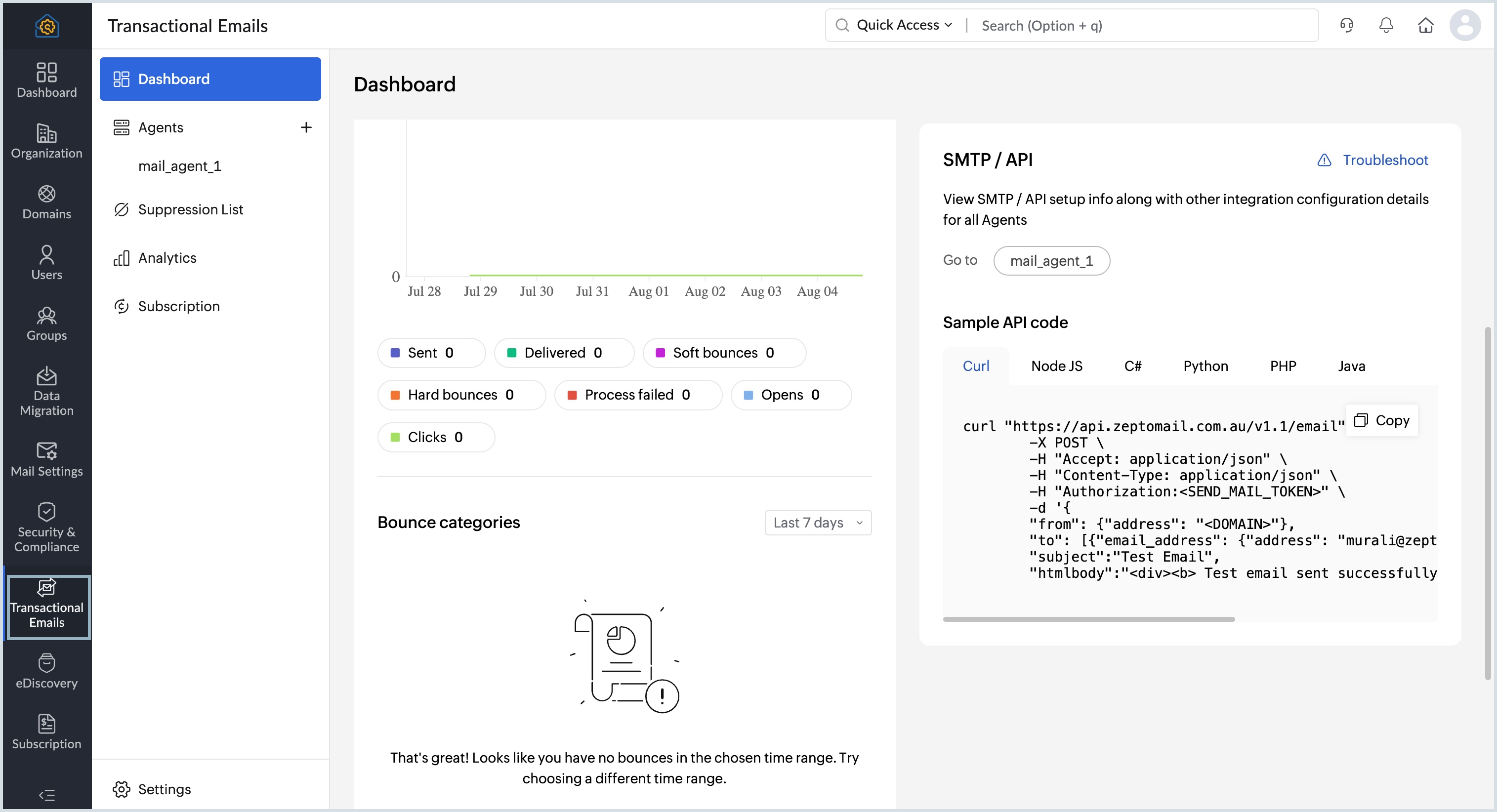
Learn in detail about the Dashboard in ZeptoMail.
Managing Transactional Email Agents in Zoho Mail
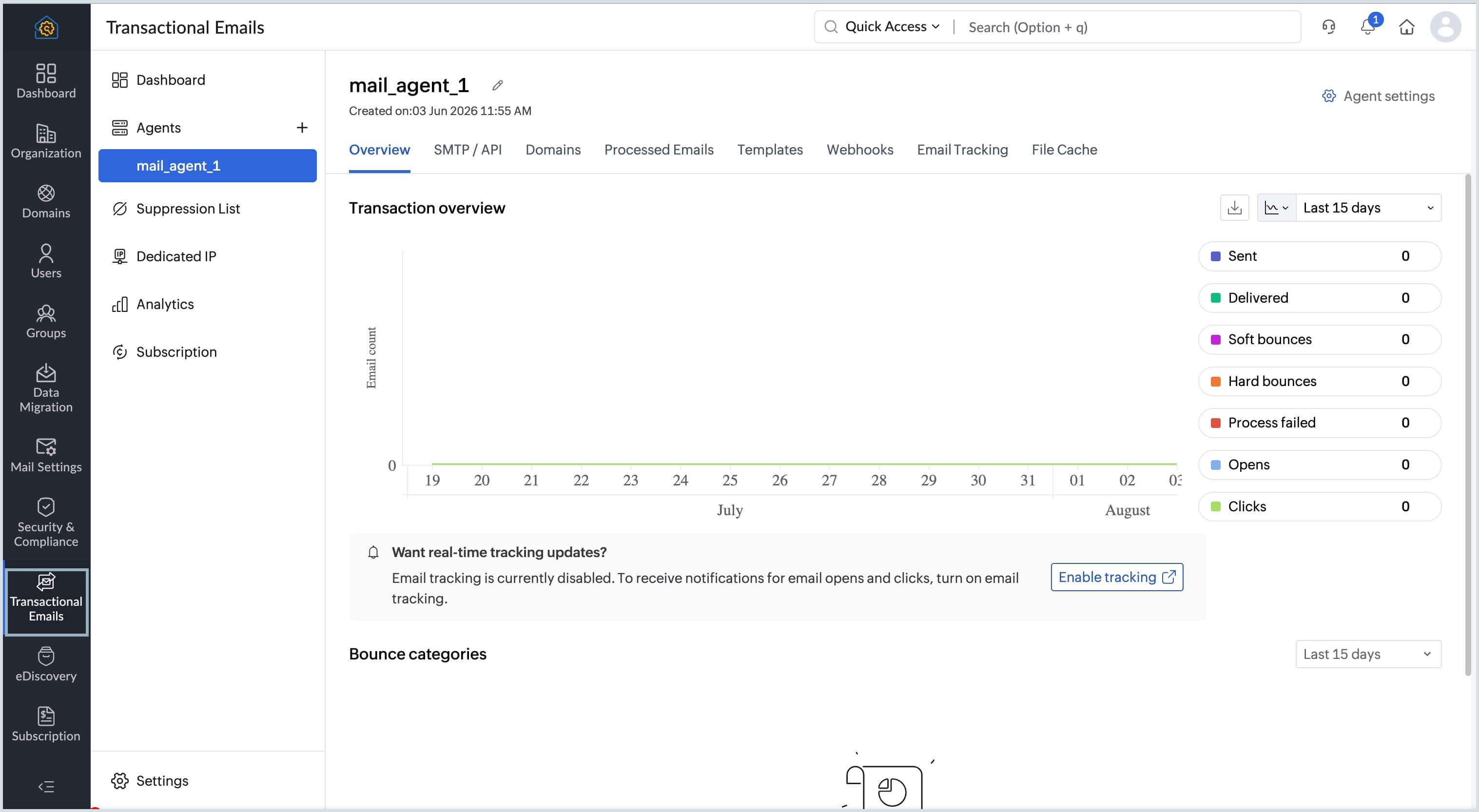
An Agent in ZeptoMail is used to segment your outgoing transactional emails based on their purpose, application, or type. Each Agent functions as a separate sending channel with its own domains, API or SMTP credentials, email logs, and tracking settings. You can associate one or more verified domains with an Agent and create multiple Agents to keep different categories of transactional emails organized. By default, an Agent is created when your ZeptoMail account is set up.
The various sections that are available in Agents are:
- Overview - View email stats, bounce details and engagement metrics(opens and clicks).
- SMTP/API - Contains the API and SMTP credentials to send out emails. Also lists plugins that can be integrated with ZeptoMail.
- Domains - View and manage the domains associated with a particular Agent.
- Processed emails - Lists outgoing email logs and their delivery details.
- Templates - Create, edit and manage email templates.
- Webhooks - Configure webhooks to trigger HTTP call backs to your application based on configured events.
- Email tracking - Enable and monitor opens or clicks.
- File cache - Upload any inline images or attachments to be sent in the email.
Managing the Suppression List for Transactional Emails
The Suppression List in Transactional Emails allows you to add email addresses or domains that you no longer wish to send emails to, or track activity for. This is useful in cases of repeated bounces or when a recipient requests that their email activity not be tracked. Maintaining a suppression list helps protect your sender reputation and reduces the risk of spam traps. Email addresses and domains can be added to the list either manually or automatically.
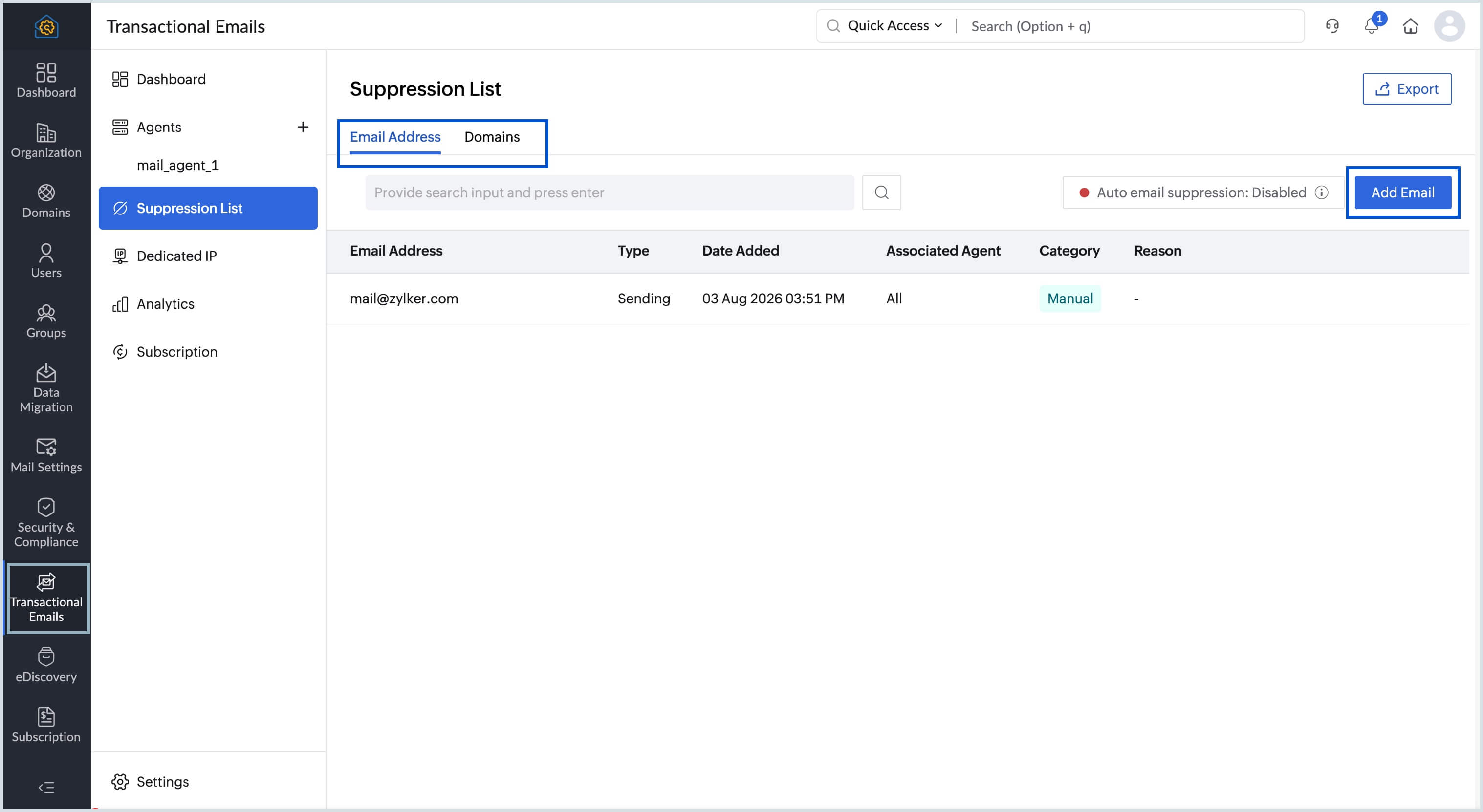
Learn more about Suppression List in ZeptoMail.
Setting up a Dedicated IP for Transactional Emails in Zoho Mail
By default, transactional emails sent from your organization are routed through a shared IP maintained by ZeptoMail with a high sender reputation. For organizations that send high volumes of transactional email, a Dedicated IP can be requested as an optional add-on. A dedicated IP is an exclusive IP address assigned to your account, ensuring that your email sending reputation is not affected by other senders. Dedicated IPs are billed annually, separate from your credit cycle, and are subject to an eligibility review based on your sending volume and bounce and spam rates. Once approved, ZeptoMail initiates an automatic IP warmup process to gradually build the IP's reputation before routing all your emails through it.
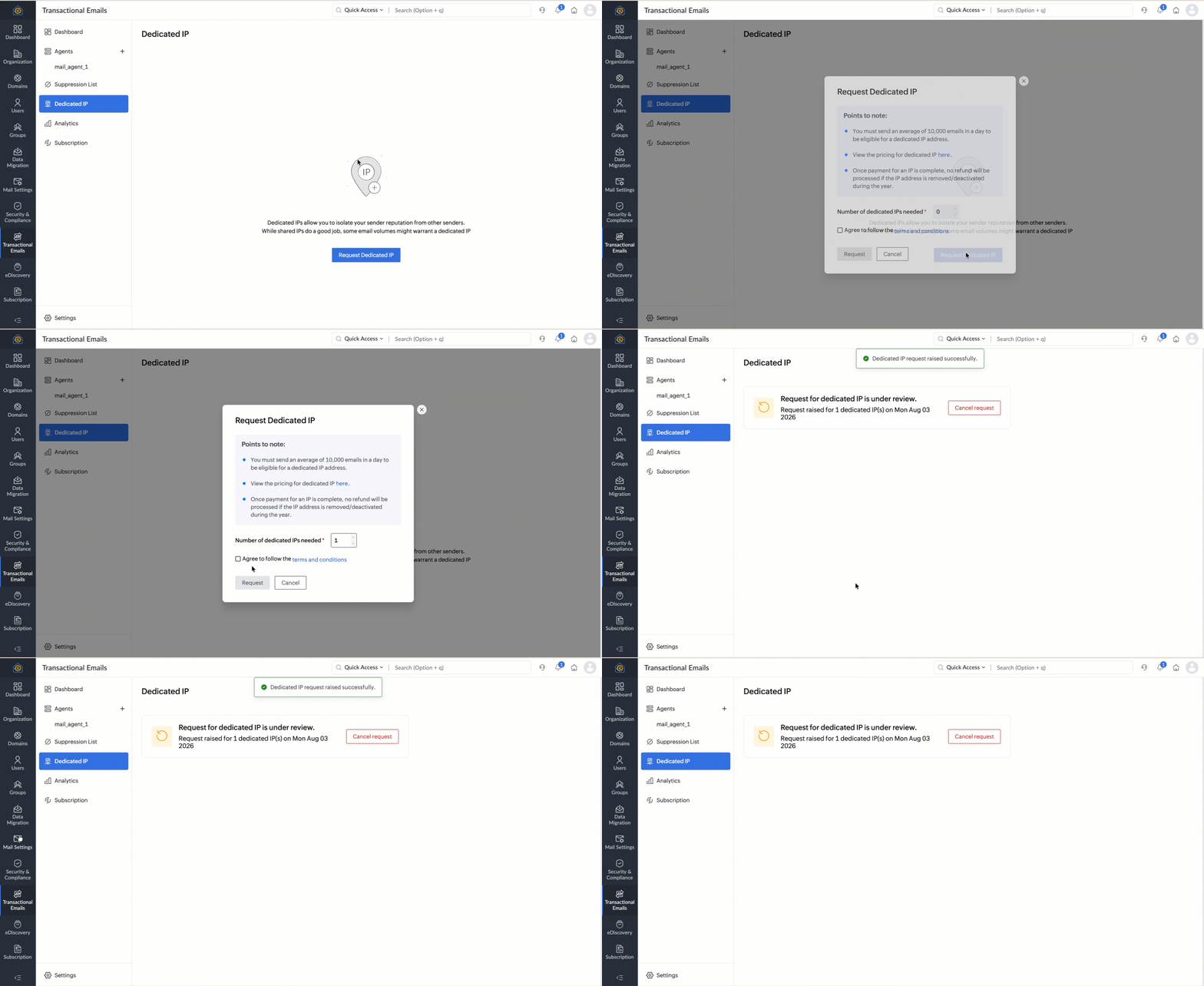
Learn more about Dedicated IP section in ZeptoMail.
Note:
Dedicated IPs are rolled out in a phased manner across data centers. To know the availability in your region, contact support@zeptomail.com.
Tracking Transactional Email performance in Zoho Mail
The Analytics section provides a high-level performance overview of the transactional emails sent from your organization. You can view data on emails sent, delivered, bounced, opened, and clicked for a selected date range. It also allows you to compare performance across Agents and generate custom reports to track specific metrics. Detailed bounce reports are available to help you identify and address delivery issues.
The sections available in Analytics are :
- Overview - Provides a summary of your transactional email performance, including data on emails sent, delivered, bounced, opened, and clicked for a selected date range.
- Bounce reports - Categorizes and displays bounce data by type, such as connection issues, policy failures, spam, and invalid DNS, for a selected date range.
- Custom reports - Allows you to compare email performance metrics across Agents and save the generated reports for future reference.
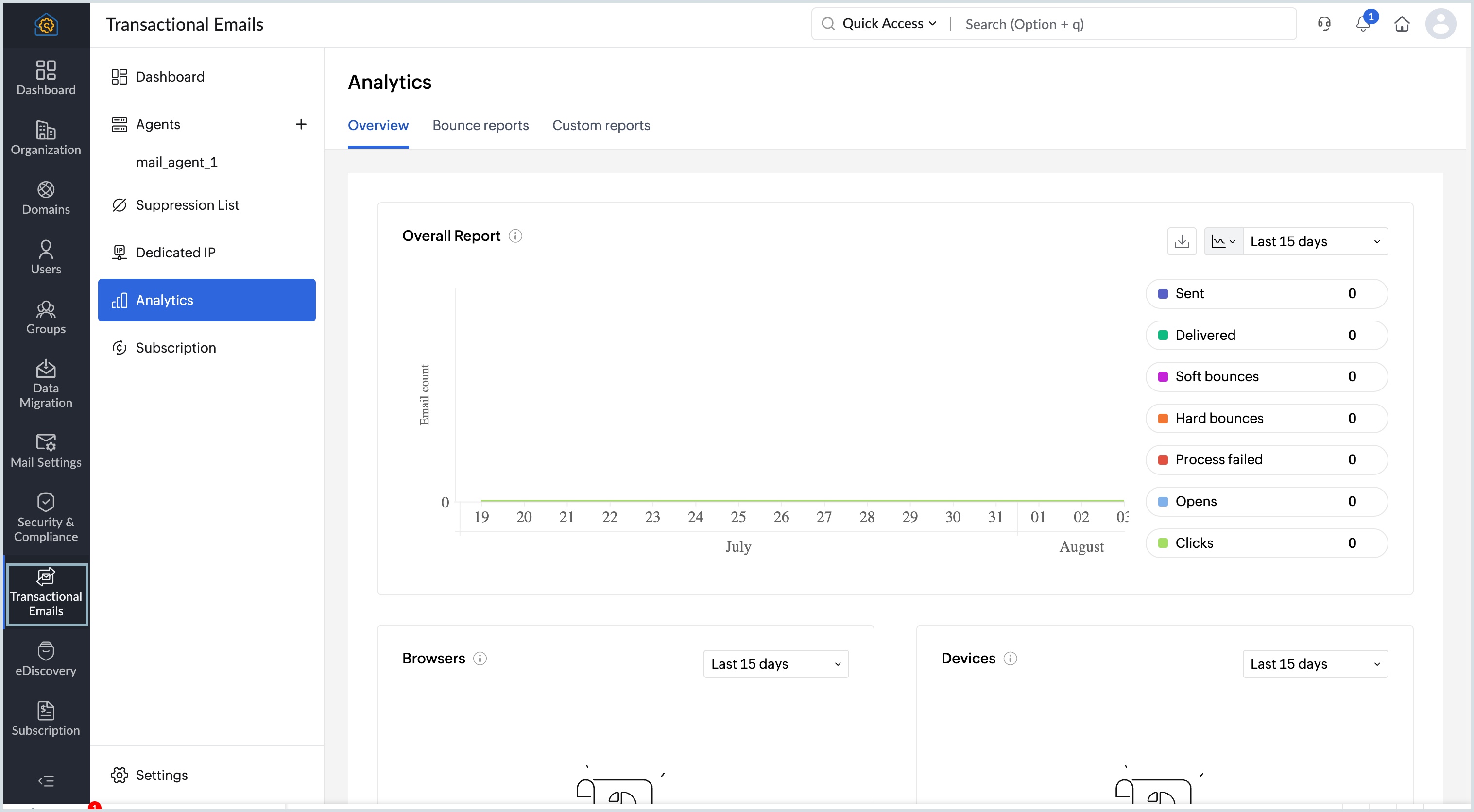
Learn more about Analytics in ZeptoMail.
Managing Credits and Subscription for Transactional Emails
Transactional Emails in Zoho Mail uses a credit-based model, where 1 credit allows you to send 10,000 emails. Credits are allocated automatically based on your organization's subscribed Zoho Mail or Workplace plan and the number of paid users, so there is no need to purchase credits separately. Credits are refreshed automatically at each subscription renewal and are valid for the duration of your Zoho Mail or Workplace subscription period (1 year).
The table below lists the credit allocation based on your plan:
| Plan | Credit Allocation | Max Credits | Max Emails |
| Mail Lite | 1 credit per 5 users | 10 credits | 1,00,000 |
| Workplace Standard | 1 credit per 4 users | 10 credits | 1,00,000 |
| Mail Premium | 1 credit per 2 users | 15 credits | 1,50,000 |
| Workplace Professional | 1 credit per user | 20 credits | 2,00,000 |
Note:
For Mail Flexi organizations, credits are calculated separately for each purchased plan and then summed to determine the total credit allocation.
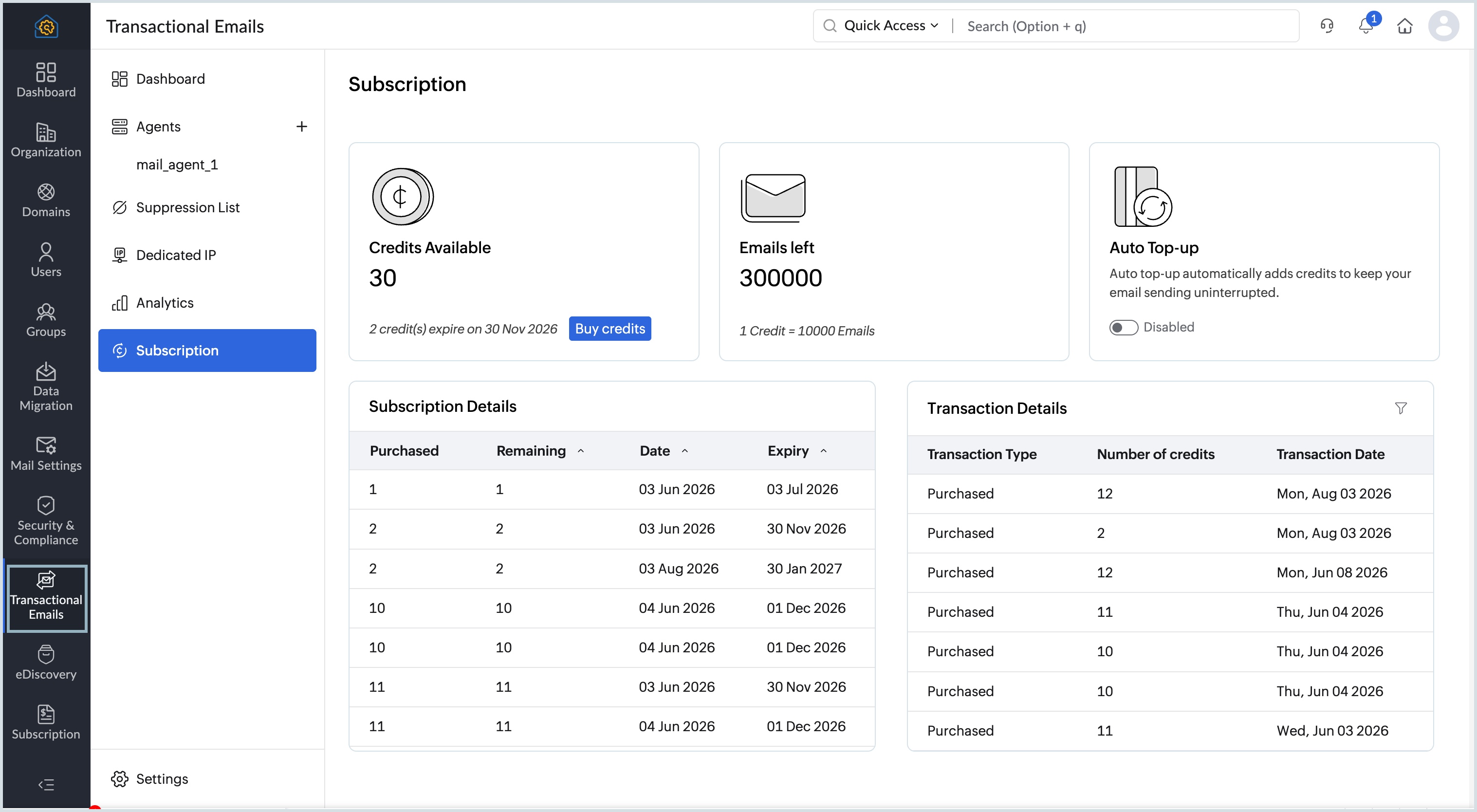
Configuring Transactional Email account Settings in Zoho Mail
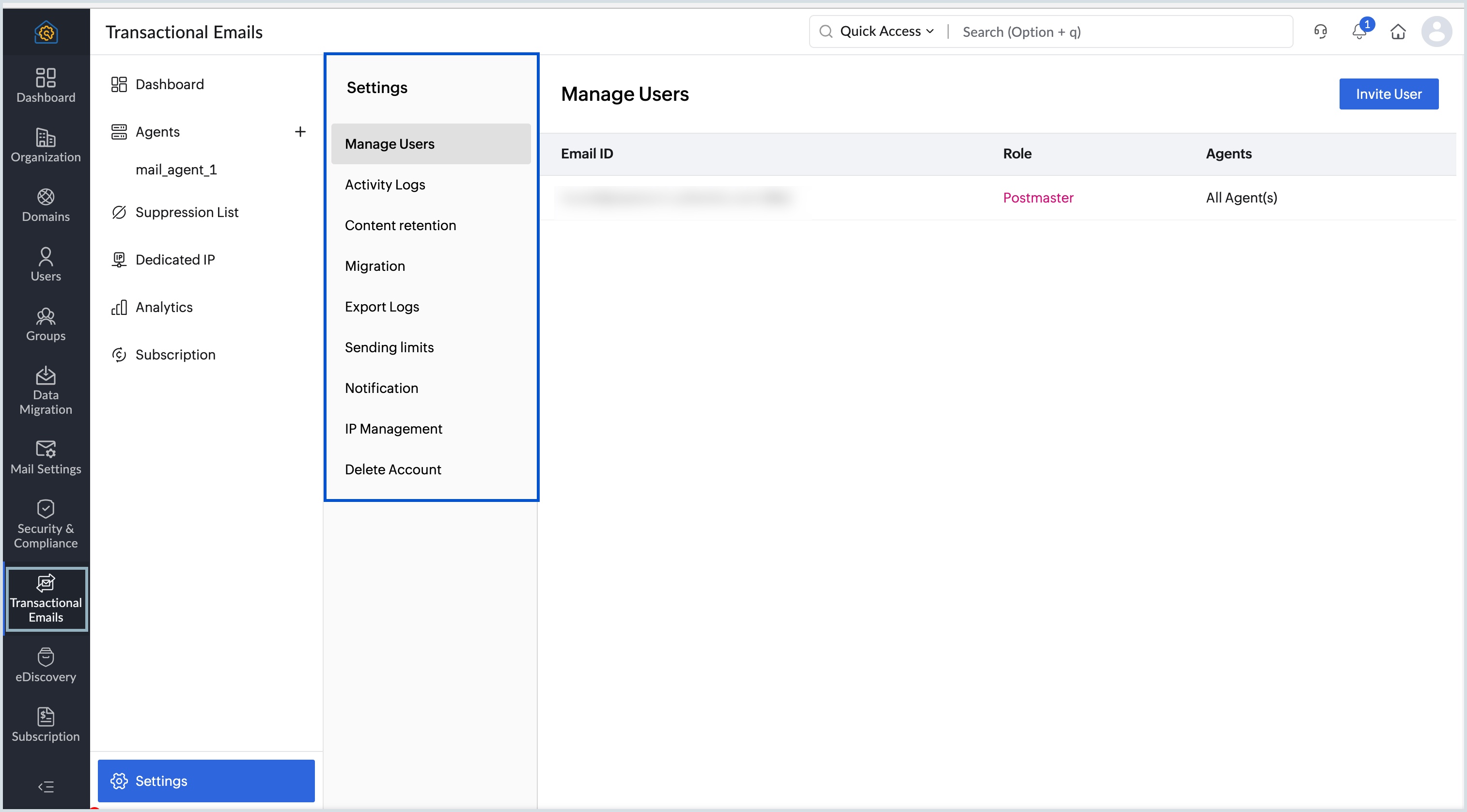
The Settings section in Transactional Emails allows you to manage users, configure account-level preferences, and control security settings for your organization's transactional email account. The following options are available under Settings:
- Manage Users: Allows you to add users to your Transactional Email account and manage their access by assigning them one of three roles: Postmaster, Engineer, or Viewer.
- Activity Logs:Displays a log of all activities performed by users in your Transactional Email account, which can be filtered based on specific search criteria.
- Content retention: Allows you to save the content of outgoing emails, which can then be viewed in the Processed Emails section of the respective Agent for up to 60 days.
- Migration: Lists the logs and statuses of data migrated from third-party transactional email services such as Postmark and SendGrid.
- Export Logs: Allows you to export and download email logs from the last 60 days to your local servers.
- Sending limits: Allows you to set a daily sending limit for each Agent to monitor and control the volume of outgoing transactional emails.
- Notifications: Allows you to configure email notifications for credit balance reminders and set custom notification thresholds based on your sending activity.
- IP Management: Allows you to restrict email sending to a list of trusted IP addresses, adding an extra layer of security to your account.
- Delete Account: Allows a Postmaster to permanently delete the Transactional Email account, including all Agents, domains, and associated data.