Zoho Workplace user onboarding guide
Zoho Workplace is an online collaboration and productivity suite for businesses, with applications that cater to various business needs like: email, calendar, contacts, tasks, notes, chat, online office suite, organization wide intranet along with a collaborative file storage platform.
Organization administrators who sign up for Zoho Workplace can add users to the Admin Console panel and generate their login credentials. These credentials will then be shared with the respective users to sign in to their respective Workplace accounts.
User login: First time login instructions
If you are a new user signing in to the service for the first time, follow the steps given below:
- Navigate to the Zoho Workplace homepage and click Sign in.
- Enter the user name and password shared by your organization's admin.
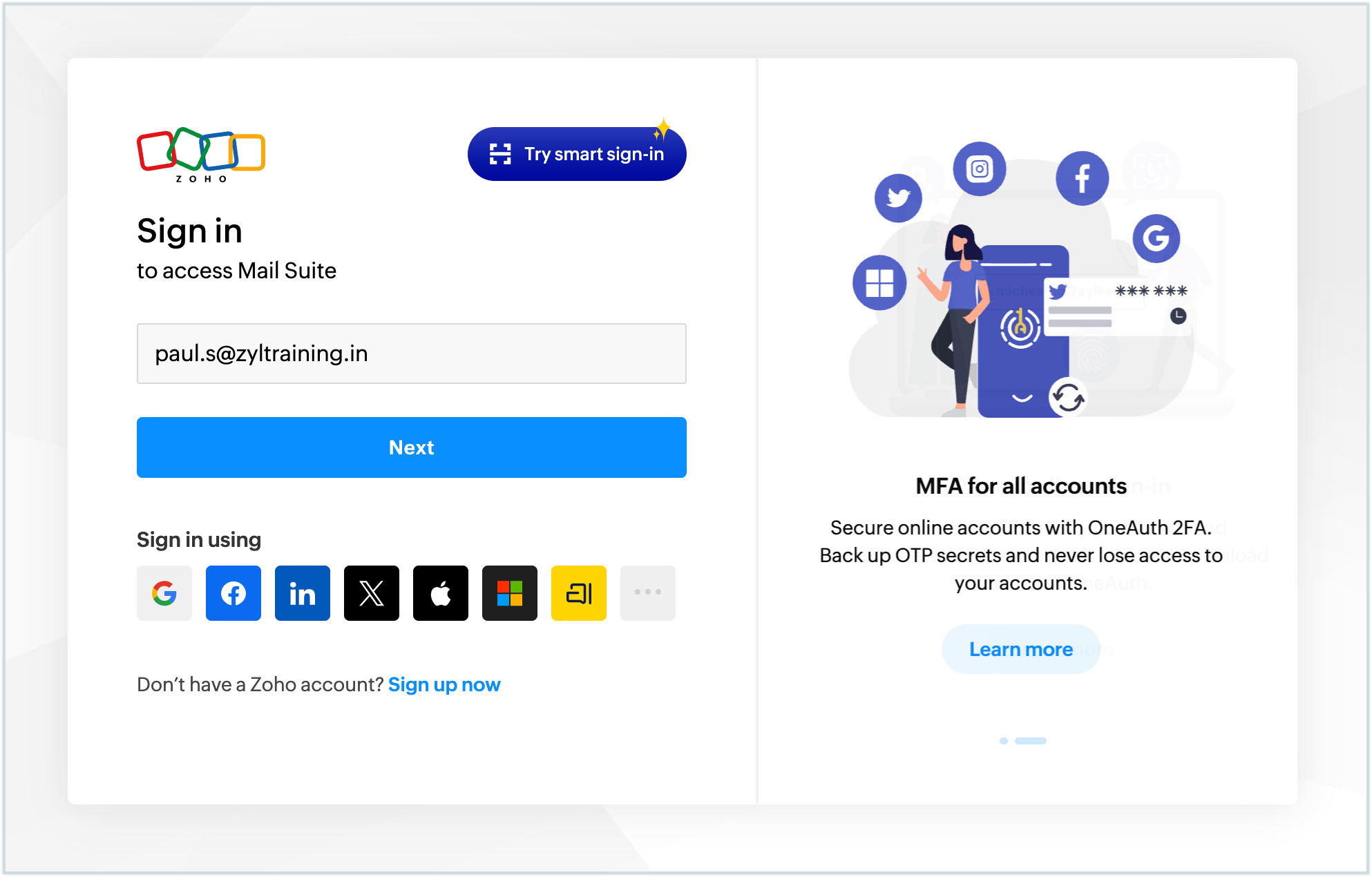
- Click Sign in.
Once you are logged in, the next two steps will help you secure your account: changing your password and setting up multi-factor authentication(MFA).
Change your login password
It is necessary to change your password if your admin has mandated it. It ensures that only you know your credentials going forward. To change your password:
- Enter the new password in the Change password pop-up.
- Re-enter the new password to confirm and click Set Password.
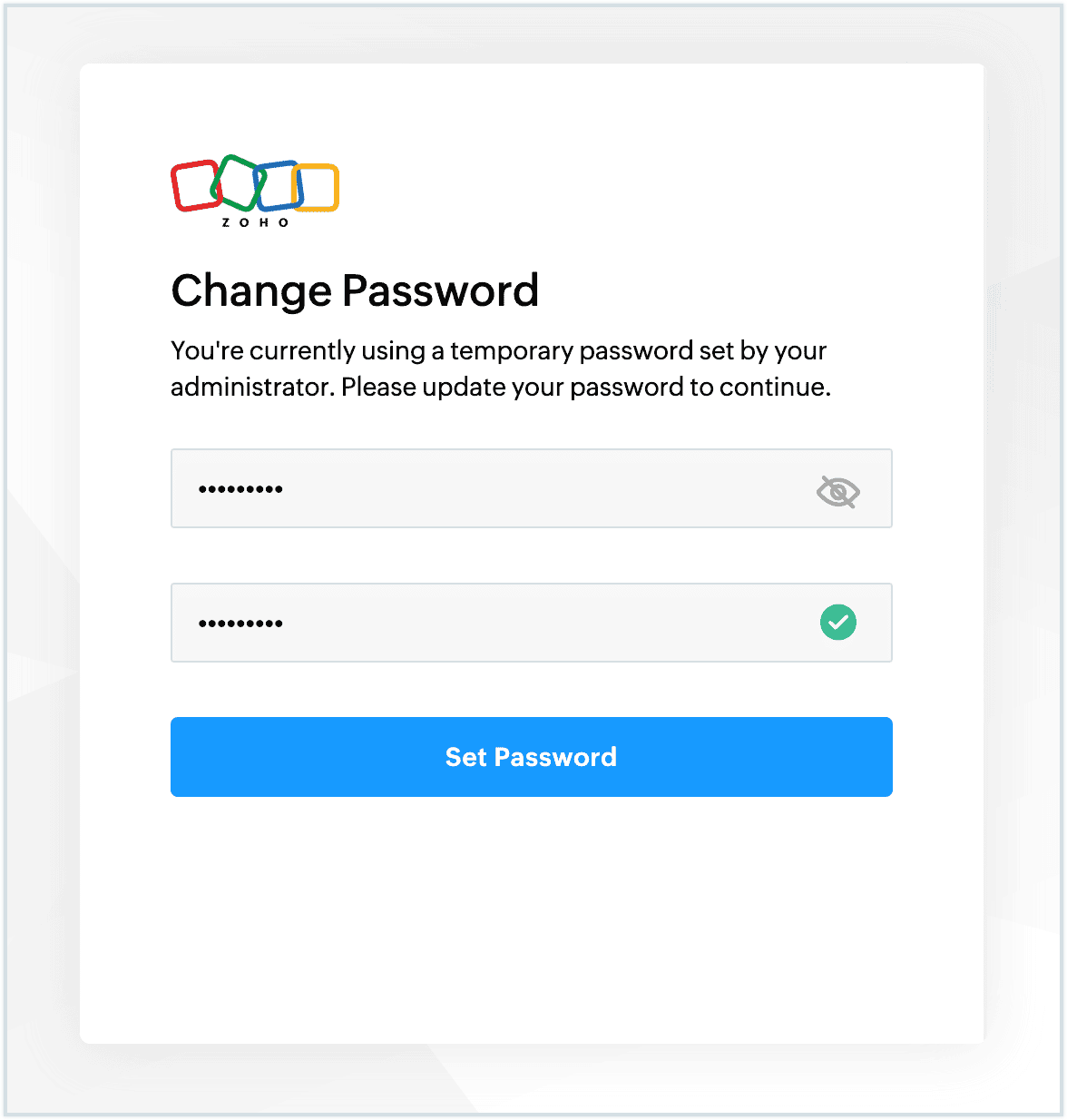
- Once done, click Go to Sign-in.
- You will be redirected to the login page where you can sign in using your new password.
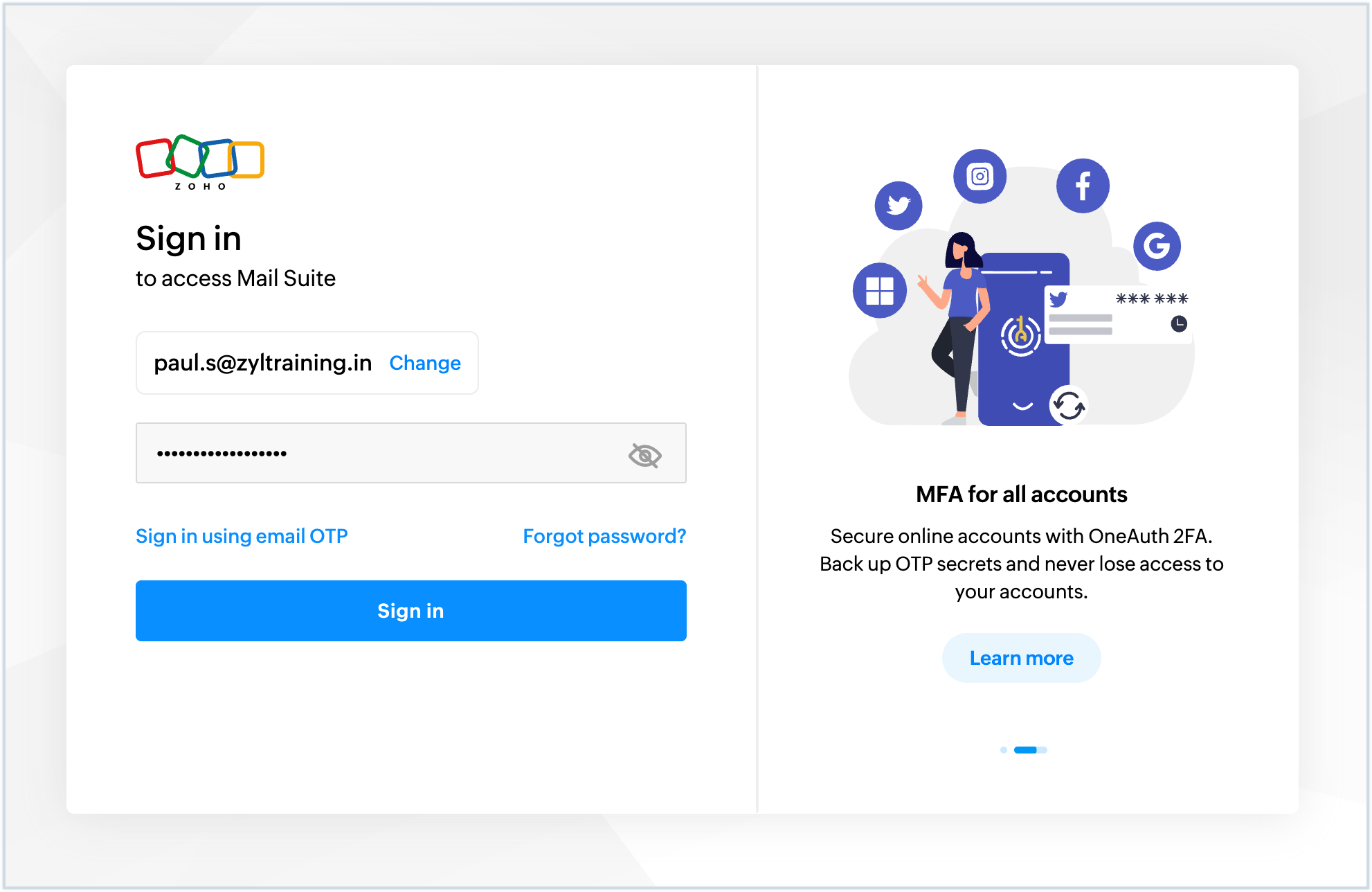
- Once done, you will be prompted to enable MFA for your account, if it has been mandated by your administrator.
Set up multi-factor authentication
Multi-factor authentication (MFA) in Zoho adds an extra layer of security to your account. Instead of relying just on password, MFA requires you to verify your identity using a second method such as a token, device or biometric. Once enabled, all future logins will be authenticated using the chosen method, ensuring a secure access to your account.
Zoho offers 3 modes of MFA:
- Zoho OneAuth: Zoho OneAuth is an MFA application developed by Zoho that offers multiple authentication options. This includes password-less sign-in, one time password(OTP) generation using your mobile device and biometric authentication.
- OTP authenticator: The OTP authenticator generates unique, temporary passwords which refreshes every few seconds. This ensures that a new code is available every time you login.
- Security key: Security keys are physical devices that can be plugged into the system trying to login to the service. The security key used to authenticate the login must be registered with Zoho before use.

You can choose any method to enable MFA, however we recommend that you use Zoho OneAuth.
Note
You will find the MFA setup only if your admin has mandated it for the organization. Even if the admin has not mandated MFA, each user can add MFA for their accounts from:
My Accounts >> MFA
Refer this help guide to enable MFA for your account.
Configure your Zoho Workplace appearance
After completing the MFA setup, you will land in the Welcome page where you will have a quick tour of all the applications available in Zoho Workplace. Click Next to proceed with the tour.
Once you complete the tour, as a first step, you can personalize the look of your Workplace interface. There are three setting using which you can do this:
- Appearance: This setting lets you select the overall color theme of your Workplace account's interface. You can do this by choosing between three modes: System defaults, Light mode and Dark mode.
- Theme color: Theme color setting allows you to change the background color in your Workplace account. The color options available are: Cobalt Blue, Tangerine Yellow, Fern Green and Cardinal Red.
- Left panel look: This option lets you choose the style of the left navigation panel. You can choose between dark mode and light mode in this setting.
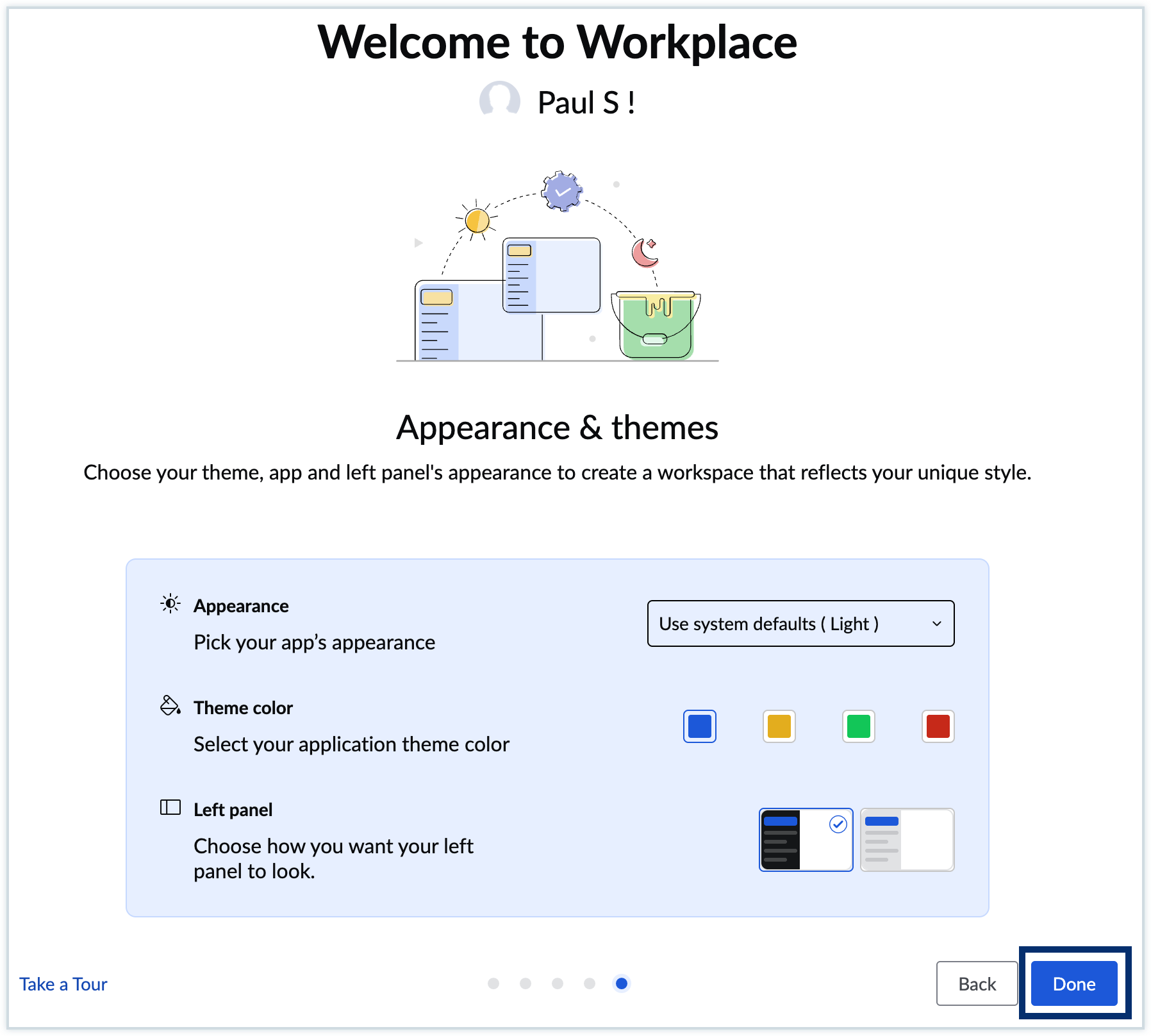
Once you've chosen the desired setting, click Done to complete the tour. You can update the above settings anytime in the Display and Appearance section in your Workplace Settings.
Zoho Workplace dashboard
After completing the tour, you will be redirected to the Workplace dashboard. The Dashboard is the central hub for all Workplace applications with the option to view upcoming events, tasks, and recent activities. You can access any application, view important notifications, and manage your day-to-day work, all from a single place.
Accessing Workplace applications
There are two ways in which you can access the applications: by clicking the application widget or from the header. Widgets give you important notifications and recent updates in an application, so you can navigate to the desired section directly. The header displays all the Workplace applications and helps you switch between applications seamlessly. Since Zoho offers single sign on, you need not login every time you access the applications available in your Workplace dashboard. You can simply navigate to the desired application from the top-pane to access it.
The following applications are available in Zoho Workplace:
- Zoho Mail: A secure, ad-free business email service for professional communication.
- Zoho Cliq: A real-time team messaging and collaboration platform.
- Zoho Workdrive: A cloud-based file storage and collaboration platform for teams.
- Zoho Office suite: A suite of cloud-based productivity tools for creating and editing documents, spreadsheets, and presentations.
- Zoho Writer: An online word processor for creating, sharing, and collaborating on documents.
- Zoho Sheet: A cloud-based spreadsheet app for data analysis and real-time collaboration.
- Zoho Show: An online presentation tool for creating and delivering engaging slides.
- Zoho Connect: A team collaboration intranet solution to share, communicate, and collaborate with employees
- Zoho Meeting: A collaboration tool for online meetings and webinars.
- Zoho Vault: A secure password manager for storing and sharing business credentials safely.
Help and support
If you face any difficulties with setting up your account, contact your organization's admin and they will walk you through the steps.
In case you need additional assistance, contact us at support@zohoworkplace.com.