Getting started with Zoho Cliq in Zoho Workplace
Zoho Cliq is a powerful communication and collaboration tool that helps you streamline business conversations through real-time messaging and audio/video calls. You can create structured channels, group chats, and message threads. Zoho Cliq also supports file sharing, message scheduling and bots to take care of trivial tasks. Some key features of Zoho Cliq include:
- Direct Messages: Instantly connect with team members for quick conversations.
- Audio/Video Calls: Conduct one-on-one or group calls and share screens during meetings.
- Channels: Organize discussions by teams, projects, or topics for structured communication.
- Integrations: Connect with other Zoho apps and third-party tools for a unified workspace.
- Bots & Commands: Automate repetitive tasks and get instant updates from integrated services.
Setting up Zoho Cliq
Follow the steps given below to configure Zoho Cliq for the first time:
- Access the Zoho Cliq application in Zoho Workplace from the top navigation bar. The configuration popup appears.
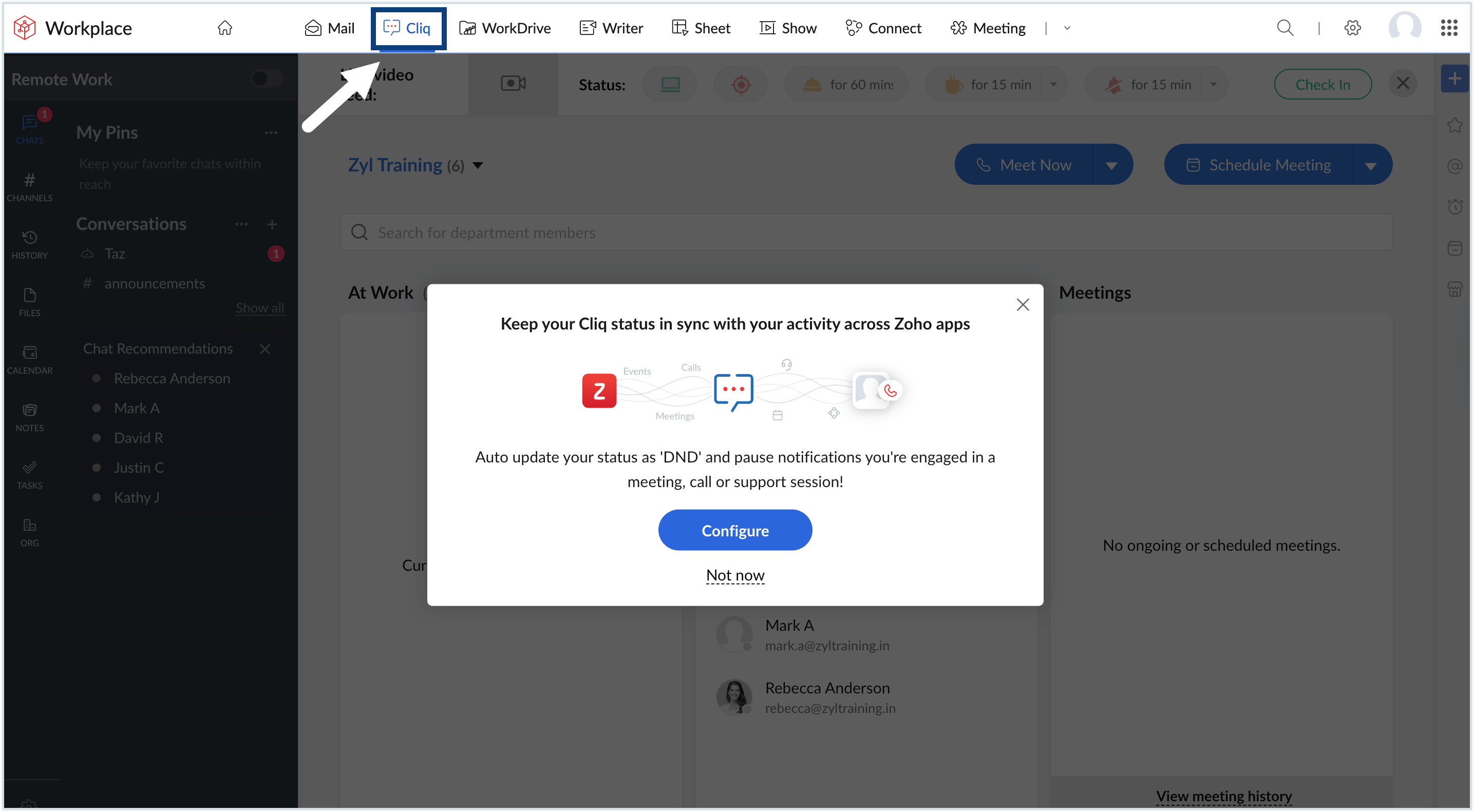
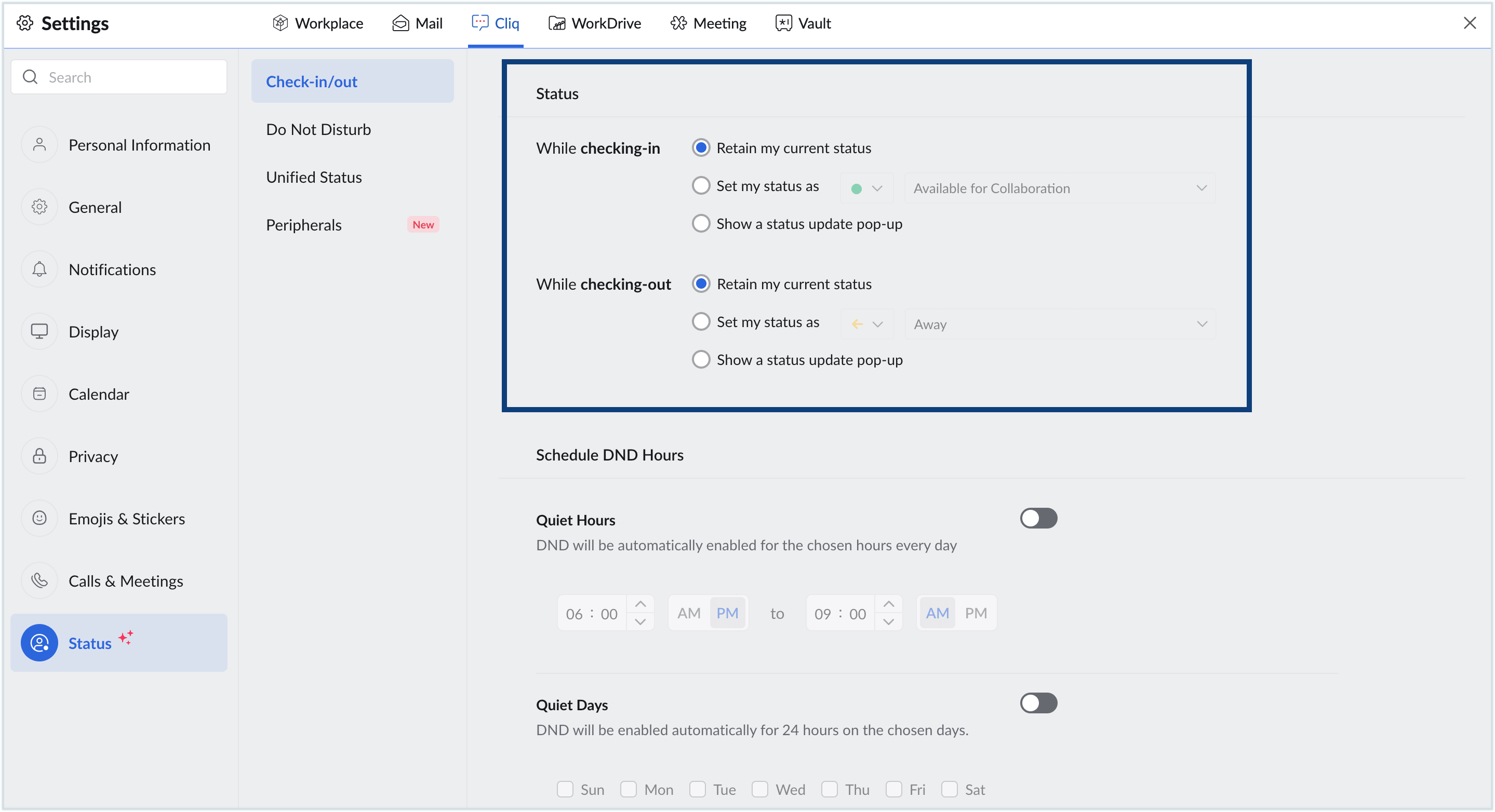
- The initial configuration allows you to set up your Cliq status preference. Click Configure in the welcome popup to set the preferred Cliq status. You will be redirected to the Settings section.
- There are three status options you can choose from:
- Retain my current status: This retains your previous status. For e.g., If your status was set to invisible when you logged out, the same will be retained when you log back in.
- Set my status as: This allows you to choose a fixed status when you login or logout. There are five statuses you can choose from: Available, Away, Busy, Invisible and Do not disturb.
- Show a status update pop-up: This will display a pop-up each time you login or logout asking you to select the status you want at that moment.
- Select the desired status using the radio button. The status setting will be applied to your account.
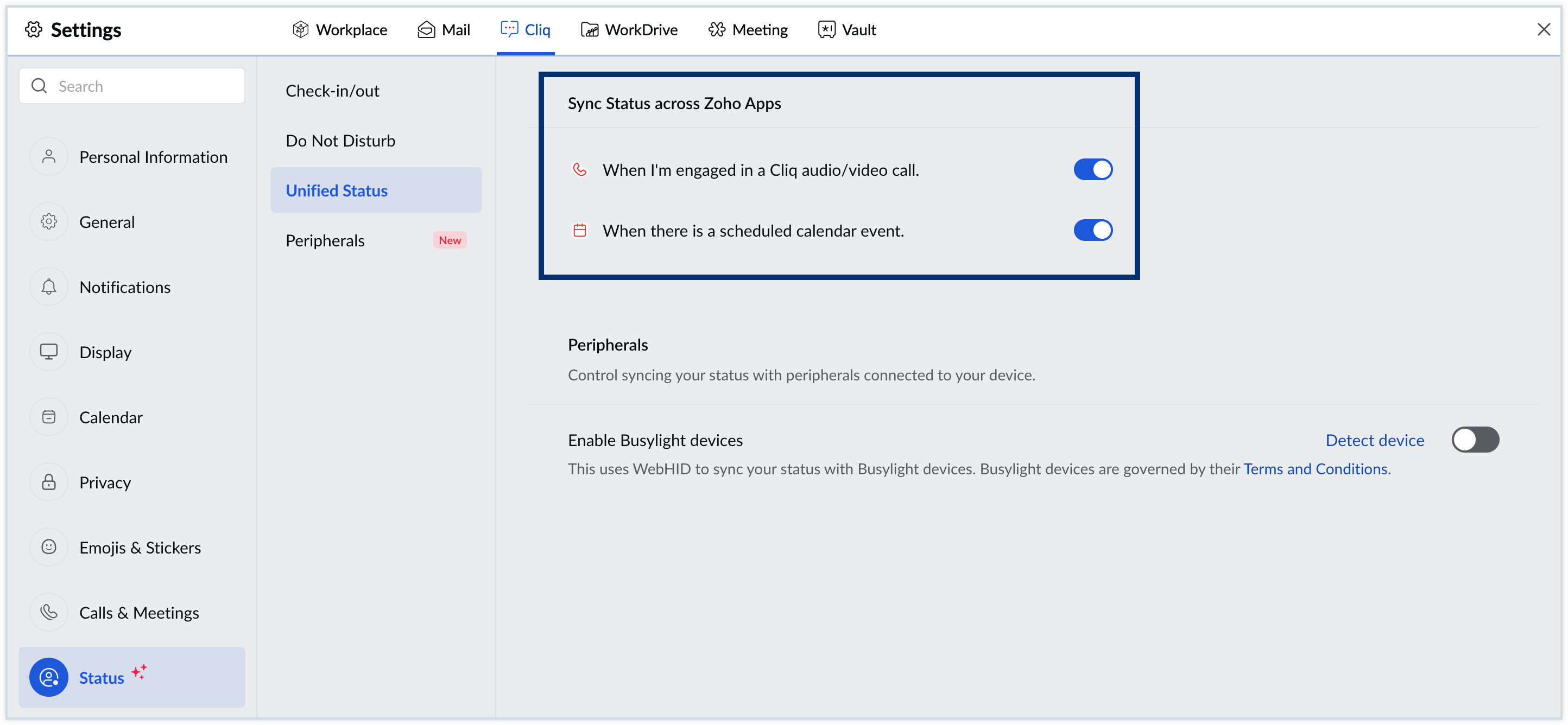
- Apart from this, you can choose to set a unified statusfor your account. This setting will automatically update your Cliq status based on your activity across Zoho applications. For e.g., If you are involved in a scheduled calendar event, your Cliq status will automatically change to In a meeting.
- There are two actions based on which you can set a unified status for Cliq in Zoho Workplace:
- When you are engaged in a Cliq audio/video call
- When there is a scheduled calendar event.
- Choose one or both options based on your need. Whenever the chosen activity is in progress, the respective Cliq status will be applied.
- Apart from the Settings section, you can also change your status from the header in Zoho Cliq's dashboard. There are five options to choose from:
- Available for Collaboration
- Engaged at work
- Meal break for 60 mins
- Short Break for 15/30/45/60 mins
- Do not disturb for 15/30/45/60 mins

Explore Cliq
Now that you have setup Cliq, you can explore the following sections next: