Getting started with Zoho WorkDrive in Zoho Workplace
Zoho WorkDrive is a secure, cloud-based file management platform that enables teams to store, organize, and collaborate on files seamlessly. It supports team collaboration with version control, provides access permissions, and built-in office suite integration. With Zoho WorkDrive, you can manage:
- Team Folders: Organize and manage documents by teams or projects.
- File Sharing: Share files internally or externally with customizable permissions.
- Version Control: Track file history and restore previous versions anytime.
- Collaboration Tools: Co-edit files with comments, tasks, and approvals.
- Enhanced Security: Manage logs and data securely.
How to setup Zoho WorkDrive in Zoho Workplace
Follow the steps given below to get started with Zoho WorkDrive:
- Go to WorkDrive from the top navigation bar. This will redirect you to the My Folders section in WorkDrive where you can find your files.
- To get started with WorkDrive, you can create a Team folder.
Steps to create a Team Folder in Zoho Workplace
A Team Folder is a shared workspace where all members of a team can create, upload, edit and share files or folders. To create a Team folder:
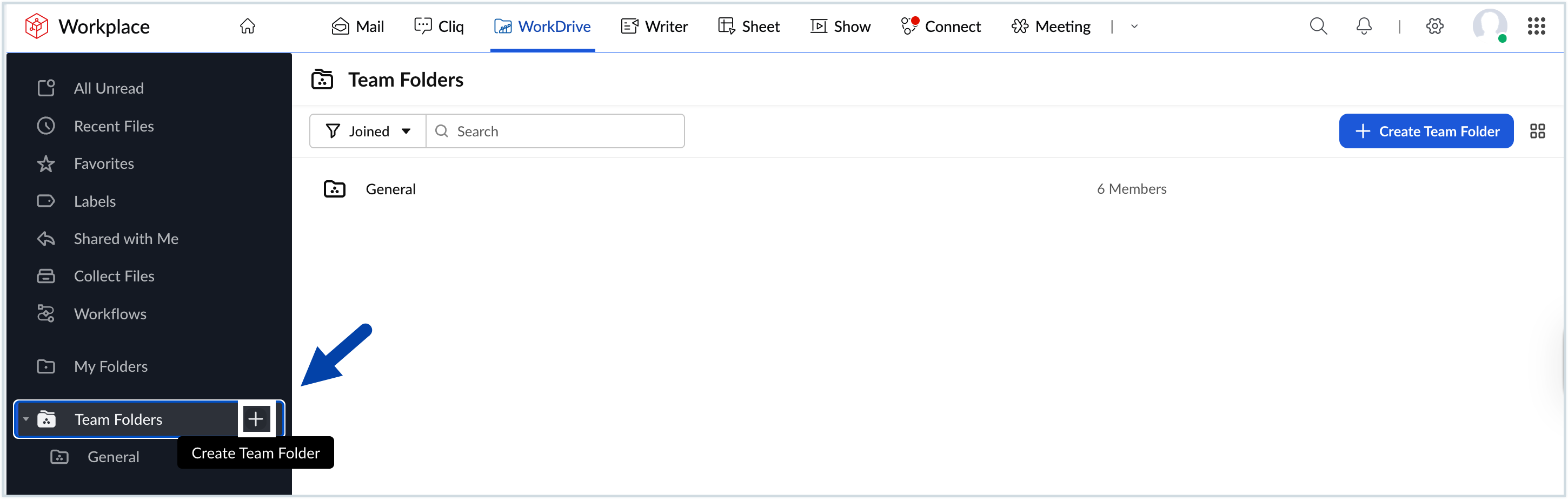
- Click the Create a Team Folder button on the left pane of the WorkDrive section.
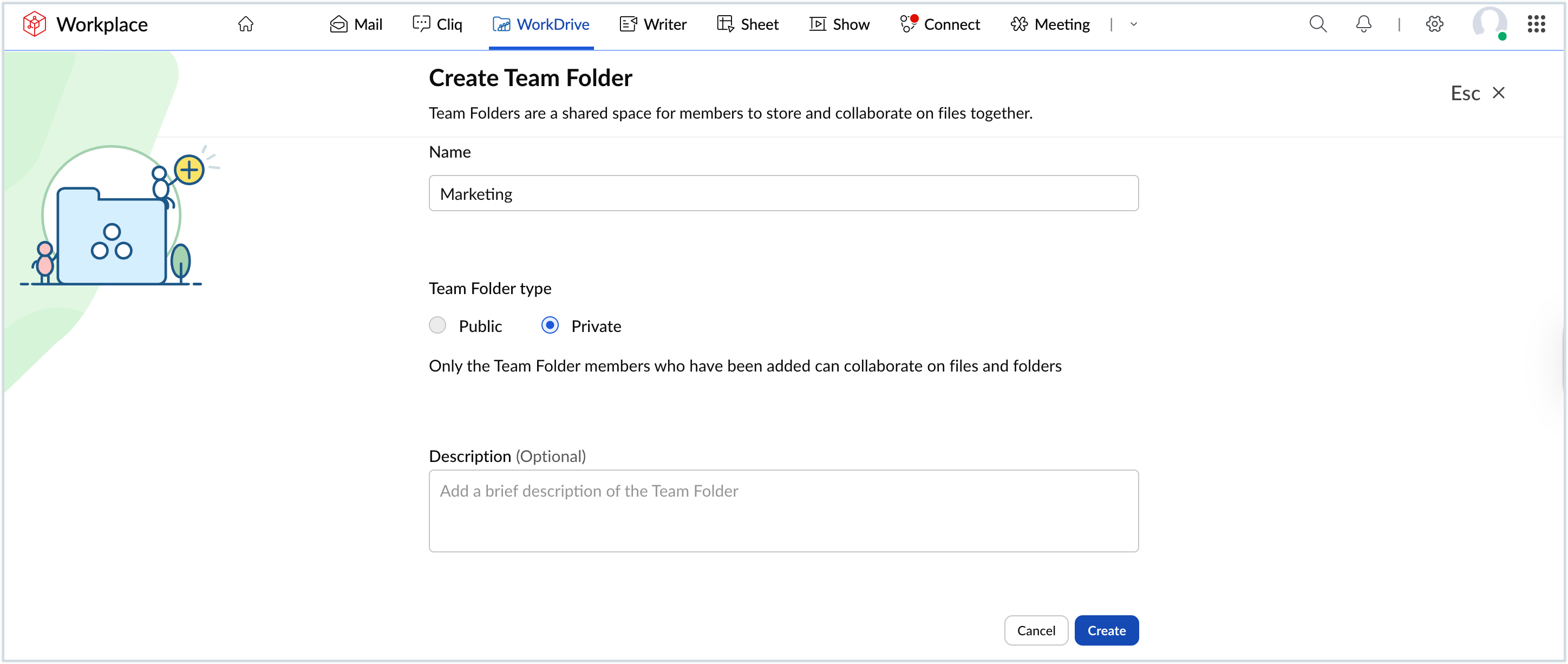
- Enter a suitable name for the Team Folder. This will help your team members identify and access the folder whenever needed.
- Choose the Team Folder type: Public (any team member can join) or Private (open only to the team members added to the folder).
- Add a relevant description about the Team Folder and click Create. The Team Folder will be setup.
- You can now start adding members to the folder and assign different roles to them. There are five roles that you can assign your team members, they are:
- Admin: By default, the owner of the team folder will be assigned this role. The admin has full control over the folder and its access levels. They can add, edit, move, rename and share files and folders.
- Organizer: Organizer has all the access privilege options as the admin, however, they cannot add members to the team folder.
- Editor: An editor has full access over a file and can view, add, edit, copy, and rename files and folders.
- Commenter: A commenter cannot edit a document, but can view, copy, comment and download files.
- Viewer: A viewer can view, copy, download and sync files.
- Add the members using their email address in the Add members field and choose their role from the Roles drop-down.
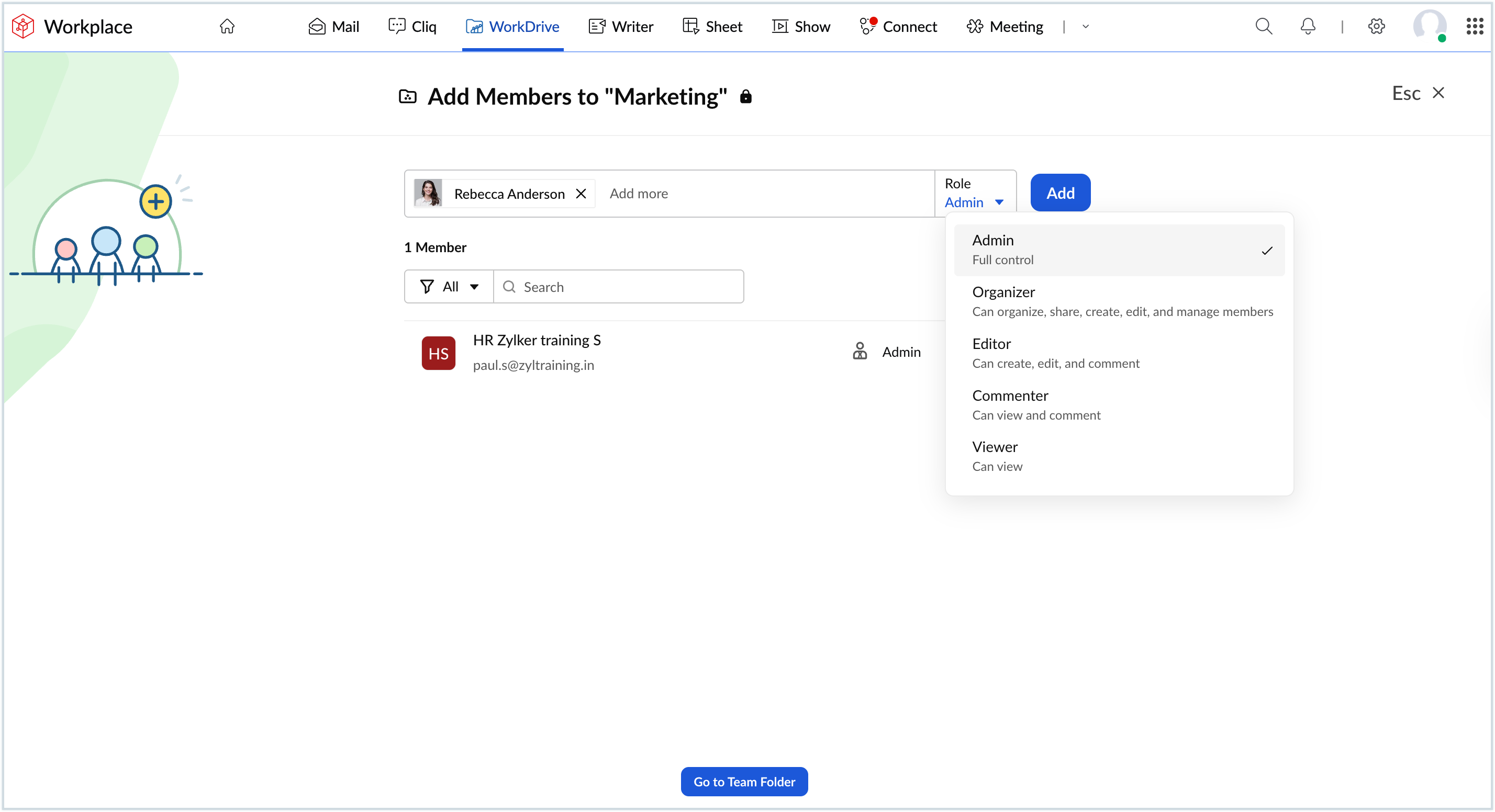
- Click Add to include them to the group.
- Once you add the members, click Go to team folder to start sharing the files and folders with your team.
Steps to add or import files to a Team Folder in Zoho Workplace
Create a new file
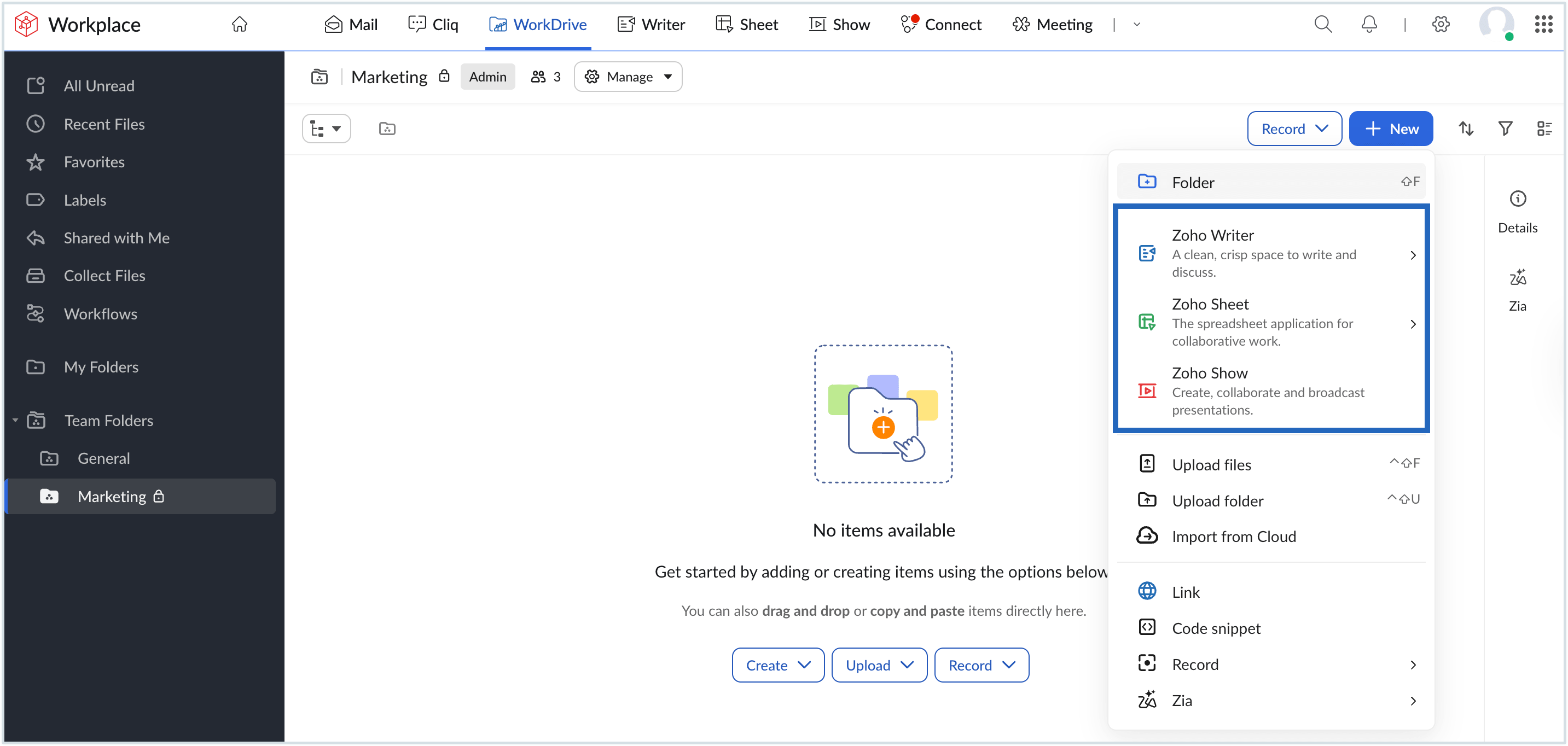
- To add new files to the Team Folder, click +New and choose the type of file you wish to create.
- Select Zoho Writer (for document), Zoho Sheet (for spreadsheet), or Zoho Show (for presentation) to create the desired type of file and start working on it.
Upload an external file
- You can also upload external files and folders to the team folder and share them with your team members.
- To upload a file, click +New and select Upload files. Choose the file from the local device to upload it.
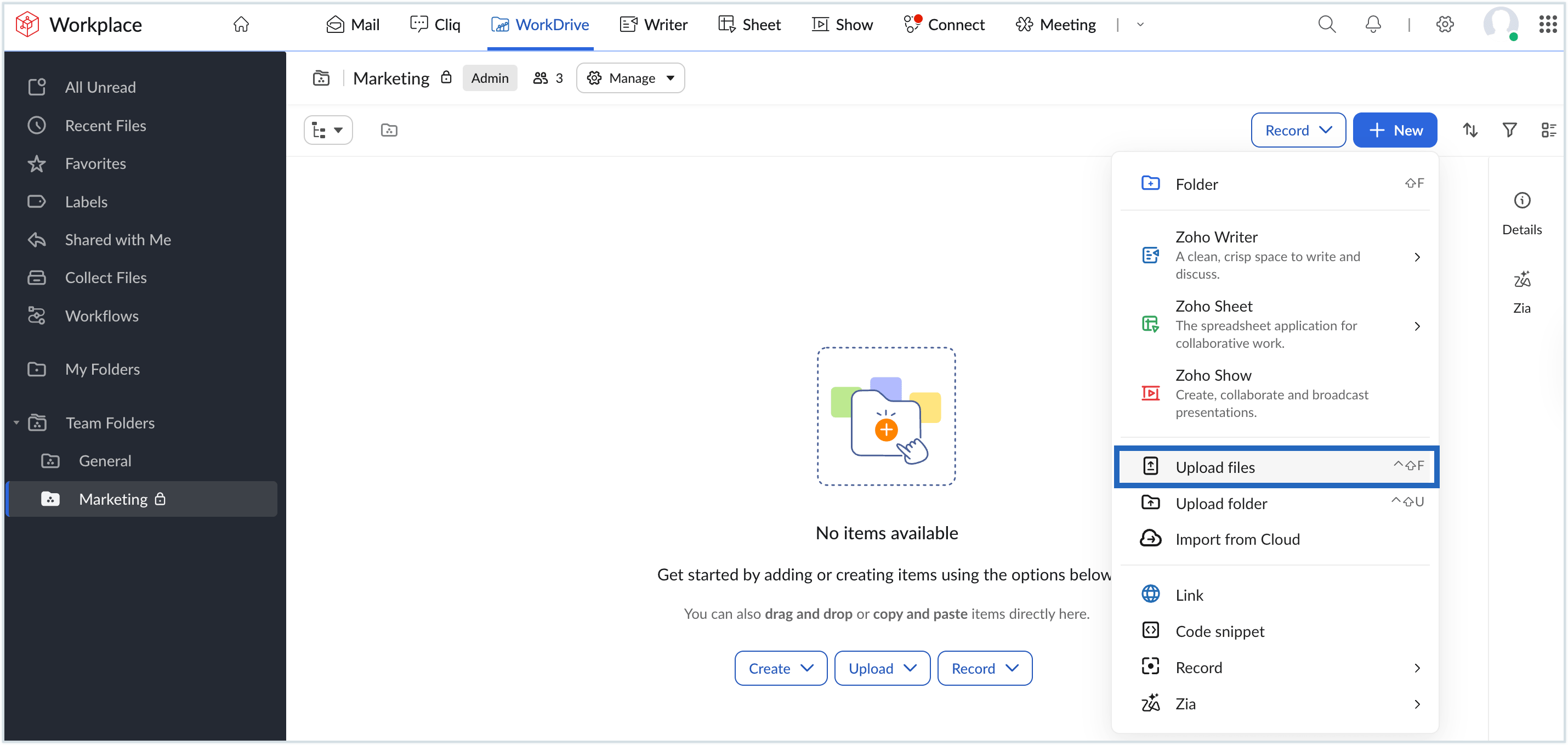
- To upload a folder, click +New and select Upload folders. Choose the folder from the local device to upload it.
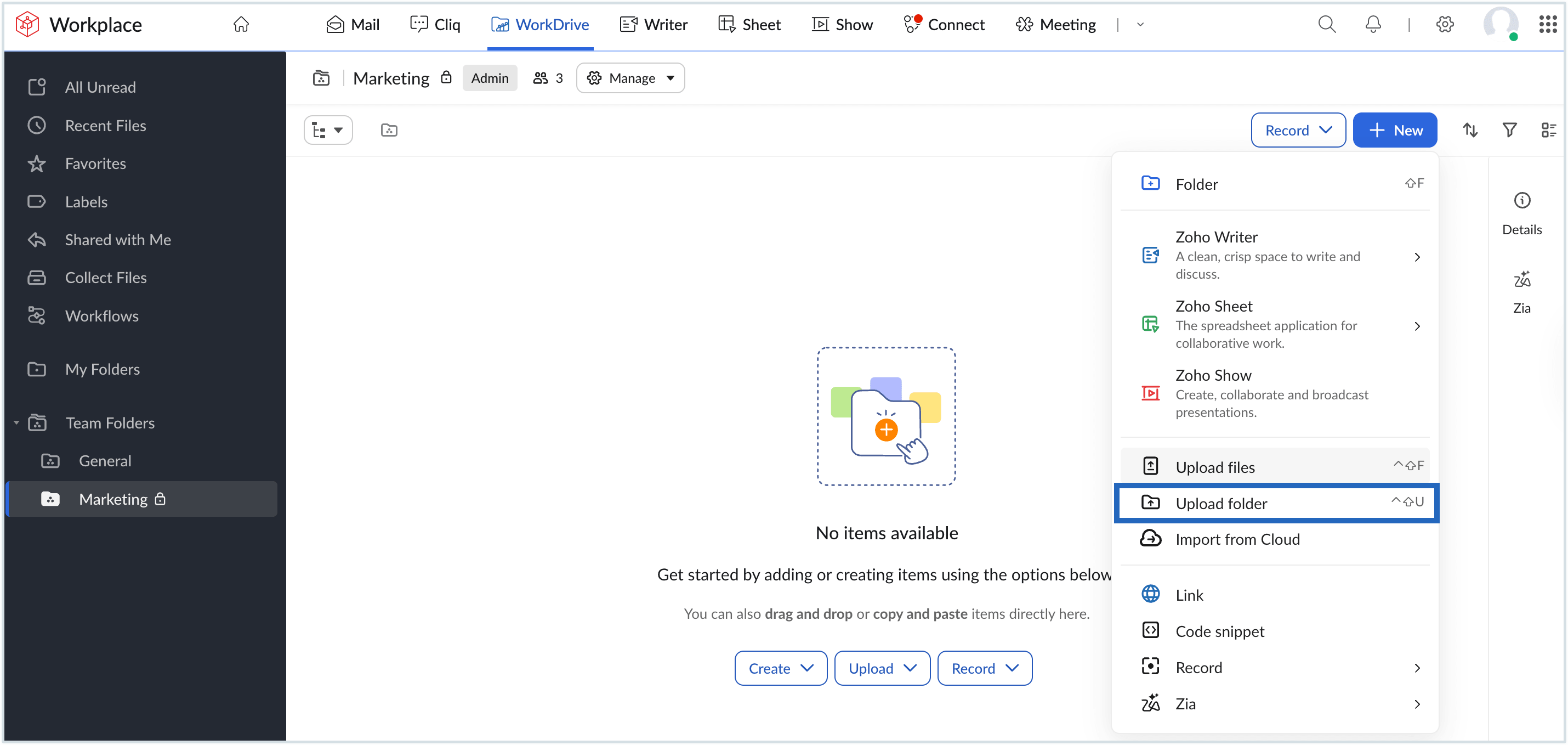
- You can only preview the external files and folders uploaded to WorkDrive. To edit them, you can upload them separately in the respective application (Writer, Sheet or Show) and work on them.
Import from cloud storage
- Alternatively, you can also import the files or folders from any cloud storage to your Team folder. You can import data from popular cloud storage like Google Drive, Box, Dropbox, OneDrive, and Evernote.
- Click +New and select Import from Cloud to upload files from a cloud storage.
Learn more about Zoho WorkDrive
Now that Zoho WorkDrive is set up, you can explore the following next: