Getting started with Zoho Sheet in Zoho Workplace
Zoho Sheet is a cloud-based spreadsheet platform designed for data analysis, collaboration, and automation. It offers advanced functions, charts, pivot tables, and real-time collaboration tools for managing business data effectively. Zoho Sheet helps you with:
- Data Analysis: Use formulas, pivot tables, and charts for insights and better
- Collaboration: Edit, comment, and discuss in real time with your team.
- Security & Control: Set permissions, share securely, and manage access levels.
You can immediately start working with Zoho Sheet by creating a new spreadsheet.
Steps to create a new spreadsheet in Zoho Workplace
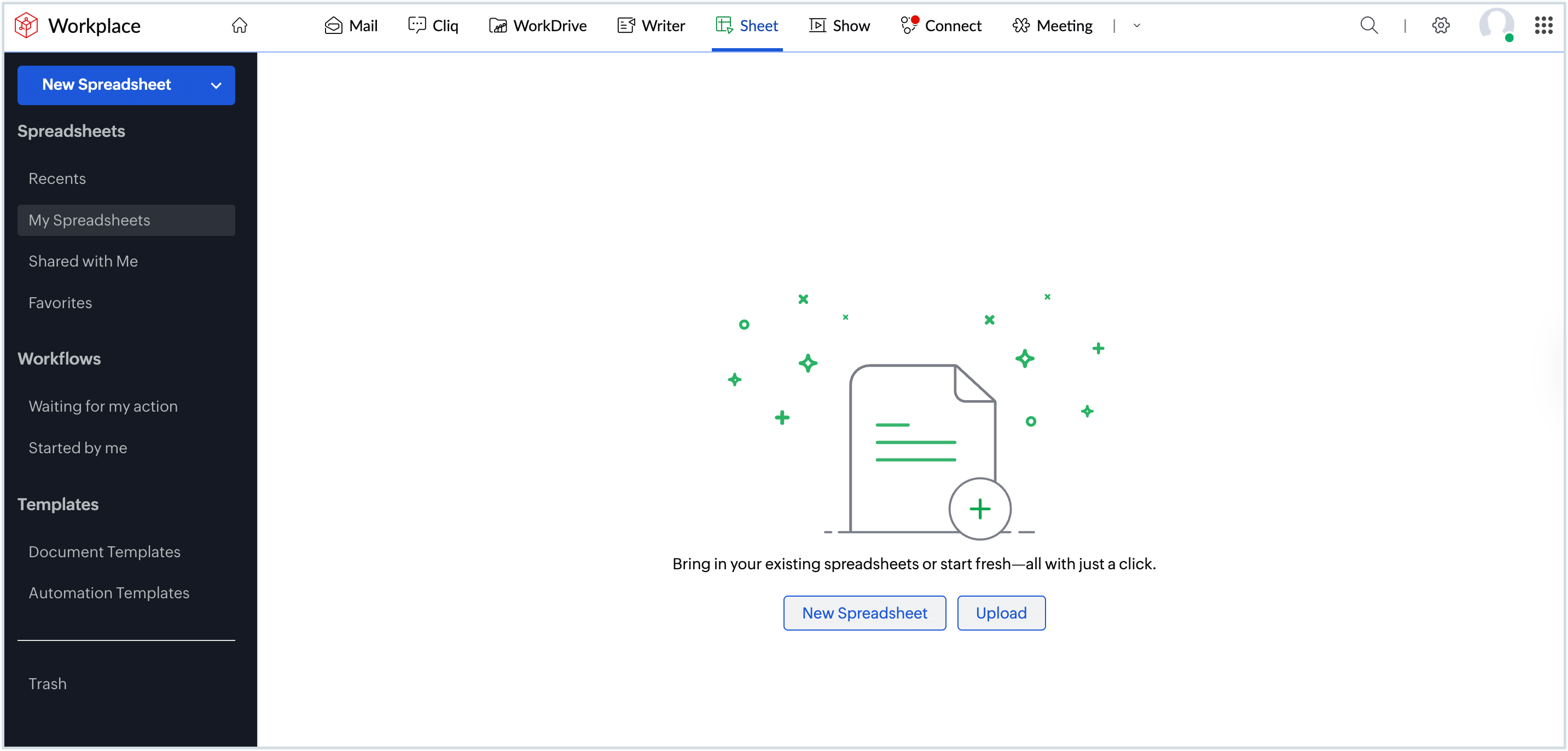
- Click on Sheet at the top pane. This will redirect you to Zoho Sheet's dashboard where you can find all the spreadsheets you have created in Zoho Sheet.
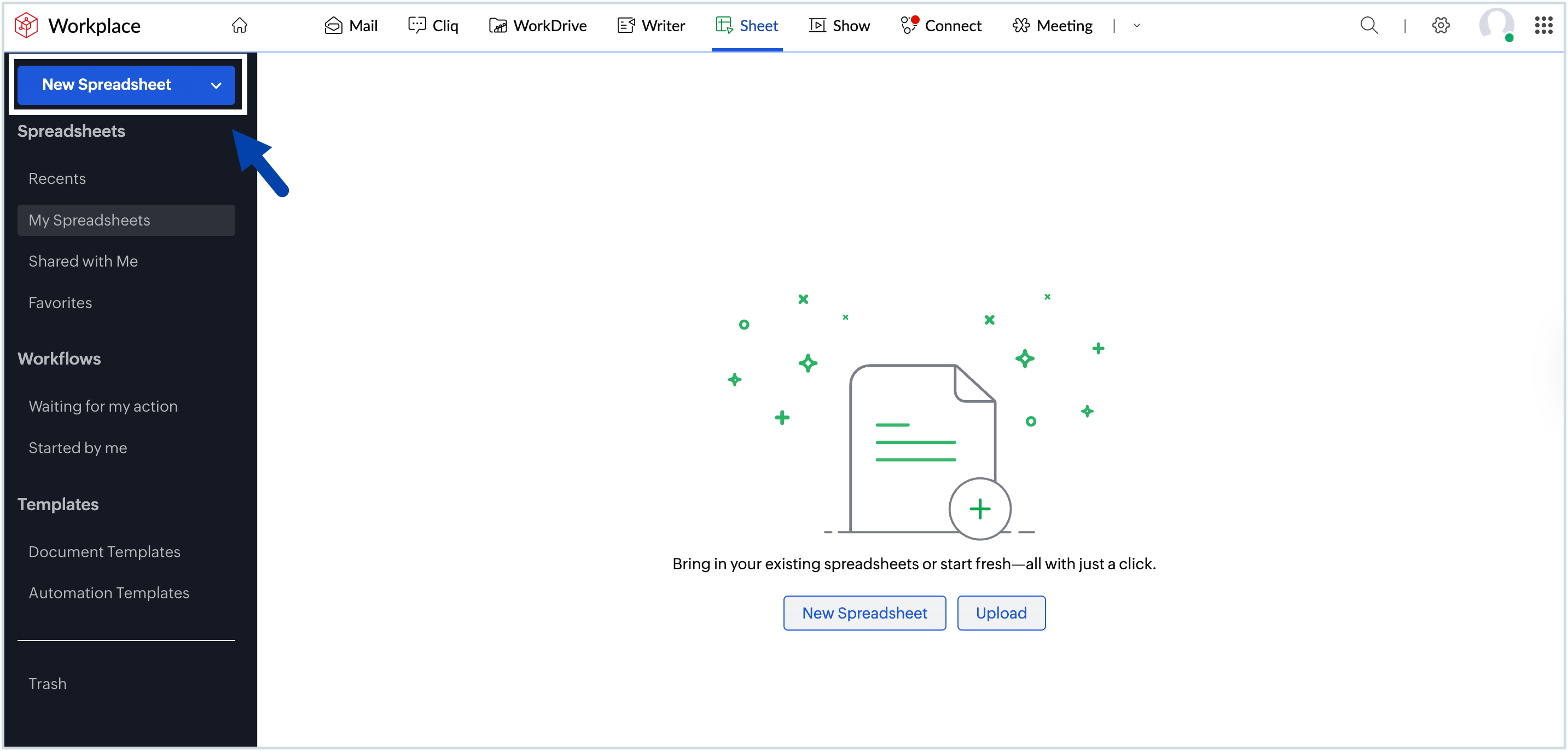
- Click New spreadsheet at the top-left corner. This will open a blank spreadsheet.
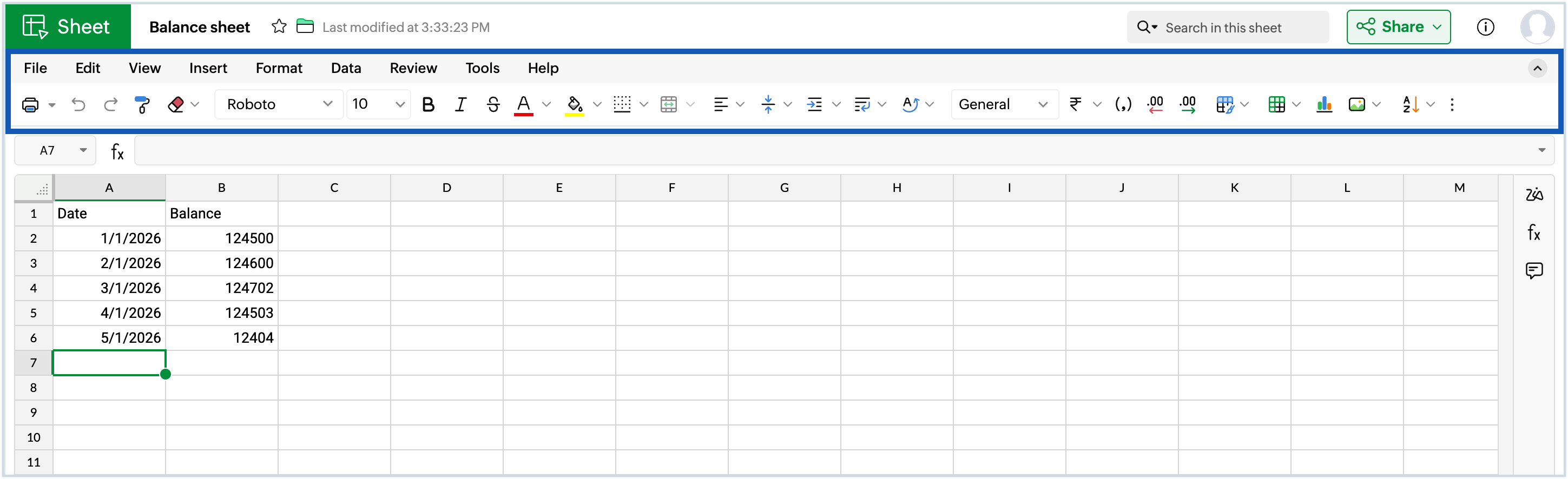
- You can now start working on the spreadsheet and use the toolbar at the top to access and use the data analysis tools for your spreadsheet.
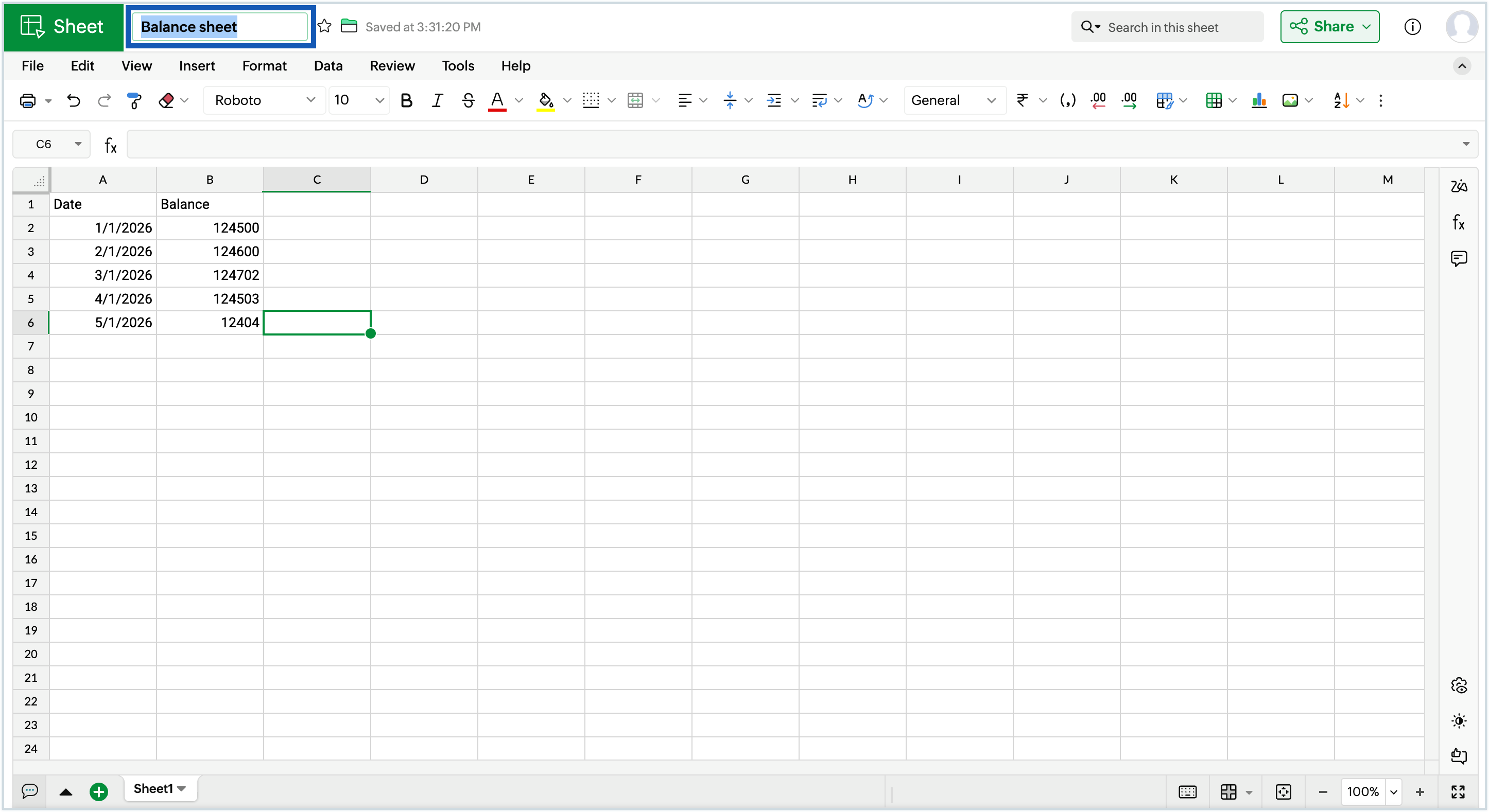
- All edits made to the spreadsheet are automatically saved.
- Click the file name field at the top-left corner and enter a name for the spreadsheet.
- If you wish to save the spreadsheet in a different format, go to File and click Download As and select the desired format from the list(XLSX, XLSB, ODS, CSV, TSV, PDF and ZIP).
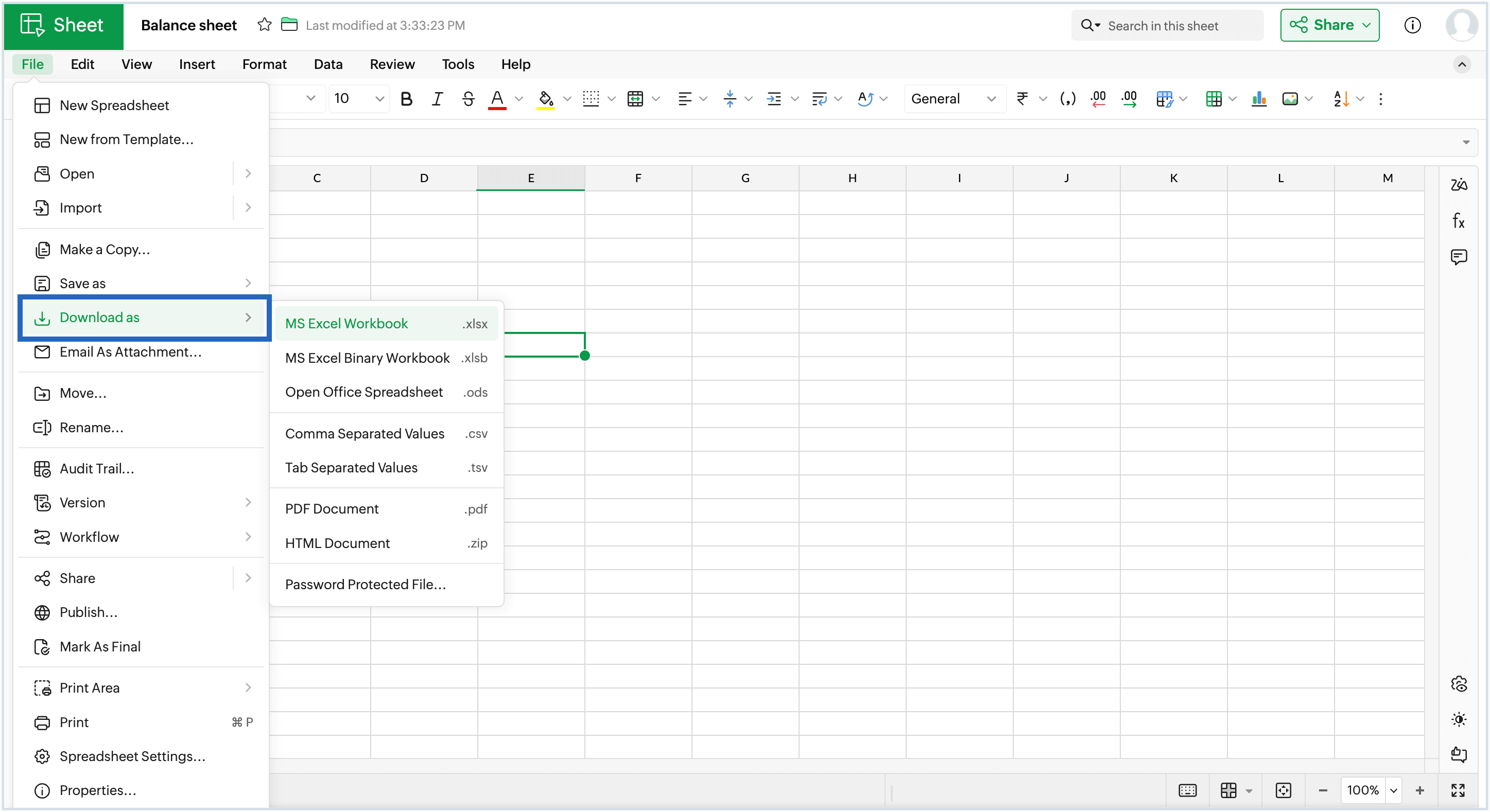
- If you wish to save your spreadsheet on a cloud drive, go to File > Save as > Save to Cloud Drives.
- Choose the desired drive and authenticate the service so can save your document to it.
Save as templates
You can also save the spreadsheets as templates which can be reused later. To save as templates:
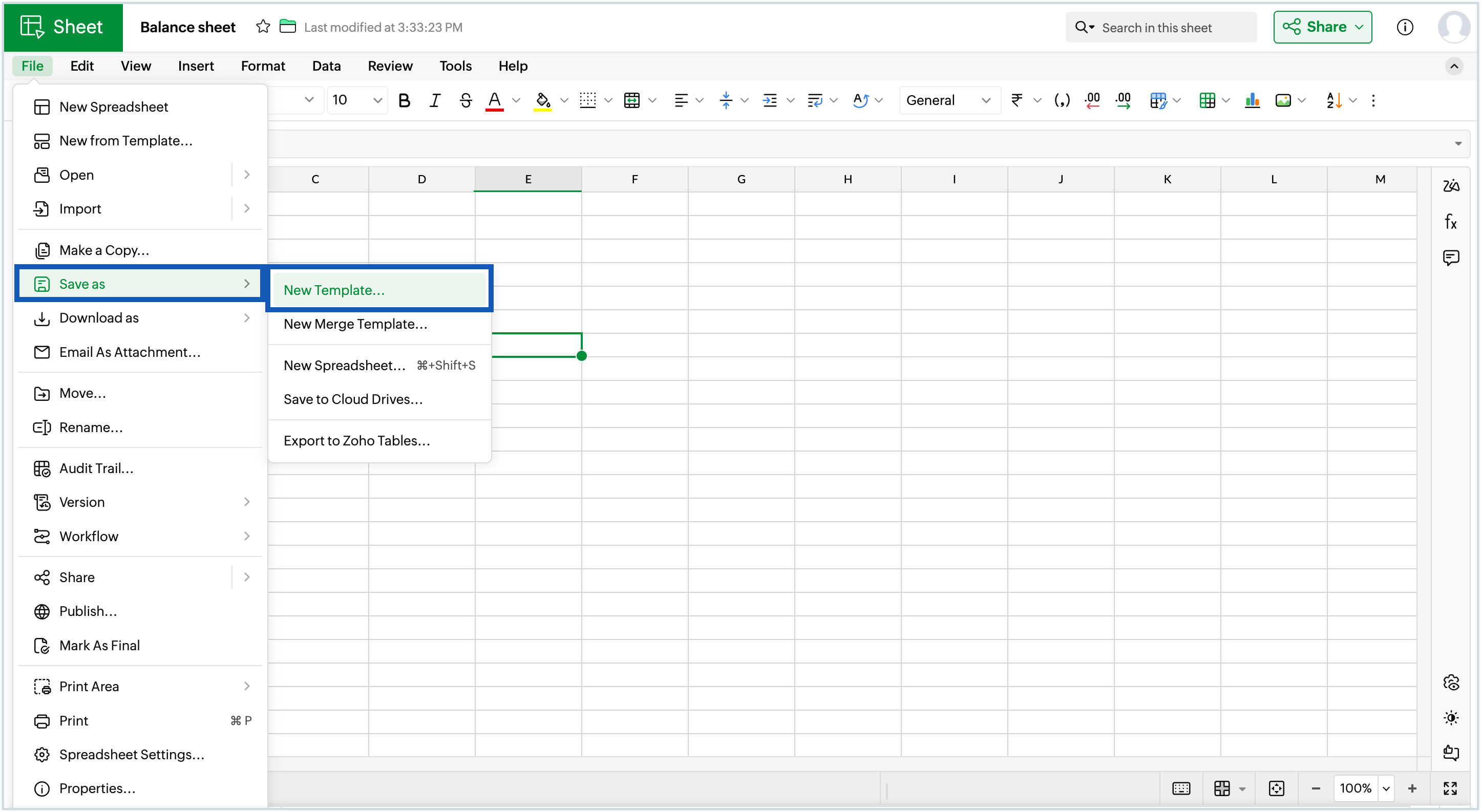
- Go to File >> Save as >> New Template.
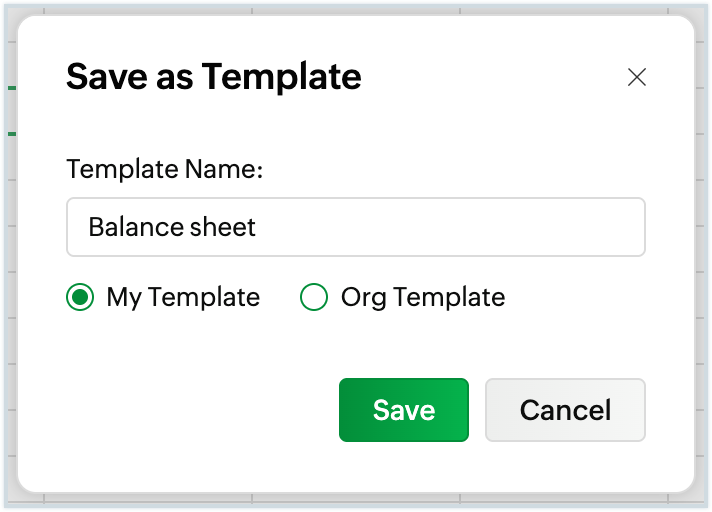
- Enter a suitable name for the template and select if you wish to save it as My Template (can be accessed only by you) or Org Template (can be accessed by anyone in your organization).
- You can save a spreadsheet as a dynamic template as well using the File >> Save as >> New Merge Template option.
- Refer this help guide to create a dynamic template in Zoho Sheet.
Steps to import an external spreadsheet to Zoho Workplace
If you have an existing spreadsheet you wish to work on, you can upload it to Zoho Sheet and edit it directly.
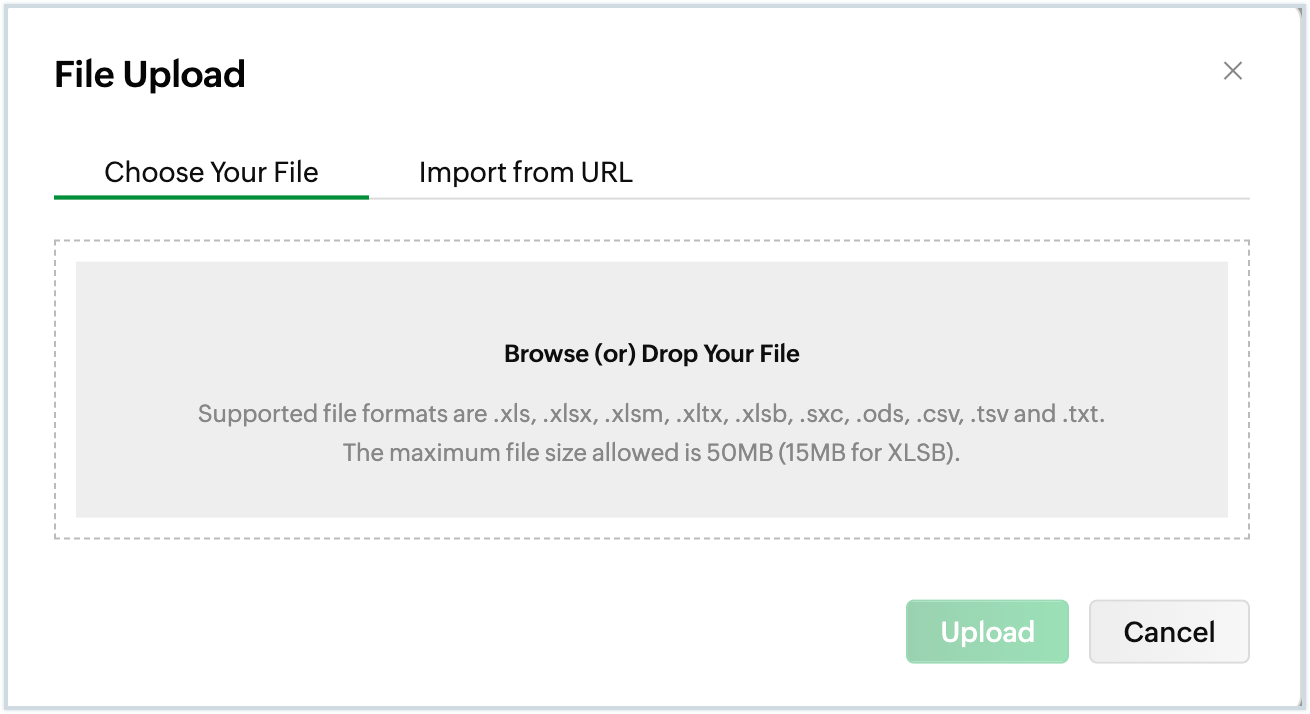
- Navigate to the Zoho Sheet dashboard in Zoho Workplace and click Upload on the top-right corner.
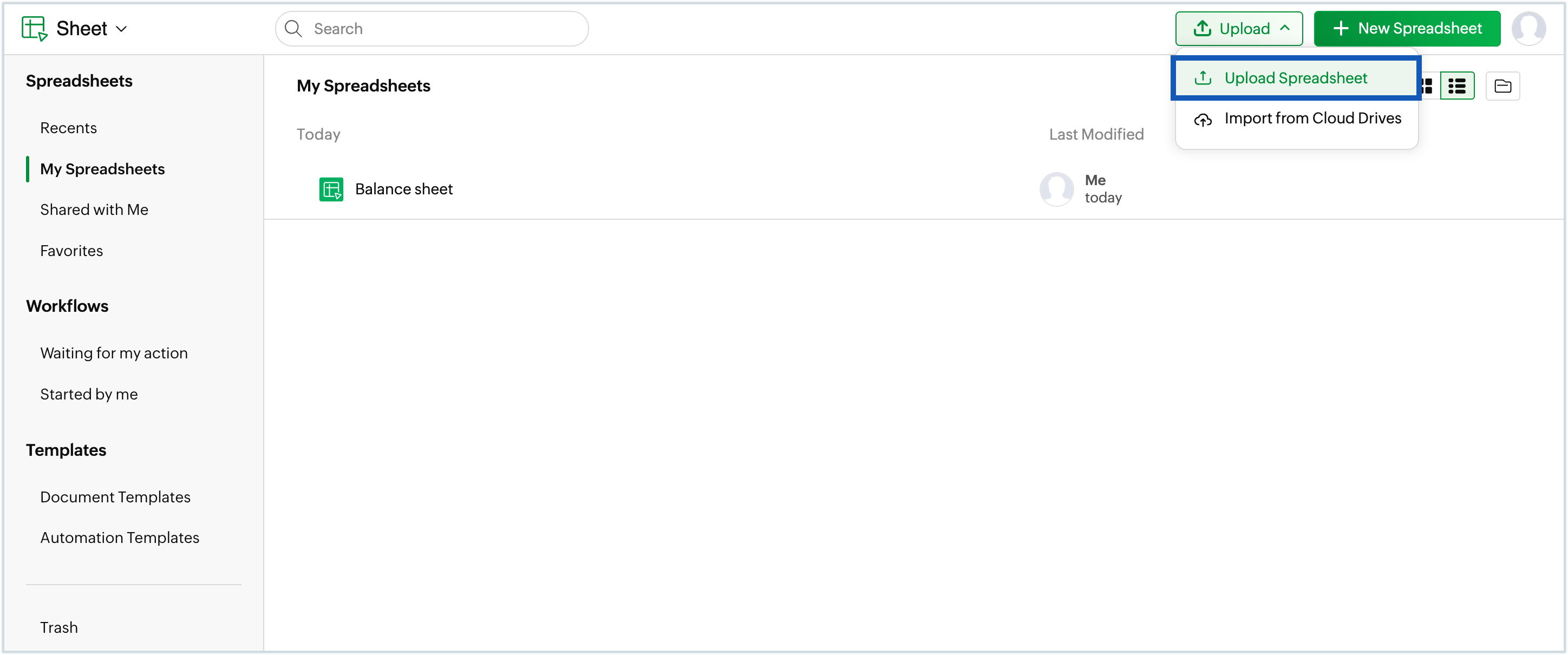
- Choose the desired file/URL you wish to upload and click Upload.
- You can import spreadsheets from cloud storage too. To do so, go toUpload >> Import from Cloud Drives.
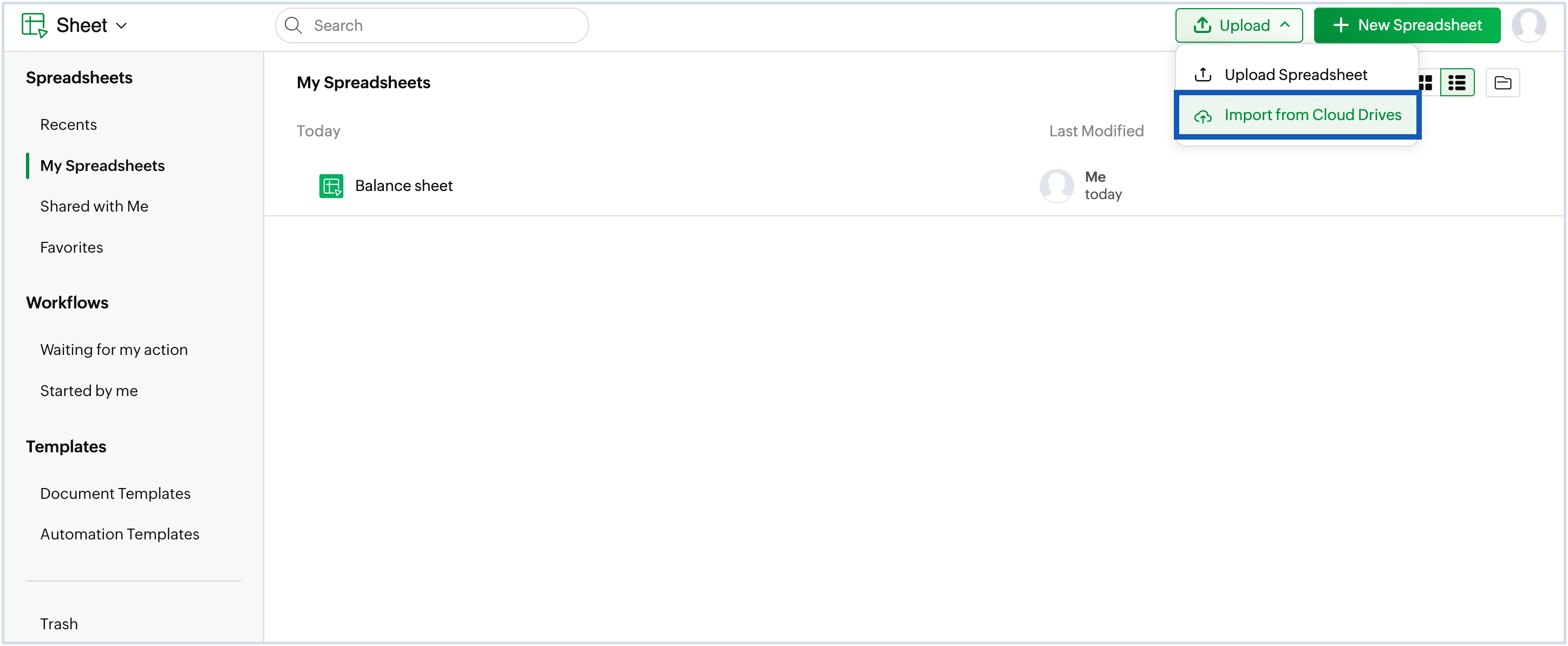
- Authenticate the service you wish to upload from and proceed.
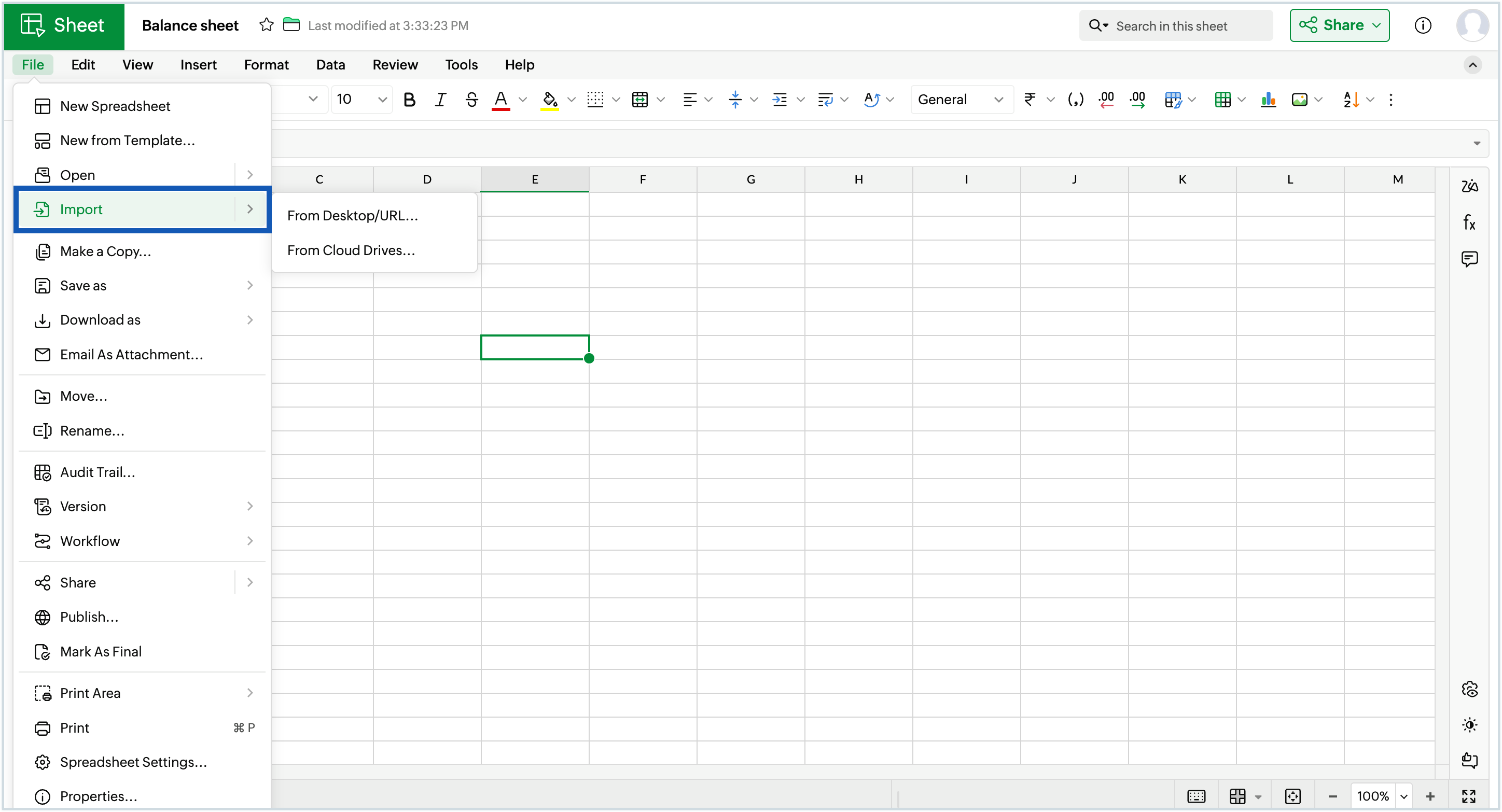
- Alternatively, you can import files from within a spreadsheet using: File >> Import.
Learn more about Zoho Sheet
Now that your spreadsheet is set up, you can explore the following sections next: