Getting started with Zoho Connect in Zoho Workplace
Zoho Connect is a unified team collaboration platform that brings teams together to share their ideas in a single place. From regular updates and file-sharing to hosting video town halls, Zoho Connect keeps teams informed of everything happening across the organization.
Zoho Connect allows you to create networks where you can add team members, create group and interact with them. By default, a network will be created for your organization when a Zoho Workplace account is created.
How to acess Zoho Connect in your Zoho Workplace account
To access Zoho Connect, navigate to the Zoho Connect application from the top bar. You will land in the My Feed section.
My feed section in Zoho Connect
The My Feed section gives you a curated view of all conversations and updates relevant to you. You can see updates from groups you belong to, members you follow, posts and comments that mention you, and posts made on the network wall. You can also share your thoughts, ideas, ask a question, or even make an announcement from here.
To post to your feed:
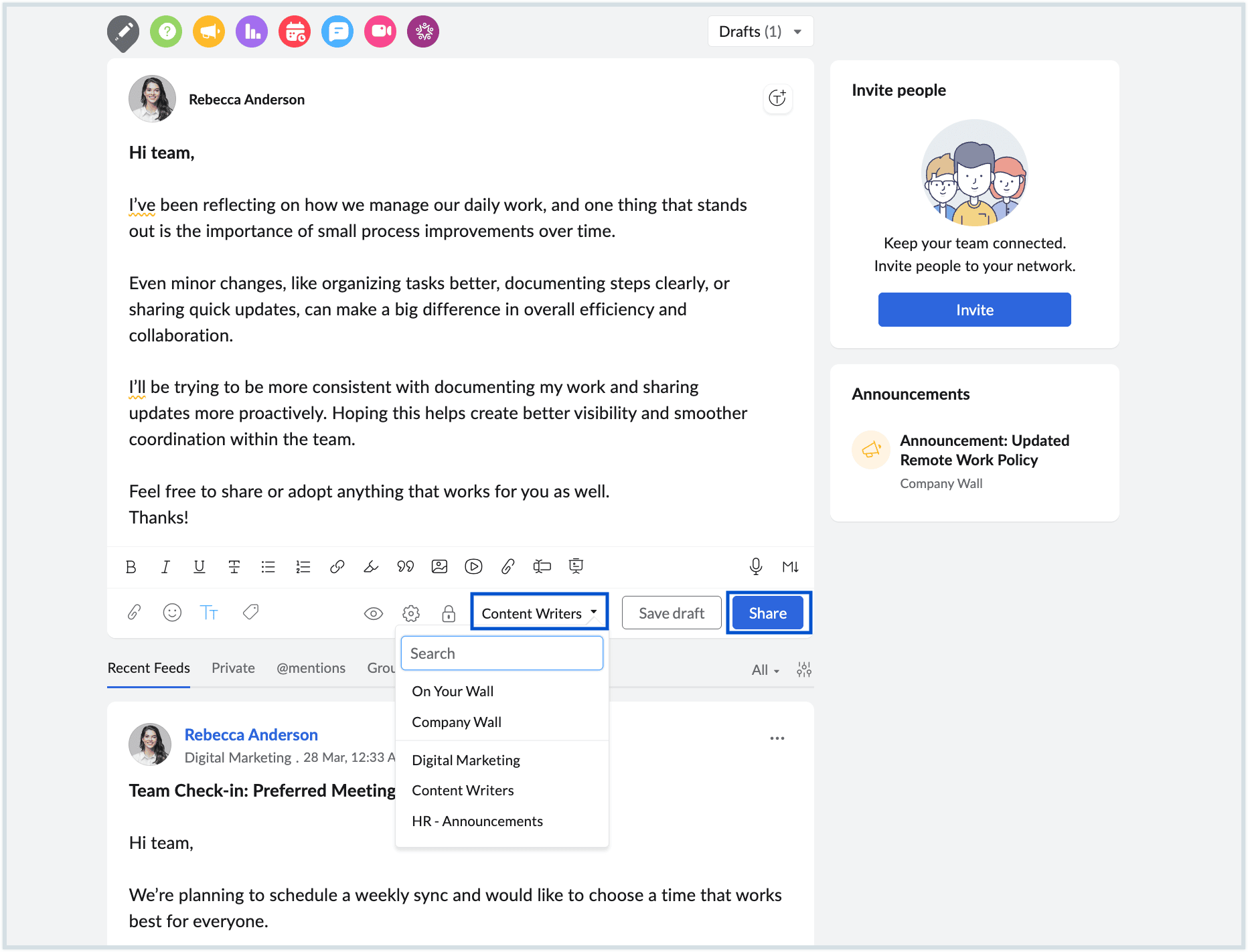
- Navigate to the Feeds page on the left pane and tap on the text editor to create a post.
- There are multiple types of messages you can post on your Feed. They are:
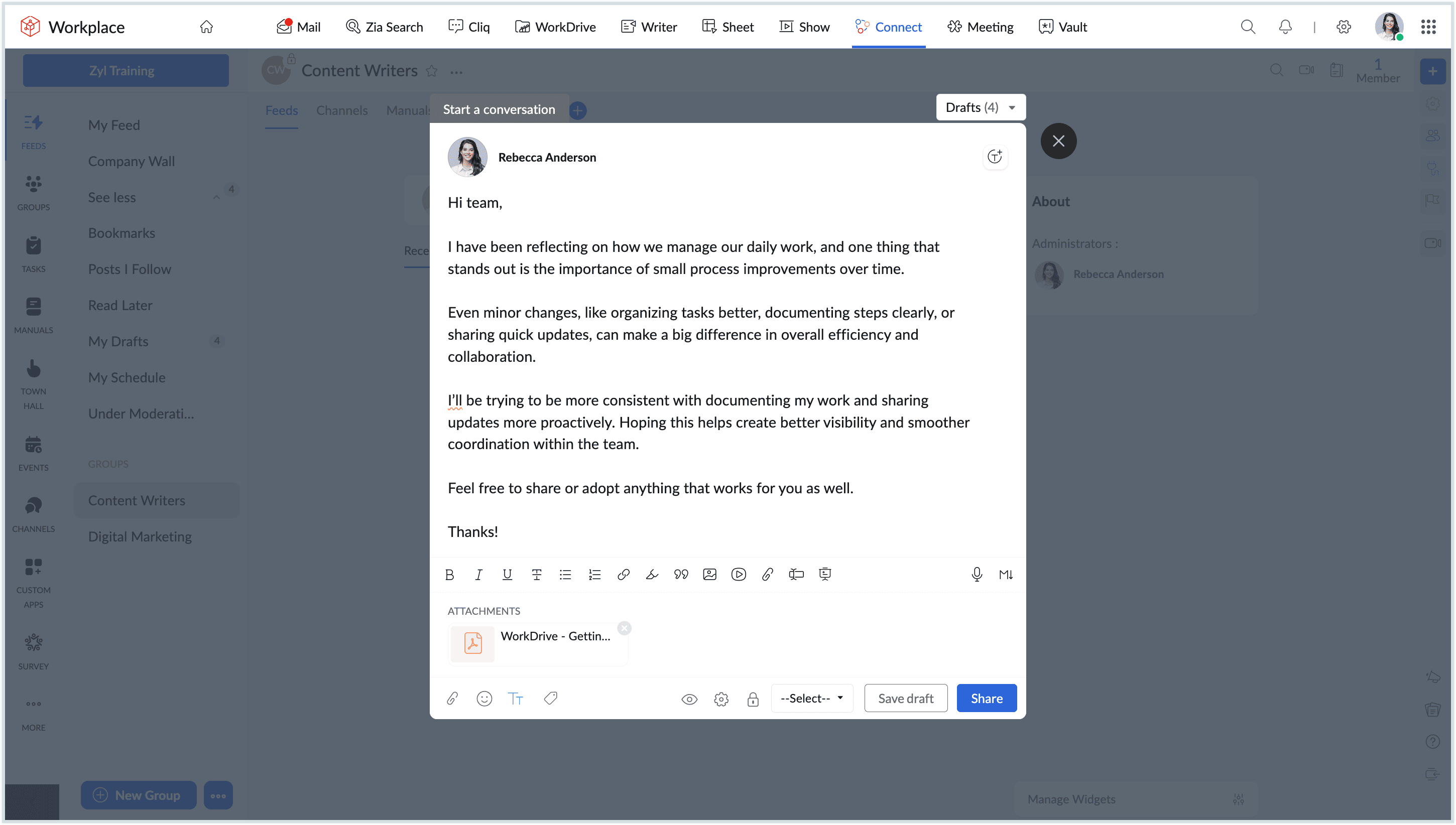
- Conversation or message: Create a conversation on any topic for your organization members.
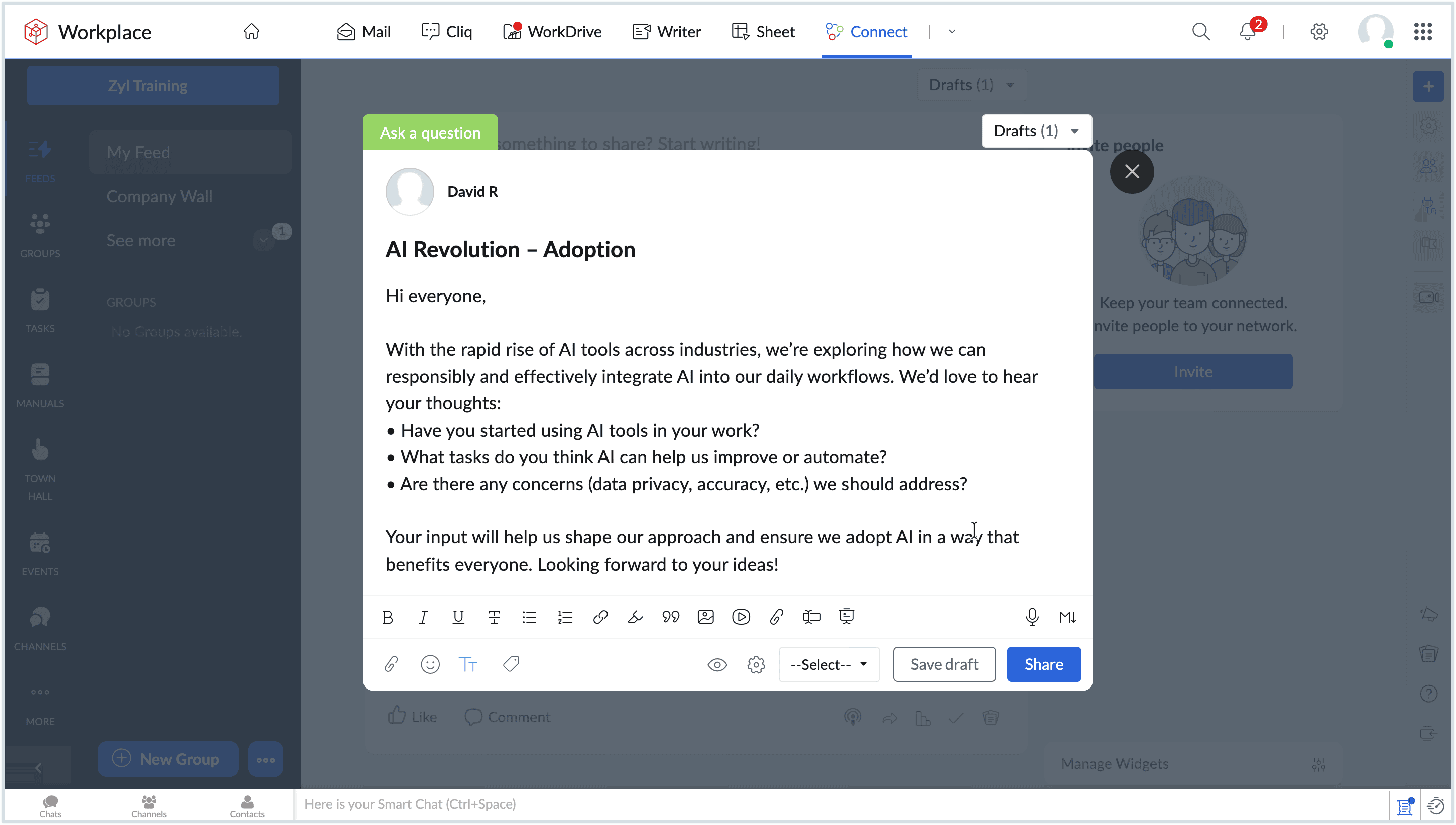
- Question: Post a question you would like to ask to your fellow organization members.
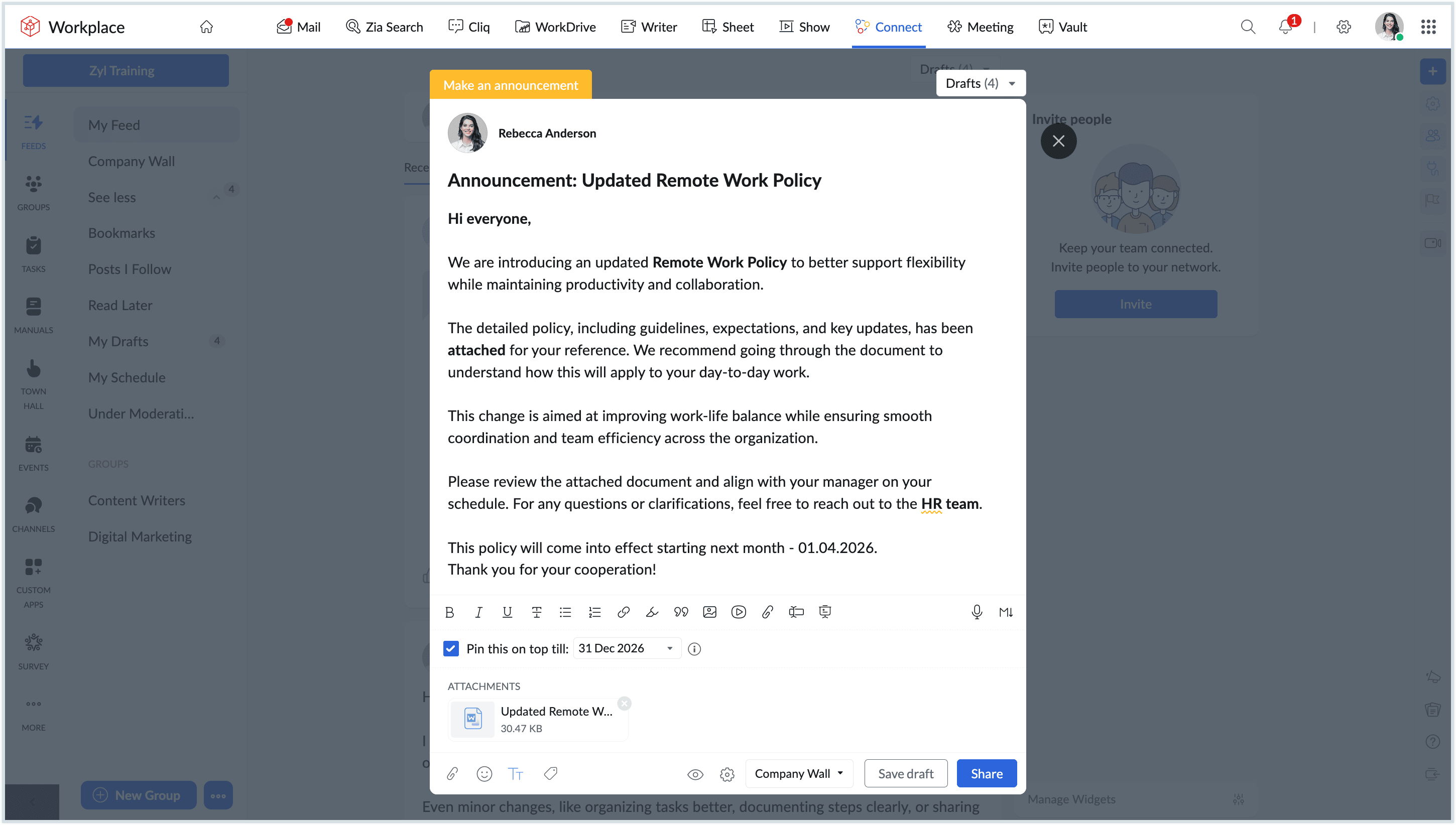
- Announcement: Keep members informed of any updates or news using the announcement option.
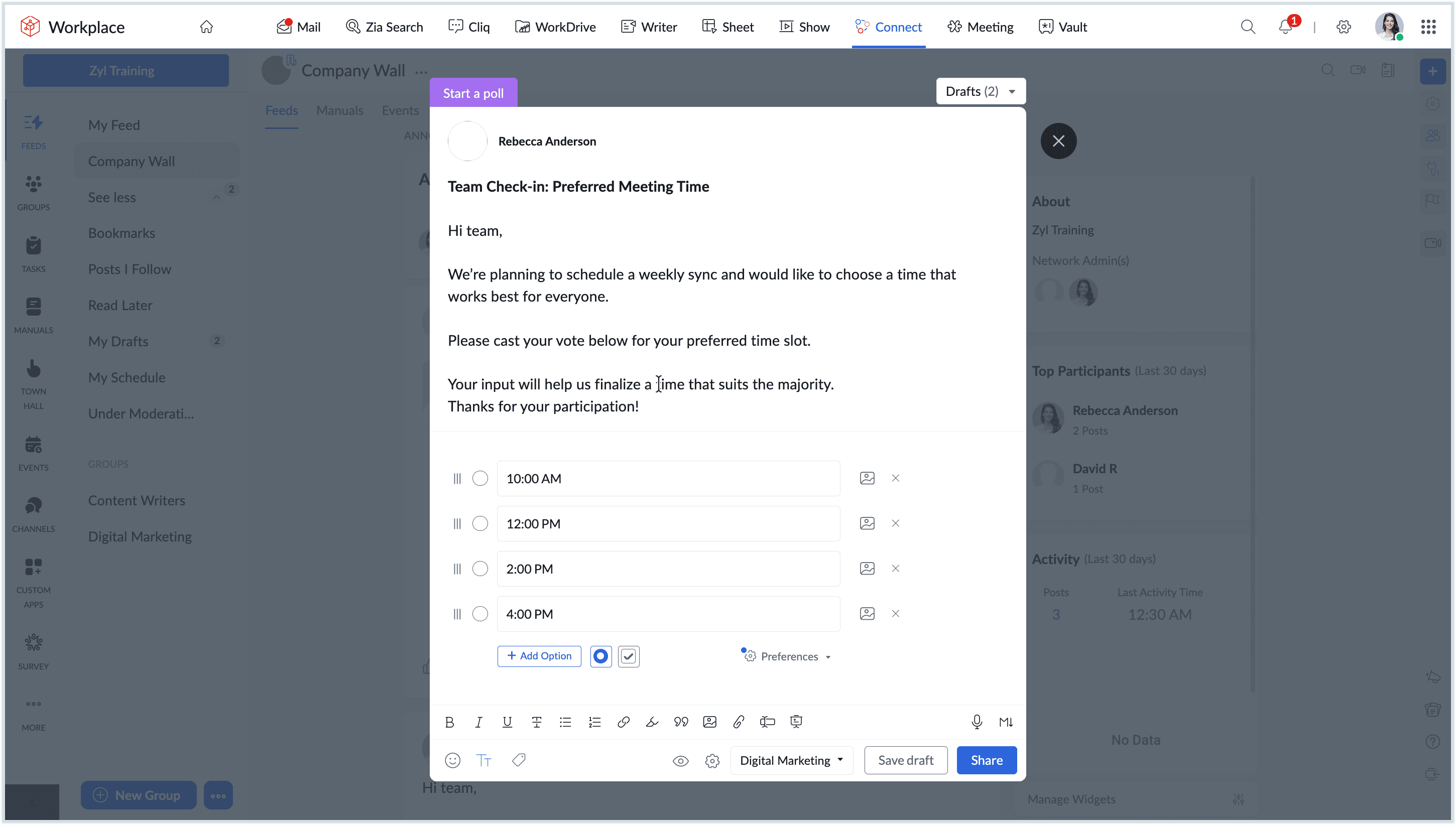
- Poll: Run a poll to get your team members' views on a topic.
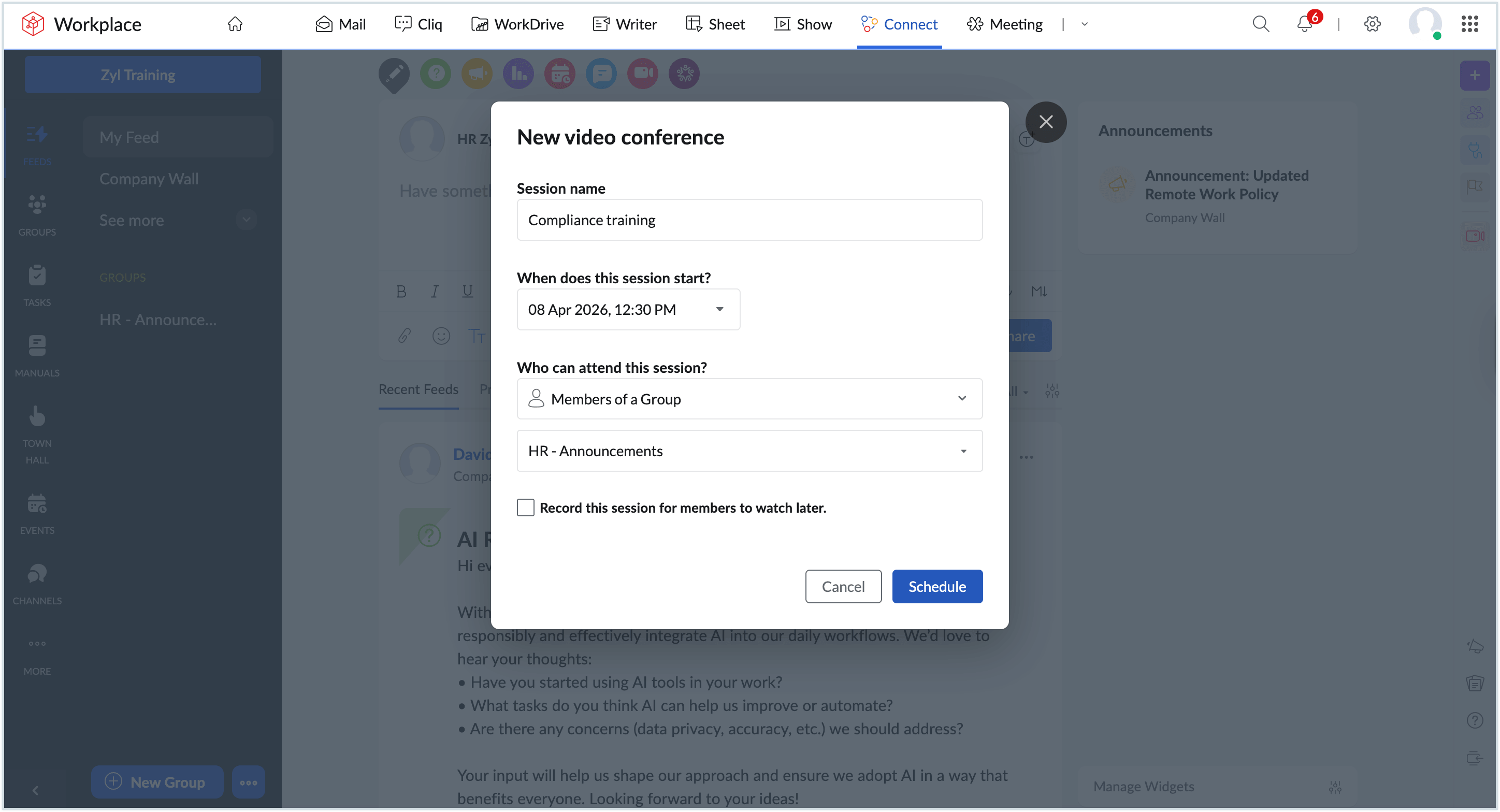
- Video conference: Start a video conference with select participants right from within a post.
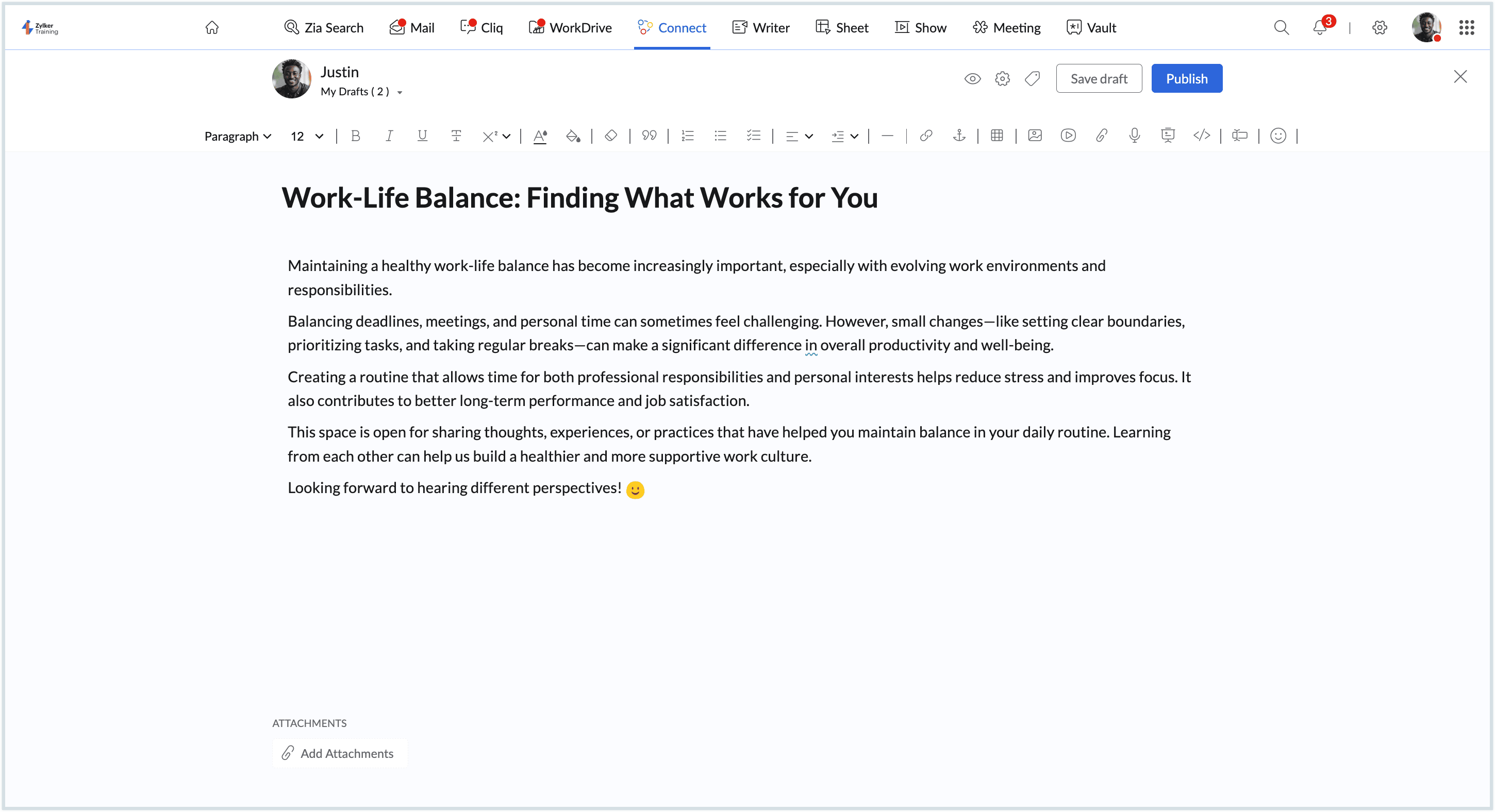
- Forum post: Forums are blog-style posts that can be created and shared with members of an organization. You can create a forum post from the text editor.
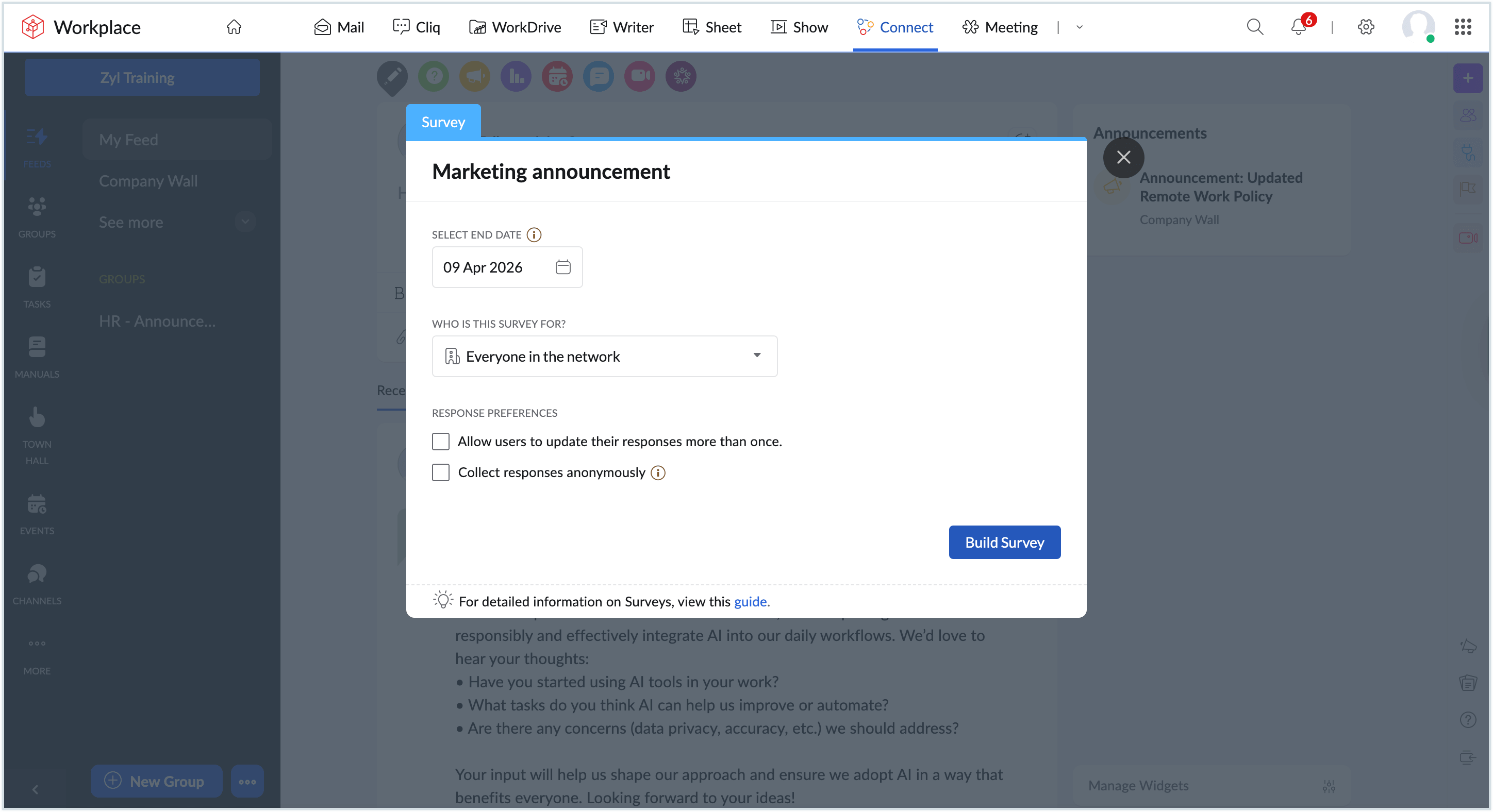
- Survey: Create interactive surveys about topics of interest.
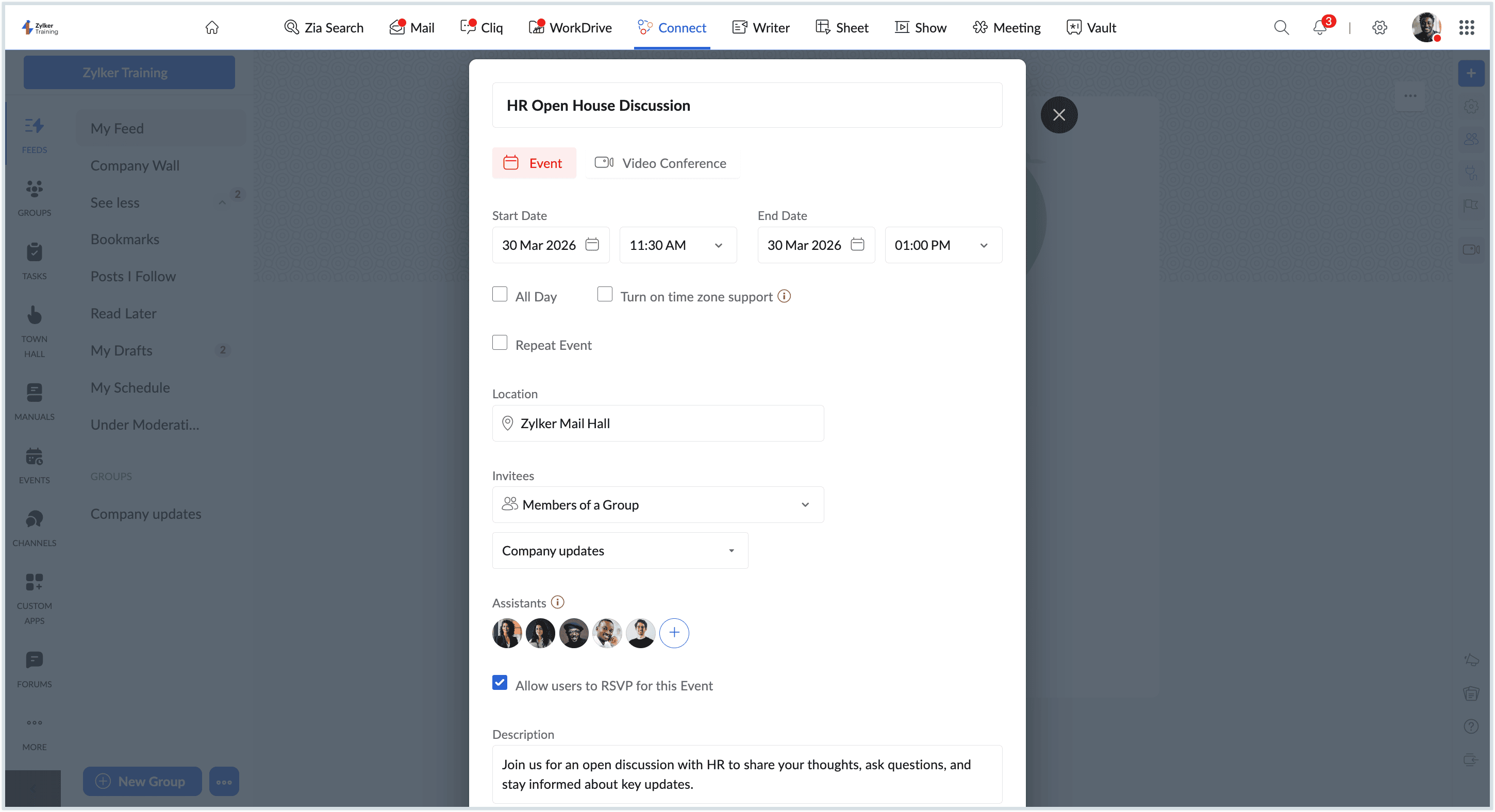
- Event: Create new event for team meetings, company-wide events, video conferences, ShowTime sessions, and personal works.
- Conversation or message: Create a conversation on any topic for your organization members.
- Select the company wall or a specific group wall where you want to post the announcement.
- Click Share to post.
- These options can be accessed from the left pane anytime.
Learn more about Zoho Connect
Now that you are set up on Zoho Connect, you can explore the following next: