Getting started with Zoho Vault in Zoho Workplace
Zoho Vault is a cloud based password manager that helps you to store, manage, and share passwords and sensitive credentials. It ensures data security through end-to-end encryption and supports user access control.
How to access Zoho Vault in Zoho Workplace
- Navigate to the Vault application from the top menu.
- On first access, you’ll be prompted to create a Master Password.
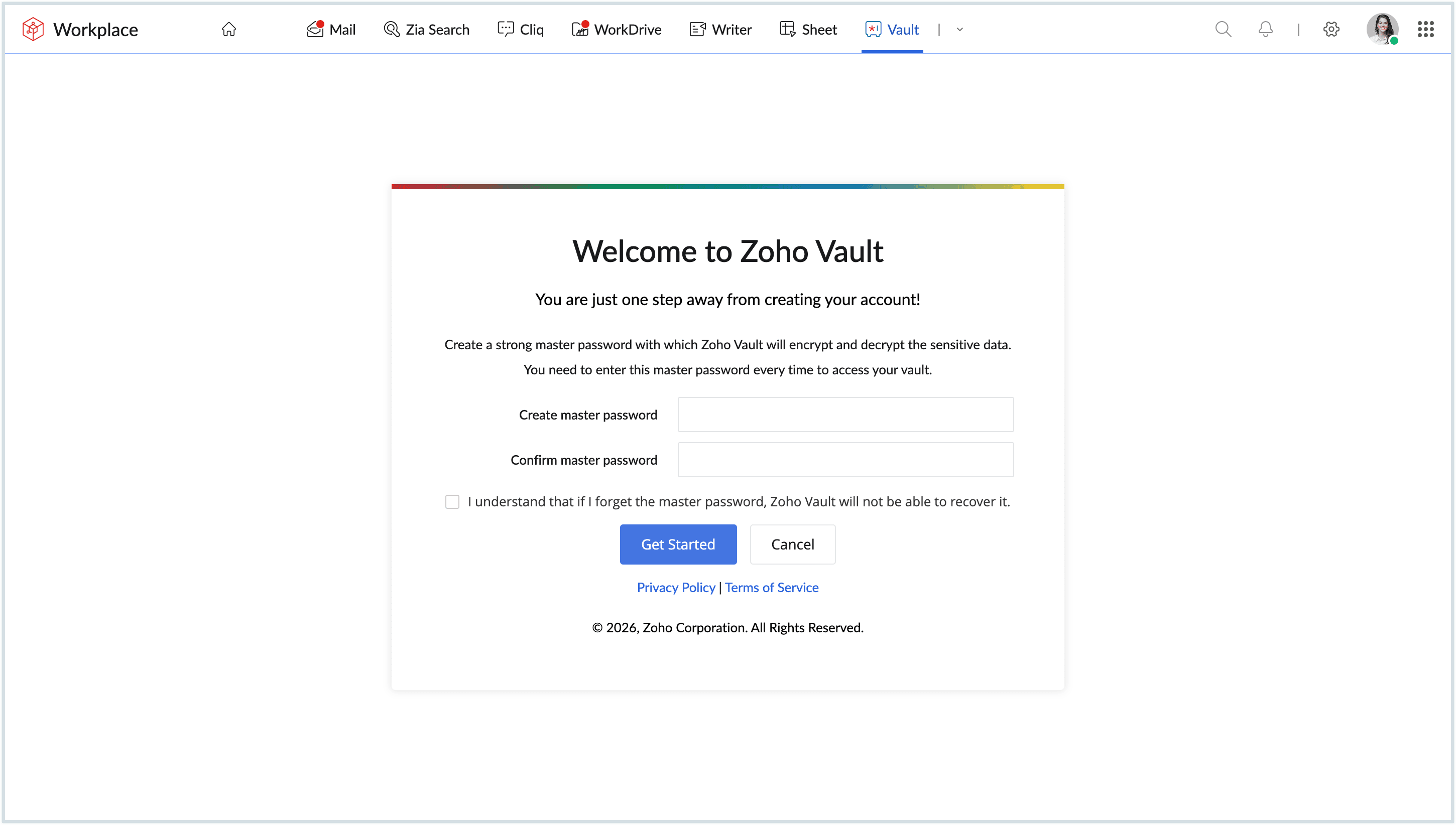
- Set a strong master password based on your preference.
- Click Get Started to enter your Vault.
- You will be prompted to take a quick product tour to get an overview of Vault. Click Take the Tour.
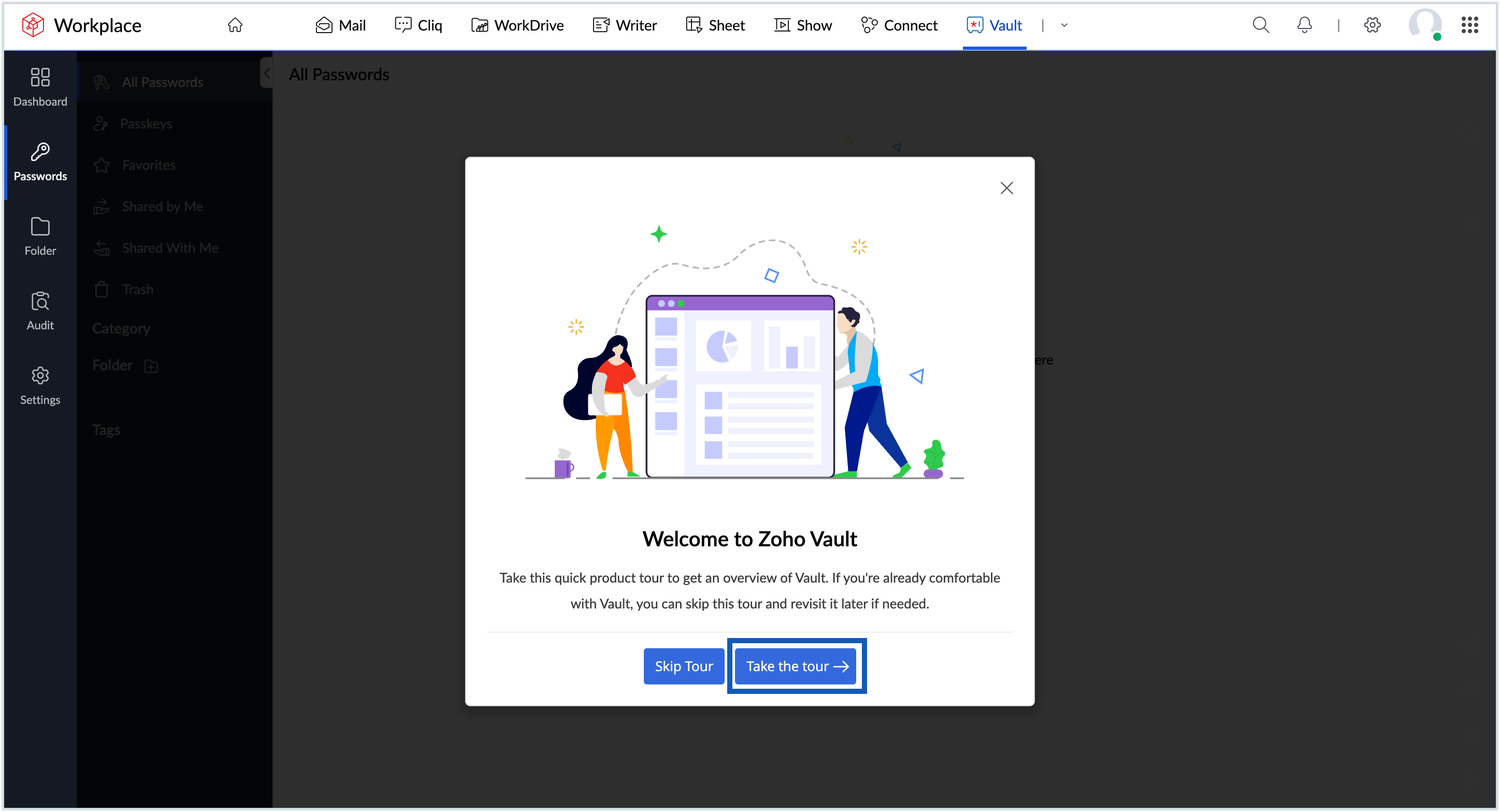
- Complete the tour to be redirected to the Zoho Vault Home page.
Zoho does not store this password anywhere. If you forget it, you will need to re-generate it and this will erase all stored information. So, we advise you to remember the master password for your Vault.
Steps to add a password in Zoho Vault
To get started, you can add a password in Zoho Vault. Follow the steps given below to do so:
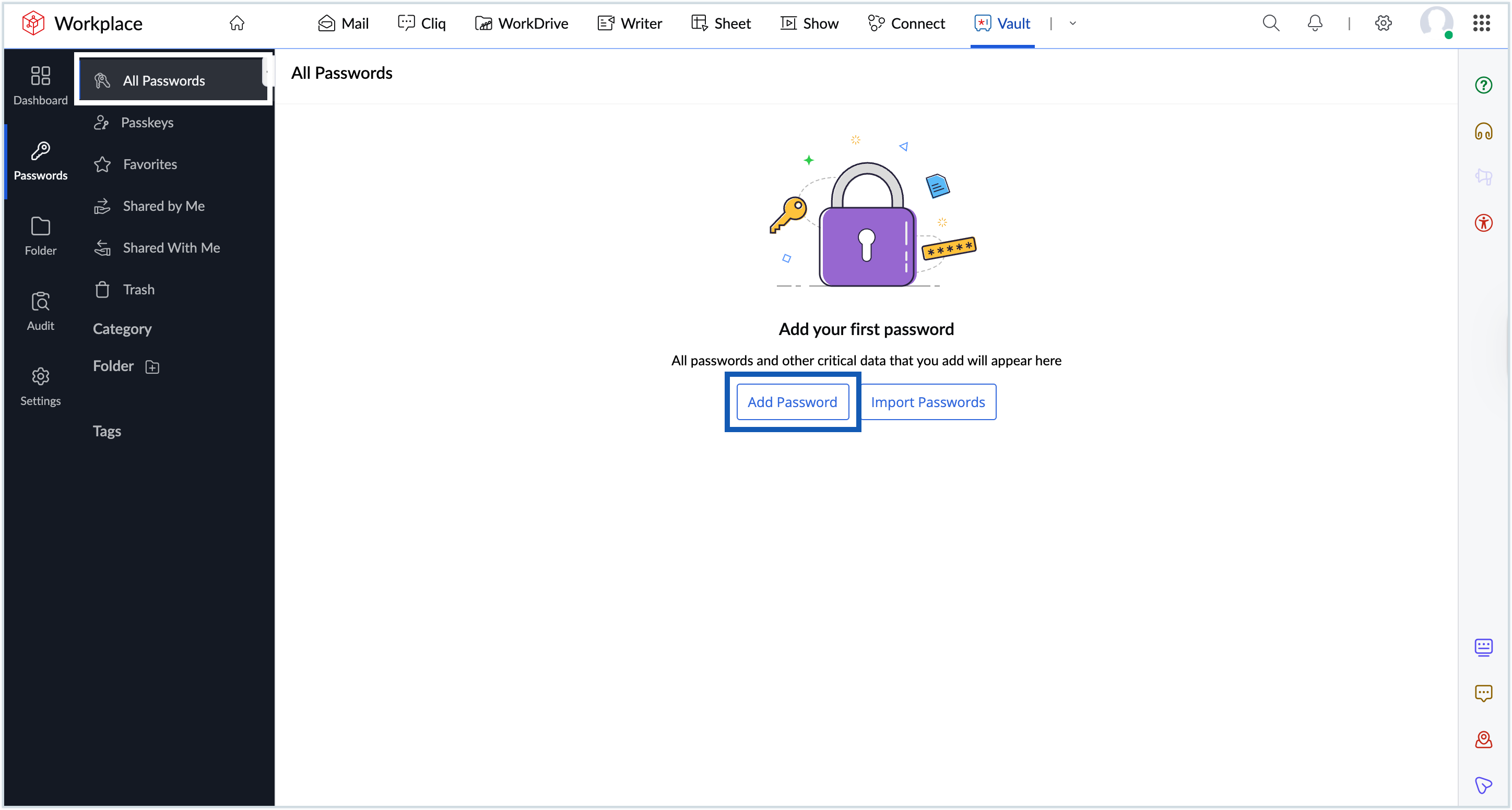
- Click Add passwordin the Passwords dashboard or Go to All Passwords >> Add.
- Choose the type (Sites, Passwords, Address, Payment Card, or Secure Notes).
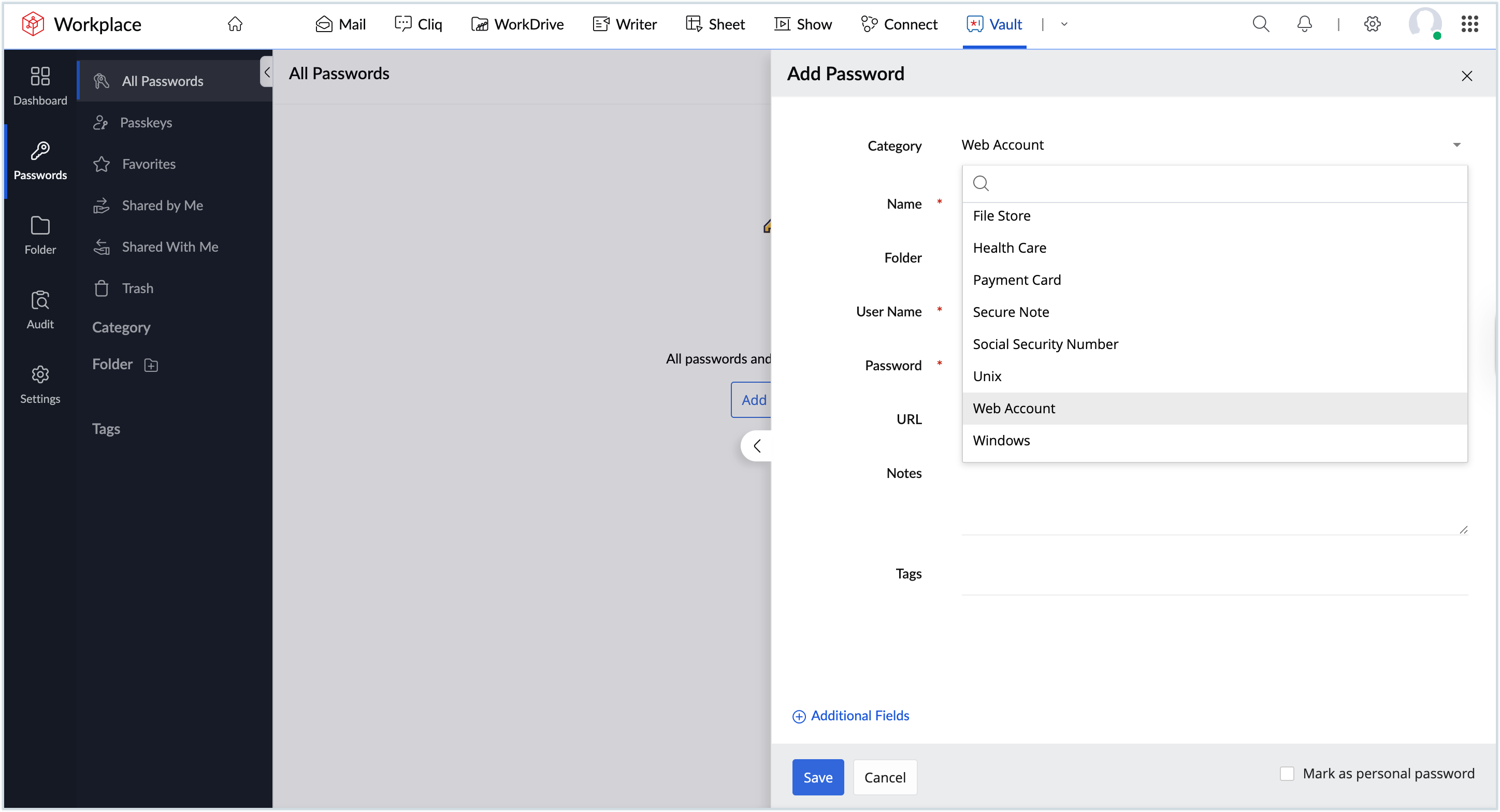
- Select a predefined site or category, or choose Passwords to create a custom entry.
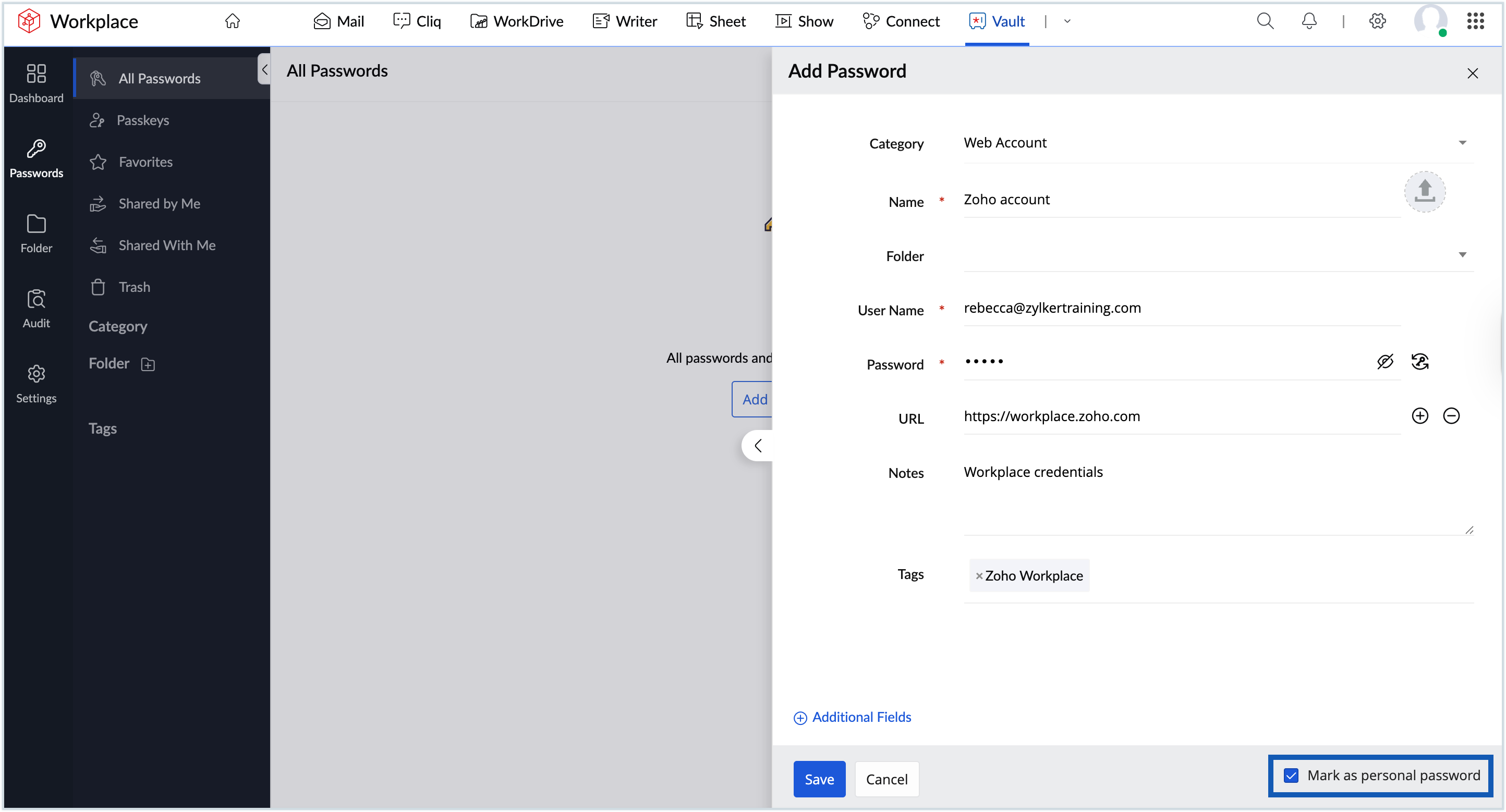
- Enter required details such as name, username, password, and login URL.
- Choose the Mark as personal password checkbox if needed. Personal passwords are private to you and cannot be accessed by other organizational members.
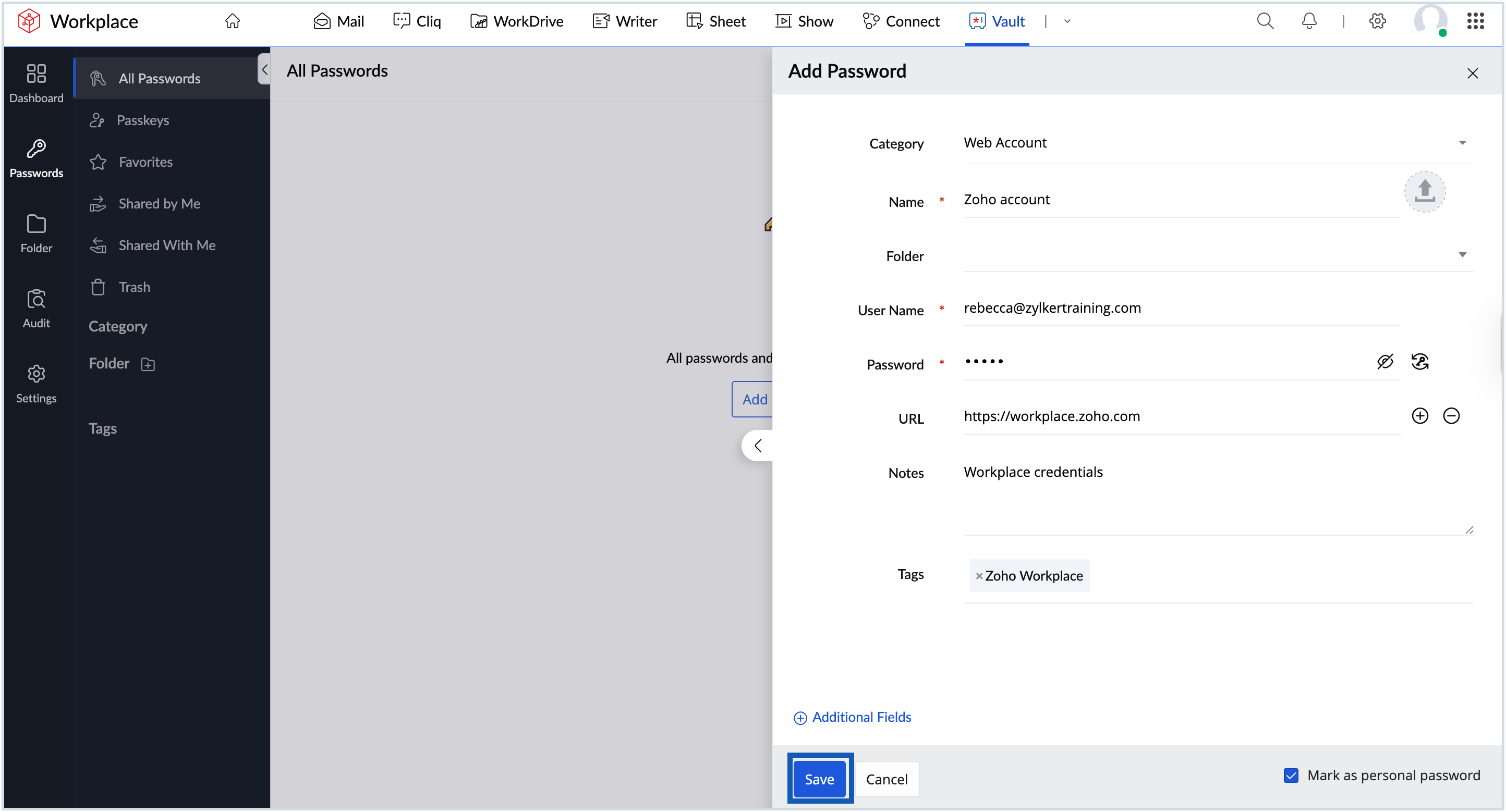
- Click Save to securely store the password in Vault.
Learn more about Zoho Vault
Now that Zoho Vault is set up, here are a few things to explore next: