Getting started with Zoho Mail in Zoho Workplace
Zoho Mail is a secure, cloud-based business communication platform. It is bundled with integrated applications that help teams stay organized and communicate effectively. Zoho Mail's productivity apps include:
- Calendar: Create events, add, share and subscribe to external calendars, as well as synchronize the calendar activity with the mobile device.
- Contacts: Manage and organize personal and professional contacts, and access them seamlessly across Zoho Mail.
- Tasks: Create, assign, and track tasks, set reminders, and stay on top of your to-do lists within Zoho Mail.
- Notes: Jot down ideas, create checklists, and organize information for easy reference right inside Zoho Mail.
- Streams: Collaborate within teams, built around email designed with provisions to like/comment and more open interactions.
- Resources:Manage and share files, documents, and storage resources linked to your Zoho Mail account.
- Bookmarks: Save, organize, and access frequently visited web pages directly from Zoho Mail.
- eArchive: A central repository that allows you to restore your permanently deleted emails.
Setting up Zoho Mail
Follow the steps given below to configure Zoho Mail for the first time:
- Navigate to Mail at the top-bar. This will open the on-boarding popup.
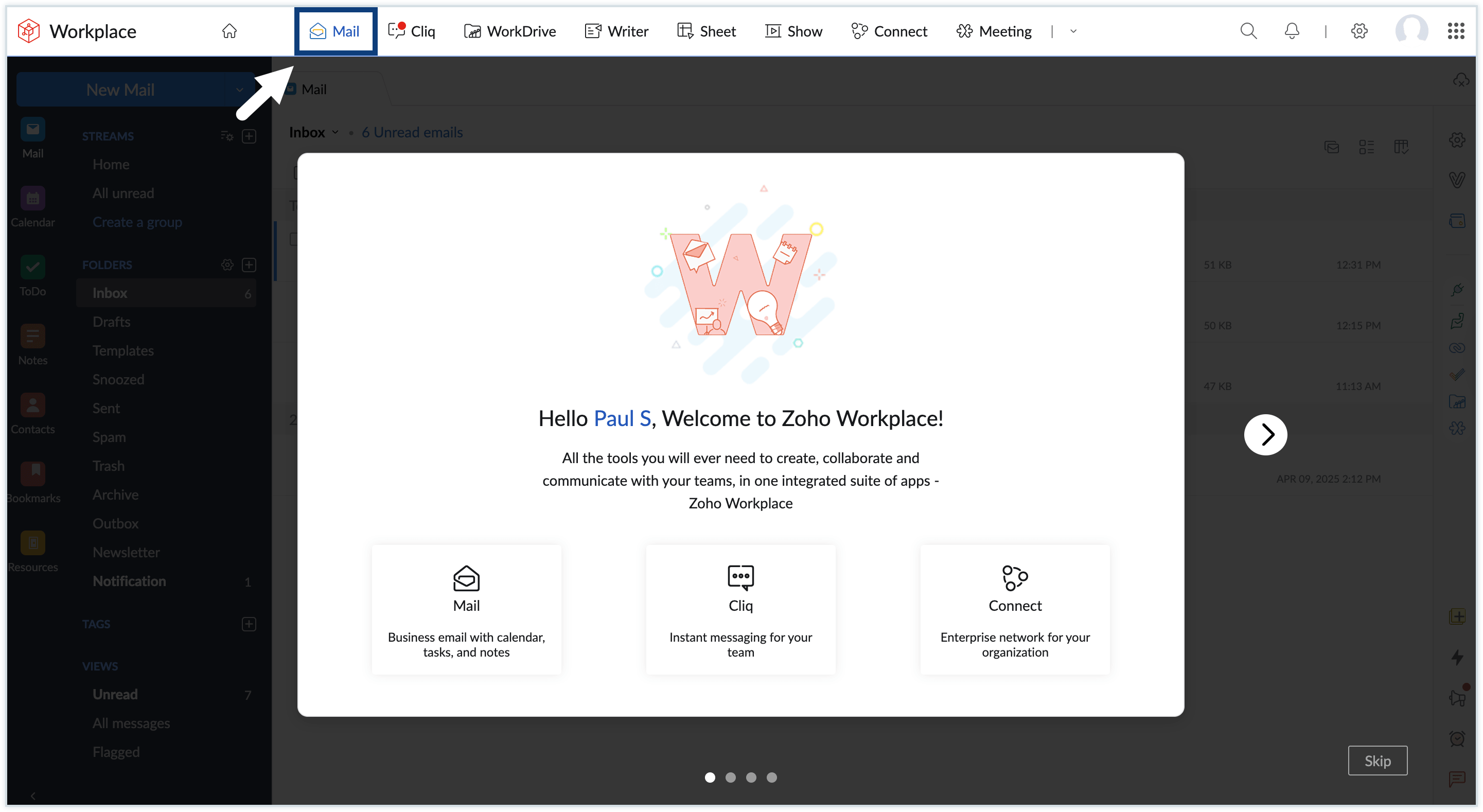
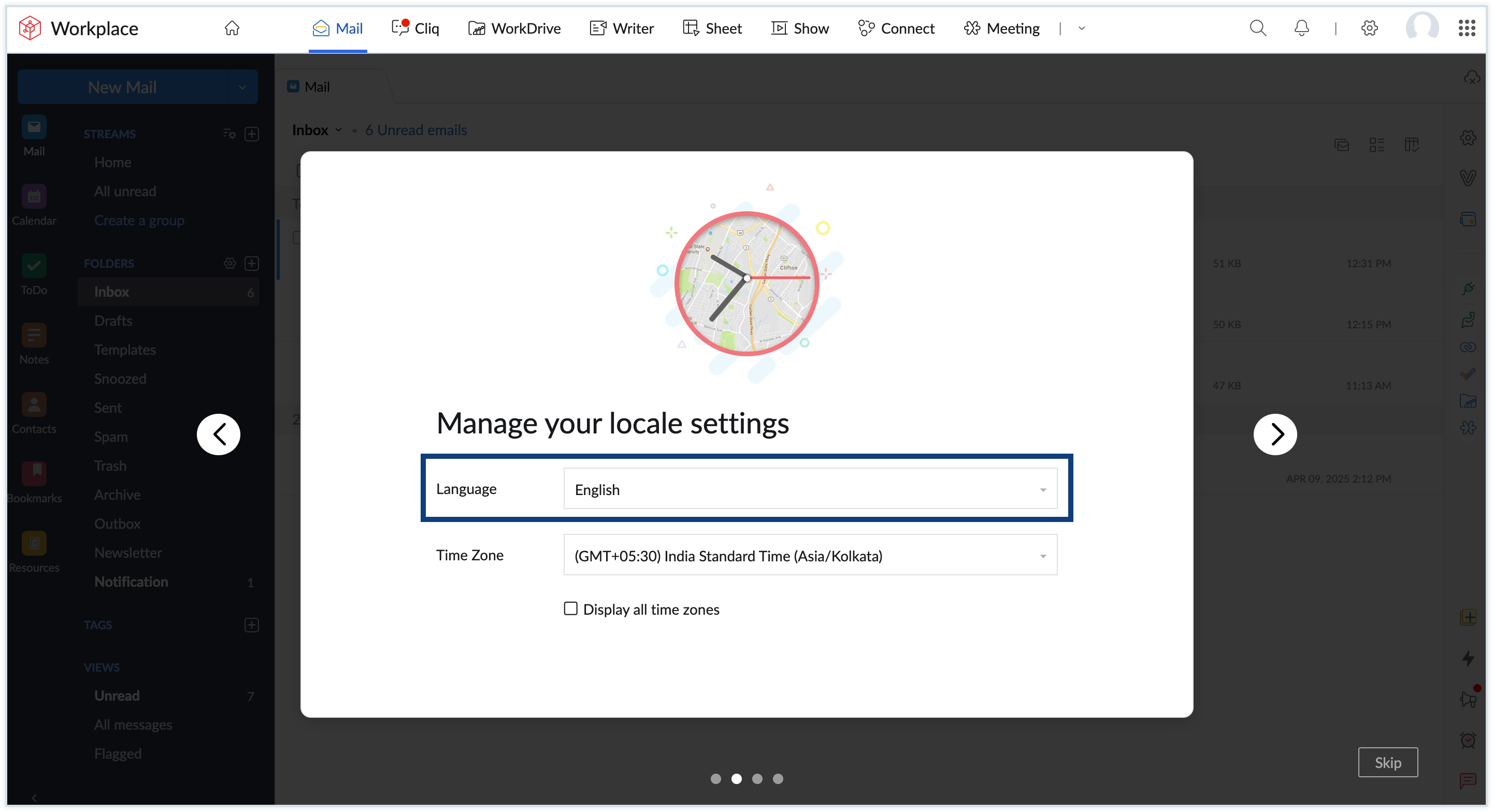
- You can configure the following settings when you setup Zoho Mail—Language, Time Zone, Display Name and Signature.
- Language: Choose the display language for your Zoho Mail account. Zoho Mail supports various languages and you can pick the language of your choice from the Language drop-down.
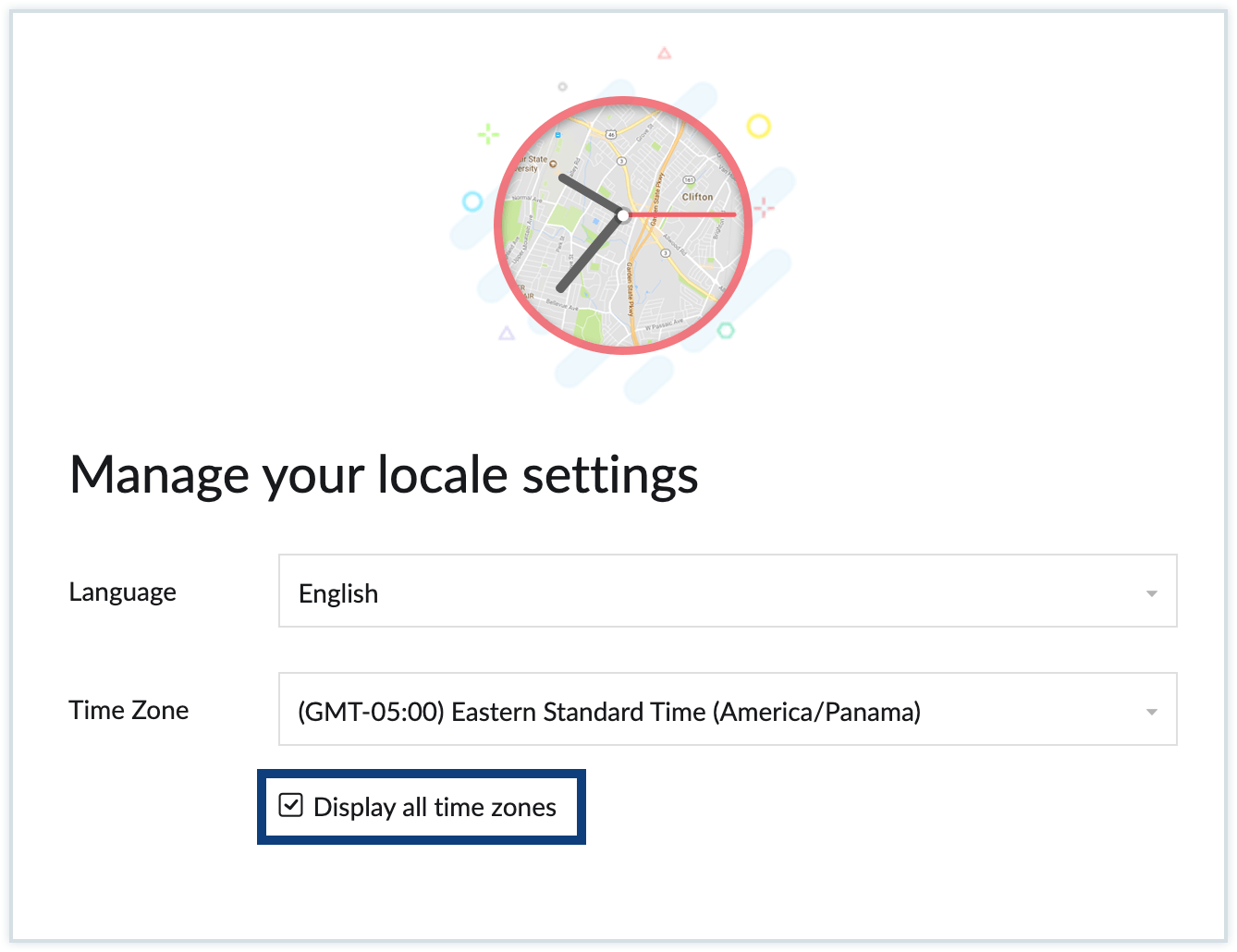
- Time zone: Choose your operating time zone. This ensures you send, receive and schedule messages based on your local time, avoiding any confusion around timing. By default, your local time zone will be listed. However, if you wish to change your timezone, select the Display all time zonescheckbox and choose your timezone from the Time zonedrop-down.
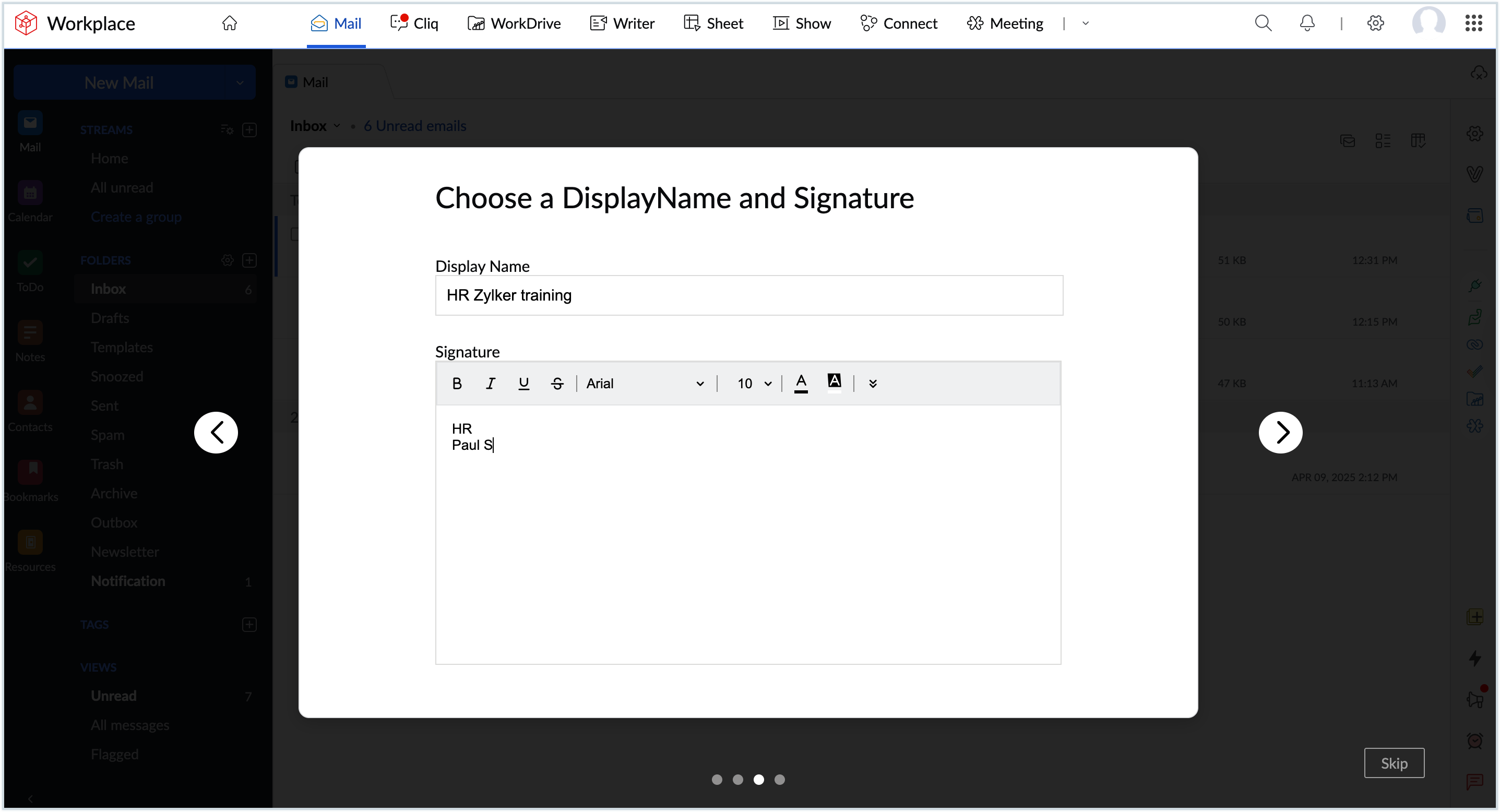
- Display Name: The Display name is the profile name for your account and this will help other organization members identify your profile.
- Signature: Email signatures help position your business and designation within emails. You can setup one during the initial configuration. You can also add additional signatures later in the Zoho Mail Setting section.
- Language: Choose the display language for your Zoho Mail account. Zoho Mail supports various languages and you can pick the language of your choice from the Language drop-down.
- Once the initial setup is complete, you can either explore the Settings menu or proceed to use Zoho Mail within Zoho Workplace.
Explore Zoho Mail
Once Zoho Mail is setup, you can go through the following: