Getting started with Zoho Show in Zoho Workplace
Zoho Show is a cloud-based presentation software that helps teams create, collaborate on, and deliver impactful presentations from anywhere. It supports real-time collaboration, design templates, and multiple integrations for better presentation delivery. Presentations can be shared securely or broadcast online to audiences. Zoho Show offers:
- Design Tools: Choose from professional themes, templates, and animations.
- Collaboration: Co-edit presentations with teammates in real time.
- Broadcast & Share: Deliver live presentations remotely or embed slides online.
- Compatibility: Import and export presentations files effortlessly to never lose track of your work.
- Version Control: Track changes and restore previous versions easily.
You can immediately start working on a presentation in Zoho Show.
Steps to create a new presentation in Zoho Workplace
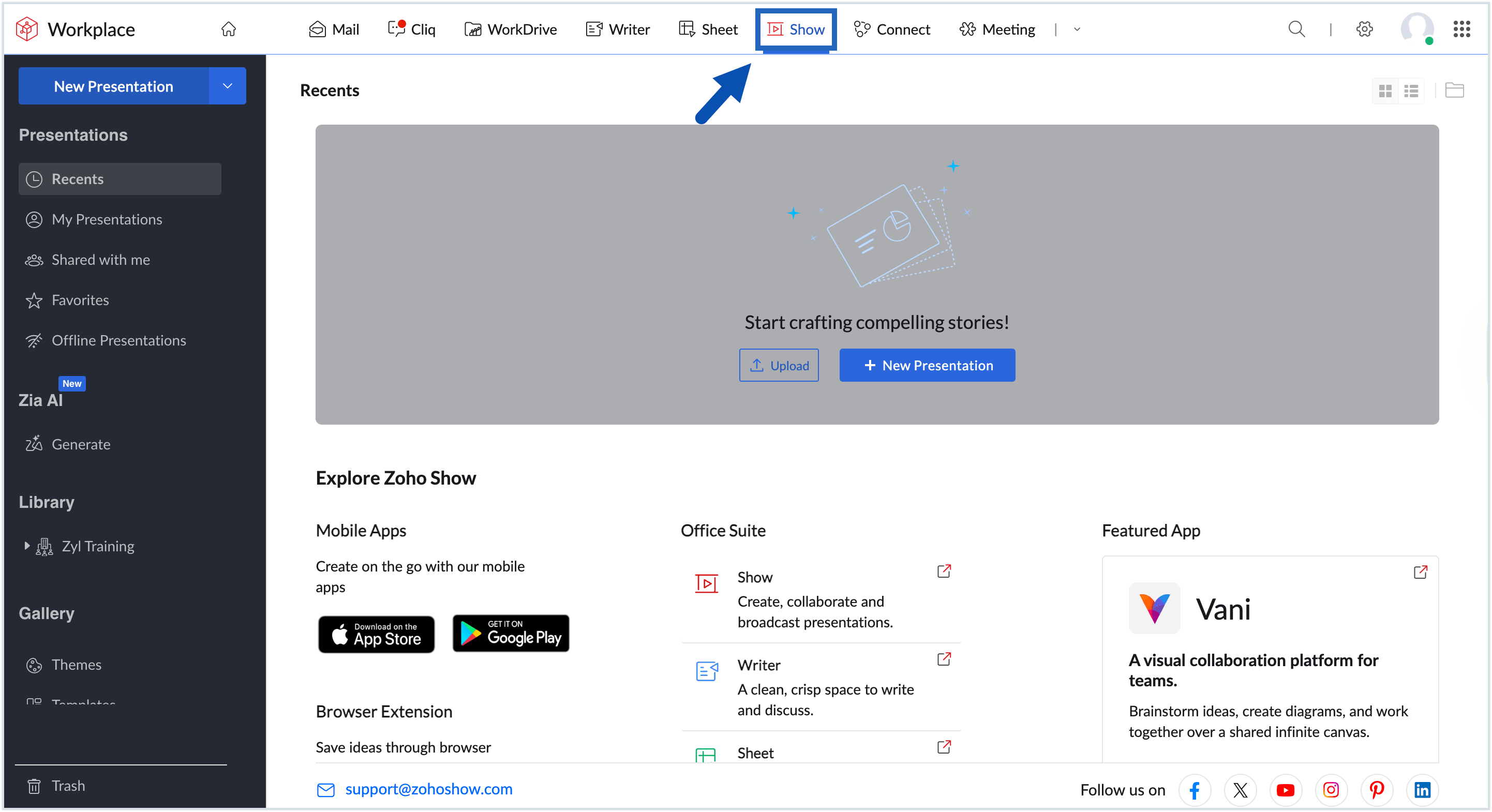
- Click on Show at the top pane. This will redirect you to Zoho Show's dashboard where you can find all the presentations you have created in Zoho Show.
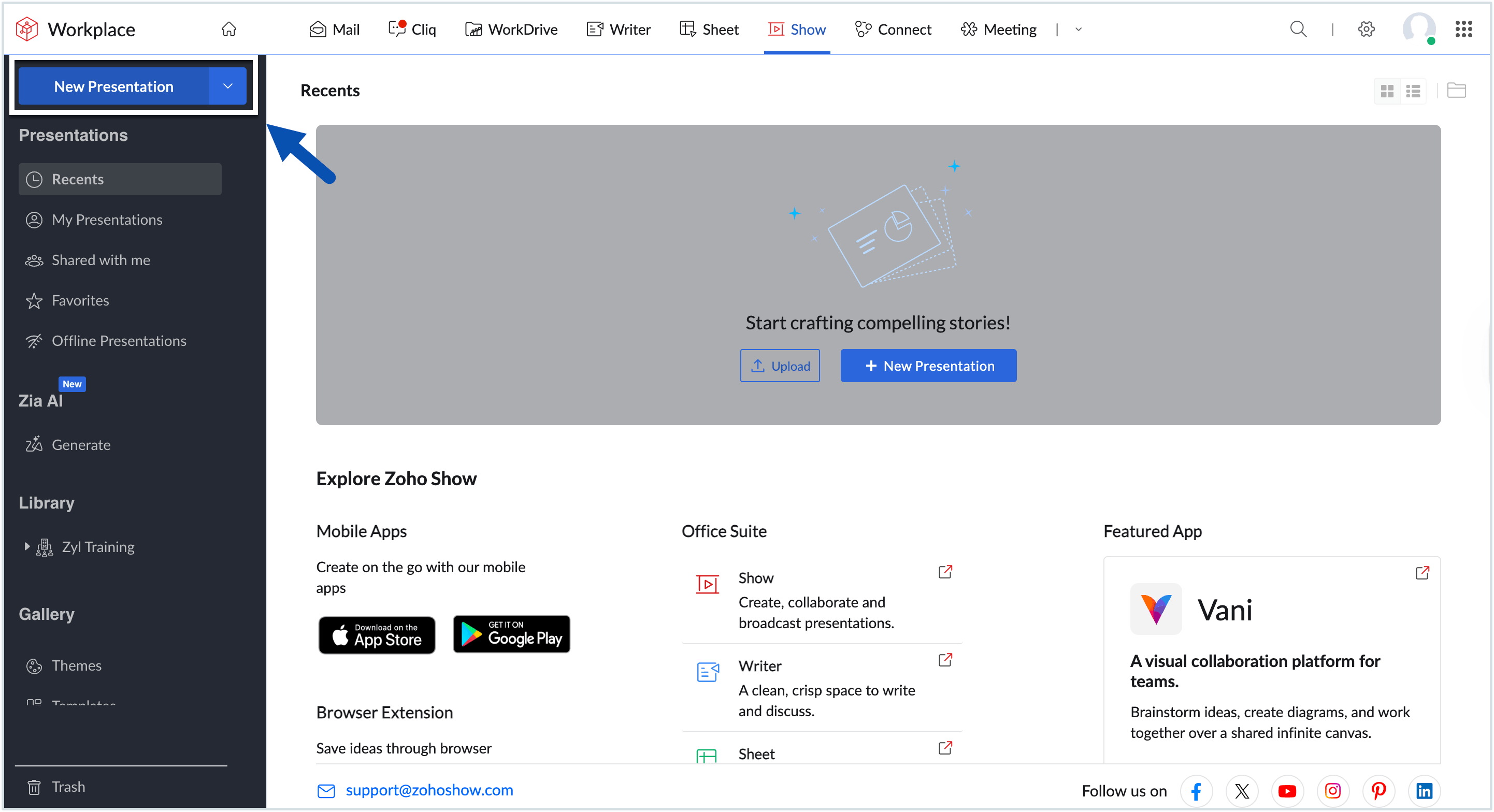
- Click New presentation at the top-left corner.
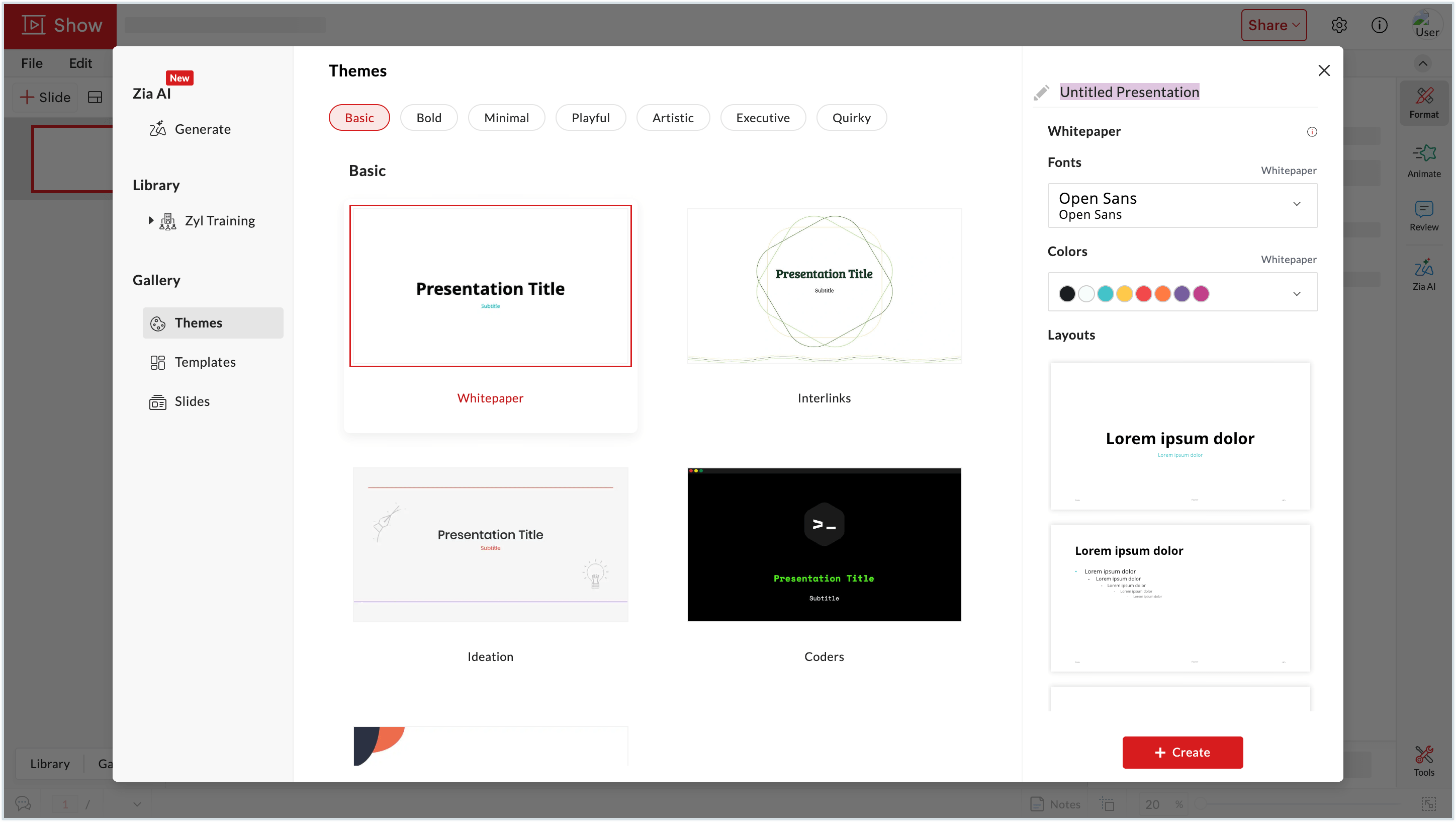
- This will open the built-in themes, presentation templates and slides available in Zoho Show. Select the preferred type:
- Theme: Themes come with a pre-designed set of fonts, colors, and minimal designs applied uniformly to all the slides.
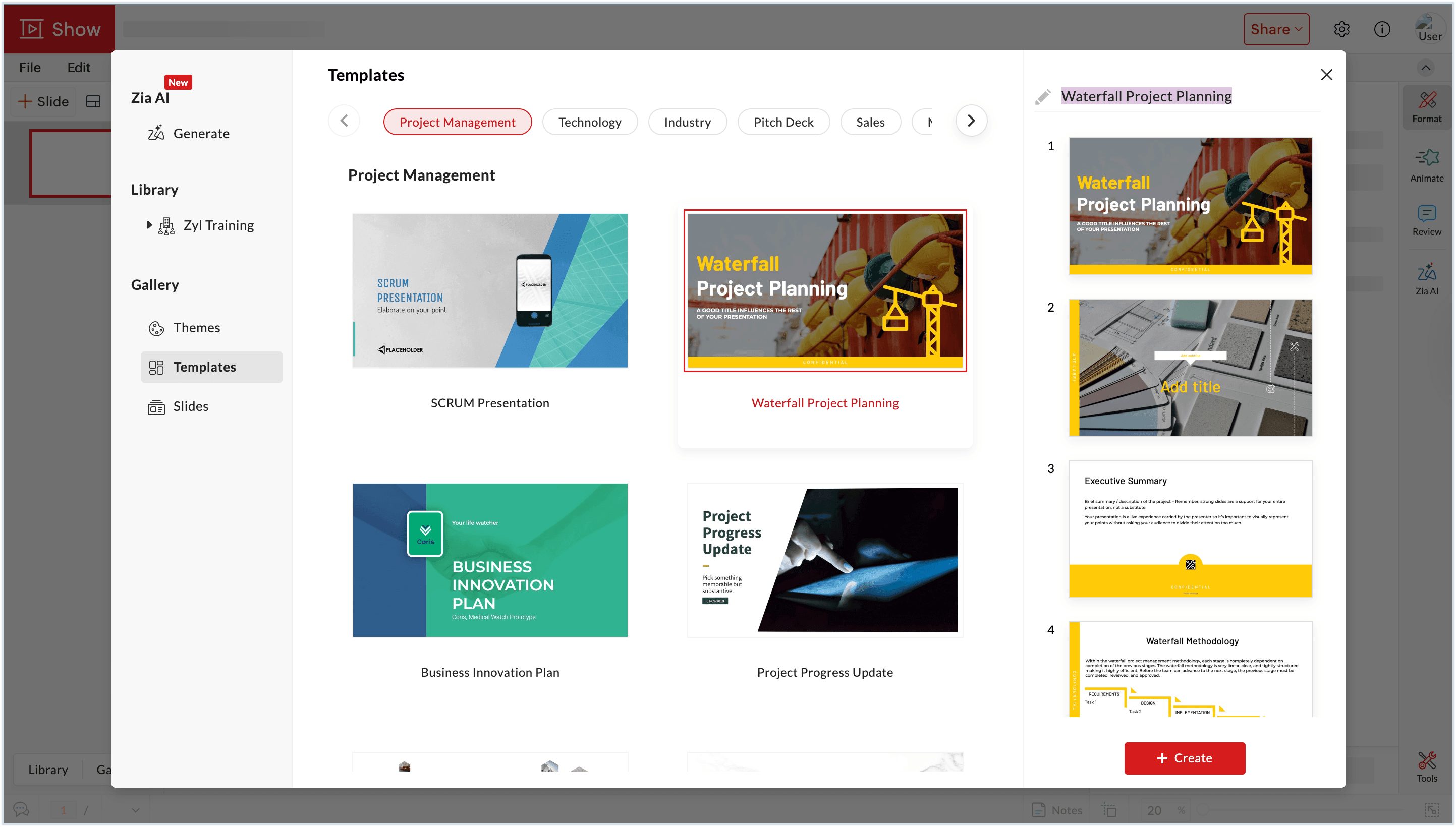
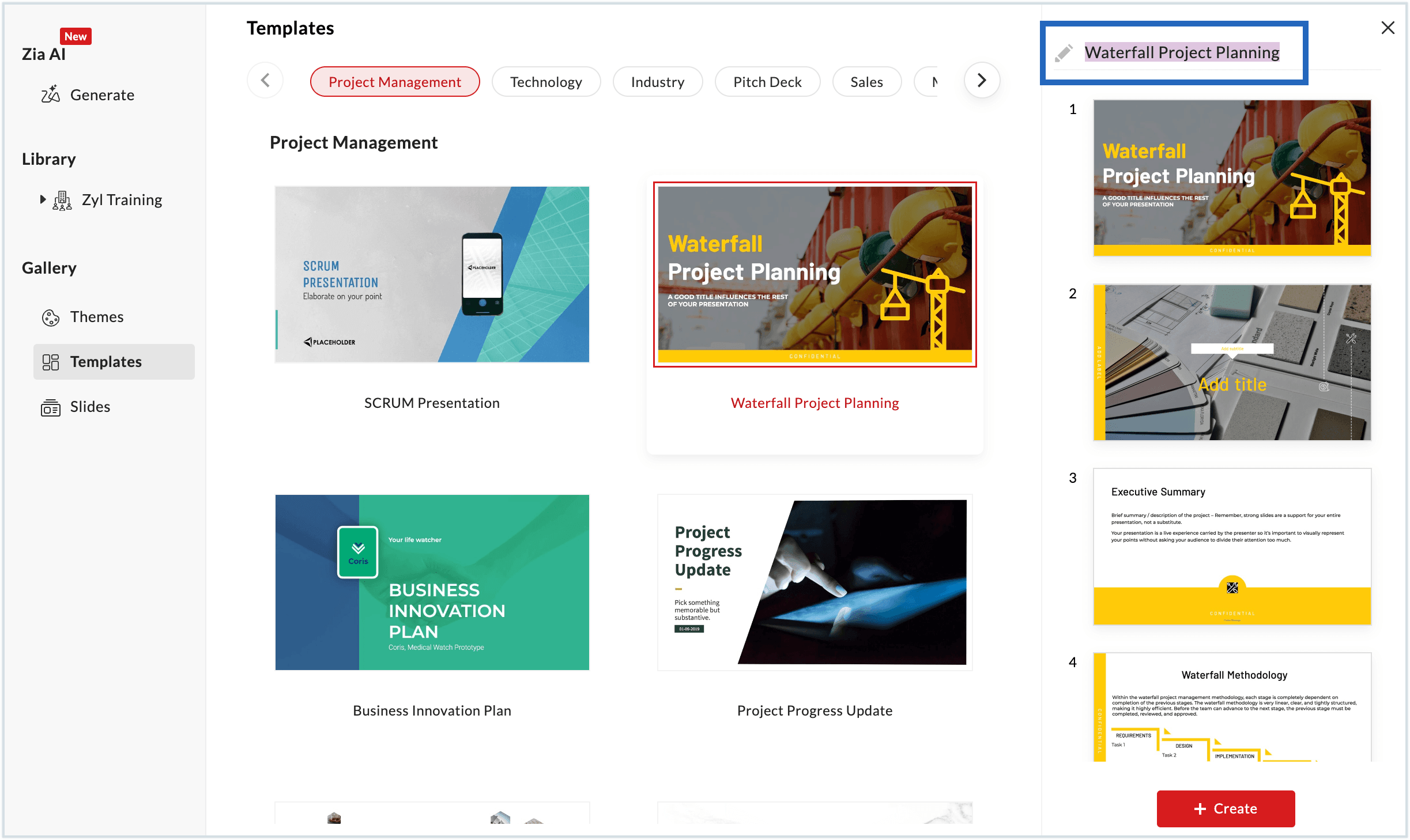
- Templates: Presentation templates are a group of slides that contain layouts, colors, fonts, effects, background slides, and designs. Some also include placeholder content based on the topic selected.
- Slide designs: Slide designs are standalone slides that can be added to the presentation.
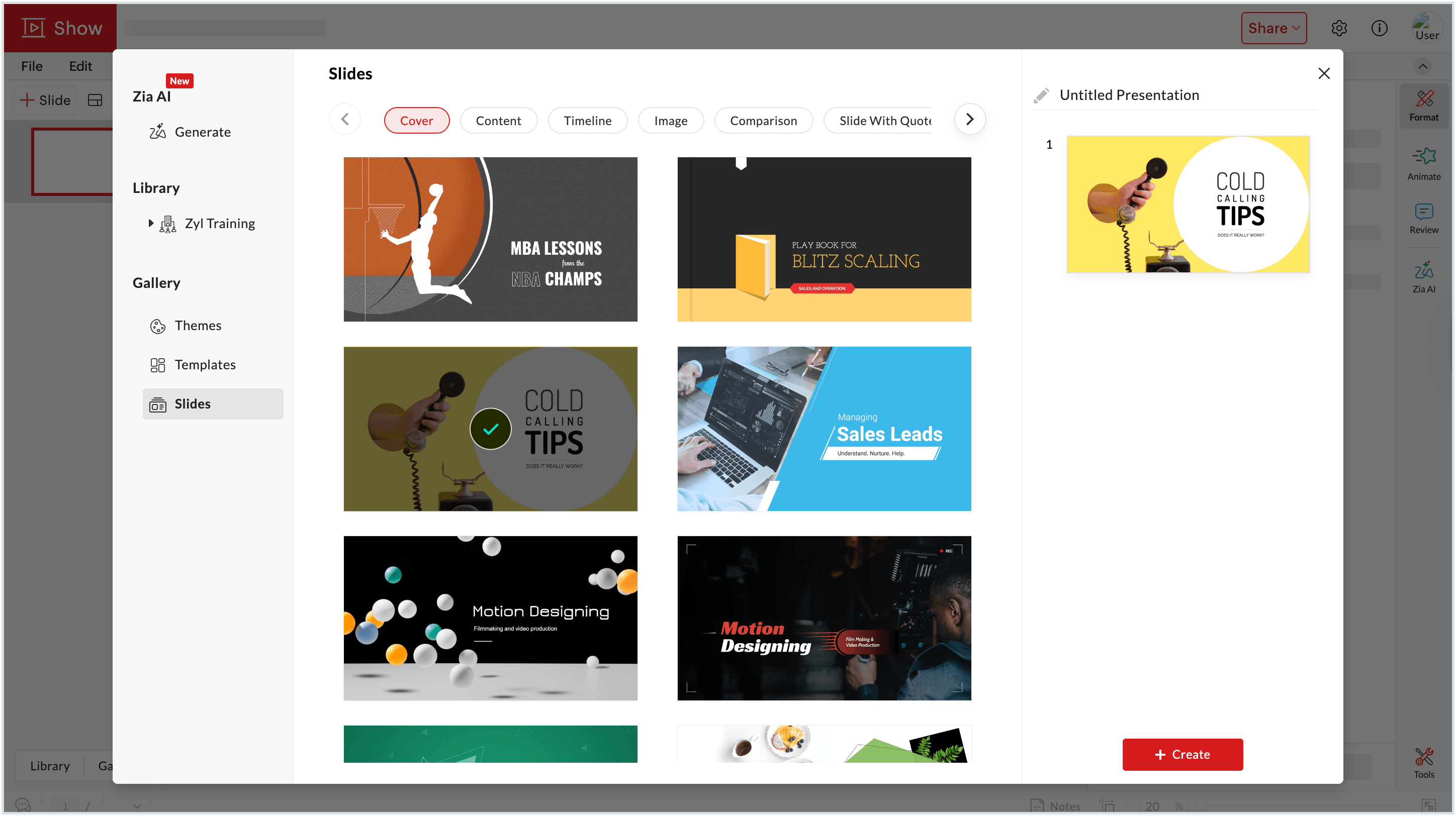
- Theme: Themes come with a pre-designed set of fonts, colors, and minimal designs applied uniformly to all the slides.
- You can also name the presentation in the name field of the desired template/theme/slide. Click Create to start working on your presentation.
Steps to import a presentation to Zoho Workplace
If you have an existing presentation you wish to work on, you can import it directly into Zoho Show.
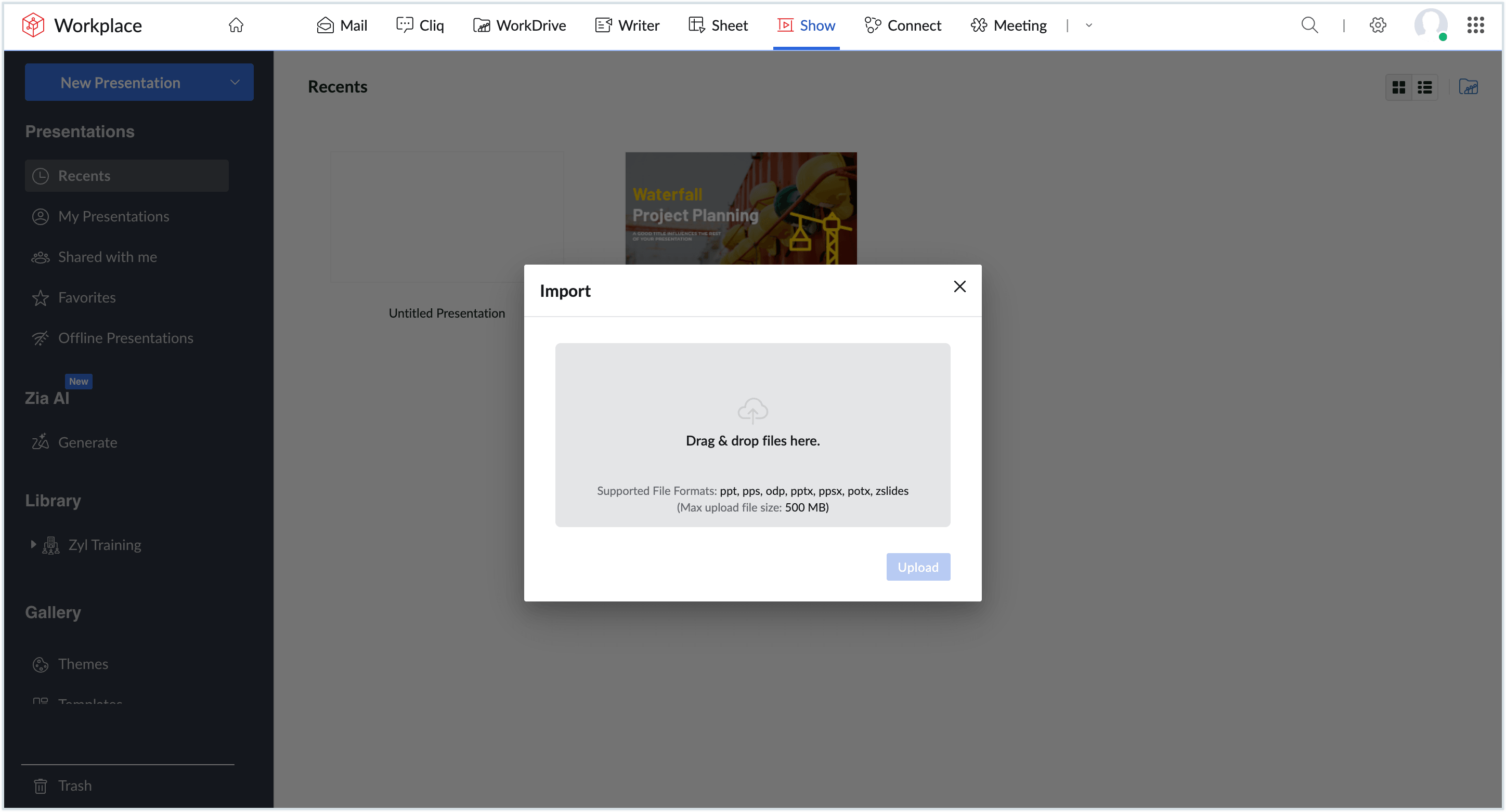
- Navigate to the Zoho Show dashboard in Zoho Workplace and click the arrow near New Presentationand select Upload Document.
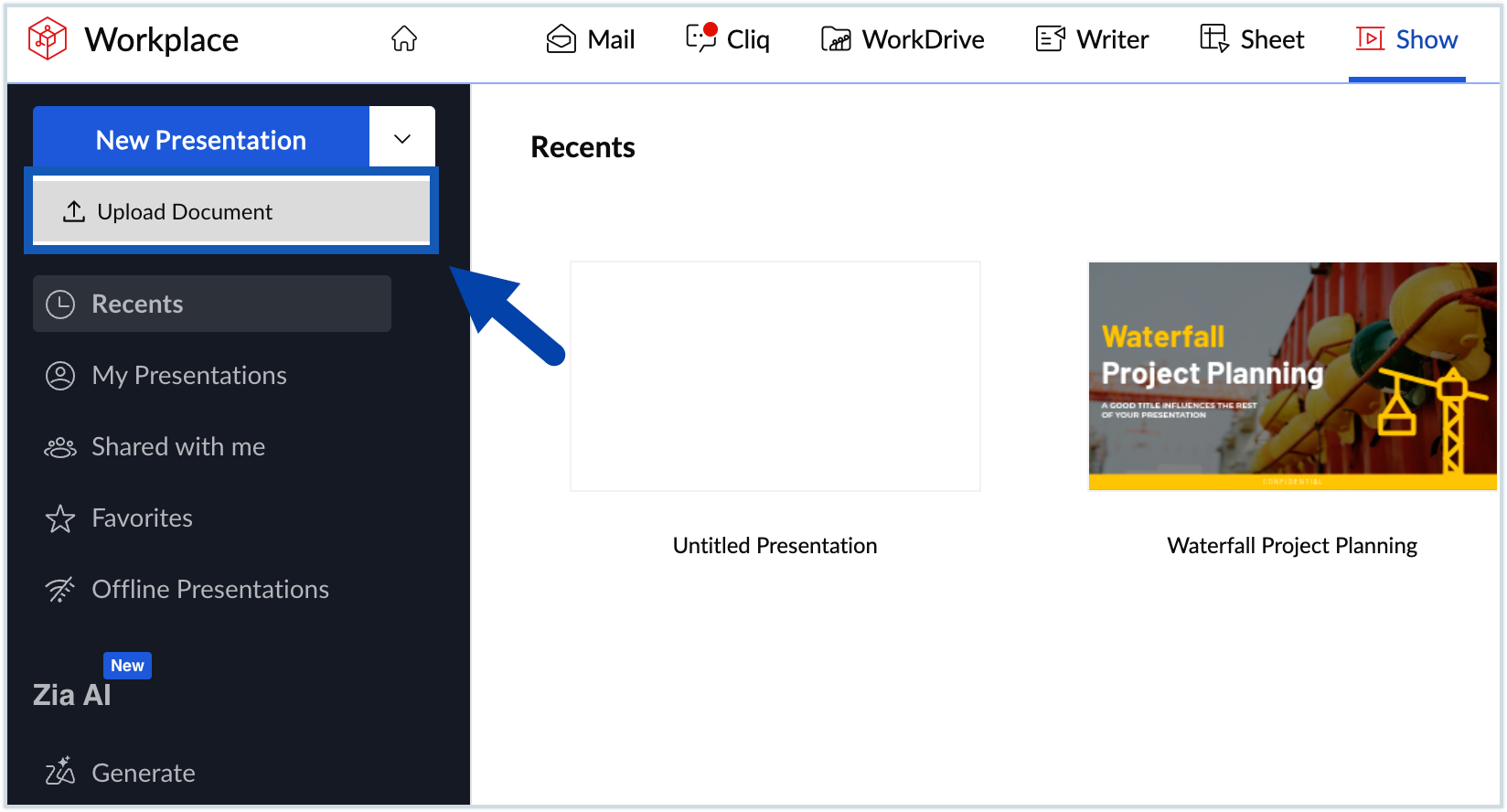
- Add the files in the format specified and click Upload.
- Alternatively, you can also import a file from within a presentation.
- To do so, click File in the top-left corner, then click Import from the drop-down menu. This will open the import section.
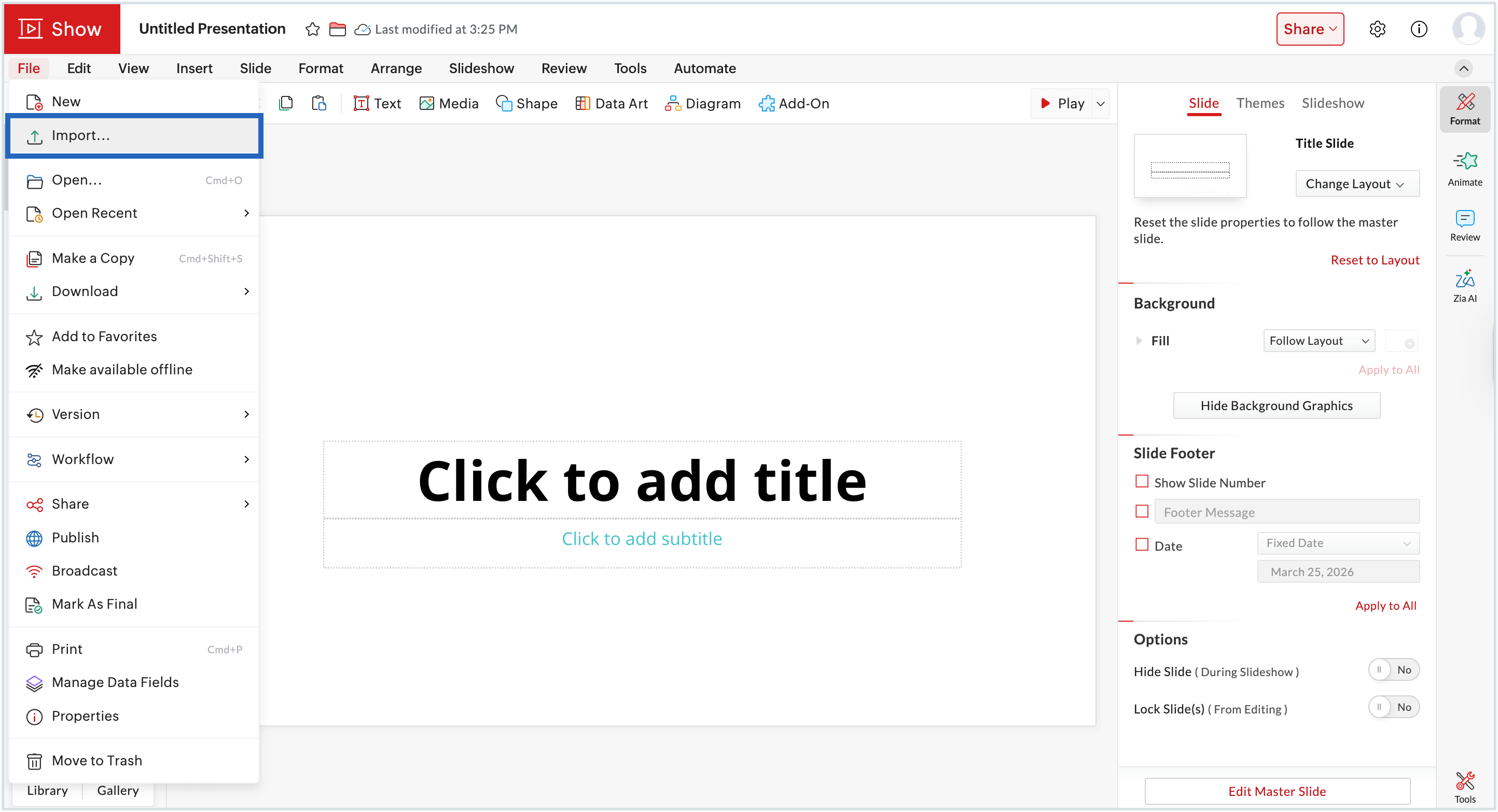
- Drag and drop the required presentation and click Upload.
Learn more about Zoho Show
Now that your presentation is set up, you can explore the following: