Getting started with Zoho Meeting in Zoho Workplace
Zoho Meeting is a secure web conferencing platform that allows businesses to conduct virtual meetings and webinars with ease. It provides HD audio-video conferencing, screen sharing, recording, and engagement tools for productive online sessions. Apart from accessibility over web browsers, Zoho Meeting is also available as a Desktop, iOS and Android application.
How to access Zoho Meeting in Zoho Workplace
You can get started with Zoho Meeting by scheduling a meeting with your peers. To do so:
- Navigate to the Meeting application from the top bar.
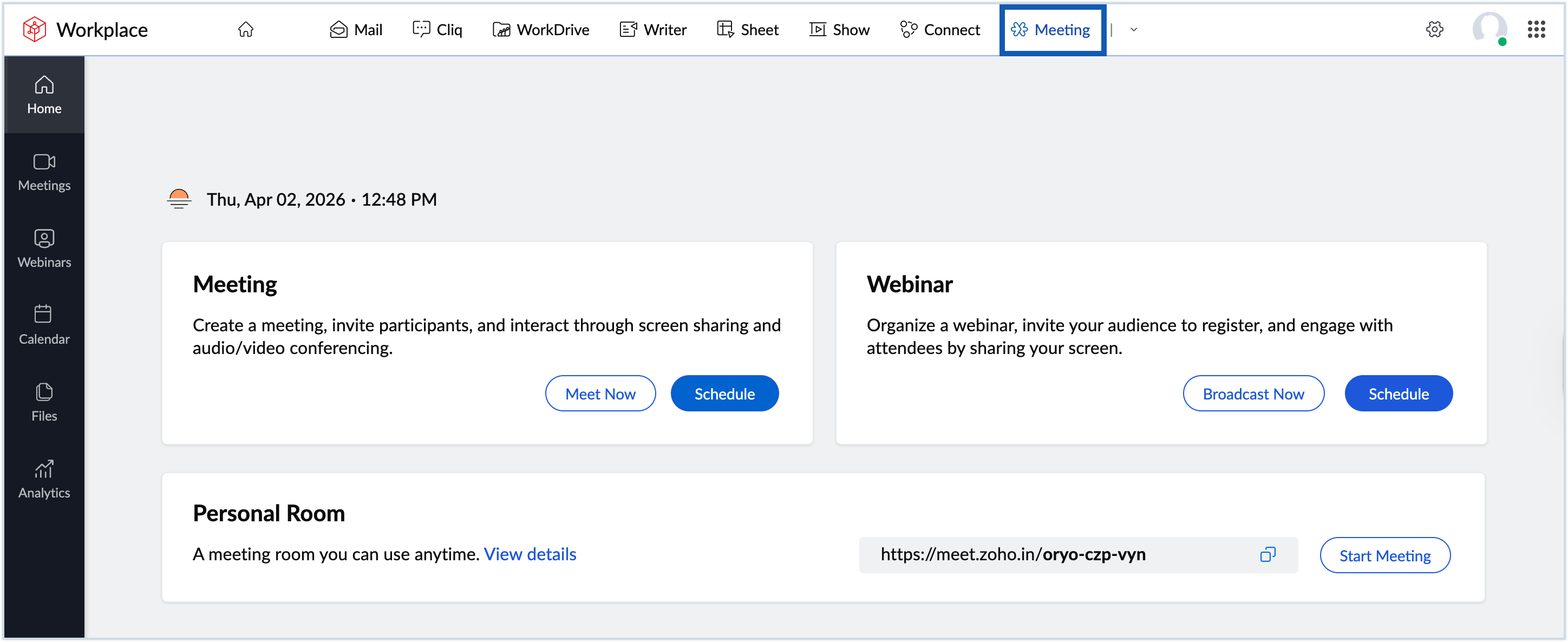
- Click the Schedule button in the Meeting section of the homepage.
- Fill out the details of the meeting in the Schedule a Meeting form.
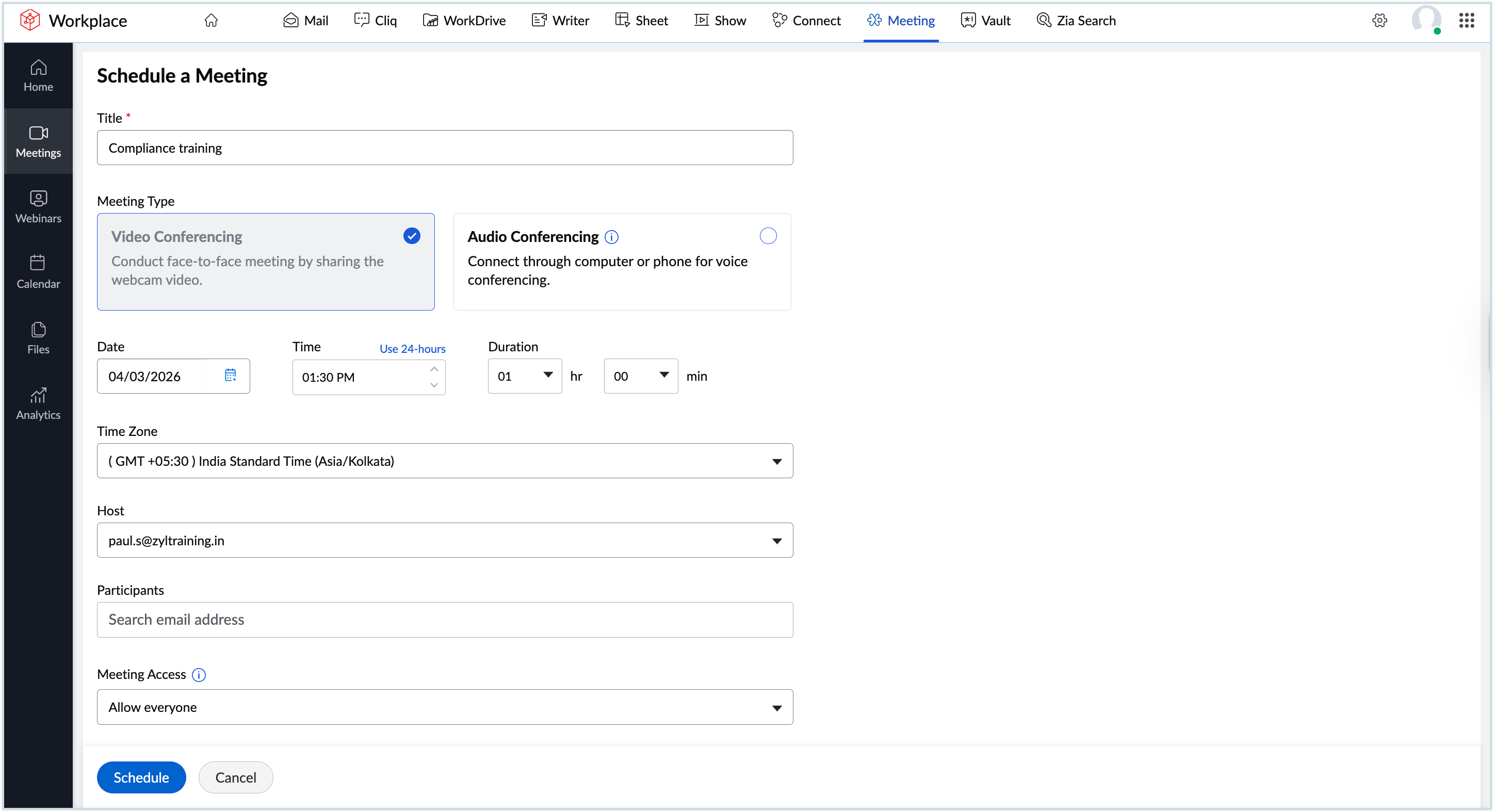
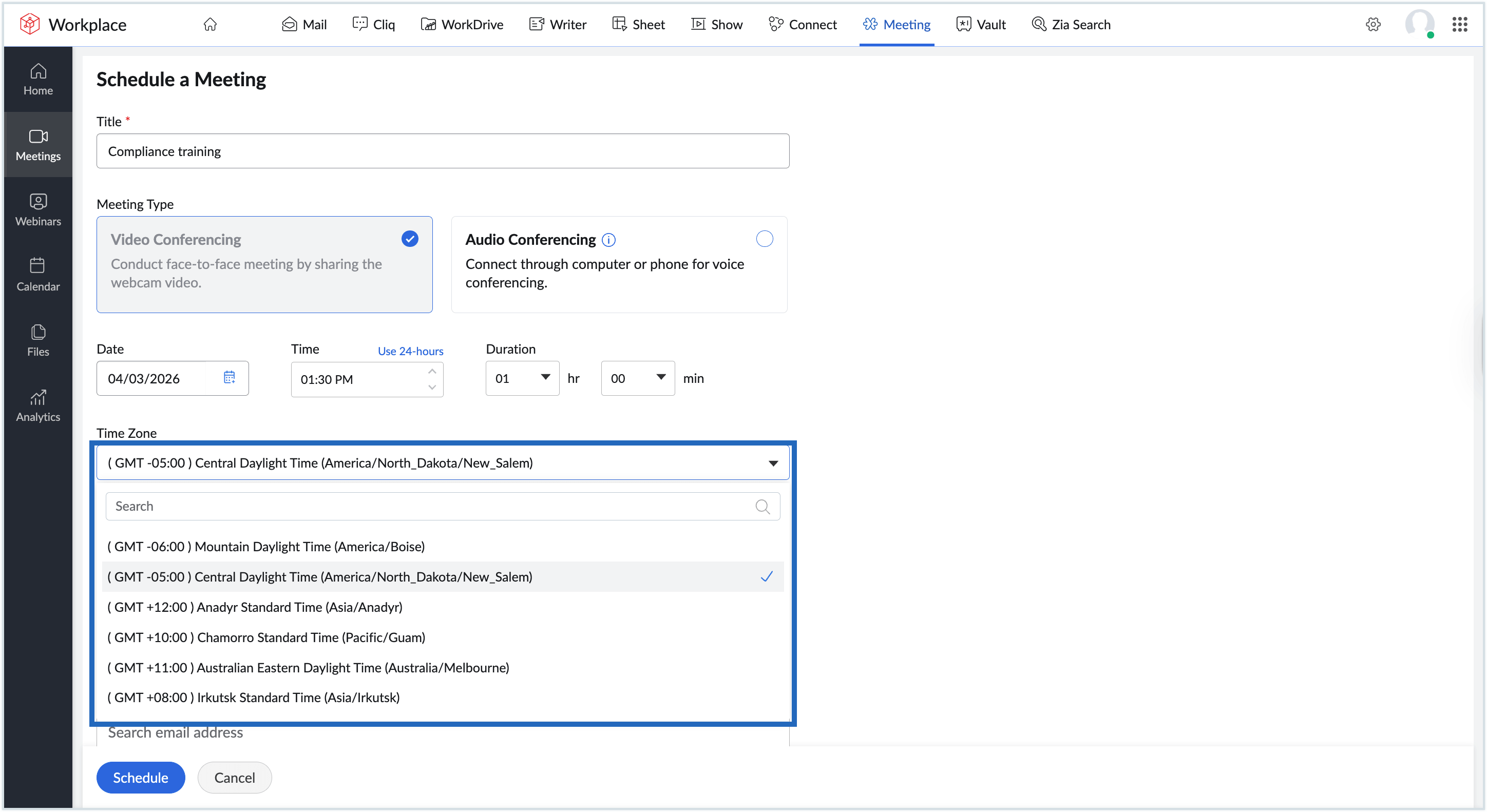
- By default, the time zone set under My Settings will be auto-populated. You can change time zone, if required.
- Click the drop-down menu to select a different time zone.
- Enter the agenda for your meeting.
- ClickMore Options to configure advanced settings such as adding co-hosts, attaching session files, enabling end-to-end encryption, allowing participants to join before the host, scheduling recurring meetings, and setting up email reminders.
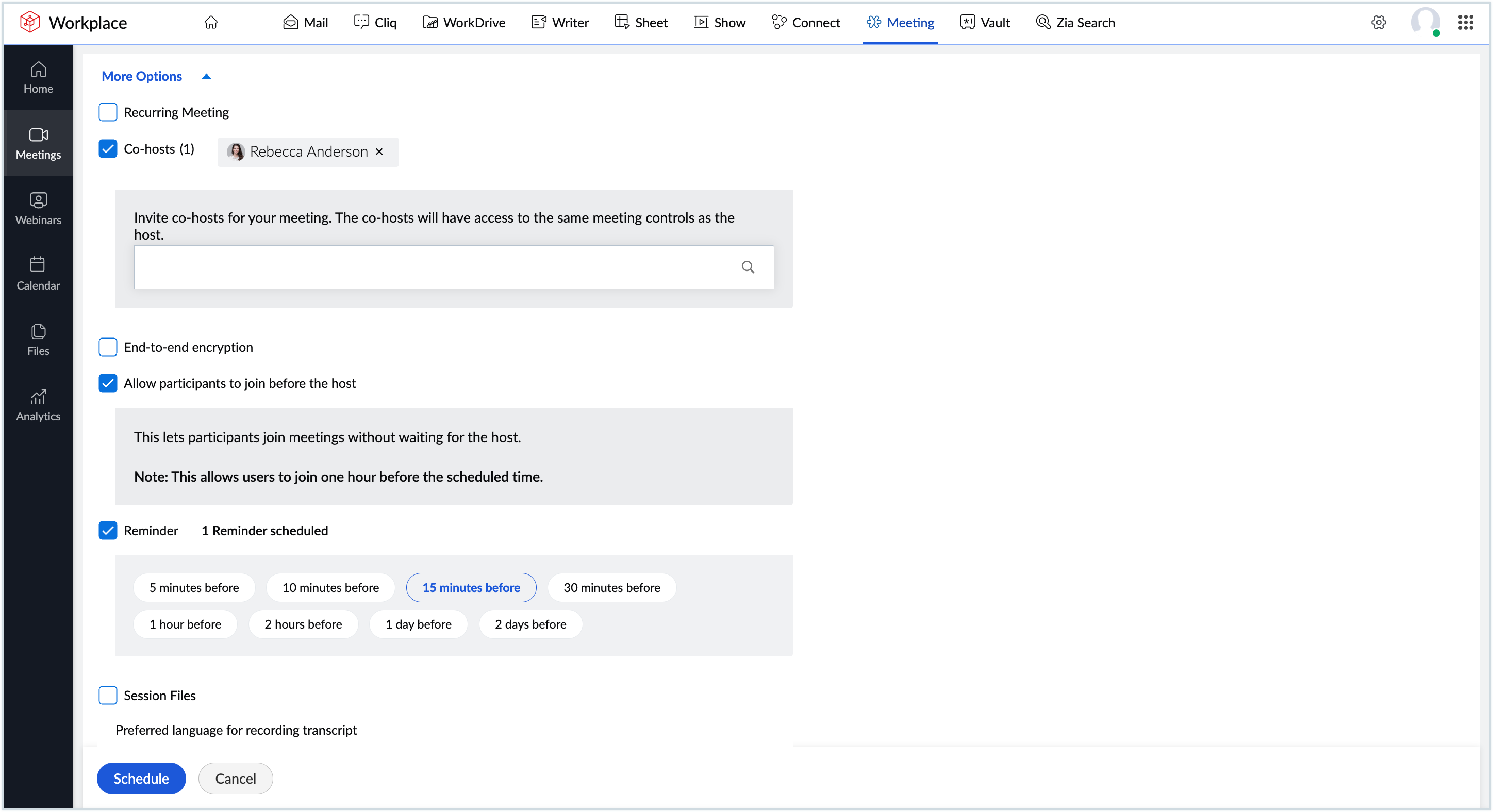
- Click Schedule.
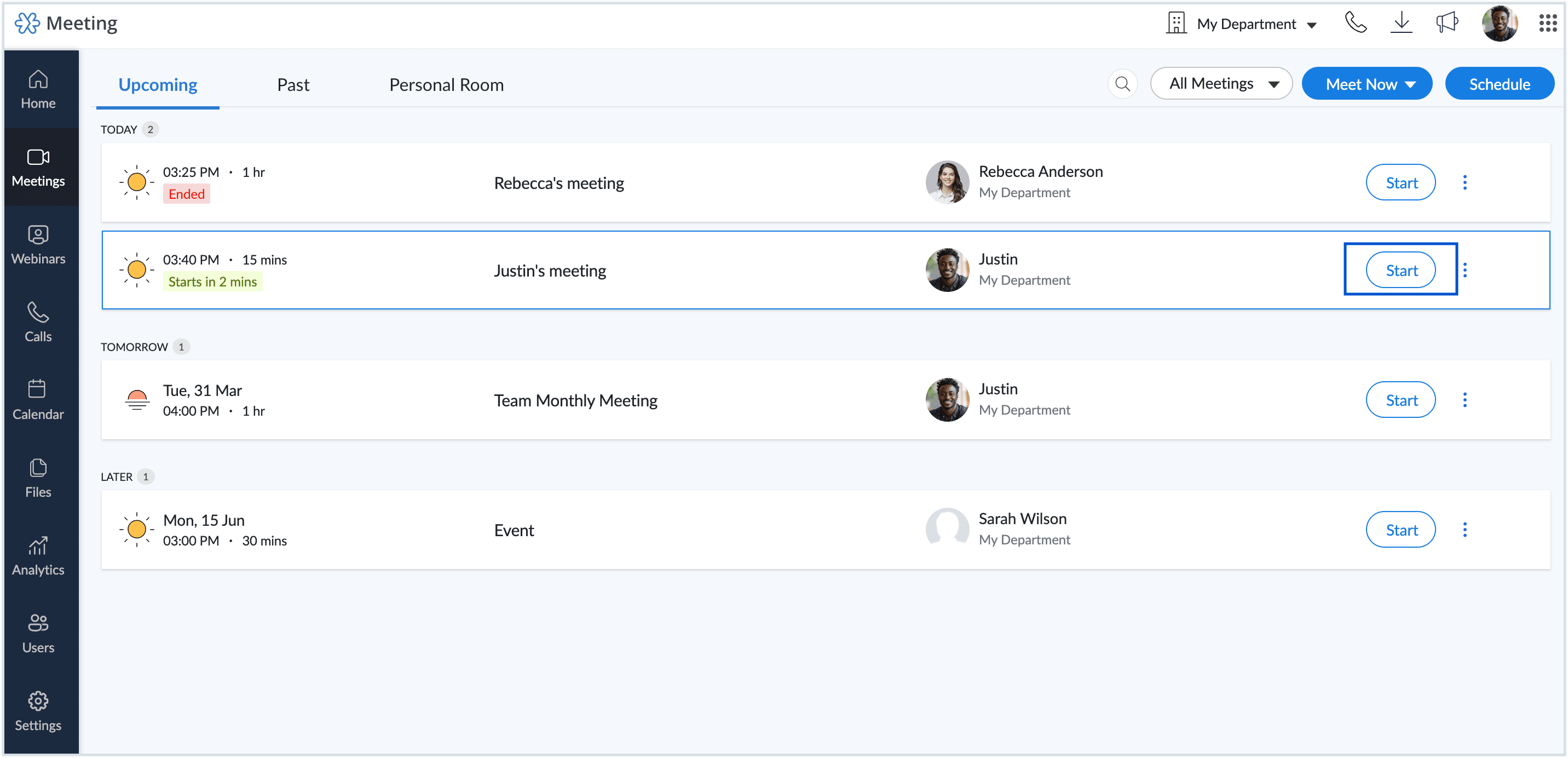
- The scheduled meeting will be listed in the homepage as well as under the Upcoming tab in the Meeting section.
- Click Start to begin the session at any point.
Once the meeting is completed, you can view its recording and other analytics in the Session history tab in theAnalyticssection.
Learn more about Zoho Meeting
Now that Zoho Meeting is set up, here are a few things to explore next: