


Set up Workers’ Compensation Insurance with ERGO NEXT

ERGO NEXT is a US provider of small business insurance, including workers’ compensation. In Zoho Payroll, the integration appears as Next.
You can integrate with ERGO NEXT to set up and manage pay-as-you-go workers’ compensation insurance for your business, without leaving Zoho Payroll.
Before you integrate ERGO NEXT with Zoho Payroll, check that ERGO NEXT can cover your business.
| Limitation | What it means |
|---|---|
| Monopolistic states | ERGO NEXT cannot sell workers’ compensation insurance in Ohio, North Dakota, Washington, and Wyoming. In these states, employers must buy coverage from the state fund instead. Puerto Rico and the US Virgin Islands also use state funds. If you have workers in any of these places, you cannot cover them through ERGO NEXT. |
| Existing ERGO NEXT policies need an eligibility check | If you already have a workers’ compensation policy with ERGO NEXT, you cannot switch it to pay-as-you-go billing automatically. ERGO NEXT checks whether your current policy qualifies first. |
| Premium basis | Workers’ compensation premiums are calculated from your W-2 employee payroll. You can choose to include or exclude owners from that calculation. Subcontractor payments are never included. |
| End-of-policy payroll audit | Some states require a payroll audit when your company’s ERGO NEXT policy ends. ERGO NEXT uses that audit to calculate your company’s final premium as the employer, based on your actual payroll for the policy period. |
Insight: What is a pay-as-you-go policy? With a pay-as-you-go policy, ERGO NEXT calculates your company’s premium from your actual payroll every pay cycle, instead of estimating your yearly payroll upfront and charging a fixed premium.
This guide walks an admin through the whole flow, from connecting the integration to the point where an ERGO NEXT agent takes over to complete your purchase. It documents setting up new coverage in full. If you already have a policy, the Connect coverage path is noted where it differs.
Before You Begin
You will need:
| Requirement | Why it is needed |
|---|---|
| Your employees added in Zoho Payroll | ERGO NEXT uses your payroll data to size and price coverage. |
| Your business details | The application asks for your FEIN, ownership structure, locations, and expected payroll. |
Step 1: Connect ERGO NEXT to Zoho Payroll
- Go to Settings on the left sidebar.
- In the left sidebar, click Other Apps under Integrations.
- On the Integrations - Benefits page, find Next and click Connect.
A consent window opens. You can read ERGO NEXT’s Terms of Service and Privacy Policy to see how your data is processed and protected.
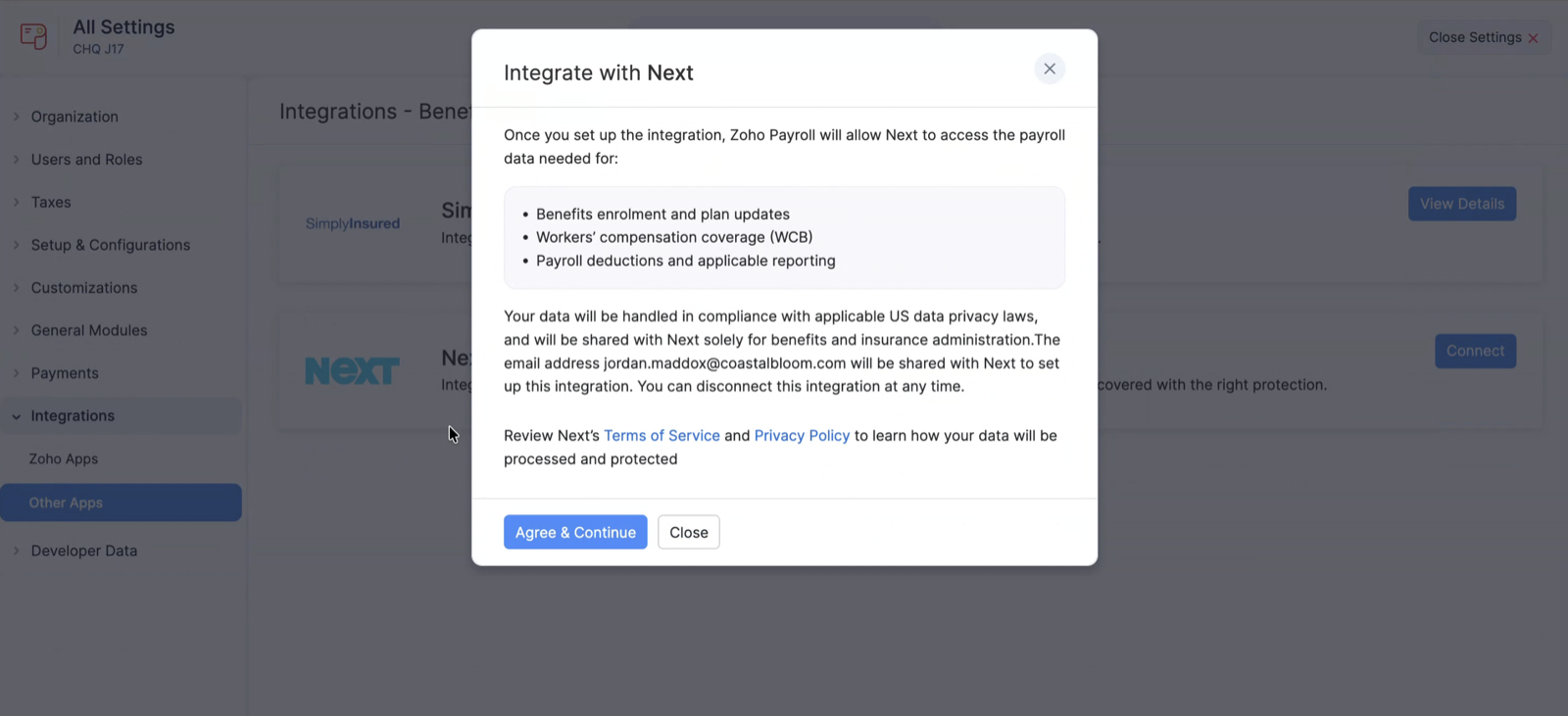
- Click Agree & Continue to proceed, or Close to cancel.
Step 2: Choose How You Want to Set up Coverage
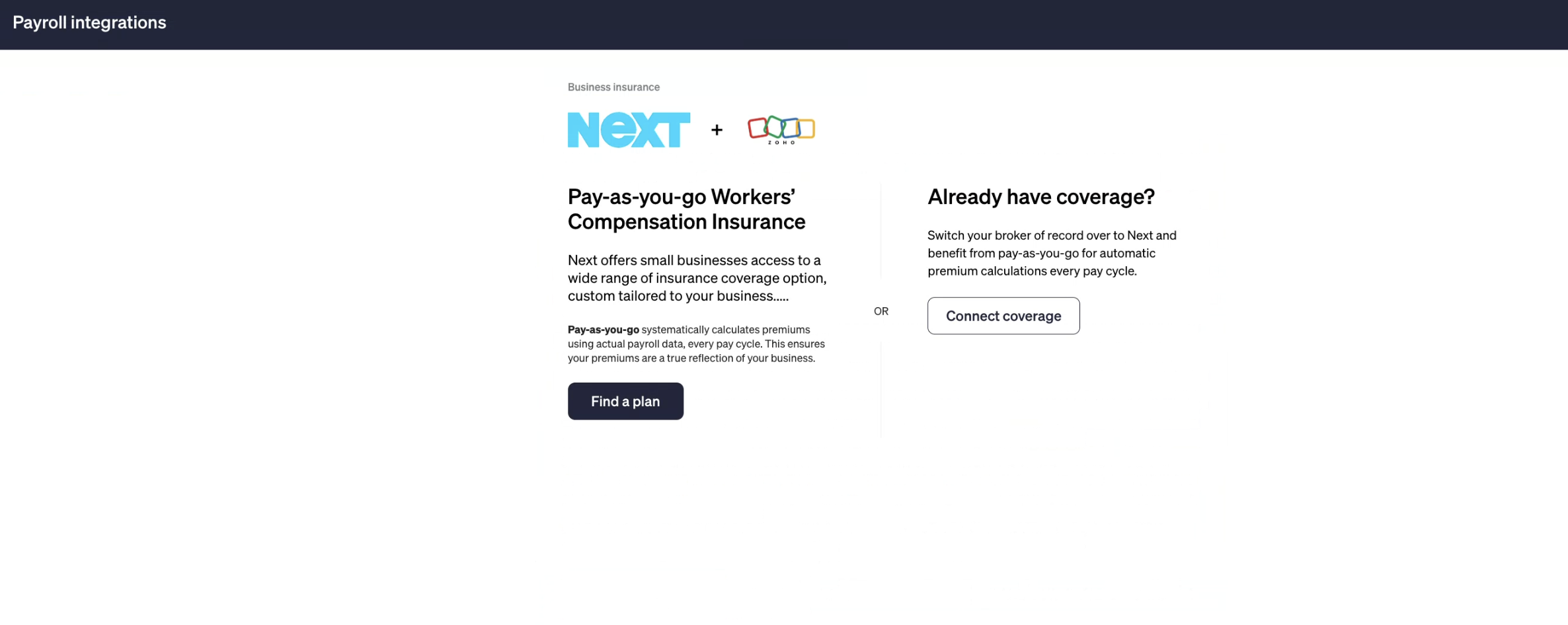
After you agree, ERGO NEXT opens with two ways to start:
| Option | Use it when |
|---|---|
| Find a plan | You want new pay-as-you-go workers’ compensation coverage. (This is the path the rest of this guide follows.) |
| Connect coverage | You already have a workers’ compensation policy and want to see if you can switch to pay-as-you-go billing. |
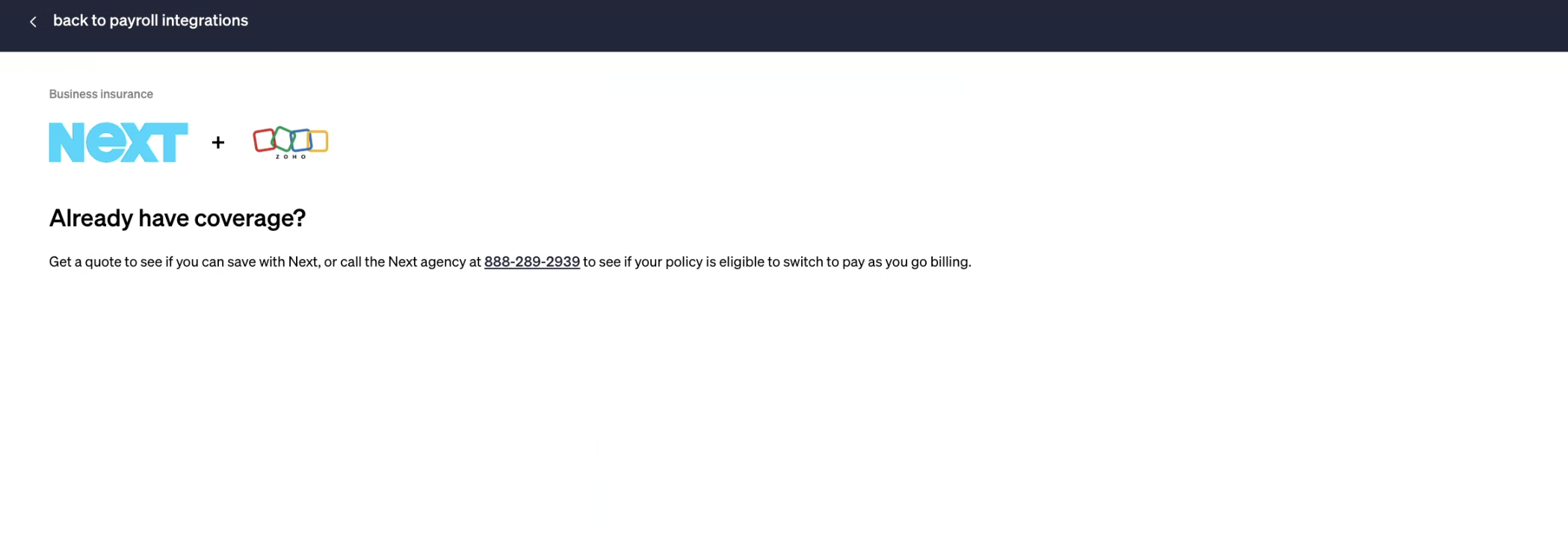
If you already have coverage, click Connect coverage. ERGO NEXT invites you to get a quote to see if you can save, or to call the ERGO NEXT agency directly, using the number shown on screen, to check whether your current policy is eligible to switch to pay-as-you-go billing.
The rest of this guide follows the Find a plan path for setting up new coverage.
- Click Find a plan to continue.
The ERGO NEXT Application
From here, ERGO NEXT guides you through its own application flow.
Start
Provide ERGO NEXT the basic details it needs to initiate the application.
| Field | What to enter |
|---|---|
| What type of work do you do? | Your business activity. |
| State | The state your business operates in primarily. |
| Email Address | The email ERGO NEXT uses to provide services. You can opt out at any time. |
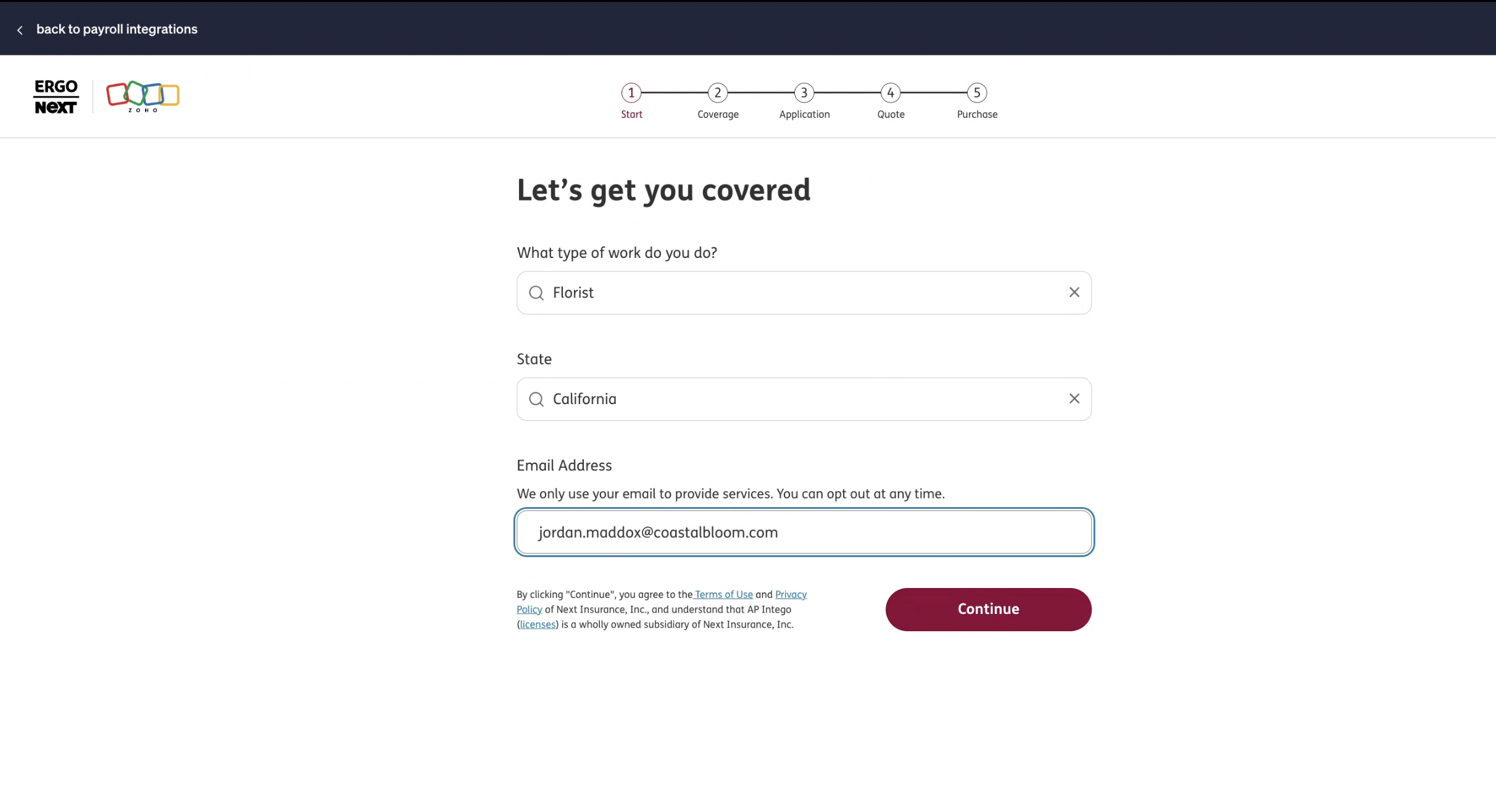
Click Continue to agree to ERGO NEXT’s Terms of Use and Privacy Policy.
Coverage
You do not need to do anything on this step. ERGO NEXT completes it automatically, then takes you straight to the Application step.
Application
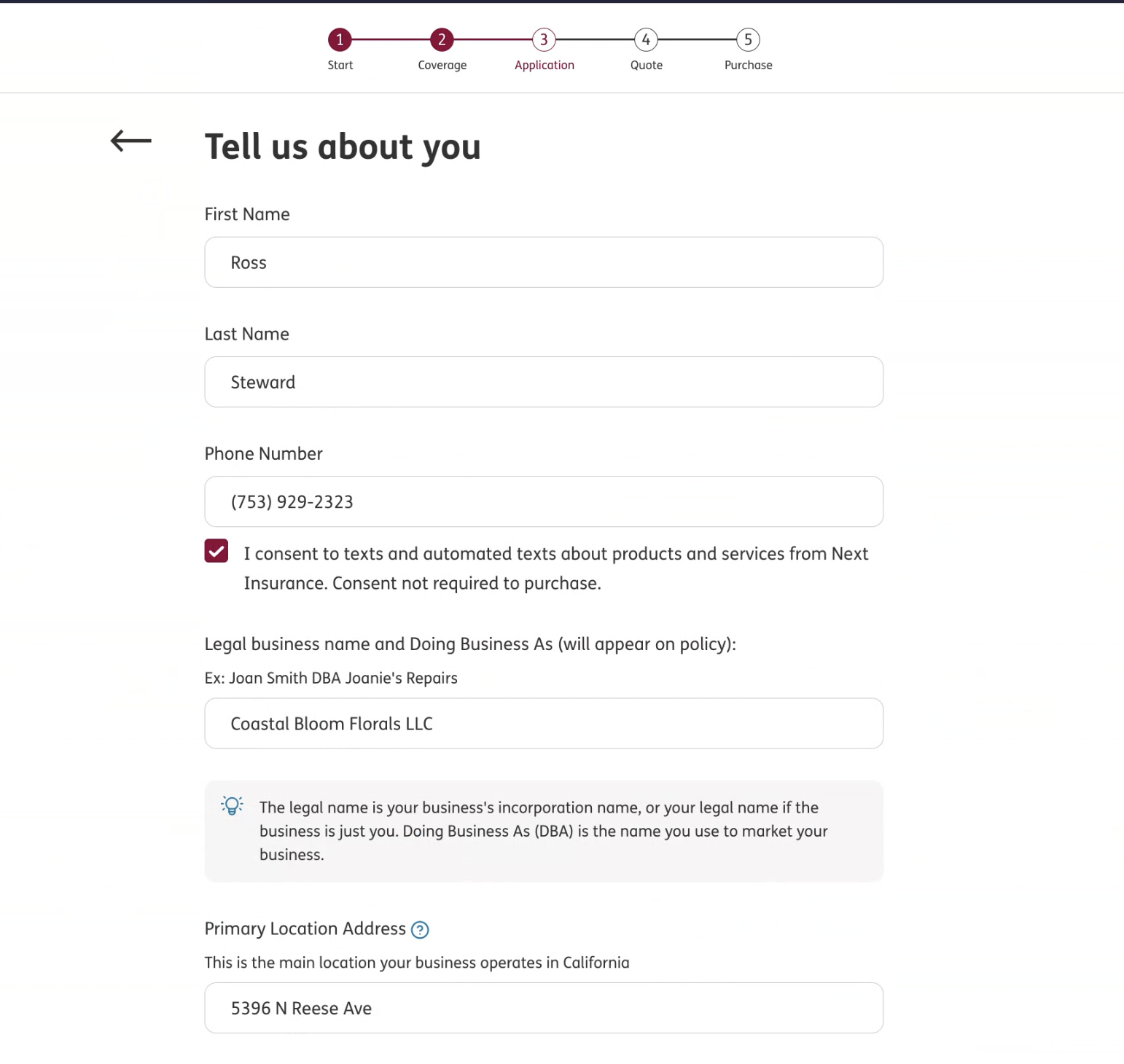
ERGO NEXT asks a series of short questions about you, your business, your locations, and your workers so it can build an accurate, compliant quote.
| Field | What to enter |
|---|---|
| First Name | The first name of the person applying on behalf of the business. |
| Last Name | The last name of the person applying on behalf of the business. |
| Phone Number | A contact number for the business. |
| Text consent | An optional checkbox to allow texts and automated texts from ERGO NEXT. Consent is not required to purchase. |
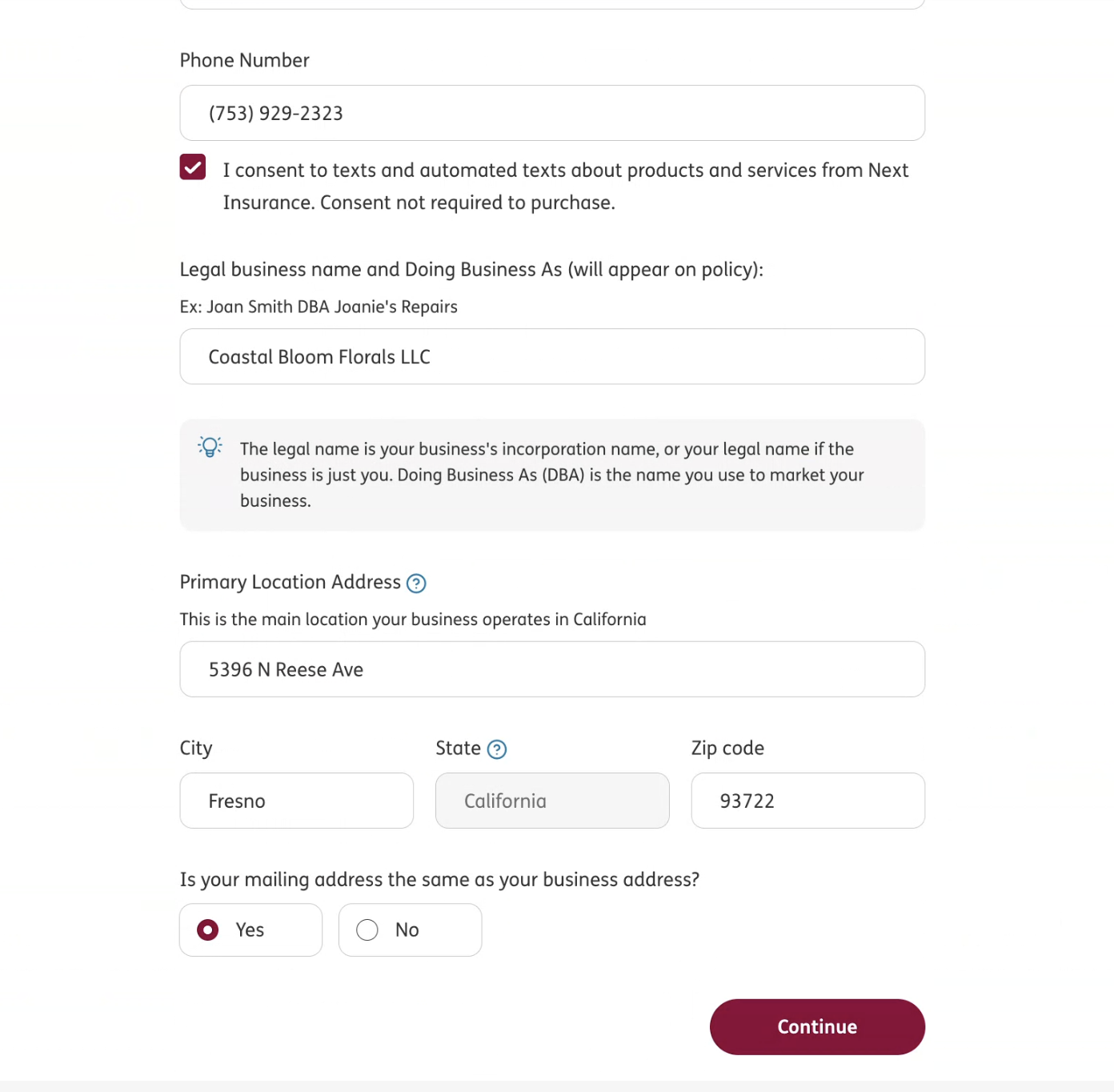
| Legal business name and Doing Business As | Your registered legal business name, and your Doing Business As (DBA) name if you use one. This is the name that appears on your policy. |
| Primary Location Address, City, State, Zip code | The main location your business operates in. |
| Is your mailing address the same as your business address? | Choose Yes or No. Choosing No opens fields for a separate mailing address. |
About Your Ownership Structure
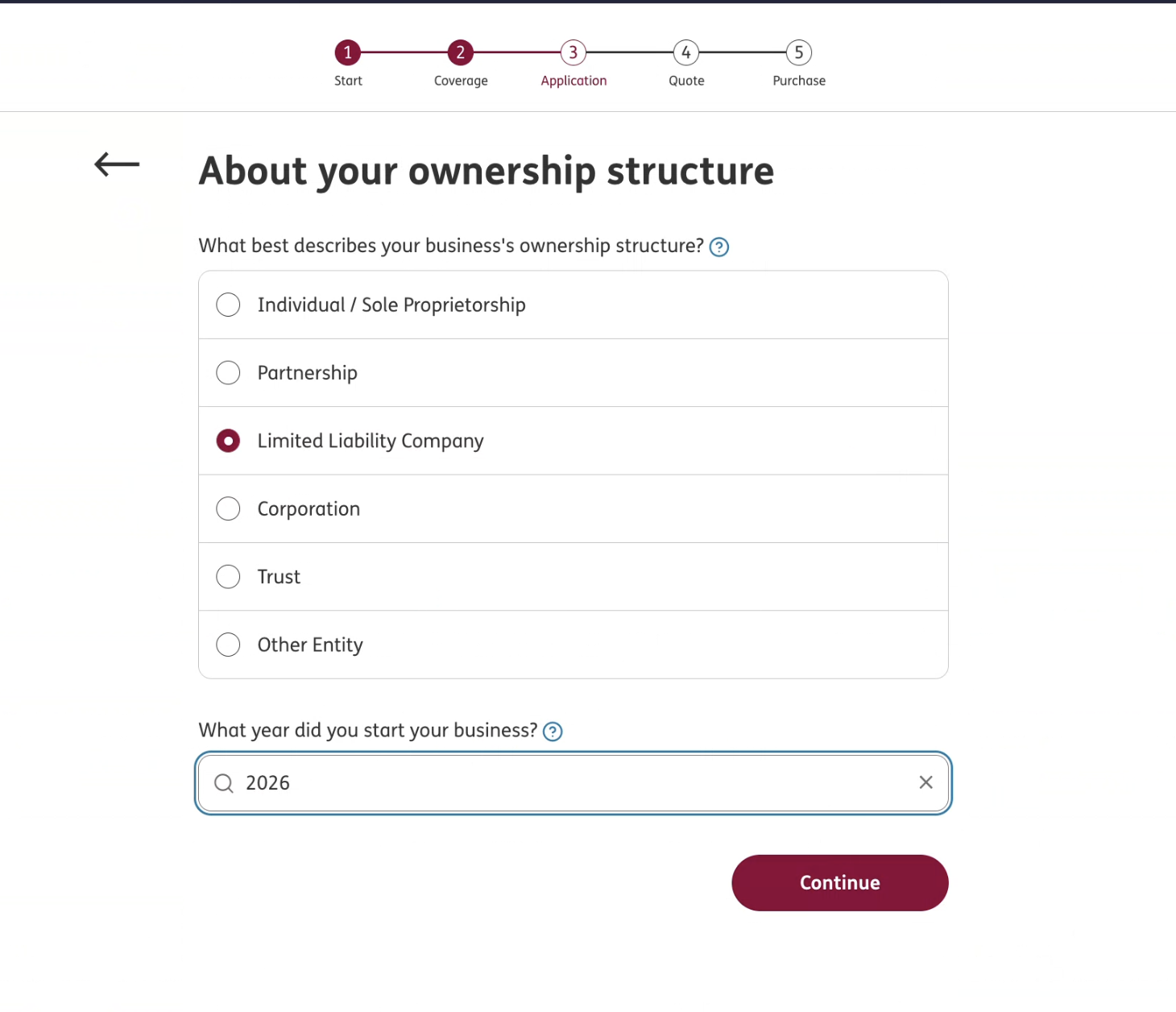
| Field | Options |
|---|---|
| What best describes your business’s ownership structure? | Individual / Sole Proprietorship, Partnership, Limited Liability Company, Corporation, Trust, or Other Entity. |
| What year did you start your business? | The year your business began. |
About Your Locations
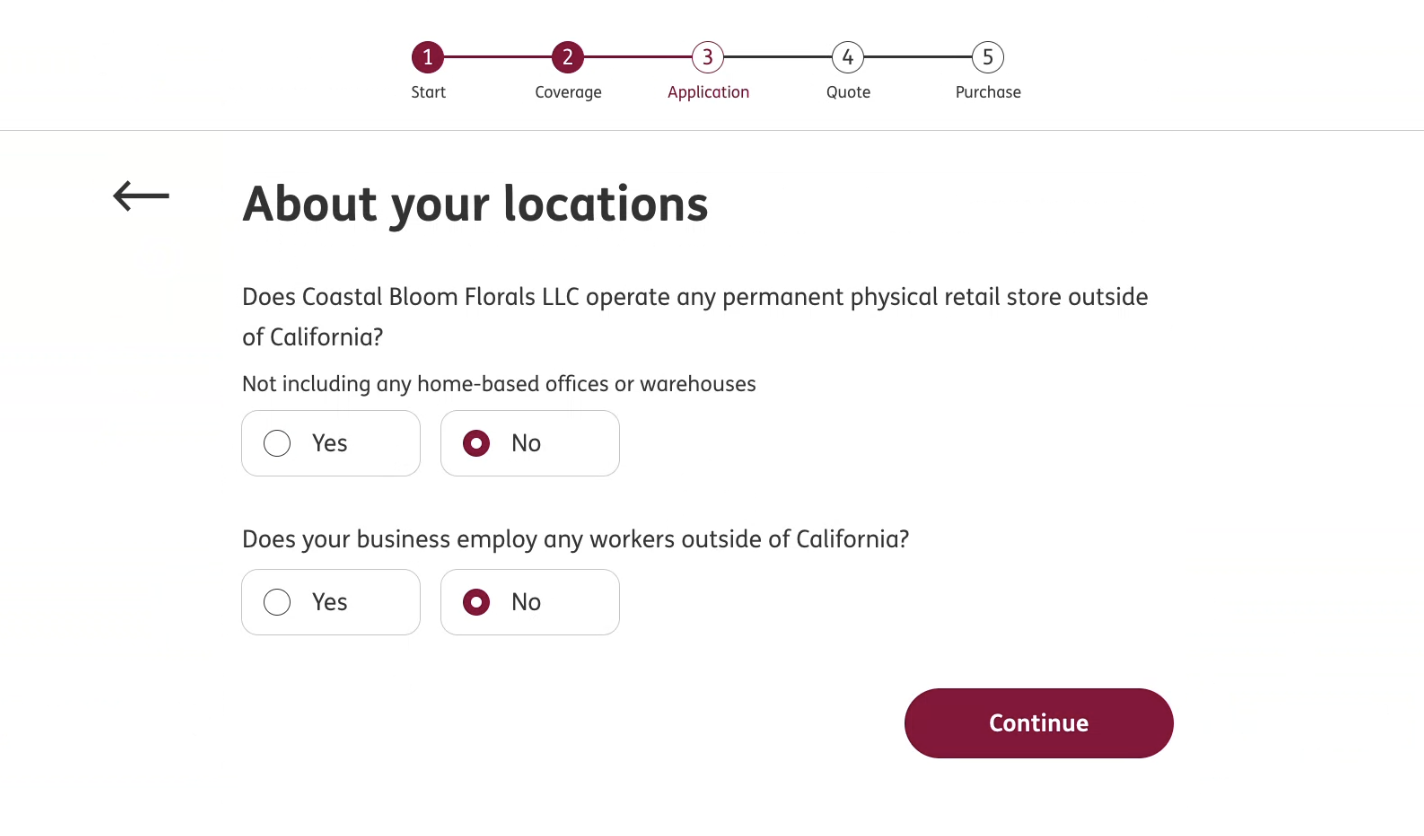
| Question | Notes |
|---|---|
| Does your business operate any permanent physical retail store outside of your state? | Do not include home-based offices or warehouses. |
| Does your business employ any workers outside of your state? | Choose Yes or No. |
About Your Workers
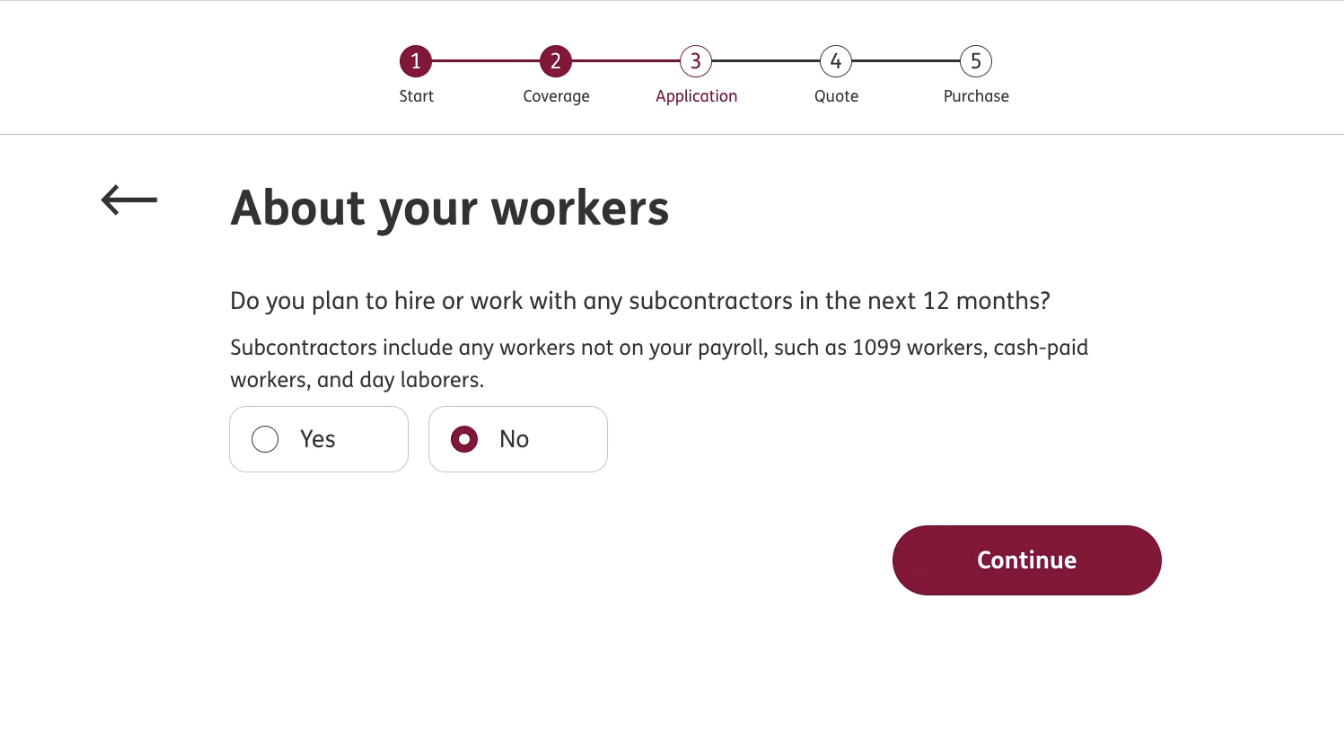
- Indicate whether you plan to hire or work with any subcontractors in the next 12 months. Subcontractors include workers not on your payroll, like 1099 contractors, cash-paid workers, and day laborers.
Your Business Locations
In the Let’s learn about your business locations screen, list every US location for your W-2 employees, including home offices for remote employees. Exclude subcontractors and temporary sites. Your primary location is shown first.
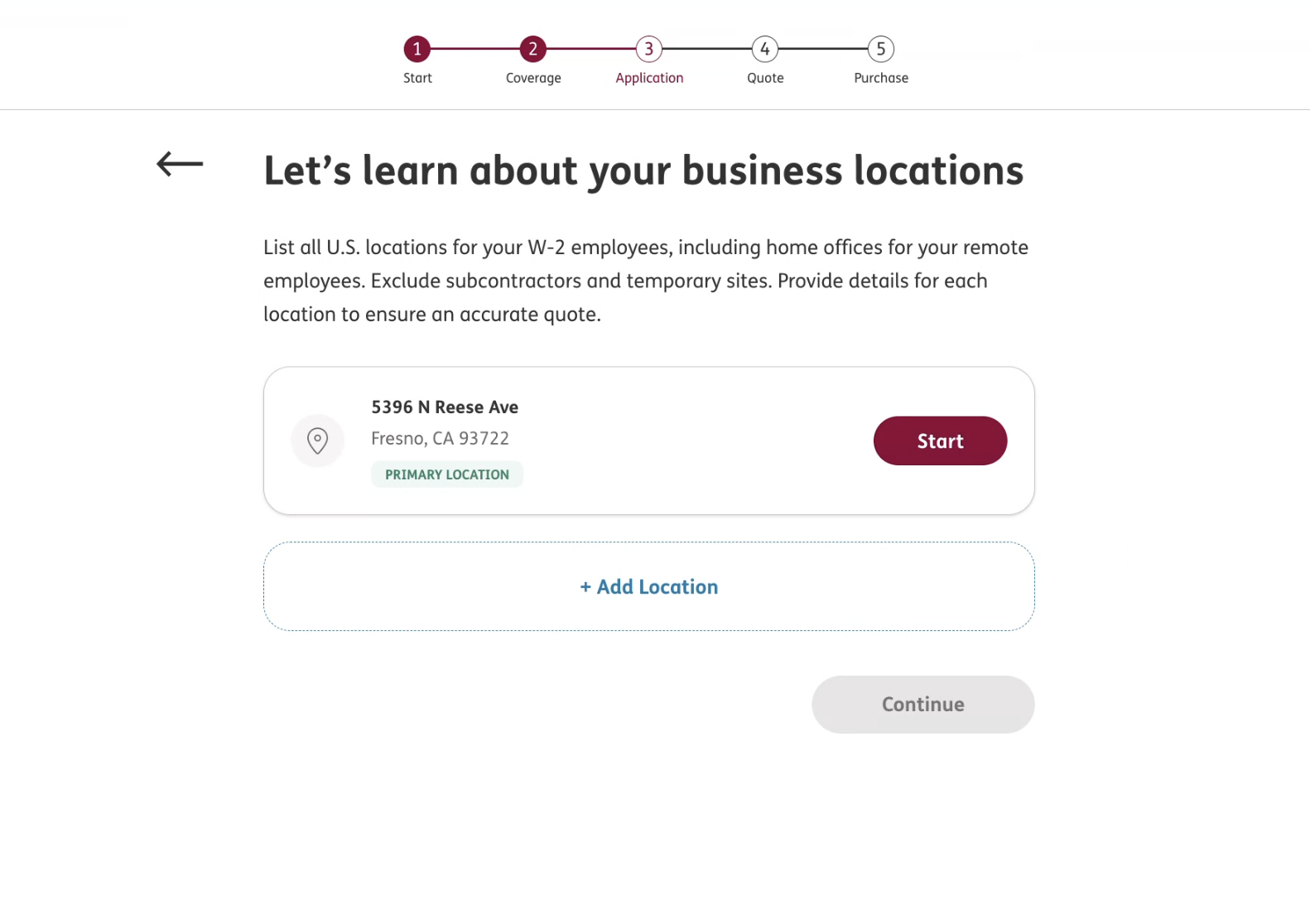
- Click Start next to a location to add its details.
- Click + Add Location to add another location.
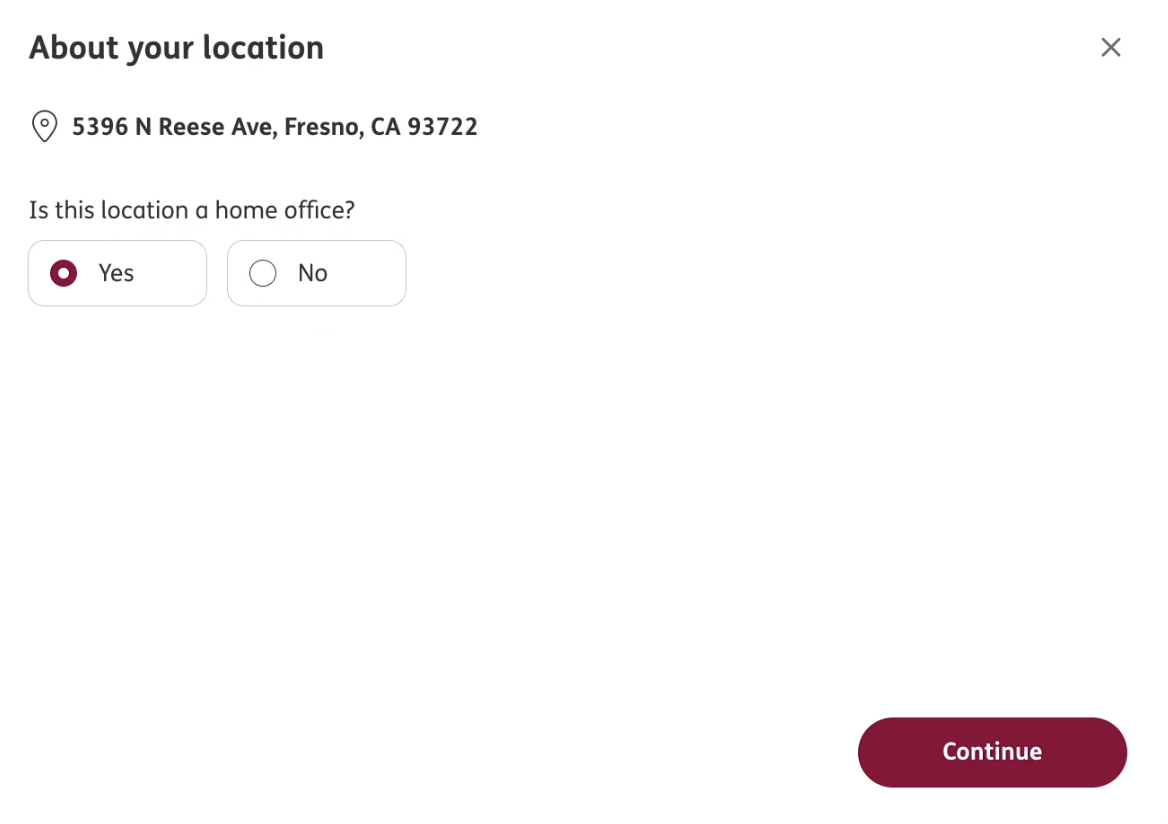
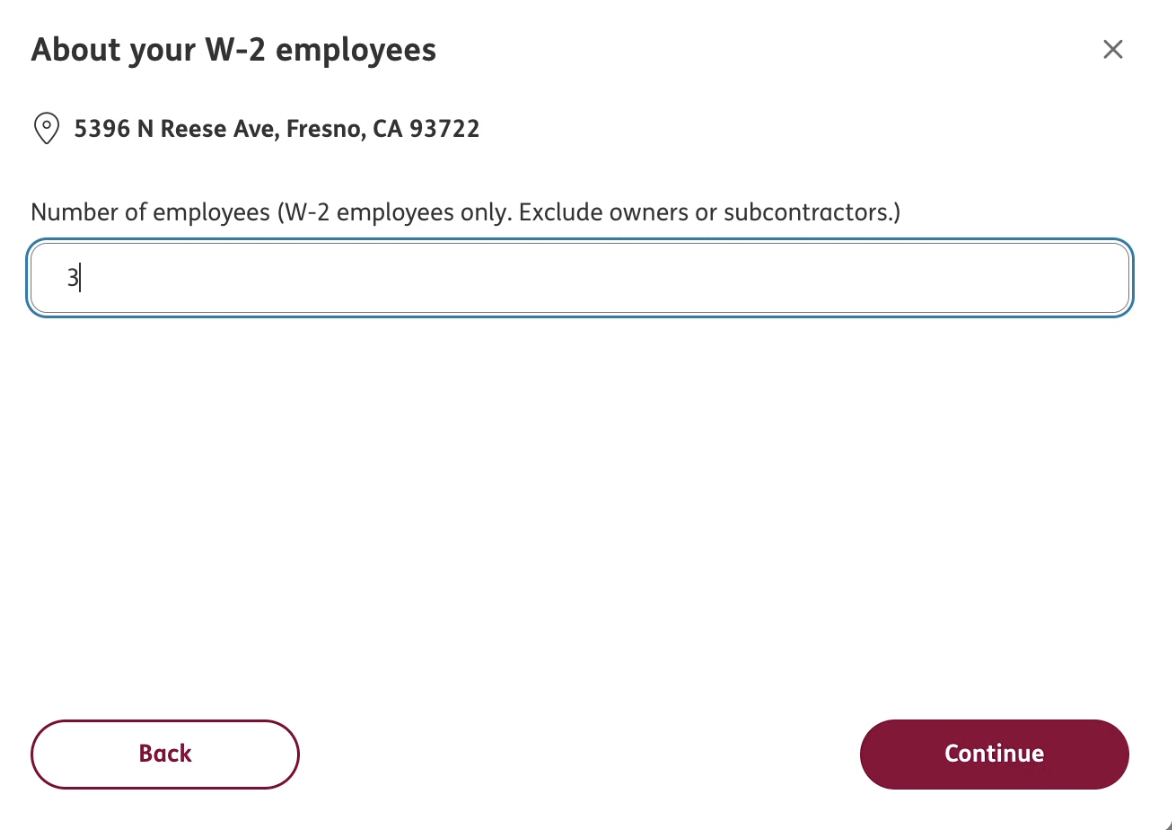
When you click Start for a location, ERGO NEXT opens a short sequence of screens. The Screen column below names each one, with the field it asks for and what to enter:
| Screen | Field | What to enter |
|---|---|---|
| About your location | Is this location a home office? | Choose Yes or No. |
| About your W-2 employees | Number of employees | W-2 employees only. Exclude owners and subcontractors. |
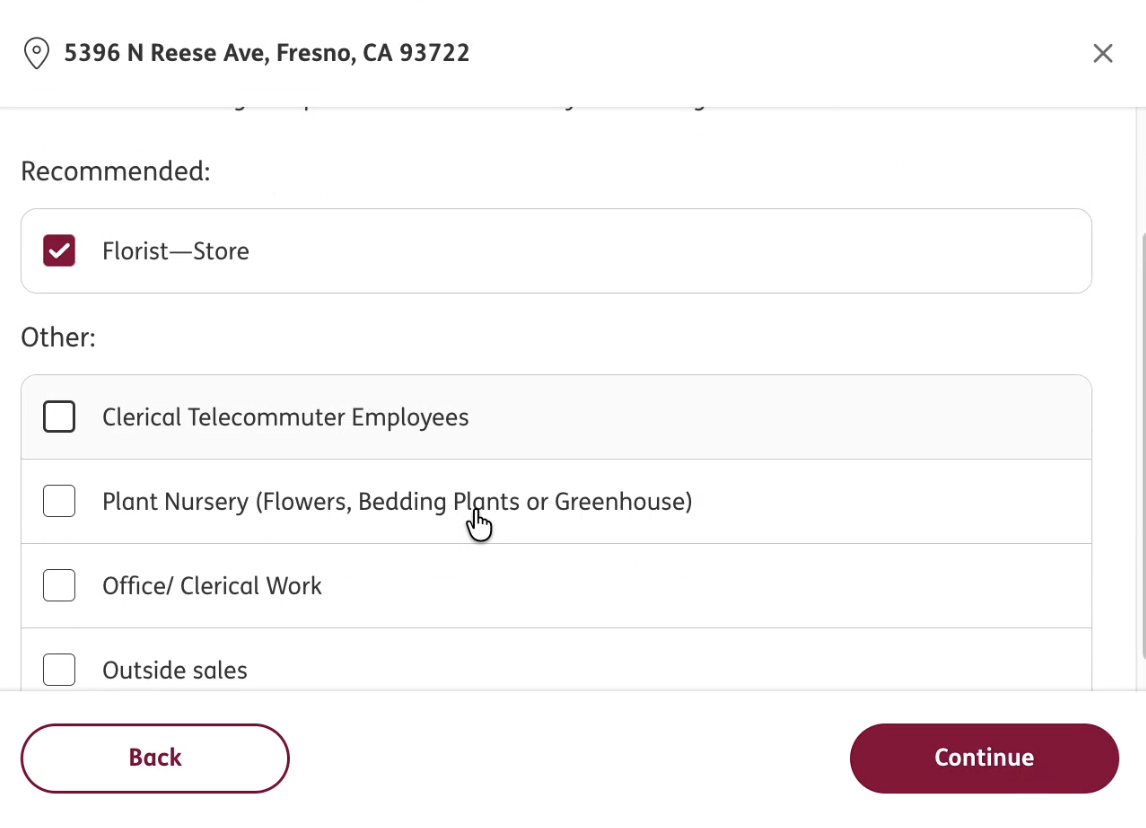
| Work classifications | Recommended and Other | Select the work classifications that match this location. |
| About your W-2 employees payroll | Expected payroll over the next 12 months | Enter the expected W-2 payroll for each work classification you selected. |
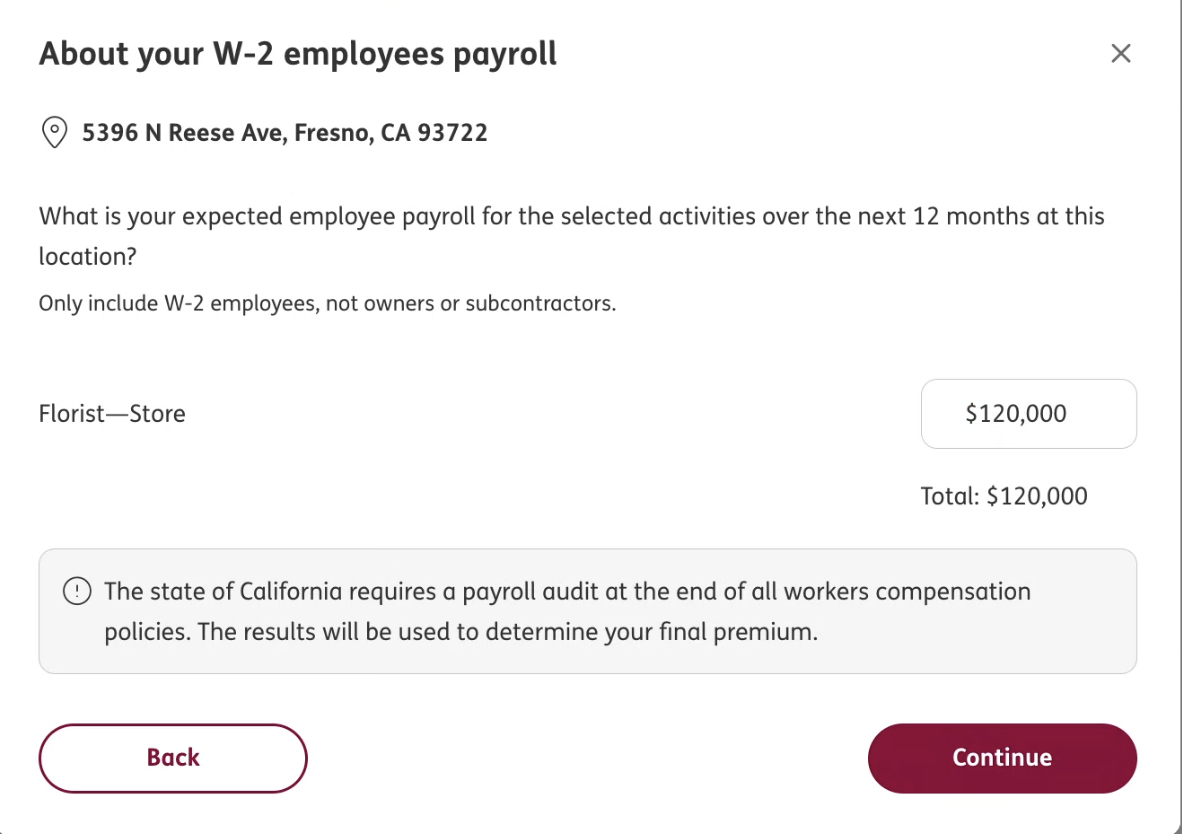
Note: Some states require a payroll audit at the end of every workers’ compensation policy, and the results are used to set your final premium.
About the Business Owners
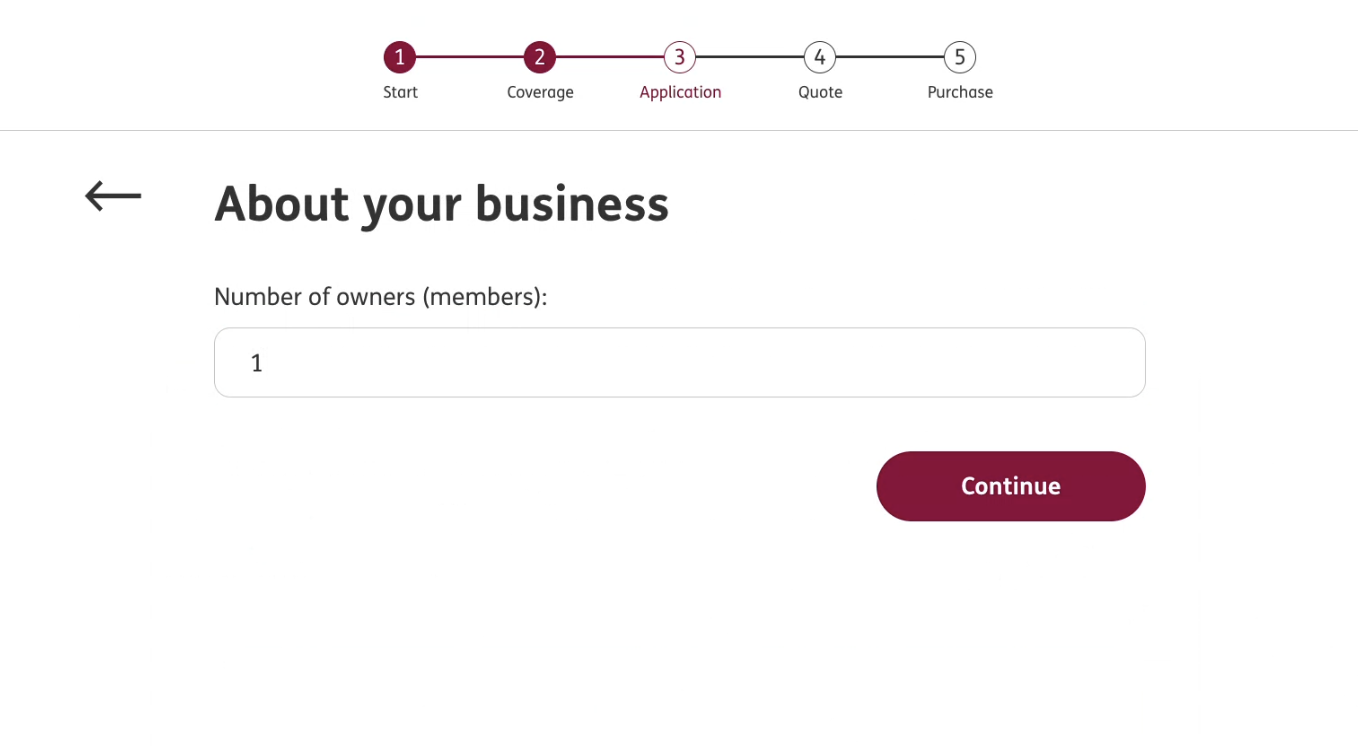
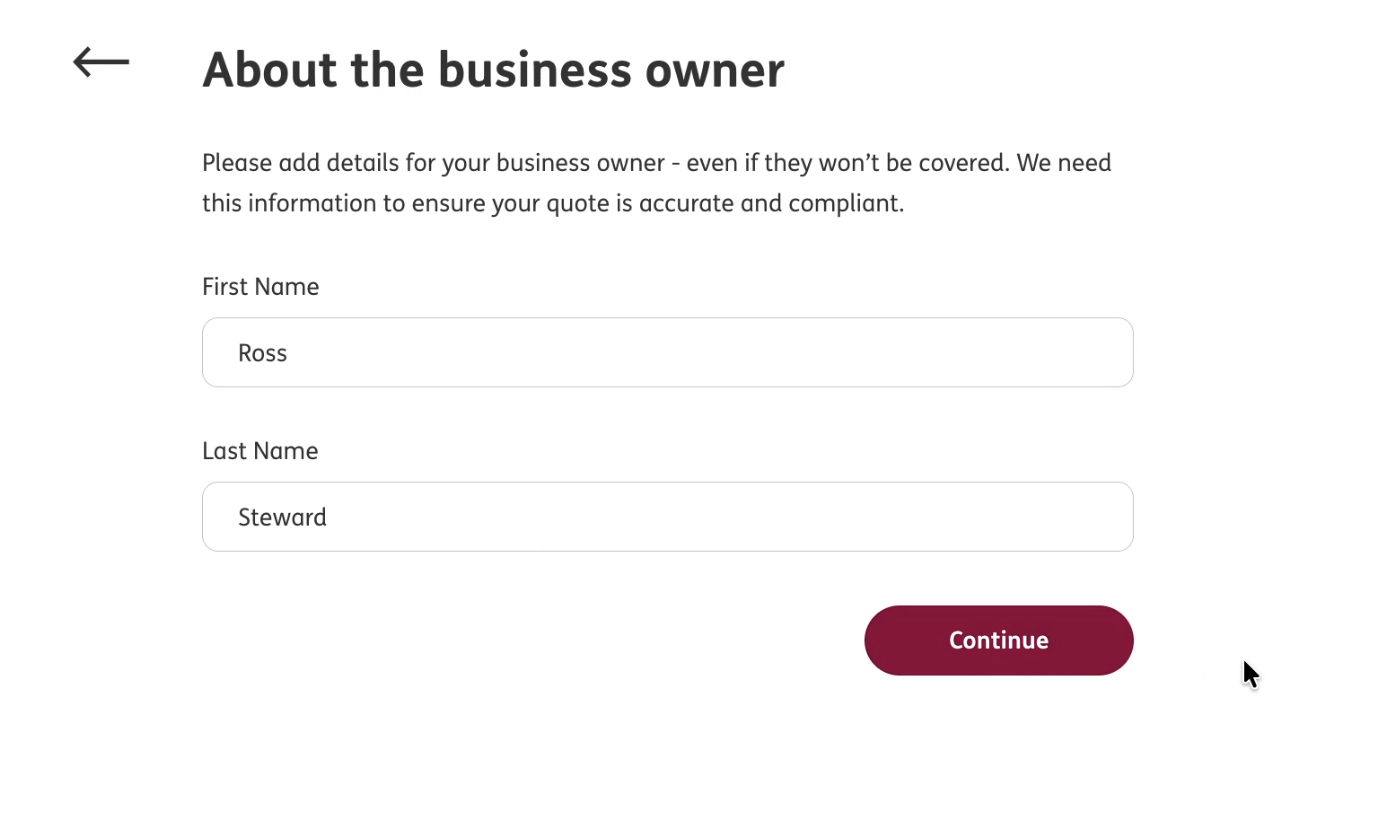
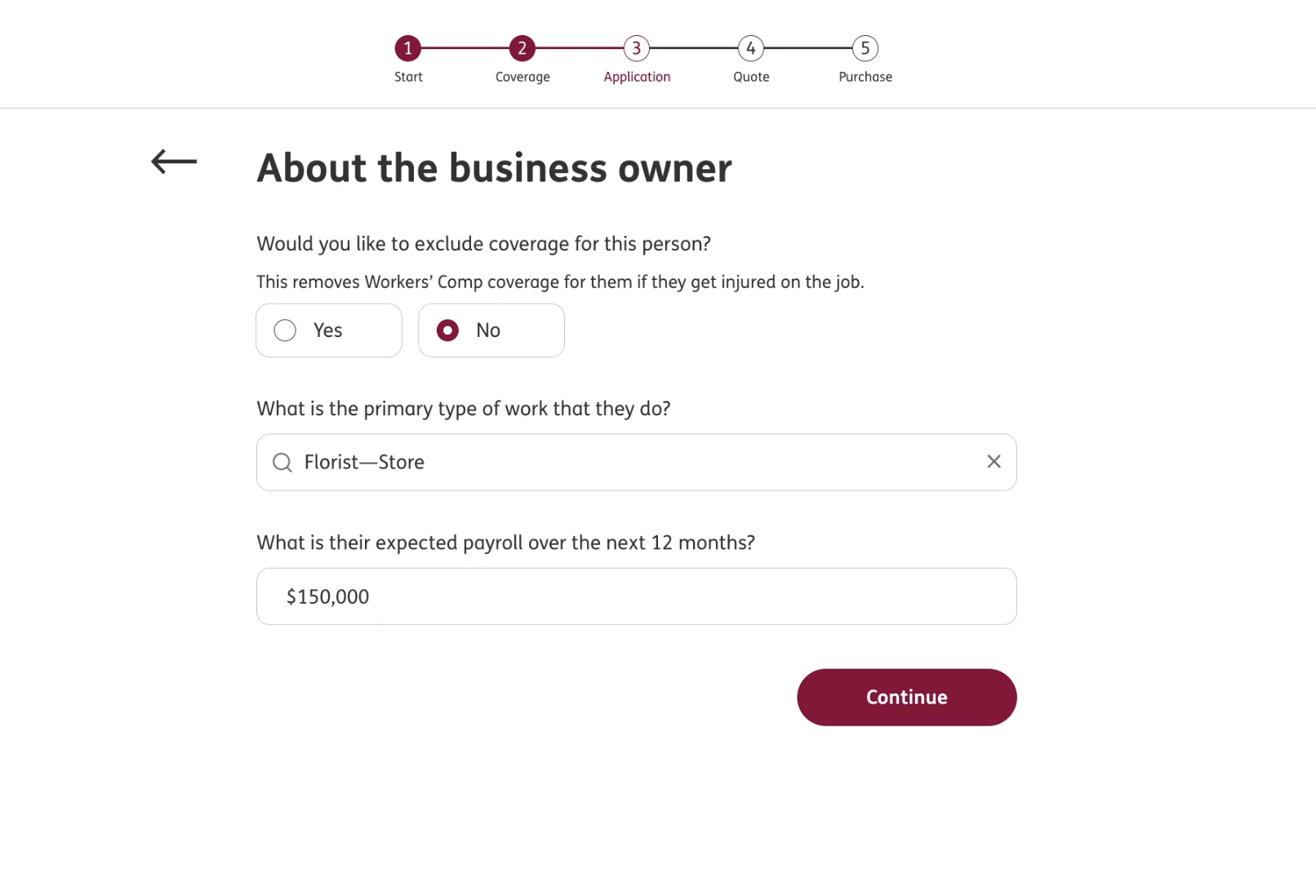
Owners are handled separately from your W-2 employees. You declare how many owners your business has, then give details for each one, and ERGO NEXT needs these details even for owners you do not intend to cover, because they affect how your quote is rated.
| Field | What to enter |
|---|---|
| Number of owners (members) | How many owners or members your business has. |
| First Name, Last Name | The owner’s name. |
| Would you like to exclude coverage for this person? | Choosing Yes removes workers’ comp coverage for them if they are injured on the job. |
| What is the primary type of work that they do? | The owner’s main work activity. |
| What is their expected payroll over the next 12 months? | The owner’s expected payroll. |
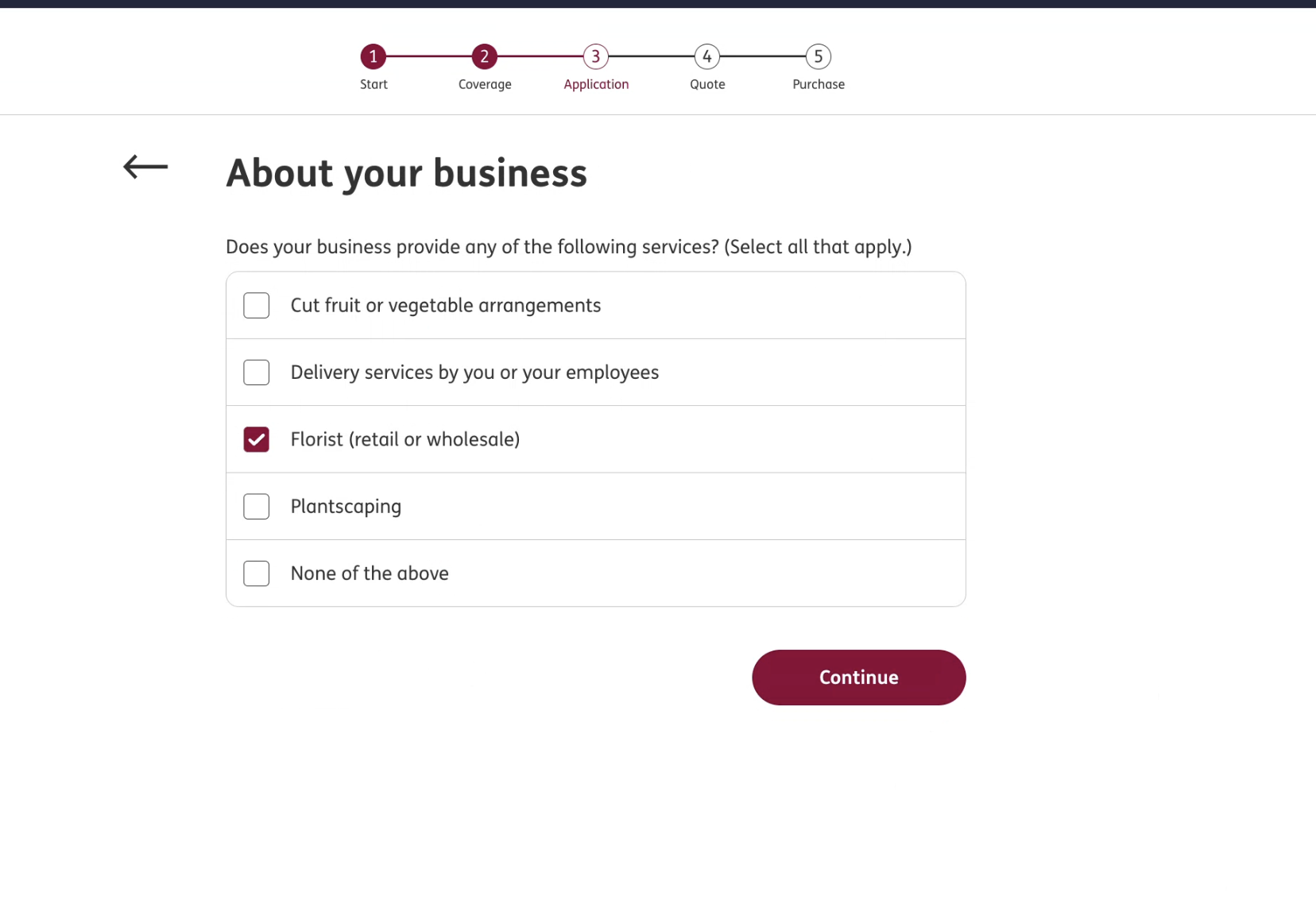
About Your Business: Services
- Select any of the listed services your business provides. The available options depend on your business type, such as cut fruit or vegetable arrangements, delivery services, florist (retail or wholesale), and plantscaping. If none apply, click None of the above.
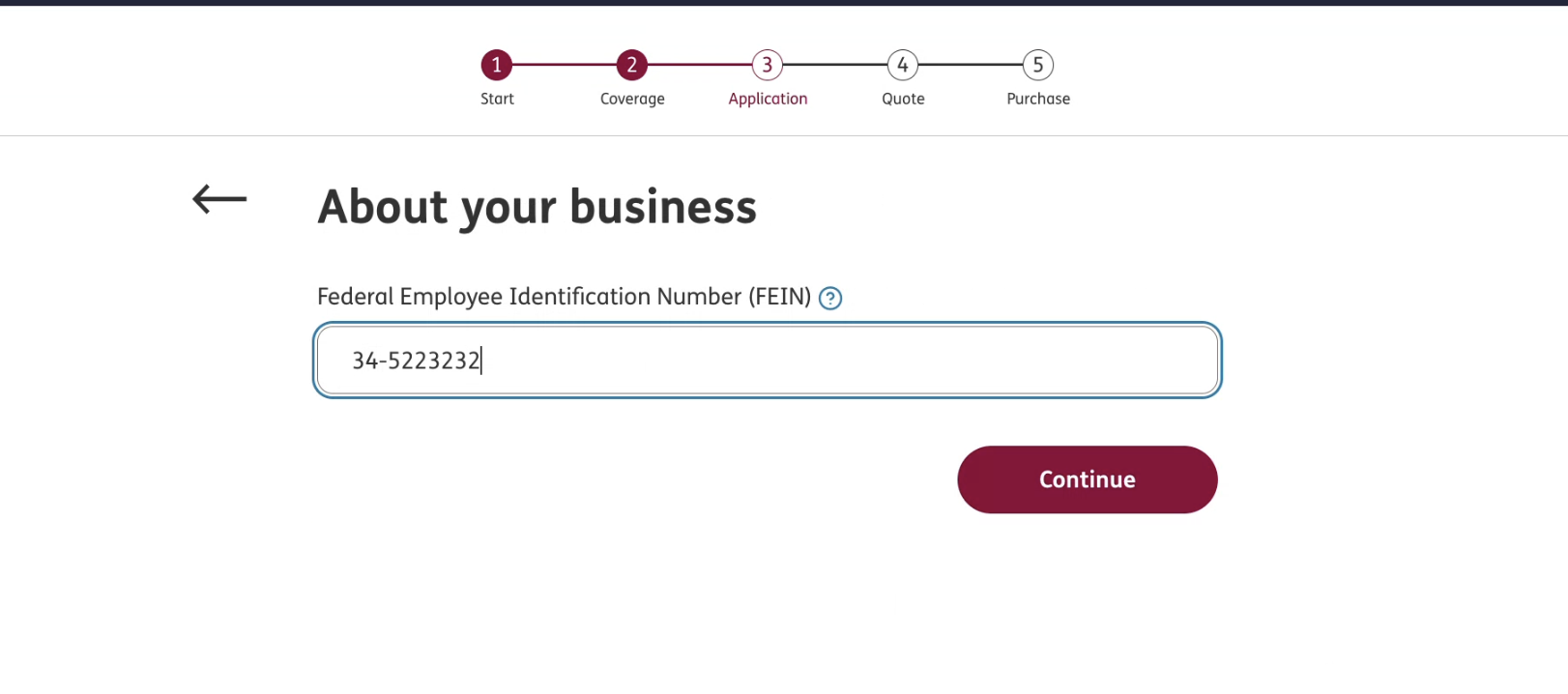
About Your Business: FEIN
- Enter your business’s Federal Employer Identification Number (FEIN).
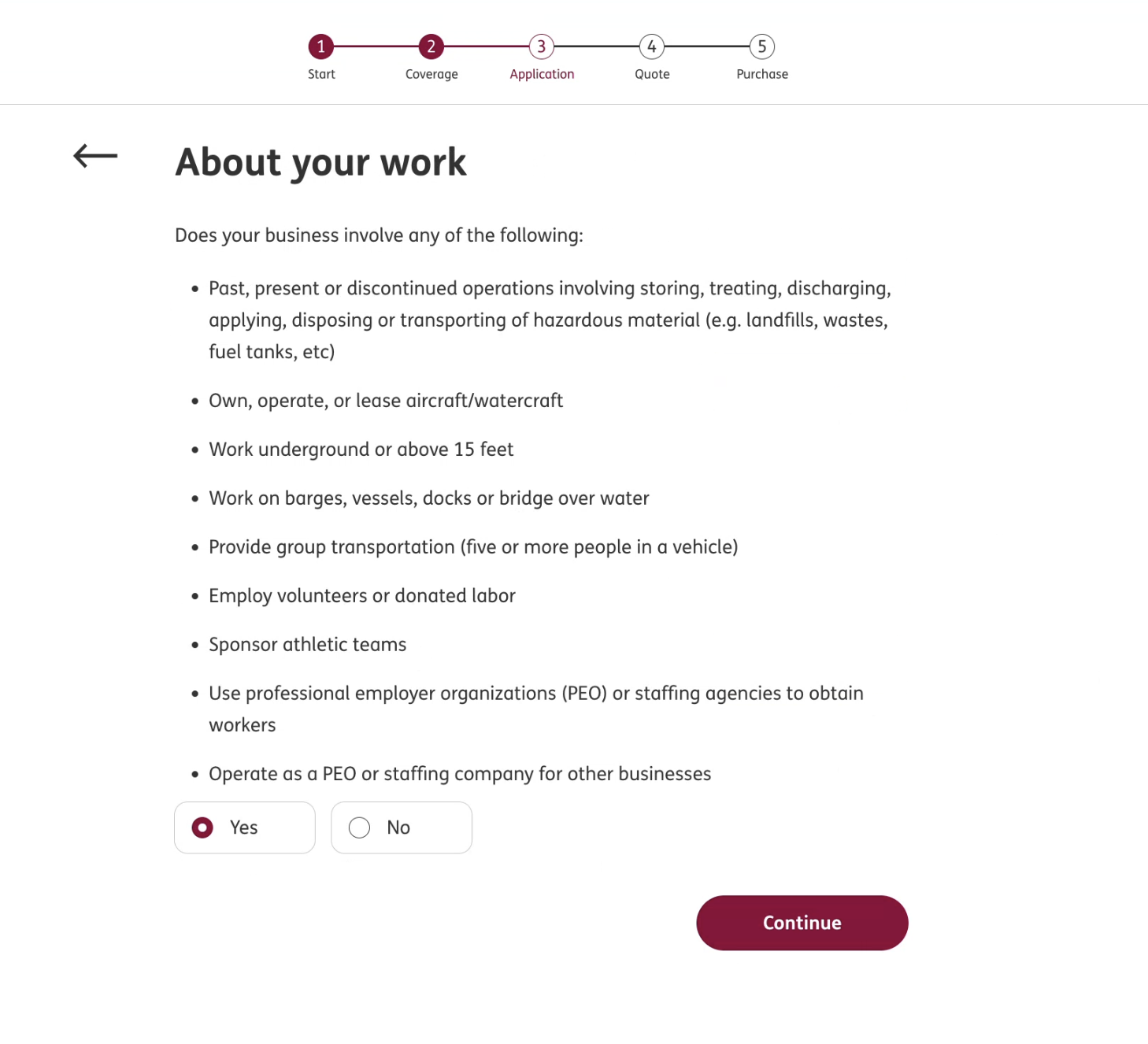
About Your Work
- Indicate whether your business involves any higher-risk activities, such as handling hazardous material, owning or operating aircraft or watercraft, working underground or above 15 feet, working over water, providing group transportation, employing volunteers, sponsoring athletic teams, or using or operating as a PEO or staffing agency.
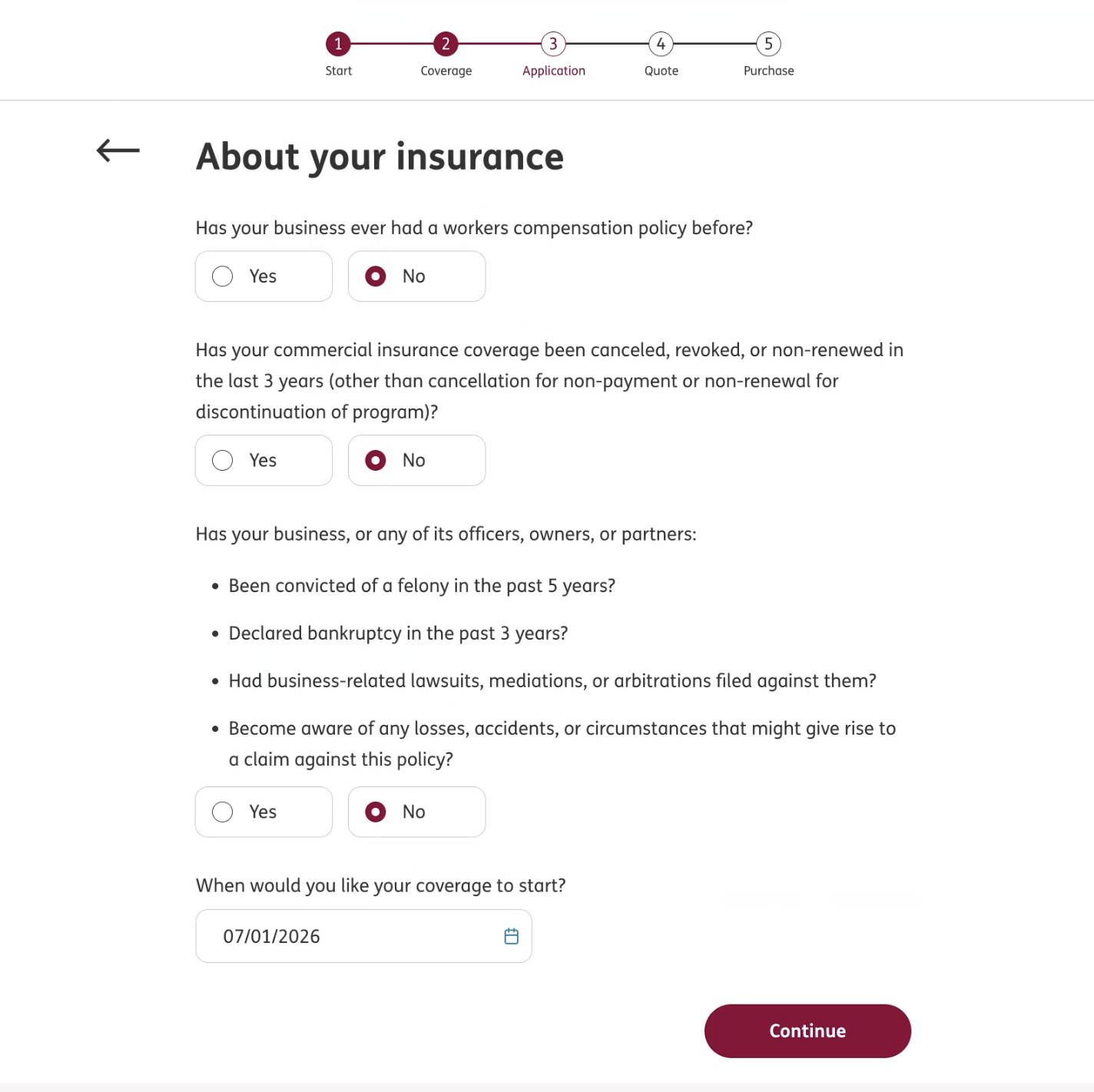
About Your Insurance
| Question | Notes |
|---|---|
| Has your business ever had a workers compensation policy before? | Choose Yes or No. |
| Has your commercial insurance coverage been canceled, revoked, or non-renewed in the last 3 years? | Other than cancellation for non-payment or non-renewal for discontinuation of program. |
| Has your business, or any of its officers, owners, or partners | Been convicted of a felony in the past 5 years, declared bankruptcy in the past 3 years, had business-related lawsuits, mediations, or arbitrations filed against them, or become aware of any losses, accidents, or circumstances that might give rise to a claim. |
| When would you like your coverage to start? | Pick your coverage start date. |
Quote
In the Here’s your customized insurance quote! screen, ERGO NEXT shows your pricing and lets you adjust coverage before you buy.
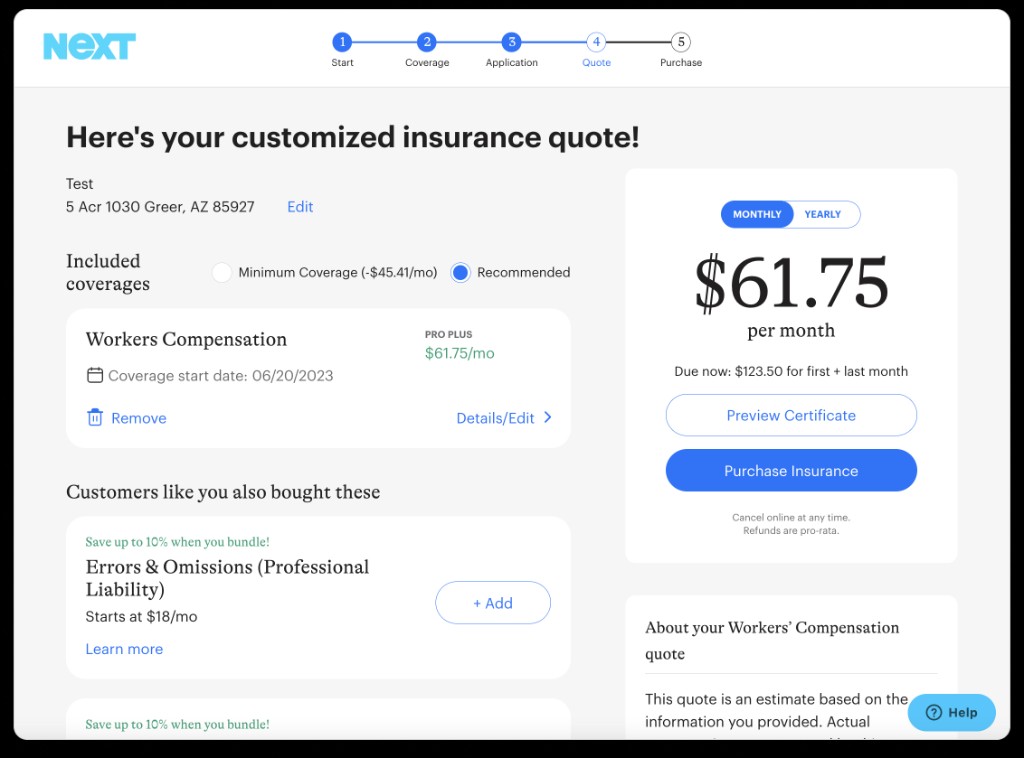
- Your business name and address appear at the top, with an Edit link if you need to change them.
- Included coverages lets you switch between two coverage levels, Minimum Coverage and Recommended, where Recommended is the level ERGO NEXT suggests.
- The Workers Compensation card shows your coverage tier, monthly price, and coverage start date. Use Remove to delete it, or Details/Edit to adjust it.
- Click + Add to include optional add-ons, like Errors & Omissions (Professional Liability) with a bundle discount, or Learn more for details.
Purchase
In the Almost done! We’ll reach out to complete your purchase screen, ERGO NEXT confirms that:
- A licensed agent will reach out by phone and email, typically within one business day, to help complete your purchase.
- The agent shops top-rated carriers to find the right coverage and price for you.
- After you purchase, your policy documents and certificate are available through ERGO NEXT’s online portal.
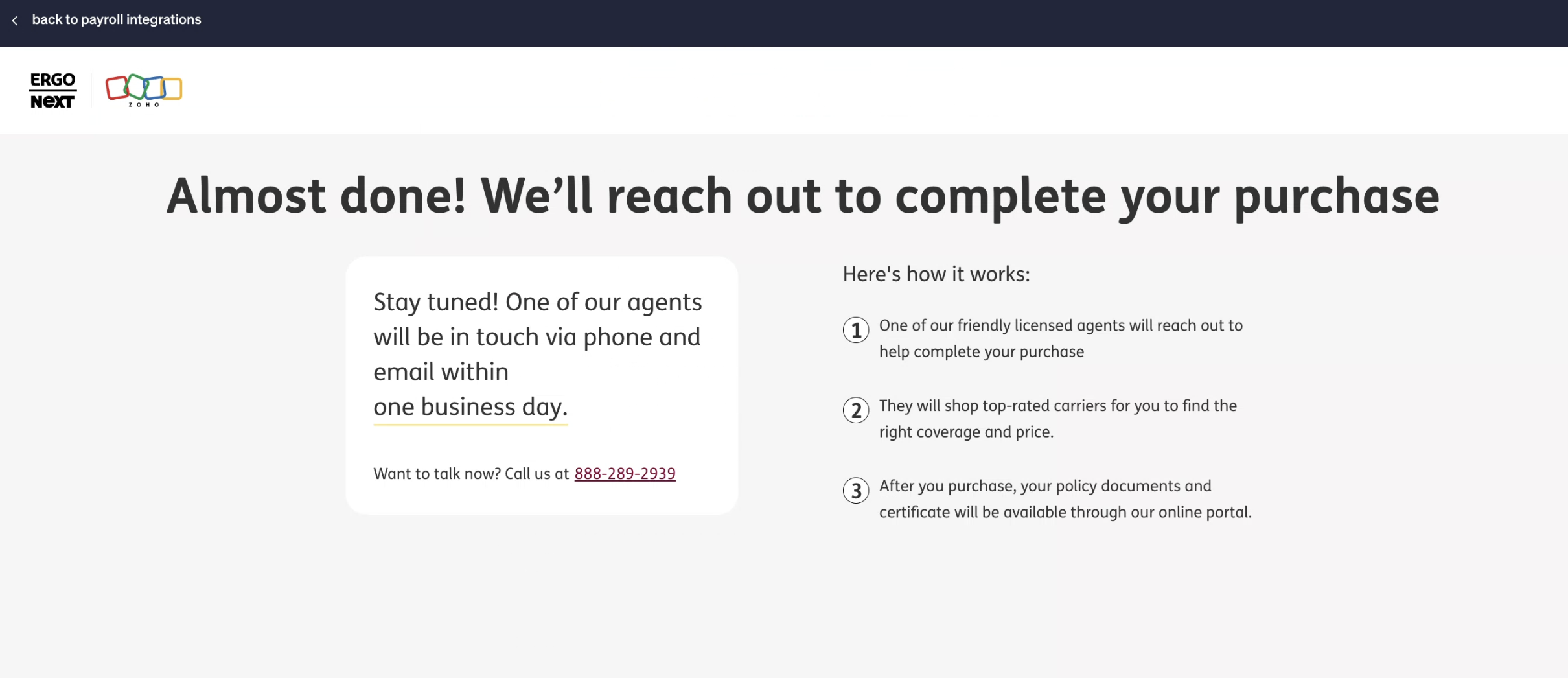
You can also call the ERGO NEXT agency directly if you want to talk right away. An ERGO NEXT agent contacts you to finalize coverage and pricing. Once your policy is active, your premium is calculated from your actual payroll each pay cycle in Zoho Payroll.
How the ERGO NEXT Policy Appears in Zoho Payroll
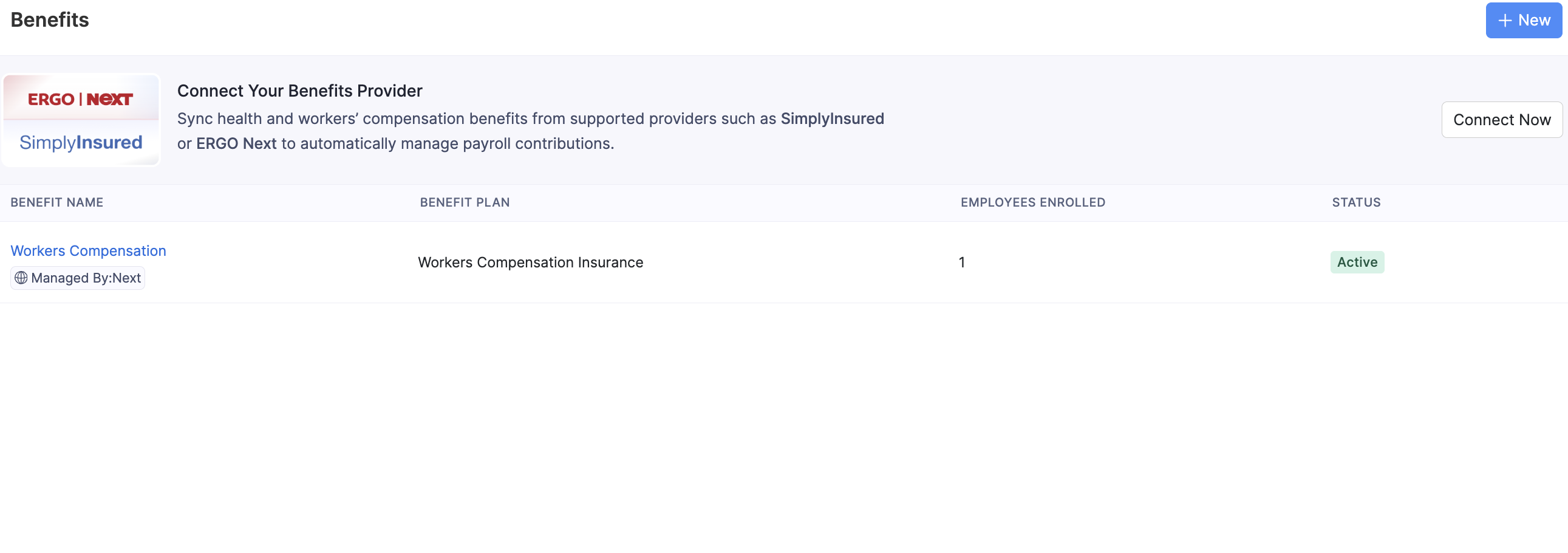
Once your policy is active, the workers’ compensation benefit syncs into Zoho Payroll automatically.
- The benefit appears in the Benefits module as Workers Compensation, with a Managed By: Next tag.
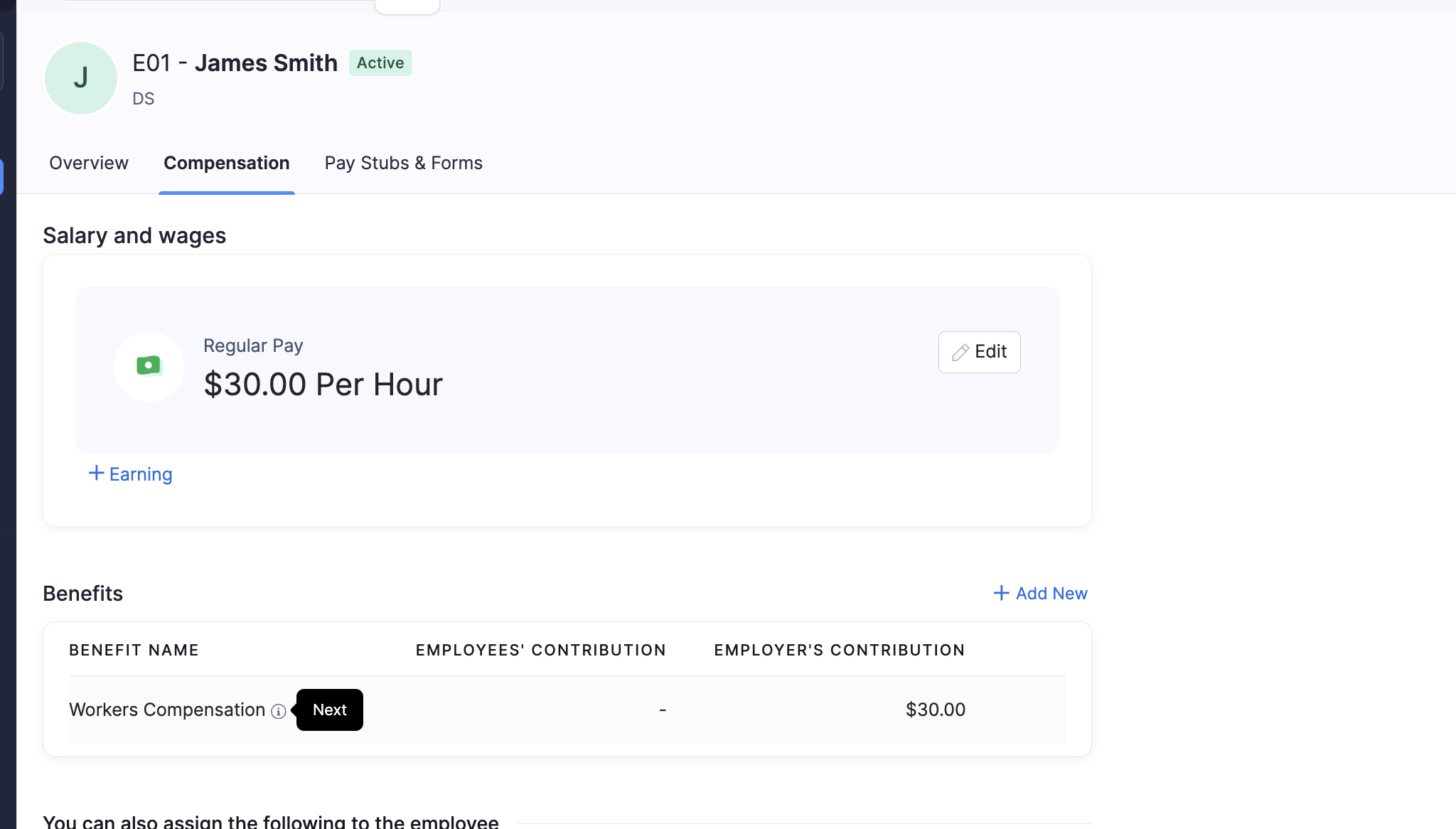
- The benefits linked to an employee appear on the Compensation tab of that employee’s details page in the Employees module.
- Employees can also view these benefits in their Employee Portal.
Disconnect the Integration
You can disconnect ERGO NEXT at any time by contacting support.usa@zohopayroll.com and we’ll assist you.