


Time Off

Time off refers to the period when an employee is away from work for reasons permitted under your organization’s policy. Sick and vacation time off are the most commonly used types across organizations. A well-structured time off policy helps maintain a productive workforce while ensuring compliance with federal, state, and local laws.
Zoho Payroll provides two default time off policies: Sick and Vacation. You can review, configure, and enable these based on your requirements. You can also create additional time off policies to suit your organization’s unique needs.
Types of Time Off
Zoho Payroll supports two categories of time off. Every time off policy you create or configure must belong to one of these categories.
Sick Time Off
Sick time off allows employees to take time off for medical reasons without losing income. Common reasons include personal illness, medical treatments, doctor visits, and caring for a sick family member. Depending on your state, paid sick leave may be mandated by law. For example, California requires employers to provide paid sick leave under California Assembly Bill 1522.
Vacation Time Off
Vacation time off allows employees to take time off for rest, travel, or personal activities. A well-defined vacation policy contributes to overall job satisfaction and productivity. Vacation time off may also be subject to state-specific regulations around accrual, carry-over, and payout. For example, in California, unused vacation hours must be carried over to the next year and accrued vacation hours must be paid out upon termination of employment.
Note: Both Sick and Vacation time off are paid by default in Zoho Payroll.
Enable Time Off
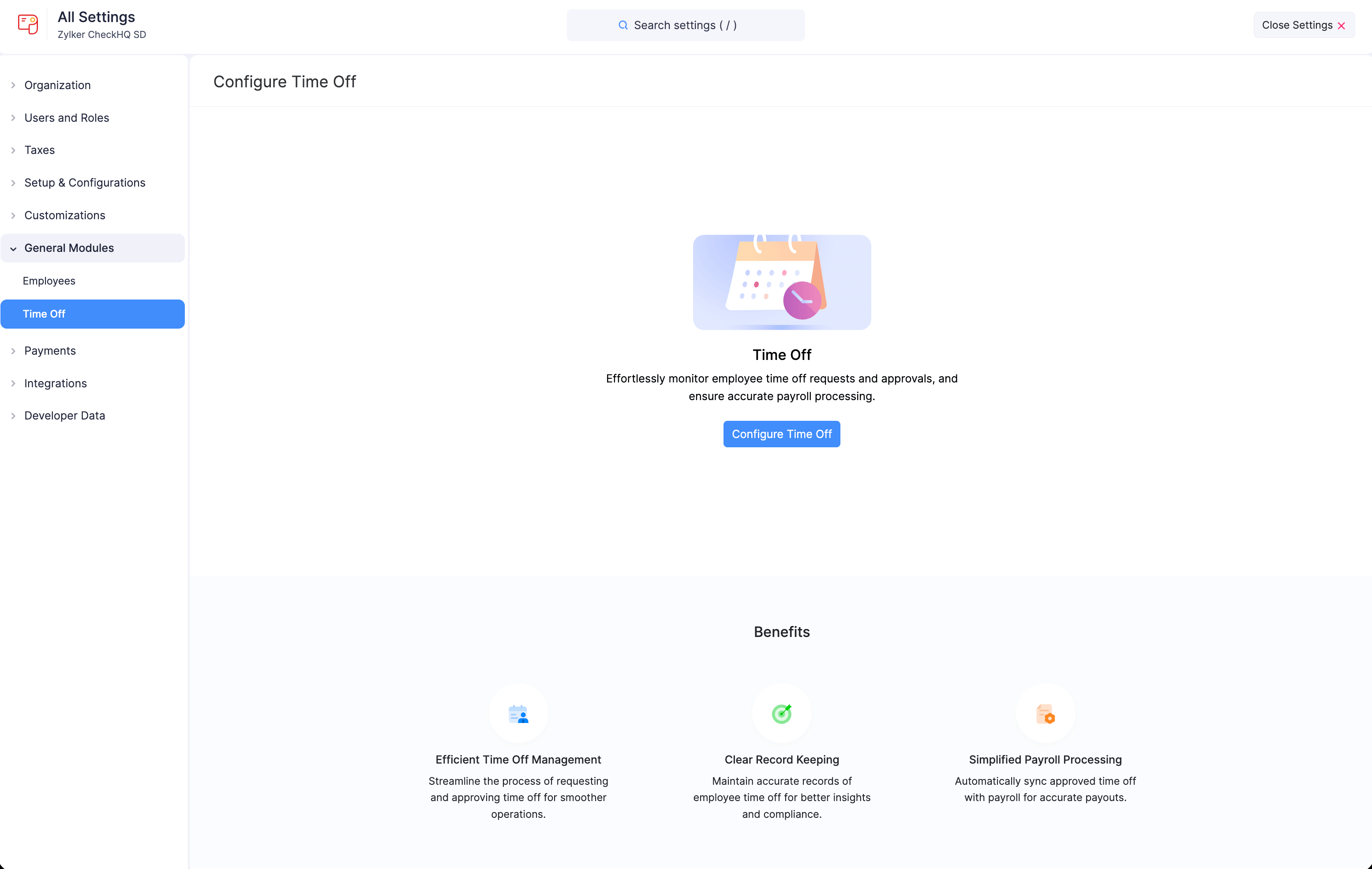
To start using time off in Zoho Payroll, you need to enable the Time Off module.
- Click Settings in the left sidebar.
- Select Time Off under General Modules.
- Click Configure Time Off.
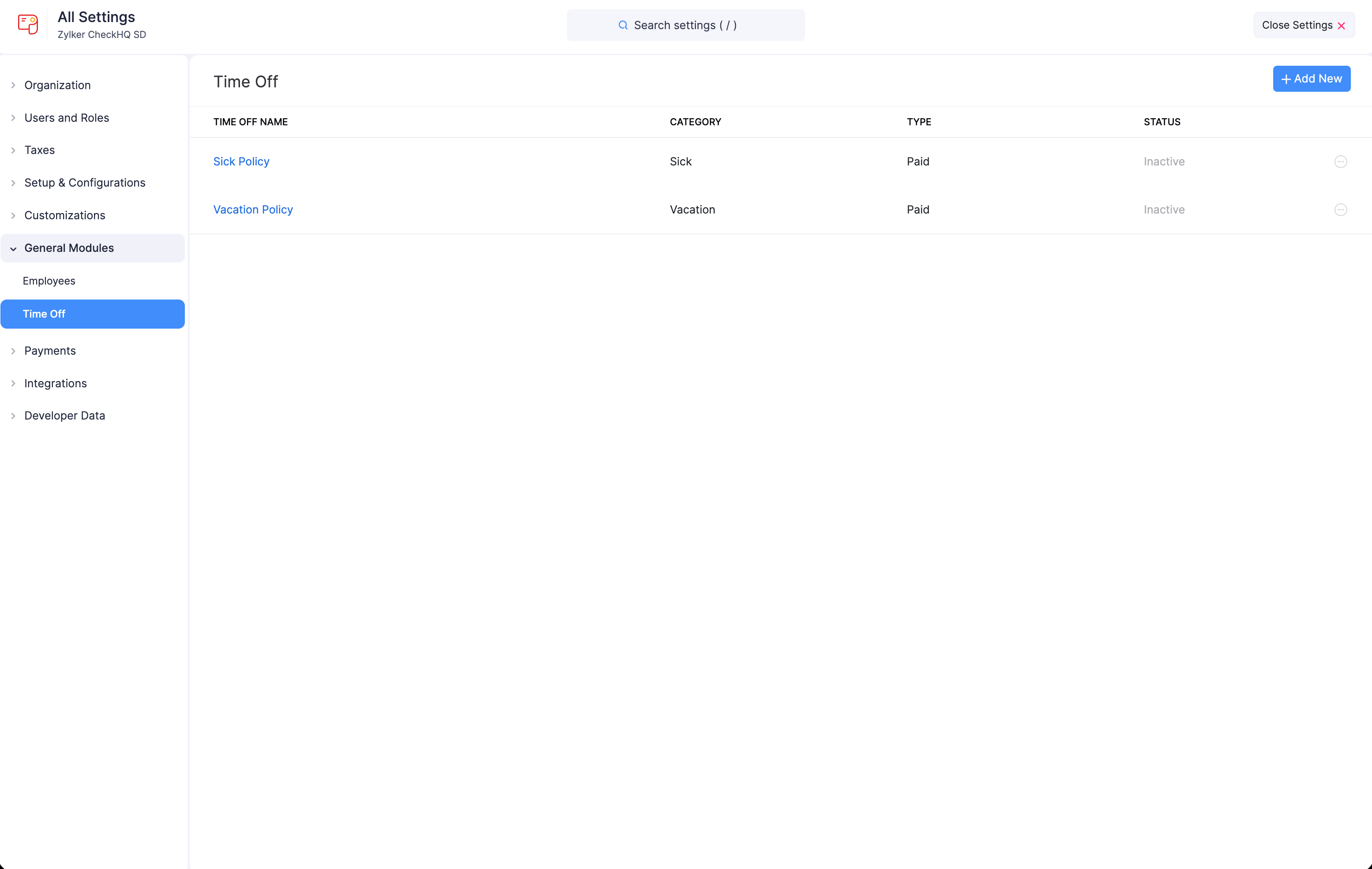
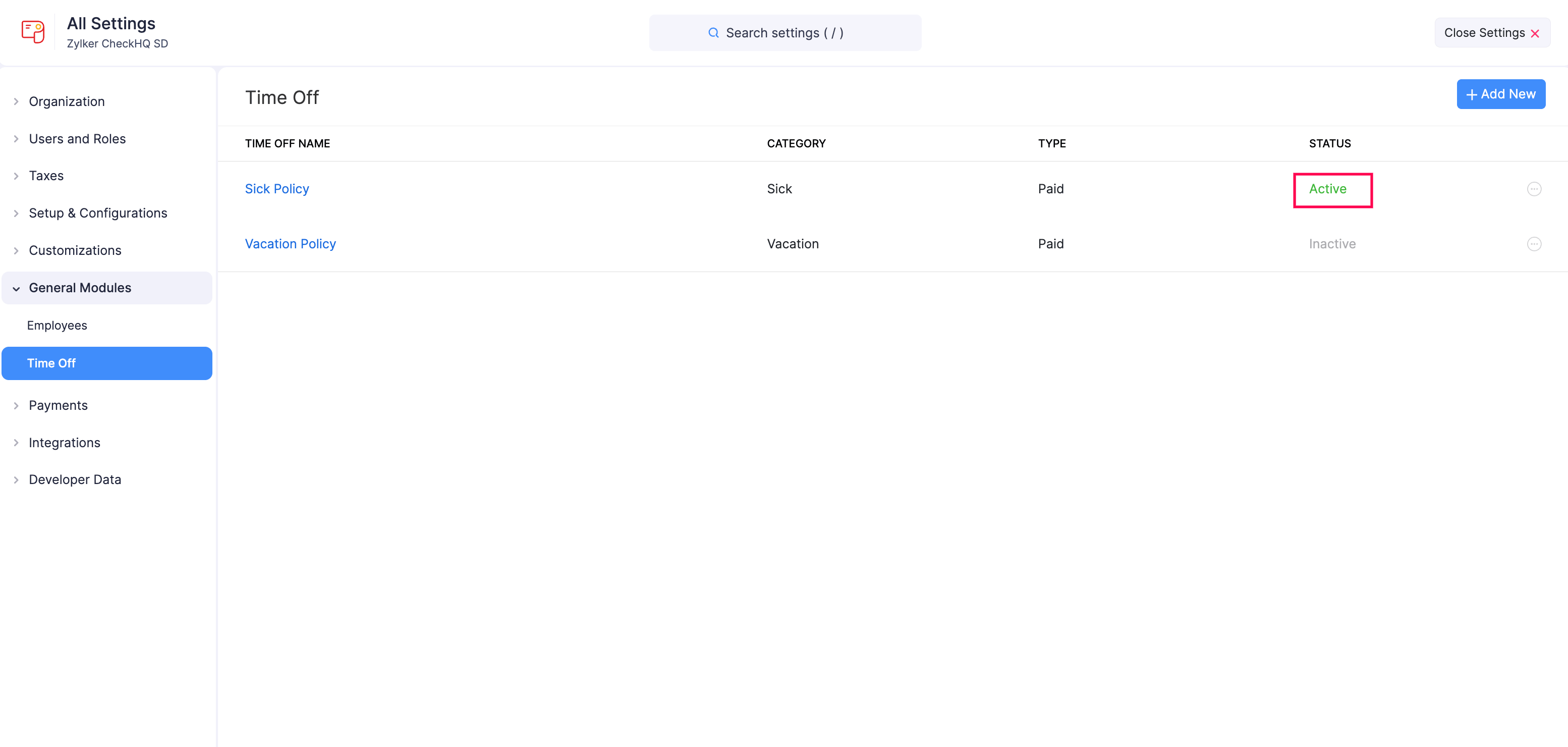
Once enabled, you will see a list of the default time off policies: Sick Policy and Vacation Policy. Both are set to Inactive by default.
Configure a Time Off Policy
After enabling Time Off, configure the default Sick or Vacation policy by setting up accrual rules and additional settings.
- Click Settings in the left sidebar.
- Select Time Off under General Modules.
- Click the More icon next to the time off policy you want to configure.
- Select Edit.
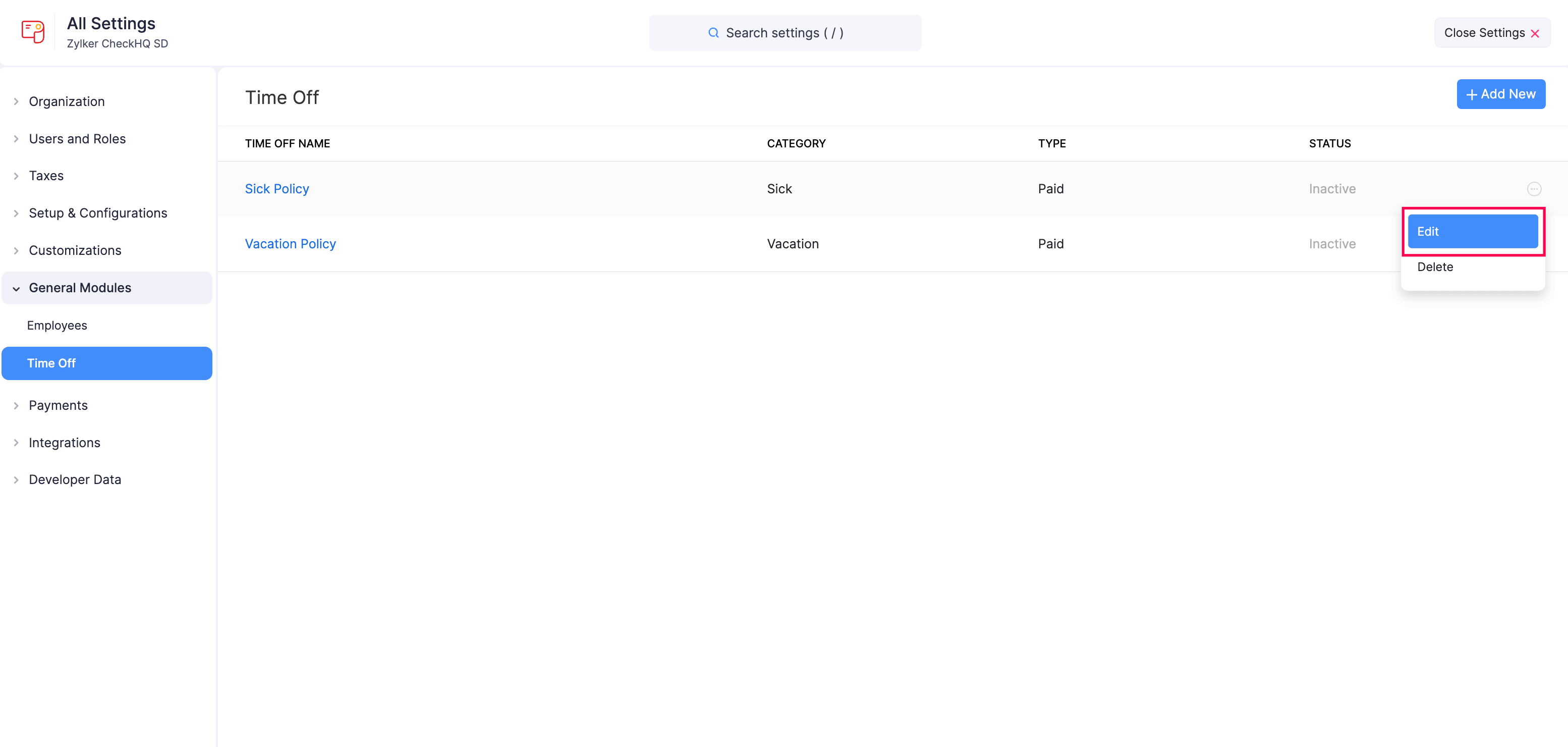
- Edit the Name of the time off policy, if required.
- Enter a Code that identifies the time off (for example, SL for Sick or VL for Vacation).
- Optionally, click + Add Description to include a short description about the policy or any internal notes.
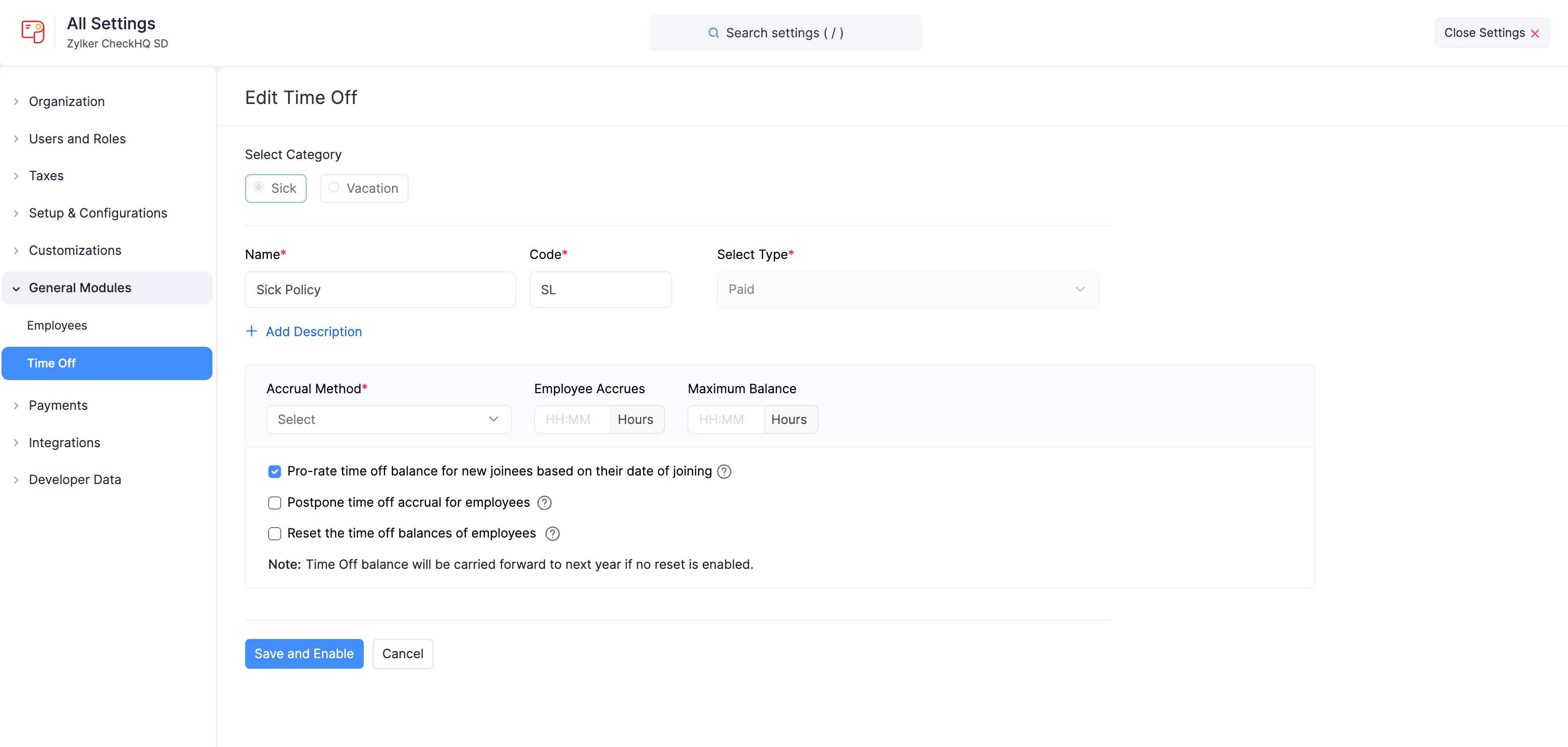
- Select the Accrual Method to define how time off accrues for employees.
- Enter the number of hours employees will earn per accrual period in the Employee Accrues field.
- Set the Maximum Balance to limit the total number of hours an employee can accumulate.
- Configure any additional time off preferences as needed.
- Click Save and Enable.
The time off policy will be activated. You can then associate the time off policy with individual employees through the Time Off tab in each employee’s profile. Learn how to associate time off with employees.
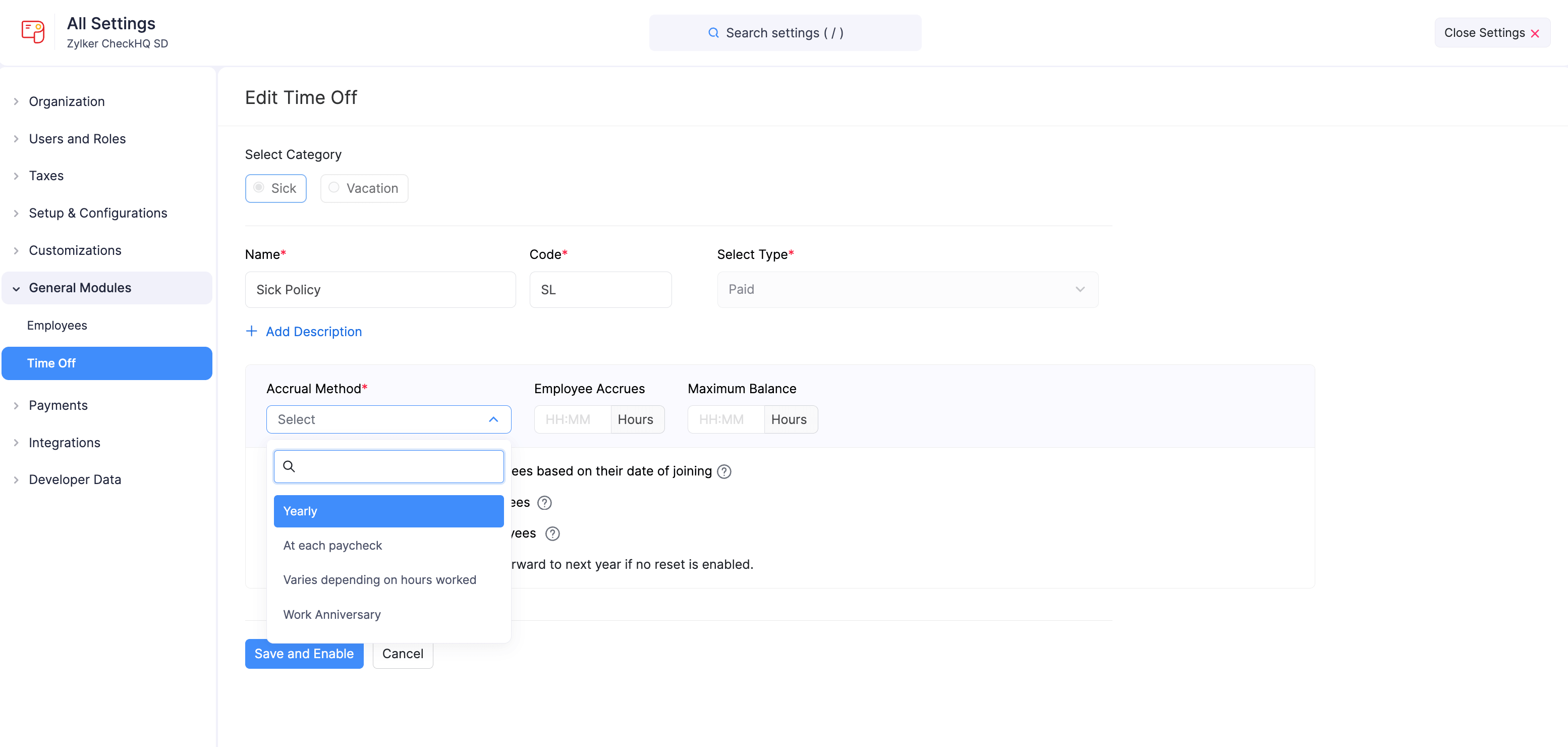
Accrual Method
The accrual method determines how time off hours are accumulated for employees. Select one of the following options from the Accrual Method dropdown:
| Accrual Method | Description |
|---|---|
| Yearly | Employees receive a fixed number of time off hours each year. |
| At each paycheck | Time off hours are added every payroll cycle. |
| Varies depending on hours worked | Time off accrues based on the number of hours the employee works. |
| Work Anniversary | Time off is credited every year on the employee’s work anniversary. |
Additional Time Off Preferences
These settings help you define how time off is pro-rated, postponed, reset, and carried forward for employees.
| Setting | Description |
|---|---|
| Pro-rate time off balance for new joinees based on their date of joining | When enabled, new employees earn time off in proportion to the part of the year they work. For example, if an employee joins in July, they will accrue time off only for the remaining months of the year. This option is enabled by default. |
| Postpone time off accrual for employees | Makes time off available only after an employee completes a specified period from their date of joining. For example, if set to 3 months, employees begin accruing time off only after completing 3 months in the organization. |
| Reset the time off balances of employees | Automatically resets all employees’ time off balances to zero at a chosen interval. You can select the reset frequency as Yearly or Work Anniversary. |
| Carry forward unused time off balance upon reset | Sets the maximum number of hours or percentage of unused balance that employees can carry forward when their time off balances are reset. You can choose Reset by Units (a fixed number of hours) or Reset by Percentage (a percentage of the unused balance). This option is available only when you have enabled the reset option. |
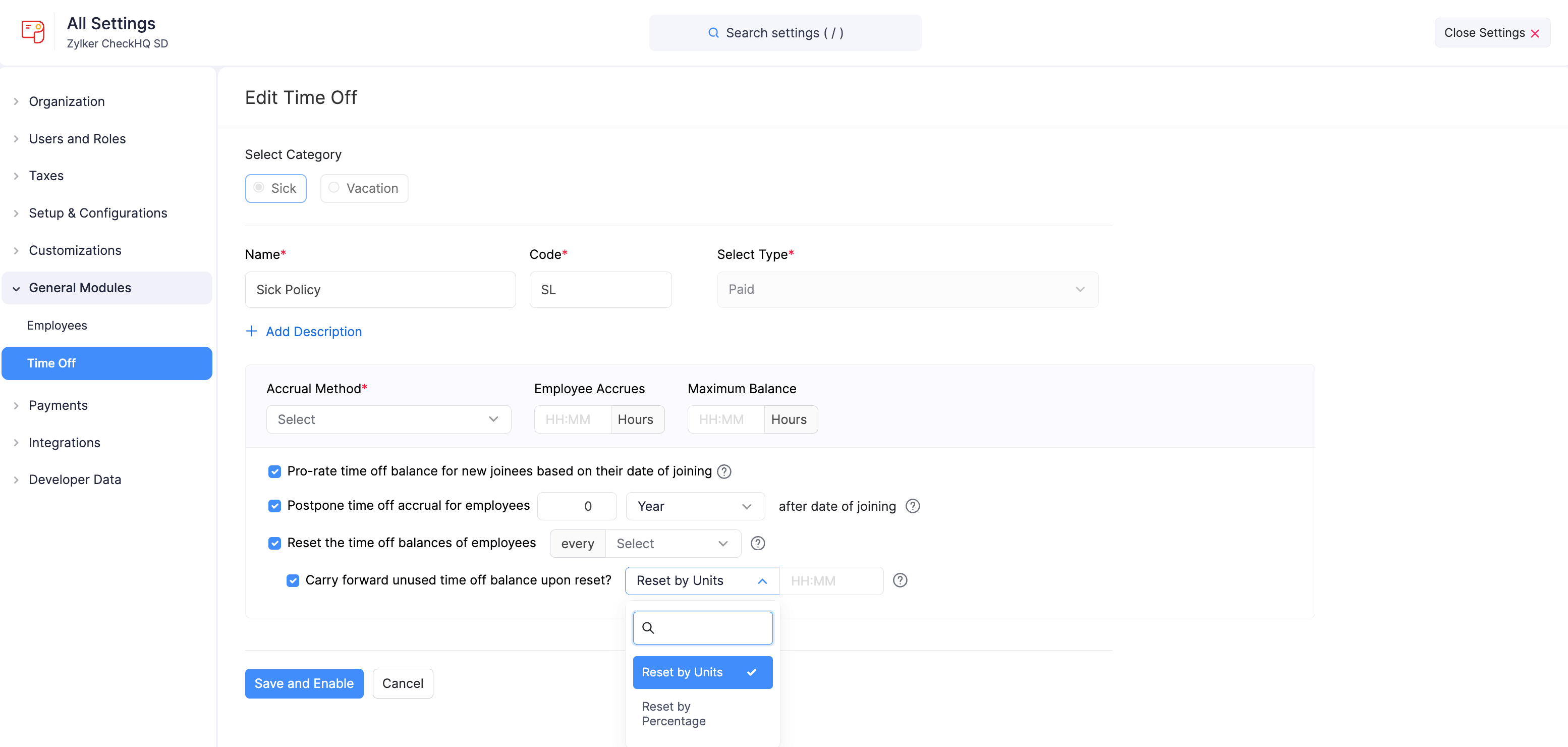
Note: Time off balance will be carried forward to the next year if no reset is enabled.
Create a New Time Off
In addition to the default Sick and Vacation policies, you can create new time off policies based on your organization’s requirements.
- Click Settings in the left sidebar.
- Select Time Off under General Modules.
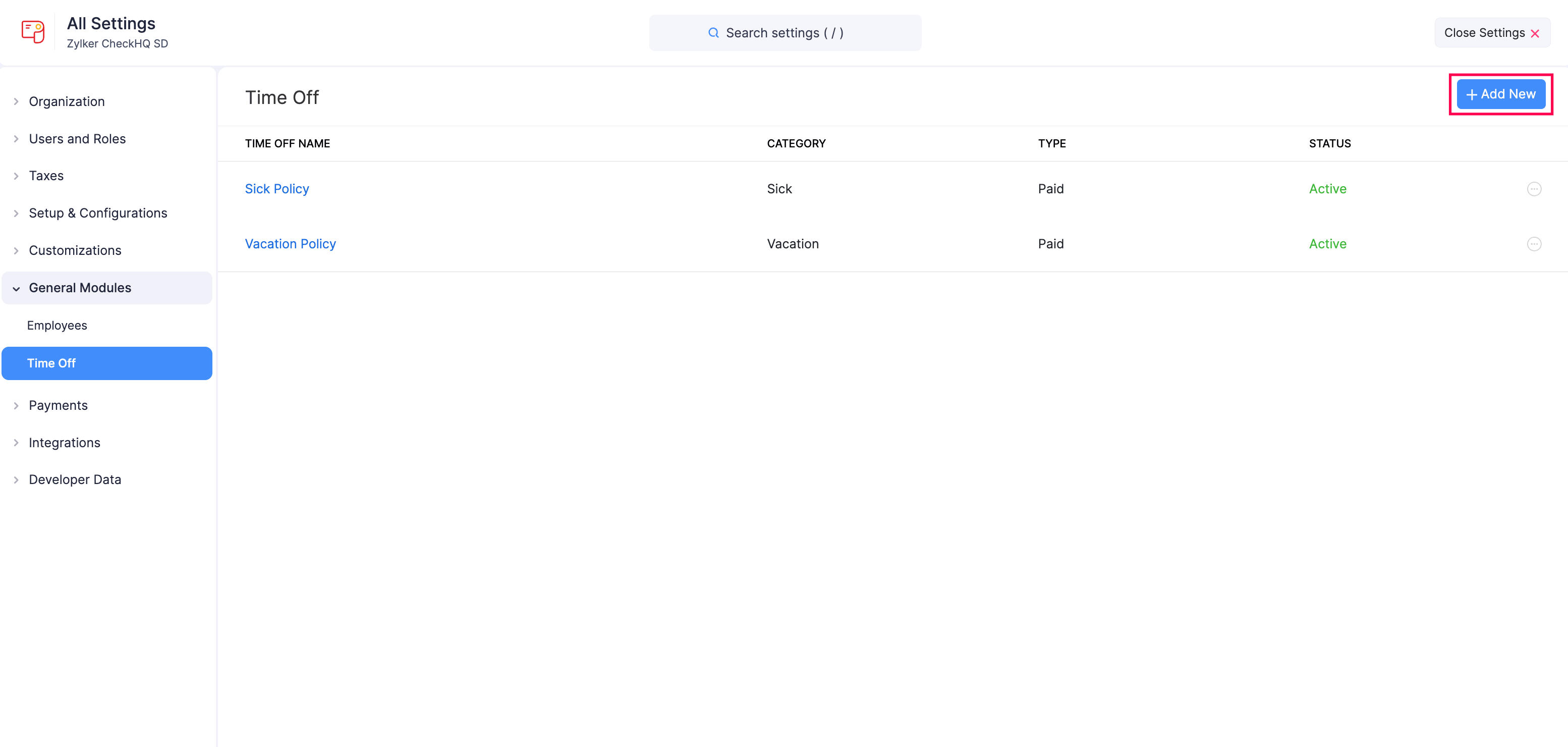
- Click + Add New in the top right corner.
- Select whether the time off belongs to the Sick or Vacation category.
- Enter a Name for the time off.
- Enter a Code that identifies the time off.
- Optionally, click + Add Description to include a short description.
- Select the Accrual Method and configure the accrual details.
- Configure any additional time off preferences as needed.
- Click Save.
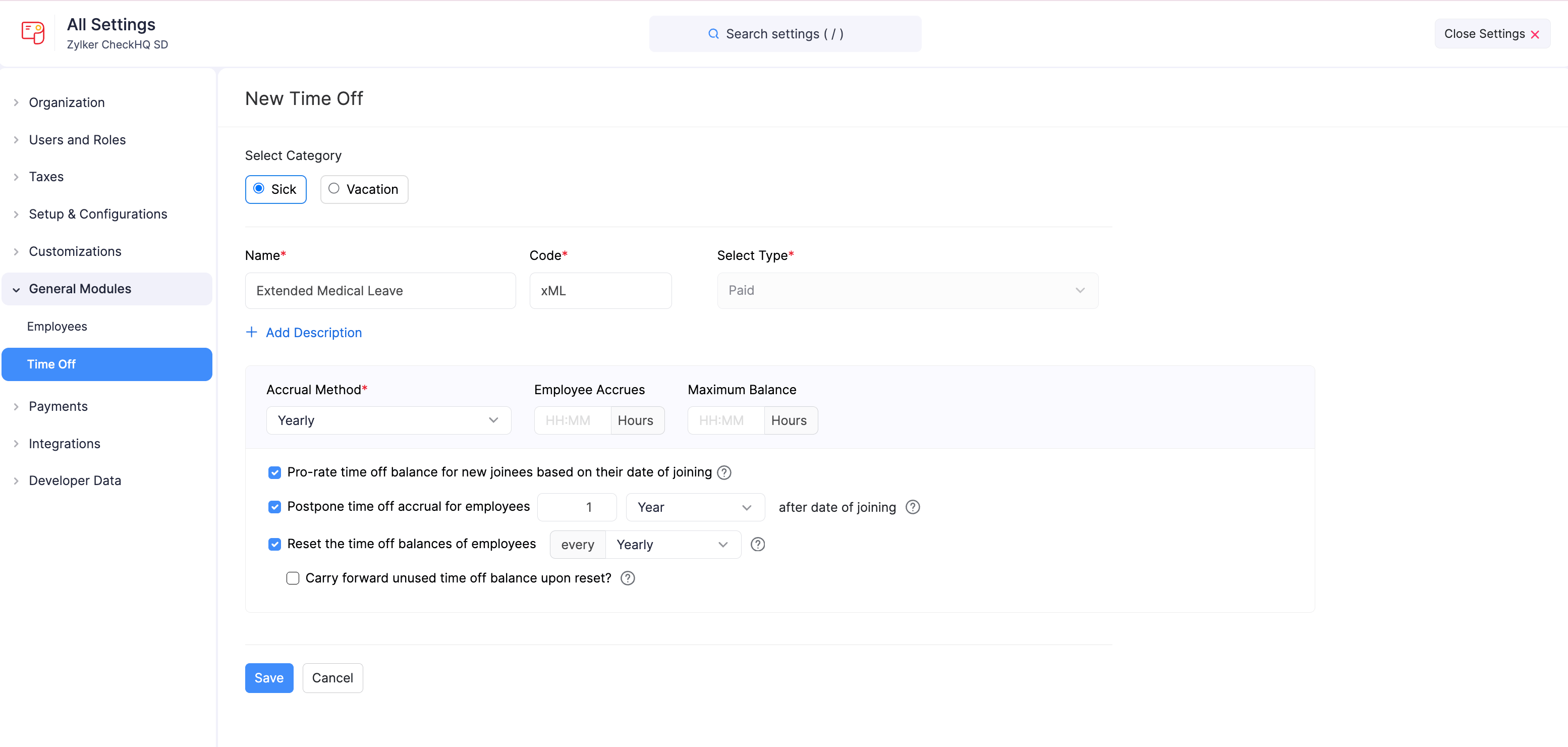
The new time off policy will be created and available for association with your employees.
Once your organization’s time off policies are configured, associate them with individual employees through the Time Off tab in each employee’s profile. Learn how to associate time off with employees.
Edit Time Off
You can modify an existing time off policy to reflect changes in your organization’s requirements.
- Click Settings in the left sidebar.
- Select Time Off under General Modules.
- Click the More icon next to the time off policy you want to update.
- Select Edit.
- Make the necessary changes.
- Click Save.
The updated time off policy will be applied to your employees.
Delete Time Off
You can remove a time off policy that is no longer applicable.
- Click Settings in the left sidebar.
- Select Time Off under General Modules.
- Click the More icon next to the time off policy you want to remove.
- Select Delete.
- Click Yes to confirm the deletion.
Warning: Deleting a time off policy is permanent. Employees will no longer be able to use the deleted time off policy.