


Employee Time Off

The Time Off tab in an employee’s profile lets you associate time off policies, set opening balances, and track accrued balances for sick and vacation time off. Before you can associate time off with an employee, you must first configure your organization’s time off policies in Settings.
Associate Time Off With an Employee
Once your organization’s time off policies are configured and enabled, you can associate them with individual employees.
- Click Employees in the left sidebar.
- Click an employee’s name to open their profile.
- Navigate to the Time Off tab.
- Click + Sick Time Off or + Vacation Time Off.
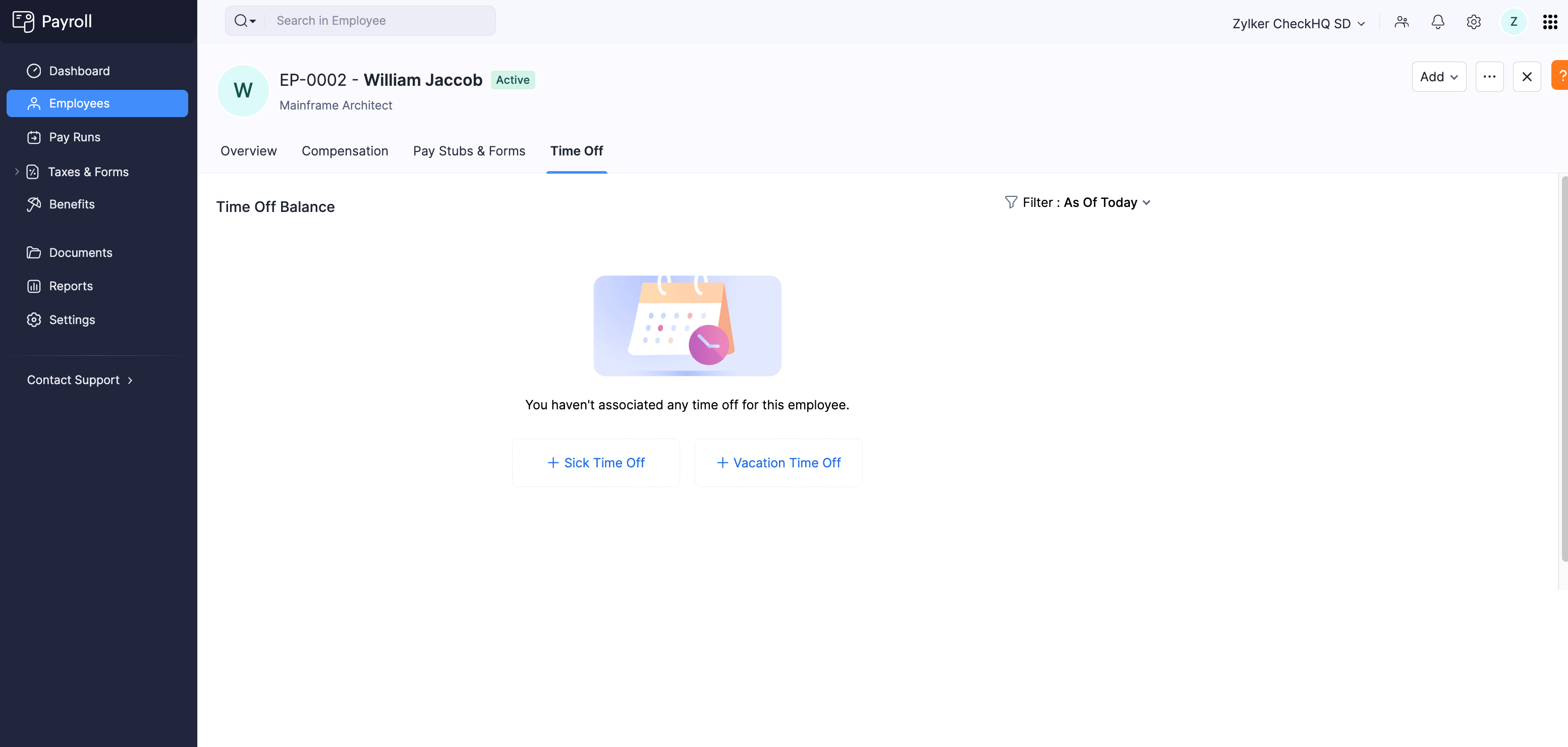
- In the popup that appears, select the time off policy from the Select Time Off dropdown.
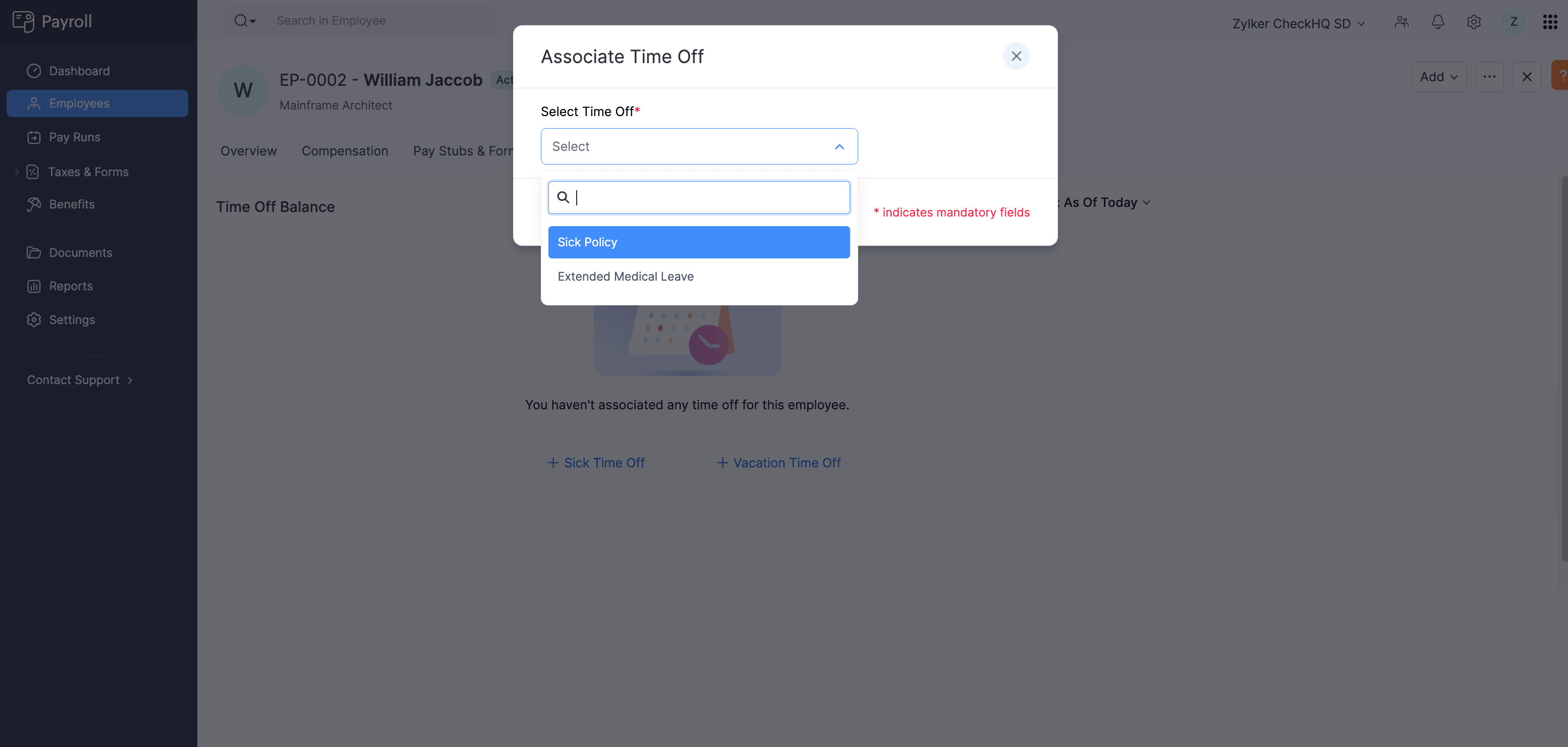
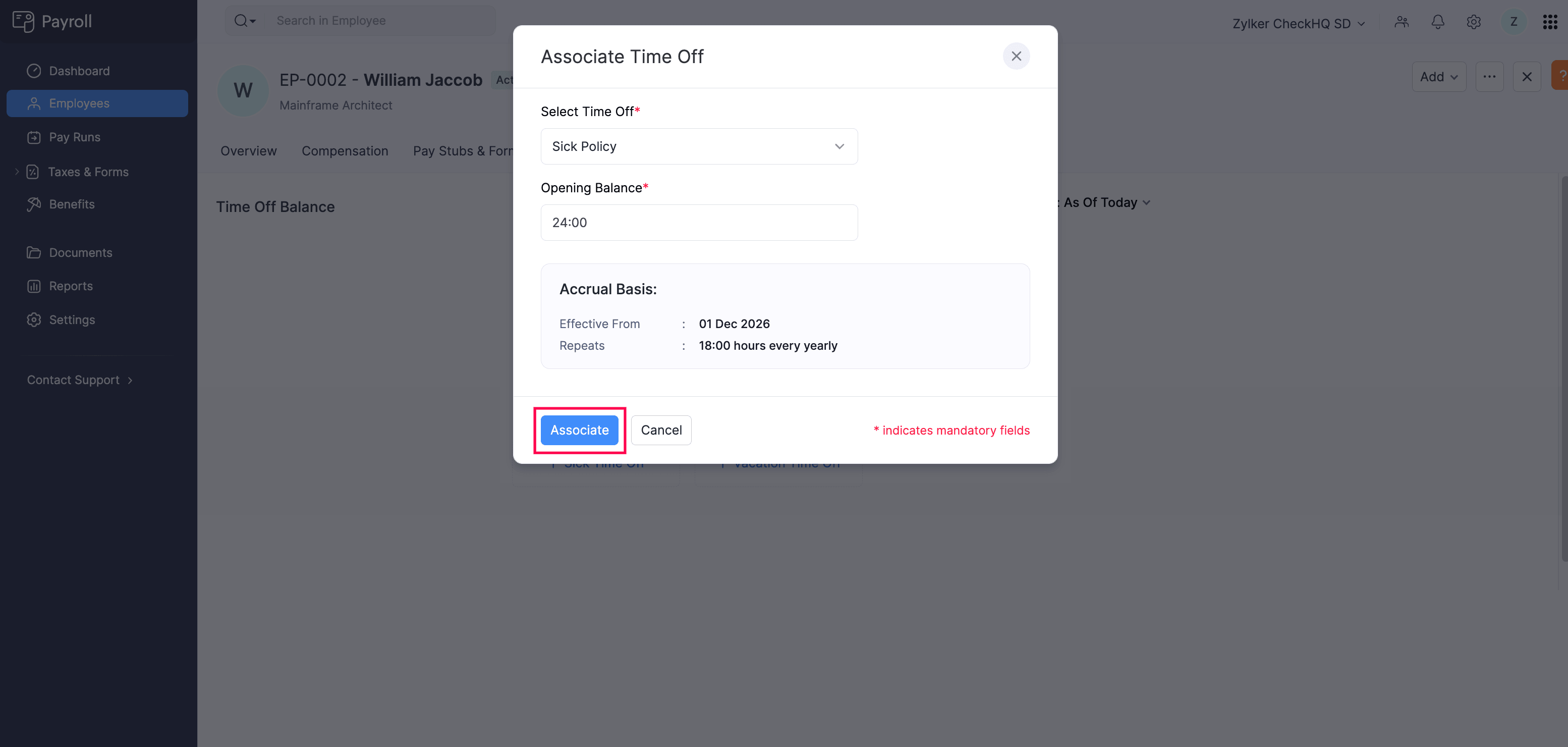
- Enter the Opening Balance for the employee.
- Review the Accrual Basis section, which displays the effective date and accrual frequency based on the organization-level policy configuration.
- Click Associate.
The time off policy will be associated with the employee, and their balance will accrue based on the configured accrual method.
Note: If you have created multiple time off policies under the same category (for example, two Sick policies), the Select Time Off dropdown will list all available policies for that category.
View Time Off Balance
The Time Off tab displays the employee’s time off balance for each associated policy. Each policy card shows the following details:
| Field | Description |
|---|---|
| Accrual Method | How time off hours are accumulated (for example, Yearly). |
| Accrual Rate | The number of hours accrued per period (for example, 18:00 hours every yearly). |
| Maximum Balance | The maximum number of hours the employee can accumulate. |
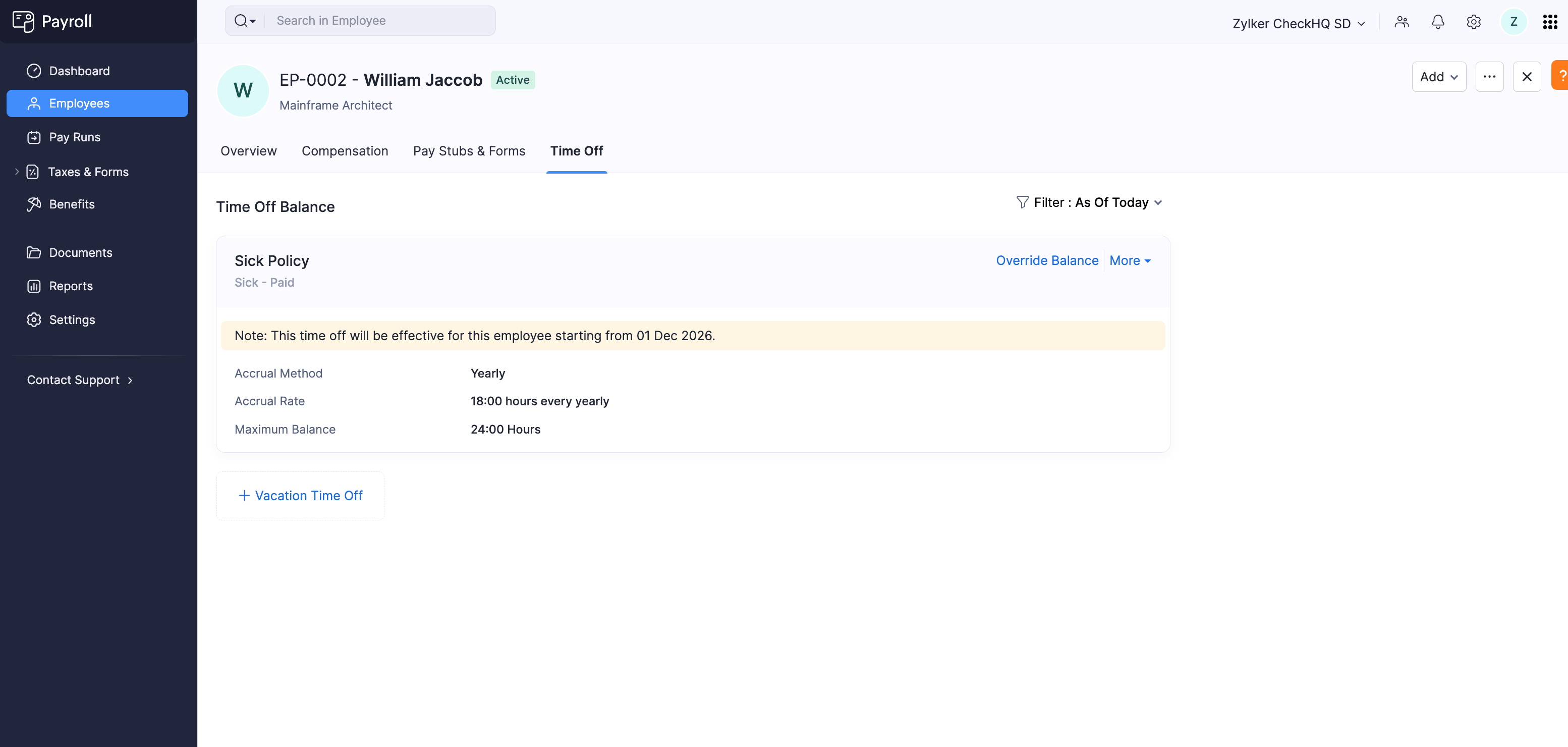
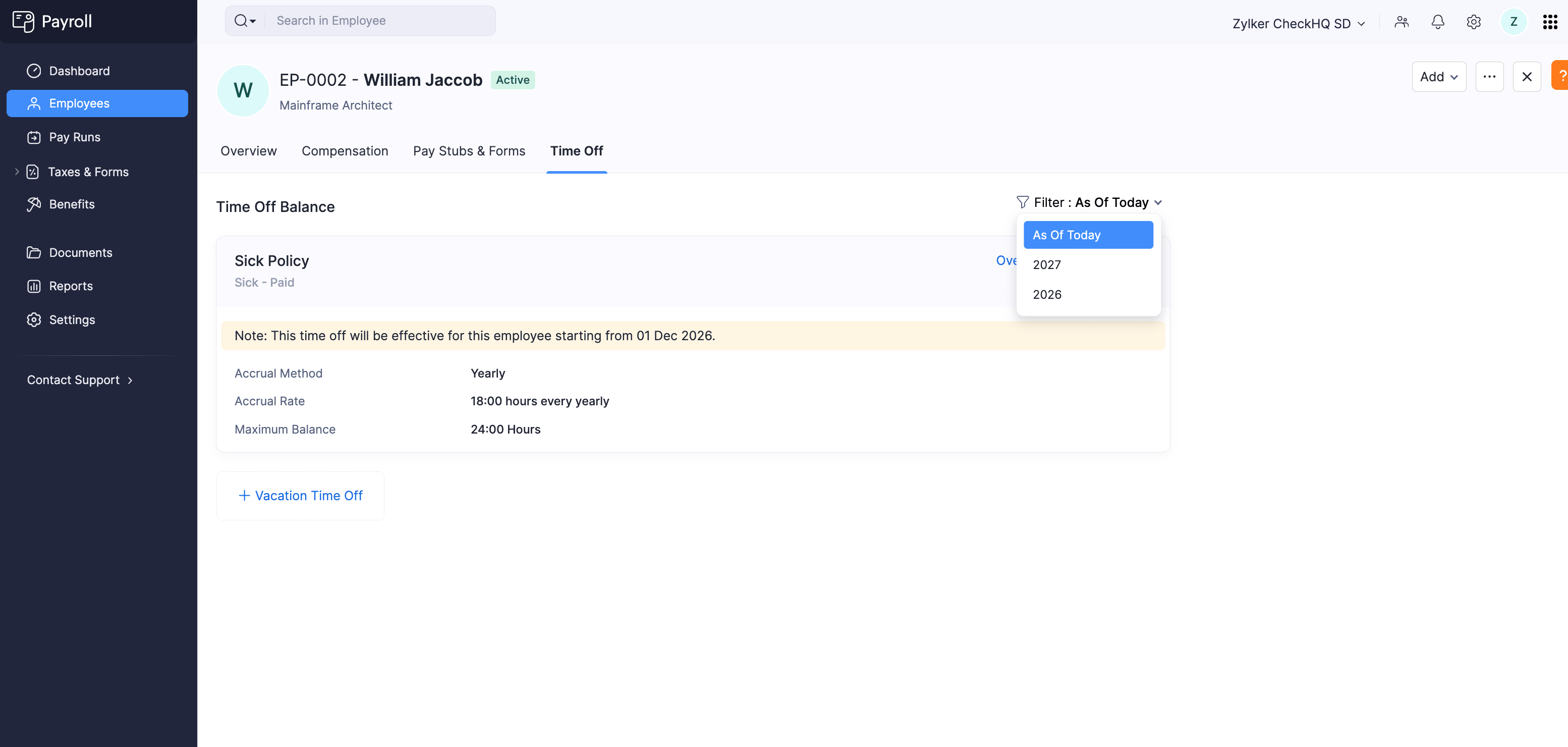
Use the Filter dropdown in the top right corner to view balances as of today or for a specific calendar year.
Override Time Off Balance
If you need to manually adjust an employee’s time off balance (for example, to correct an error or account for time off carried over from a previous system), you can override the balance.
- Click Employees in the left sidebar.
- Click the employee’s name to open their profile.
- Navigate to the Time Off tab.
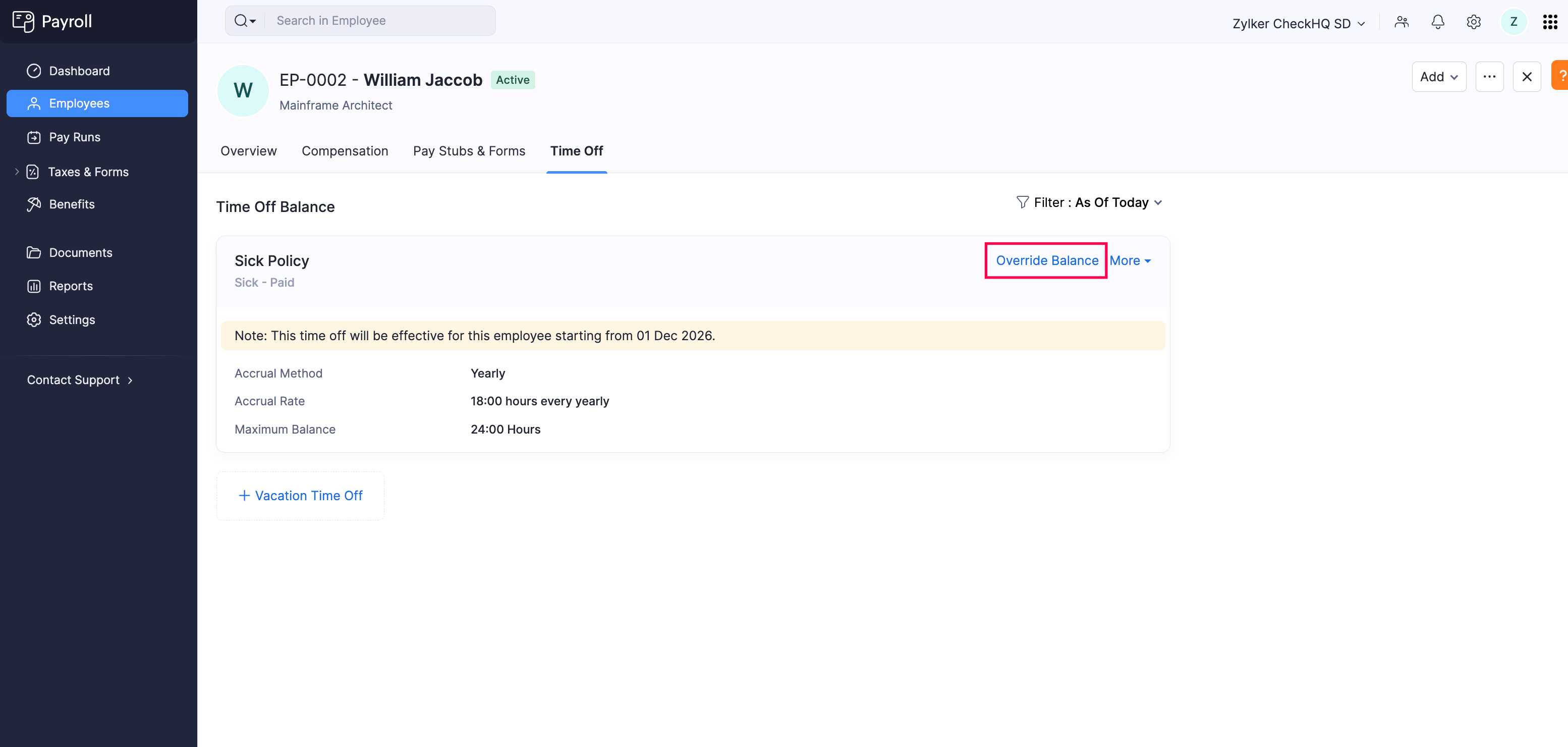
- Click Override Balance next to the time off policy you want to update.
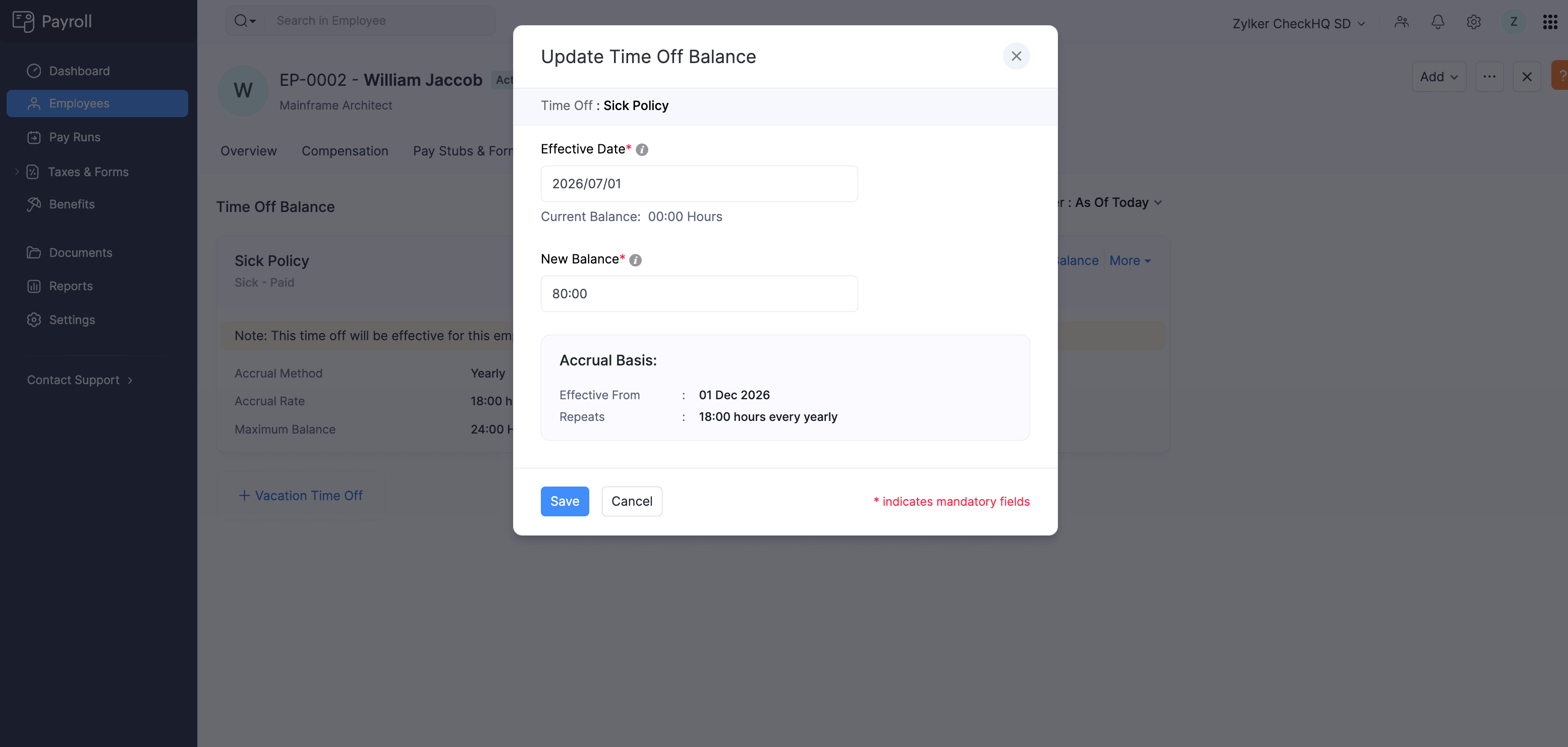
- In the Update Time Off Balance dialog, enter the Effective Date from which the new balance should apply.
- Enter the New Balance in hours.
- Review the Accrual Basis section to confirm the current accrual settings.
- Click Save.
The employee’s time off balance will be updated to the new value from the specified effective date.
Remove Time Off From an Employee
You can remove a time off policy that is no longer applicable to an employee.
- Click Employees in the left sidebar.
- Click the employee’s name to open their profile.
- Navigate to the Time Off tab.
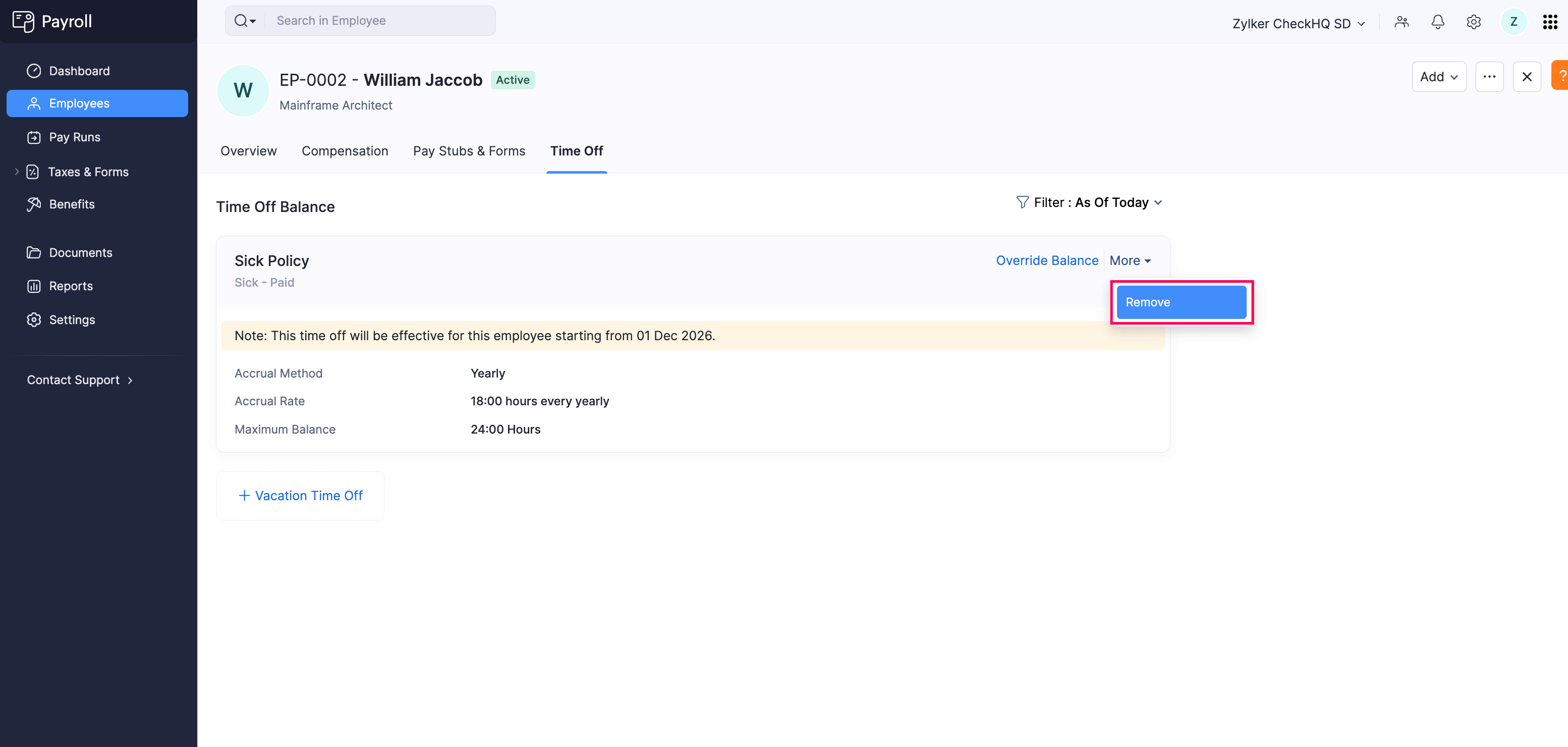
- Click More next to the time off policy you want to remove.
- Select Remove.
The time off policy will be removed from the employee’s profile.