
Customers


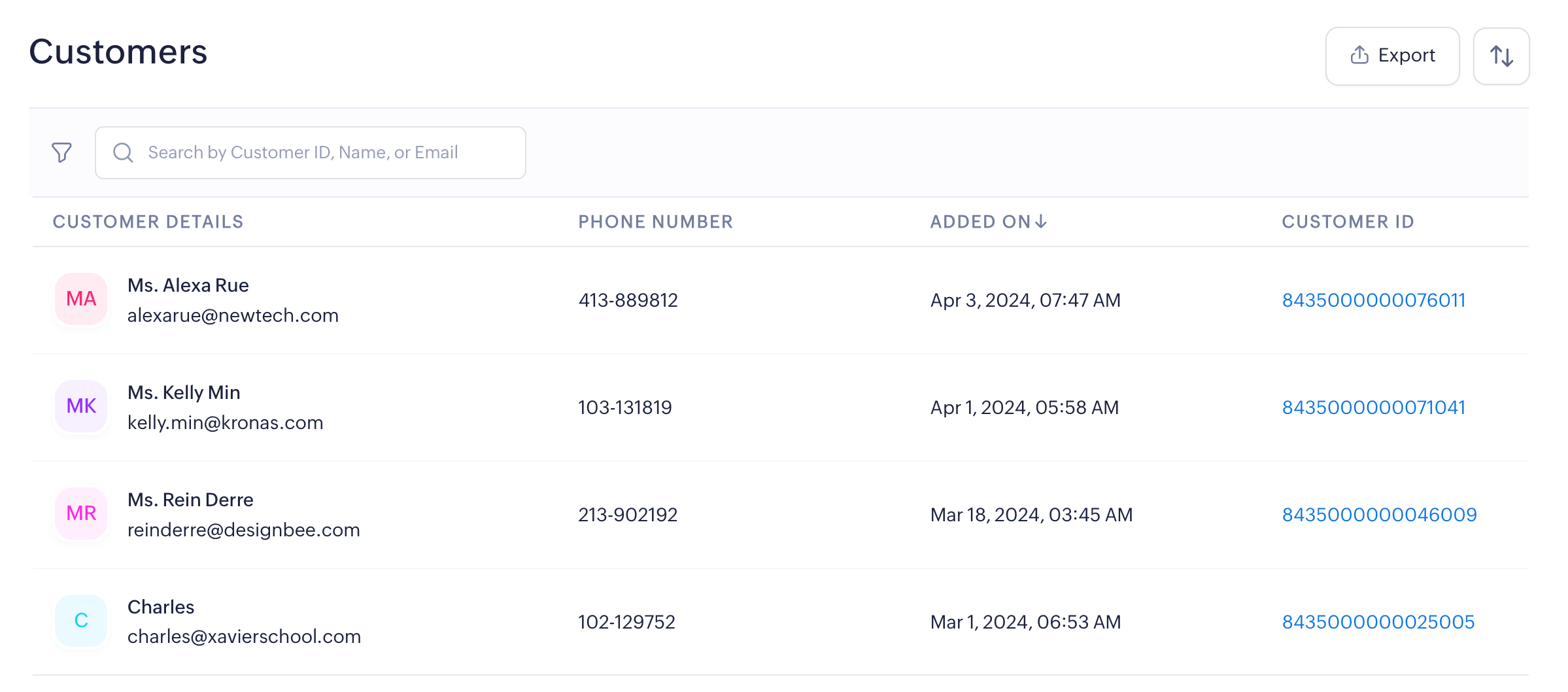
The Customers module in Zoho Payments is like a digital address book that streamlines customer management for your business. It offers a comprehensive overview of all your customer information, transaction history, and saved payment method.
A new customer will be created in Zoho Payments when you associate a customer’s card with Zoho Payments in the other Zoho Finance applications (such as Zoho Books, Zoho Invoice, Zoho Checkout, Zoho Inventory, Zoho Commerce, or Zoho Billing).
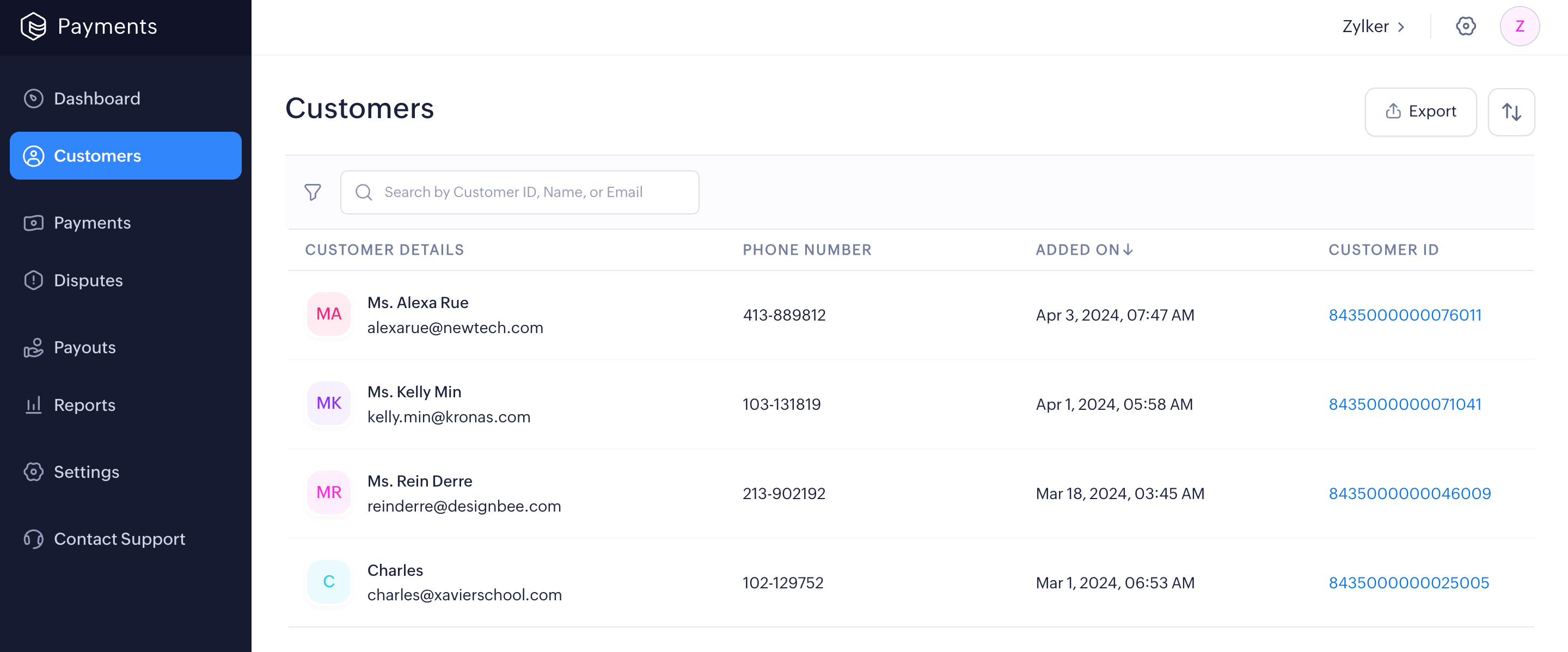
Viewing Customers
To view the customers added to Zoho Payments:
- Log in to your Zoho Payments account.
- Navigate to the left sidebar and select Customers.
You can click a customer to view the individual customer profile.
Overview
The overview section provides insight into all customer data and recent transactions.
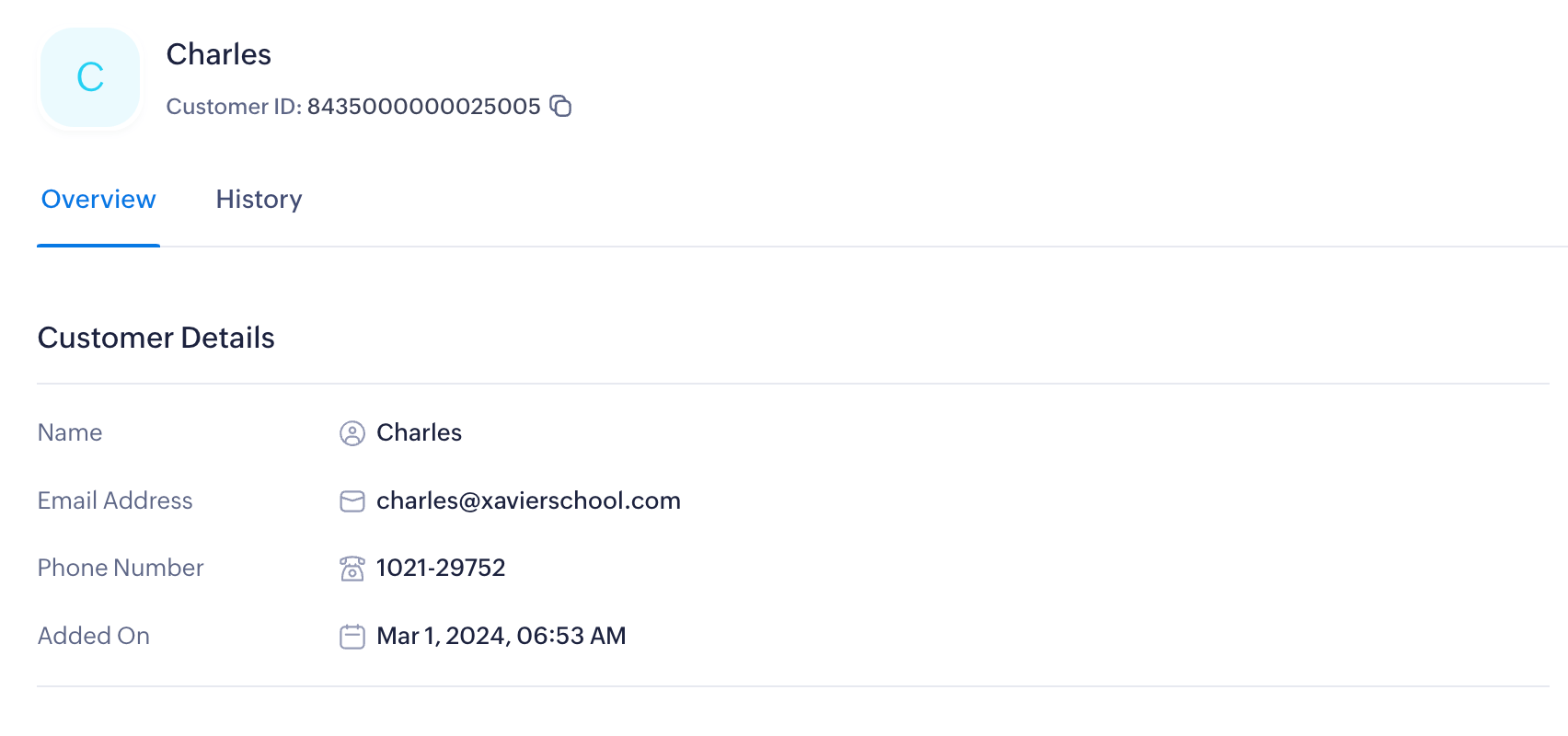
Customer Details
Access basic information such as the customer’s name, email address, phone number, and the date their profile was added to Zoho Payments.
Saved Payment Methods
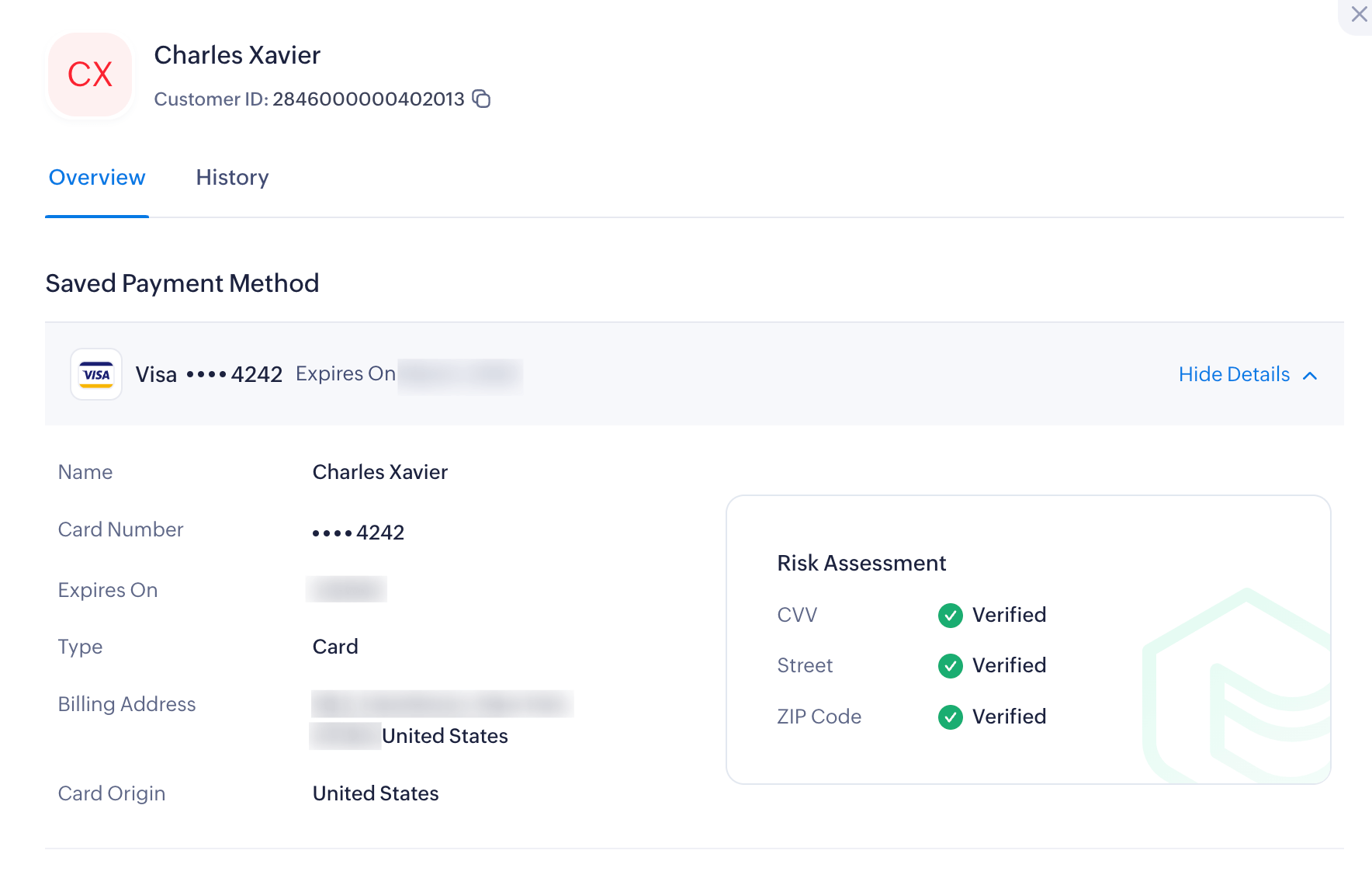
View the associated payment methods and their details, along with the status of their risk assessment.
These payment methods are added when:
- The customer saves a payment method while making the payment.
- You request the customers to add their payment information via a secure payment link from your Zoho Finance application.
Insight: To request payment information in your Zoho Finance application, navigate to the customer’s profile, click More, and select Request Payment Information. This ensures secure collection of sensitive information and allows customers to authorize future transactions.
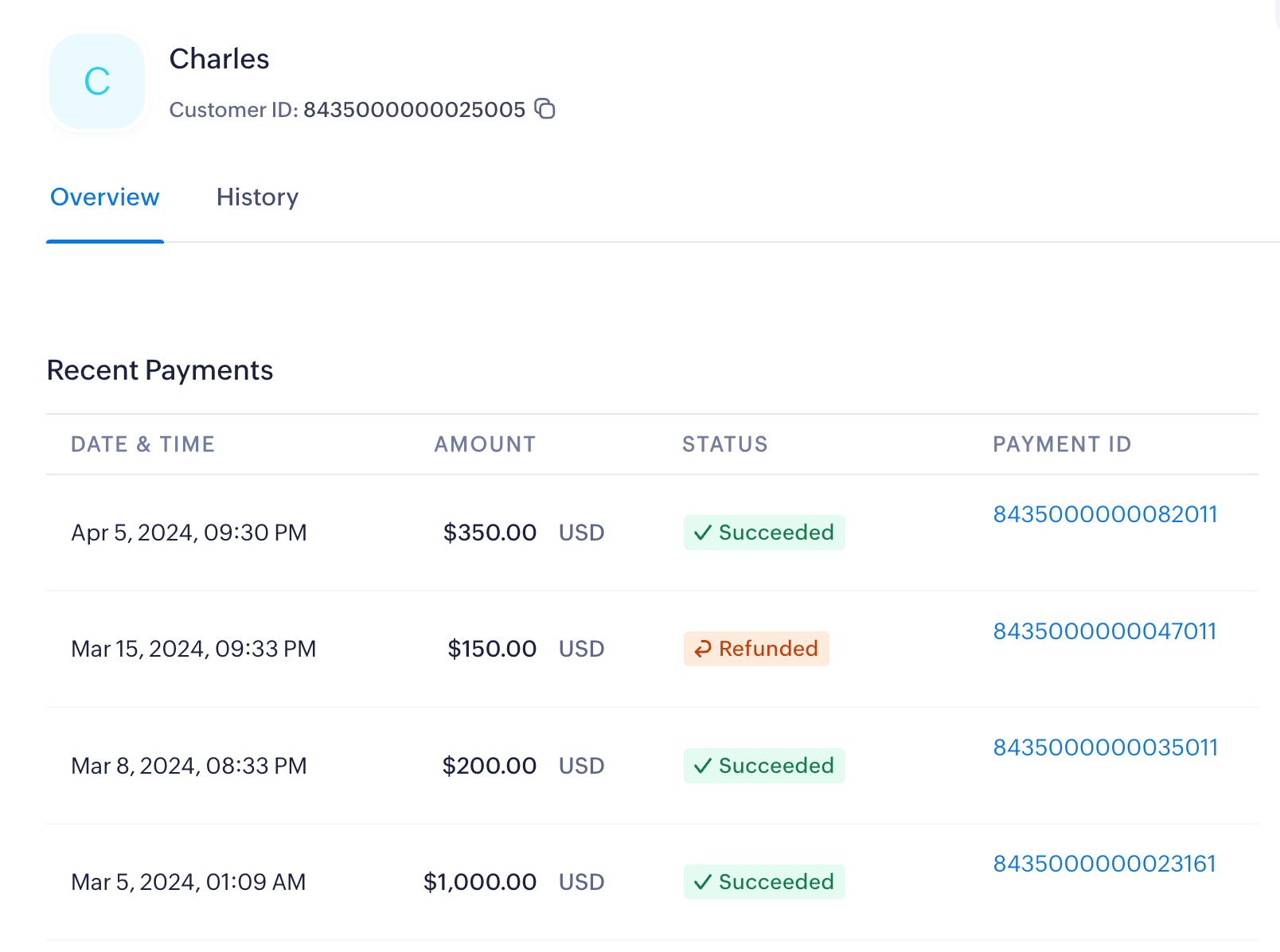
Recent Payments
Get a summary of recent transactions and their statuses in the Recent Payments section.
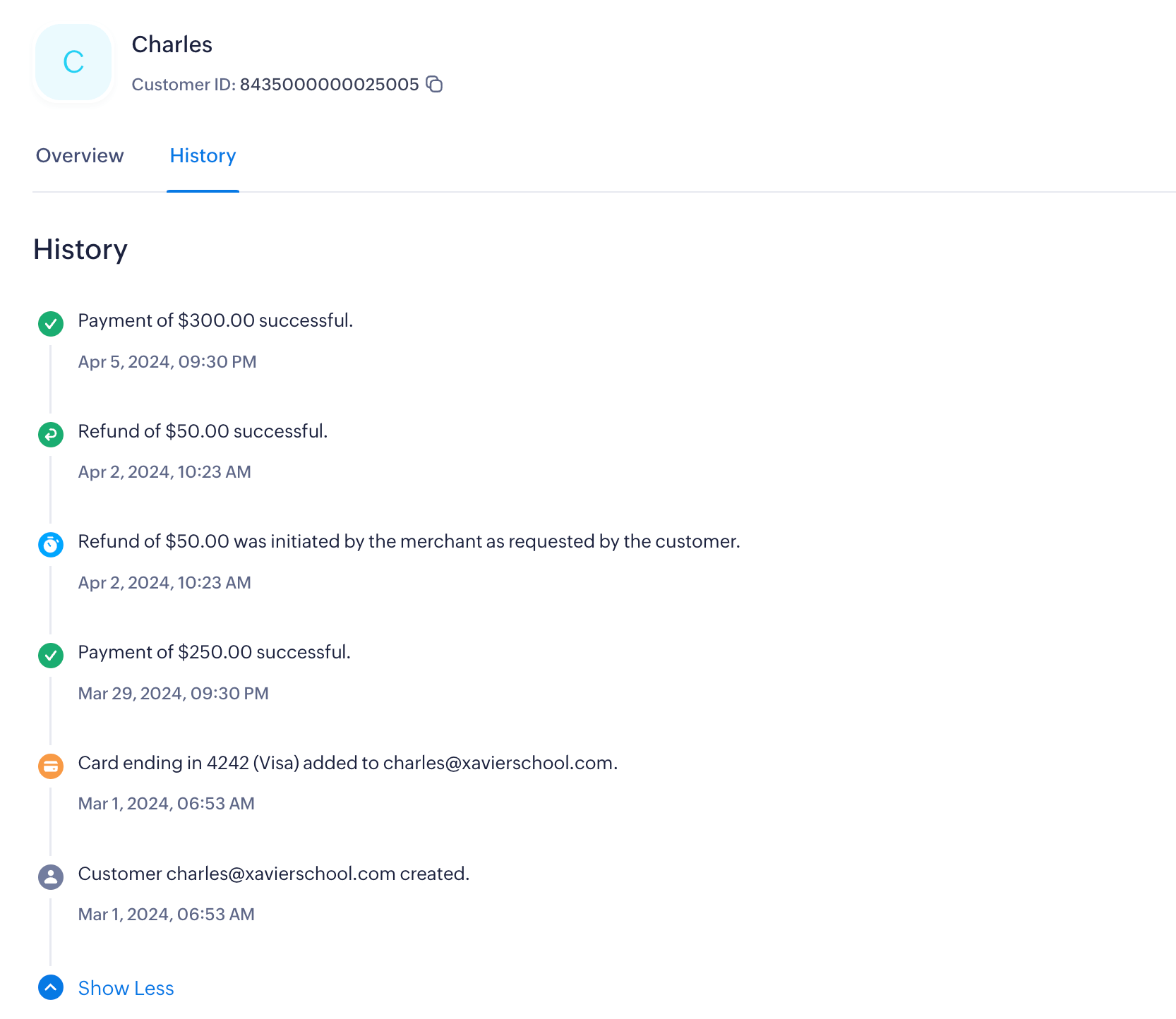
History
The History section provides a log of all the transactions and card details associated with the customer since their profile was added to Zoho Payments.
Filter Customers
You can access specific transactions made by customers through the following actions.
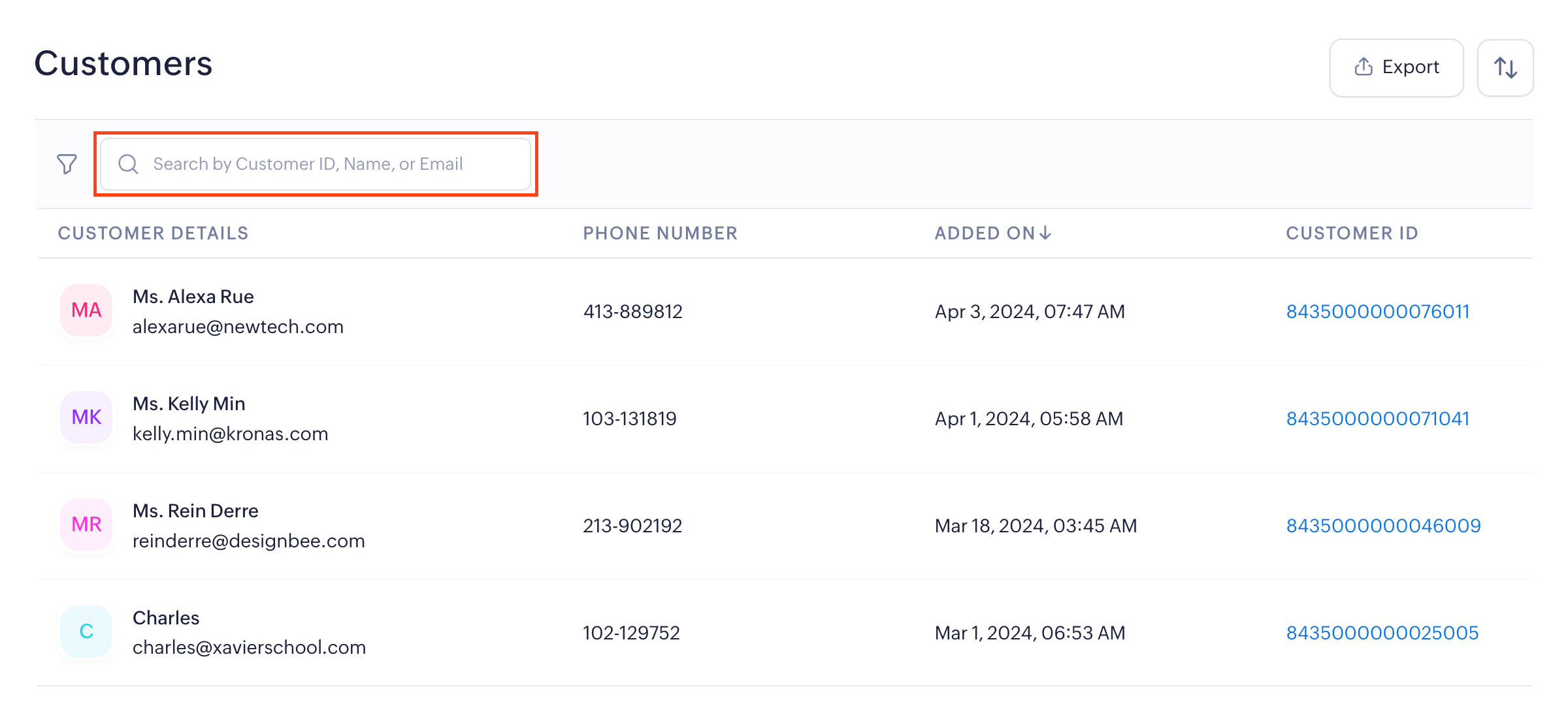
Search Customers
The Search Bar in the top left corner allows you to search and view customers based on Customer ID, Name, or Email.
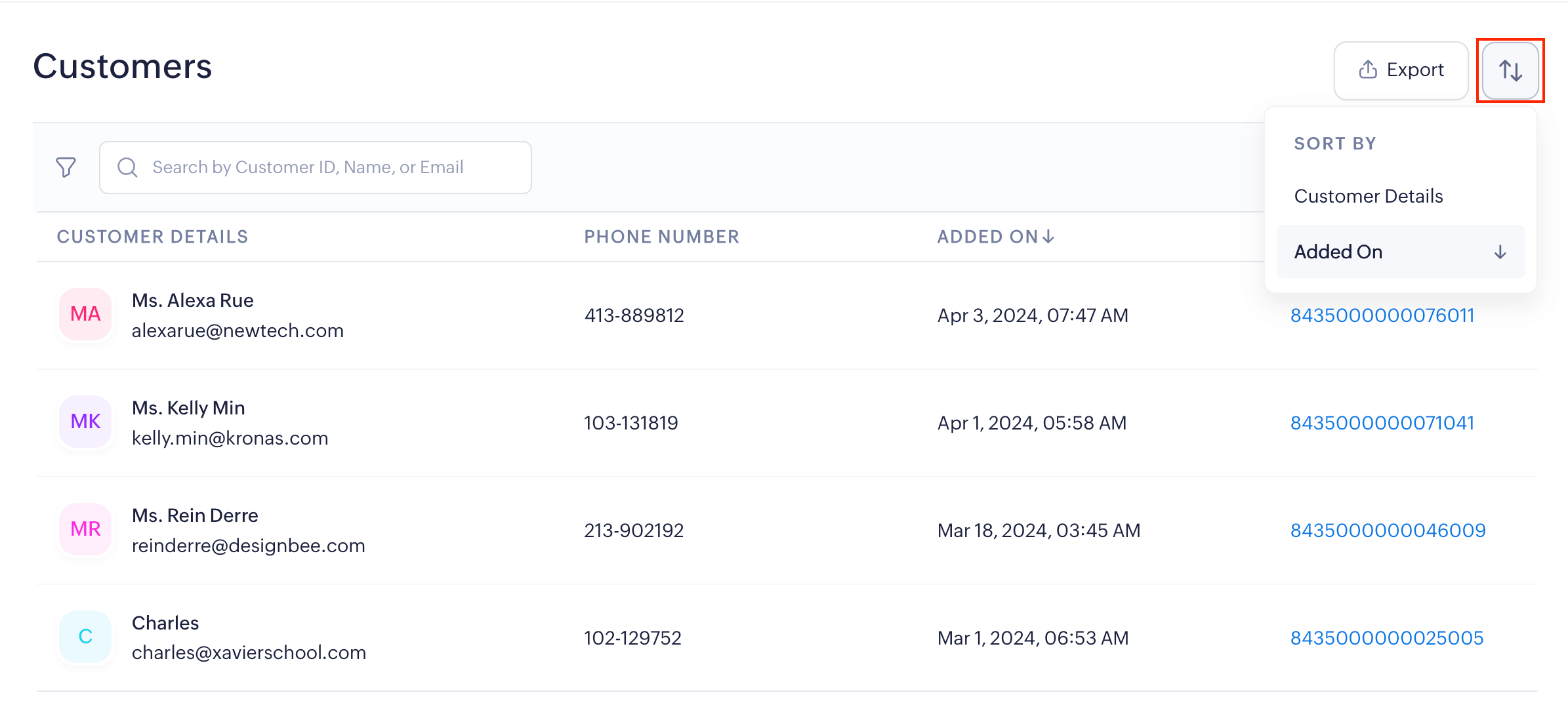
Sort Customers
Sort the customers alphabetically by name or by profile creation date, both in ascending and descending order.
Export Customers
To export your customer data and save a backup on your device:
- Click Export in the top right corner.
- Select a File Format: CSV (Comma Separated Value), XLS (Microsoft Excel 1997 - 2004 Compatible), or XLSX (Microsoft Excel).
- Enter a File Protection Password to encrypt and secure the exported file. This step is optional.
- Click Export.
The customer data will be downloaded to your device in the chosen format.
Notes:
- The File Protection Password must be at least 12 characters long and include at least one uppercase letter, one lowercase letter, one number, and one special character (such as @, #, $, or !).
- For large exports, your data files will be combined into a single encrypted ZIP file and downloaded asynchronously.

 Walkthrough of Zoho Payments personalized to your business needs