- HOME
- Know Your Tech
- Top 10 workflow automation examples that actually save time
Top 10 workflow automation examples that actually save time
- Last Updated : August 4, 2026
- 114 Views
- 11 Min Read
Highlights
- Workflow automation replaces repetitive, rules-based tasks with sequences that run without manual intervention.
- HR teams can automate onboarding checklists, time-off approvals, and document collection to save hours every hiring cycle.
- IT teams use automation for ticket routing and asset tracking, so requests reach the right person without manual sorting.
- Choosing which workflows to automate first depends on task frequency, error rate, and the number of people involved.
- Setting up your first automation starts with mapping the current process, then defining triggers, conditions, and actions before building and testing.
Your team handles dozens of approval requests, data updates, and follow-ups every week. Most of these tasks follow the same steps every time, yet someone still has to do them manually.
Workflow automation turns those repetitive tasks into automated sequences. It applies rule-based logic to move tasks forward, send notifications, and route approvals without anyone having to step in. The results show up immediately in time saved and fewer errors.
This blog post walks you through 10 workflow automation examples you can apply across HR, finance, IT, sales, and more. You’ll also learn which workflows to automate first with tips to get started.
What is workflow automation?
Workflow automation uses technology to run recurring business tasks based on predefined rules. Instead of a person manually triggering each step, the system moves tasks forward, sends notifications, routes approvals, and updates records automatically.
For example, when a new employee joins your company, an automated onboarding workflow can send welcome emails, assign training modules, create system accounts, and notify the manager. All of that happens the moment HR marks the hire as confirmed. No one needs to remember each step or chase anyone for updates.
The value is straightforward. Automation reduces the time your team spends on repetitive coordination and lowers the chance of missed steps or human error. It also keeps processes consistent, so every request, approval, or handoff follows the same path regardless of who's involved.
How does workflow automation work?
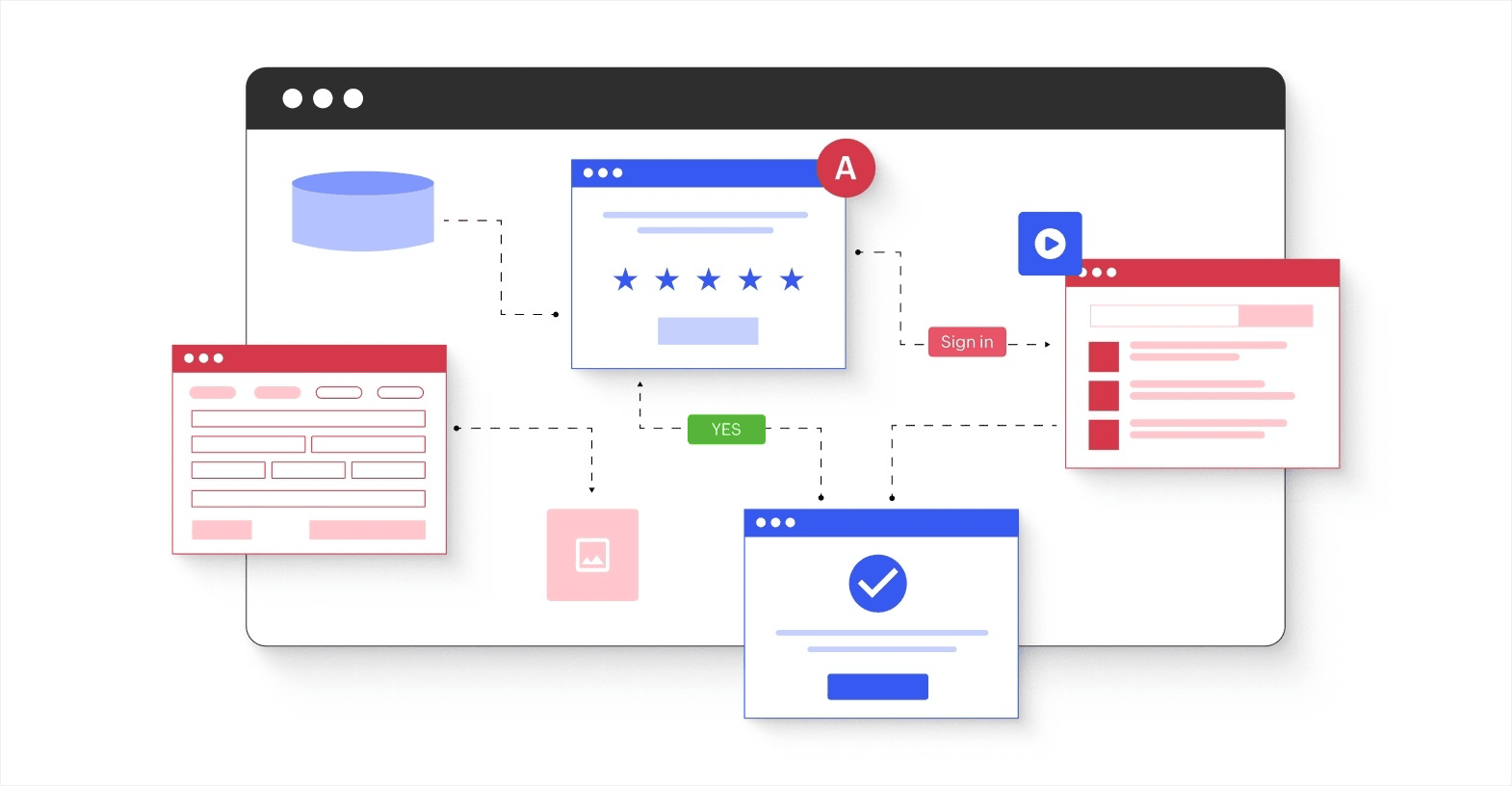
Every workflow automation follows a three-part structure. Once you understand these three components, the logic behind any automation becomes clear.
- Trigger: The event that starts the workflow. This could be a form submission, a status change, a new record, or a scheduled date.
- Condition: The rule that determines what happens next. The system checks whether specific criteria are met before moving forward.
- Action: What the system does when the condition is met. This can include sending a notification, assigning a task, updating a record, or routing an approval.
For instance, when an employee submits an expense report (trigger), the system checks if the amount is above $500 (condition). If it is, the report routes to a senior manager for approval (action). If it's below $500, it goes directly to the team lead instead.
Most workflow automation software lets you build these sequences visually. You select the trigger event, define your conditions, and map out the actions using a drag-and-drop interface. Once the workflow is active, it runs every time the trigger fires, following the same logic consistently.
10 best workflow automation examples
Every department has tasks that follow a fixed sequence. The examples below show where automation makes the biggest difference, organized by the teams that benefit most.
1. Employee onboarding (HR)
Manual onboarding involves sending documents over email, creating accounts one by one, and tracking completion in spreadsheets. Steps get missed, new hires wait longer than they should, and HR spends days on each batch.
An automated onboarding workflow triggers the full sequence the moment an offer is accepted. It sends welcome emails, assigns training tasks, notifies IT to set up accounts, and tracks every step in one place. HR only steps in when something needs a human decision.
2. Time-off request approvals (HR)
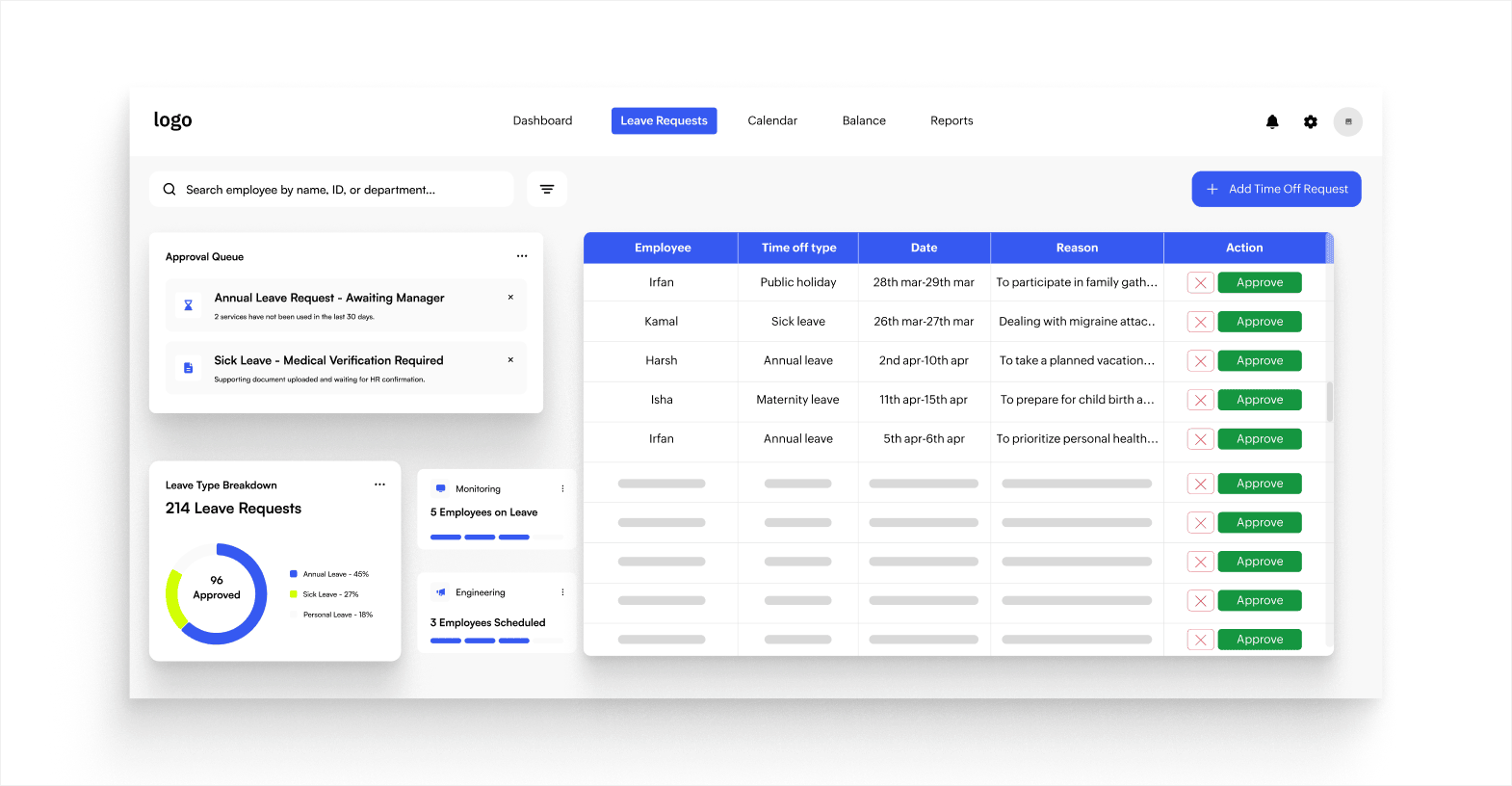
When employees send time-off requests over email or messaging apps, managers lose track, responses get delayed, and there's no central record. Payroll teams then scramble to reconcile who was actually off.
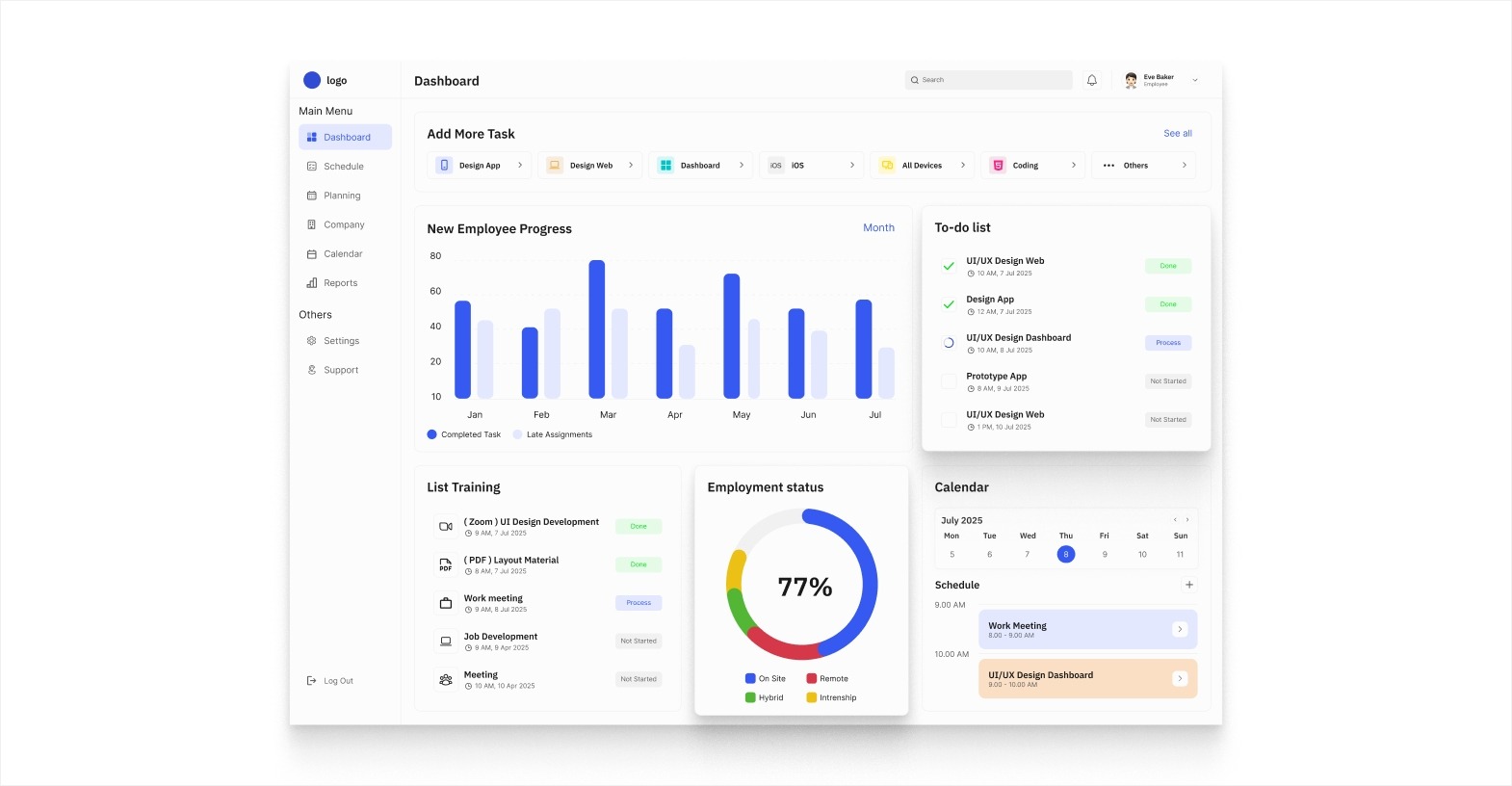
An automated workflow lets employees submit requests through a form. The system routes the request to the right manager based on team structure, sends a reminder if there's no response within a set timeframe, and updates the leave balance automatically once approved.
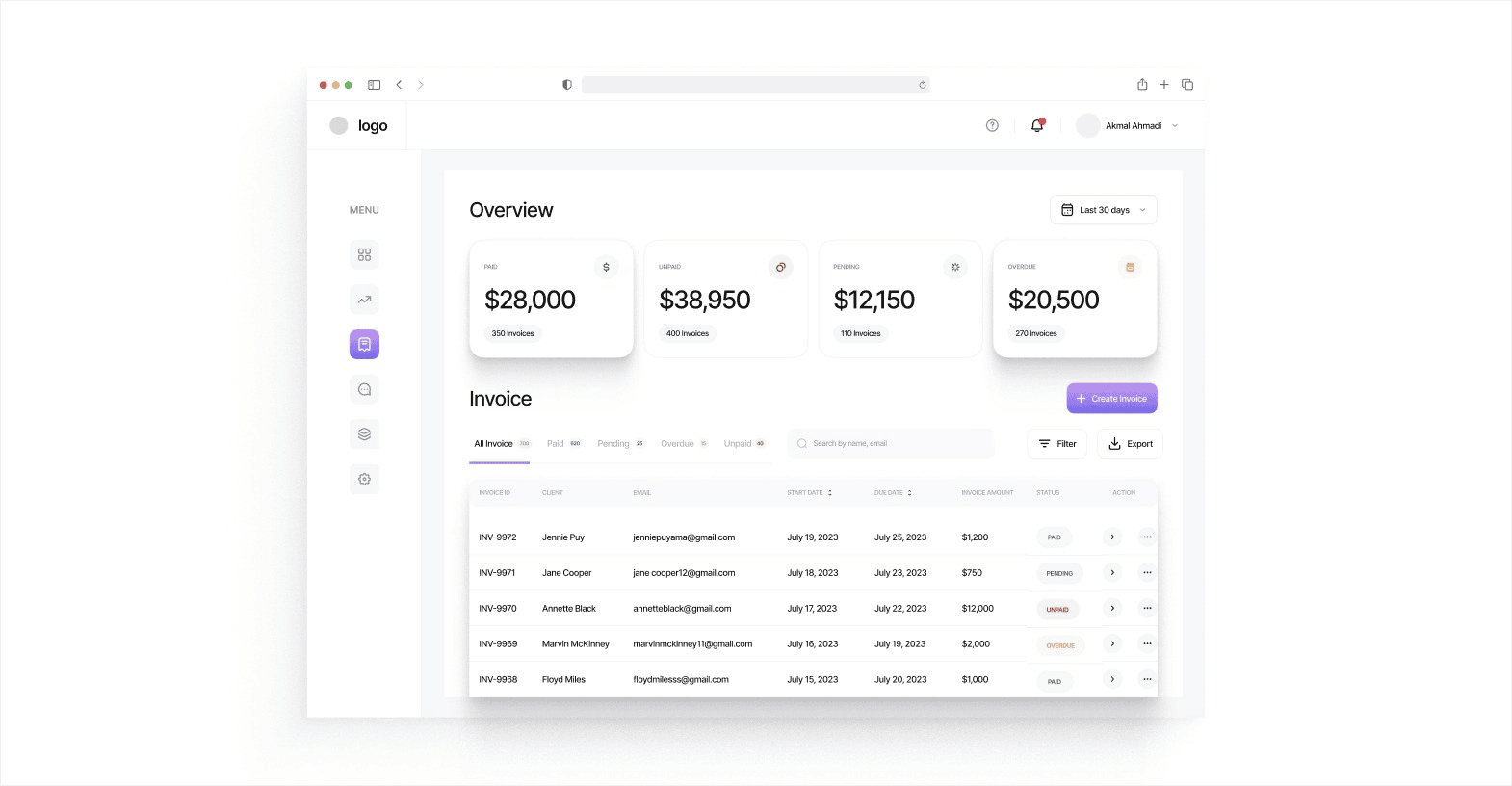
3. Invoice processing (finance)
Processing invoices manually means receiving them through email, entering data into accounting software, getting approval from the right person, and scheduling payment. Each step depends on someone remembering to act.
With automation, incoming invoices get captured, key data gets extracted, and the invoice routes to the appropriate approver based on amount or vendor. Once approved, the system updates the ledger and schedules payment. For instance, a finance team handling 200 invoices a month can reduce processing time from days to hours.
4. Expense report approvals (finance)
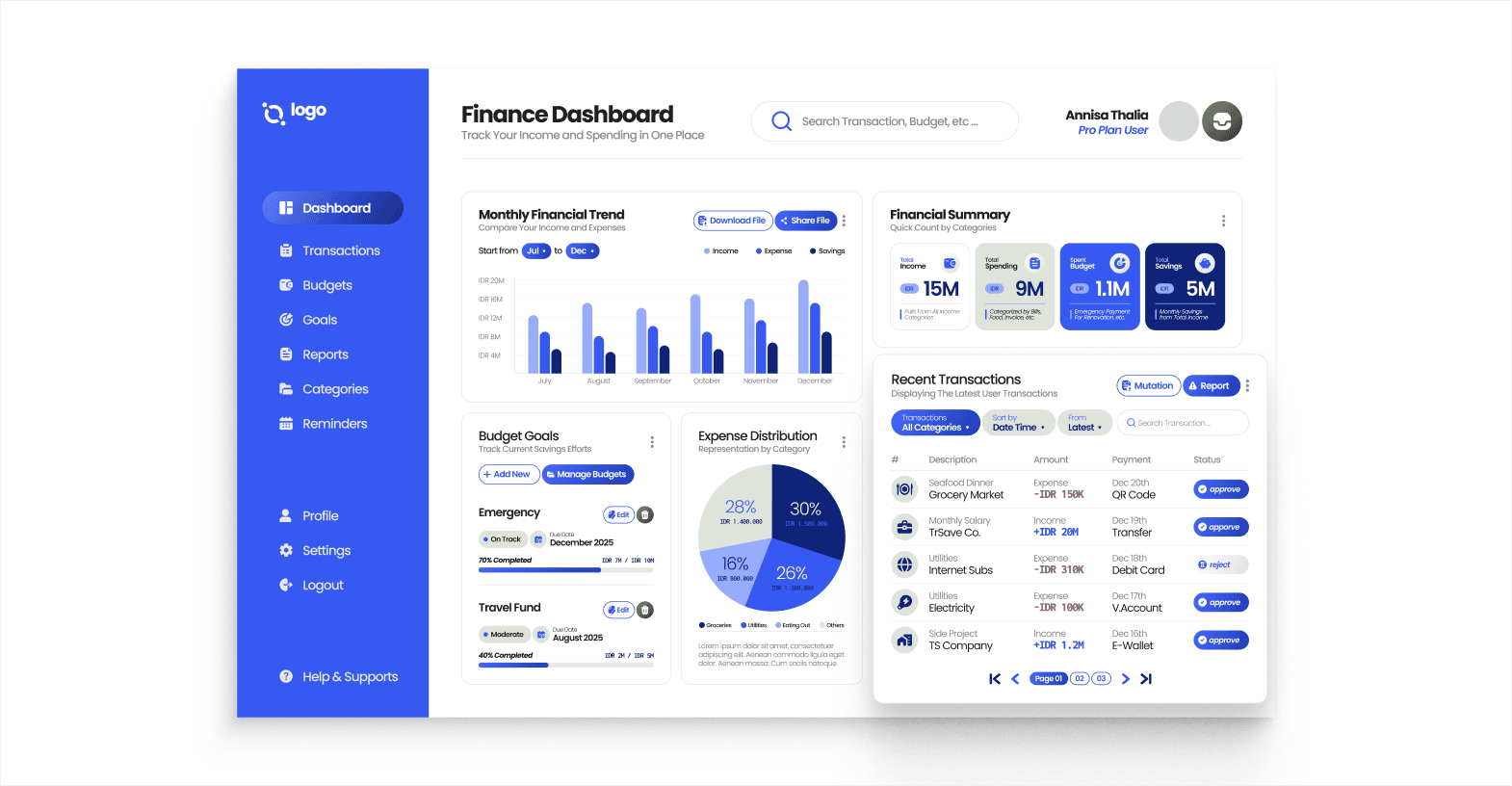
Expense reports often sit in a manager's inbox for days before getting reviewed. When they finally get approved, the finance team has to re-enter data and cross-check receipts manually.
Automated expense workflows let employees submit reports through a digital form with receipt uploads. The system validates entries against policy rules, routes the report to the right approver, and pushes approved amounts directly to payroll or reimbursement—no chasing, no re-entry.
5. IT ticket routing (IT)
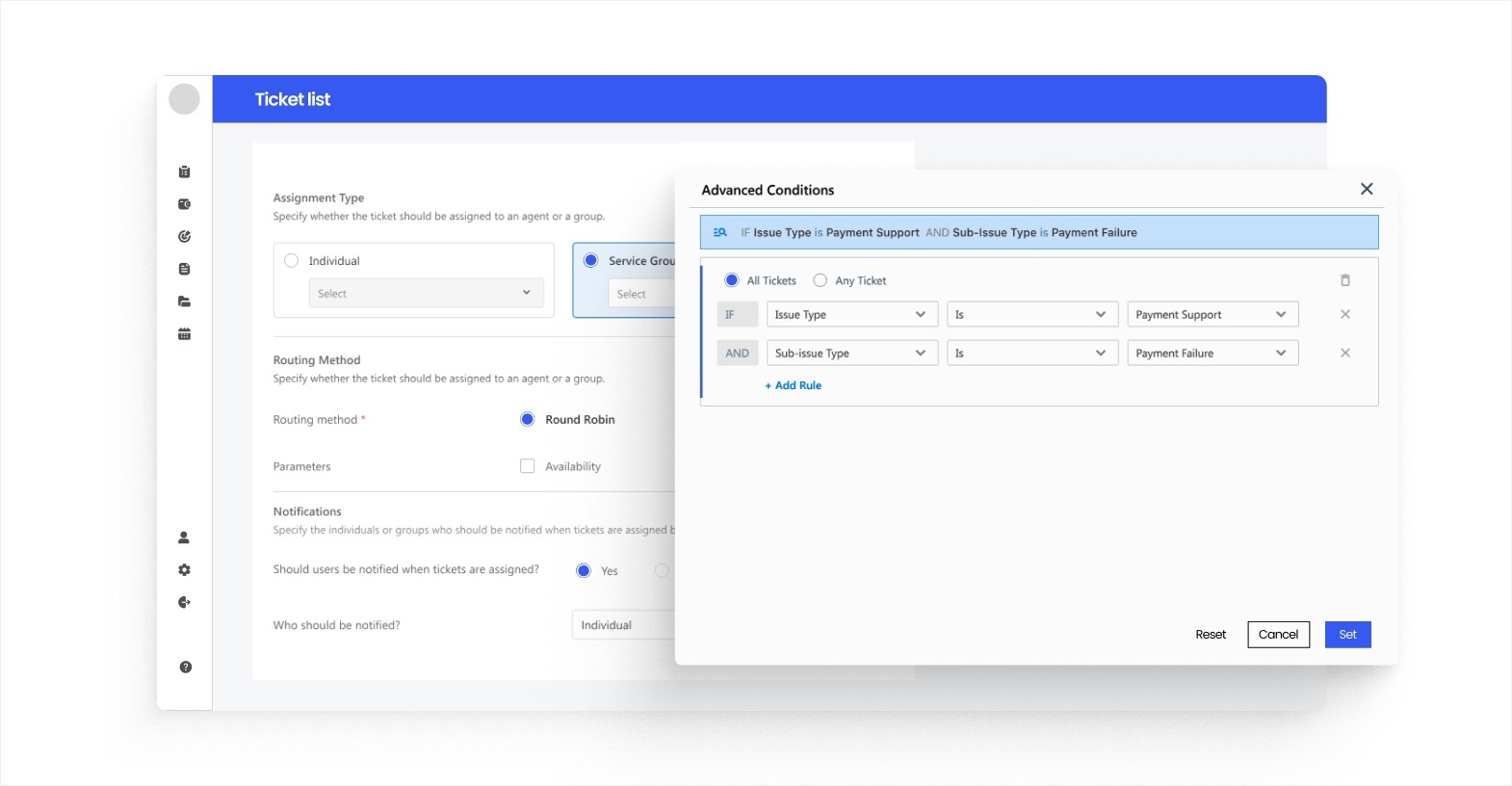
When employees submit IT requests through email or chat, someone on the IT team has to read each one, decide who should handle it, and assign it manually. High-priority issues sometimes wait behind low-priority ones.
An automated ticket management workflow categorizes incoming requests based on keywords or type, assigns them to the right technician based on availability or skill set, and escalates unresolved tickets after a set time. Every request follows the same path without anyone sorting through a shared inbox.
6. IT asset tracking (IT)
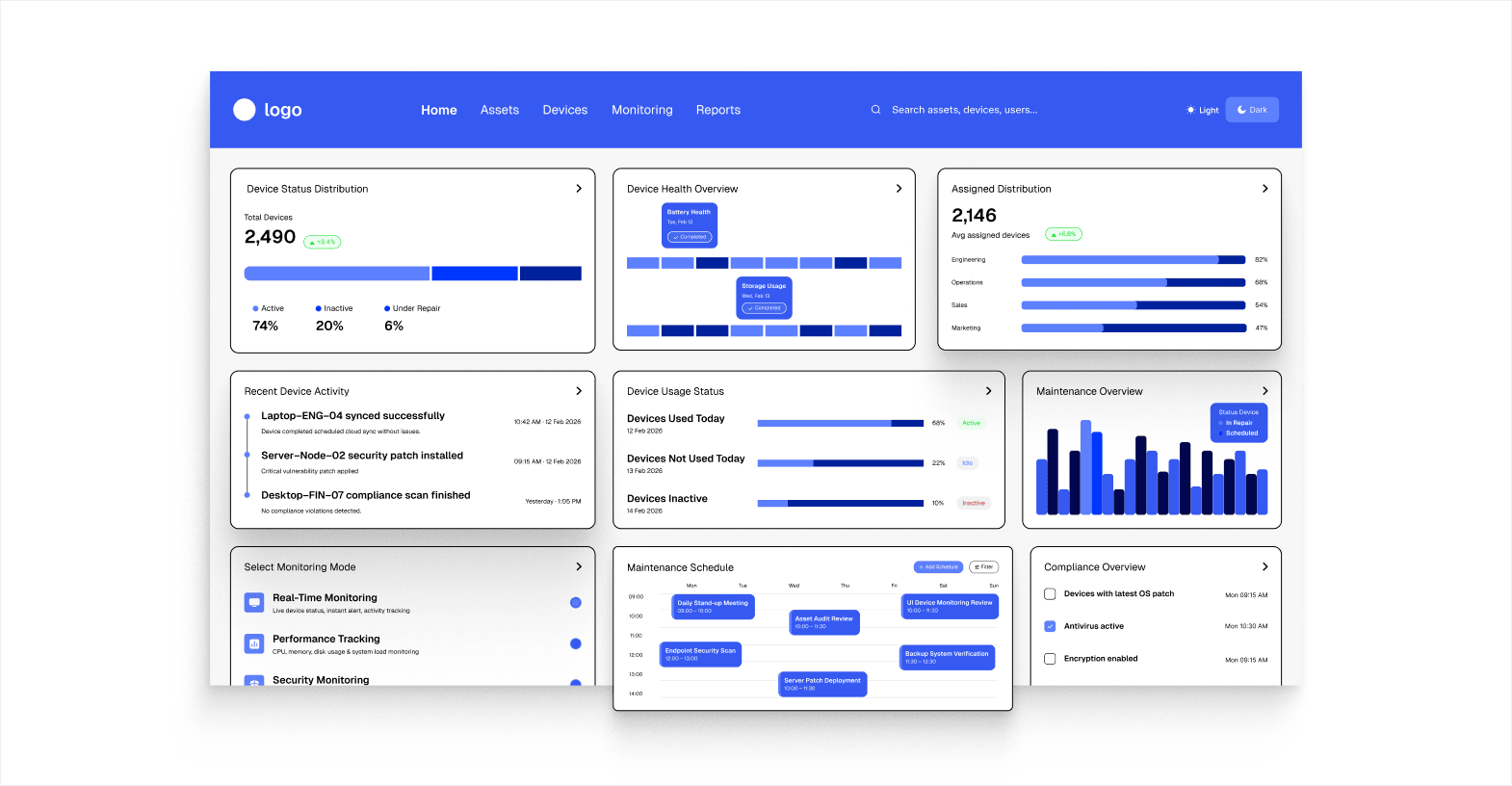
Tracking hardware and software assignments in spreadsheets creates gaps when employees change roles, move offices, or leave the company. IT ends up with incomplete records and no clear picture of what's assigned where.
Automated asset tracking logs every device assignment, reassignment, and return automatically. When an employee is offboarded, the system flags all assigned assets for recovery and updates the inventory. There's always a current record without manual audits.
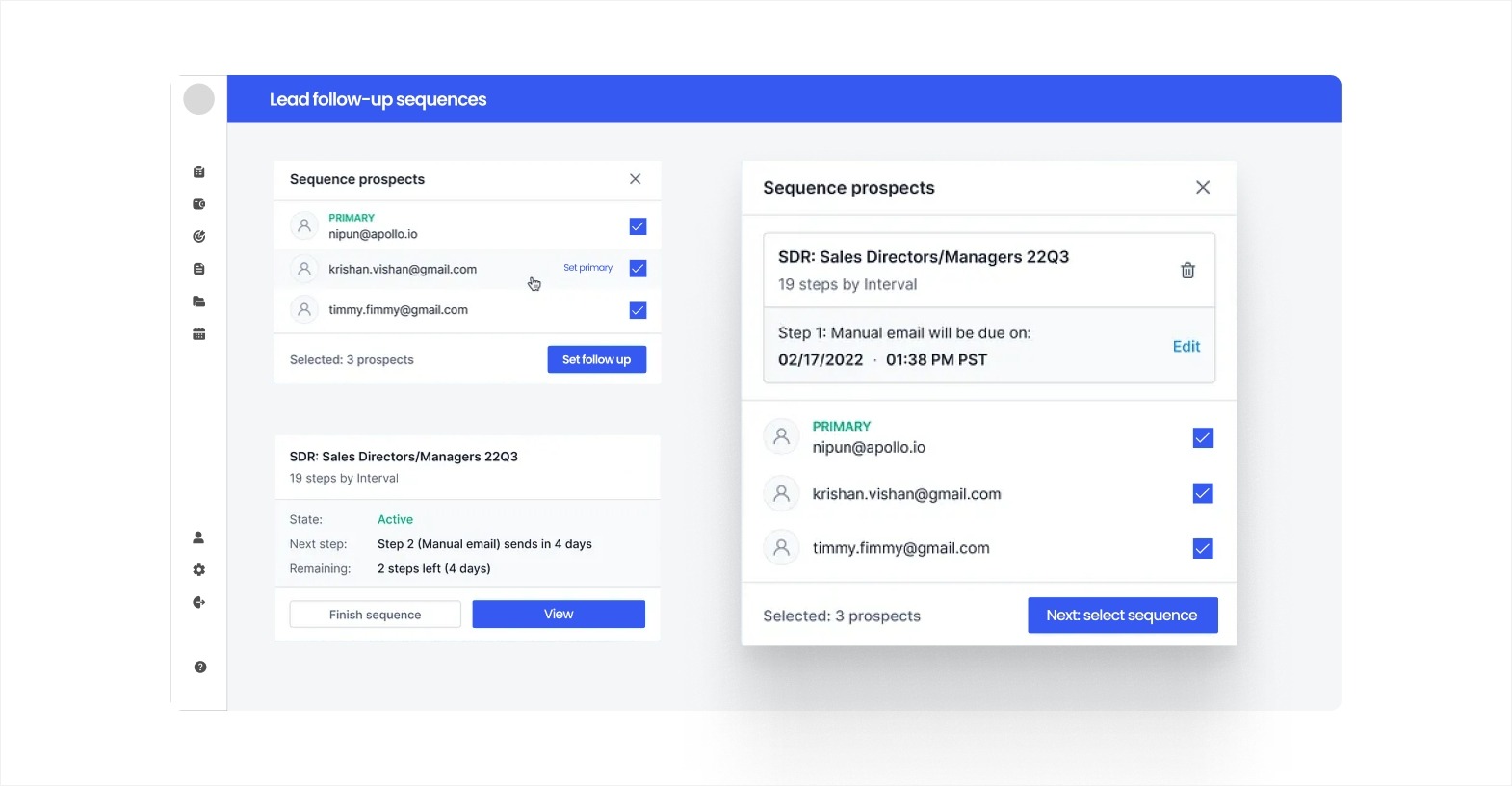
7. Lead follow-up sequences (sales)
Sales reps often forget to follow up with leads at the right time. When they do, the message may not match where the lead is in the buying process. Leads go cold, and potential revenue is lost.
An automated follow-up workflow triggers personalized emails or task reminders based on lead activity. For example, if a lead downloads a pricing guide, the system can schedule a follow-up call for the assigned rep two days later and send a relevant case study by email. Every lead gets timely, consistent attention.
8. Marketing campaign approvals (marketing)
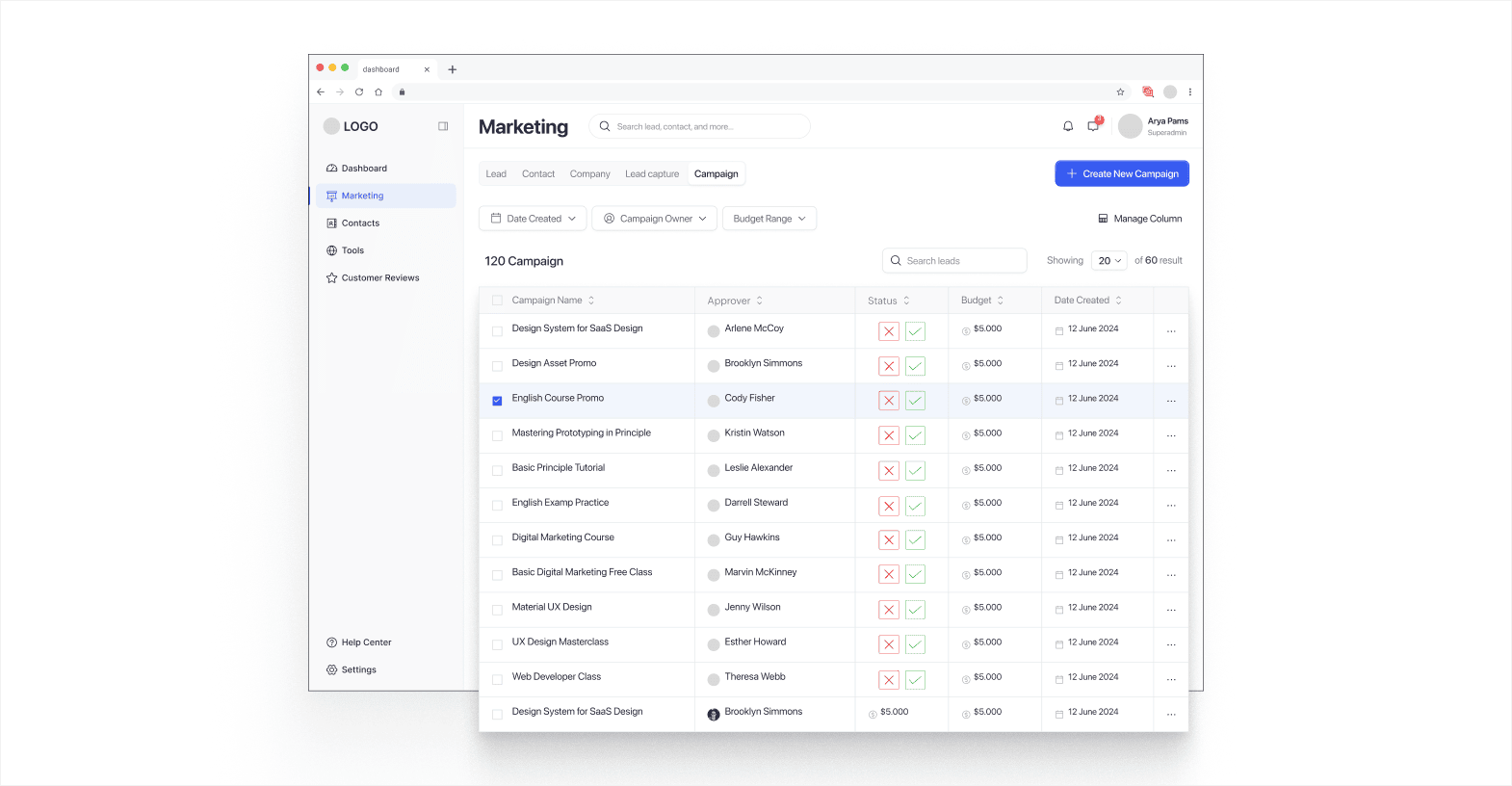
Campaign assets like emails, social posts, and landing pages often go through several rounds of review. Without a structured process, reviewers don't know when it's their turn, feedback gets scattered across tools, and deadlines slip.
An automated approval workflow moves each asset through a defined review chain. The designer submits the asset, the system notifies the first reviewer, collects feedback in one place, and moves it to the next reviewer once approved. No one has to ask "where is this in the review process?"
9. Customer support ticket escalation (customer service)
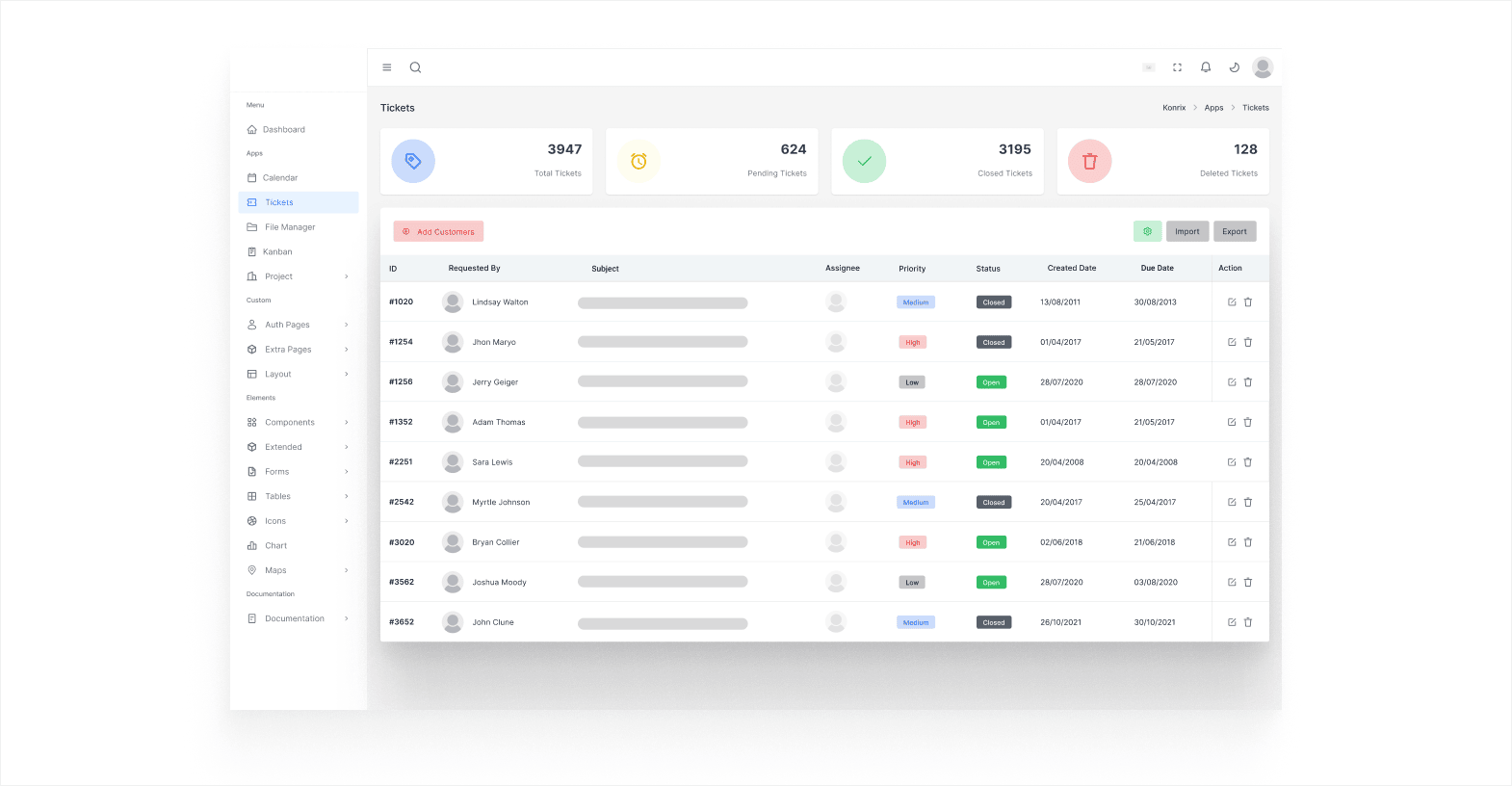
When support tickets aren't resolved within a reasonable time, customers get frustrated. Manually monitoring every ticket for service level agreement (SLA) breaches is unrealistic, especially as volume grows.
An automated escalation workflow monitors open tickets against SLA thresholds. If a ticket isn't resolved within the defined window, the system automatically notifies a senior agent or manager, reprioritizes the ticket, and logs the escalation for reporting. Every customer service request gets the attention it needs without someone manually watching the clock.
10. Purchase order approvals (operations)
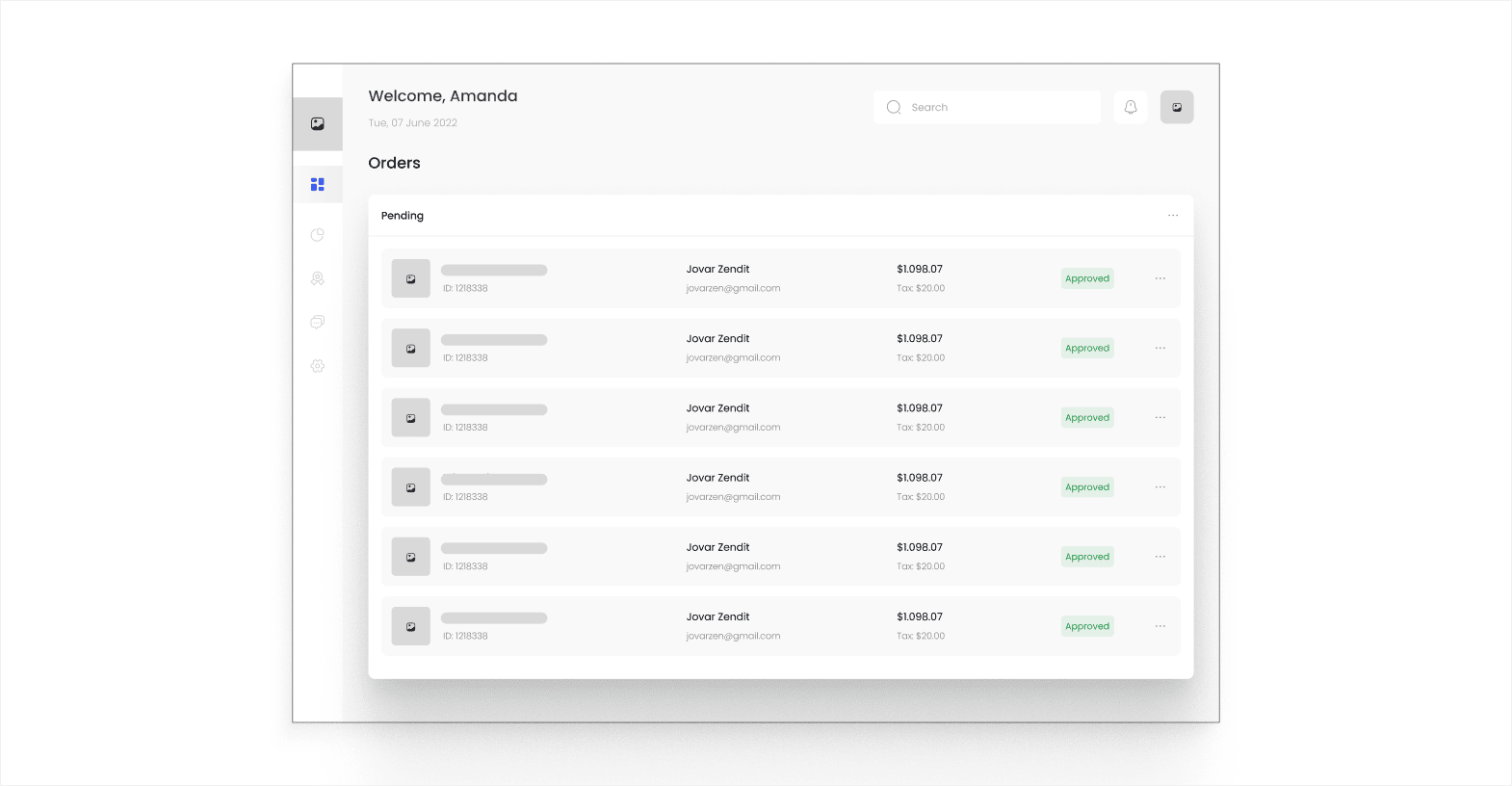
Purchase orders often require approval from different people depending on the amount, department, or vendor. Routing these manually through email leads to bottlenecks, especially when the right approver isn't immediately clear.
An automated purchase order workflow routes each request to the correct approver based on predefined rules. Orders above a certain threshold automatically go to a senior manager. Approved orders trigger downstream actions like vendor notification and inventory updates. The entire chain moves without manual handoffs.
These examples share a common pattern. They replace manual routing, reminders, and data entry with rules-based sequences. The more predictable a process is, the better it fits automation.
Key benefits of automating your workflows
The examples above cover different departments, but the advantages they deliver are consistent. Here's what teams gain when they move from manual processes to automated workflows.
- Faster task completion: Automated workflows move tasks forward the moment a trigger fires. There's no waiting for someone to notice an email, open a spreadsheet, or forward a request.
- Fewer manual errors: Rule-based systems apply the same logic every time. Data gets validated at entry, approvals route to the right person, and nothing gets skipped because someone forgot a step.
- Consistent process execution: Every request follows the same path regardless of who submits it or when. This keeps quality and compliance steady, even during high-volume periods.
- Better visibility into progress: Automated workflows log every action. Managers can see where a task is at any moment without sending status-check messages or digging through email threads.
- Easier scaling: As your team or workload grows, automated workflows handle the increased volume without adding coordination overhead. A process that works for 50 requests a week works the same way for 500.
These benefits add up over time. The more workflows you automate, the more hours your team reclaims for work that requires actual decision-making and creativity.
How to choose which workflows to automate first
Not every process needs automation right away. Starting with the wrong workflow wastes time and creates frustration. A practical approach helps you focus on the ones that deliver results quickly.
- High frequency: Workflows that happen daily or weekly give you the fastest return. A task that runs 50 times a month saves more time than one that runs twice a quarter.
- High error rate: Processes where mistakes happen regularly, like manual data entry across tools, benefit most from automation because the system follows the same rules every time.
- Multiple handoffs: Workflows that involve three or more people tend to stall at transition points. Automation keeps them moving without someone needing to nudge the next person.
- Clear, repeatable steps: If you can describe the process as a fixed sequence of actions triggered by a single event, it's a good candidate. Processes that require judgment or creative decisions at every step are harder to automate.
- Time-consuming coordination: Tasks where most of the time goes to scheduling, reminding, or following up rather than the actual work itself are ideal starting points.
Start with one or two workflows that score high across these criteria. Once your team sees the time savings, expanding to other processes becomes much easier.
Common mistakes when automating workflows
Automation delivers strong results when done thoughtfully. Rushing the process or skipping key steps often creates new problems instead of solving existing ones.
- Automating a broken process: If the current workflow has unnecessary steps or unclear ownership, automating it just makes a bad process run faster. Map out and fix the process before building automation around it.
- Skipping testing with real scenarios: A workflow that works in theory can fail when it encounters edge cases. Test with actual data and real users before rolling it out to the full team.
- No clear ownership: Every automated workflow needs someone responsible for monitoring it, handling exceptions, and making updates. Without an owner, workflows break silently, and no one notices.
- Trying to automate everything at once: Starting with too many workflows leads to half-built automations and overwhelmed teams. Pick high-impact processes first and expand from there.
- Ignoring user adoption: If the people who interact with the workflow don't understand how it works or why it changed, they'll find workarounds. Involve your team early and provide simple documentation.
Avoiding these mistakes keeps your automation efforts productive from day one. The right workflow structure makes implementation smoother and results more consistent over time.
How to set up and get started with your first workflow automation
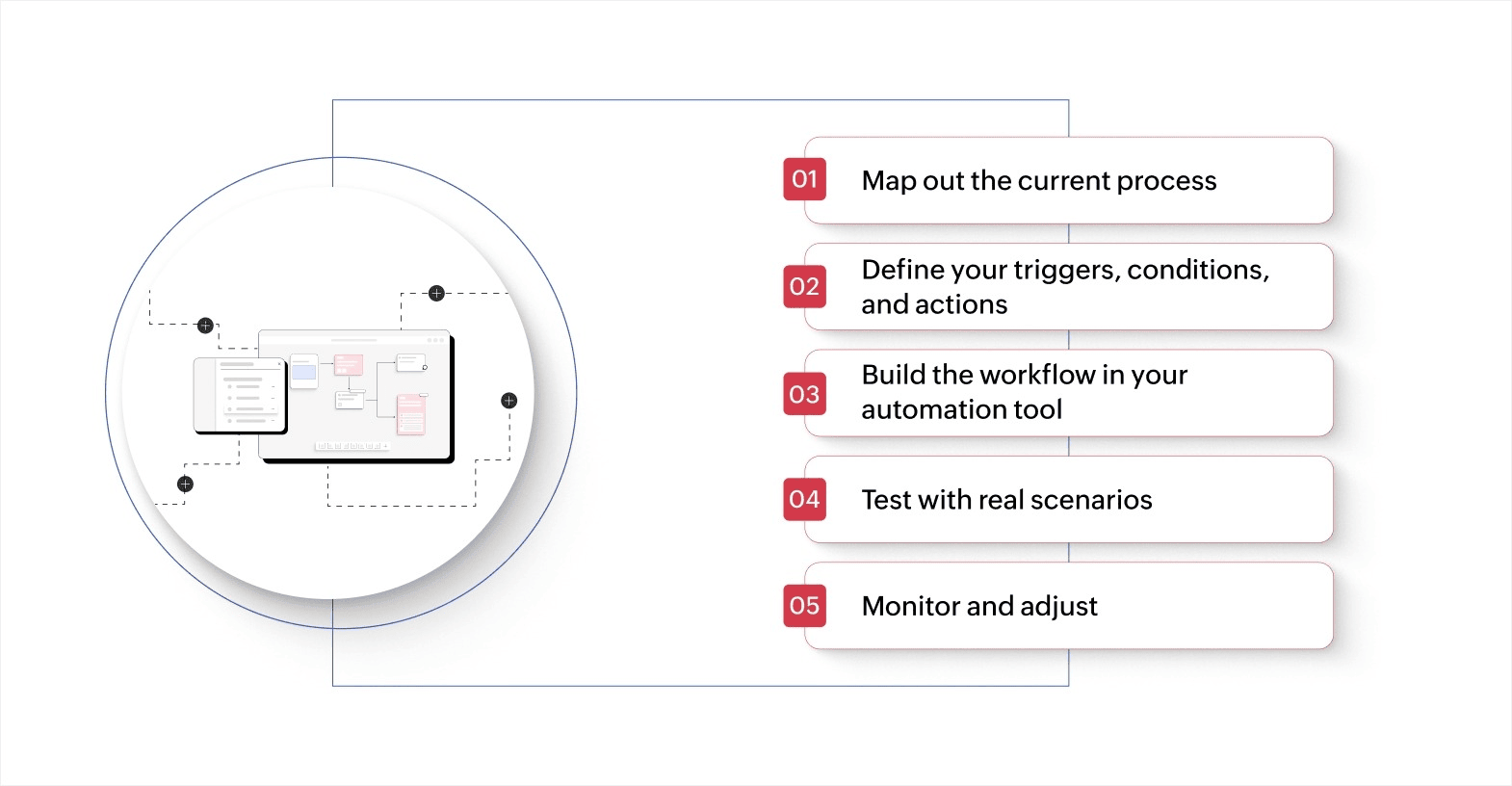
Once you've picked a workflow to automate, the setup process follows a clear sequence. These steps apply regardless of the tool you use.
1. Map out the current process
Write down every step in the workflow as it happens today. Include who does what, what triggers each step, and where delays or errors typically occur. This gives you a clear picture of what the automation needs to handle.
2. Define your triggers, conditions, and actions
Identify the event that starts the workflow, the rules that determine what happens next, and the actions the system should take at each stage. For example, a time-off request workflow might trigger on form submission, check the employee's remaining balance, and route to the correct manager.
3. Build the workflow in your automation tool
Use your platform's visual builder to create the sequence. Drag and drop trigger events, add condition branches, and connect each action. Most workflow apps let you test the flow before activating it.
4. Test with real scenarios
Run the workflow using actual data and edge cases. Check that notifications fire correctly, approvals route to the right people, and exceptions are handled. Fix any issues before rolling it out to the full team.
5. Monitor and adjust
Track how the workflow performs over the first few weeks. Look for bottlenecks, missed triggers, or steps that need refinement. Automated workflows aren't set-and-forget; regular reviews keep them running smoothly as your processes evolve.
Getting your first automation right builds confidence across your team. It also gives you a working template you can replicate for other workflows in different departments.
Build and automate custom workflows with Zoho Creator
Workflow automations usually follow predictable patterns, but every business has unique variations. Most tools force you to adjust your process to fit their systems instead of the other way around. That creates friction, especially when your workflows span departments or require custom approval chains.
Zoho Creator is an AI-powered low-code application development platform that lets you build custom workflow automations tailored to your exact process. You can design multi-step approval workflows, route tasks based on any business rule, and connect your automations with tools your team already uses through built-in integrations.
Every workflow you build runs natively on web, iOS, and Android, so your team can submit requests, approve tasks, and track progress from anywhere. Real-time dashboards show you exactly where each process stands.
Sign up for free today and build your first workflow in minutes!
FAQ
1. What types of tasks are best suited for workflow automation?
Tasks that follow a fixed sequence, happen frequently, and require little human judgment are the best candidates. Approval routing, data entry, notifications, and status updates all fit this pattern.
2. How long does it take to set up workflow automation?
Simple automations like approval routing or notification triggers can be set up in a few hours. More complex workflows with conditional logic and integrations may take a few days depending on the tool.
3. Can workflow automation work across departments?
Yes. Many workflows span departments naturally. For instance, an employee onboarding workflow involves HR, IT, and the hiring manager. Automation keeps all parties coordinated without manual handoffs.
4. Do you need coding skills to automate workflows?
Not with low-code platforms: Visual builders let you design workflows by dragging and dropping steps, setting conditions, and connecting actions without writing code.
5. How do you measure the success of a workflow automation?
Track time saved per task, error reduction rate, and the number of manual touchpoints removed. Comparing these metrics before and after automation gives you a clear picture of the impact.
 Ann Elizabeth Sam
Hey! I'm Ann, and I work as a content writer at Zoho Creator. I'm exploring the SaaS world through various forms of content creation. Outside of work, I love dancing and would give up anything to read a good murder mystery.