Downloads folder: What it is and how modern file management works
- Last Updated : June 10, 2026
- 1.5K Views
- 10 Min Read

A downloads folder is the default local directory where a computer automatically saves files retrieved from the internet, email attachments, and applications—without requiring the user to choose a save location each time.
Default paths by operating system:
Windows 10/11: C:\Users\[username]\Downloads
macOS: /Users/[username]/Downloads, also written as ~/Downloads
Linux: /home/[username]/Downloads
All major browsers—Chrome, Firefox, Edge, and Safari—use this folder as their default download destination unless manually changed by the user. That sounds like a simple convenience feature until it becomes part of everyday work.
You download a client proposal, a contract, a few images, and a spreadsheet. Everything lands in the same place. A few days later, you need that proposal again. You open the downloads folder, scroll through dozens of files, and try to remember what it was called.
At that moment, the issue is not downloading files. It’s managing them.
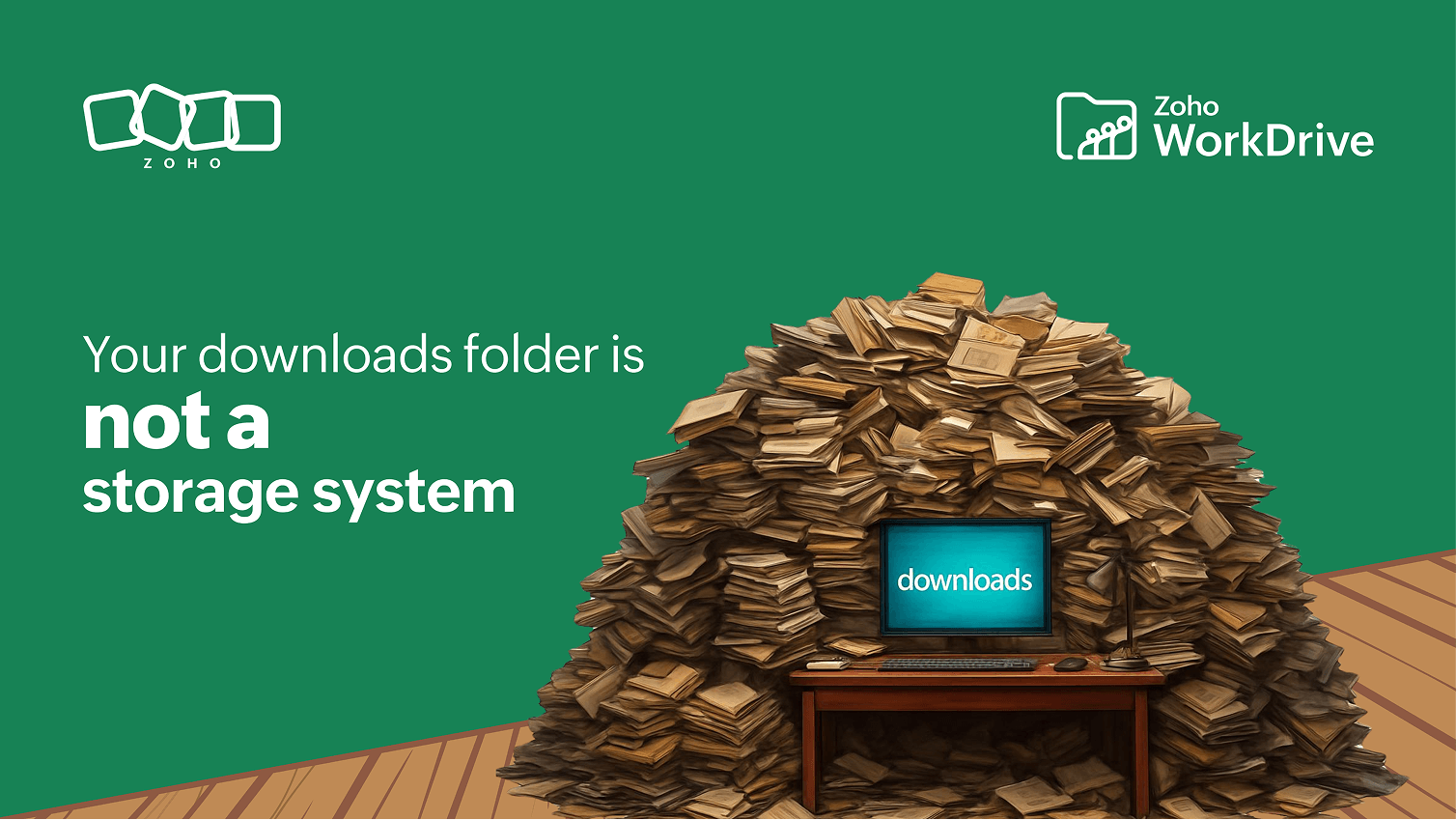
The downloads folder is useful for receiving files quickly. But it is designed as a temporary holding space, not a storage system. When used as primary storage, it creates version confusion, duplicate files, and lost time—because it applies no organization to what it receives.
At its core, the downloads folder is a temporary holding space. It assumes that files will be reviewed, moved, and organized. In practice, that step is often skipped. If a file needs to be searched by memory instead of structure, the system is already inefficient.
Most guides explain where the downloads folder is. But in real workflows, what matters is how it behaves after files start accumulating.
What really matters when files are downloaded
If you only look at how quickly files arrive, the downloads folder seems useful. If you look at how work continues after the download, the problem becomes clearer.
Modern cloud storage systems are designed around access and continuity, not just file arrival.
On paper, every download lands somewhere predictable. In real workflows, predictability is not the same as organization. The real difference shows up when files need to be reused, updated, shared, or found again.
The downloads folder is a temporary cache, not a filing system. Files should be moved immediately after download.
Default location: C:\Users\[username]\Downloads on Windows or ~/Downloads on macOS/Linux.
Chrome, Firefox, Edge, and Safari all default to the downloads folder; you can configure this in each browser's settings.
Files in the downloads folder are NOT automatically backed up unless explicitly included in a backup or sync tool.
The solution is not better cleanup habits—it is a structured system where files go directly to the right place.
The downloads folder solves file arrival. It does not solve file continuity.
Downloads don’t create clutter. They create delayed decisions that accumulate—until finding a file takes more effort than using it.
This is where a structured file management system becomes critical for maintaining continuity across files.
Where your downloaded files actually go
The downloads folder location varies by operating system:
OS | Default Path | Quick Access Shortcut |
Windows 10/11 | C:\Users\[username]\Downloads | Win+E → Downloads in left sidebar |
macOS | /Users/[username]/Downloads | Option+Cmd+L in Finder |
Linux (Ubuntu/Debian) | /home/[username]/Downloads | File Manager → Home → Downloads |
In Windows, the downloads folder also appears in the Quick Access panel of File Explorer. On macOS, it appears in the Dock by default as a stack.
The path changes by operating system, but the behavior does not. Files still arrive in one default place, regardless of type, source, project, or importance.
Why every browser sends files to the same place
Every major browser defaults to the downloads folder. This behavior is configurable:
Browser | Default Location | How to Change |
Chrome | ~/Downloads | chrome://settings/downloads → Change location |
Firefox | ~/Downloads | about:preferences#general → Files and Applications |
Microsoft Edge | ~/Downloads | edge://settings/downloads → Change location |
Safari (macOS) | ~/Downloads | Safari → Preferences → General → File download location |
All browsers also offer an “Ask where to save each file” option: enabling this forces a save dialog on every download, which prevents automatic accumulation in the downloads folder.
This works well when the user wants speed. It starts to break when the user needs structure.
The downloads folder receives everything. It understands nothing.
What the downloads folder is actually used for
The downloads folder acts as a default destination for files coming from browsers, email attachments, and applications. When you download an invoice from email or a report from a dashboard, it is saved automatically without requiring a file path decision.
This makes it useful for quick, low-friction file retrieval. But it is not designed to support long-term workflows, collaboration, or structured storage. The moment it becomes a primary storage location, it begins working against the user.
A student downloading PDFs, a freelancer saving client references, a finance user pulling reports from dashboards, or a manager downloading email attachments all benefit from that first moment of convenience.
But the convenience ends when files need to be found again.
The downloads folder is an entry point, not a storage system. It does not organize files. It postpones organization. Every file that stays there is a decision delayed—and over time, delayed decisions turn into disorganized systems.
Where the downloads folder starts to fail
The downloads folder does not fail immediately. It fails gradually, across three common scenarios. That friction is easy to ignore at first. You scroll a little longer, open the wrong file once, rename something quickly, and move on. But as files accumulate, these small interruptions repeat across every task—turning simple actions into constant micro-decisions.
Suitable for quick access, inefficient after that
In freelance or individual work, client files from different projects accumulate in the same folder. Without consistent naming conventions, finding the correct version requires memory, not structure.
A designer may download brand assets from three clients in the same week. A writer may download briefs, images, and feedback files from different sources. Nothing is technically lost. But everything begins to look similar because the folder has no project context.
The moment finding a file depends on memory, the workflow starts to slow down. Let's consider a few examples of how this happens in practice.
Fast for one person, risky for teams
In team workflows, managing files can become complex quickly, because while one employee downloads a file, edits it, and saves it locally, a previous version still exists in email, and a third work-in-progress might be shared in a chat thread. With no single source of truth, version control becomes manual and error-prone.
A sales team may download a pricing sheet before a client call. A legal team may download a contract draft for review. An operations team may download a compliance record for quick reference. Each action makes sense in the moment, but every local copy creates another place where the file can drift from the latest version.
The downloads folder works for receiving files. It does not preserve truth across a team.
Harmless at first, messy over time
In personal use, the same file is downloaded multiple times across sessions. Duplicates appear with slightly different names such as report.pdf, report(1).pdf, and report_final.pdf. The folder becomes unmanageable without periodic intervention.
This is why the downloads folder feels fine at first. It does not break with one file. It breaks with repetition.
Why it becomes inefficient
The downloads folder applies no categorization, priority, or ownership to files. Every file—regardless of type, project, or importance—lands in the same place.
Over time, this produces:
Duplicate files with unclear differences between versions
Outdated versions that remain accessible alongside current ones
Time lost searching for files by memory rather than structure
Files that are tied to a single device and unavailable elsewhere
You may not be losing files, but you are losing control over them.
Once you lose clarity, workflows slow down. That is the real issue. The downloads folder does not actively create chaos. It passively accepts everything until the user has to make sense of it later.
The solution is not better cleanup. It is better systems.
How to use the downloads folder without losing control
The downloads folder is most effective when treated as an entry point, not a destination.
The correct workflow is simple:
File downloaded → immediately moved to its correct project folder
Weekly review → delete unnecessary files, verify important ones are correctly stored
Browser setting → enable “Ask where to save each file” to force intentional placement
This approach reduces accumulation but does not eliminate the root problem: files are still being saved locally, on a single device, outside any shared or versioned system.
Better habits help. But habits still depend on the user remembering to follow them.
A folder cleanup routine can reduce clutter. It cannot create version history, team access, automatic backup, or shared visibility.
Where downloads stop being enough
Even with better habits, the downloads folder remains structurally limited. Files are device-bound, unversioned, and isolated from team workflows.
The real shift happens when files no longer need to be downloaded repeatedly. Instead of save → edit → re-upload, teams access files from a shared workspace where up-to-date files are available to all users in real time.
Old: save → edit → re-upload
New: access → update → continue
Every time a file is downloaded as a copy, a new version problem is created. This is why structured secure file sharing models focus on providing access to files instead of creating duplicates.
To solve this at a system level, files need to be structured from the start, not after download. Once files live in a shared workspace, they are no longer scattered across local folders. They remain accessible, versioned, searchable, and available to the right people without creating extra copies.
This is where team collaboration becomes seamless, with everyone working on the same version. Platforms like Zoho WorkDrive implement this by replacing local storage with a centralized access model: files are opened and edited directly, without creating local copies. This removes the downloads folder from the everyday workflow entirely.
The file does not need to be downloaded again. The work can just continue.
Downloads folder vs modern file system
Function | Downloads Folder | Modern File System |
Role | Temporary cache | Structured workspace |
Default organization | None (all files in one folder) | Folders, permissions, tags by project |
Access | Single devices only | Any device, anywhere |
Version control | Manual (rename files) | Automatic - full version history |
Collaboration | Not supported | Built-in — real-time co-editing |
Backup | Not automatic | Automatic sync and backup |
Search | Filename only | Filename, content, metadata |
Why the downloads folder breaks over time
The issue is not the downloads folder itself. It does what it was designed to do: receive files quickly.
The problem begins when a temporary cache becomes a working system.
Problem | What happens | Workflow impact |
No categorization | Files from every source land together | Users search by memory |
Duplicate downloads | Same file appears multiple times | Versions become unclear |
Local storage | Files remain tied to one device | Access breaks across devices |
No version history | Changes are tracked manually | Teams lose source of truth |
No collaboration layer | Files must be shared again | Work becomes repetitive |
This is the same pattern that appears in most file workflows. The first action is simple. The repetition creates the problem. The downloads folder was never designed to manage your work. It was only designed to receive it.
The moment it becomes where your work lives, the downloads folder is already working against you.
What changes when downloads stop being the default workflow
When files live in one shared workspace, they can be accessed from any device, opened directly, updated in place, and shared with the right permissions. There are no duplicate downloads to compare, no local copies to reconcile, and no weekly cleanup routine standing between the user and the file.
Work no longer revolves around downloading files. It flows around accessing them. The downloads folder becomes what it was always meant to be: a temporary entry point, not the center of work.
The real takeaway
The downloads folder is a functional tool for receiving files quickly. It is not a filing system, a version manager, or a collaboration platform. Using it as primary storage creates three compounding problems: duplicate files, version confusion, and device dependency. These problems grow with the number of files, users, and workflow touchpoints.
For individuals: treating Downloads as a pass-through—moving files immediately, clearing it out weekly—resolves most issues.
For teams: the structural fix is a centralized file system where files live in one place, are versioned automatically, and are accessible to everyone with the right permissions—eliminating the download cycle entirely.
The goal is not to manage the downloads folder better. The goal is to need it less.
If your files still live in the Downloads folder, your workflow is already fragmented. Stop organizing files after the fact. Move to a system like Zoho WorkDrive where files are structured, accessible, and versioned from the moment they exist.
FAQ
What is a downloads folder?
A downloads folder is the default local directory where a computer automatically saves files retrieved from the internet, email attachments, and applications. On Windows 10/11, it is located at C:\Users\[username]\Downloads. On macOS and Linux, it is at ~/Downloads. All major browsers (Chrome, Firefox, Edge, Safari) use this folder as their default save location unless changed in browser settings.
Where is the downloads folder on Windows?
On Windows 10 and Windows 11, the downloads folder is located at C:\Users\[username]\Downloads, where [username] is your Windows account name. You can access it quickly by pressing Win+E to open File Explorer — Downloads appears in the Quick Access panel on the left sidebar. You can also type %userprofile%\Downloads in the address bar of File Explorer to navigate directly to it.
Where is the downloads folder on Mac?
On macOS, the downloads folder is located at /Users/[username]/Downloads, also written as ~/Downloads. The quickest way to open it is pressing Option+Command+L in Finder. By default, macOS also adds a Downloads stack to the right side of the Dock. Safari, Chrome, and Firefox on macOS all default to this location unless you change the download destination in each browser's preferences.
Why does the downloads folder get messy?
The downloads folder applies no organization to files—everything from every source lands in the same place with no categorization by project, date, or type. Over time, the same file gets downloaded multiple times, creating duplicates like report.pdf and report(1).pdf, outdated versions remain alongside current ones, and files from unrelated projects accumulate together. Without a habit of moving files immediately after download, the folder becomes a mixed archive.
Should I store files in the downloads folder?
No. The downloads folder is designed as a temporary cache, not a storage system. Files stored there are tied to a single device, have no version history, are not automatically backed up, and are not accessible to collaborators. For personal files, use a structured folder system on your device or cloud storage. For team files, use a centralized platform like Zoho WorkDrive where files are versioned, shared, and accessible from any device.
How do I change the default download location?
In Chrome: go to chrome://settings/downloads and click Change next to the location field. In Firefox: go to about:preferences#general and update the Downloads path under Files and Applications. In Edge: go to edge://settings/downloads. In Safari on macOS: go to Safari → Preferences → General → File download location. All browsers also offer an Ask where to save each file option, which prompts you to choose a location for every download.
Are downloads backed up automatically?
No. The downloads folder is not automatically included in most backup routines. On Windows, it is not backed up by File History unless you specifically add it. On macOS, Time Machine backs up the entire home folder, including Downloads, by default—but only if Time Machine is enabled and configured. Cloud sync tools like OneDrive or Google Drive only back up the downloads folder if it is explicitly added to the sync configuration.
What is a better alternative to the downloads folder?
For team workflows, a centralized cloud-based file system like Zoho WorkDrive replaces the downloads folder with an access-based model: Files are stored once in a shared workspace, versioned automatically, and opened directly without creating local copies. This eliminates duplicate files, version confusion, and device dependency. For individual users, the immediate improvement is treating Downloads as a pass-through by moving every file to an appropriate folder right after downloading it.