- HOME
- Best practices
- How to make sure your team never misses answering an email
How to make sure your team never misses answering an email
- Published : May 29, 2026
- Last Updated : May 29, 2026
- 200 Views
- 8 Min Read
Your team has canned responses and a shared inbox, yet customers still wait days for a reply or, even worse, they’re ignored entirely. Every unanswered email signals to the customer that their concern is a low priority, and that perception compounds quickly into churn and lost revenue.
The root cause is almost always structural. No one knows which emails have been read but not replied to, who’s responsible for a thread, or whether a teammate is already at capacity when a new message lands. When five people can see the same message and everyone assumes someone else will handle it, nothing gets done.
Fixing this means setting SLA tiers so every email has a deadline, assigning clear ownership so every thread has a name against it, tracking backlog by age so older emails surface before newer ones bury them, and building escalation steps so breaches get caught before they reach the customer. If you’re scoping that system for shared inboxes on Gmail or Microsoft 365, this guide walks you through the full workflow.
Why teams fail to answer emails
Emails go unanswered because shared inboxes create the illusion of coverage without actually assigning responsibility. Before building a system to fix this, it helps to understand exactly where things break down.
Ownership is unclear. In shared inboxes, “read” often gets mistaken for “owned.” Multiple teammates see the same message, assume someone else will reply, and no one does.
SLAs don’t reflect urgency. When every queue follows the same response target, high-priority emails and routine requests receive the same treatment.
Backlogs lack visibility. Teams may track incoming volume but miss aging threads, allowing older emails to disappear behind newer ones.
Coverage breaks during absences. PTO, sick leave, or predictable Monday spikes can leave assigned threads unattended and slow response times.
Monitoring creates privacy concerns. Dashboards that expose email content add noise and risk overreach. Better oversight focuses on metadata like thread age, assignment, SLA tier, and response times.
Start with an audit. Review these five gaps in your workflow first, then build systems to fix them with clear ownership, smarter routing, backlog views, and role-based access.
Reviewing these five areas in your current workflow is the starting point. With Zoho TeamInbox, you can see exactly who owns each thread, set tiered response targets per queue, surface aging emails before they’re buried, reroute threads when a teammate is out, and track performance by metadata without ever exposing message content.
Ways to ensure that no team email goes unanswered
Missed emails are usually the result of unclear ownership, slow routing, or limited visibility. Here’s a step-by-step process to build a reliable team email workflow that keeps every message tracked, assigned, and answered.
Step 1: Set response-time SLAs and targets by queue and email type.
SLAs transform "reply quickly" from a vague goal into a measurable commitment. This section walks through defining what counts as unreplied, setting time thresholds per queue, cleaning up reporting data, and using weekly trends to staff for predictable spikes.
Define "unreplied" precisely to avoid false positives.
Your SLA metrics lose credibility the moment they count bounces, out-of-office auto replies, or system notifications as open threads. Treat automated acknowledgments as "acknowledged but unreplied" until a human responds. Separate "first response time" from "resolution time" so each metric tracks a distinct commitment.
Edge cases matter here. A customer reply to an already-closed thread should reopen the SLA clock. An internal forward that never reaches the customer should remain flagged as unreplied.
SLA tiers and time thresholds with clear timers.
Flat targets create blind spots. A billing dispute and a general product question carry different urgency, so your SLA structure should reflect that difference.
Queue/email type | First response target | Escalation checkpoint | Business hours |
Urgent billing or outage | 2 hours | T+1 h: internal mention | 24/7 |
VIP or enterprise accounts | 4 business hours | T+2 h: reassign if unowned | M–F, 8:00 a.m.–8:00 p.m. |
General support | 8 business hours | T+6 h: manager alert | M–F, 9:00 a.m.–6:00 p.m. |
Sales or partnership inquiries | 1 business day | T+4 h: round-robin reassign | M–F, 9:00 a.m.–6:00 p.m. |
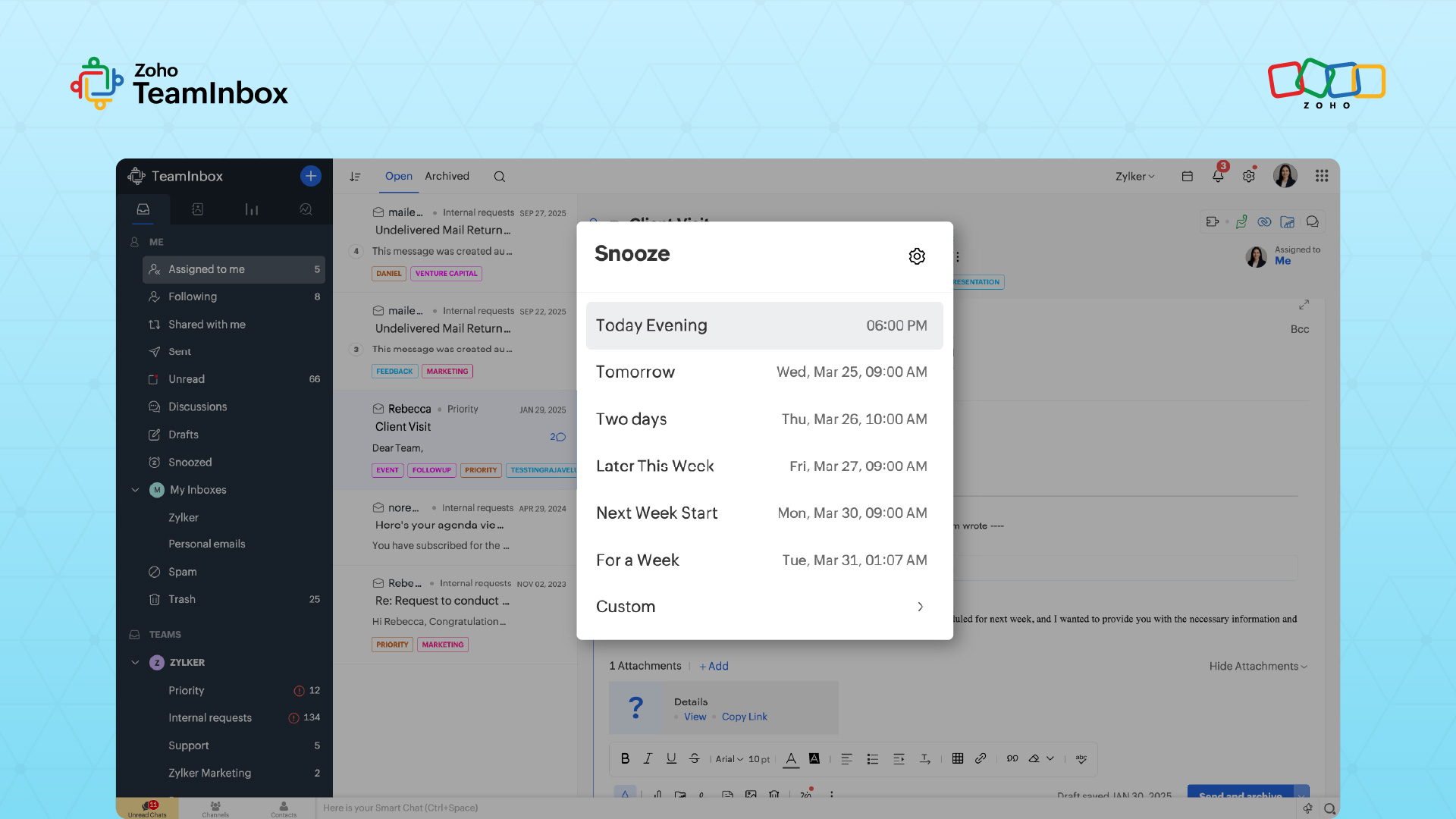
Pause timers when you’re waiting on information from the customer. Resume the clock the moment they reply. In Zoho TeamInbox, you can align reminders and snooze durations to each tier and tag threads with the applicable SLA level for filtered reporting.
Data hygiene and reporting rules.
Unify aliases (support@, help@, billing@) under clearly labeled queues so volume and SLA compliance report are per queue rather than per address. Consolidate fragmented threads that share the same customer and topic. Define "breach" as any thread past its first-response target and "at risk" as any thread within 30 minutes of that target.
Consistent tag naming, such as sla:urgent-billing or sla:general-support, keeps filters reliable across teammates.
Use weekly trend views to plan staffing.
Pull volume by weekday and hour for the past four weeks. Monday mornings and post-holiday windows often produce two to three times the midweek average. Map SLA compliance trends against these spikes to identify where coverage falls short.
Zoho TeamInbox saved views and exports can feed a lightweight spreadsheet for this analysis. If your team uses an insights dashboard, overlay staffing schedules to spot understaffed windows before they become breaches.
Step 2: Centralize routing and assign clear ownership in shared inboxes
Ownership is one of the strongest predictors of a timely reply. When every email has a visible owner and a clear path from intake to closure, fewer messages get missed.
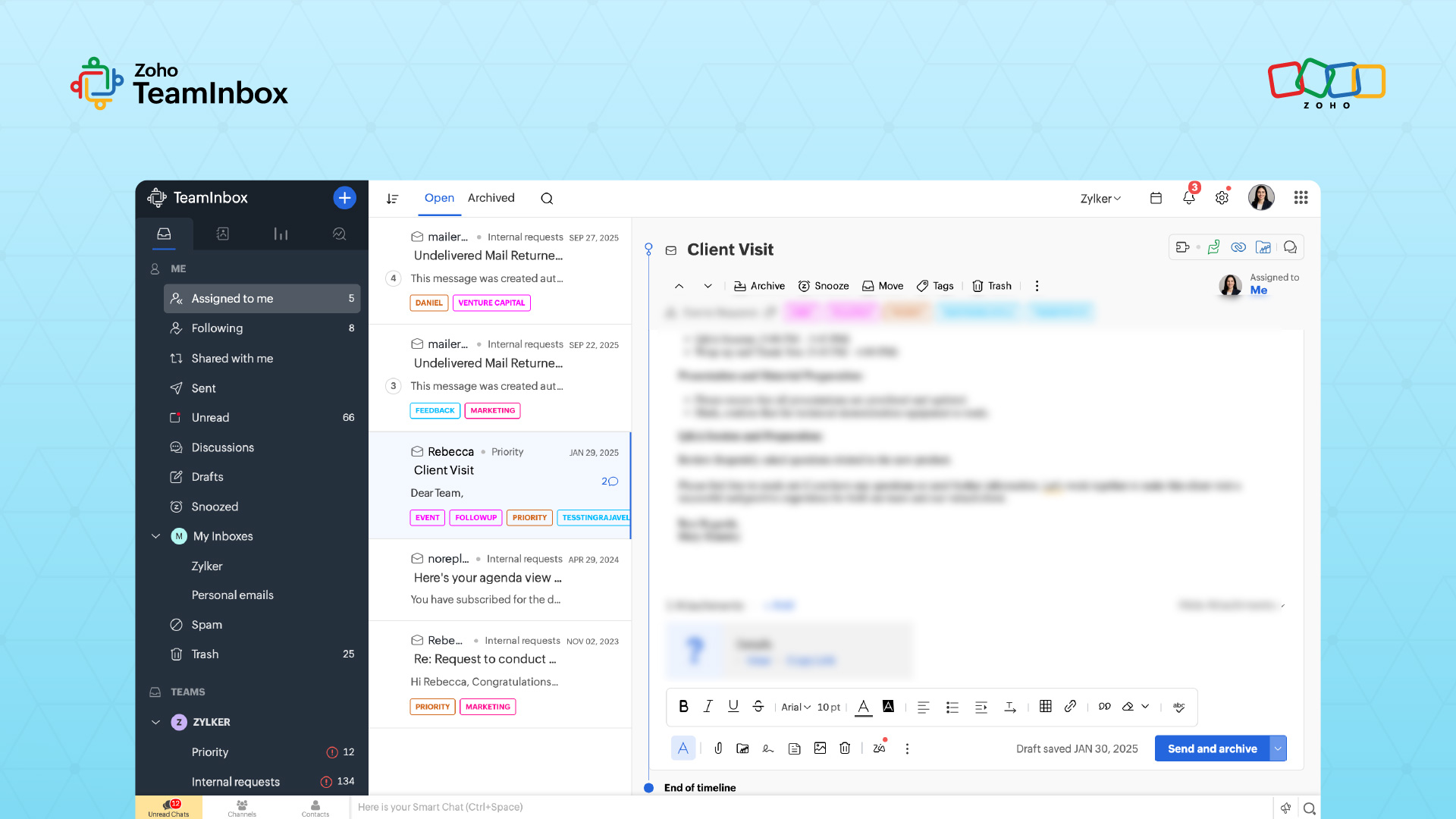
Route all customer emails through shared inboxes.
Send customer-facing emails to shared inboxes instead of personal accounts. Each thread should follow a standard workflow:
Auto-tag and place in the right queue.
Assign to one owner.
Add internal notes for context.
Send the customer a reply.
Confirm resolution.
Archive with an audit trail.
If needed, connect the inbox to a CRM or ticketing tool for long-term tracking.
Use assignment rules based on role and priority.
Route emails using customer tier, topic keywords, and queue so the right teammate owns the thread immediately.
For example:
A VIP email containing “invoice” enters the billing inbox.
It auto-assigns to the finance specialist.
If they’re at capacity, it moves to a backup assignee.
Tools like round-robin assignment, collision alerts, and internal comments help teams coordinate without duplicate replies.
Prepare coverage for absences and surges.
Create a rotation calendar for weekends, holidays, and PTO. If someone is out, their assigned threads should reroute automatically.
Also plan for predictable spikes such as:
Product launches.
Billing cycles.
Seasonal campaigns.
Your surge plan can include temporary reassignments, extended hours, or backup support.
Create clear handoffs across teams.
Some emails belong in another queue. Marketing campaign replies, for example, may need support or sales follow-up.
Tag these emails at intake, route them to the correct team, and confirm the handoff internally. This prevents replies from sitting unnoticed in inboxes without ownership or SLAs.
Step 3: Track the unreplied backlog
SLAs set the goal, but backlog tracking shows whether your team is meeting it in real time. The right metrics and alerts help surface at-risk emails before they become missed replies.
Monitor core email backlog KPIs daily.
Track these five metrics every day:
The total unreplied email count.
Unreplied emails by age bucket: 0–2 hours, 2–8 hours, 8–24 hours, over 24 hours.
Threads approaching SLA breach.
The unassigned thread count.
The median first response time.
Sort inbox views by oldest thread first so aging emails appear before new arrivals.
Saved views filtered by assignment status and thread age can recreate these buckets without needing a separate dashboard. A daily summary sent to the team lead keeps performance visible.
Use age buckets to prioritize faster.
Grouping unreplied emails by age helps teams focus effort where risk is highest.
Suggested priority order:
More than 24 hours
8–24 hours
2–8 hours
0–2 hours
This prevents older emails from getting buried under fresh volume.
Set automated alerts before breaches happen.
Use alerts at three checkpoints:
Any thread unassigned for more than 15 minutes.
Any thread within 30 minutes of its SLA target.
Any thread where the customer replied but the assignee has not responded within two hours.
These warnings give teams time to act before deadlines are missed.
Use a clear escalation ladder.
When a thread continues to age, use predefined checkpoints:
T+50% of SLA window: Internal mention to assignee.
T+75% of SLA window: Reassign to backup owner.
100% of SLA window: Direct alert to team lead.
30 minutes past breach: On-call teammate contacts customer directly.
This keeps escalation tied to timing. Escalations should solve coverage problems, not feel punitive.
Use language like:
“Looks like your queue spiked; reassigning this one.”
“We’re moving this thread to backup support to protect SLA.”
This preserves trust while keeping service levels on track.
Move the conversation to a faster channel when:
An email thread is two business hours past SLA target.
The customer has replied twice without resolution.
The issue is urgent or blocking operations.
Use phone, chat, or instant messaging, then log the outcome back into the original email thread so the audit trail remains complete.
What to automate in your email workflow
Automation reduces missed emails by handling repetitive actions, reminders, and escalation triggers without requiring manual inbox monitoring. It ensures consistency while keeping message content private.
1. Send an automated acknowledgment within 60 seconds of receipt.
Confirm the email was received.
Set expectations using the SLA tier (e.g., “We aim to respond within 4 business hours”).
Include an alternate urgent contact channel.
Use response templates + auto-tagging rules (e.g., in Zoho TeamInbox) to avoid manual work.
2. Configure periodic SLA-based reminders.
Notify the assigned owner when a thread is nearing its SLA threshold.
Reduce the chance of silent breaches.
3. Add daily rollups for team leads.
List all unassigned threads.
Highlight emails older than 24 hours.
Keep oversight based on metadata (age, assignment status, SLA tier), not message content.
Maintain privacy through role-based access and audit logs.
4. Use backlog visual views (optional dashboard-style support)
Highlight age buckets.
Show unassigned emails.
Surface at-risk threads without opening messages.
Now reply to every customer email with Zoho TeamInbox
Ensuring that no email goes unanswered in a team comes down to five connected practices: clear SLAs, explicit ownership, backlog visibility, time-bound escalation, and metadata-based monitoring.
Start by auditing your current workflow for issues like unclear ownership, missed SLAs, and hidden backlogs. Then map fixes directly to Zoho TeamInbox features such as assignment rules, saved views, reminders, and audit logs.
Connect your Gmail or Microsoft 365 shared inboxes to Zoho TeamInbox and operationalize each practice:
Use auto-assign rules and round-robin to ensure every email has an owner.
Enable collision detection to prevent duplicate replies.
Align reminders and snooze settings with SLA tiers to prevent breaches.
Use saved views to replicate age-bucket dashboards and track backlog health.
Use internal comments and @mentions for context and coaching without forwarding emails.
Rely on role-based permissions and audit logs for privacy-first, metadata-driven oversight.
This turns email management from a reactive process into a structured system where every customer message is tracked, owned, and answered.
FAQ
1. How long does it take to set up Zoho TeamInbox for a team of 10–20 people?
Most teams can connect shared inboxes and set up basic assignment rules within one business day. Refining SLA tags, saved views, and escalation rules usually takes about a week based on real usage.
2. Will Zoho TeamInbox integrate with our CRM or ticketing system?
Yes. It connects with Zoho apps and supports workflows that route emails into external CRMs or helpdesk tools for long-term tracking.
3. How do we set business hours and holidays for SLA timers across time zones?
Define business hours per queue, not per team. Use regional hours for specific customer groups, and 24/7 queues where support is global. Map holidays to the queue’s primary audience.
4. How can executives view the backlog without seeing message content?
Use role-based access to show only aggregated metrics like unread count, SLA compliance, and age distribution, while restricting full thread access to assigned users and leads.
5. What’s the right way to pause SLA timers?
Pause when your team is waiting on customer input and resume when they reply. If there’s no response for a set period (e.g., five business days), close the thread with a summary and reopen option.
6. How do we avoid duplicate replies?
Collision detection alerts teammates when someone is already responding to the same email. Combine this with a simple rule, which is, always check assignment before replying.
 Ganeshkiran Arasu
Ganeshkiran is a Growth and Digital Marketing manager at Zoho. He's passionate about writing content that actually helps — breaking down how products solve real, complex problems and what genuine collaboration looks like in practice. When he's not crafting strategies with his team, he's keeping tabs on the latest industry trends — always with a cup of tea in hand.