How to organize your email inbox: The complete guide
- Published : June 15, 2026
- Last Updated : June 15, 2026
- 285 Views
- 8 Min Read
Your inbox holds 3,000 unread messages. A client follow-up from last Tuesday is buried past page five, and your average response time keeps climbing toward 48 hours.
You've already compared folder-heavy systems with minimalist approaches. The challenge is choosing a method that matches your actual email volume and survives past the first week. Most popular systems add complexity when the real problem is inconsistent processing habits.
This guide delivers a client-agnostic system you can implement today in Gmail, Outlook, Apple Mail, or any other standard client. Learn how to run a 2-hour cleanup sprint, set up a minimal folder structure, build a repeatable daily triage, and track four KPIs to measure real progress.
For teams managing shared addresses like support@ or sales@, explore how Zoho TeamInbox extends this same workflow to collaborative inboxes.
A step-by-step email inbox organization system
Step 1: Run a 2-hour inbox cleanup sprint
A single focused session can take you from thousands of unread messages to a workable baseline. This sprint follows five steps: prep, bulk unsubscribe, date‑based archive, rule creation, and a final zeroed‑inbox pass.
Prep your inbox first
Before deleting or archiving, set a clear boundary for what “old mail” means for you.
Check your company’s email retention or compliance rules.
Decide a cutoff date (usually 60–90 days old).
Create a temporary archive folder like “Old Inbox”.
Everything older than this cutoff will be moved there later.
Bulk remove newsletters and low-value emails
Most inbox overload comes from recurring senders rather than important conversations.
Start by isolating them in bulk:
Gmail: Search category:promotions OR category:updates.
Outlook: Use Focused Inbox → “Other” tab or create sender-based search folders.
Apple Mail: Sort by sender and group promotional emails.
Then take action in bulk:
Unsubscribe where needed.
Archive or delete entire clusters of emails.
Pro tip: Always sort by sender name first. You’ll clean faster in batches instead of email-by-email.
Apply a date-based archive sweep
Now remove the backlog visually.
Select everything older than your cutoff (60–90 days).
Move it into “Old Inbox” or archive folder.
This keeps everything searchable, but removes it from your daily attention space.
Create basic rules for repeat emails
Before you start processing individual emails, stop repetitive clutter from coming back.
Set up four simple rules:
Receipts and invoices → Auto-label + skip inbox.
Reports or dashboards → Send to Reference.
VIP senders → Star or flag automatically.
Support/ticket emails → Label by project or client.
This ensures that your inbox doesn’t refill with the same noise tomorrow.
(If you're using a shared inbox tool like Zoho TeamInbox, these rules can apply across the entire team automatically.)
Finish with a zeroed inbox pass
Now process everything that’s left (from top to bottom).
For each email, make one decision only:
Delete or archive (no action needed).
Delegate (forward with context, then move to “Waiting”).
Defer (move to “Action” folder).
Do it now (if it takes under 2 minutes).
The goal is to touch each email once and move on.
Step 2: Choose your minimal folder and triage flow
Once your inbox is clean, the next step is to prevent it from becoming messy again. That starts with a simple structure for filing emails and a consistent way to decide what to do with each one.
The goal is to make faster decisions with fewer folders.
Pick a minimal folder system
Most high-volume inboxes work well with just three or four folders. Anything beyond that slows down daily decisions.
Criteria | 3-Folder System | 4-Folder System |
Folders | Action, Awaiting Response, Reference/Archive | Action, Awaiting Response, Read/Review, Reference/Archive |
Best for | Moderate volume (under 80 emails/day) | High volume (80+ emails/day) |
Pros | Faster filing, fewer decisions | Separates urgent work from FYI emails |
Cons | FYI and urgent emails mixed | One extra folder to manage |
Numbering | 1-Action, 2-Waiting, 3-Reference | 1-Action, 2-Review, 3-Waiting, 4-Reference |
If your Action folder regularly exceeds 30 items, move to the four-folder system. Otherwise, keep it simple.
Avoid project-specific folders. Instead, use labels, tags, or search so the structure stays lightweight and scalable.
Example: A manager handling ~90 emails/day uses:
Action for client work.
Awaiting Response for pending replies.
Read/review for FYIs and reports.
Reference/archive for everything completed.
Everything stays searchable since nothing gets buried in rigid folders.
Define your triage workflow
Folders only work when your decision-making is consistent. Process emails top to bottom and make one decision per message.
Use the two-minute rule: if a reply takes under two minutes, do it immediately.
Every email falls into one of four paths:
Delete or archive → No action needed.
Delegate → Forward with context, then move to Awaiting Response.
Defer → Move to Action for later handling.
Do now → Handle immediately if it takes under two minutes.
For multi-step work (like proposals or contract reviews), don’t keep it in email. Move it to a task manager or calendar with a due date. Keep Action strictly for single-step items.
In team setups, tools like Zoho TeamInbox mirror this flow using:
Assignments (Action equivalent).
Tags (Awaiting Response equivalent).
This keeps shared inboxes aligned on the same triage system
Step 3: Automate and prioritize with rules, filters, and notifications
The right automation removes repetitive filing decisions from your daily triage. These starter rules and notification settings keep high-value messages visible while routing everything else silently.
Minimum rules to set this week
Start with four rules that cover the most common patterns. Auto-label and archive receipts, route internal reports to Reference/Archive, star or flag messages from VIP domains, and tag client threads by project name.
Add a "BCC-to-self" rule on outbound requests: When you send a message asking for something, BCC a dedicated address or alias that auto-files into Awaiting Response with a dated flag. This gives you a built-in follow-up trigger without manual tracking.
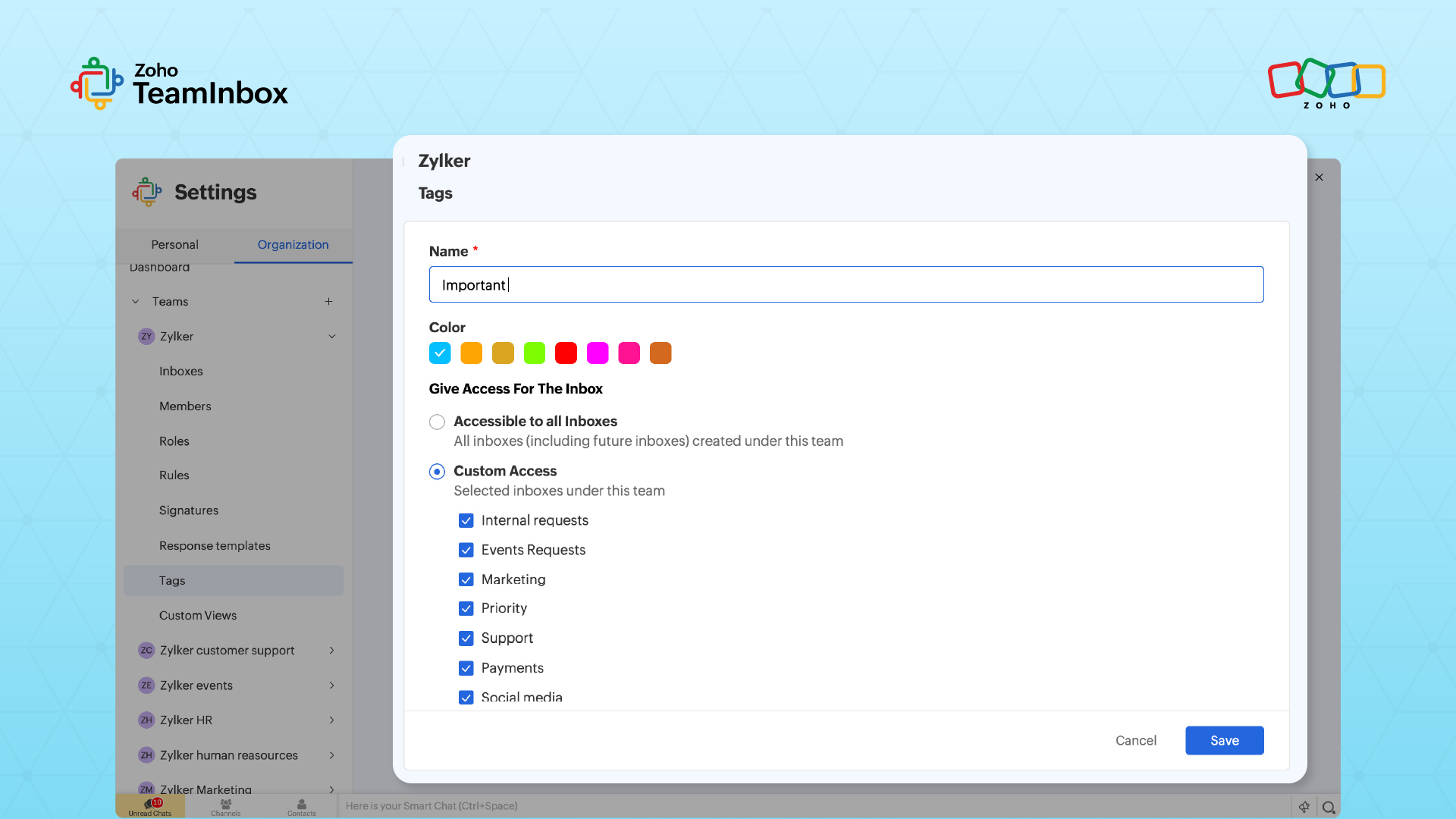
In team contexts, Zoho TeamInbox lets you set shared rules and tags so auto-routing applies across all collaborators on a role address.
Priority signals and notifications
Configure your client so that only high-value senders generate alerts. In Gmail, use Importance markers and filters to surface priority mail. In Outlook, lean on focused inbox paired with rules. In Apple mail, add key contacts to VIPs and customize notification preferences.
Turn off all other new-mail sounds and badge counts. On mobile, map swipe actions to your triage: left-swipe to archive, right-swipe to snooze or label. This alignment means your phone mirrors the same workflow you use at your desk
Step 4: Daily sessions, tracking, and follow-ups
A clean inbox only lasts if your daily habits match your system. This section covers session scheduling, action tracking, and a reliable follow-up review.
Time-block and protect focus
Schedule two to four email sessions per day, each lasting 15 to 25 minutes. Process emails only during these windows and close your email client in between.
Use tools that reduce interruptions while you work:
Gmail’s inbox pause
Outlook’s offline mode
Apple Mail’s “Disconnect” option
Schedule Send is also useful here. Draft replies during your session and queue them for delivery during business hours instead of sending them immediately.
Track work and follow-ups reliably
Your Action folder should only contain single-step items you can complete in one sitting. If something requires multiple steps, move it out of email entirely into a task manager or calendar with a clear due date.
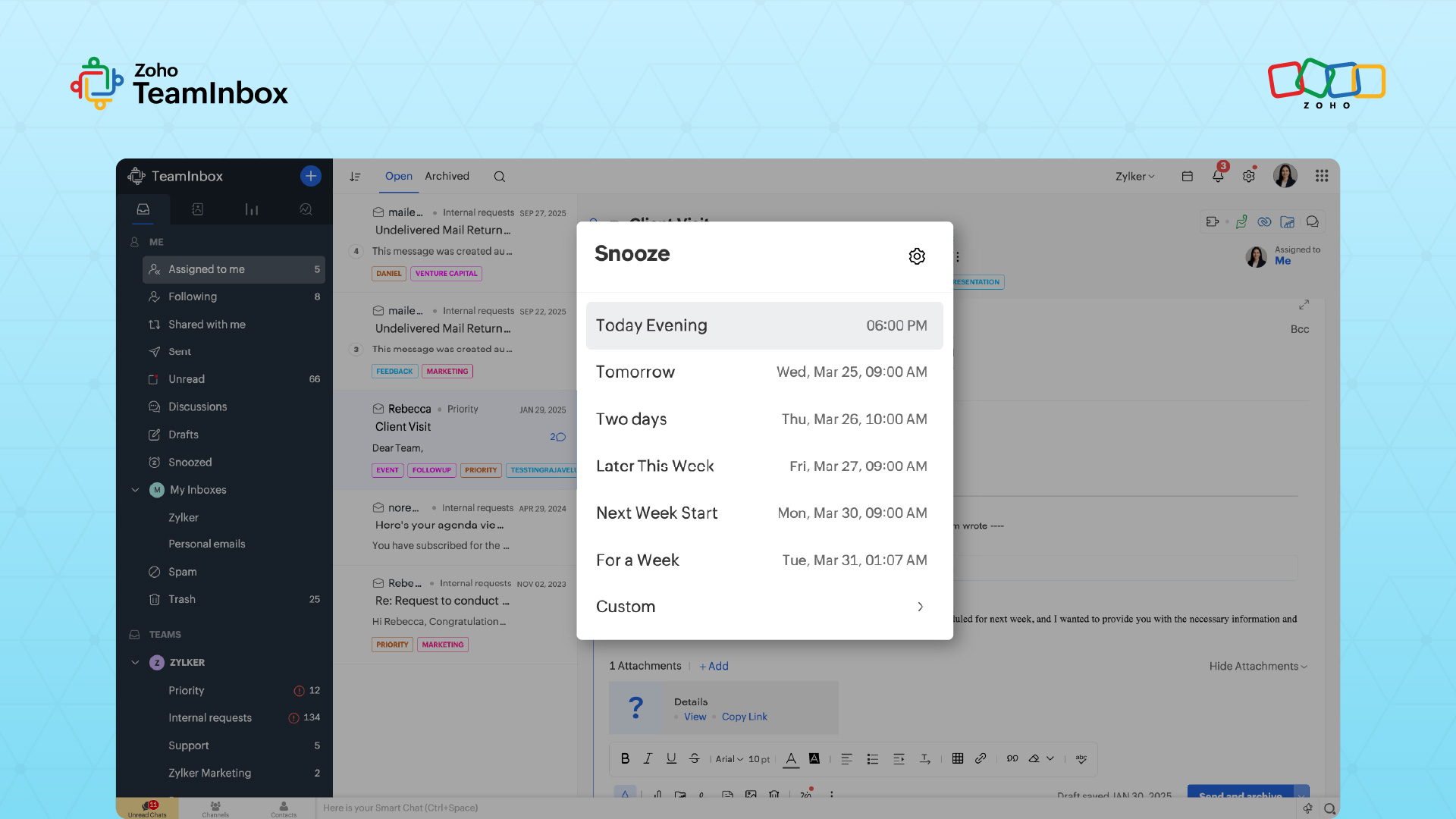
Review your Awaiting Response folder once daily, ideally during your final email session. Use dated flags or reminders so overdue items automatically resurface instead of being forgotten.
A simple “waiting on” log also works well: Maintain a two-column note with the sender’s name and expected response date. Once the reply arrives, archive the thread and remove the entry from your log.
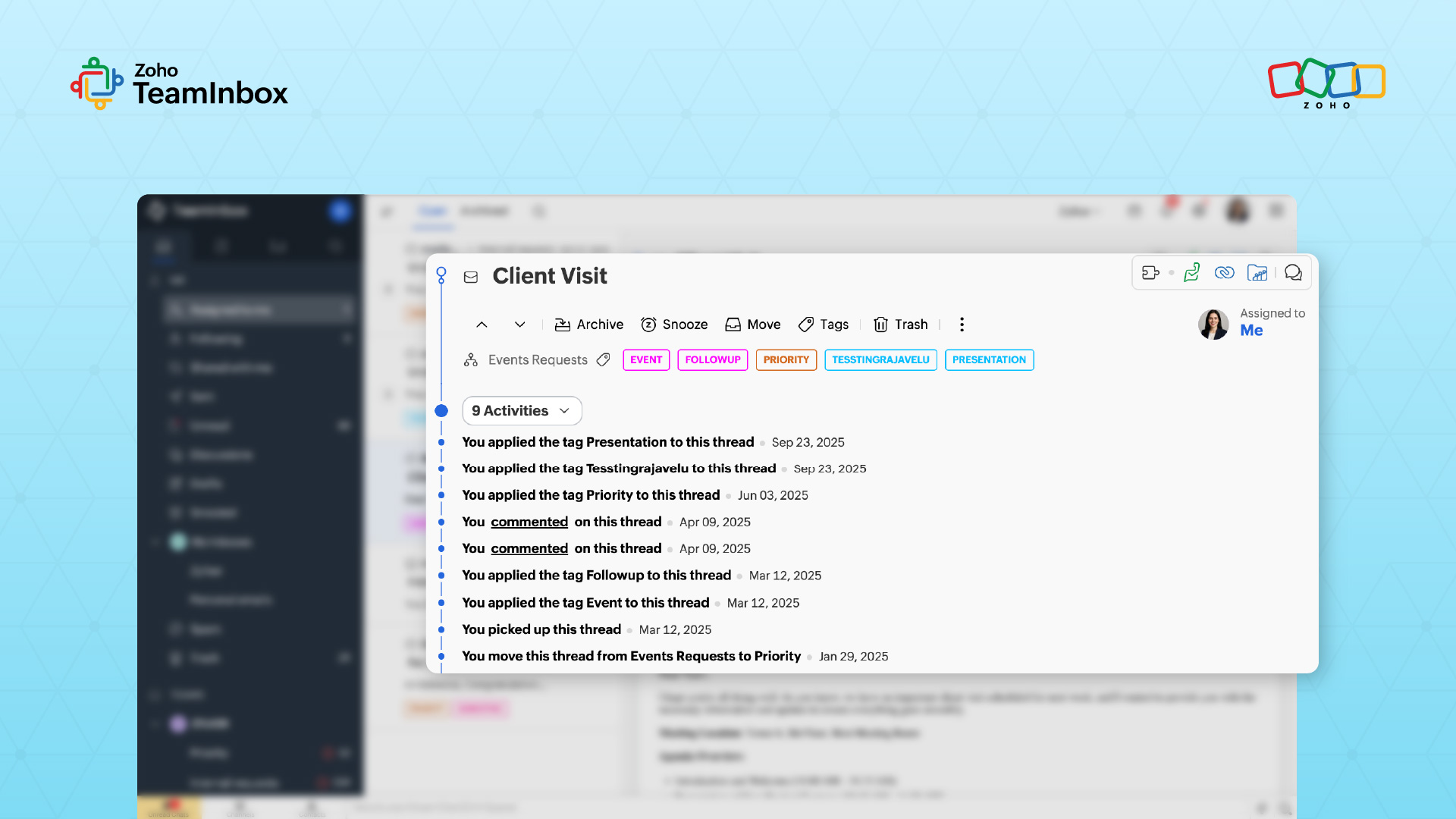
In shared inbox environments, tools like Zoho TeamInbox mirror this structure using:
Assignments (Action equivalent).
Reminder tags (Awaiting Response equivalent).
This gives teams shared visibility into pending work and response tracking without extra coordination effort.
Step 5: Use built-in features
Long-term inbox organization depends on using the right features consistently and pruning your system on a fixed cadence.
Features to master
Default to archive over delete so every message stays searchable. Use stars, flags, or categories for lightweight prioritization within your Action folder. Reserve snooze for messages that genuinely belong in a future session, and use schedule send to batch outbound replies into predictable windows.
Cadence and pruning
Daily: Process to your floor (≤20).
Weekly: Review Action and Awaiting Response during your Friday 15-minute slot.
Immediately: Unsubscribe from any sender you archive twice without reading.
Monthly or quarterly: Audit your rules, delete outdated filters, and adjust your folder count if Action consistently exceeds 30 items. Where company policy allows, set auto-archive windows to move older Reference mail to long-term storage.
Read the full article on how to organize your email inbox to learn more.
Step 6: Troubleshooting and advanced moves
Even a solid system needs adjustments as your email volume or role changes. These fixes address the most common sticking points.
Backlog amnesty deep-dive
If your unread count is in the thousands, use the date cutoff method from the cleanup sprint. Move everything older than 60 to 90 days into a single "Old Inbox" folder.
Then process it in a controlled way:
Handle about 100 messages per day.
Work through it consistently until it empties.
Track your backlog burn rate weekly to stay on pace.
This turns an overwhelming backlog into a manageable recovery system instead of a one-time cleanup problem.
Mobile-first setup and system tuning
Limit mobile notifications to VIPs only, enable quiet hours outside work, and map swipe actions to archive and snooze.
Keep your system aligned with real usage:
If your Action folder regularly exceeds 30 items, add a Read/Review bucket.
If it stays under 15, consolidate back to three folders.
This prevents over-engineering and keeps your structure matched to actual email volume.
Team norms
Set explicit response-time targets for your group (e.g., ≤4 hours for clients). Move threads that require more than two replies into a chat tool or a quick call.
Use shared inboxes for role accounts so individual mailboxes stay personal while team communication stays centralized and trackable.
Make inbox zero a daily habit with Zoho TeamInbox
Your inbox is a processing space, not a storage system. Every email should lead to a single decision: archive, delegate, defer, or do. The important goal is to build a daily habit that keeps inbox clutter from coming back.
Start with the two-hour cleanup sprint, define your folder system, and stick to short, structured email sessions. Add weekly reviews to keep the system honest, and your inbox stays manageable over time.
This approach becomes even more powerful for teams managing shared addresses like support@ or sales@, where personal inbox habits often break down.
Zoho TeamInbox extends this system to collaborative email. Assignments function as Action items with clear ownership, email tags replicate Awaiting Response and Reference buckets, and shared rules automatically route incoming messages. Collision detection prevents duplicate replies, while snooze and schedule send support structured processing. Built-in analytics also help teams track response-time performance and accountability.
If your team manages shared or role-based addresses, start a free Zoho TeamInbox trial to apply the same Action, Awaiting Response, and rules workflow collaboratively, with response-time tracking built in.
FAQ
1. How do you manage multiple email accounts without doubling your workload?
Forward secondary accounts into your primary inbox and use filters to auto-label messages by account. Process everything in one triage flow. Zoho TeamInbox consolidates team addresses into a single workspace, eliminating the need to switch between clients.
2. What's the best way to find old attachments or invoices quickly?
Search using operators like has:attachment filename:pdf in Gmail or hasattachments:yes in Outlook. Archiving instead of deleting keeps these messages searchable indefinitely.
3. How should you handle CC/FYI emails without reading every message in full?
Create a rule that routes CC-only messages to a Read/Review folder. Batch-scan this folder once daily and archive anything that requires no action.
4. What's a realistic vacation plan that preserves organization?
Set an auto-responder with a return date and an alternate contact. When you return, run a mini cleanup sprint: bulk-archive low-priority threads first, then triage the rest.
5. How long does it take to onboard a team onto Zoho TeamInbox?
Most teams complete setup in under an hour. Shared rules, tags, and assignments map directly to the folder and triage system described in this guide, so the learning curve stays minimal.
6. Does Zoho TeamInbox integrate with the tools your team already uses?
Zoho TeamInbox connects with Zoho's productivity suite and supports standard email protocols. Check the Zoho TeamInbox integrations page for the current list of supported platforms
 Ganeshkiran Arasu
Ganeshkiran is a Growth and Digital Marketing manager at Zoho. He's passionate about writing content that actually helps — breaking down how products solve real, complex problems and what genuine collaboration looks like in practice. When he's not crafting strategies with his team, he's keeping tabs on the latest industry trends — always with a cup of tea in hand.