- HOME
- Best practices
- Email tagging in shared inbox: How to create tags and improve inbox management
Email tagging in shared inbox: How to create tags and improve inbox management
- Published : May 7, 2026
- Last Updated : May 7, 2026
- 185 Views
- 9 Min Read

A board member asks how many customer escalations are open this quarter, and no one on the team can answer without opening threads one by one. The shared mailbox holds every piece of evidence, yet none of it is queryable. The same gap surfaces when you try to measure which accounts consume the most support time, or whether a specific workflow is keeping pace with demand.
The inbox functions as a working tool but fails as a source of operational visibility. Decisions about staffing, account health, and process improvement get made without the data sitting inside it.
Tags in Zoho TeamInbox solves this.
This guide walks you through how shared tags are created, how filtering surfaces the answers, and how rules keep the system running without manual effort.
What to decide before you start tagging
Tag creation often begins before anyone has decided what tags are for and, within months, the list turns into a record of individual preferences. Four decisions, settled upfront or revisited later, prevent this and take minutes each.
1. Pick one way to sort your tags
A team can organize tags by workflow stage, by client or account, by issue type, by region, or by product line. Pick one primary axis and treat the rest as secondary. A support team that organizes by issue type will operate cleanly.
However, a support team that organizes by issue type, account tier, and region simultaneously will produce overlap that confuses every report it generates. The classification axis is the decision that determines whether your tag list remains legible at scale, so it deserves the most deliberation.
2. Choose who sees each tag
TeamInbox allows a shared tag to be available in every inbox under a team or restricted to specific inboxes within that team. Restricting scope is appropriate when an inbox handles a workflow that the rest of the team has no reason to see, such as a finance escalation alias inside a broader customer service team.
Default to team-wide scope unless you have a specific reason to narrow it, because tags that are too narrow tend to duplicate across inboxes and recreate the sprawl problem at a smaller scale.
3. Assign one tag owner per team
Identify one person per team who owns the tag list. This person reviews proposed additions, retires unused tags, and signs off on rule changes. Without a named owner, tag governance becomes everyone's job and therefore no one's.
The owner does not need to be the team admin, although the two roles often sit with the same person. What matters is that when a team member wants a new tag, they know exactly whom to ask.
4. Set a limit on active tags
Set a working maximum on active tags per team. The number depends on inbox volume and complexity, but the discipline of having a cap forces the team to consolidate rather than proliferate.
A cap also gives the tag owner a clear criterion for declining new tag requests when the list is full, which converts an interpersonal conversation into a policy conversation.
How to create tags in Zoho TeamInbox
Zoho TeamInbox supports two types of tags. Shared tags live inside a team and are visible to every member with access to the relevant inboxes. Personal tags stay private to the individual user.
Use shared tags for threads the team handles collectively, where consistency matters, and personal tags for threads an individual is tracking for their own follow-up. Confusing the two creates gaps in team-level reporting.
Common steps for both tag types
Sign in to Zoho TeamInbox.
Confirm your role before starting if you intend to create shared tags, because only team admins can create them. Team members can apply existing shared tags without creating new ones, and inbox admins and inbox observers operate at a different level with separate permissions.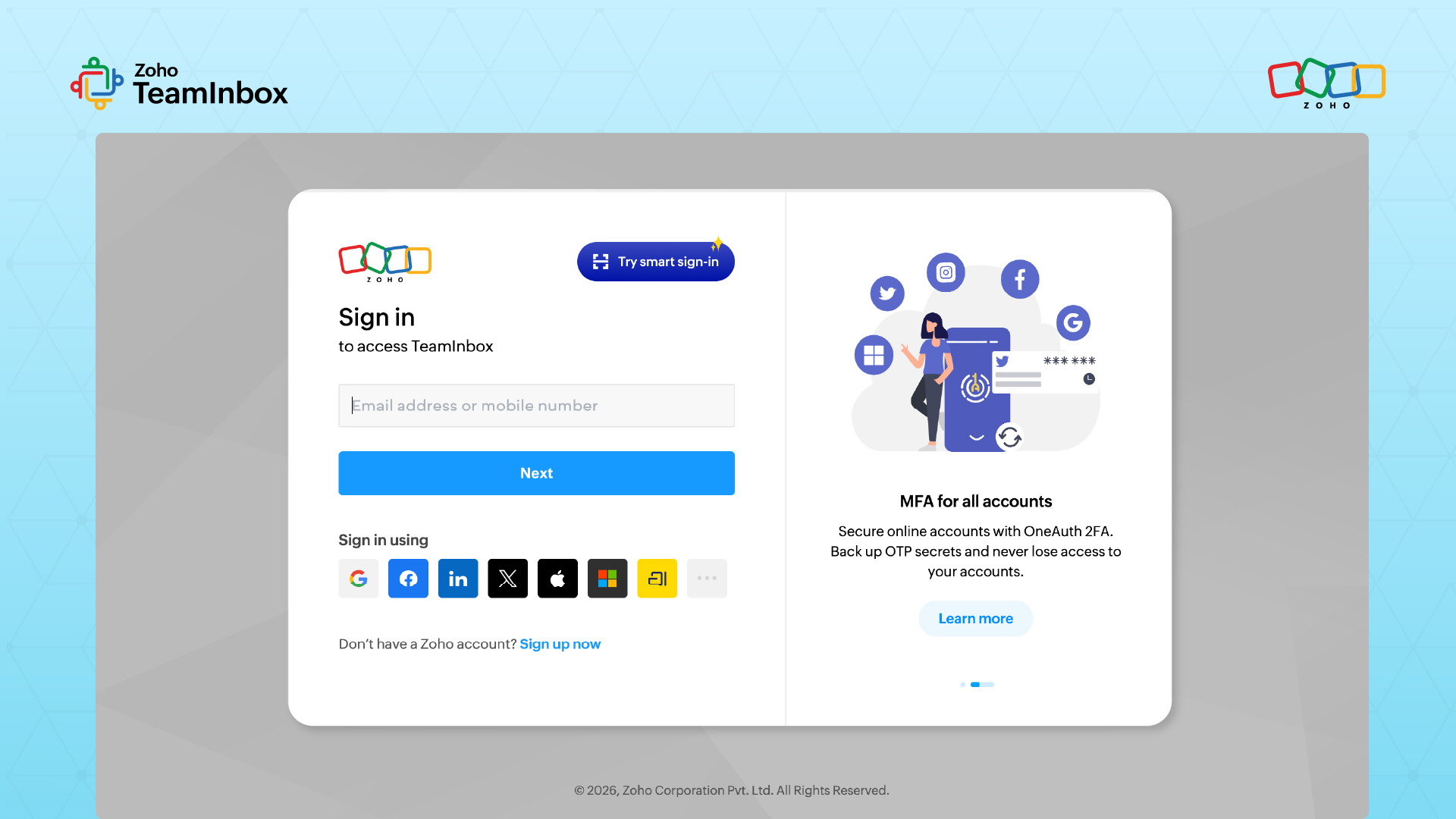
Open the tag creation form.
The path to this form differs for shared and personal tags, described in the following sections.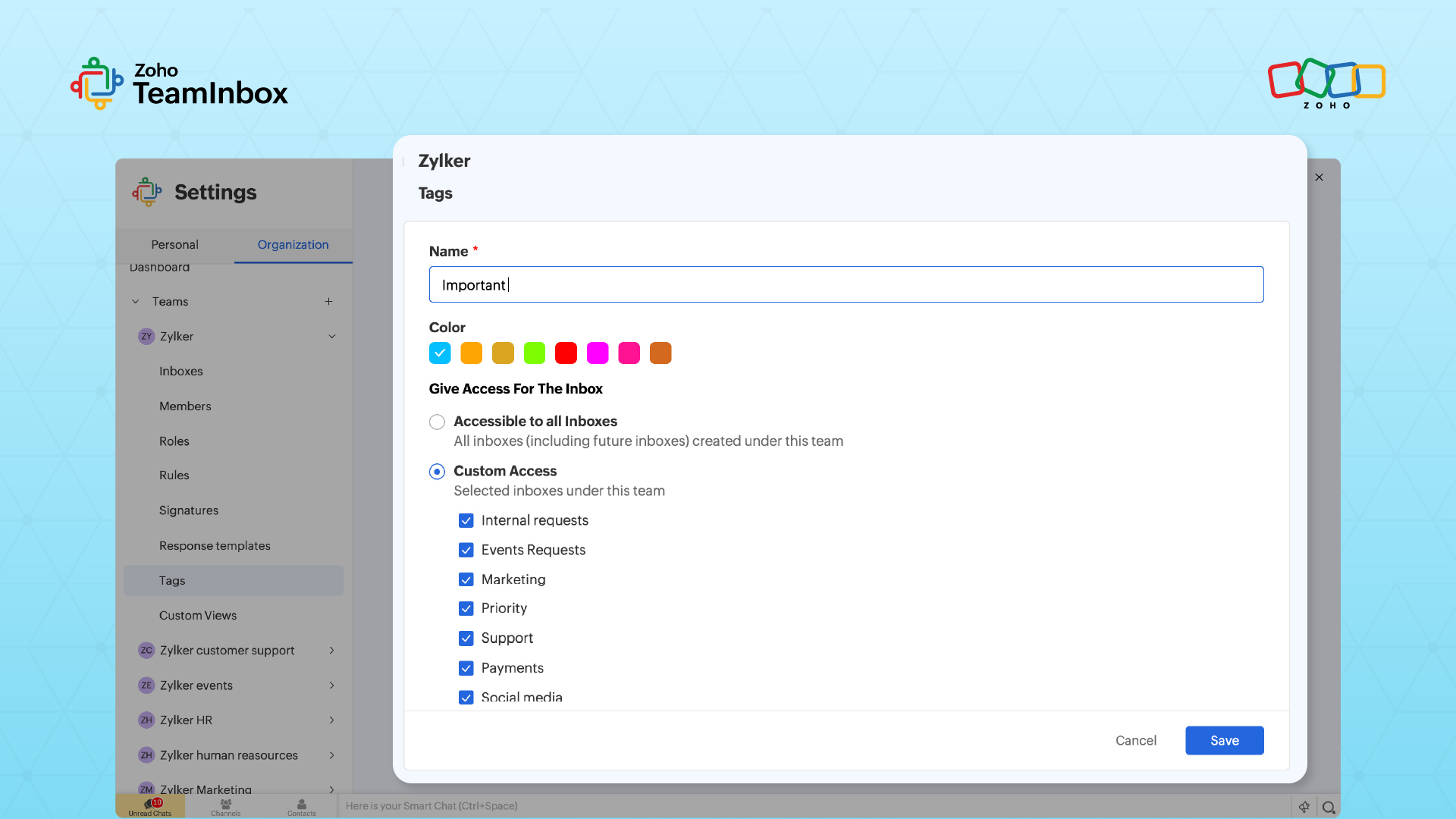
Enter a tag name.
For shared tags, follow the naming convention your team has agreed on, such as a prefix of Status, Client, or Priority that keeps the sidebar readable as the list grows.Choose a color.
Color should carry meaning rather than aesthetic preference. Reserving red for escalations and yellow for waiting states gives the team a visual shorthand that survives staff turnover.Save the tag.
The tag becomes available inside the scope you set.
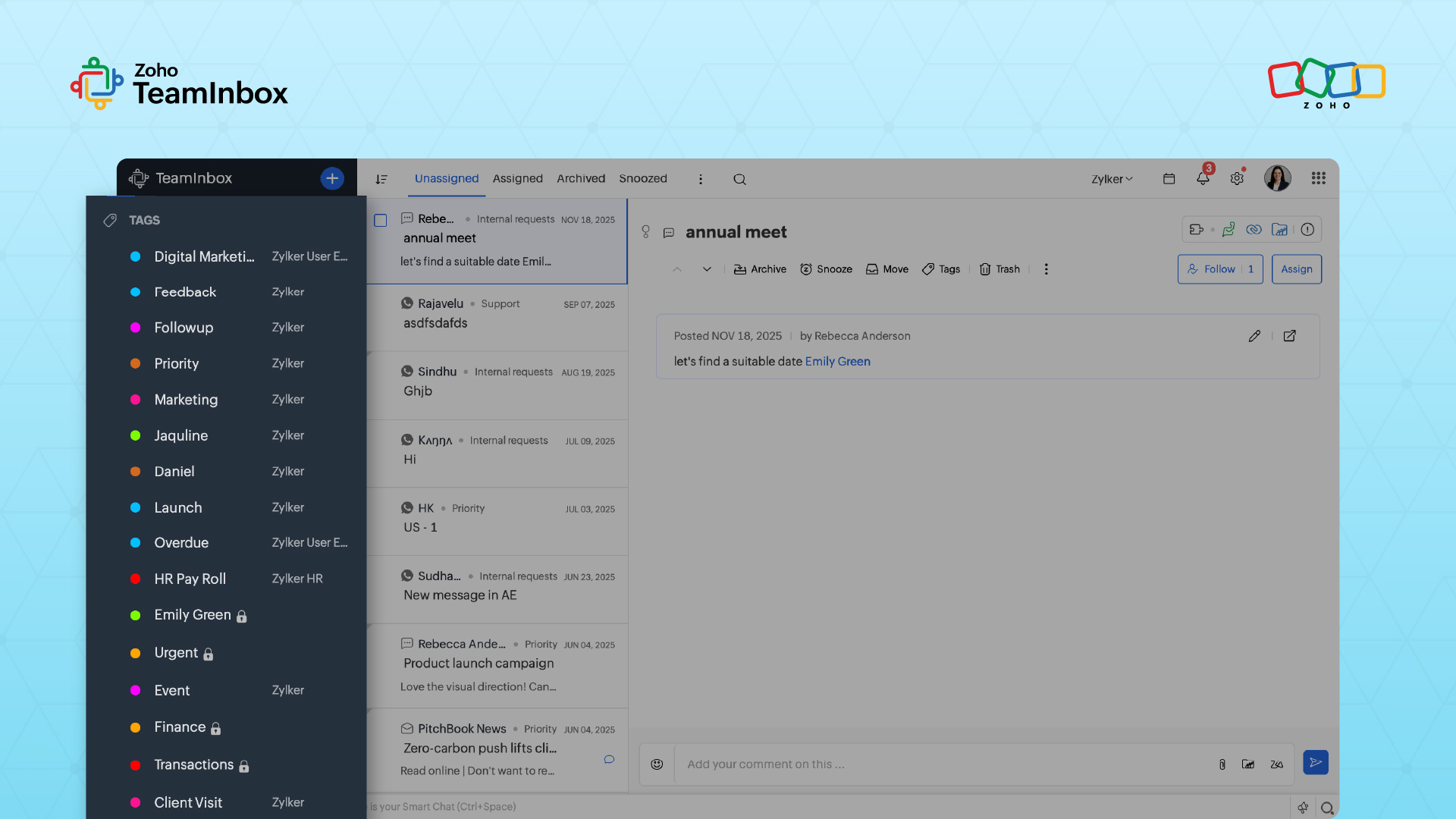
After you've created the tag, they will be listed in the left pane under the title Tags. Click on the tag name to view the threads listed under them.
Steps for shared tags
Hover over the team in the left pane, click the More icon, and select Manage Team.
Open the Tags section inside the Manage Team console and click Create Tag.
Set the scope of the tag, choosing between all inboxes under the team or specific inboxes.
After saving, ask a team member to open a thread in a scoped inbox and confirm the tag appears in the Tags list before relying on it for workflow.
Steps for personal tags
Click the Settings icon in the top-right corner and select More Settings.
Open the Personal tab inside the settings panel and select the Tags section.
Click Create Tag. The form asks for a name and a color without a scope selection, because personal tags apply across all of the user's personal inboxes by default.
How to apply tags inside a thread
Application happens at the thread level. When a team member opens a thread in the preview view, the top bar contains a Tags icon. Clicking it surfaces every tag accessible for that thread, meaning the tags created for the team and scoped to the inbox the thread belongs to. The member selects one or more tags and the application takes effect immediately. Deselecting from the same list removes them.
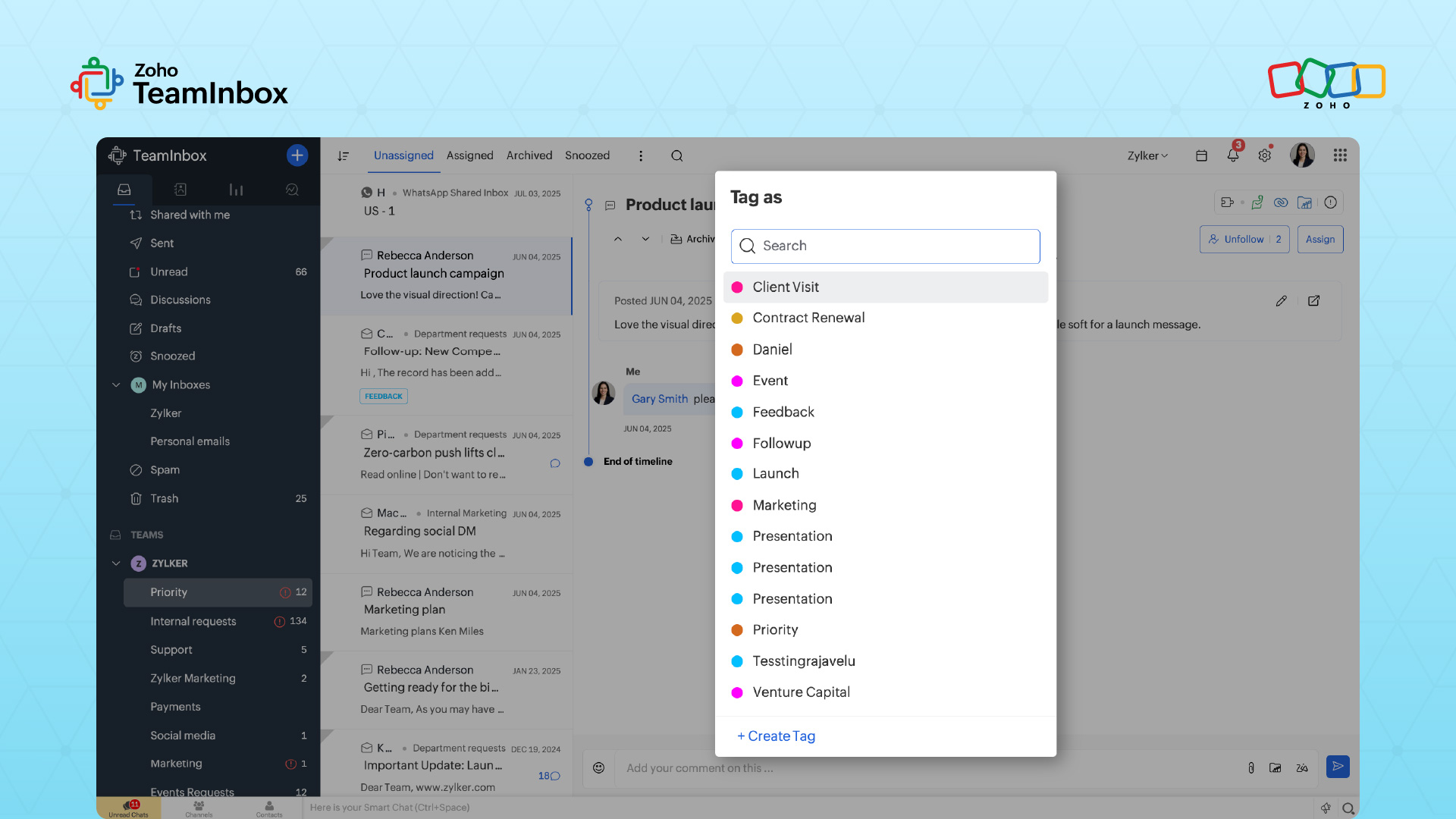
Applying multiple tags to a single thread
A single thread can carry multiple tags at once, which is what makes tag-based organization more flexible than folder-based organization. A customer escalation about a billing dispute can sit under both the Billing tag and the Escalation tag, surfacing correctly when the team filters by either.
Use this deliberately, because a thread carrying five or six tags becomes harder to interpret than one carrying the two that actually matter.
Keeping the application consistent across the team
If two team members tag the same kind of thread differently, filter views become unreliable and trust in the system degrades.
Address this during onboarding by walking new team members through representative threads and tagging each one as a group. This calibrates judgment in a way that written documentation rarely achieves.
How to filter the inbox by tag and what that enables
Once tags exist and are being applied, the filtering experience is what converts the system from administrative overhead into operational value. Every tag created for a team appears in the left pane under the Tags heading, and the filter view loads with a single click.
Follow these steps to filter the inbox by tag.
Open Zoho TeamInbox and locate the Tags heading in the left pane.
The heading lists every tag accessible to the user based on team membership and inbox scope.Click the tag name whose threads you want to review.
The main panel loads a view of every thread carrying that tag, across all inboxes within the tag's scope.Review the threads in the filtered view as a single working list.
Threads remain sorted by recent activity, and opening any thread from this view preserves the filter so you can return to the list afterward.
Plan workflows around this view. A team lead can scan every active escalation in minutes, and a customer success manager can pull an account's full quarter of threads in one click. The filter view also reveals whether tagging discipline is holding, because missing threads show up as gaps.
How to automate tagging through rules
Manual tagging fails in two predictable ways. People forget, and they apply tags inconsistently. Rules solve both where criteria are objective. Team admins create rules inside the Manage Team console, setting a trigger, conditions, and the Apply Tag or Remove Tag action.
Three categories of rule are worth establishing as part of your tagging system.
Sender-based tagging: Threads arriving from a known client domain are tagged automatically with that client's account tag. This removes the need for team members to remember which sender belongs to which account.
Content-based tagging: Threads containing recognizable keywords in the subject or body, such as invoice numbers, purchase order references, or specific product names, are tagged for the workflow that handles them.
Routing-based tagging: Threads sent to specific addresses within the team are tagged according to the address they arrived at. This is useful when one team monitors several aliases that map to different workflows.
Treat rules as living configurations. A rule that made sense at rollout often needs adjustment six months later as workflows mature, so the team admin should review the active rule set on the same cadence as the tag list itself.
When a rule stops matching the workflow it was built for, update the conditions or retire the rule rather than letting it continue tagging threads against a stale definition.
Suggested read: How to configure an email forwarding inbox in Zoho TeamInbox
Best practices to maintain the tagging system after rollout
Creating tags is only the first step. To keep your shared inbox organized as email volume grows, your team needs a simple maintenance process. Without regular reviews, tags can become outdated, duplicated, or ignored by team members.
A clean email tagging system improves inbox management, reporting accuracy, and response time.
Utilization check
Review how many threads carry each tag over the last quarter.
Remove tags with no activity and consolidate tags with minimal activity into broader ones.
Overlap check
Identify tags that have begun to mean similar things.
Retire one of the pairs and re-tag its threads under the surviving tag.
Rule alignment check
Confirm every rule still applies a tag that exists and still represents the workflow it was built for.
Update conditions or retire rules that have drifted from current workflows.
Scope check
Review tags scoped to specific inboxes and confirm the scope matches the team's current shape.
Expand or contract scope as inboxes are added or removed.
Documentation check
Record each review in a shared document covering tags retired, tags consolidated, and rules updated.
Carry unresolved items forward to the next cycle.
This review takes roughly two hours per quarter and is the highest-leverage maintenance habit for a team that depends on shared inboxes.
Building a tagging system your team will still trust next year
The teams that get the most out of Zoho TeamInbox treat tagging as infrastructure that matures over time, rather than a feature that gets configured once. The mechanics the platform provides will continue to serve your team as volumes grow and workflows shift. What determines whether the system keeps up is the governance wrapped around it.
Teams that revisit their classification axis as new workflows emerge, expand rule coverage as patterns become predictable, and retire tags that no longer earn their place on the list will find that their inbox stays legible at ten times the volume. The work you do now compounds, and the reporting, onboarding, and triage advantages that follow become the operating standard every future team member inherits
FAQ
What happens to existing tagged threads if a team admin deletes a shared tag?
The thread itself remains in the inbox, but the tag association is removed. Plan tag removal carefully during the quarterly review, and consider whether the threads previously carrying the tag should be re-tagged before deletion so historical filtering remains accurate.
2. Can a team member promote themselves to team admin to create tags?
Role assignment is controlled at the team level, and a team member cannot self-promote. The organization admin or an existing team admin makes role changes. During rollout, audit role assignments to confirm that the people responsible for tag governance hold the correct role on each team they manage.
3. How should tagging responsibility be divided when multiple teams share related workflows?
Each team maintains its own tag list, and shared tags do not cross team boundaries. When two teams handle related work, align on parallel naming conventions so reporting across teams remains comparable, and assign one tag owner per team rather than a shared owner across teams.
4. Should automated rules and manual tagging coexist in the same workflow?
Yes, with a clear division. Use rules for criteria that can be expressed objectively, such as sender domain or keyword presence. Reserve manual tagging for judgment calls, such as marking a thread as an escalation based on customer tone. Mixing the two on the same criterion produces conflicts that are hard to debug.
5. How does tag scope interact with new inboxes added to a team after the tag was created?
A shared tag scoped to all inboxes will automatically become available to inboxes added to the team later. A shared tag scoped to specific inboxes will retain its original scope, and the team admin will need to update the scope manually if the new inbox should be included. Add a scope review step whenever a new inbox is provisioned.
 Ganeshkiran Arasu
Ganeshkiran is a Growth and Digital Marketing manager at Zoho. He's passionate about writing content that actually helps — breaking down how products solve real, complex problems and what genuine collaboration looks like in practice. When he's not crafting strategies with his team, he's keeping tabs on the latest industry trends — always with a cup of tea in hand.