- HOME
- Best practices
- How to manage Facebook messages from a shared inbox
How to manage Facebook messages from a shared inbox
- Published : June 26, 2026
- Last Updated : June 26, 2026
- 177 Views
- 9 Min Read

Social media, Facebook in particular, has become one of the most common channels through which customers reach out to brands and organizations, whether to share praise or, more often, to voice a grievance. That is precisely why sales and support teams must handle these interactions with both speed and expertise; anything less risks leaving customers publicly dissatisfied.
The challenge, however, deepens when multiple teams share access to the same incoming messages. In a shared inbox environment, keeping communication coordinated and ensuring the right response goes out from the right person without overlap, contradiction, or confusion demands a clear, reliable process.
This guide walks you through setting up a Facebook messages shared inbox and shows you how to manage customer conversations effectively, in one place, across communication channels.
How a Facebook messages shared inbox works for your team
Before you begin, it helps to understand what a shared inbox actually does with your Facebook Page messages and where it fits alongside the tools you already use.
A Facebook messages shared inbox is a team-accessible workspace where messages sent to your Facebook Page through Messenger appear as shared conversations.
Every teammate with access can view the conversation thread, assign an owner, reply, and track statuses, all in one place. Replies sent from the shared inbox sync back to the customer's conversation inside Messenger, keeping the buyer's experience consistent and familiar on their end.
Think of the shared inbox as a layer built on top of Facebook Messenger, one that brings team workflow, visibility, and accountability into the picture while leaving the customer's experience exactly as they know it.
How does it differ from checking messages inside Facebook?
The Meta Business Suite inbox works well when a single person handles all Page messages. Incoming threads are visible, replies go out, and conversations close cleanly.
A shared conversations inbox builds on that model for teams. When more than one teammate is involved, the experience expands to include:
Assignments that show who owns each conversation
Internal notes that stay invisible to the customer
Status tracking and routing rules
Tags that group threads by topic
It's worth noting that this comparison is intentionally narrow, focused only on Facebook message handling. Broader social management features fall outside the scope of the shared inbox covered here.
When a shared inbox becomes useful for Facebook Page messages
The need for a shared inbox tends to surface at specific moments: when several teammates begin replying to the same Page or when sales and support both receive Messenger inquiries that require different owners.
Here is a quick example. A buyer messages your Page about a delayed order. The message lands in the shared inbox, gets auto-assigned to support, picks up a "shipping" tag, and a teammate adds an internal note confirming the tracking number before sending a reply.
Once the buyer confirms receipt, the thread closes, with the full conversation history visible to anyone who reviews it later.
That's just one example across what can be a steady stream of conversations arriving from multiple platforms, each following the same structured, traceable path from arrival to resolution.
Prerequisites and permissions
Most setup problems happen before you ever click "Connect." Walking through these checks first ensures authorization completes cleanly and your team knows exactly where Facebook messages should land.
Facebook Messenger integrations depend on both sides working together. The right access to the Facebook Page and the right roles within your shared inbox account are both essential. Skipping either side typically results in a failed connection or messages that sync once and then quietly stop.
1. Facebook Page and business access checklist
Confirm that the person running the setup has admin or editor-level access to the Facebook Page. That same person should be able to authorize third-party apps on behalf of the Page, which typically requires access to Meta Business settings.
Decide which Page or Pages to connect before you start. If your organization runs separate Pages for product lines or regions, listing them out in advance keeps routing decisions clean later.
The Page itself must already exist and be active; this guide assumes you have one ready.
2. Shared inbox access and team role checklist
Inside your shared inbox tool, the person setting up the channel needs admin or channel-management permissions.
Verify that the inbox or workspace where Facebook conversations should land already exists, since some tools require you to create it before connecting a channel.
Confirm that teammates who will handle the Facebook Messenger channel have the appropriate user role to reply, assign, or edit channel settings.
In Zoho TeamInbox, admins can verify who has access to a specific inbox and who can manage channel settings before connecting Facebook, keeping messages from arriving in the wrong place.
3. Workflow decisions to make before setup
Decide which team should own incoming Facebook messages and how sales, support, and billing inquiries should be divided. Map out two or three tags to use from day one, along with the saved replies your team sends most often.
Agree on what "closed" or "resolved" means for a Facebook conversation so that status tracking stays consistent across the team. These decisions take ten minutes and save hours of cleanup later.
Item | Why it matters | Who should verify |
Page admin access | Required to authorize the connection | Setup owner |
Meta Business settings access | Needed for app permissions | Setup owner |
Shared inbox admin role | Required to add a channel | Inbox admin |
Destination inbox exists | Routing target for new messages | Inbox admin |
Team roles confirmed | Controls who can reply or assign | Inbox admin |
Routing plan agreed | Prevents misrouted conversations | Team lead |
Tags and saved replies drafted | Keeps replies consistent | Team lead |
How to connect Facebook Messenger to a shared inbox in Zoho TeamInbox
With prerequisites cleared, the connection itself takes only a few minutes. Here's how the flow works inside Zoho TeamInbox.
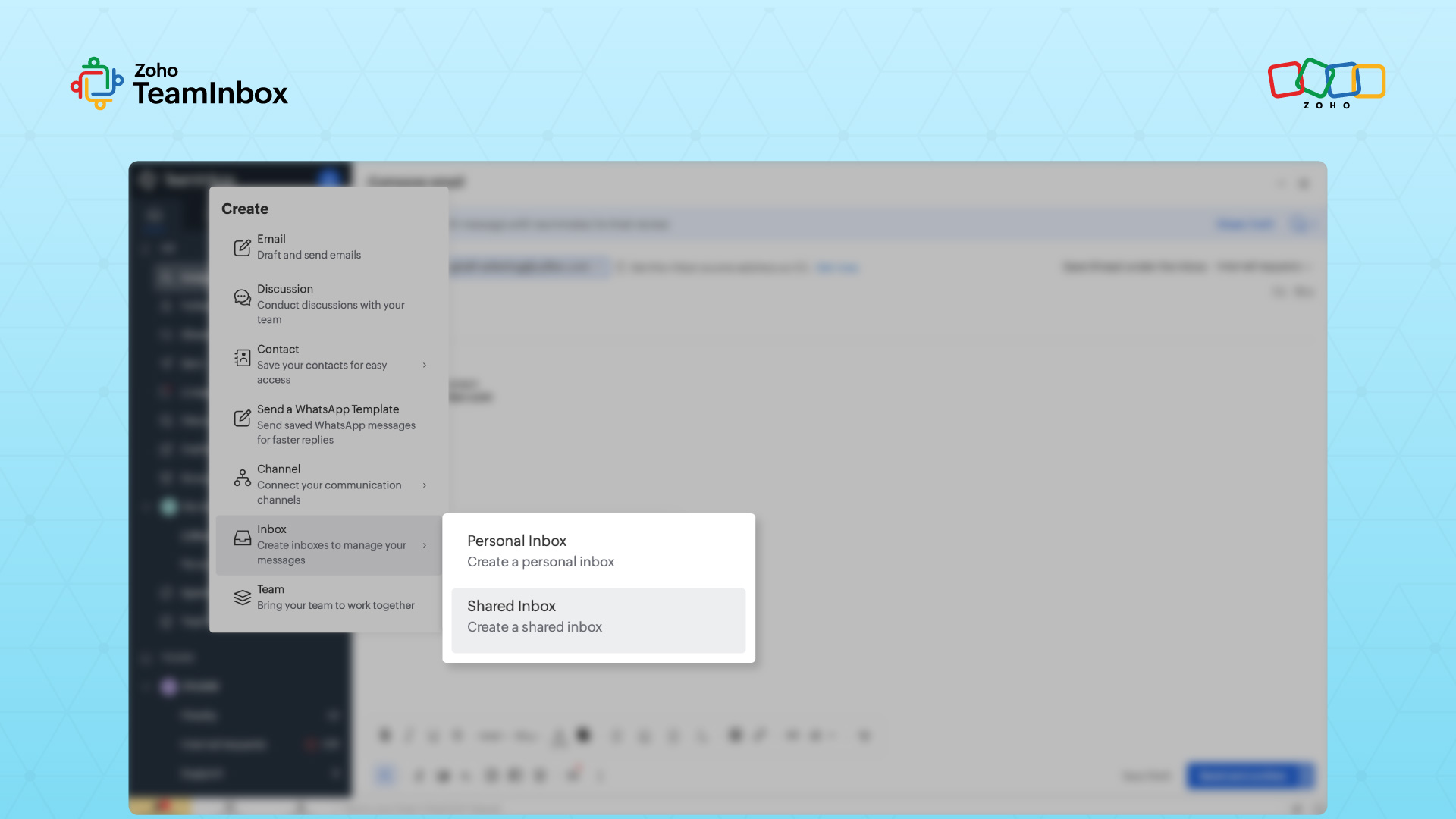
Step 1:Open channel settings and add a new shared channel
Sign in to Zoho TeamInbox and click the Plus icon from the left pane, then select Channel, followed by Shared Channel.
Step 2: Name your channel and select a destination inbox
Provide a name for your channel and select an inbox from the dropdown list where Facebook conversations should land. Click Next to proceed. Choose the inbox that matches the routing plan your team agreed on during the prerequisite stage.
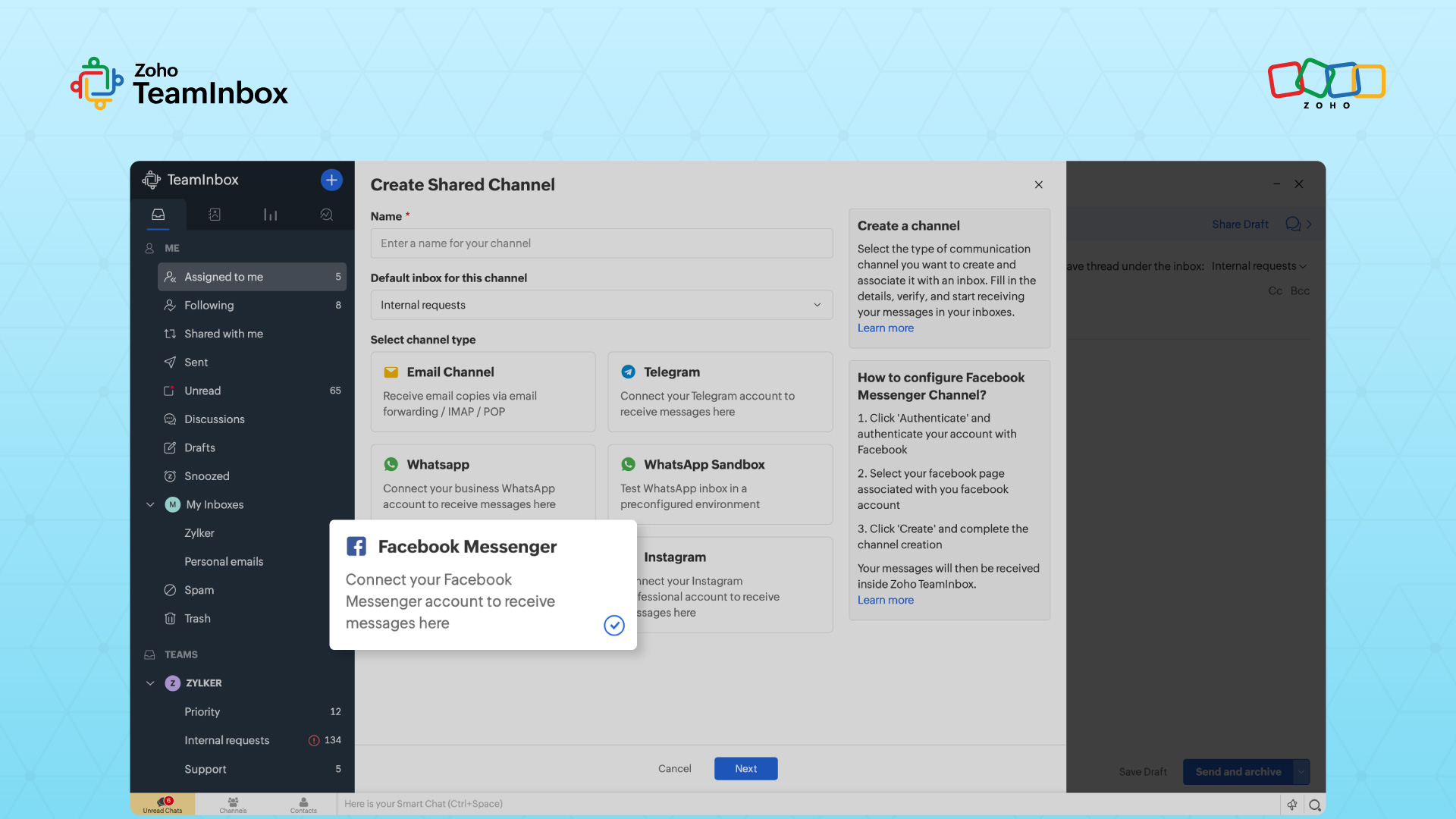
Step 3: Authenticate with Facebook
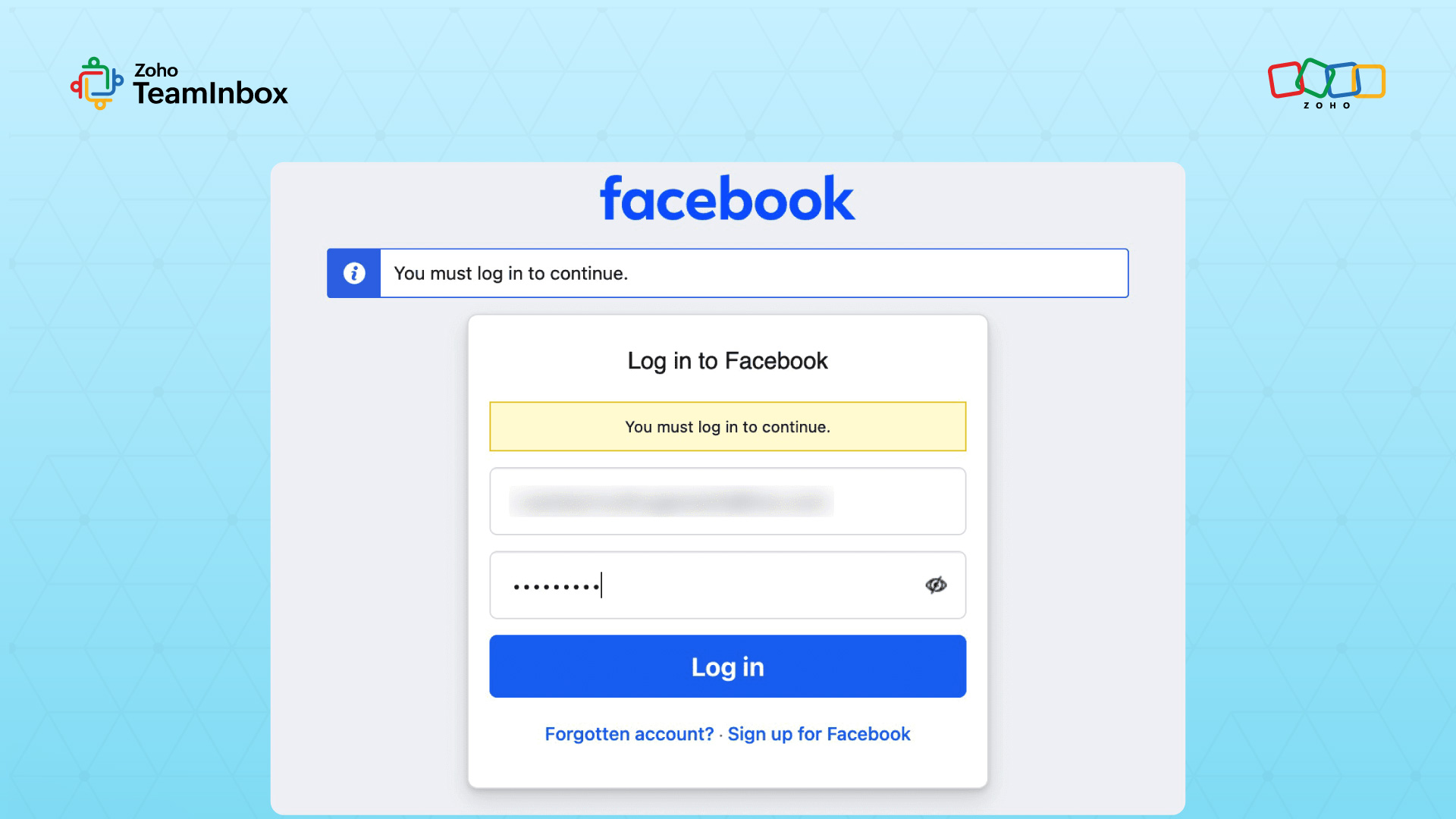
Clicking Next opens the Facebook authentication pop-up. Enter your credentials and log in. Use the account that holds admin access to the Page you intend to connect.
Grant all requested messaging and Page-management permissions in full; deselecting a permission at this stage is the most common reason messages fail to sync afterward.
Step 4: Select your Facebook Business Page and create the channel
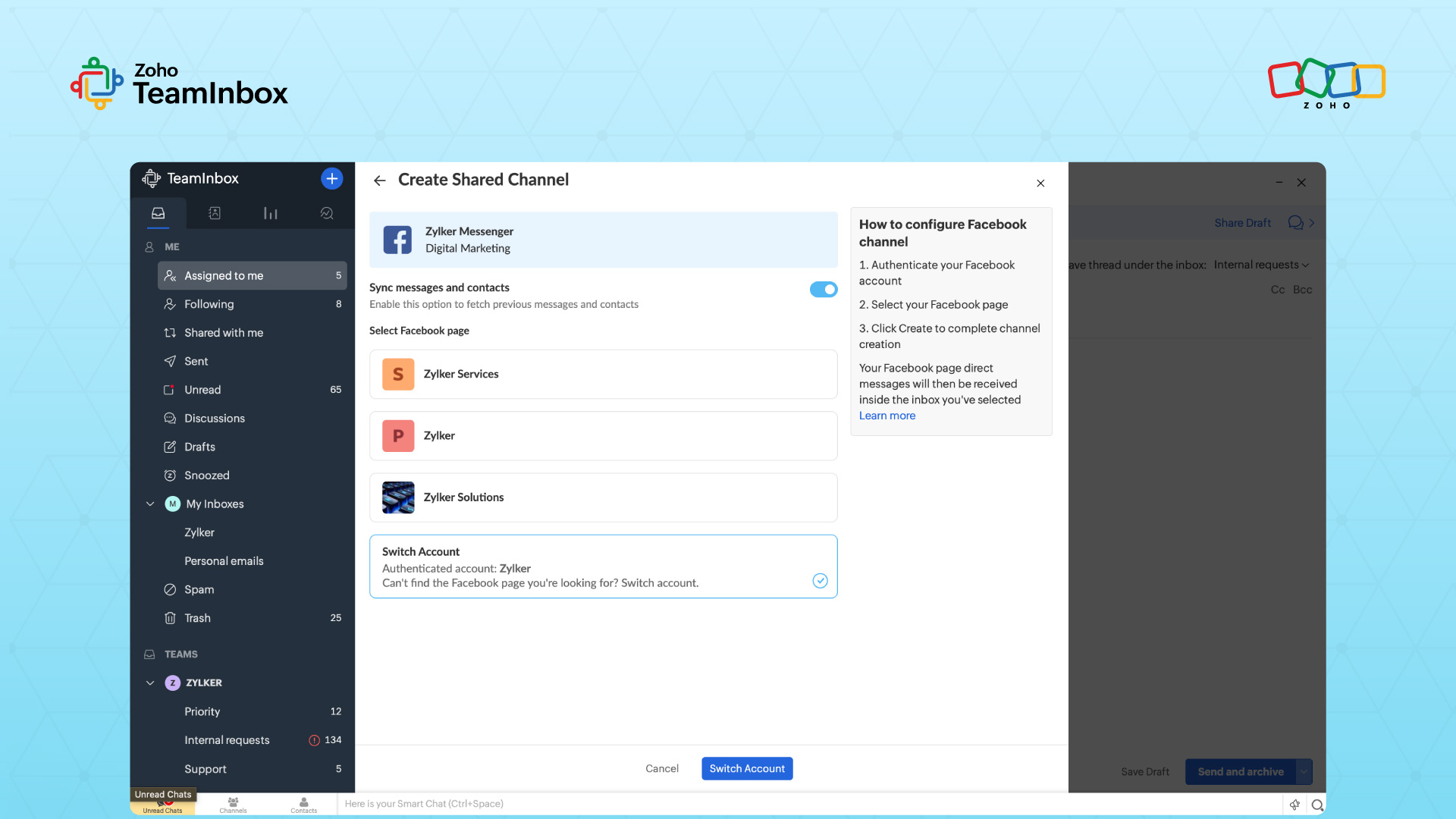
Once authenticated, all Facebook Business Pages associated with your account appear for selection. Choose the Page you want to connect with Zoho TeamInbox and click Create.
If the setup requires a different Facebook account entirely, select Switch Account, verify the new account, choose the relevant Business Page, and click Create.
Step 5: Send a test message and confirm the round trip
From a separate Facebook account, send a test message to your Page. Confirm it appears in the shared inbox within a minute, reply from inside the inbox, and verify the reply lands back in Messenger on the sender's side.
This single round-trip test catches almost every misconfiguration before your team begins handling live conversations.
Zoho TeamInbox setup: Connect Facebook as a shared inbox channel
In Zoho TeamInbox, you can add Facebook as a channel inside a team inbox so you receive messages as shared conversations. From there, teammates can assign threads, leave internal comments, apply tags, and track ownership without leaving the inbox.
The setup flow follows the same five steps above, with Facebook authorization and Page selection handled inside the channel settings.
| Step | Action |
| 1 | Check Facebook Page and shared inbox permissions |
| 2 | Connect Facebook as a channel inside your shared inbox |
| 3 | Grant Page and messaging permissions during authorization |
| 4 | Send a test message from a separate account |
| 5 | Assign the first conversation to confirm the workflow |
How Facebook messages work after the integration is connected
Once authorization is complete, your shared inbox starts to behave like the team's command center for Page messages. New messages in the Facebook Messenger channel arrive as conversations in the shared inbox, including the sender details, message body, and any attachments.
Replies sent from the inbox sync back to the customer inside Messenger, and conversation status, owners, notes, and tags live entirely inside the shared inbox. Most tools begin syncing from the moment of connection, so older Messenger threads usually stay inside Facebook. Plan for a clean break between historical messages and the new shared inbox workflow.
What to validate after the first test message
Confirm the incoming message reaches the correct inbox and that the sender information populates accurately. Then, check that a teammate can assign the conversation, that a reply syncs back to Messenger, and that any internal note you add stays hidden from the customer.
What may not sync from Facebook?
Historical conversations rarely matter, and certain message types, such as reactions, voice clips, or unusual attachments, can behave differently across tools. Messages outside Facebook's supported policy windows may arrive but cannot be replied to, and primary receiver settings or other connected apps can quietly block delivery.
How teams manage conversations in a Facebook messages shared inbox
The post-setup workflow is where a shared inbox earns its place. Three habits keep your team aligned: clear ownership, internal notes, and consistent tagging.
1. Assign ownership before replying
Assigning a conversation prevents two teammates from replying simultaneously and makes accountability visible. Use an unassigned queue for triage, assign to a person or team based on topic, and reassign when another group needs to take over.
2. Use internal notes instead of public replies
Internal notes let teammates share context without the customer seeing it. Examples include "Check order status before replying," "This is a sales lead, route to sales," or "Customer already contacted us by email."
3. Tag and close conversations consistently
Useful Facebook tags include sales inquiry, support request, order question, complaint, urgent, and follow-up needed. Closing or resolving threads consistently keeps your open queue accurate and reportable.
How to use routing, auto-replies, and saved replies for Facebook messages
Automation reduces manual triage when used carefully. Keep rules narrow so customers still reach a human quickly.
Routing rules for new Facebook conversations
Route all Page messages to support by default, send lead keywords to sales, or split traffic by Page when you manage more than one. Assign to contact owners where supported to keep existing relationships intact.
Auto-replies and greetings within Facebook policy limits
Use greetings and instant replies to set response-time expectations. Confirm that your tool follows Meta's current automated messaging rules before enabling it.
Saved replies for common Messenger questions
Draft saved replies for business hours, order status, product availability, refund instructions, and "We're checking this and will follow up." If your shared inbox supports canned responses, store these centrally so every teammate replies consistently.
Common Facebook messages shared inbox limitations and troubleshooting tips
Most issues trace back to permissions, reply windows, or primary receiver settings. Work through the symptom-to-cause table below before reconnecting the channel.
Symptom | Likely cause | What to check first |
Messages missing | Wrong Page or missing permissions | Reauthorize and reselect Page |
Replies failing | Expired 24-hour reply window | Confirm the last customer message time |
Sync stopped | Expired Facebook authorization | Reconnect from channel settings |
Duplicate delivery | Primary receiver conflict | Review connected apps in Meta settings |
Facebook's standard messaging window is 24 hours from the customer's last message, with extended human-agent handling available for approved use cases up to seven days. Verify the current Meta policy and your tool's support before relying on extended windows.
When Meta Business Suite is enough, and when to use a shared inbox
Meta Business Suite handles Page messages well when a single person responds and volume stays low. A shared inbox becomes the better fit once multiple teammates need assignments, internal comments, tags, routing, and status tracking across sales, support, and operations. Base the decision on the complexity of your workflow.
Build your Facebook message workflow around visibility and ownership
Connect Facebook Messenger only after permissions and routing are agreed upon, validate with a test message, and use assignments, notes, tags, and statuses to prevent duplicate replies. Keep an eye on reply windows, authorization status, and primary receiver settings.
If your team is ready to manage Facebook Page messages with shared visibility, ownership, internal comments, and tags, start your Zoho TeamInbox trial and turn Messenger threads into trackable team conversations.
FAQ
1. Can I connect more than one Facebook Page to a shared inbox?
Most shared inbox tools support multiple Pages, though routing options vary. Confirm whether each Page can map to a separate inbox or team before you commit to a structure.
2. Will old Facebook Messenger conversations import into the shared inbox?
Most tools sync only new messages after connection. Historical import depends on the platform, Page permissions, and Facebook's API behavior.
3. Can a teammate see who else is replying to a Facebook conversation?
Shared inbox software and tools typically show ownership, assignment status, or active-handling indicators so that two teammates don't reply to the same thread.
4. What happens if Facebook authorization expires?
Syncing and replies pause until an admin reconnects to Facebook and regrants the required Page and messaging permissions.
5. Should every teammate have admin access to the Facebook Page?
No. Use least-privilege access. Only the setup owner needs Page admin rights, and day-to-day users can work entirely inside the shared inbox based on their assigned role.
 Ganeshkiran Arasu
Ganeshkiran is a Growth and Digital Marketing manager at Zoho. He's passionate about writing content that actually helps — breaking down how products solve real, complex problems and what genuine collaboration looks like in practice. When he's not crafting strategies with his team, he's keeping tabs on the latest industry trends — always with a cup of tea in hand.