- HOME
- Best practices
- Use Comments to Collaborate on Emails Without Forwarding
Use Comments to Collaborate on Emails Without Forwarding
- Published : June 18, 2026
- Last Updated : June 18, 2026
- 120 Views
- 8 Min Read
When a draft or live thread needs input from several people, the usual instinct is to forward the message and wait for replies. That often creates more problems than it solves. Reply-all chains split the discussion across inboxes, context gets buried, ownership becomes unclear, and multiple people may respond to the same request without realizing it.
Comment-driven collaboration fixes this by keeping the discussion attached to the email itself. Instead of forwarding copies, teams use an internal email collaboration tool to add private notes alongside the draft or thread. These notes remain invisible to recipients, route attention through @mentions, and close cleanly once decisions are made. It improves internal communications, reduces inbox clutter, and keeps everyone on the same page. Shared inboxes such as Zoho TeamInbox support this model, combining thread assignment, activity tracking, and secure team access controls inside the original conversation instead of across scattered forwards.
This guide is tool-agnostic. It covers the core features to look for in internal communication tools, shared visibility, task ownership, notifications, and collaboration across multiple communication channels, along with practical ways to implement comment-first workflows and the habits that help teams make it work consistently.
Internal comments vs. forwarding in internal email collaboration tools
Internal comments, also called internal notes, are private team discussions attached to an email draft or live thread. They stay inside your workspace rather than becoming external replies. They also keep the original email as the single source of truth instead of creating multiple forwarded copies. External recipients only see the final response while teammates collaborate in one place.
This makes internal email collaboration more efficient than forwarding chains. Approvals move faster, feedback stays organized, and sensitive discussions remain private.
For example, a marketing email that once required multiple forwards to legal, brand, and leadership can be reviewed in one shared thread. Stakeholders are tagged with @mentions, feedback stays centralized, and anyone reopening the thread can quickly see what was approved and why.
A quick comparison table
Dimension | Forwarding chain | Internal comments |
Clarity | Context fragments across mailboxes | One thread, one timeline |
Speed | Sequential, often blocked on inbox checks | Parallel, with mentions and presence |
Privacy | Leak risk grows with each forward | Stays invisible to external recipients |
Auditability | Reconstructed after the fact | Recorded as a resolved thread |
Ways to enable comments in your email workflow
Three practical routes can bring comment-driven collaboration into email workflows. The right route depends on your use case, team structure, and security requirements.
Route 1: Builder-native comments in marketing campaign builders
Many marketing platforms include block-level comments inside draft builders. Teams creating newsletters or lifecycle emails can review content before their send time. One-time campaigns also fit well here. Reviewers can inspect the rendered email and comment on specific sections. Version history can support approvals.
A common constraint appears after launch. Discussion often remains inside the builder, while the sent message moves forward without that context. Keep reviews organized with assigned owners. Separate feedback into clear threads. Resolve blocking issues before launch.
Route 2: Shared inboxes and email tools with internal comments
Shared inboxes and several email tools support internal comments inside live email threads. Support teams benefit when conversations need collaboration across multiple owners. Sales teams gain the same advantage. Operations teams can coordinate handoffs more smoothly. Internal notes stay attached to the original thread, which improves ownership clarity.
Permissions and visibility controls help protect sensitive conversations. Zoho TeamInbox supports private thread comments. Ownership assignment is included. Collision alerts also support this workflow.
Route 3: Structured workarounds when comments are unavailable
Teams using platforms without comment features can pair drafts with a linked document. A dedicated chat thread can also collect feedback. Keep the email as the final source of truth. Assign one owner to consolidate input. Add final decisions back into the draft before sending.
Restricted access links help control visibility. Expiry settings add another layer of control. Mobile-friendly tools keep the process practical.
How to use comments to collaborate on emails
Comment-first collaboration may look different across platforms, but the process is usually the same: Open the email, add a private comment, tag the right person, keep feedback organized, resolve decisions, and send the final reply.
1. Collaborate in an email builder
Email builders used for newsletters and campaigns often include draft comments. This helps teams review content before sending.
How it works:
Open the email draft and access the comment panel.
Add comments to the exact section that needs review.
Use @mentions to notify the right reviewer.
Include a clear request and deadline.
Keep design, copy, and legal feedback in separate threads.
Resolve each thread once a decision is made.
Send only after all key comments are closed.
Example: “@Design Please review hero image contrast for accessibility by Thursday EOD.”
2. Collaborate in a shared inbox or email tool
Shared inboxes are ideal for teams managing live customer emails. Internal comments stay attached to the original thread, so everyone works with the same context.
How it works:
Assign one owner for the conversation.
Add an internal comment explaining the issue or next step.
@mention the teammate who needs to respond.
Wait for internal input inside the thread.
Resolve the comment once the decision is clear.
Send the external reply.
Example: “@Marcus Customer is asking about the SLA exception discussed last month. Please confirm final approval.”
Zoho TeamInbox supports internal comments, ownership assignment, and collision alerts, helping teams collaborate without exposing internal discussions to customers.
3. If comments aren't available, use a structured workaround
If your email platform doesn't support comments, you can still create a controlled review process.
How it works:
Create a shared document or private chat thread for feedback.
Link it inside the draft so reviewers know where to comment.
Assign one owner to collect and apply changes.
Keep all feedback in that single workspace.
Add final decisions back into the email draft or CRM record.
Remove or expire access after the email is sent.
This helps preserve accountability until native commenting tools are available.
6 must-have features in an internal email collaboration tool
Before adopting a comment-first workflow, review your platform against a clear checklist. The right internal email collaboration tool should improve internal communications, simplify employee communication, stop endless cc's and solve common problems caused by forwarding chains, reply-all overload, and unclear ownership.
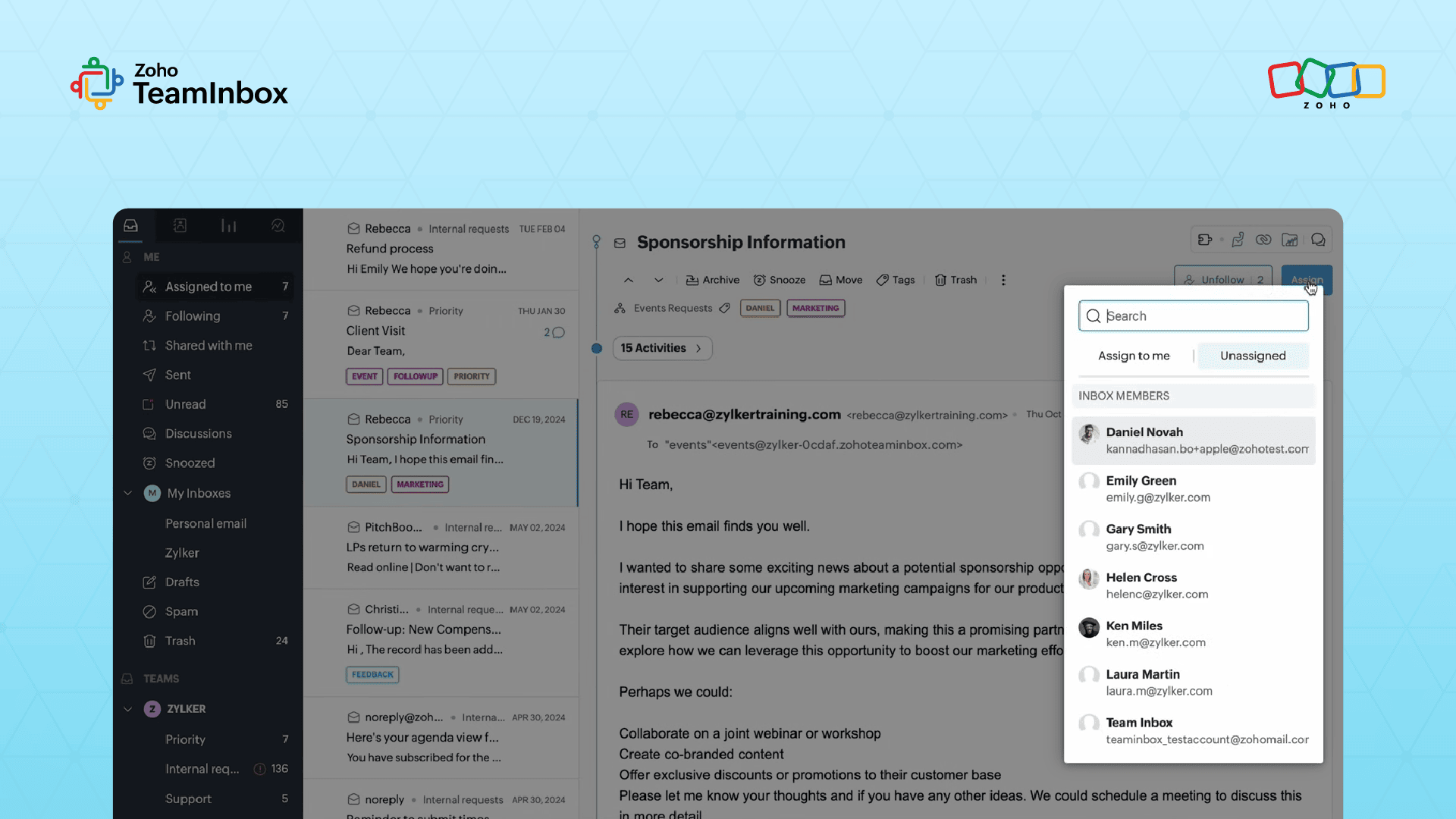
1. @mentions for ownership and employee communication
@mentions turn a passive comment into a direct action item. A strong mention names the owner, explains the task, and includes a deadline.
Example: “@Priya, Please confirm the legal disclaimer wording by Thursday EOD.”
Mentions should also trigger notifications so the right teammate responds quickly. This supports faster task management and keeps teams on the same page.
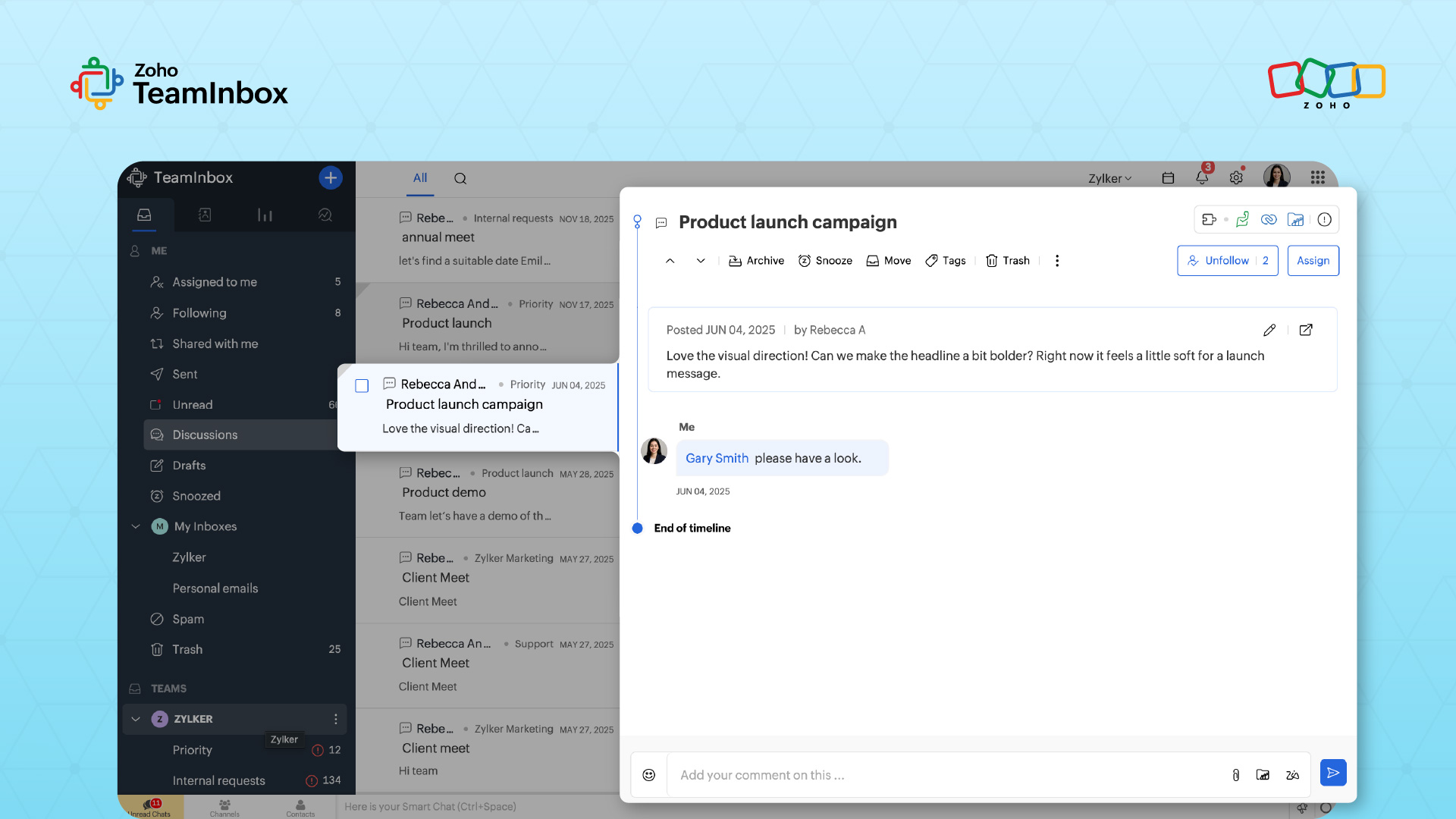
2. Threaded comments for organized discussions
Separate threads help teams manage multiple conversations in one email. Design feedback, legal review, and copy changes can happen independently without cluttering the main thread.
This keeps internal comms organized and improves collaboration across departments.
3. Clear status updates for decisions
Comments shouldn't remain open indefinitely. Teams need a way to close completed discussions, summarize outcomes, and reopen items when needed.
This improves accountability, supports project management, and keeps workflows moving.
4. Smart notification controls
Notifications should support productivity instead of creating noise. Look for email, in-app, and mobile alerts, along with watch settings or summaries.
Strong notification controls help remote teams stay aligned across multiple communication channels and mobile devices.
5. Shared visibility and draft awareness
A reliable internal email communication software shows who owns a thread and who is currently reviewing or drafting a reply. This helps prevent duplicate work and confusion.
Auto-save and shared visibility features boost productivity for distributed teams.
6. Role-based access and data security
Internal comments should stay private. Role-based permissions for admins, owners, and contributors help teams control access to sensitive conversations. Zoho TeamInbox combines internal comments, assignments, shared visibility, mobile access, and secure permissions to support team collaboration.
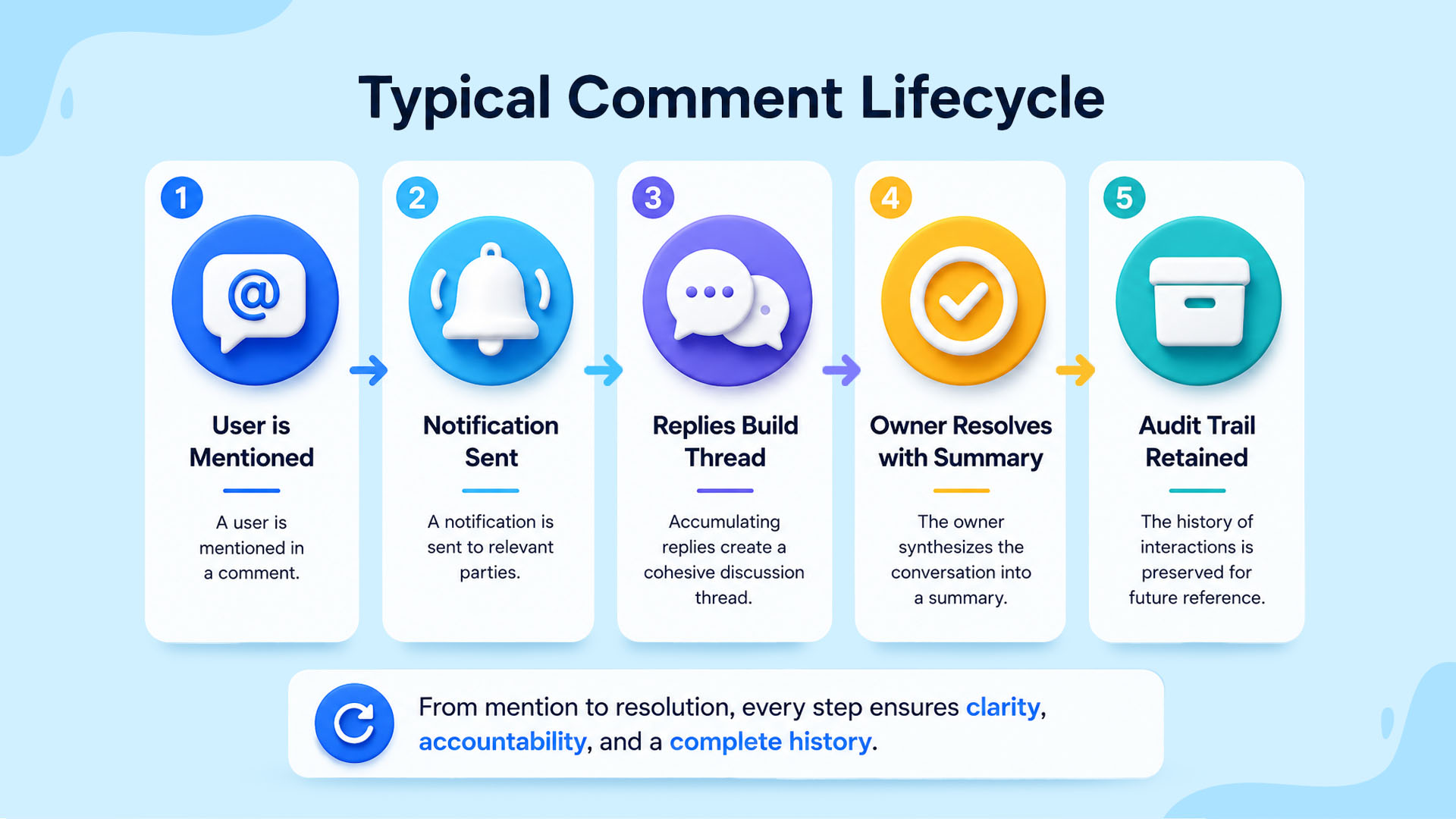
Best practices for comment-driven collaboration
Once your team adopts comments instead of forwarding, a few simple rules help the workflow stay efficient, secure, and organized.
1. Team etiquette that replaces forwarding
Use comments as the default for internal input, and reserve replies for customer-facing responses.
Best practices:
Keep each comment focused on one request.
Use @mentions to assign clear ownership.
Add deadlines when action is time-sensitive.
Resolve comments with a short summary of the decision.
Avoid side conversations in direct messages.
Check if someone is already handling the thread before editing.
Use a quick note like “I’m on this” to avoid duplicate work.
These habits keep context in one place and reduce confusion.
2. Privacy, access, and external reviewers
Internal comments only work when they remain private from recipients.
Recommended controls:
Use comment-only access for occasional reviewers.
Restrict sensitive threads to the right team members.
Give external reviewers view or comment access only when needed.
Use expiry dates or revoke access after review ends.
Keep approvals stored inside resolved threads for audit purposes.
This creates a cleaner and more secure review process.
3. Troubleshooting common limitations
Some tools have limitations that teams should plan for.
Common issues:
Comments may exist only on drafts and disappear after sending.
Plain-text email tools may not support inline comments.
Different tools may offer inconsistent features.
Mobile apps may have fewer collaboration options than desktop.
How to adapt:
Copy final decisions into the email body or CRM notes.
Use one primary collaboration tool across teams.
Train mobile reviewers on core actions like comment, mention, and resolve.
Zoho TeamInbox keeps internal notes attached to threads with role-based access, helping preserve visibility and audit histories across the email lifecycle.
Make comments your default with Zoho TeamInbox
Replacing forwarding with internal comments can transform how teams manage shared emails. Instead of scattered reply-all chains, lost context, and unclear ownership, teams can collaborate inside the original thread with faster approvals, better accountability, and stronger internal communications.
Zoho TeamInbox is an internal email collaboration tool built for modern teams that need a centralized hub for managing shared inboxes and internal email communications. It combines email management with collaboration tools designed to improve productivity and keep remote teams on the same page.
Key features of Zoho TeamInbox
@mentions to involve teammates quickly.
Assign conversations for clear ownership and task management.
Shared drafts for document collaboration on replies.
Collision detection to prevent duplicate responses.
Status labels such as open, closed, or spam.
Snooze conversations for follow-up workflows.
Create tags for better organization and project management.
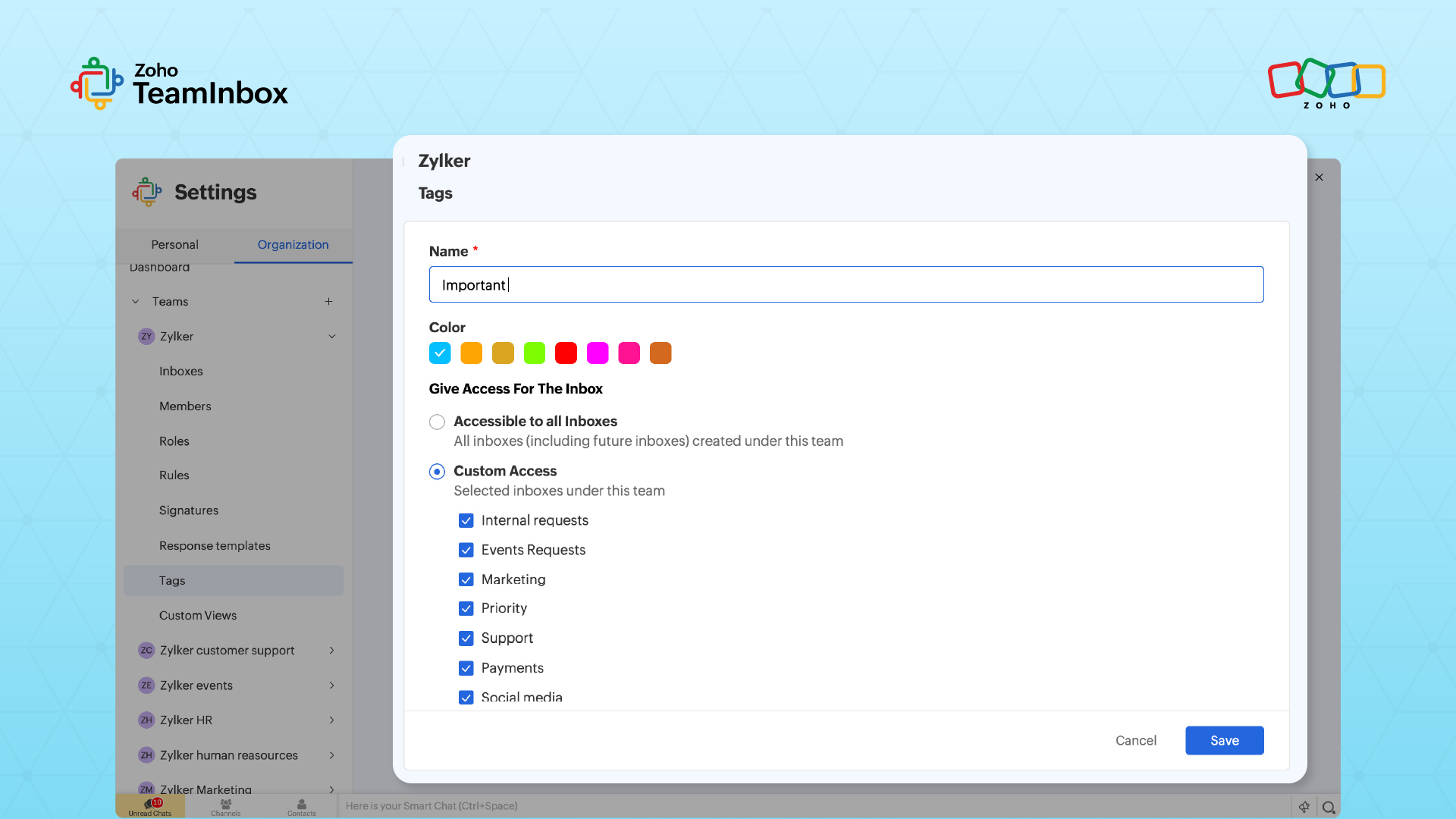
Activity logs with visibility and accountability.
Role-based permissions and advanced permissions for data security.
Mobile app access for teams using mobile devices.
Tight integration with Zoho apps and external apps.
Start your free trial today and see how an internal email collaboration tool can improve team collaboration without forwarding.
FAQ
1. How do you transition a team from reply-all habits to a comment-first workflow?
Start with one high-volume workflow such as support approvals or campaign reviews. Run a two-week pilot, share clear guidelines, and review adoption weekly. An internal email collaboration tool helps move scattered internal communications into one organized workspace.
2. What is a good approval SLA for comment-based workflows?
A good starting point is a 24-hour response time for @mentions and a 48-hour target for final approvals. If deadlines are missed, assign a backup approver. This keeps project management and task management workflows moving smoothly.
3. How should executives who work on mobile use comments?
Keep training simple. Focus on three actions: Open the thread, add a comment, and respond to @mentions. Choose internal communication software with strong mobile access, a reliable mobile app, and notifications for fast adoption.
4. What audit trail should teams keep for compliance?
Maintain records of the original email, internal comments, participant names, timestamps, ownership changes, and final approvals. This supports secure internal email communications, stronger accountability, and better data security.
5. How do you replace old CC lists and distribution groups?
Map each distribution list to a shared inbox, team role, or centralized hub. This improves distribution list management, reduces clutter, and creates more effective communication channels.
6. How can you involve legal or finance without exposing sensitive threads?
Use role-based permissions and advanced permissions to control access. Give only required reviewers visibility and limit others to comment-only access when needed.
 Ganeshkiran Arasu
Ganeshkiran is a Growth and Digital Marketing manager at Zoho. He's passionate about writing content that actually helps — breaking down how products solve real, complex problems and what genuine collaboration looks like in practice. When he's not crafting strategies with his team, he's keeping tabs on the latest industry trends — always with a cup of tea in hand.