Zoho Workplace subscription
Zoho Workplace comes in three plans: Standard, Professional, and Mix and Match.
The Standard and Professional plans differ in the features available across Workplace applications such as Zoho Mail, Zoho Cliq, Zoho WorkDrive, Zoho Office Suite, Zoho Vault, Zoho Meeting, and Zoho Connect. You can refer our pricing page for a full feature breakdown. The Mix and Match plan, on the other hand, lets you combine Zoho Mail and Zoho Workplace plans to build the exact feature set your organization needs.
You can purchase any plan online using a credit card or another payment method available in your country. Plans renew automatically from the date of purchase or upgrade.
Note
- If you choose the Mix and Match plan, make sure the license count matches the number of users you to add.
- Features apply only to the users assigned to that specific plan. If you're an enterprise with 1,000+ employees and need a custom plan, contact support@zohoworkplace.com for a quote.
Zoho Workplace free trial
Zoho Workplace offers a 15-day free trial of the Professional plan so you can explore the product before purchasing it. No payment details are required to sign up. You can add up to 30 users during the trial period and access all the features included in the Professional plan.
What happens after the trial ends?
- If the trial ends without a plan selected, then your organization will be moved to Zoho Mail's free plan and you will be able to access only the features included in that plan.
- The free plan can include only 5 users, so, only 5 user accounts from your organization will be retained and the rest will be disabled. However, this case is applicable only for regions where the free plan is available.
- If you are from a region that doesn't support a free plan, then by the end of your trial, all user accounts will be disabled and they will not be able to access their accounts. As the Super Admin, you can upgrade to any paid plan within 30 days from the end of the trial period.
- If you fail to upgrade within this 30 day window, your account and organization data will be scheduled for deletion and permanently removed. If you need a backup of your data before that happens, contact support@zohoworkplace.com.
Mix and Match plan in Zoho Workplace
The Mix and Match plan offers the flexibility to purchase subscriptions based on individual user requirements, rather than being limited to a single plan for all users. You can do this by combining two or more plans available in Zoho Workplace and Zoho Mail. For example:
- You can purchase Zoho Mail plans (Zoho Mail Premium, Zoho Mail Lite (5GB), and Zoho Mail Lite (10GB)) for users who need email service alone.
- You can subscribe to Zoho Workplace plans (Zoho Workplace Standard, Zoho Workplace Professional) for the rest.
Each plan varies in its feature offering, so users can access only the features included in the plan assigned to them. Another major difference between plans is the storage offered under each one, which includes email storage and WorkDrive storage.
Of these, email storage for each user is fixed per plan, while the WorkDrive storage is allocated based on predefined user-count ranges. Organizations falling within a specific range are allotted the storage designated for that range.
However, the WorkDrive storage allocation works differently for the Mix and Match plan.
Storage allocation in the Mix and Match plan
The Mix and Match plan allocates WorkDrive storage on a per-user basis, depending on the plan assigned to each user, and the total is calculated by adding up the storage across all users.
For example, say you purchase 5 licences of Zoho Workplace Standard and 5 licences of Zoho Workplace Professional. The storage allocation will be applied as follows:
5 Zoho Workplace Standard: 5x10 GB= 50 GB
5 Zoho Workplace Professional: 5x100 GB=500 GB
So, the total storage allocated for the 10 users will now be 550GB
Note
- To opt for the mix and match plan, drop us an email at sales@zohocorp.com, and our team will assist you.
- The mix and match plan is available only on yearly subscriptions.
Steps to subscribe to a Zoho Workplace plan
You can choose your Zoho Workplace plan when you sign up with the service. This plan will renew automatically until you renew or downgrade it. Follow the steps below to purchase the desired plan:
- Navigate to Zoho Workplace's sign up page. Click Get started.
- Choose the plan of your choice from the list mentioned.
- You can then proceed to sign up with your details.
- Once you create your account, you will be redirected to the admin console section, where you can proceed to purchase the chosen plan.
Note
If you already have a Zoho account, you will be redirected to the admin console section directly once you sign in. You can purchase the plan from there.
Steps to renew Zoho Workplace subscription
To continue accessing all Zoho Workplace features, renew your subscription before it expires:
- Navigate to the Zoho Workplace admin console from the right pane.
- Click Subscription and navigate to Overview, to view your current plan, licenses, and add-ons.
- If your subscription is due for renewal, click the Renew Subscription button and proceed with payment.
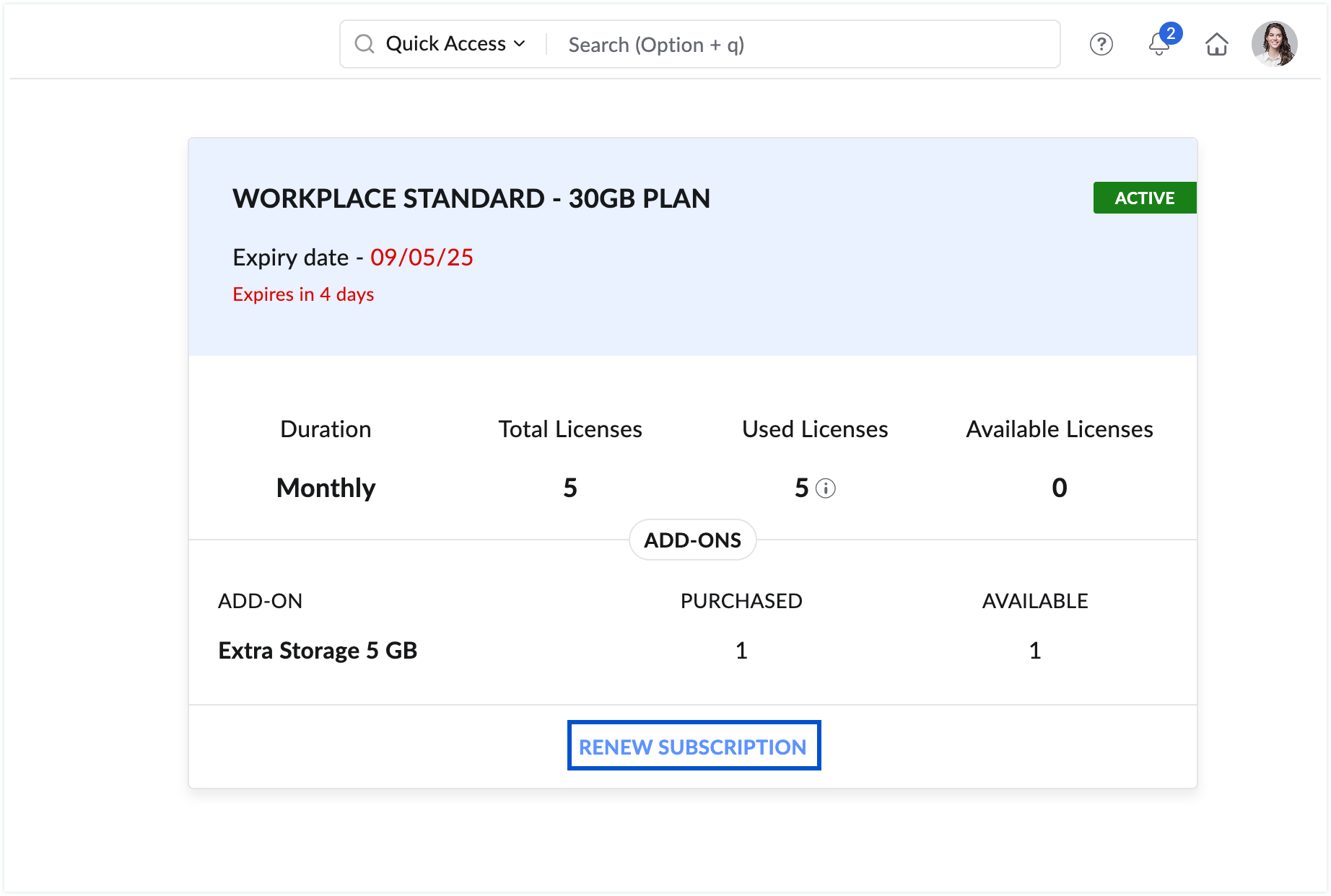
- You'll be redirected to the Zoho Store page. Click Renew. You can also switch to yearly billing, change your plan, or update your user count in this section.
- Review your billing details, click Proceed, then complete payment on the Zoho Payments page.
If you don't renew by the expiry date, your account will become inactive and all users in your organization will lose access to Zoho Workplace services.
Note
- If you choose not to renew, or fail to renew your subscription, your account will automatically be downgraded to Zoho Mail's free plan.
- If your region does not support free plan, your account will become inactive and you will not be able to access it.
- Renewal reminder notifications will be sent to the registered email address(es) until the subscription expires If the subscription is not renewed by the expiry date, all users within your organization will lose access to their accounts and will be unable to use Zoho Workplace services, and Zoho's Inactive User Accounts Policy will apply.
Add-on features in Zoho Workplace
In addition to the features available in your chosen plan, you can add extra features based on your team's needs and usage. You can find the list of storage add-ons on our pricing page. This allows users to expand their storage limits easily, ensuring that important emails and attachments remain accessible. If a user does not fully use the add-ons, you as an admin can remove it and reallocate the storage to a different user.
In addition to this, you can also upgrade to the premium features offered by other Zoho Workplace applications. This includes —Zoho Vault Professional, Zoho WorkDrive Business, Zoho WorkDrive Client users, Zoho Connect add-ons: mini, standard or ultimate add-ons and Meeting rooms.
Add-ons are billed annually.
Steps to purchase an add-on
To purchase an add-on or extra licenses to your existing plan:
- Login to your Zoho Workplace account and navigate to the admin console panel.
- Click Subscription from the left pane. You will be able to view the plan your currently on along with the number of licenses purchased and the plan's expiry date.
- Click Manage subscription to purchase add-ons.
- Click the Update user/Add-on button on the right to select the desired add-on.
- The pro-rata amount for the licenses you purchase based on your renewal date will be displayed. Click Proceed, after reviewing your order.
- The renewals for the organization occur on a single date. Hence, the charges for your current purchase will be based on the next renewal date.
- You will be redirected to our Zoho Payments page for a secure transaction.
- You will see a detailed summary of the pricing along with the total estimated amount payable.
- You can then proceed with the payment using any of the available options based on your preference.
If your transaction was successful, your account will reflect your new licenses. If the transaction cannot be completed, check and retry the transaction.
Note
If you require assistance with managing your Zoho Workplace subscription, you can reach out to use at support@zohoworkplace.com.