- HOME
- Best practices
- WhatsApp Team Inbox: Benefits, setup, and best practices in Zoho TeamInbox
WhatsApp Team Inbox: Benefits, setup, and best practices in Zoho TeamInbox
- Published : August 28, 2026
- Last Updated : August 28, 2026
- 14 Views
- 9 Min Read

Today, over 200 million businesses use WhatsApp Business worldwide, and the reason is simple: their customers are already on it, and messaging them there is faster, more personal, and involves far less friction than an email or call.
If your business is already on WhatsApp, your entire team can now manage every customer conversation from one shared workspace with a shared inbox for business in Zoho TeamInbox.
Sales teams can use a collaborative team inbox to manage assignments, write internal notes, and gain full visibility across sales and support, while support agents work the same WhatsApp number without stepping on each other's replies.
This article focuses on why a shared WhatsApp inbox is worth setting up, what to check before you commit, and how to get the most out of your team inbox once it's live.
What a WhatsApp shared inbox for business means in Zoho TeamInbox
Before you connect anything, it helps to be clear on what a shared WhatsApp inbox actually looks like inside Zoho TeamInbox and how it differs from running WhatsApp on a single phone.
From one WhatsApp phone to a team-accessible inbox
A WhatsApp team inbox for business is a workspace where customer messages can be viewed and handled by multiple team members on their own devices. It replaces informal workflows like passing a phone around the office, sharing screenshots in Slack, or asking one teammate to forward messages to others.
In Zoho TeamInbox, the goal is to bring those WhatsApp conversations into a shared environment where individual team members can coordinate before they respond with complete visibility into every thread from a single dashboard.
For example, your support team can see new WhatsApp customer queries land in one shared inbox, assign chats to an owner, and leave internal notes for a colleague to review before the reply is sent.
Why the WhatsApp Business App alone is limited for teams
The WhatsApp Business App works well for a single user or a very small team sharing one WhatsApp account. Once you grow past that, it offers limited structure for ownership, assignment, internal collaboration, and team-wide visibility into who is replying to which customer.
A collaborative team inbox workflow reduces missed messages and duplicate replies by making it clear who owns each conversation, which, in turn, supports faster response times and better customer satisfaction as your team grows.
How Zoho TeamInbox fits with Meta and WhatsApp
WhatsApp is the customer-facing communication channel, and Meta's WhatsApp Business Platform handles number verification, message templates, and policy rules for your WhatsApp business account.
Zoho TeamInbox is where your team manages conversations, assigns owners, collaborates on internal notes, and tracks the shared inbox workflow across all your customer messages.
Inside Zoho TeamInbox, your team gains:
Assignments so each WhatsApp conversation has a named owner, even when multiple agents are online at once
Internal notes for private discussions that customers never see
Labels and tags to categorize customer messages by topic, priority, or department
Shared visibility so anyone with access can follow a thread without taking it over, supporting timely responses and stronger team collaboration
Benefits of using WhatsApp inside Zoho TeamInbox
These are the gains teams typically see once a WhatsApp business account moves from an individual phone or app into a shared WhatsApp team inbox.
Faster, timely responses: Customer messages land in a shared inbox so the next available agent can respond promptly. Clear ownership and the ability to assign chats means two support agents are never typing a response to the same customer conversation at once.
Context that travels with the conversation: Internal notes and labels mean a teammate covering for someone else doesn't have to start from scratch on customer interactions or conversation history.
One inbox for sales and support: The same WhatsApp number can serve both sales and support, with incoming messages routed by label rather than split across separate apps or social media channels.
Easier onboarding for new hires: New team members inherit visibility into past WhatsApp conversations and conventions. Assignment history, team logs, and internal notes provide a clear record of who handled what and when across multiple agents, enabling better accountability during audits and escalations.
Stronger customer satisfaction: A collaborative team inbox gives customers consistent, well-informed replies. As your business grows, a WhatsApp shared inbox helps you manage multiple numbers or accounts under one roof.
Foundations for deeper workflows: A shared inbox is also the natural starting point if you later want CRM integration, advanced analytics, or to schedule meetings directly out of a customer conversation.
Common use cases for a WhatsApp shared inbox
A WhatsApp shared team inbox is typically used in a handful of recurring ways. Most teams will recognize more than one of these from their own business communication.
Customer support
Customers send a question or issue over WhatsApp, it's assigned to one of your support agents, and internal notes capture anything that needs sign-off—for example, a refund that needs finance to confirm before the agent replies.Sales follow-ups and lead qualification
A prospect messages after seeing an ad or referral. The conversation is routed to a sales rep, who logs deal context in internal notes so anyone covering the account later has the full picture. Sales teams also use this to keep follow-ups consistent.Order and appointment updates
Confirmations, delivery updates, or appointment reminders are sent via WhatsApp using approved message templates, with replies routed back to the team inbox for the team that owns that stage of the customer journey.Multi-department sharing on one WhatsApp number
Support, sales, and billing all use the same WhatsApp number, but labels and assignment rules make sure each message reaches the right team without anyone needing to forward it manually.Reaching customers across channels
Many businesses pair their WhatsApp inbox with other social media channels and a shareable link or QR code on their website, so customers can start a conversation however suits them.
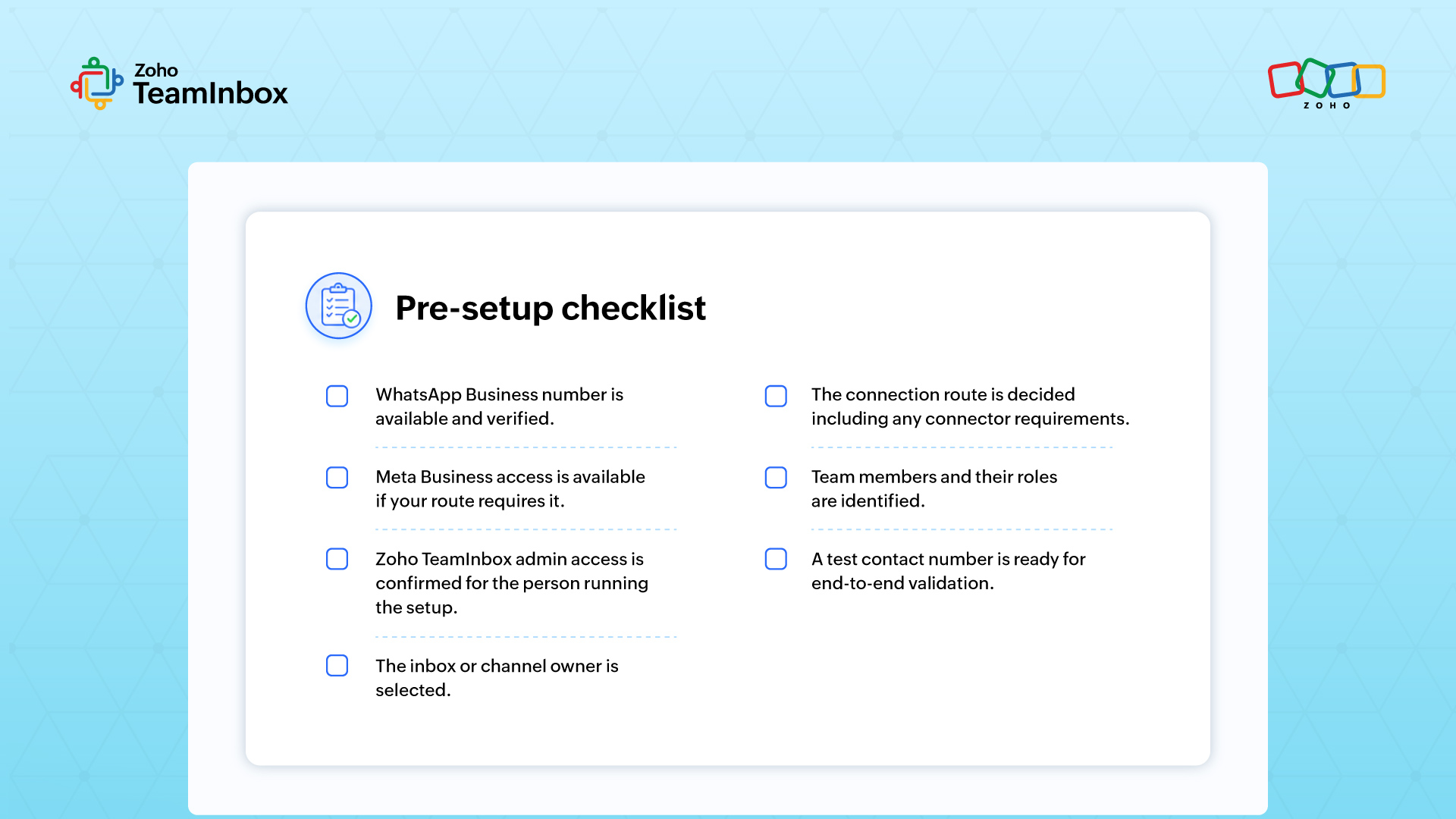
Prerequisites before you connect a WhatsApp shared inbox to Zoho TeamInbox
WhatsApp shared team inbox setup goes faster when you gather all WhatsApp accounts, permissions, and details in advance. The checks below cover the WhatsApp side, the Zoho TeamInbox side, and the connector layer for efficient management of the rollout.
WhatsApp and Meta requirements
Start with the WhatsApp account that customers will message. You will need a WhatsApp Business account or an eligible WhatsApp business number, plus direct access to the phone number to receive a verification code or call.
If you plan to use the WhatsApp Business Platform/API route, you need:
Access to a Meta Business account
Completion of Meta's verification process
Confirmation that the number has approved message templates ready, if your team expects to message customers outside the 24-hour window
A number already tied to the WhatsApp Business App may need to be migrated, and migration rules depend on the connection route you choose. Avoid disconnecting a live customer number until your new connection path is confirmed and tested.
Zoho TeamInbox requirements
On the Zoho side, you need an active Zoho TeamInbox workspace and admin or owner permissions on that workspace. Without admin access, you cannot create new inboxes, manage channel settings, or invite teammates to the WhatsApp inbox.
Confirm that you can create or manage inboxes and channels, invite individual team members, and adjust user roles or access control. Decide which team or department will own the WhatsApp inbox so that shared visibility, assignments, and ownership are set up cleanly from day one.
Setting up the connection
Once the prerequisites are in place, the actual connection follows a short sequence inside Zoho TeamInbox. Many teams also generate a QR code or shareable WhatsApp link at this stage so customers have an easy way to start a conversation.
Refer to this article for a step-by-step guide on creating a WhatsApp Inbox.
Connector and authentication requirements
If your route requires a connector, verify that it supports WhatsApp messaging and your intended Zoho TeamInbox workflow. The connector must authenticate with the correct WhatsApp or Meta account and your Zoho account using business credentials.
Check that messages sync in both directions, and confirm how the connector handles templates, media attachments, delivery status, and agent notifications.
Best practices for running WhatsApp inside Zoho TeamInbox
Once messages flow in, make sure your entire team handles them with clear ownership and shared context. The practices below shape day-to-day team management within Zoho TeamInbox and support streamlined communication across the support and sales teams.
Assign ownership so agents don't duplicate replies
Assign each incoming WhatsApp conversation to a specific user or team so it's clear who should respond. Visible ownership inside Zoho TeamInbox helps your team avoid two agents replying to the same customer and lets you assign agents by skill or workload rather than by whoever happens to be free.
Use labels and internal notes to add context
Apply tags for issue type, priority, customer stage, or department to keep the inbox organized. Use internal notes to discuss the conversation privately, for example, by labeling a message “Billing” and asking finance to review the details before the reply is sent.
Configure routing, business hours, and response process
Route conversations to the right team based on the inbox or label, and set business hours where supported so your team knows when responses are expected. Document repeatable rules covering new conversation ownership, escalations, and follow-ups.
Account for WhatsApp's 24-hour window and templates
WhatsApp opens a customer service window after a user messages your business, and free-form replies are limited once that window closes. Plan follow-up workflows that use approved message templates when the window has expired. The same templates you would use for an unsubscribe link or opt-out confirmation should also follow this rule.
Review ownership and labels periodically
As your business grows and team size changes, label sets and routing rules can go stale. A quick quarterly review of who owns what, plus a look at advanced analytics on response times, keeps the inbox useful.
Scenario | Label | Owner | Internal action | Reply rule |
New support question | Support | Support agent | Add note if escalation needed | Reply within the active window |
Pricing question | Sales | Sales rep | Add deal context if relevant | Assign before responding |
Follow-up after 24 hours | Follow-up | Conversation owner | Check template availability | Use the approved template if required |
Test and troubleshoot your WhatsApp connection before go-live
A short validation pass protects your customer experience and catches setup gaps early. Run the checklist first, then use the troubleshooting list if any step fails.
Go-live validation checklist
An inbound WhatsApp message appears in Zoho TeamInbox within seconds.
An outbound reply from Zoho TeamInbox is delivered on WhatsApp.
Multiple agents can see the shared inbox with correct visibility.
Only the assigned owner sends the customer a reply.
Labels, internal notes, and notifications behave as expected.
Template behavior is verified by testing after the 24-hour window.
Common setup issues and what to check first
Number verification problems: Confirm the phone can receive the OTP or verification call.
Messages not appearing: Check channel status, connector sync, and inbox routing in Zoho TeamInbox.
Permission errors: Reconfirm Zoho admin access and Meta Business permissions.
Disconnected channel: Reauthenticate the WhatsApp account or connector inside settings.
Unsupported number: Verify the number is eligible for the connection route you selected.
Template send failures: Confirm template approval status and whether the 24-hour window has closed.
Move WhatsApp conversations into a team-managed Zoho TeamInbox workflow
A WhatsApp shared inbox for business helps your entire team move beyond one-phone workflows and toward shared, accountable customer messaging, with immediate control over who owns each conversation. Zoho TeamInbox gives you a single dashboard for assignments, labels, internal notes, and shared visibility across all your WhatsApp conversations.
If your team is ready to manage customer conversations with clearer ownership and visibility on WhatsApp, start by checking your Zoho TeamInbox channel settings and preparing your WhatsApp business account for connection.
See How to create a WhatsApp inbox or contact us for the full setup walkthrough and get your team inbox live today.
FAQs
1. Can we keep using the WhatsApp Business App after connecting to Zoho TeamInbox?
This depends on the connection route and the migration rules tied to your specific WhatsApp number. Confirm the number's status before disconnecting it from the WhatsApp Business App.
2. Will old WhatsApp chat history appear in Zoho TeamInbox?
The import of conversation history depends on the integration or connector you choose. Many setups begin syncing from the moment the channel is connected, so plan to start with fresh WhatsApp conversations.
3. Can different departments share the same WhatsApp inbox in Zoho TeamInbox?
Yes, multiple departments can share one WhatsApp shared inbox while using labels, assignments, and access controls to separate ownership. This keeps a single customer-facing WhatsApp number while routing customer queries to the right team.
4. Can we connect more than one WhatsApp number to Zoho TeamInbox?
Connecting multiple WhatsApp numbers or multiple WhatsApp accounts depends on the supported channels in your account, plan limits, and any connector configuration you use. Confirm the per-number capacity before consolidating multiple lines into one team inbox.
5. Who should own the WhatsApp inbox inside Zoho TeamInbox?
Assign ownership to an admin or team lead responsible for permissions, agent access, and workflow rules. A single accountable owner keeps configuration consistent as your team size grows.
6. What should we test before moving live customer conversations?
Test inbound messages, outbound replies, assignments, internal notes, labels, notifications, and template sends after the 24-hour window.
 Ganeshkiran Arasu
Ganeshkiran is a Growth and Digital Marketing manager at Zoho. He's passionate about writing content that actually helps — breaking down how products solve real, complex problems and what genuine collaboration looks like in practice. When he's not crafting strategies with his team, he's keeping tabs on the latest industry trends — always with a cup of tea in hand.