

Leave Salary

Leave salary is the salary paid to an employee during their approved leave period, typically for annual leave.
In many organizations, especially in GCC countries, employees receive their leave salary before the leave begins so they have access to their salary while on vacation.
With the Leave Salary feature in Zoho Payroll, employees can request their leave salary in advance through the Employee Portal. Administrators can manage, review and approve these requests, after which the leave salary is processed through payroll.
Once the leave salary is paid, Zoho Payroll automatically adjusts the employee’s salary in the actual leave month to ensure that the employee is not paid twice for the same leave days.
Example:
An employee plans to take 10 days of annual leave in April. Instead of waiting for April payroll, the employee requests the leave salary to be paid in March.
Once approved:
- The leave salary is paid in March payroll.
- When April payroll runs, Zoho Payroll reduces the payable days by 10 days.
This ensures the employee receives the salary early while payroll remains accurate.
How Leave Salary Works
The process involves four stages:
- Employee submits a request (or) Admin creates a request on behalf of the employee
- Admin approves the request
- Payroll processes the leave salary payment
This ensures the employee receives the leave salary before the leave period, while payroll maintains accurate salary calculations.
Configure the Annual Leave Salary Component
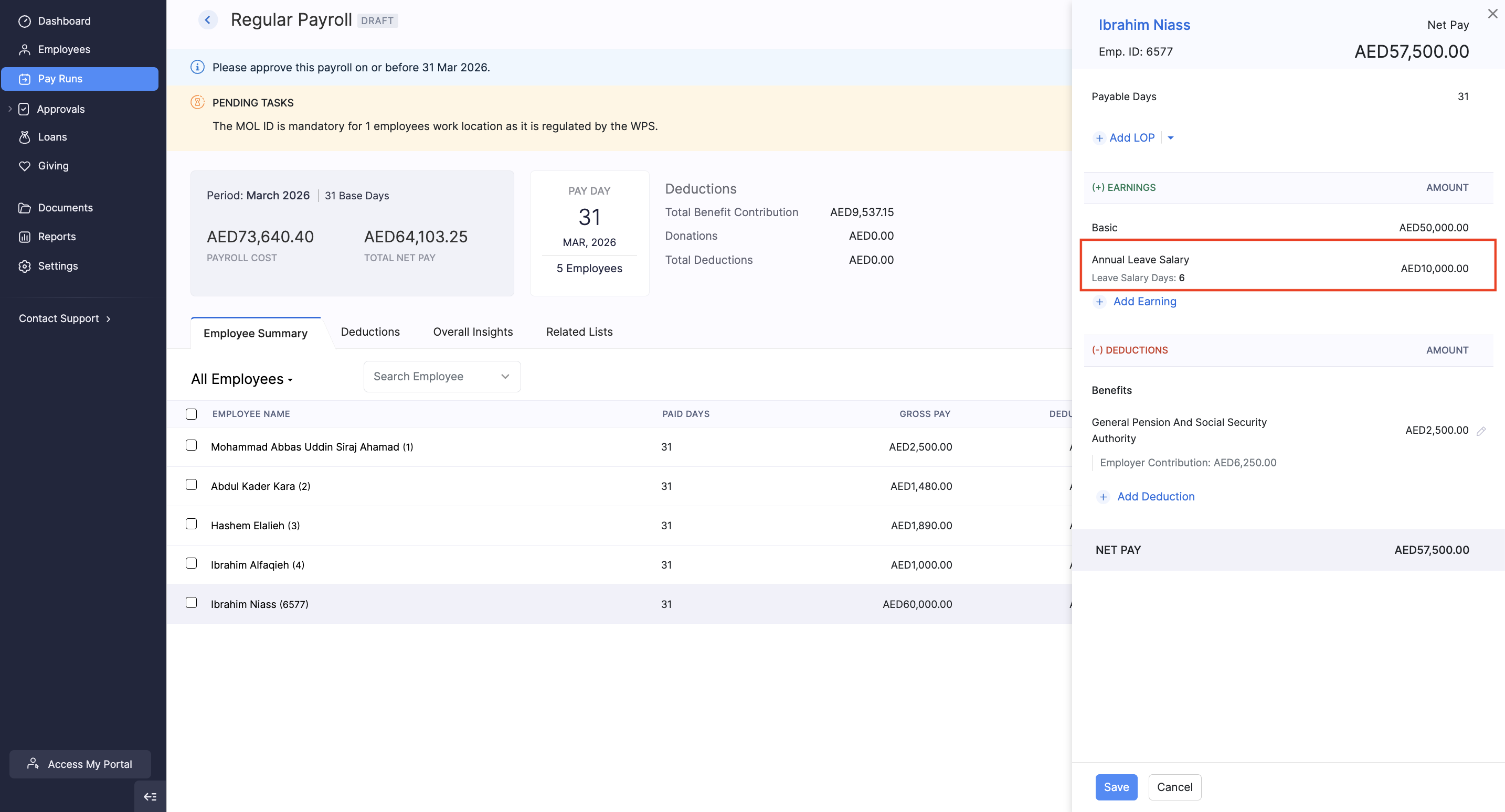
Leave Salary is processed in payroll using a salary component named Annual Leave Salary. This component records the leave salary that is paid to employees before their leave begins.
When a leave salary request is processed in a pay run, the system adds the leave salary amount under this component.
If the Annual Leave Salary component is not available in your organization, you must create and activate it before processing leave salary payments.
To add the Annual Leave Salary component:
- Go to Settings.
- Select Salary Components under Setup and Configurations.
- Select Annual Leave Salary from the predefined component list.
- Enable Mark as Active.
- Click Save.
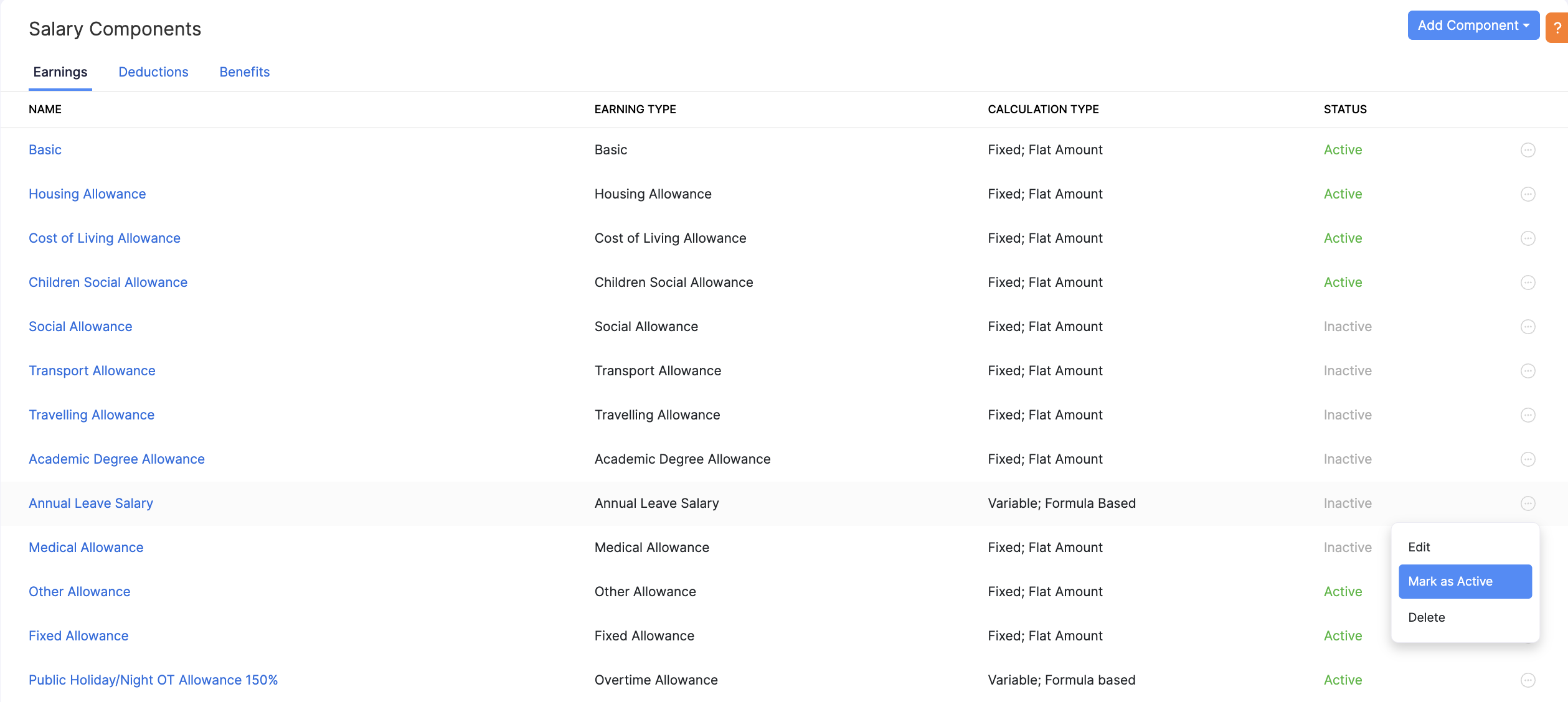
Once marked as active, the component will be available for payroll processing.
Create Leave Salary Request
You can also create leave salary requests on behalf of employees.
To create a leave salary request:
- Go to Employees.
- Select the employee.
- Navigate to Leave Salary.
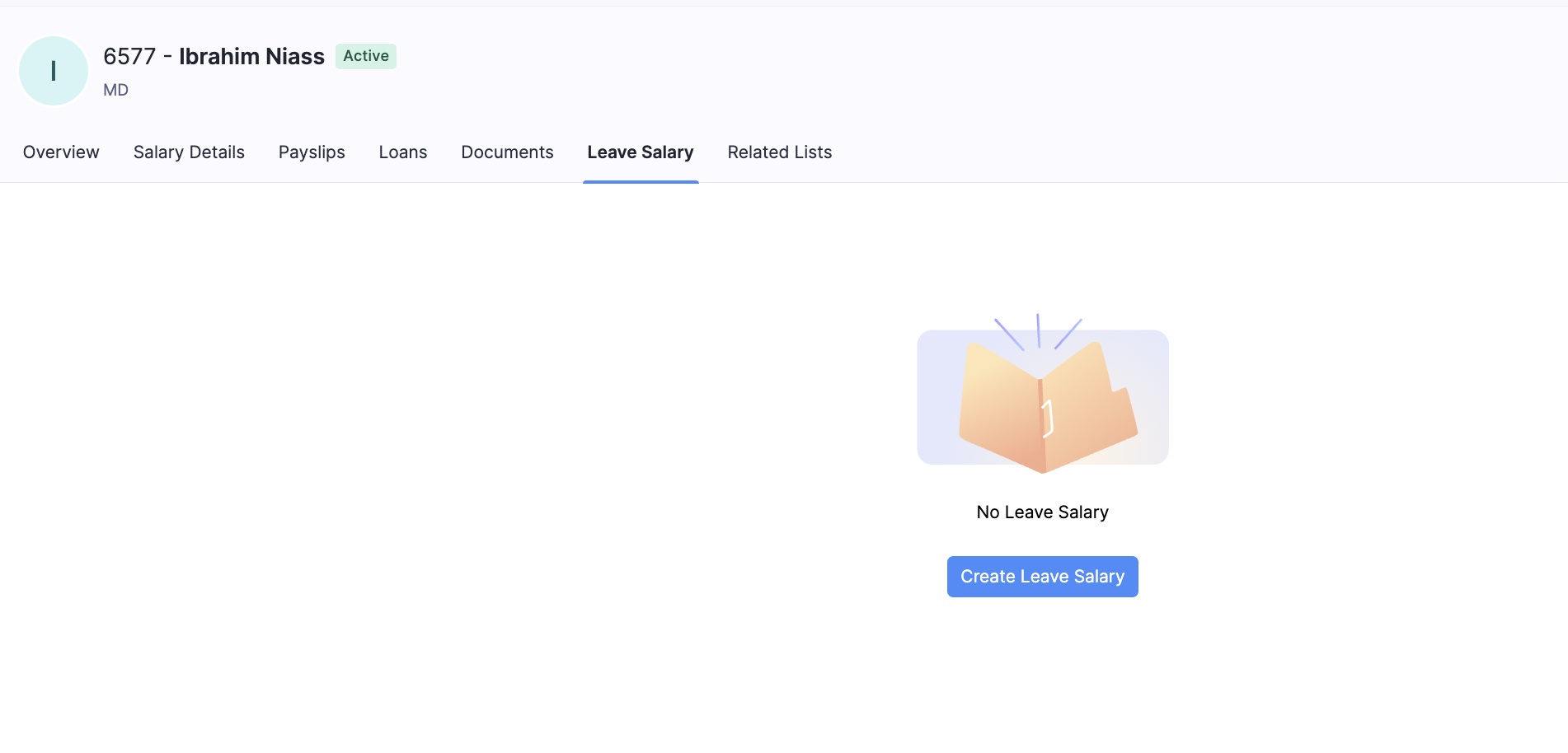
- Enter the Leave Period.
- Review the Eligible Leave Salary Amount.
- Select the Payment Required On date.
- Enter the Reason.
- Click Save.
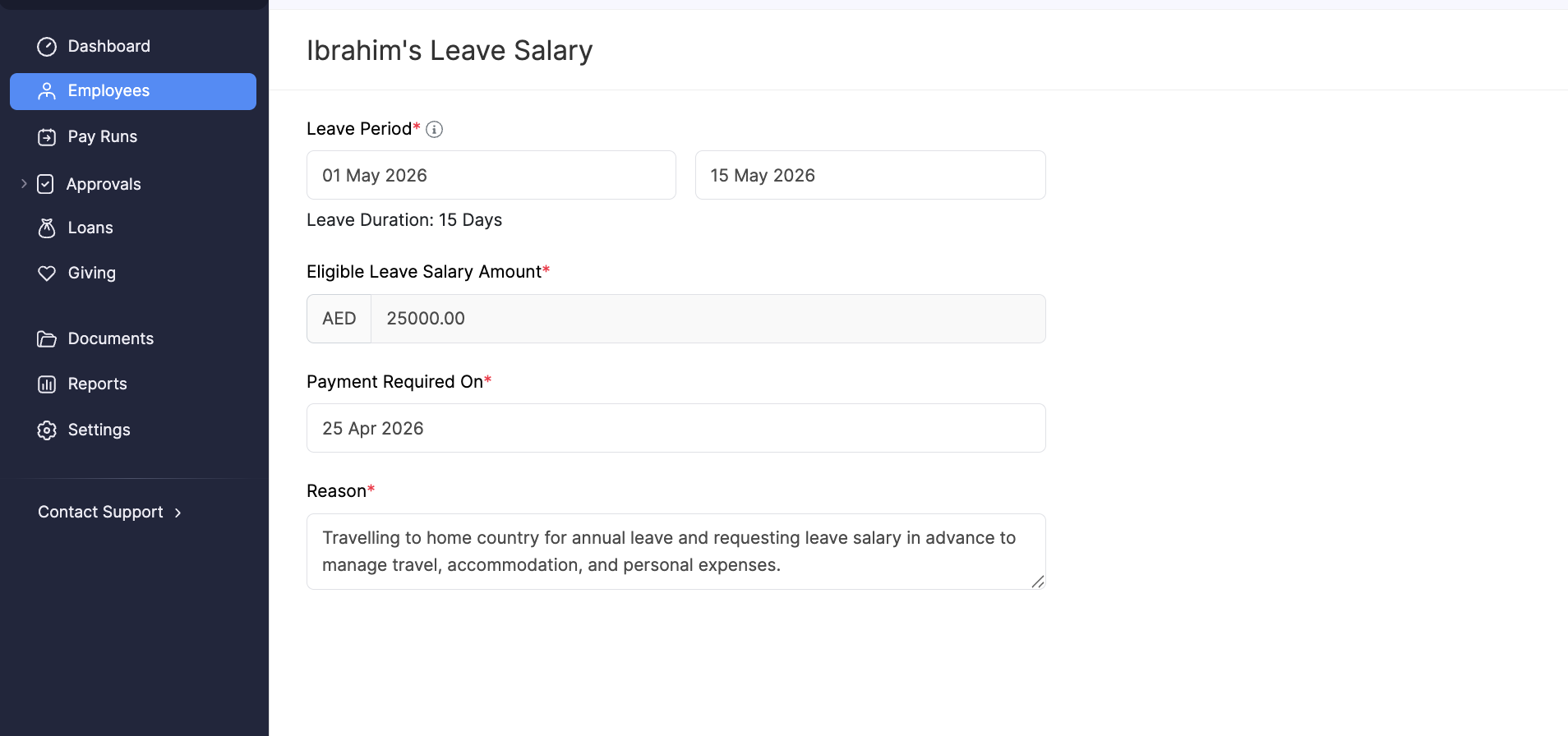
The request will appear in the Leave Salary approvals list.
Approve Leave Salary Requests
You can review and approve leave salary requests.
Note: Leave salary is usually calculated using the employee’s full salary. However, organizations can configure which salary components are included based on their payroll policy by navigating to Settings > Salary Components > Annual Leave Salary.
To approve a request:
- Go to Approvals.
- Select Leave Salary.
- Open the request.
- Review:
- Eligible Leave Salary Amount
- Approved Leave Salary Amount
- Payment Required On
- Payroll Month
- Modify the approved amount if necessary.
- Click Confirm and Approve.
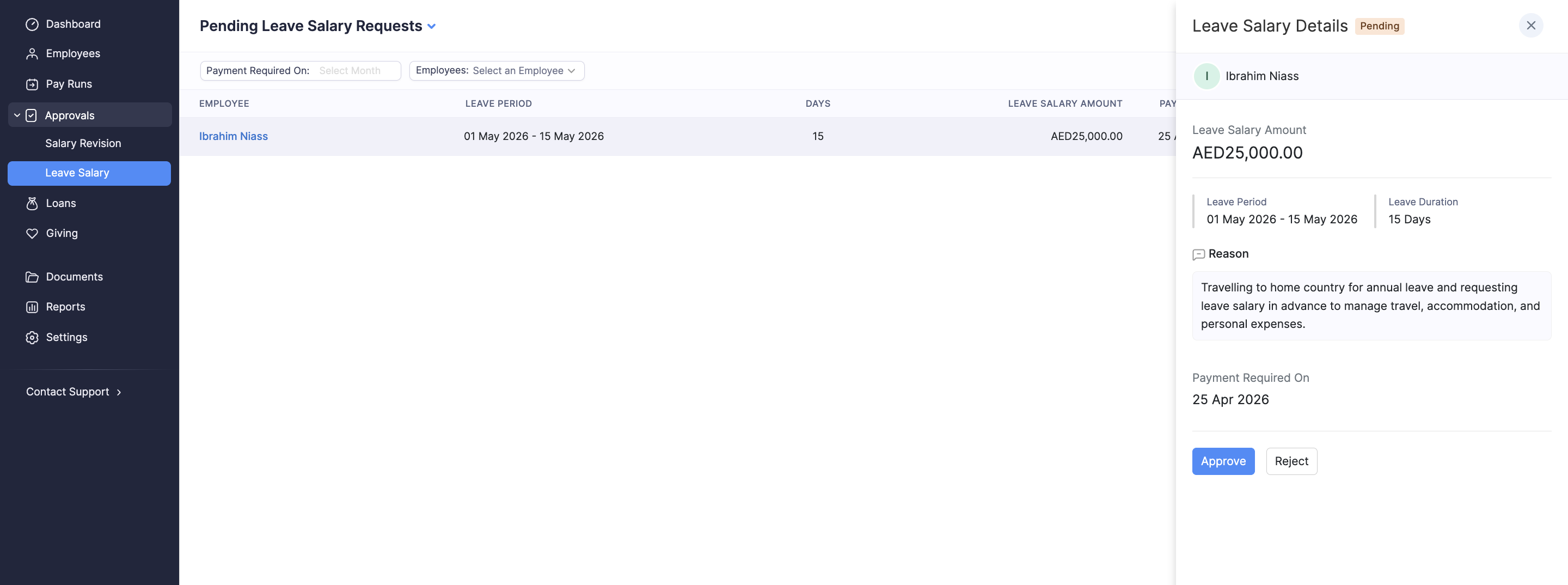
Once approved, the request becomes available for payroll processing.
Note: You can adjust the Approved Leave Salary Amount if company policy requires a different payout amount.
Processing Leave Salary in Payroll
After approval, the leave salary request appears as a pending task in payroll. Review the details of the approved leave salary request and add it to the pay run.
The task appears in both:
- Regular Pay Run
- Off-Cycle Pay Run
You can process the leave salary through either pay run.