- HOME
- Feature Spotlight
- Dynamically Control Content with Zoho Writer's Section Conditions
Dynamically Control Content with Zoho Writer's Section Conditions
- Last Updated : July 15, 2026
- 138 Views
- 2 Min Read

We're excited to introduce section conditions in Zoho Writer, a new way to create dynamic, personalized documents from a single merge template.
Generating personalized documents for different scenarios typically requires maintaining multiple templates, or embedding conditions at the individual paragraph level—an approach that quickly leads to template clutter and maintenance overhead. Zoho Writer's section conditions address this by allowing multiple sections to coexist within a single template, with only the relevant section rendered in the final document based on the incoming merge data.
Let's say, you are an insurance service provider, and have to generate and share a customized document for each customer based on the insurance type that they have chosen. That is:
- For a new auto insurance customer, the document has to include the section with the accident claim procedures.
- For new health insurance customer, the document should include a list of approved healthcare providers, and the type of treatments covered.
- For policy renewals, the document needs to show the new benefits and loyalty rewards.
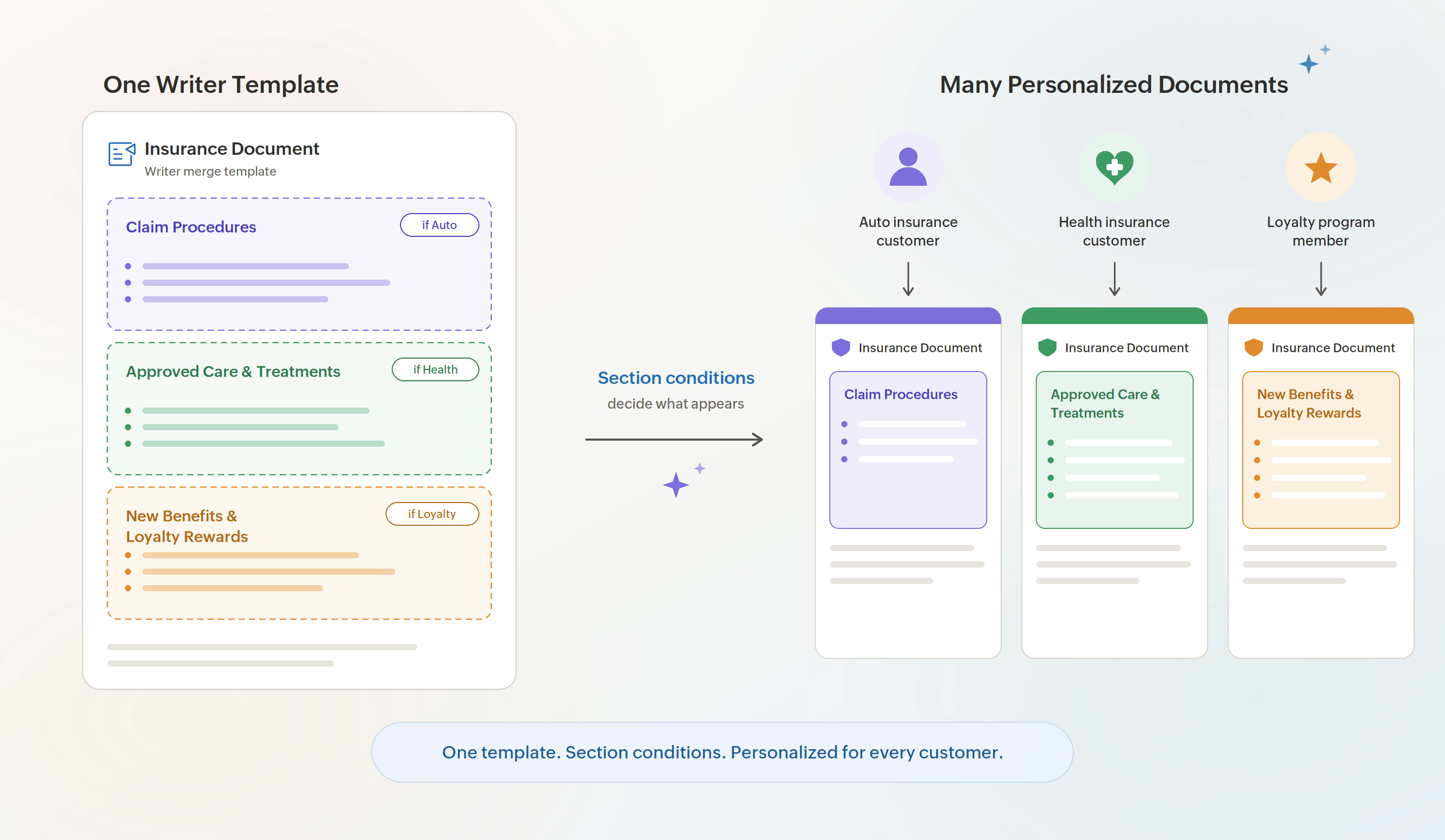
This is achieved by creating a single merge template containing separate sections for each scenario, along with the corresponding section conditions. During document generation, Zoho Writer evaluates these conditions against the incoming merge data and renders only the sections relevant to each recipient—producing multiple personalized policy documents from one consolidated template.
Why use section conditions?
- Build and maintain fewer templates.
- Show or hide entire sections with a single condition.
- Create cleaner, more personalized documents without applying conditions to individual fields.
- Easily update or extend your template as your document requirements evolve.
To learn how to create sections and configure section conditions in your merge template, refer to our Knowledge Base article.
Give it a try and let us know how it works for you. If you need a hand, write to us at support@zohowriter.com, or support@eu.zohowriter.com if you're in the EU.
Until next time, Happy automating!