- HOME
- Feature Spotlight
- Update PDF automation templates without rebuilding them in Zoho Writer
Update PDF automation templates without rebuilding them in Zoho Writer
- Last Updated : August 31, 2026
- 59 Views
- 1 Min Read

Hi everyone,
Many of you are aware that you can use PDFs to design merge, fillable, and sign templates in Zoho Writer—and if a single change occurs in PDFs, it will trigger a series of changes in your workflow. We've built Replace PDF in Zoho Writer to solve this. You can swap the original PDF in an existing PDF automation template while your workflow configuration stays intact, including data sources, post workflows, and more. This is useful for many teams, such as:
- HR teams: Refresh onboarding documents when policy pages change.
- Finance teams: Update invoice and receipt layouts with revised branding.
- Legal teams: Replace contract backdrops or disclosure pages without reconfiguring the template.
Steps to replace PDFs:
- Open your PDF automation template in Zoho Writer
- Click Replace PDF and upload the new PDF.
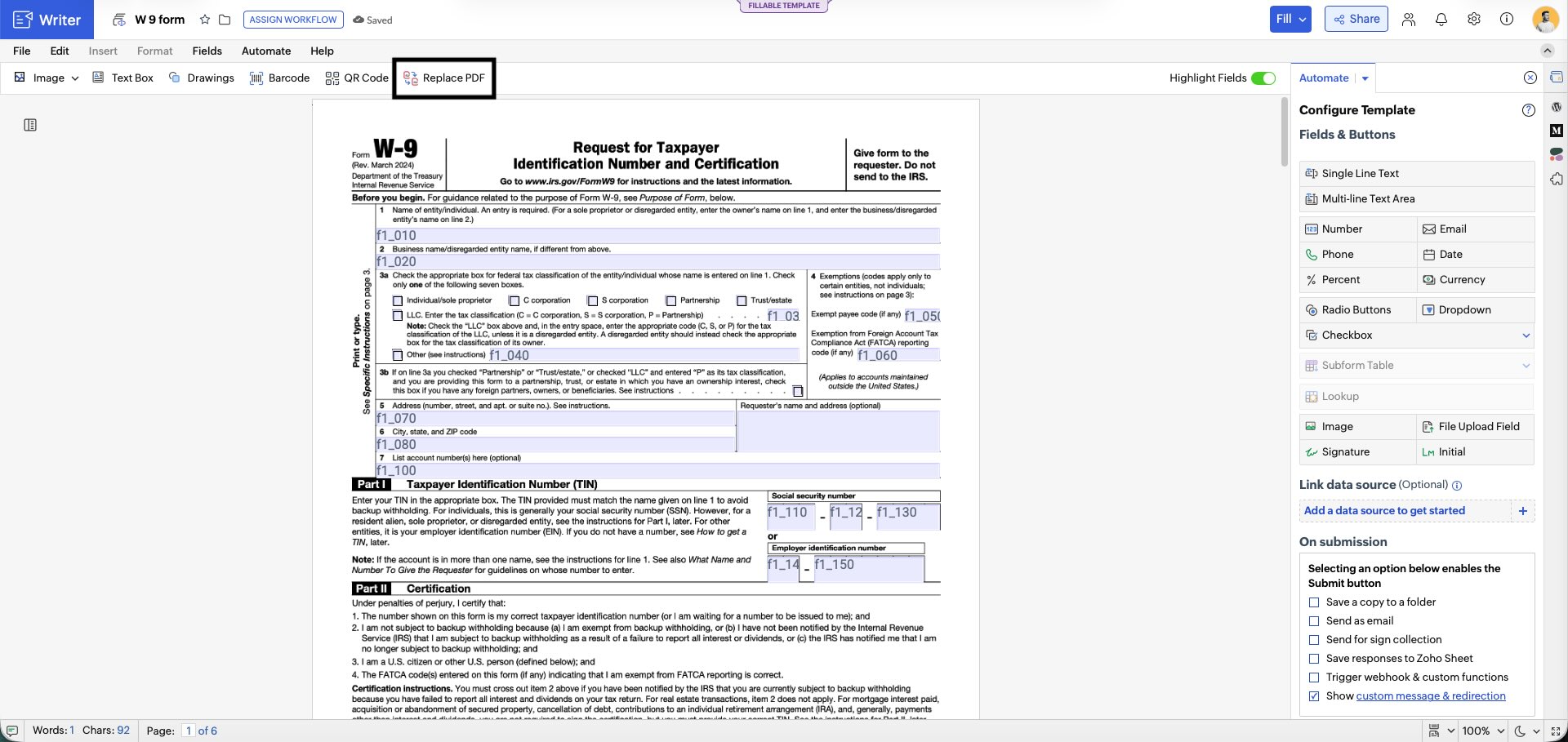
- Writer will replace the background PDF and re-render the template while retaining the field placements. Learn more.
A few things to keep in mind:
- Replace PDF is available only for PDF automation templates: Merge, Fillable, and Sign.
- The replacement PDF must be within 10 MB or 150 pages.
- The original PDF cannot be recovered after the replacement.
- If the new PDF has fewer pages than the original, fields placed on the removed pages will be permanently deleted.
If you regularly update templates but want to avoid rebuilding them from the scratch, Zoho Writer's Replace PDF can save time and reduce document workflow disruption.
Try Replace PDF and share your feedback in the comments below or at support@zohowriter.com or support@eu.zohowriter.com.