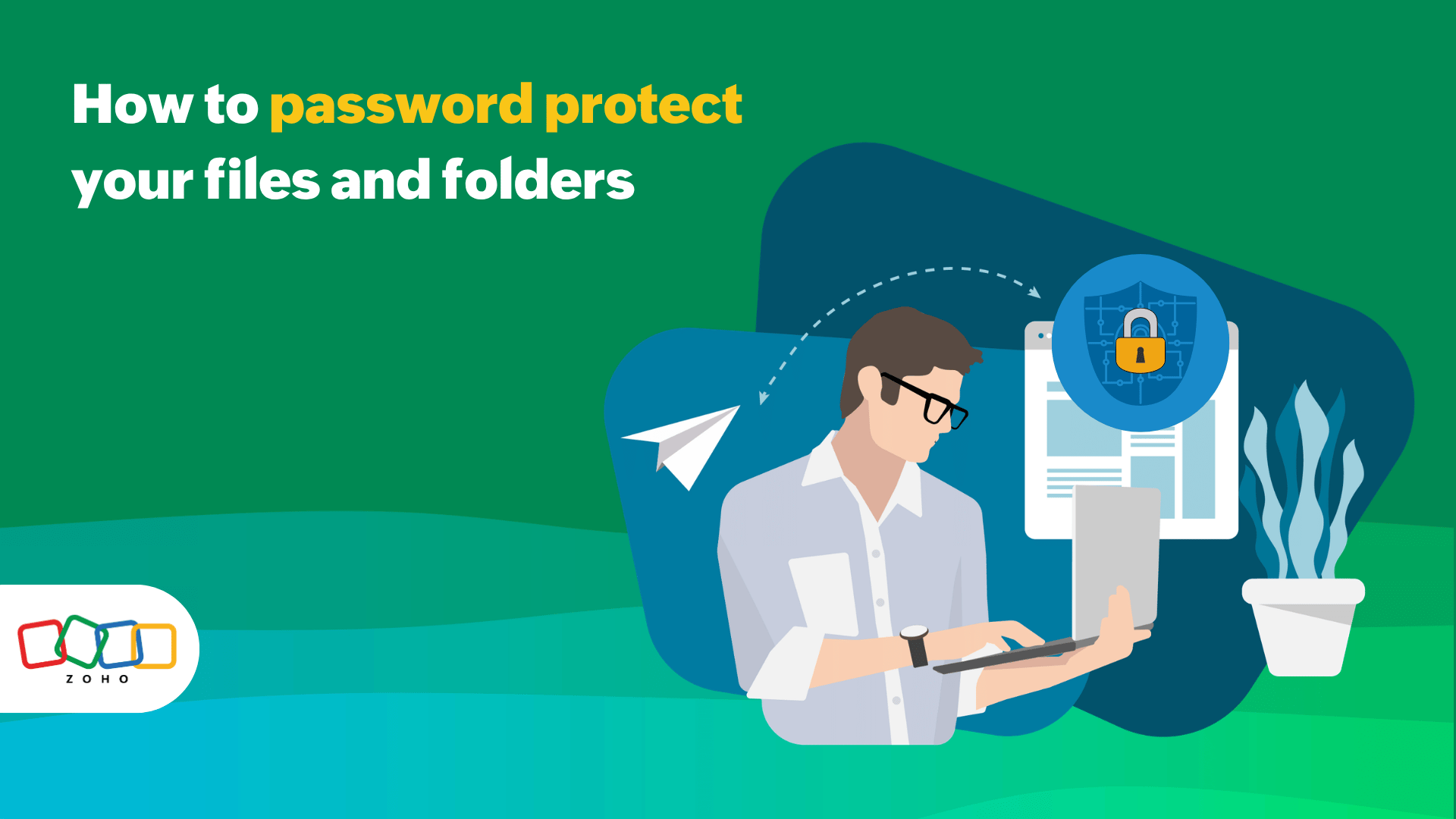
How to password protect a folder (all platforms)
- Last Updated : June 8, 2026
- 477 Views
- 7 Min Read

It's easy enough not to notice folder security until after something goes sideways: a budget folder lands in the wrong inbox, a client asset pack gets forwarded one time too many, or a temporary link stays live long after the project ends. Basic file protection is easy to delay and expensive to ignore. For example, IBM’s 2025 Cost of a Data Breach report puts the global average breach cost at $4.4 million.
The answer for how to password protect a folder depends on your platform. Windows can encrypt folders locally, macOS can wrap a folder in an encrypted disk image, Linux usually relies on distro encryption or encrypted archives, and mobile/cloud workflows are safer when you use password-protected links with expiration and access tracking.
How to password protect a folder on every major platform
The slightly annoying truth is that there is no single and native “folder protection” button across every operating system. The method changes depending on whether you want local protection on your own device or secure external sharing with another person or team.
Windows
On Windows, the built-in folder-level option is encrypting file system (EFS). Microsoft’s current support steps are straightforward:
Right-click the file or folder
Open Properties, and choose the Advanced option
Select Encrypt contents to secure data, then apply the changes
Microsoft also notes that file encryption is not available in Windows Home. If your goal is full-device protection rather than folder-only protection, Microsoft offers BitLocker.
That said, EFS is local Windows protection, not a portable sharing method. Microsoft’s developer documentation explains that EFS protects files on NTFS volumes with a public-key system, which is great for protecting content on a machine but less ideal when your job requires sending a folder to someone outside your environment. If you need a portable package, an encrypted archive format is usually the more practical route.
One common cross-platform option is 7-Zip. Its 7z format uses AES-256 encryption, and 7-Zip now provides Windows builds plus console builds for Linux and macOS. In other words: if you need one archive format your IT team can standardize around, 7z is a legitimate option.
macOS
On macOS, the cleanest built-in option for an existing folder is using Disk Utility. Apple documents a simple path:
Open Disk Utility, choose File > New Image > Image from Folder
Select the folder, then choose an encryption option
Save the encrypted image, and set a password
Apple also documents creating a secure blank disk image if you want an encrypted workspace you can keep reusing.
This is one of those Mac workflows that feels hidden. It is not meant to be anything flashy—just a practical tool. If your folder mainly lives in the Apple ecosystem and you want a built-in answer without third-party tools, Disk Utility is usually the simplest path.
Linux
This is complex in the sense that the right method depends on your distro, your file system, and whether you care more about at-rest protection than portable sharing. For example, Ubuntu’s current security documentation says full-disk encryption with dm-crypt/LUKS is the recommended approach for file system encryption. It also notes that fscrypt is available for encrypting directories on ext4, but it is not officially supported there.
So if your goal is protecting sensitive folders on a Linux laptop, distro-level encryption matters most. But if your goal is sending a folder externally, a portable encrypted archive often makes more sense than trying to reproduce local file-system behavior on the recipient’s machine. Again, 7-Zip is useful here because it offers Linux console builds and AES-256 in the 7z format.
iPhone and iPad
On iPhone and iPad, Apple’s built-in Files workflow covers creating and opening ZIP files. Apple allows users to select files, compress them, and generate a ZIP archive.
What Apple’s built-in support steps do not show in that workflow is a password prompt for the archive. So in practice, if you are trying to share a folder securely from iOS or iPadOS, the more reliable answer is usually a cloud service with password-protected links rather than trying to force local folder protection into a mobile workflow.
This is just a reminder that phones are excellent for access and quick collaboration, but not always the best place to manage your entire security scheme.
Android
Android gives you a useful local privacy feature through Google Safe folder. Google says you can move files into Google Safe folder and protect access with a PIN or a pattern.
However, Google also makes two important caveats clear: Sharing and backing up those files to Google Drive are not available inside Safe folder, and someone who gains unauthorized access to the device’s internal storage may still be able to access the files.
That makes Safe folder helpful for device privacy, but not ideal for external collaboration. If you actually need to send the folder to someone else, use an encrypted archive or, better yet, a link-based sharing workflow with password protection, expiration, and visibility into access.
Cloud and shared folders
This is where folder security becomes more practical for real work. Microsoft says OneDrive offers password-protected and expiring sharing links for Microsoft 365 subscribers. Dropbox likewise supports passwords, expiration dates, and optional download restrictions for shared links on supported plans.
Zoho WorkDrive share links also support password protection, requested user details, access tracking, and link expiration.
Once a folder is meant to leave your device, the better question is no longer just “Can I add a password?” It transforms into, “How much can I control access to shared files from my end?”
What folder protection does and doesn’t do
A password on a folder or archive is useful, but it is not the whole story. Think of it this way:
Password protection limits access to the package or link
Encryption protects the underlying contents from unauthorized reading
Governance controls the workflow around sharing, permissions, retention, and audit
That difference matters because passwords are only as strong as the habits around them. NIST’s current digital identity guidance says single-factor passwords should be at least 15 characters, systems should allow a maximum length of at least 64 characters and verifiers should allow password managers and autofill.
So yes, use a long unique passphrase. Yes, use a password manager. And no, “QuarterlyBudget2024?xd!” should not quietly return every six months wearing a fake mustache. We can do better than that.
Just as important, password protection alone normally does not tell you:
Who created the share
Who accessed it
Whether the link should have expired already
Whether downloads were restricted
Whether someone on your team should have been allowed to share the folder externally in the first place
That is why compliance, collaboration, and security teams tend to care about auditability and policy controls, not just encryption checkboxes.
A simple checklist before you share externally
If you are about to send a sensitive folder outside your organization, here is the practical checklist we would suggest:
Decide whether you need local protection or shared access: EFS, Disk Utility images, LUKS, and Safe folder are mostly about protecting content on your own device. Password-protected links are better when collaboration is the goal.
Use a long, unique password or passphrase: NIST recommends strong length allowances and support for password managers as mentioned before.
Set an expiration date: If a link does not need to be permanently accessible, it should not live forever. OneDrive, Dropbox, and WorkDrive all support expiration controls in different ways.
Restrict downloads: It is not perfect, but it reduces casual leakage. Dropbox and WorkDrive both expose this as a share control when the content is view-only
Collect or verify recipient identity when possible: Named-user sharing and OTP-style verification are usually stronger than anonymous links.
Keep an audit trail: If the folder contains client, finance, HR, legal, or regulated content, you want a record later, not just a memory.
Frequently asked questions
How to password protect a folder on Windows without extra software?
On supported Windows editions, Microsoft’s native route is EFS: right-click the folder, open Properties, choose Advanced, select Encrypt contents to secure data, and apply the change. Microsoft notes that this is not available in Windows Home. If you need full-device protection, BitLocker is Microsoft’s drive-encryption option.
Is password-protecting a folder the same as encrypting it?
Not exactly. Password protection is the access check. Encryption is what makes the data unreadable without the key. For business use, you usually also need governance controls like expiration, activity logs, and admin permissions around who can create external shares.
Can I password protect a folder on iPhone or Android?
On iPhone and iPad, Apple’s built-in Files workflow documents ZIP creation, not password-protected folder sharing. On Android, Files by Google Safe folder can lock local files with a PIN or pattern, but Google says sharing and Drive backup are not available there. For external sharing, a service with password-protected links is usually the better route.
What is the safest way to share a protected folder externally?
For most teams, the safest approach is a password-protected share link with an expiration date, least-privilege access, and activity visibility. If you must send a package, use an encrypted archive format and send the password separately. Cloud platforms like OneDrive, Dropbox, and WorkDrive all support different combinations of these link controls.
Do SMBs and enterprises need more than just passwords?
Yes. Passwords help, but governance is what makes the process dependable: who can share externally, whether OTP or user verification is required, whether links expire by default, and whether activity is tracked and exportable later. That is what turns security from a one-off action into an operational habit.
If your current process for external folder sharing is still “ZIP it, send it, message the password, and hope for the best,” it may be time for something else! Explore how governed sharing works in practice. When you are ready to build folder protection into real workflows, Zoho WorkDrive to welcome you!