Assign, Automate, and Track Emails in Zoho TeamInbox
- Published : August 31, 2026
- Last Updated : August 31, 2026
- 10 Views
- 8 Min Read

A shared mailbox without clear ownership leads to siloed communication and creates two problems at once. Some email threads get answered twice by two people who both thought they were helping. Others go unanswered because everyone assumes someone else has it covered.
Assigning emails to specific team members fixes both issues and brings structure to email management for teams of all sizes. Once a thread has an owner, everyone on the team knows exactly who’s handling it and who’s free to help with something else.
This guide covers why assigning emails matters and how to set it up in Zoho TeamInbox manually and automatically, along with how to track assignments once they’re in place.
Why should you assign emails to team members?
When a team receives a high volume of email across multiple team members, a system for dividing that work becomes necessary. Assignment gives every thread a single owner, so that member is responsible for it until it’s resolved. This brings a few clear benefits.
1. Clear ownership
Every thread gets handled once. Ownership removes the guesswork and prevents email slips where a message quietly falls through the cracks. If a thread is assigned to a member, the rest of the team knows to leave it to them unless the member asks for help.
2. More visibility
Team members get a clear view of their own work. Instead of scanning an entire shared inbox, a member can filter down to just the tasks assigned to them and work through that list, improving overall productivity.
3. Better collaboration
When ownership is visible, teammates know exactly who to go to for an update on a specific customer or topic. This supports better collaboration between customer-facing teams, such as sales and support, and streamlines internal discussions across departments.
4. Progress monitoring
Managers get a clearer view of the workload. A manager scanning assignments across the team can monitor progress, spot who is carrying too much, and shift threads accordingly before it becomes a bottleneck.
5. Analytics-backed insights
Performance becomes easier to measure. When threads carry an owner’s name and a date, a manager can see how many a specific person handled in a week, alongside how quickly they responded. This turns a vague sense of “who’s doing well” into analytics-backed insights.
The same logic applies to small businesses. Even a two-person team benefits from email assignment, because it removes the need to ask “Did you already reply to this one?” and lets a small business collaborate without stepping on each other’s replies.
Before you assign: Make sure emails are reaching the right inbox
Assignment works on threads that are already inside Zoho TeamInbox. If your team currently manages a group email address—such as support@yourcompany.com—through Zoho Mail, Gmail, Microsoft 365, or another provider, connect that address to TeamInbox first by forwarding emails to it.
The general process involves the following steps:
Create an inbox in TeamInbox for the group address.
Copy the forwarding address it generates.
Add that forwarding address as a member of the group in your email provider.
This way, the mail keeps moving through a secure and reliable transactional path rather than getting lost between systems.
Once mail is flowing into TeamInbox, remove other members from the group who should manage email through TeamInbox instead of their personal inboxes, so replies stay centralized and assignable.
Teams already running Zoho CRM for sales or Zoho Desk for support can extend that same ownership model to email, so marketing teams and support reps aren’t working from separate, disconnected systems.
Full setup instructions for Zoho Mail groups, Gmail groups, Microsoft 365, and other providers are available if your team needs this step. If your emails already reach TeamInbox directly, skip ahead to email assignment.
How to assign emails to team members in Zoho Team Inbox
Zoho TeamInbox gives you a few ways to assign threads, ranging from a manual click to fully automatic rules. The functionality is built as a straightforward solution for teams that want more efficiency without extra software or platforms.
Use the method that fits how predictable the thread type is. A one-off email may need manual assignment, while a recurring category, such as billing questions, is a strong candidate for automation.
1. Manually assign a thread
Open the thread and click the Assign button in the top-right corner. Choose the team member you want to hand the thread to from the list. A quick comment with any relevant context helps the next person pick it up without re-reading the whole thread.
This works well for one-off emails or threads that need judgment before deciding who should take them. For example, a new inquiry that could go to either sales or support gets read first, then manually assigned to whichever team is the right fit that day.
2. Auto-assign emails using Rules
For recurring email types, set up a rule instead of assigning threads one by one every time. A rule runs on a trigger, a condition, and an action, turning a manual habit into a repeatable workflow.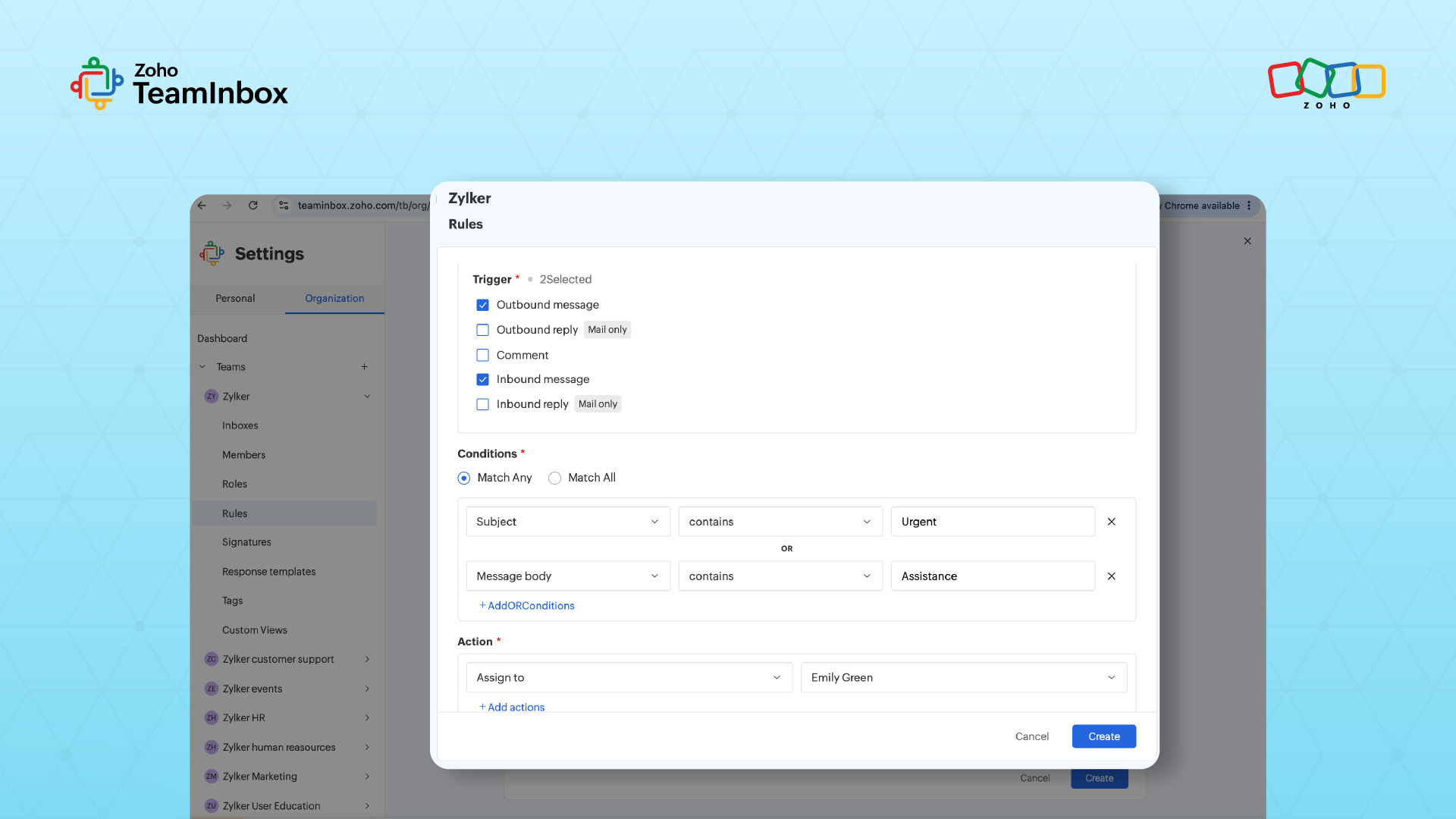
Go to Manage team and open the Rules tab.
Set the trigger to Inbound Messages, so the rule runs whenever a new message reaches the inbox.
Set a condition, such as the subject line, sender, or a tag matching specific text.
Set the action to Assign to and choose the team member who should receive matching emails.
Example: If every email with “payment” in the subject line should go to Ken, set the condition to check for that word and the action to assign the thread to Ken. Once the rule is active, every matching email routes to him automatically, and the team spends zero time manually sorting those threads.
Read more about setting up Rules in Zoho TeamInbox for additional trigger and condition options.
3. Auto-assign on first reply
Some threads are fine to leave unassigned until someone actually responds. The “Auto-assign on first reply” setting is useful for follow-ups that don’t need to be pre-sorted. When enabled, the first person to reply to an unassigned thread automatically becomes its owner, even if they forget to click Assign themselves.
If a thread is already assigned to someone and a different member replies, ownership stays with the original owner. This setting applies only to threads that were unassigned to begin with, keeping existing ownership intact.
Enable this from your inbox settings, or turn it on while creating a new inbox.
4. Customize who shows up in the Assign dropdown
By default, the Assign dropdown lists every member of your organization, which can turn into a long list to scroll through on a large team. If you only need to assign threads to people on your specific team or inbox, narrow that list from your personal settings, based on your own access permissions and role.
This change applies only to your own view. For example, a support lead who only ever assigns threads within their five-person team can shorten their dropdown to just those five names, while the rest of the organization still sees the full list in their own view.
5. Track and review assignments
Once the assignment is running, use these views to keep tabs on it.
The thread timeline logs every action taken on a thread, including who it was assigned to and when, giving full visibility and context into how a thread moved. Review this periodically to confirm your assignment rules and habits are working the way you expect.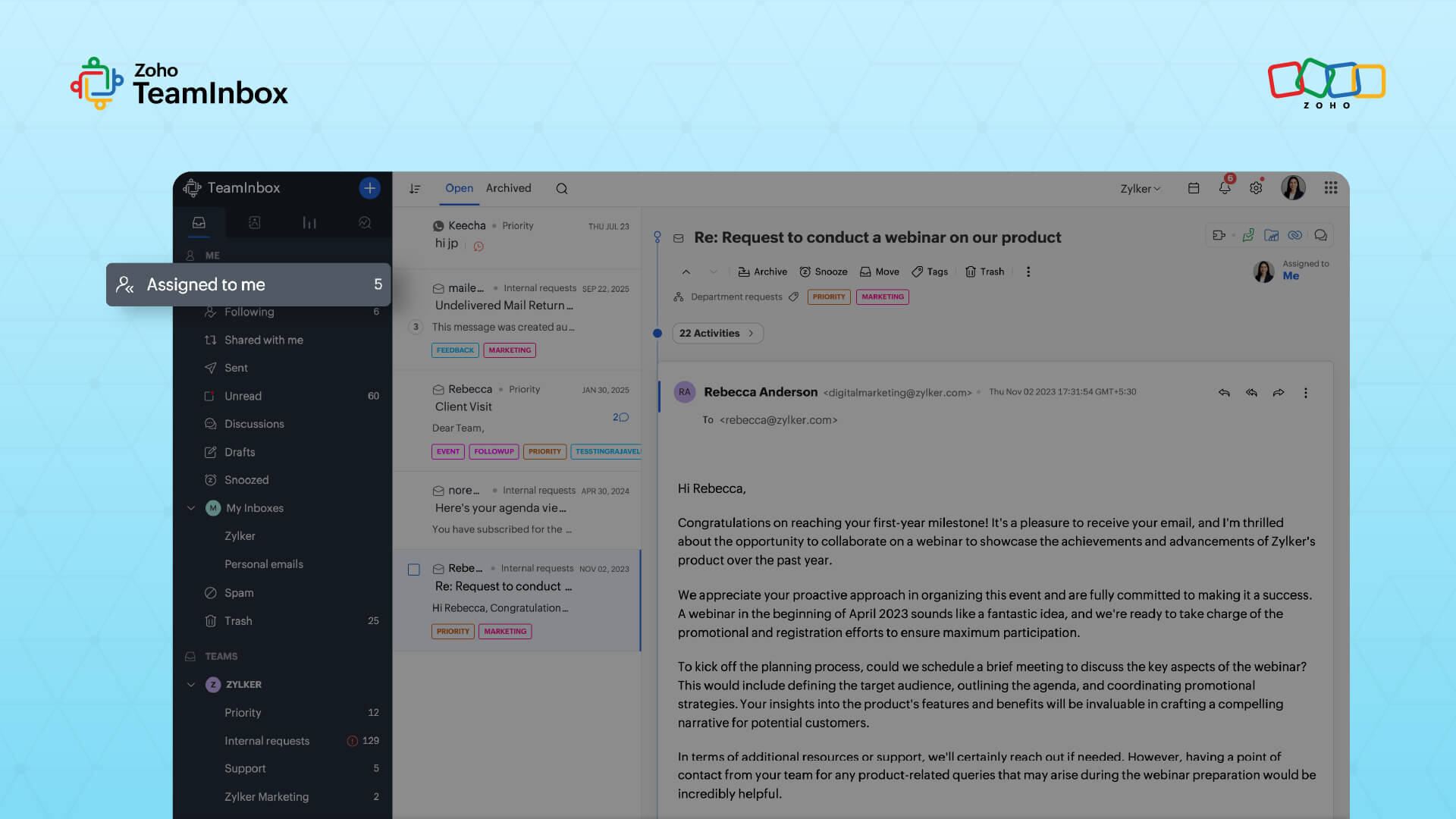
The “Assigned to me” view, in the left menu, lists every thread assigned to you across all of your inboxes, so you can focus on your own workload without scanning the full shared inbox.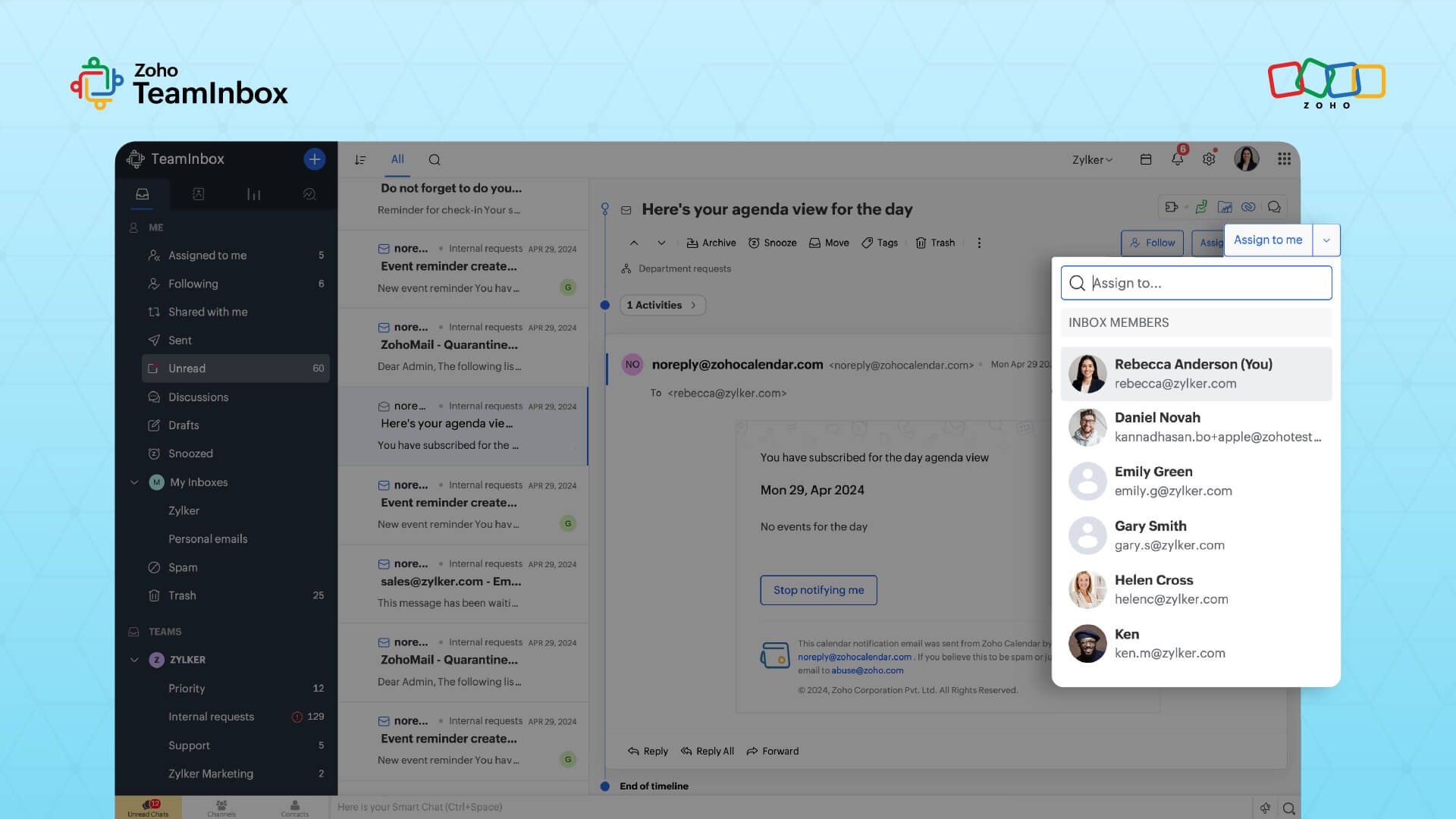
The “Assigned to others” view shows what your teammates currently own, which is useful for a quick check on who has room to take on more before you assign a new thread manually.
Choosing the right assignment method
With five ways to assign a thread, it helps to know which one fits which conversation.
Use manual assignment for one-off emails, unusual requests, or anything that needs a judgment call about who’s the right fit. A new partnership inquiry, for example, is worth reading first and routing based on its content rather than a fixed rule.
Use Rules for categories of email that show up regularly and follow a predictable pattern, such as billing questions, a specific product line, or emails from a known VIP client. Once the rule is set, that category takes care of itself.
Use auto-assign on the first reply as a safety. It catches the threads that fall through the cracks of manual habits, without requiring every single incoming email to be pre-sorted by a rule.
Mostly, teams end up using a combination of all three. Recurring categories run on Rules, ambiguous or judgment-based emails get assigned manually, and auto-assign on first reply quietly catches anything left over.
- Review your assignment setup every few months as your team grows or your email patterns shift. A rule written for a five-person team may need to be adjusted once that team doubles.
Turning shared inboxes into owned inboxes
Assignment turns a shared inbox from a free-for-all into a system with clear ownership. Every email gets handled once, by the right person, and managers get a real-time view of who is carrying what.
Zoho TeamInbox supports this at every level, from a manual assign click for one-off emails, to Rules for recurring categories, to auto-assign on first reply as a safety net. For teams already running on Zoho One, this same structured approach to communication extends naturally across the rest of your service and sales stack.
Set up a rule for your most common email type today, and see how much manual sorting it removes from your team’s day.
FAQ
1. Can Zoho TeamInbox automatically assign emails to team members?
Yes. Rules can auto-assign emails based on conditions such as sender or subject line, and the “Auto-assign on first reply” setting assigns unassigned threads to whoever replies first.
2. What happens if a thread is already assigned and someone else replies?
Ownership stays with the original owner. Auto-assign on first reply only applies to threads that were unassigned before the reply was sent.
3. Can I limit who appears in the Assign dropdown?
Yes. From your personal settings, you can narrow the dropdown to show only members of your team or inbox. This change applies to your own view alone.
4. How do I see which emails are assigned to me?
Use the “Assigned to me” view in the left menu. It lists every thread assigned to you across all inboxes you have access to.
5. Can I assign emails from a group email address in Zoho TeamInbox?
Yes, once the group email is connected to a TeamInbox inbox. Route the group address through Zoho Mail, Gmail, Microsoft 365, or another provider first, then assign threads from that inbox as usual.
6. Should I use Rules or manual assignment for my team?
Both, depending on the email. Rules work well for predictable, recurring categories like billing or a specific product line, while manual assignment suits one-off or judgment-based emails that need to be read before deciding who should handle them.