
How to add live chat widget to WHMCS?
- Connect to your webserver via the FTP program of your choice, and navigate to whmcs/template/X, where X is the name of the theme that you are using in WHMCS.
- Find the file footer.tpl and click on it.
- From the left side of your cPanel click on Edit File or Edit File with Code Editor option.
- At the bottom of the page right above the tag put:
{literal} paste your Zoho SalesIQ live chat widget code between these tags! {/literal}
Note:
When adding JavaScript to a WHMCS site, you need to add these {literal} {/literal} tags before and after the JavaScript.
- Click Save changes (upper right corner of page.)
- Exit from cPanel.

To get the Zoho SalesIQ chat widget code snippet
- Login to your Zoho SalesIQ Operator console.
- Navigate to Settings -> Websites, click on the name of the website you are attempting to include in a page.
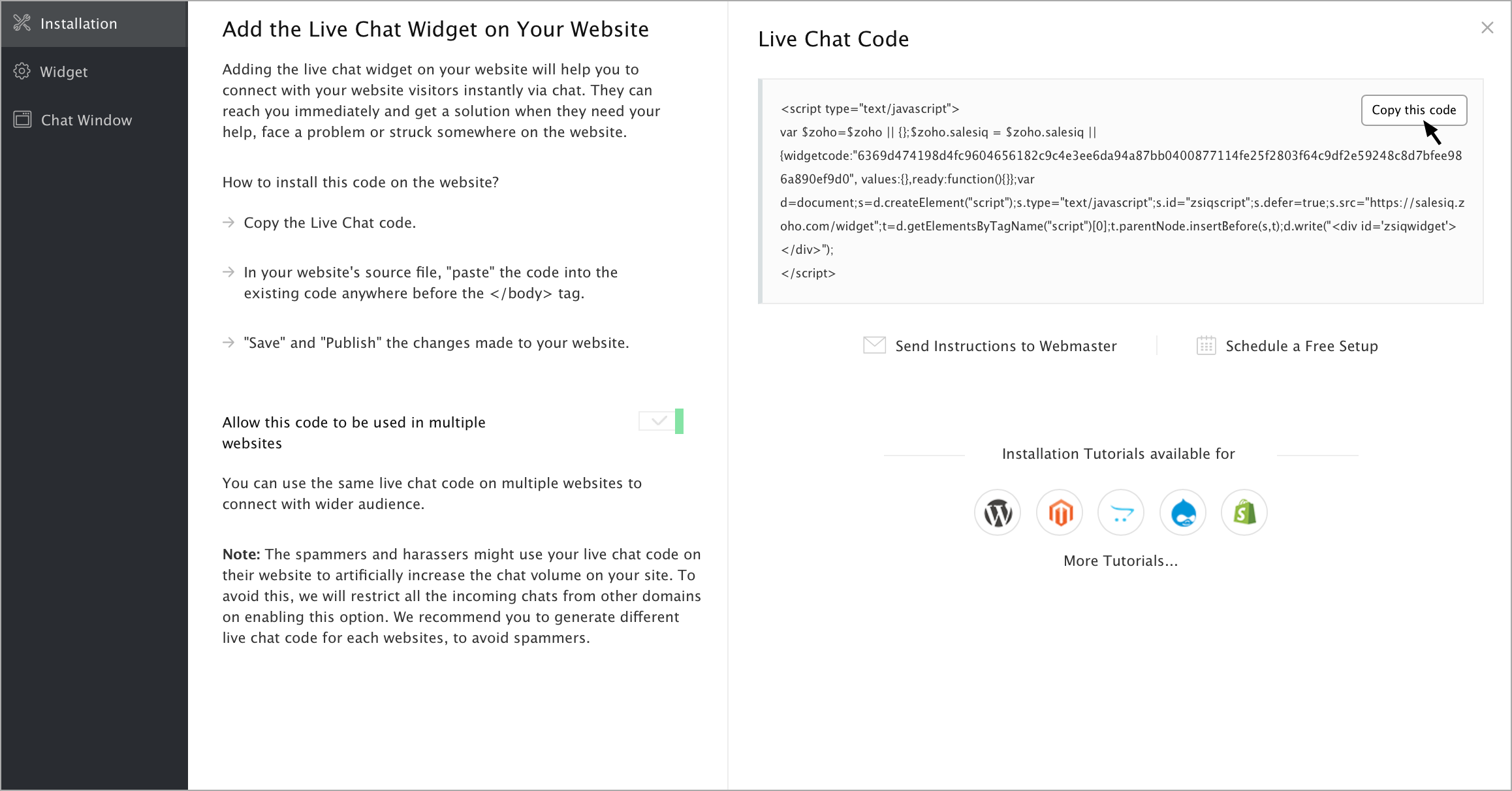
- Select Live Chat. In the Installation section, click Copy this code to copy the code snippet.
Note:
To receive live chat notifications, you should be logged in to Zoho SalesIQ (https://www.zoho.com/salesiq/).