
Message360 Extension for Zoho CRM
How Can I...
With message360˚ extension for Zoho CRM, you can now send message to Leads and Contacts right from inside Zoho CRM. You can also create templates for the messages. You can also view all the message360˚ account details along with the numbers present and list of outbound and inbound messages.
Install message360˚
You can either go to the Zoho Marketplace and install the message360° extension or log in to your Zoho CRM account and install.
To install message360˚ extension
- Go to Setup > Marketplace > All.
- All the installed extensions are listed. Under All Extensions you can view all the extensions supported in CRM.
- Click All Extensions, browse through for message360˚ and click it.
The details about the extension will be available. - Click Install Now.
- In the following screen, agree to the terms of service and click Continueto Install.
- Choose one of the following and click Confirm.
- Install for admin only - The extension will be installed in CRM for only the users with the administrator profile.
- Install for all users - The extension will be installed in CRM for all the users. Users need to have an message360˚ account to use this feature.
- Choose profiles - The extension will be installed in CRM for all the users. You need to choose this option, click Continue and then select the profile
The extension will be installed automatically for the specified users. After installing you need to authorize using your message360˚ login credentials.
- Copy the Auth Token and the Account Sid from the message360˚ Dashboard and paste them.
The account will be authorized and the extension can be used.
Send Messages
With the message360˚ extension for Zoho CRM you can now send messages to your Leads and Contacts right from inside Zoho CRM.
To create message template
- Go to SMS Templates tab.
- Click + to create a new template.
- Give the template a name.
- Specify other fields like Email address, which CRM module it belongs to, Owner, Currency and EmailOptOut option.
- Then type the message content in the Template Message field box.
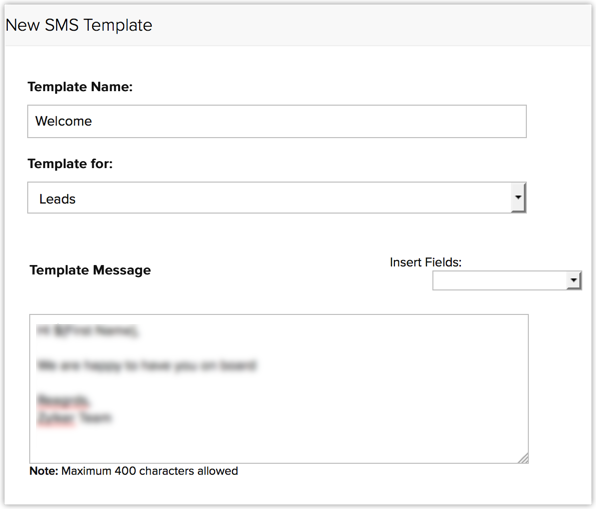
- Click Save.

To send messages to your CRM Leads or Contacts
- Go to Leads or Contacts module.
- Click on the record for which you want to send the message.
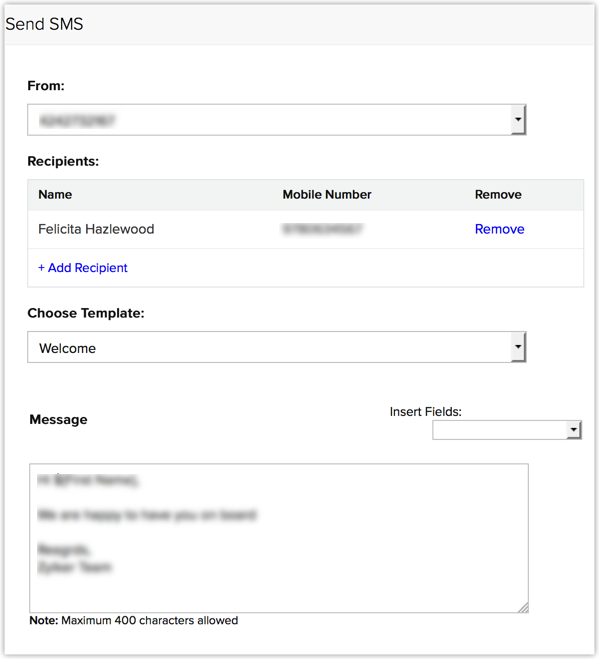
You can also select multiple records and send messages to them at one go. - Select the number From which you want to send the message.
- Click Send SMS.

- Add Recipients to send the message if needed.
- Choose Template from the drop-down list.
- Edit the message, if needed.
- To insert fields, select the required field and it will be inserted into the message.
You can also view the history of messages in the SMS History tab.
To send messages to new Leads or Contacts through workflows
Users who can also send messages to your new contacts using the message360 integration. This can be accomplished through workflow custom functions in CRM. Write your own custom function using our Deluge script editor in your CRM and associate it with the workflow rule. See Also Deluge Script Reference guide
To program a custom function
- Click (theSettingsicon)> Setup > Automation > Workflow Automation > Custom Function
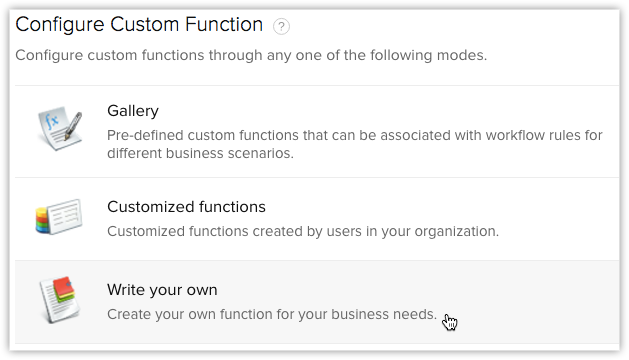
- In the Workflow Custom Functions page, click Configure Custom Function.
- In the Configure Custom Function page, choose Write your own function option.
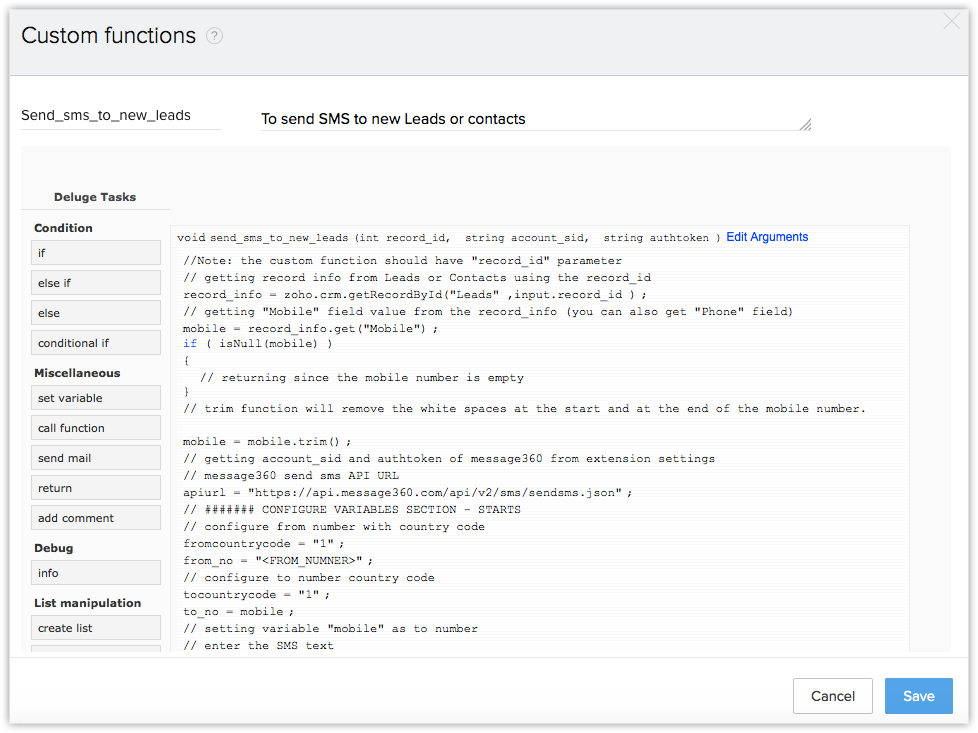
- Write your required function in the Deluge Script Editor.
You can use the following custom function script.//Note: the custom function should have "record_id" parameter// getting record info from Leads or Contacts using the record_idrecord_info = zoho.crm.getRecordById("Leads", record_id);// getting "Mobile" field value from the record_info (you can also get "Phone" field)mobile = record_info.get("Mobile");if (isNull(mobile)) {// returning since the mobile number is emptyreturn;}// trim function will remove the white spaces at the start and at the end of the mobile number.mobile = mobile.trim();// getting account_sid and authtoken of message360 from extension settingsaccount_sid = zoho.crm.getOrgVariable("message360.account_sid");authtoken = zoho.crm.getOrgVariable("message360.authtoken");// message360 send sms API URL// ####### CONFIGURE VARIABLES SECTION - STARTS// configure from number with country codefromcountrycode = "1";from_no = "<FROM_NUMNER>";// configure to number country codetocountrycode = "1";to_no = mobile; // setting variable "mobile" as to number// enter the SMS textsms_message = "Hi, This is test SMS from Zoho CRM.";// ####### CONFIGURE VARIABLES SECTION - ENDSif (!isNull(account_sid) && !isNull(authtoken)) {// doing base64 encoding for account_sid and authtoken for authenticate message360.combaseEncoded = zoho.encryption.base64Encode(account_sid+":"+authtoken);baseEncoded = "Basic " + baseEncoded;headers = map();headers.put("Authorization", baseEncoded);// setting all required parameters to the map for sending SMSrequest_data = map();request_data.put("fromcountrycode", fromcountrycode);request_data.put("from", from_no);request_data.put("tocountrycode", tocountrycode);request_data.put("to", to_no);request_data.put("body", sms_message);// calling message360 api using the given parametersresp = postUrl(apiurl, request_data, headers, false);// you can use resp_status for failure handlingresp_status = resp.get("responseCode");info resp_status;} - Click Save.
To associate the above custom function to a workflow rule
- Click (theSettings icon) > Setup > Automation > Workflow Automation > Rules.
- In the Workflow Rules page, click the Create Rule.
- In the Create New Rule tab, specify workflow rule parameters.
- Select the Custom Function to be triggered, under Instant Actions.
- Click Save.
You can now send SMS to your new Leads/Contacts using the message360 integration.
Uninstall message360˚
When you wish to uninstall message360˚ extension, please note that all the data will be deleted on uninstalling and it cannot be recovered.
To uninstall message360˚
- Go to Setup > Marketplace > All.
All the installed extensions are listed. Under All Extensions you can view all the extensions supported in CRM. - Browse for message360˚ and click the corresponding Uninstall link.
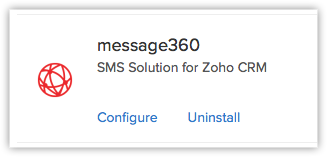
- Click Ok to confirm.
The extension will be uninstalled and all the data related to message360˚ will be deleted.