How to access your office PC from home securely
- Last Updated : September 7, 2026
- 74 Views
- 6 Min Read

The most secure way to access your office computer from home is through remote desktop software with built-in encryption and multi-factor authentication. This article covers what secure remote access means, how it compares to a VPN, and how to get started without complicated network configuration.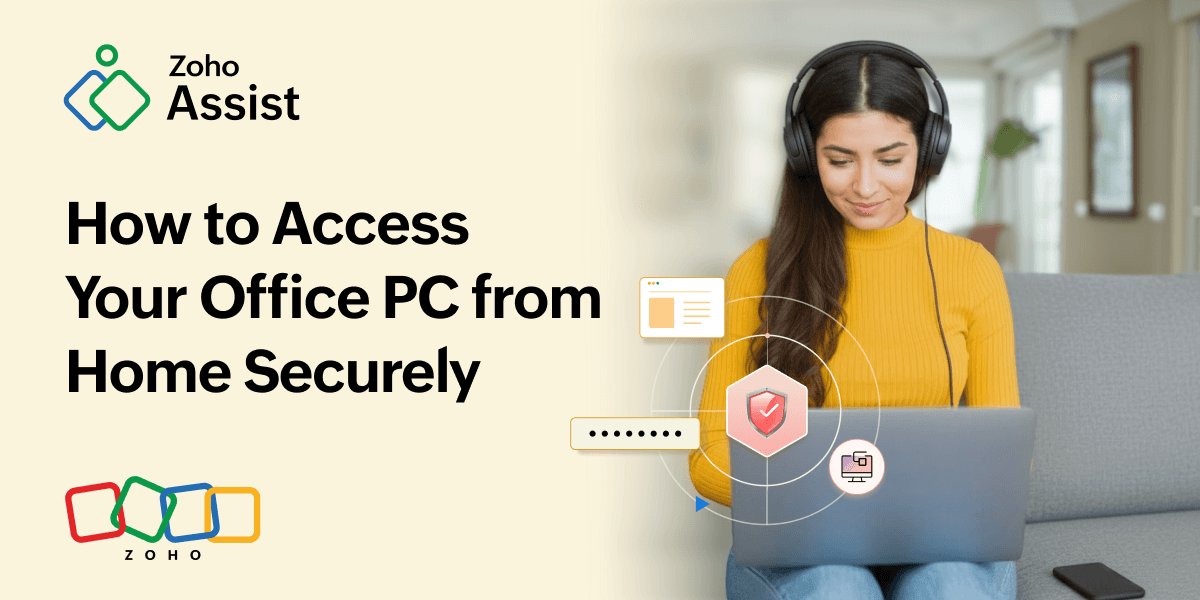
Key takeaways
Remotely access your office computer from home without a VPN or complex network setup
Zoho Assist uses 256-bit AES encryption and multi-factor authentication to keep your sessions secure
Works on Windows, macOS, Linux, Android, iOS, and supported web browsers
Set up takes a few minutes, install the agent on your office PC and connect from anywhere
During a session, you can transfer files, navigate multiple monitors, print remotely, and reconnect automatically after a reboot
What is remote access to a computer?
Remote access gives you the ability to view and control your office desktop from a different location over the internet, with no files copied to your home device and no risk of sensitive documents landing on a personal or unsecured drive. Your home device sends your inputs to the office machine and displays the screen in return. Applications continue running on your office computer, while you interact with them remotely.
Zoho Assist establishes a secure connection to your office computer without requiring a VPN or complex network configuration in most environments.
Not just for IT teams anymore
Remote access is useful across a wide range of roles and work styles, not just for technical teams.
Remote and hybrid workers can reach their full office setup, including specific applications and internal tools, without carrying a second device
IT teams can manage and troubleshoot office machines outside working hours or without being physically on-site
Small business owners can access software installed only on a specific office machine, such as accounting tools or a desktop CRM
Employees on flexible schedules can continue working exactly where they left off, without transferring files between devices
VPN vs. remote desktop software: Which is more secure?
These are the two most common approaches to remote access. Both work, but they solve different problems.
A virtual private network (VPN) creates an encrypted tunnel between your home internet connection and your company's network. Once connected, your home device can reach shared drives, internal servers, and network-restricted applications. What a VPN does not do is give you control of your office desktop. If an application is only installed on your office machine, a VPN alone will not help you reach it. VPNs also require IT-side server configuration and can reduce connection speed because all traffic routes through the office network.
Remote desktop software works differently. With Zoho Assist, you get direct access to your office computer from any device at home. You see your office desktop exactly as it appears, open files, and run applications as if you were in the office. Zoho Assist typically doesn't require port forwarding or complex network configuration, making remote access easier to set up.
Factor | VPN | Zoho Assist | Windows Remote Desktop (RDP) |
What you access | Company network resources | Your office computer's full desktop | Specific Windows PC it is installed on |
IT setup required | Server and firewall configuration | Install the unattended access agent | Firewall rules, port forwarding, static IP or VPN often needed |
Access office-only apps | Requires local installation | Yes, run any application on your office computer | Yes, but only from Windows machines |
Port forwarding | May be required | Not typically required | Usually required |
MFA support | Depends on the VPN solution | Built-in | Depends on configuration |
Browser access | No | Yes (after installing the unattended access agent on the remote computer) | No |
How to set up secure remote access to your office PC with Zoho Assist
Unattended remote access lets you connect to your office computer anytime, even when no one is present. Here's how to get started.
Step 1: Create your Zoho Assist account
Sign up for a Zoho Assist account.
Step 2: Enable multi-factor authentication
Go to Account Settings > Security and enable multi-factor authentication (MFA) to add an extra layer of security.
Step 3: Install the unattended access agent
On your office computer, sign in to Zoho Assist, open the Unattended Access tab, and install the unattended access agent. Your computer will be added to your account automatically.
Step 4: Configure your device
Assign your computer to a group and configure the required access permissions. If supported, enable Wake on LAN to remotely wake compatible devices before connecting.
Step 5: Connect from anywhere
Sign in to Zoho Assist from your home computer, select your office PC, complete the MFA verification, and start your remote session.
What you can do during a Zoho Assist session
Zoho Assist includes several tools that help you work efficiently during a remote session.
File transfer: Transfer files up to 100 GB between your local and remote computers. Administrators can disable file transfer when required.
Multi-monitor navigation: If your office setup uses multiple displays, switch between them or view them simultaneously during the session.
Remote printing: Print documents from your office PC directly to a printer connected at home, without downloading the file to your home device first.
Remote reboot: Restart your office PC during a session and reconnect automatically once it is back online, without starting a new session.
System diagnostics: Run Task Manager, Command Prompt, and native system tools on your office PC directly during the session, which is particularly useful for IT teams managing devices at multiple sites.
Best practices to follow when working remotely
Zoho Assist handles the session-level security automatically. Following a few simple security practices can help protect your devices and data while working remotely.
Use a password that is unique to your Zoho Assist account and store it in a password manager. Reused credentials from other services are a direct path to unauthorized access.
Close your session manually when you step away, even though Zoho Assist disconnects idle sessions automatically.
Avoid starting remote sessions from public Wi-Fi in airports, cafes, or hotels. Consider using a password-protected mobile hotspot instead.
If your home IP address is consistent, add it to the IP allow list in Zoho Assist so sessions can only be initiated from approved locations. Read how IP restriction works in Zoho Assist.
Keep your office PC's operating system and the Zoho Assist agent updated regularly.
Supported platforms
Zoho Assist supports unattended remote access on Windows, macOS, and major Linux distributions. You can connect from Windows, macOS, Linux, Android, or iOS devices, or launch remote sessions from supported web browsers after installing the unattended access agent on the remote computer.
Get started
Whether you're working remotely, managing business systems, or supporting distributed teams, secure remote access helps you stay productive without compromising security.
Ready to securely access your office computer from anywhere? Start your free trial of Zoho Assist and set up unattended remote access in minutes.
FAQ
How do I access my office computer from home?
To access your office computer from home, install an unattended remote access agent on your office PC and sign in using remote desktop software such as Zoho Assist. Once configured, you can securely access your work desktop from home through a web browser or desktop app, open office-only applications, access files, and continue working from anywhere.
Is it safe to access my office computer from home?
Yes. It is safe to remotely access your office computer from anywhere when you use a secure remote access solution with end-to-end encryption, multi-factor authentication (MFA), and access controls. Zoho Assist protects remote sessions with TLS encryption, AES-256 encryption, MFA, audit logs, and role-based permissions to help safeguard business data.
Can I access my office computer from home on my phone?
Yes. You can connect to your office computer from home using an Android or iPhone with the Zoho Assist mobile app. After your office computer is configured for unattended access, you can securely view and control your work desktop, access files, and perform common administrative tasks directly from your mobile device.
Can I access my office computer from home without a VPN?
Yes. You can securely access your office PC without a VPN by using remote desktop software such as Zoho Assist. Instead of connecting to your entire corporate network, Zoho Assist establishes an encrypted connection directly to your office computer, eliminating the need for complex VPN or port forwarding configurations in most environments.
What happens if my office computer restarts?
If your office computer restarts during a remote session, Zoho Assist's Reboot and Reconnect feature automatically restores the connection after the system comes back online. As long as the unattended access agent is running and the computer has internet connectivity, you can reconnect without starting a new session.