Script Repository in Zoho Assist: Organize and run scripts efficiently during remote sessions
- Last Updated : June 16, 2026
- 173 Views
- 3 Min Read

When a support session is live and a customer is waiting, a technician should be focused on solving the problem, not searching for the right script file. But in many IT teams, scripts are scattered across individual machines, shared folders, and email threads, named differently by different people, and impossible to find under pressure.
Sound familiar?
That is exactly the problem the Script Repository in Zoho Assist is built to fix.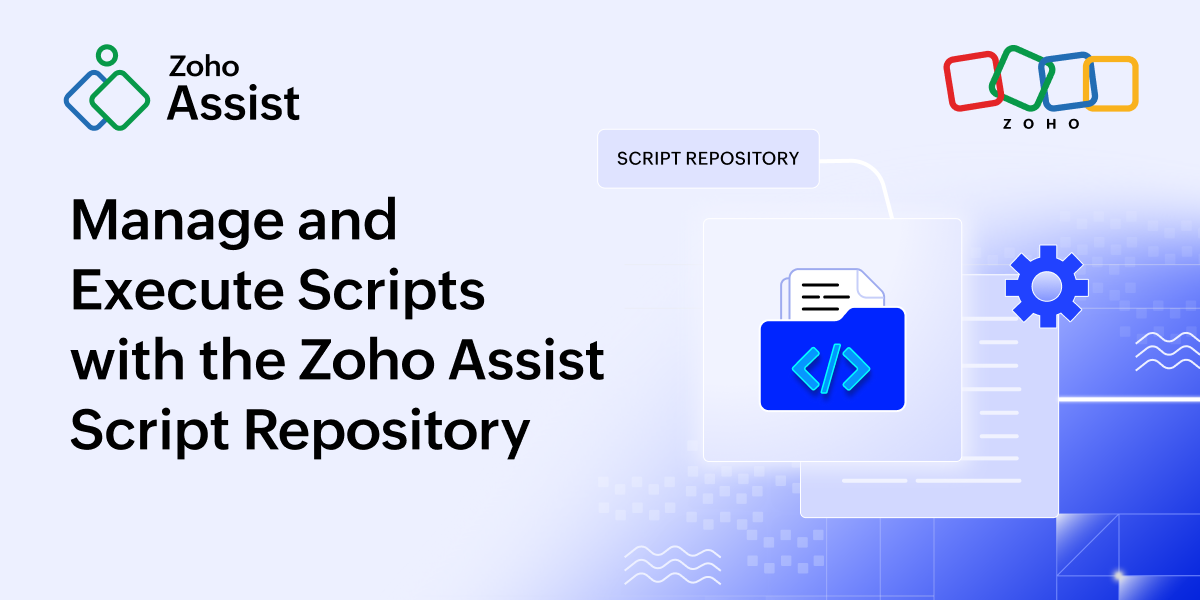
Key takeaways
The Script Repository stores all your team's scripts in one place, organized by category and department
Technicians execute scripts on remote devices during live sessions directly from the Tools panel
Supported file types: .ps1, .sh, .bat, .cmd, and .vbs, covering Windows, macOS, and Linux
Access is permission-controlled: admins decide who can add scripts and who can run them
On-the-fly uploads let technicians run new scripts mid-session without leaving the console
Session activity, including script execution, is captured through Zoho Assist's Advanced Session Audit
What is the Script Repository?
The Script Repository is a centralized library inside Zoho Assist where admins can upload, organize, and manage scripts in one place. Scripts can be grouped into categories and assigned to specific departments to help technicians quickly access the right scripts for their workflows. During an active support session, technicians can execute these scripts directly on the remote device without manually transferring files. Scripts are organized by categories and assigned to departments, which means each technician only sees scripts relevant to their role.
Why your team needs it
Think about how many times your technicians handle the same tasks across sessions: pushing a software update, running a diagnostic check, clearing a cache, or applying a security configuration. Doing this manually every time is slow, inconsistent, and leaves too much room for error.
The Script Repository brings consistency and efficiency to your support operations. With a centralized library of tested and approved scripts, technicians can troubleshoot issues faster and follow standardized workflows across the team. New technicians can get started quickly with ready-to-use scripts, while experienced technicians can focus more on resolving issues instead of spending time preparing repetitive tasks.
With the Script Repository, IT teams can:
Troubleshoot issues faster
Maintain consistent support processes
Reduce manual errors
Help new technicians follow approved workflows
Improve productivity during live sessions
Technicians can use scripts to:
Install, update, or uninstall software
Run diagnostic and troubleshooting commands
Manage files on remote desktops and servers
Perform security checks
Apply system configurations across Windows, Linux, and macOS
How to add a script
Log in to your Zoho Assist account.
Click the Files icon in the top menu bar and navigate to Script Repository from the left panel.
Click Add Script.
Enter the Script Name and Description.
Choose a Category from the dropdown. Select an existing category or create a new one to organize the script.
Click the Department dropdown, select the department(s) that should have access to the script, and click Apply.
Upload the script file by clicking the upload area or dragging and dropping it. Supported file types: .ps1, .sh, .bat, .cmd, and .vbs.
Click Add Script.
Once added, the script appears in the repository and is available to the assigned departments.
When adding a script, note that assigning it to the right department is important. Scripts assigned to the wrong department won’t be visible to the intended technicians during remote support sessions.
Supported script types
The Script Repository supports widely used scripting formats across major operating systems, making it easy for technicians to run scripts in diverse IT environments.
File type | Use |
.ps1 | PowerShell scripts for Windows automation |
.sh | Shell scripts for Linux and macOS |
.bat | Batch files for Windows command line |
.cmd | CMD files for Windows command line |
.vbs | VBScript for legacy Windows environments |
Execute a script during a remote session
Scripts stored in the repository can be run directly on a remote device during an active support session. Technicians can automate tasks without manually transferring files.
During an active session, click Tools in the left panel and select Execute Script.
The Execute Script dialog lists all scripts available to you from the Script Repository. Each script displays its name, category, and file type.
Click Execute next to the script you want to run.
A success notification confirms that the script was executed on the remote device.
Final thoughts
The Script Repository in Zoho Assist helps IT teams manage scripts more efficiently during remote support sessions. By keeping scripts centralized, organized, and permission-controlled, teams can reduce repetitive work and maintain consistent troubleshooting workflows. For support teams handling frequent remote sessions, this feature makes script execution faster, more reliable, and easier to manage across departments.
Ready to simplify script execution during remote support sessions? Get started with Zoho Assist.