- HOME
- Feature Spotlight
- Introducing vertical alignment in Zoho Writer
Introducing vertical alignment in Zoho Writer
- Last Updated : February 18, 2026
- 789 Views
- 2 Min Read

Hello,
If you have tried aligning content vertically on a document, you can certainly relate to the struggle of pushing the content up or down, or using space to position them exactly where you need.
With the vertical alignment option, whether it is positioning a title on a cover page or adding a table in a proposal, at the center; aligning your brand logo and name at the top of a letterhead; or positioning a signature block at the bottom of a page, you can easily do them all, in just a click.
Here's how you can vertically align content using Zoho Writer
In your Writer document:
- Select the content that you wish to align.
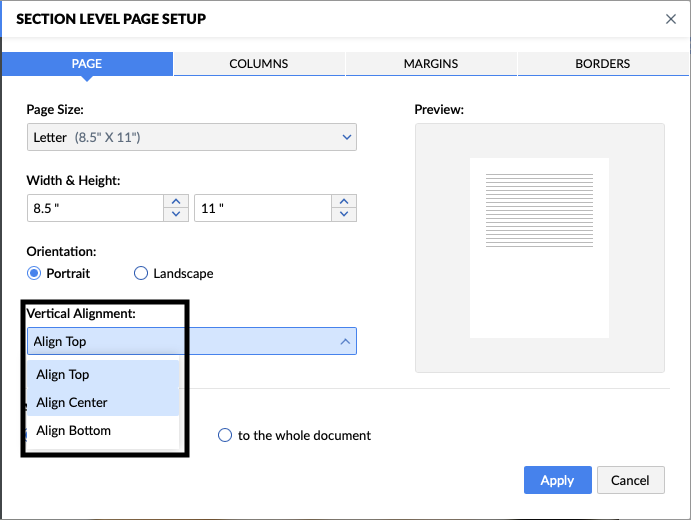
- In Page Setup, go to Advanced Page Setup, and then Section Level Setup.
- In the dialog that opens, go to the Vertical Alignment dropdown, select Align Center, Top, or Bottom as required, and click Apply.
To whom will the vertical alignment be useful?
The flexibility to position content vertically benefits individual users, authors, as well as business users across all departments of an organization. Be it an HR aligning content in offer letters or certificates, sales professionals aligning content on proposals, legal professionals aligning signature blocks at the bottom, or a procurement representative aligning the table of materials at the page center, it is easy to ensure that all documents look professional and consistent, every single time, with pixel perfect positioning.
Try out the vertical alignment feature, and let us know your feedback in the comments or write to us at support@zohowriter.com or support@eu.zohowriter.com.