Accessibility Controls in WorkDrive: Why better access creates better work
- Last Updated : May 11, 2026
- 262 Views
- 7 Min Read

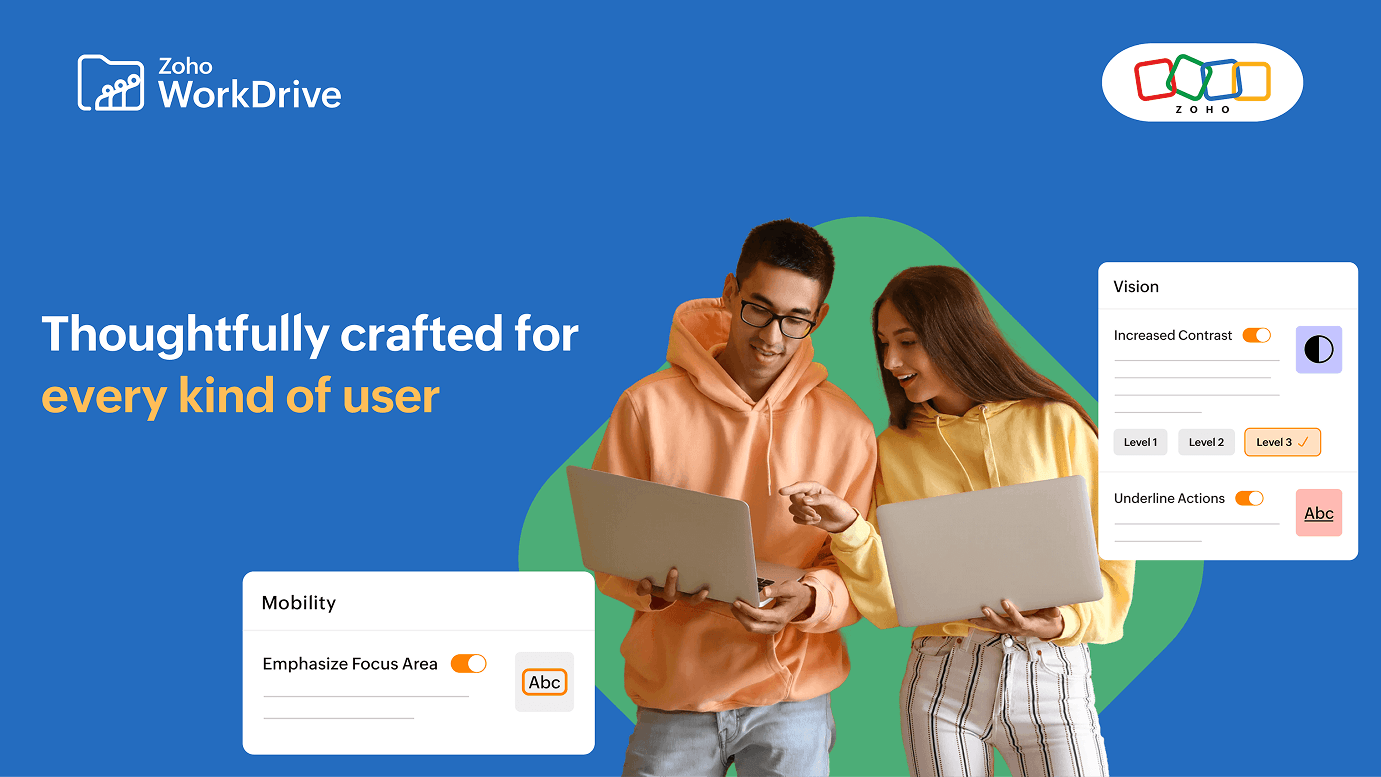
Accessibility Controls are settings that help users read, navigate, and interact with software more comfortably by adapting the interface to different visual, motor, and cognitive needs. In WorkDrive, these controls include vision, mobility, and learning settings such as increased contrast, underline links, reading mask, font size, text spacing, page navigator, emphasize focus area, custom cursor, and highlighted critical information.
For many users, these controls are part of how everyday work gets done.
A legal reviewer scans long contracts for specific clauses. A finance user works through dense reports for hours. A team member relies on keyboard navigation instead of constant mouse movement. Another needs stronger contrast or larger clickable zones just to work comfortably without strain. In each case, the file platform may still be technically usable. The real question is whether it remains usable without friction, fatigue, or missed context. That is where accessibility stops being a nice-to-have and becomes a workflow issue. WorkDrive 6.0 positions this shift clearly: accessibility is being embedded into the user experience as part of a broader move toward intelligent, governed, and inclusive content operations.
If basic actions take more effort than they should, the system is already inefficient.
The simplest way to understand Accessibility Controls is this: they do not change the file. They change how comfortably and confidently a user can work with it. And once work becomes easier to continue, the platform becomes more useful to more people.
Most accessibility conversations stop at compliance language. But in real workflows, what matters is how access behaves over time. Accessibility is about building interfaces that allow users to read, navigate, and focus without requiring adjustments. When users constantly need to adjust the zoom level, re-read content, or experience difficult navigation, the system is already transferring effort from the interface to the user.
What actually matters when people use content every day
If you only look at whether a screen loads, most systems seem usable. If you look at how people read, navigate, focus, and complete work across repeated interactions, this assumption doesn't always hold up.
On paper, the interface may already “work.” In practice, dense text, low contrast, small click targets, unclear interactive elements, and visually crowded screens can slow work down long before governance or collaboration even begin. That is why accessibility is not just about inclusion in principle. It is about reducing effort in the moments where work actually happens.
Key Accessibility Controls in WorkDrive
Increased contrast offers three levels to make text and interface elements easier to distinguish
Display font size can be adjusted from 80% to 150%
Text spacing can be changed from compact to wide
Reading mask highlights the active reading area while dimming the rest of the screen
Underline links makes interactive text easier to identify
Page navigator lets users jump directly to major interface areas using the keyboard
Emphasize focusarea enlarges clickable zones around links and actions
Custom cursor supports color and size changes for better visibility
Highlight critical information emphasizes important file and folder names
These are interface controls. But the outcome is operational: less strain, less friction, less missed context. Individually, these controls seem minor. Across a full workday, where users perform hundreds of interactions, they define whether the workspace feels smooth or difficult.
Every accessibility feature solves one problem, but the bigger issue is continuity
Every control makes one part of work easier. Without those features, small moments of friction compound across the day.
Greater readability, less unnecessary effort
Contrast, font size, text spacing, and underlined links improve how quickly users can distinguish content from interface and content from action. That matters in environments where people spend hours reviewing files, navigating folders, and scanning file lists. WorkDrive’s vision controls are specifically designed to improve readability and visual comfort, with contrast levels, adjustable font sizes, customizable spacing, and clearer interactive cues.
A finance analyst reviewing monthly reports across multiple sheets does not just need access to the file. They need to read numbers clearly across long sessions without visual strain. Increasing contrast, widening text spacing, and adjusting font size helps reduce fatigue before it builds up.
A legal reviewer scanning contracts line by line benefits from underline links and clearer visual separation between content and actions, so interactive elements do not blend into dense text.
This works well when the issue is screen clarity. The moment readability depends on user effort instead of built-in flexibility, the system starts working against the user.
Better focus, fewer distractions
A cluttered interface does not always look broken. It often just feels tiring.
This is where the Reading Mask and Highlight Critical Information controls matter. Reading Mask dims the rest of the screen and keeps attention on the active area, which the help article notes is especially beneficial for users with dyslexia or ADHD. Highlight Critical Information visually emphasizes important file and folder names for quicker identification and lower cognitive load.
A content reviewer working through long policy documents can use Reading Mask to stay anchored to one section at a time instead of visually scanning entire pages.
A project manager navigating multiple folders during a meeting can rely on Highlight Critical Information to quickly identify the correct file without pausing to search or verify.
These controls matter in real work because distraction is not only visual. It is operational. If users have to spend extra attention locating the right item or staying anchored on long pages, the platform is quietly creating friction.
Seamless navigation, less pointer dependency
Mobility controls become important the moment precise clicking becomes an effort.
Page Navigator allows keyboard-first movement to the main content, header, left panel, or right panel. Emphasize Focus Area makes clickable zones larger so users do not need pinpoint precision. Custom Cursor improves pointer visibility through color and size adjustments.
A marketer managing files across multiple folders can jump directly to key interface areas using the keyboard instead of repeatedly navigating through layers of UI.
A user with motor limitations benefits from larger clickable areas, where opening a folder or selecting an action does not require precise movements every time.
A designer working on a high-resolution display may use a custom cursor to maintain clear visual tracking across dense screens.
This works best for users who depend on keyboard navigation, prefer reduced pointer effort, or need stronger on-screen orientation. The interface may look unchanged. The amount of effort required to move through it changes completely.
Inclusive support for assistive technologies
WorkDrive also frames accessibility as part of a broader inclusive experience, with optimization for screen readers through improved semantic structure, descriptive labels, and more consistent navigation cues. It also places accessibility in a larger enterprise context where teams work across Windows, macOS, and Linux environments and include users relying on assistive technologies.
A screen reader user navigating a shared workspace depends on consistent structure and meaningful labels to understand where they are and what actions are available.
An enterprise team with diverse accessibility needs requires a system that works equally well across devices, operating systems, and assistive tools without requiring separate workflows.
This matters because accessibility should not be treated as a separate edge case layer. It has to work inside real environments where different users interact with the same content in different ways.
What changes when accessibility is built into the system
Old: read → strain → adjust manually → lose focus → repeat
New: adjust once → read comfortably → continue work without interruption
The difference is not in what the system allows. It is in how much effort it requires.
Accessibility vs. traditional interface behavior
Aspect | Traditional Interface | Accessibility-enabled Interface |
Readability | Fixed display, user adapts | Adjustable contrast, size, spacing |
Navigation | Pointer-dependent | Keyboard-first + flexible movement |
Focus | Full-screen cognitive load | Guided focus with reading aids |
Interaction | Precision required | Enlarged, forgiving click zones |
Continuity | Effort accumulates over time | Effort reduced across interactions |
The difference is not in features. It is in sustained usability.
The system shift behind Accessibility Controls
This is where accessibility stops being a settings menu and becomes a platform decision.
Without Accessibility Controls, users adapt themselves to the interface.
With Accessibility Controls, the interface adapts to the user.
That difference matters more in real work than feature count alone.
One system asks people to tolerate friction. Another reduces friction before it slows work down. If usability depends on effort, accessibility is incomplete. A well-designed system removes friction before users start adapting their behavior around it.
That is why this feature matters. Not because contrast can be increased, or because links can be underlined, or because a cursor can be enlarged. Those are controls. The real value is what they make possible: more readable work, smoother navigation, stronger focus, and more equitable access across diverse teams and environments.
The best accessibility control is not the one users notice first. It is the one that removes effort before work starts feeling difficult.
How to enable Accessibility Controls in WorkDrive
Open WorkDrive
Click your profile image at the top right
Select Accessibility Controls under My WorkDrive
Choose Vision, Mobility, or Learning
Enable the controls you want and adjust them as needed
Changes apply immediately.
The real takeaway
Accessibility Controls improve more than usability. They improve continuity.
They reduce the effort required to read, navigate, focus, and work across content-heavy environments. They make the platform more practical for users with different visual, cognitive, and motor needs.
The goal is not just to make the interface easier to see. It is to make work easier to continue.
If your tools require constant adjustment, they are already slowing you down. Move to Zoho WorkDrive, a workspace that adapts to how you work, so you can focus on work instead of working around the interface.
FAQ
What Accessibility Controls are available in WorkDrive?
Accessibility Controls in WorkDrive are settings that help users customize the interface for better readability, navigation, focus, and usability. They include features across Vision, Mobility, and Learning categories such as contrast adjustment, underline links, reading mask, text size, text spacing, page navigator, custom cursor, emphasize focus area, and critical information highlighting.
How do I enable Accessibility Controls in WorkDrive?
Click your profile image, select Accessibility Controls under My WorkDrive, choose a category, and enable the settings you need. Changes apply immediately.
What vision accessibility features does WorkDrive offer?
WorkDrive offers Increased Contrast, Underline Links, Reading Mask, Zoom support through browser zoom, Display Font Size, Text Spacing, and Toggle Label Status. These help improve readability, reduce visual fatigue, and make interactive elements easier to identify.
What mobility accessibility features are available in WorkDrive?
WorkDrive includes Page Navigator for keyboard-based movement, Emphasize Focus Area for larger clickable zones, and Custom Cursor settings for improved visibility and pointer control.
Does WorkDrive support screen readers and assistive technologies?
Yes. WorkDrive is optimized for assistive technologies, including screen readers, with improved semantic structure, descriptive labels, and smoother navigation cues.
Why do Accessibility Controls matter in enterprise content management?
Because enterprise content systems only work well when users can comfortably read, navigate, and interact with them. Accessibility is a part of a broader inclusivity, control, and continuity layer within intelligent enterprise content management.