- HOME
- Work Management
- How to create dashboards in Zoho Tables to track marketing campaigns
How to create dashboards in Zoho Tables to track marketing campaigns
- Last Updated : May 12, 2026
- 142 Views
- 3 Min Read
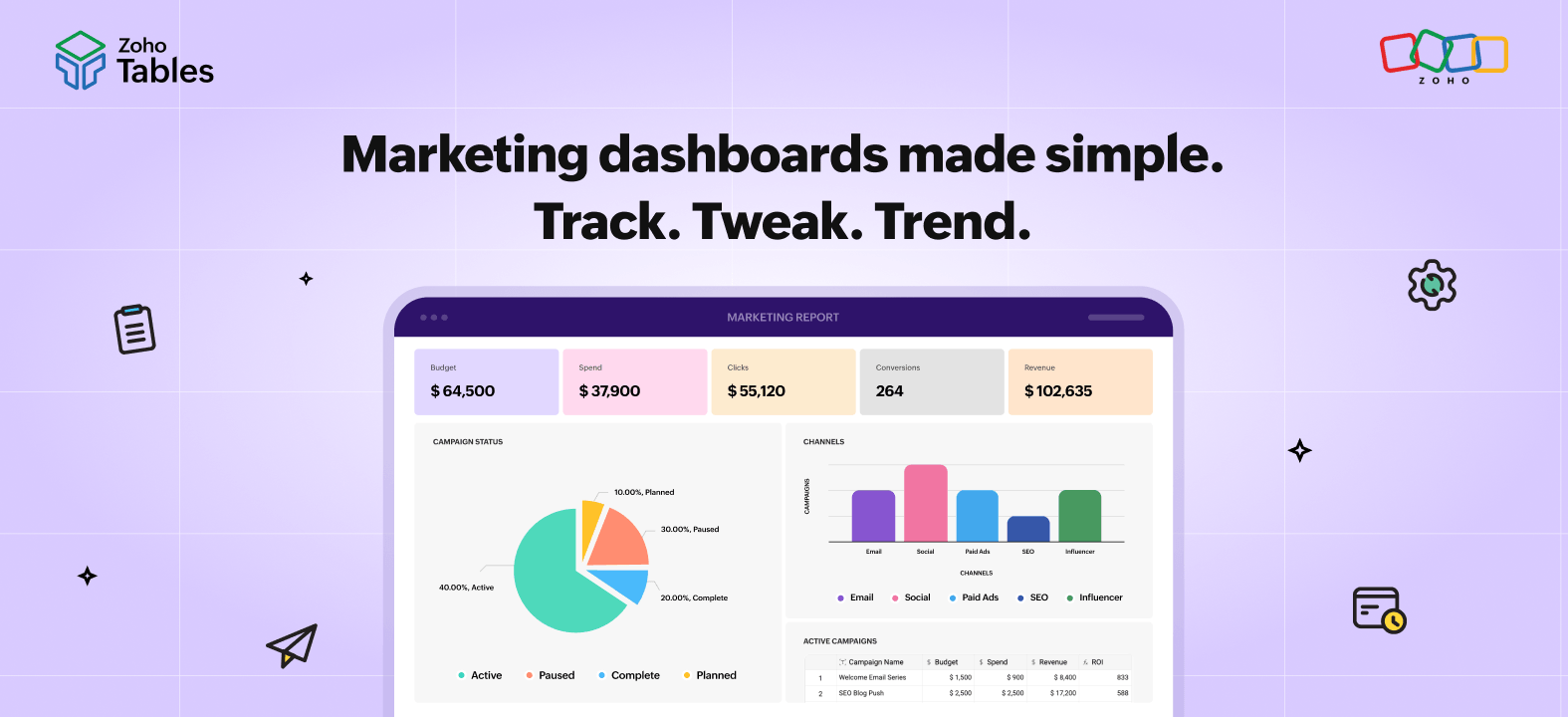
If you're a marketer, you know that marketing is as much of a numbers game as it is a creative one. A lot of thought and grind go into deciding campaign budgets, setting quarterly targets, defining KPIs, and tracking churn. So it's essential to track the right data, from the right sources, at the right time. That's why dashboards are at the heart of marketing.
In this article, we'll explore how you can create dashboards in Zoho Tables to monitor your marketing campaigns.
What are dashboards?
Dashboards consolidate data from multiple sources into a visual and interactive interface. They give you a high-level overview of your data that helps in analyzing trends, identifying positive and alarming patterns, tracking KPIs, and more.
In short, they help you make sense of your entire dataset at a glance.
Dashboards vs. reports
Dashboards focus on a large dataset and often provide real-time insights. They help with tracking high-level metrics like revenue, performance, acquisition, net profit, churn, etc. They usually combine visual and interactive elements like charts, graphs, texts, and maps.
Reports often focus on a niche dataset, offering structured data over a specified period or topic. Unlike dashboards, reports are static and usually used in leadership updates, board meetings, and strategic planning.
Why marketing teams need dashboards
Better decision-making
Dashboards provide a summary of all your campaigns, engagements, key demographics, top- and bottom-performing channels, audience behavior, and more. This helps you analyze patterns and predict outcomes to make better decisions.
No manual intervention
Dashboards pull data from multiple sources into a single view. Once you create a dashboard with the necessary conditions, you don't have to tweak it constantly. When data changes, the dashboard changes automatically.
Enhanced collaboration
Most dashboards can be published internally or externally through a public link or you can create custom views for specific teammates and share the data with them securely. This enhances collaboration and ensures everyone is working with the latest data.
Zoho Tables for marketing teams
Zoho Tables is a spreadsheet-database hybrid that helps you manage and visualize data, plan work, collaborate, and automate workflows.
Here's how to create a dashboard in Zoho Tables:
Set up your campaign base
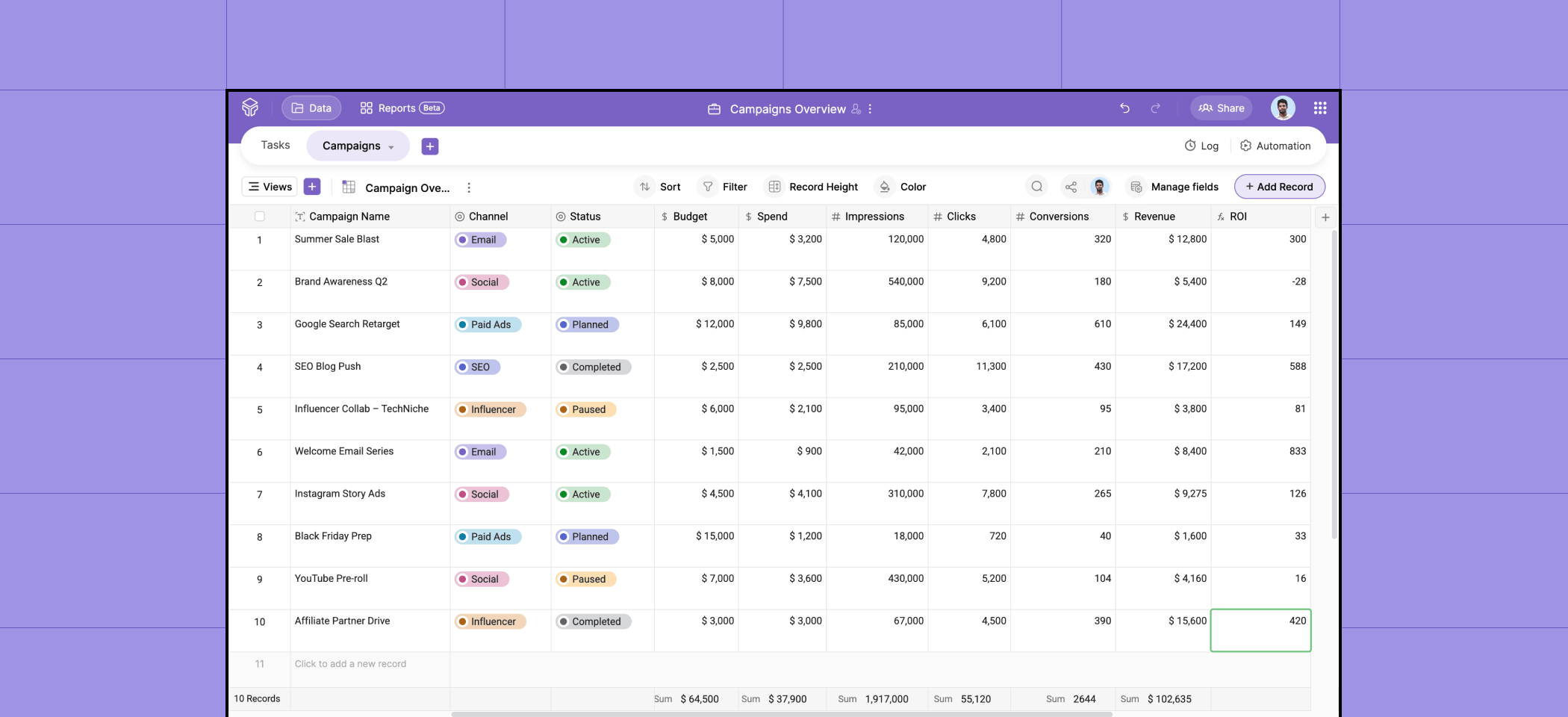
1. Create a Grid view called Performance Overview.
2. Show only the columns that matter for monitoring: Campaign Name, Channel, Status, Budget, Spend, Impressions, Clicks, Conversions, and Revenue.
3. Enable the summary bar at the bottom of each column. Set:
- Budget → Sum (total allocated budget)
- Spend → Sum (total money spent)
- Conversions → Sum
- Revenue → Sum
4. Add a formula field called ROI using ((Revenue - Spend) / Spend) * 100 to calculate return on investment.
5. Use color coding on the Status field so planned campaigns appear violet, active appear green, paused appear yellow, and completed appear grey.
What you monitor: Total budget utilization across all campaigns, top-performing campaigns by ROI, and which campaigns need attention based on spend pace.
Creating your marketing dashboard
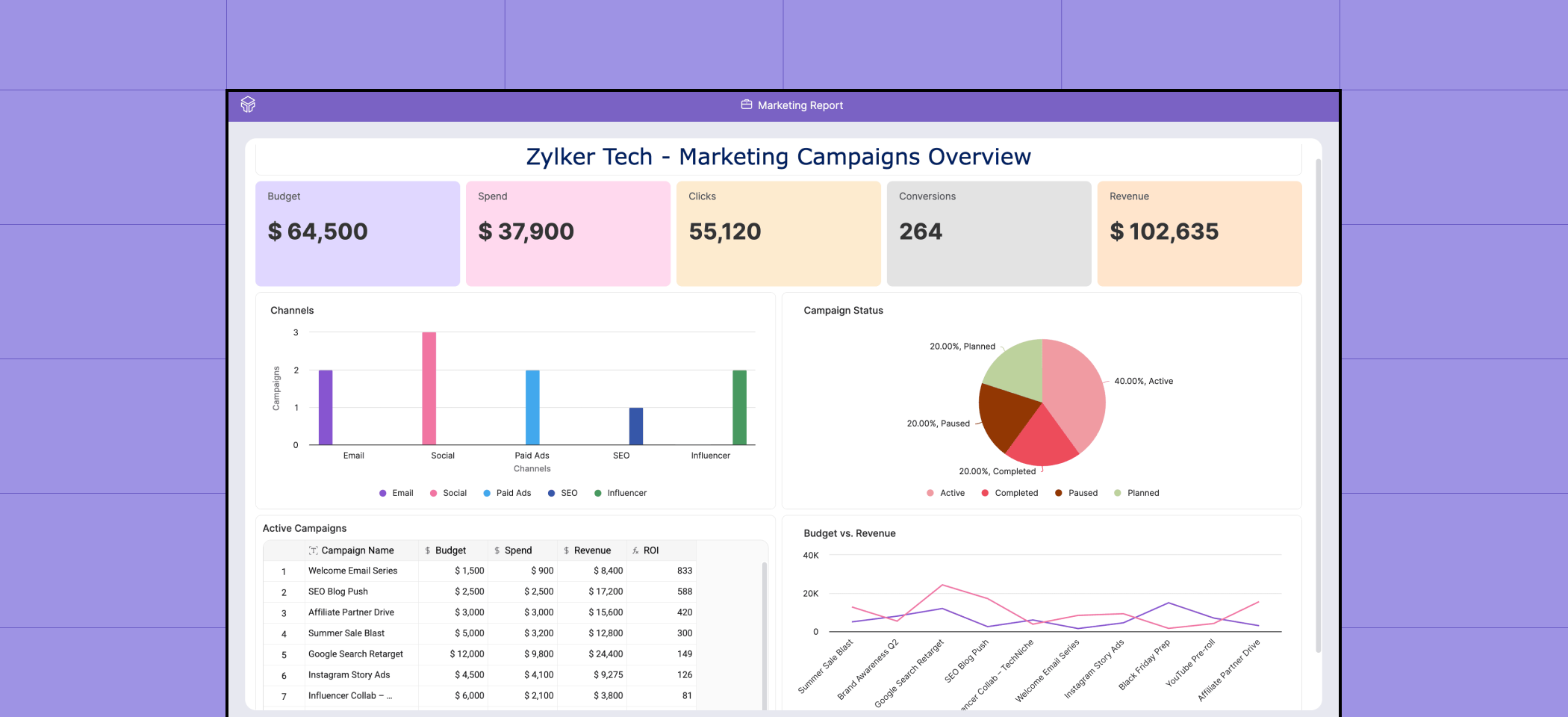
1. Name your dashboard with the text field.
2. Display the major KPIs, like Budget, Spend, Clicks, Conversions, and Revenue at the top.
3. Use a bar graph to show the channel-wise split of your campaigns.
4. Add a pie chart to show the status of your campaigns.
5. Drag a line chart to show the distribution between budget and revenue.
6. Finally, add a Grid view of your Campaigns table and sort your campaigns by ROI in descending order. This helps you analyze your top- and bottom-performing campaigns.
Publishing and sharing your marketing dashboard
1. Click the Publish button at the top.
2. Choose if you'd like to share the dashboard within your base or with external stakeholders.
3. You can also set a password or an expiration date to prevent unauthorized access to your dashboard.
Start your Zoho Tables free trial today
Sign up today to get a 15-day free trial of our Professional plan and try out what you learned in this article. Check out our Template Gallery or AI prompt guide to get started in seconds!
You can also easily import your existing spreadsheets, Zoho CRM data, or Smartsheet data, or just start from scratch.
 Archanaa
A fantasy writer who found a home in product marketing.