- HOME
- Product Spotlight
- Streamline your social media workflows | Zoho Social and Tables integration
Streamline your social media workflows | Zoho Social and Tables integration
- Last Updated : April 10, 2026
- 488 Views
- 2 Min Read
Is your social media team using multiple applications to plan campaigns, track work items, upload creatives, review posts, and schedule them? Then it's time to switch to Zoho Tables.
In this blog, you'll learn how you can plan campaigns, collaborate with your team, and track metrics on Tables, and automate drafts to Zoho Social effortlessly.
What is Zoho Social?
Zoho Social helps businesses manage social media posts, monitor brand mentions, track campaign metrics, and interact with customers.
What is Zoho Tables?
Zoho Tables is a data and work management tool that helps individuals and businesses organize data, collaborate with teams, automate workflows, and create dashboards.
How the Zoho Tables and Zoho Social integration helps you streamline your social media campaigns
1. Build your social media calendar
Create a social media calendar on Zoho Tables using just an AI prompt. Zia, Zoho's native AI, will understand your use case and build a social media calendar with sample data and linked tables so you can get started quickly.
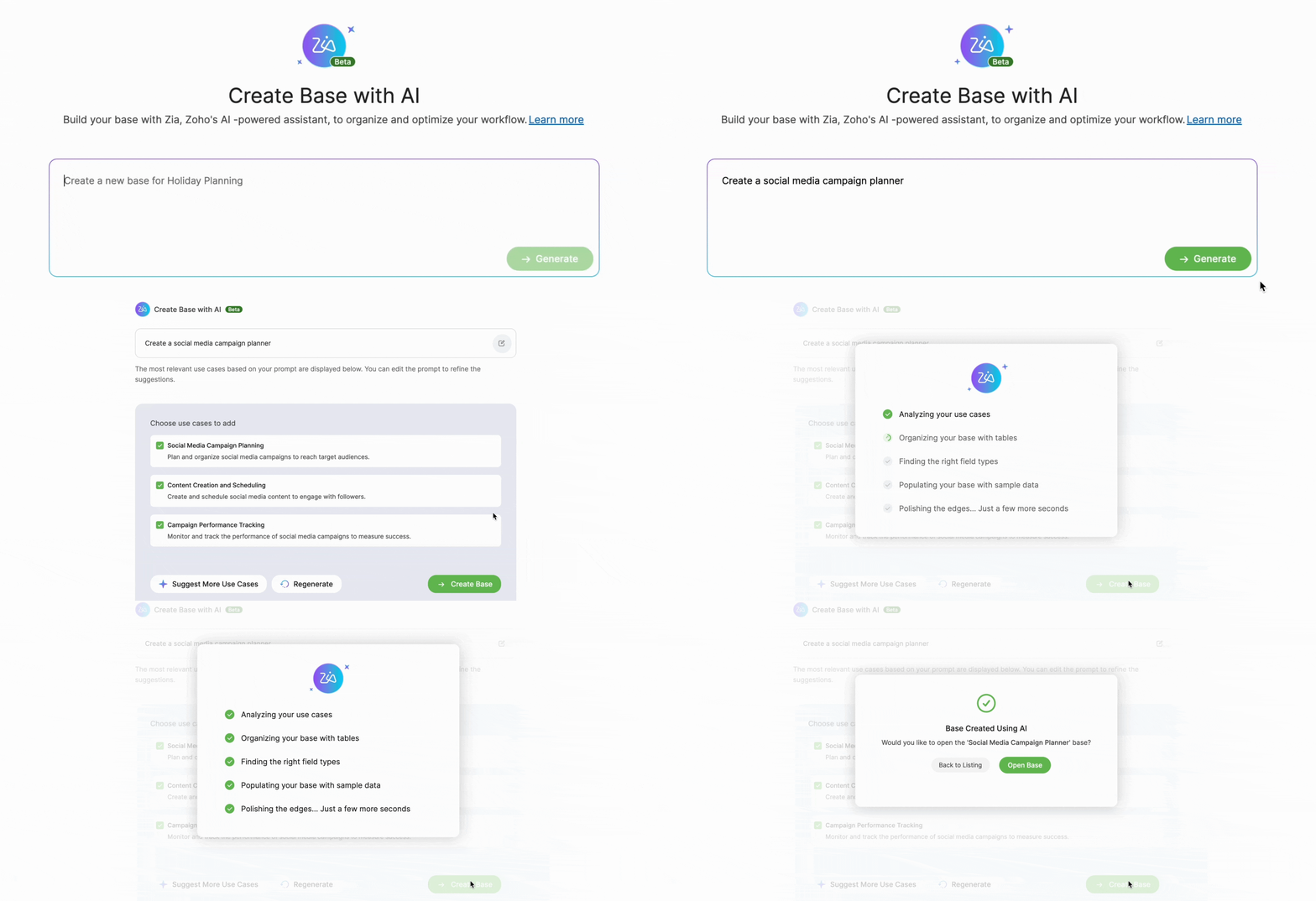
You can also use our social media calendar template or create your own base from scratch.
And if you use spreadsheets to manage your social media calendar, you can migrate it to Zoho Tables from your local device, cloud storage, or a URL.
2. Collaborate with your team
Now add your team to your social media calendar base. Choose from a wide range of access controls, such as manager, editor, data maintainer, commenter, and viewer. Upon onboarding, delegate tasks, set deadlines, and track their progress.
Set automation conditions to get notified when a task item moves to your review.
Add comments to approve or reject creatives or catch up on task items.
3. Set up views to visualize data
Use gallery view to see all your creatives in one place.
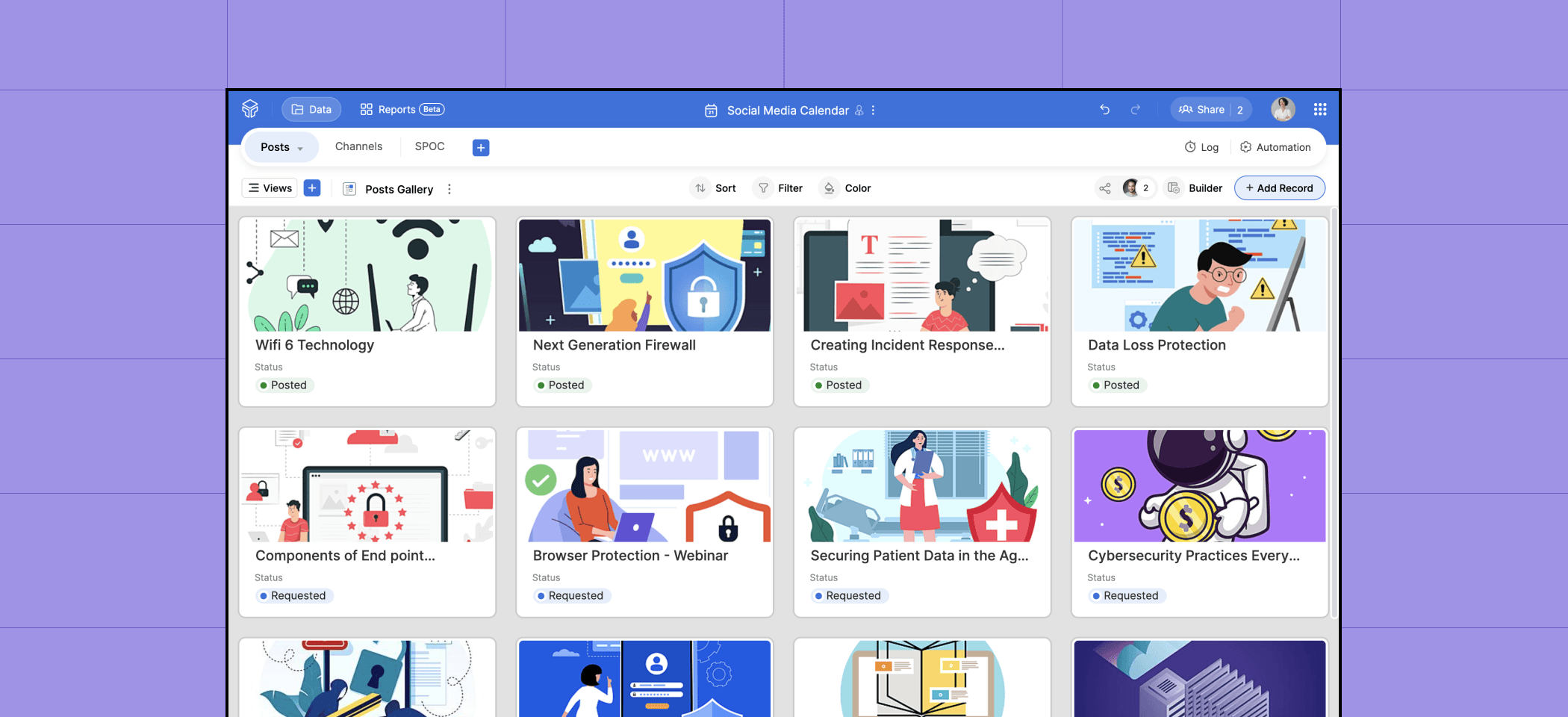
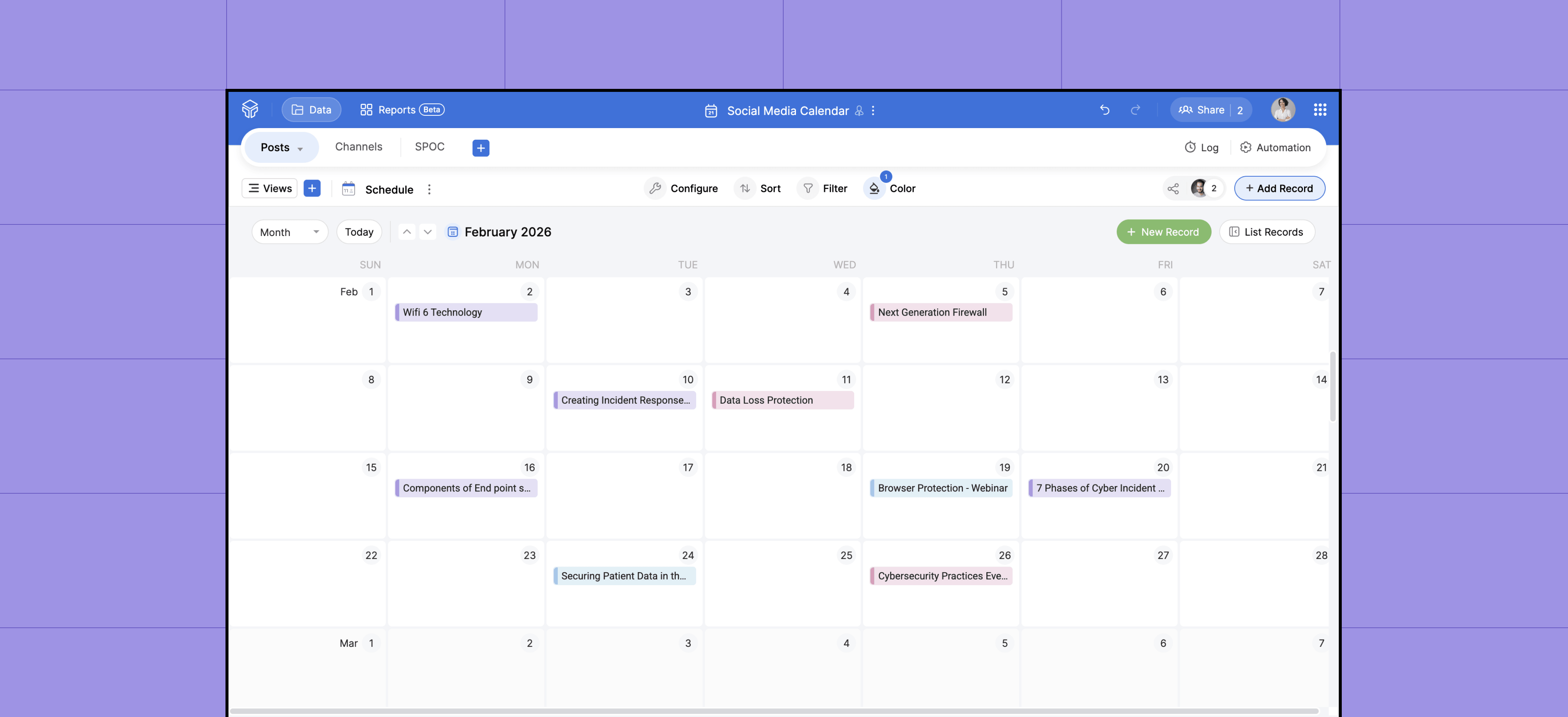
Use calendar view to track campaign dates and task deadlines.
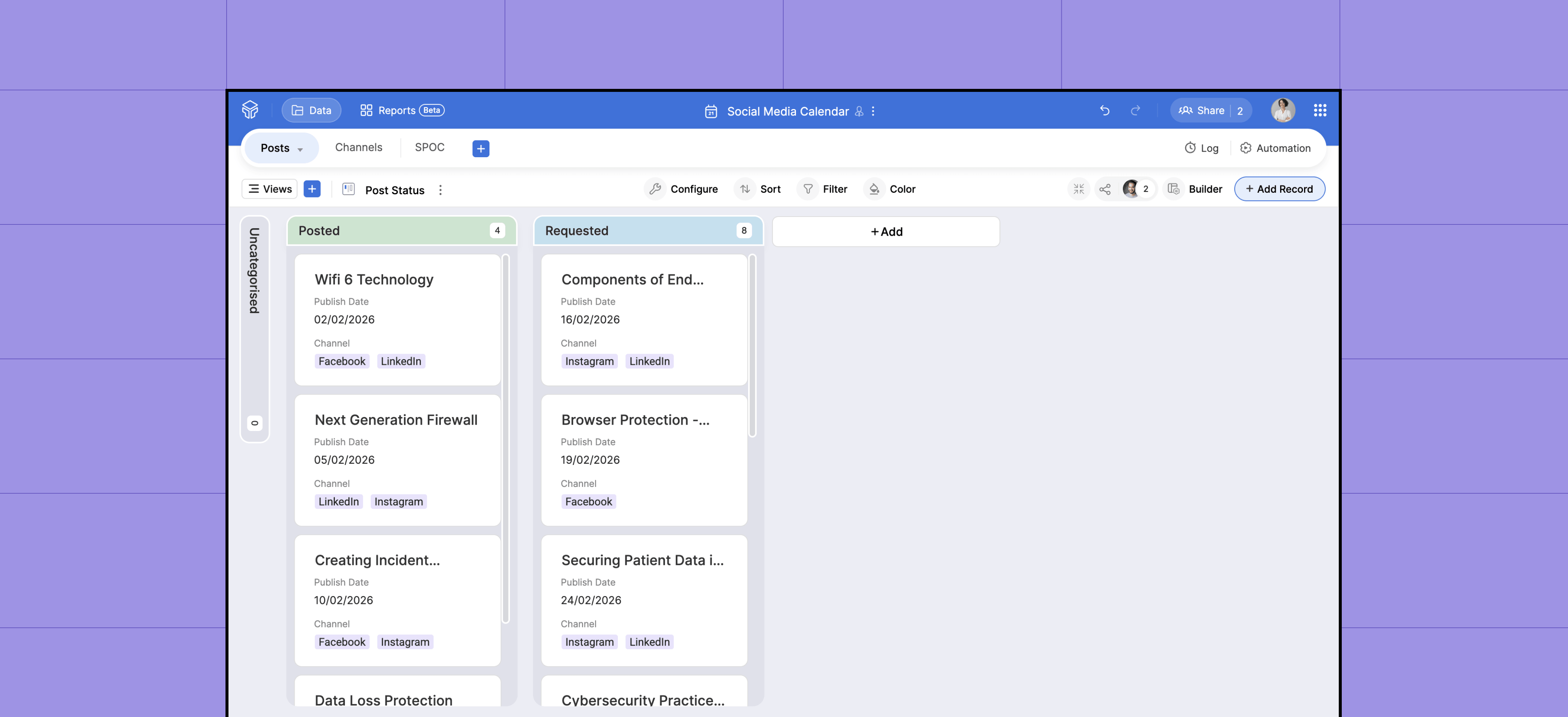
Use kanban view to see the status of your campaigns.
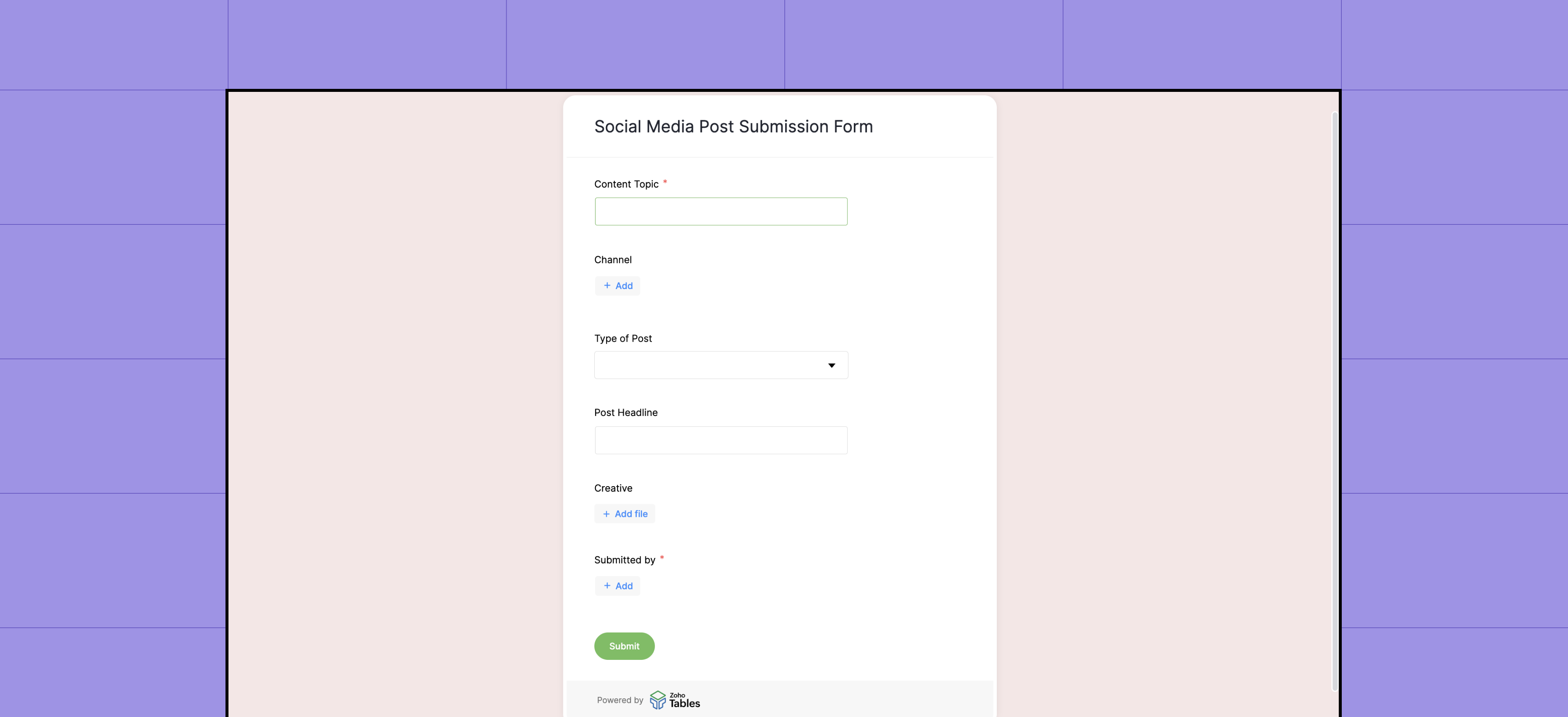
Use form view for teammates to submit new campaign ideas or for the audience to submit their feedback.
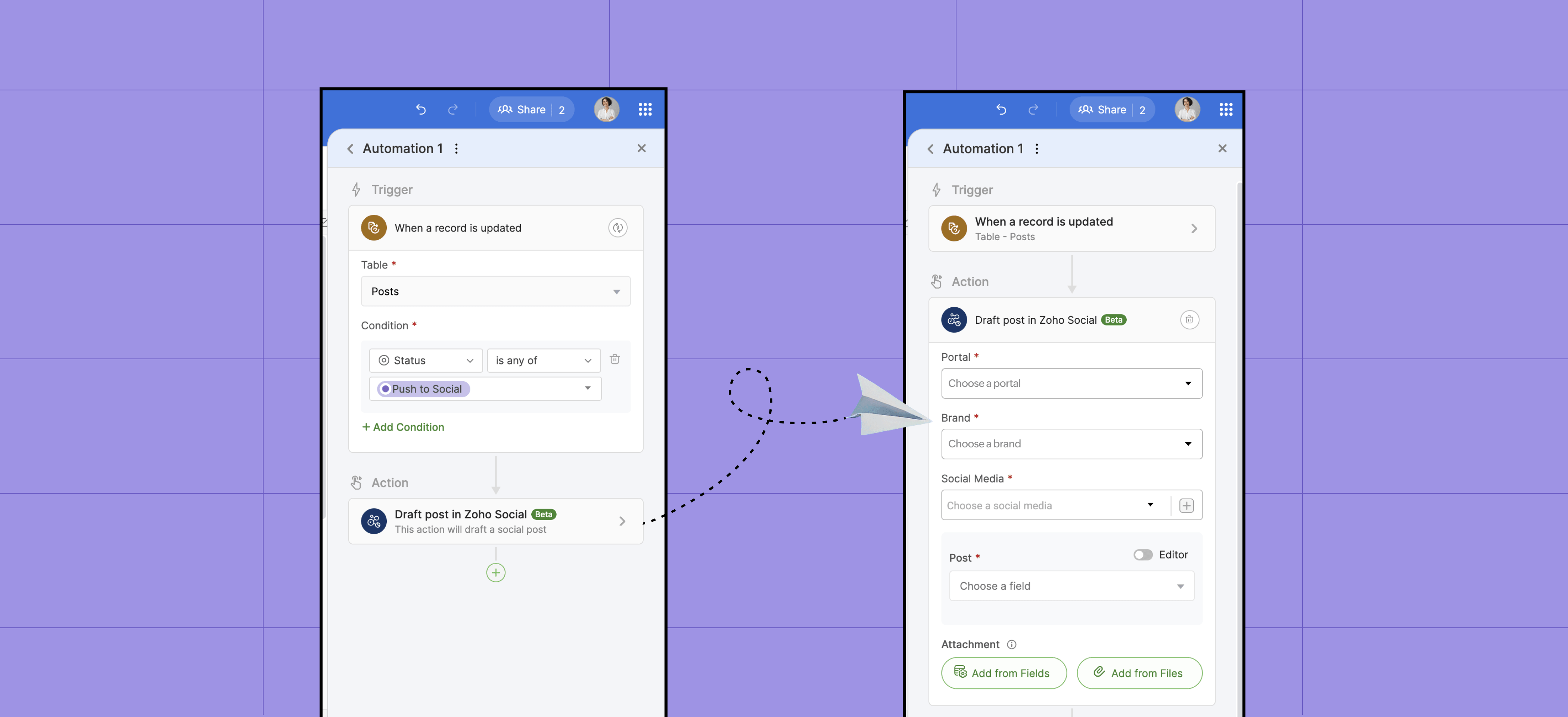
4. Create automation to draft posts on Zoho Social
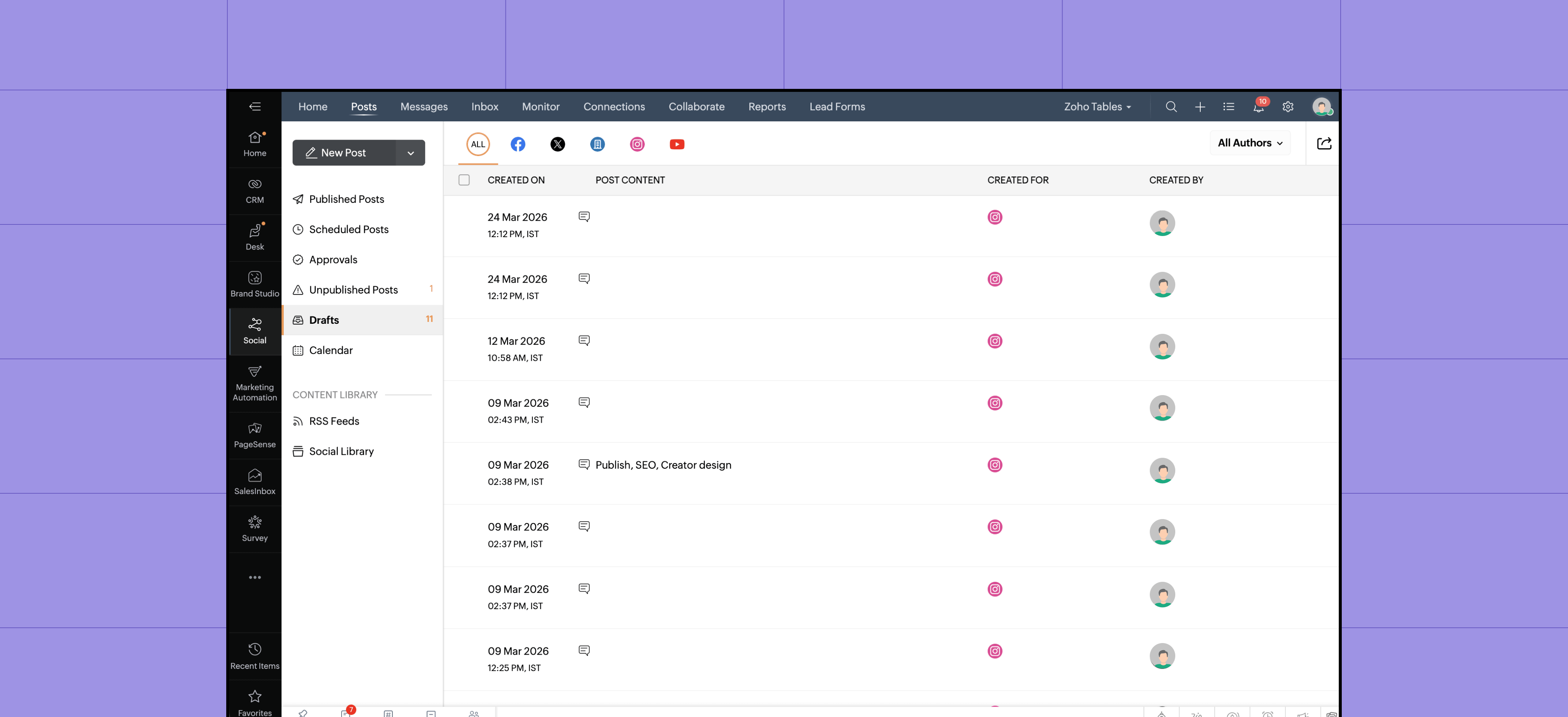
Set up a simple automation to get notified of approval requests. Once you approve the design, caption, hashtags, and social media platforms, set up another automation rule to add the post as a draft on Zoho Social instantly or at a specified time.
5. Hit publish
After a last-minute check on Zoho Social, hit publish!
6. Track the performance of your campaigns
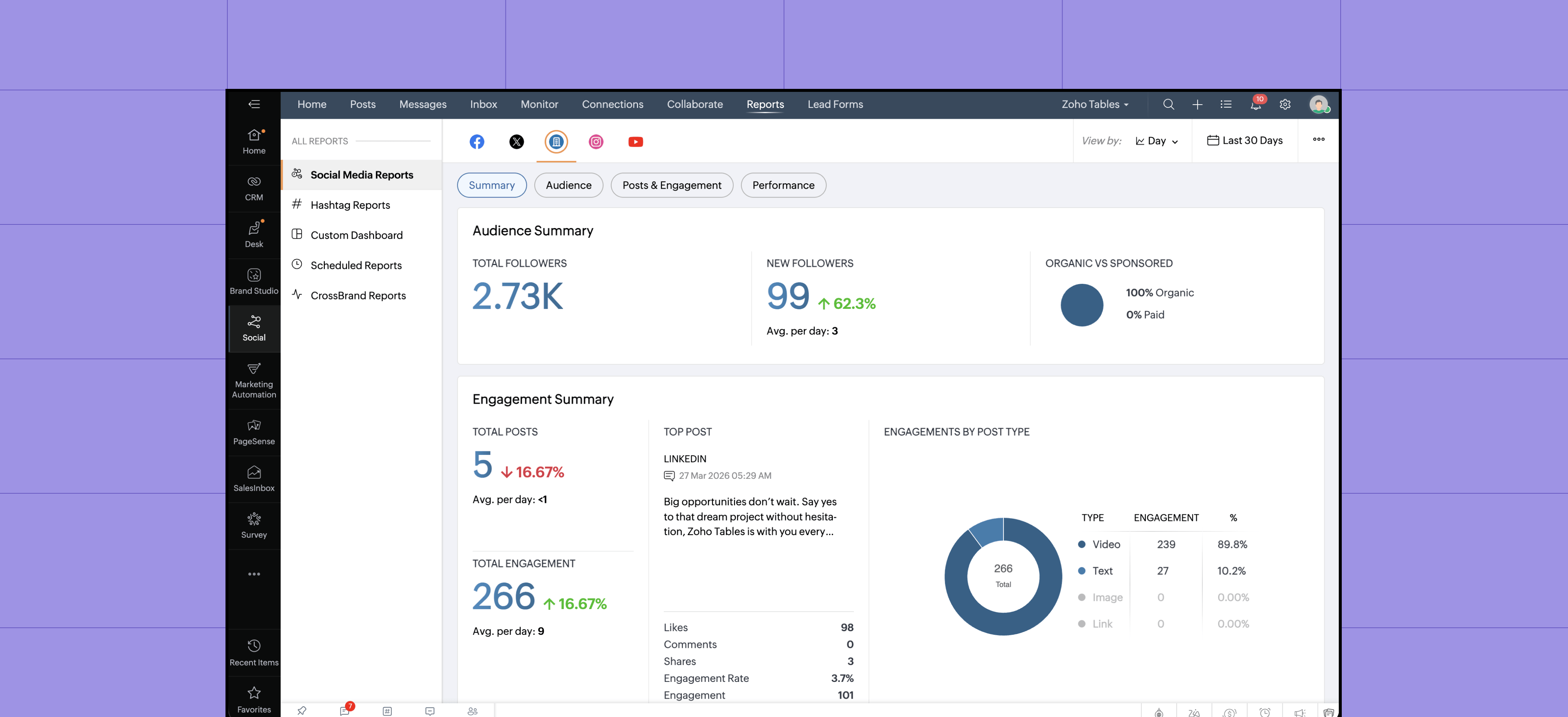
Use the Zoho Social dashboard to track audience demographics, engagement, reach, and impressions to understand the impact of your content.
Take your social media calendar with you
Use the Zoho Tables mobile app to track campaigns, delegate work, and leave feedback on the go.
Enjoy all the features on the web app, as well as mobile-specific features, like uploading voice attachments, watching video attachments in picture-in-picture mode, and scanning grids using optical character recognition. Never miss out on important updates.
 Archanaa
A fantasy writer who found a home in product marketing.