- HOME
- Data Management
- Connecting Tables with Slack using Zapier for teams
Connecting Tables with Slack using Zapier for teams
- Last Updated : July 15, 2026
- 104 Views
- 6 Min Read
Your data lives across multiple tools. Your team talks in another. And somewhere in the gap between them, a critical bug sits unnoticed for three hours, a piece of content misses its review deadline, and someone asks, "Wait, who was supposed to pick this up?" for the fifth time this week.
If that sounds familiar, you're not alone. Most teams manage their work across multiple tools. This usually means someone manually copying updates back and forth—or worse, nobody doing it at all! This is exactly the silo problem that pulls remote and hybrid teams out of alignment: Important changes happen, but the people who need to know don't find out until it's too late.
The good news is that you don't have to keep checking your database for updates.
Most teams already spend a lot of their day in chat apps like Slack, discussing work, sharing updates, and making decisions. Bringing important changes from your database into the same place means fewer missed updates, faster responses, and less context switching.
That's where automation comes in. By connecting Zoho Tables with Slack, you can automatically notify your team whenever records are created, updated, or meet specific conditions, without writing a single line of code.
In this guide, we'll show you how to connect Zoho Tables with Slack using Zapier, so the moment something changes in your data, the right people hear about it automatically in the channel they already use.
Why connect Zoho Tables with Slack?
Zoho Tables is a spreadsheet-database hybrid. It gives you the familiarity of a spreadsheet with the structure and power of a relational database, so you can plan work, organize diverse data, and collaborate with your team in one place. Slack is where a lot of teams actually communicate. On their own, both are excellent. Connected, they turn passive data into active, real-time signals.
Bringing the two together means your team stops chasing status updates and starts receiving them automatically in Slack. A record marked "Critical" becomes an instant alert. A task moving to "Review" becomes a ping to the reviewer. A new lead becomes a message in your sales channel. Nobody has to remember to check the base, and nobody has to relay the news manually. Your data becomes the single source of truth, and Slack becomes the place where your team acts on it.
The bridge that makes this possible is Zapier, an automation platform that connects Zoho Tables with more than 9,000 other apps without a single line of code.
What is Zapier and how does the integration work?
Zapier lets you build automated workflows without writing any code. When something happens in one app, Zapier automatically makes something happen in another.
Before we build anything, here are the four elements that make Zapier click. Once you understand them, every workflow in this guide will make sense.
Zap
An automated workflow that connects two or more apps: Think of it as "when this happens, do that."
Trigger
The event that starts the Zap: In these examples that's usually something changing in Zoho Tables, like a record being updated.
Action
What happens as a result: For us, that's sending a message to Slack.
Filter
This decides whether the Zap should keep going. We need filters to trigger the correct table and record. This is how you make sure only the right records trigger a notification, instead of every single change.
With Zoho Tables on Zapier, you can trigger a Zap when a new record is created, updated, or deleted in a table, or when a base/workspace is created. On the Slack side, you can send a message to a channel or a direct message to a person. Combine a trigger, a filter, and an action, and you have a complete notification workflow.
What you'll need
A Zoho Tables account with a base you want to send notifications from
A Slack workspace where your team communicates, and permission to post to the channel you want to notify
A Zapier account, even on their free plan
A real example: Escalating critical bugs to Slack
Imagine a company using Zoho Tables to track bugs reported by its development and QA teams. Every bug is stored as a record, with details like the bug ID, issue description, assigned SPOC, screenshots, status, and priority.
Tracking bugs in a database is useful. But when a bug is marked "Critical", the team needs to know immediately. Instead of relying on the assigned engineer to notice it, a team lead might want everyone on the escalation team notified in Slack the moment the priority changes.
That's exactly what this Zap does.
Step 1: Trigger the workflow from Zoho Tables
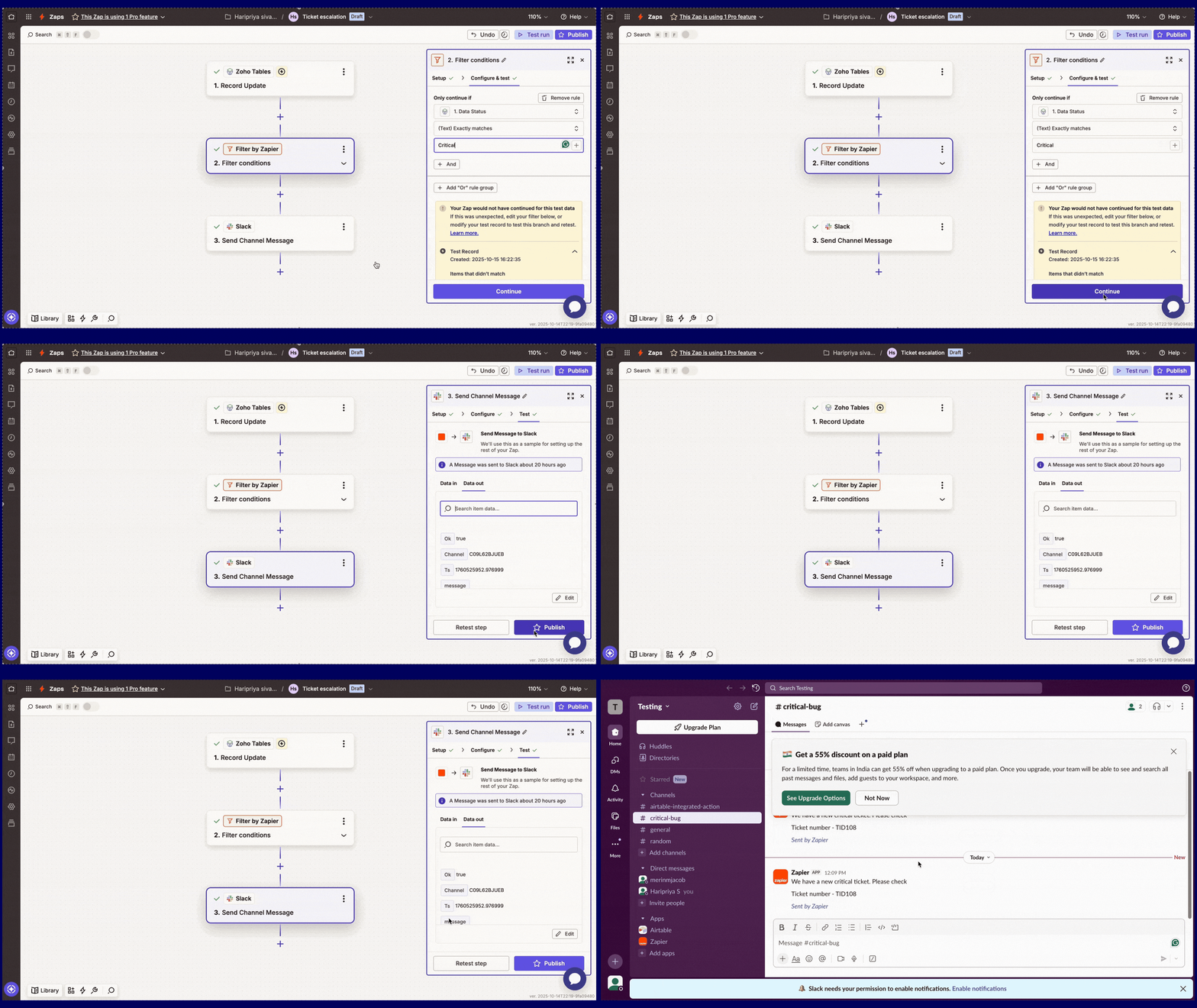
Create a new Zap and choose Zoho Tables as the trigger app. Use the Record Updated trigger so the workflow runs whenever a bug record is modified.
After connecting your Zoho Tables account, select the relevant portal, workspace, base, and bug tracker table. Zapier fetches sample records, making it easy to verify fields like the bug ID, issue, priority, and assignee before moving ahead.
Step 2: Filter for critical bugs
Not every update deserves a Slack notification.
Add a Filter step and continue only when the Priority field is "Critical". "Medium" and "Low" priority bugs remain tracked in Zoho Tables, while only high-impact issues trigger an alert.
This keeps your Slack channel focused on the bugs that need immediate attention.
Step 3: Notify the team in Slack
Next, add Slack as the action app and choose Send Channel Message.
Select your escalation channel and build a message using fields from the bug record, such as the issue description, priority, assigned SPOC, or bug URL. When a critical bug appears, the entire team sees it instantly, ensuring someone can jump in without waiting for a manual update.
Step 4: Test and publish
Run a test by marking a sample bug as "Critical". If everything is configured correctly, a message appears in the Slack channel with all the relevant details.
Once you're happy with the result, publish the Zap. From then on, every critical bug is automatically shared with the right people, reducing response times and making sure urgent issues never go unnoticed.
Escalating critical bugs to Slack via Zapier
The same pattern works everywhere
This isn't limited to bug tracking.
Imagine an online store managing orders in Zoho Tables. Every order moves through stages like "New", "Packed", and "Shipped".
You can trigger a Zap when a record is updated, filter for the status "Packed", and send a Slack notification to your fulfillment team. As soon as an order is marked "Packed", the shipping crew is notified automatically—no follow-up messages, no checking spreadsheets, no wondering which order ships next.
Whether you're escalating critical bugs, reviewing content, approving purchase requests, or following up on sales leads, the workflow follows the same simple pattern:
Trigger → Filter → Action
And once you've built one automation, you'll find it easy to apply the same approach across countless business processes.
Pricing and getting started
Getting started doesn't require a big investment. Zoho Tables offers a forever-free plan for individuals and small teams, while the Professional plan starts at $4 per user per month if you need advanced features. Zapier also offers a free plan that's perfect for building and testing your first few automations, with paid plans available as your workflows grow.
If you'd like help setting up your first Zap or adapting these workflows to your team's use case, feel free to reach out to us at hello@zohotables.com. We'd be happy to help!
FAQ
Can I connect Zoho Tables to Slack without Zapier?
This guide uses Zapier because it's a familiar no-code route and connects Zoho Tables to 9,000+ apps beyond Slack. Zapier's free plan is enough to build and test your first Slack notification workflows.
What can trigger a Slack message from Zoho Tables?
You can trigger a Slack message for the following cases:
a) Base Created
b) Record Created
c) Record Delete
d) Record Updated
e) Table Created
f) Workspace Created
Pair the trigger with a filter to control exactly which record/base/table/workspace sends an alert.
How do I make sure only important records notify my team?
Add a Filter step in your Zap with a condition: for example, "Priority exactly matches 'Critical'" or "Status equals 'Review'." Only records that meet the condition will send a Slack message.
Can I send a direct message instead of a channel message?
Yes. Slack's Zapier actions include both sending a channel message and sending a direct message, so you can notify a whole team or a specific person.
Does the sync work in both directions?
You can push updates from Zoho Tables to other apps and pull data into Zoho Tables from them: for example, automatically creating a record from a Google form submission or set up a separate Zap for each direction you need.
 Merin Mary Jacob
Curious designer turned marketer who loves building products and hoarding cute art stuff.