- HOME
- Data Management
- How to convert your spreadsheet into a database
How to convert your spreadsheet into a database
- Last Updated : May 20, 2026
- 187 Views
- 5 Min Read
Spreadsheets are where most people start managing data. They're easy to use, familiar, and good enough for small, contained work. But at some point, the data you're managing outgrows the tool you're managing it in.
Eventually, you may find yourself spending more time organizing the spreadsheet than actually using the data. This is the moment to convert your spreadsheet into a database.
This guide shows you how to do that without writing a single line of code.
When should you make the switch?
Here are some clear signs that your spreadsheet has become a bottleneck:
- Data is duplicated across multiple sheets or tabs.
- Team members overwrite each other's entries.
- Data collection through a shared spreadsheet is creating errors and chaos.
- Your data has outgrown simple text and numbers. You need to store files, images, dropdowns, and other diverse data types in one place.
- You can't control who sees what.
- Repetitive manual updates are eating into your team's time.
- You're manually compiling reports.
- The file slows down or breaks under its own weight.
If two or more of these sound familiar, the cost of staying in a spreadsheet is already higher than the effort of switching. Understanding what a database actually does can help you see why, and what becomes possible once you make the move.
What changes when you move to a database?
A spreadsheet stores data in flat rows and columns; there's no native way to connect one dataset to another.
A database organizes data into separate tables that link to each other. For non-technical teams, a no-code database like Zoho Tables gives you this structure without any coding.
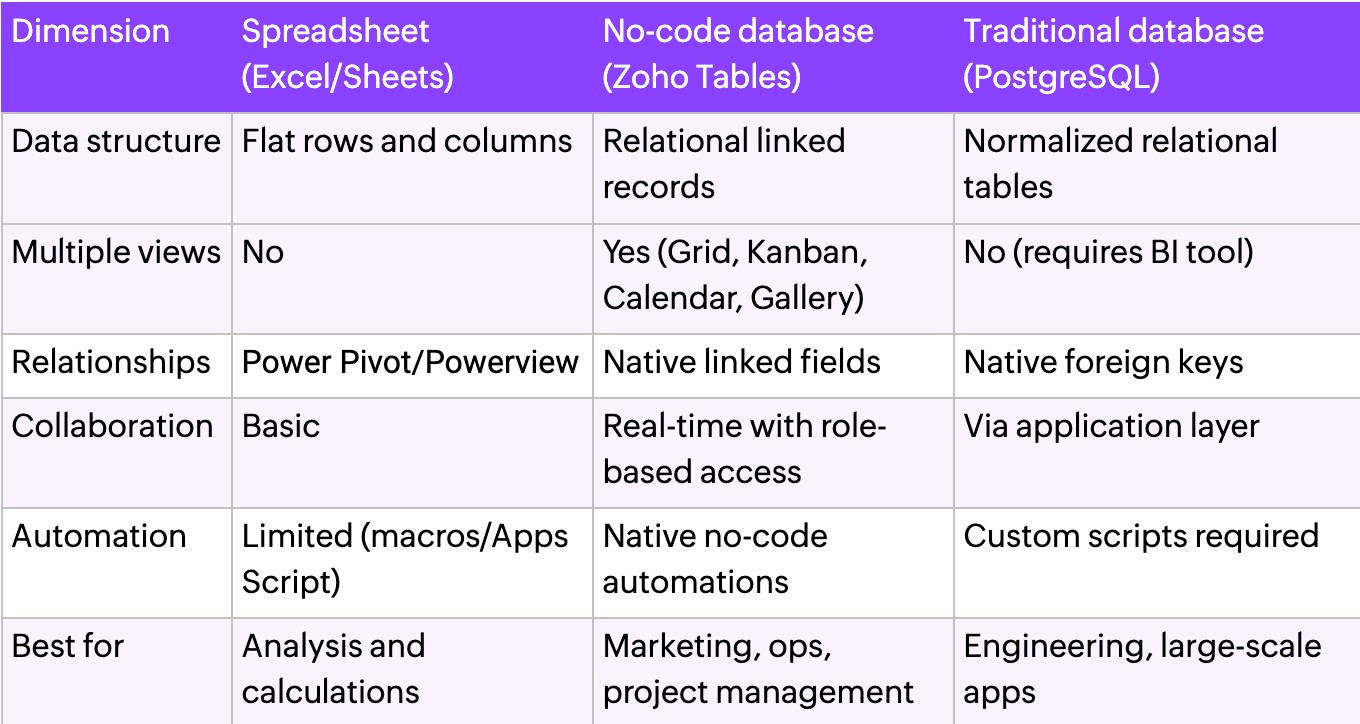
For a deeper look at how the two stack up, read our full breakdown of database vs spreadsheet.
How to convert your spreadsheet into a database using Zoho Tables
1. Audit your spreadsheet
Before you move anything, understand what you have. Go through your spreadsheet and note:
What types of data exist: Text, numbers, dates, statuses, files
Where data is duplicated across sheets
What connects to what—for example, campaigns linked to tasks, or orders linked to customers
This audit tells you how many tables you will need and how they will relate to each other.
2. Define your tables and relationships
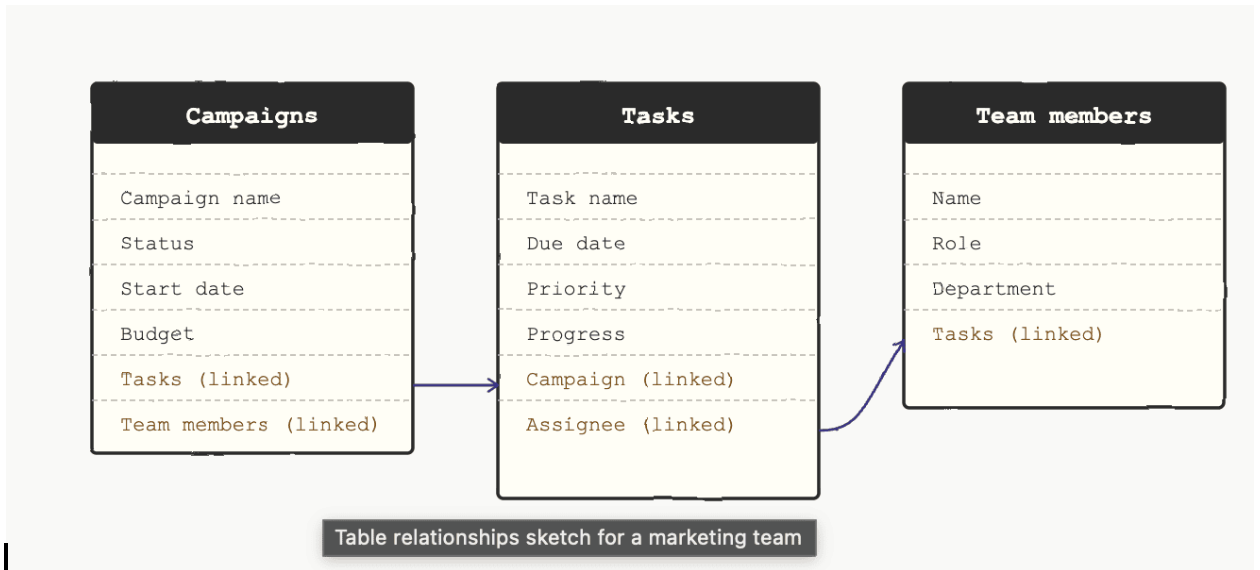
Each major object in your work becomes its own table. For a marketing team, this could be Campaigns, Tasks, and Events. For operations, it might be Vendors, Projects, and Deliverables.
Then define how they connect. One campaign can have many tasks. One vendor can be linked to many projects. A simple sketch of this structure before you import data saves a lot of time later.
3. Import your data
Clean your spreadsheet before migrating. Remove duplicates, standardize date formats, and align status labels.
Then go to the import option in Zoho Tables, upload your CSV or Excel file from your local device or cloud storage, and map your columns to the fields you set up. You can import your data as a new base or as a new table within an existing base. Review the imported records before sharing with your team.
4. Establish relationships
This is where your database starts to feel truly connected. Use the link field to establish meaningful links across your data. Use lookup and rollup fields to pull information across them.
5. Build your structure in Zoho Tables
Create new tables if needed. Define the right field type for each column: text, number, date, dropdown, attachment, or collaborator.
6. Set up views
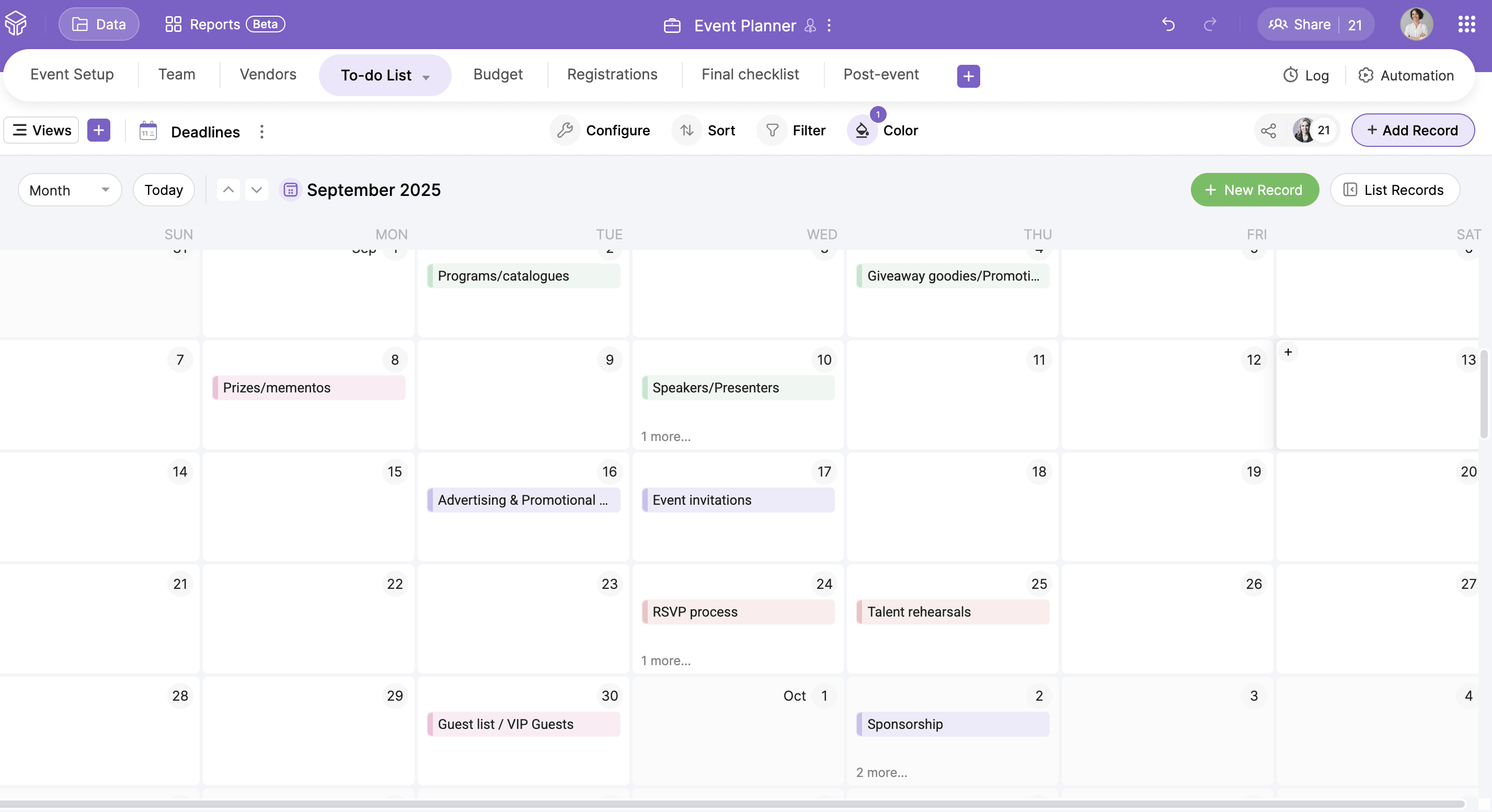
Zoho Tables lets you look at the same data in different ways. Each team member can work in the view that suits their role without affecting others.
- Grid view for data entry and bulk editing
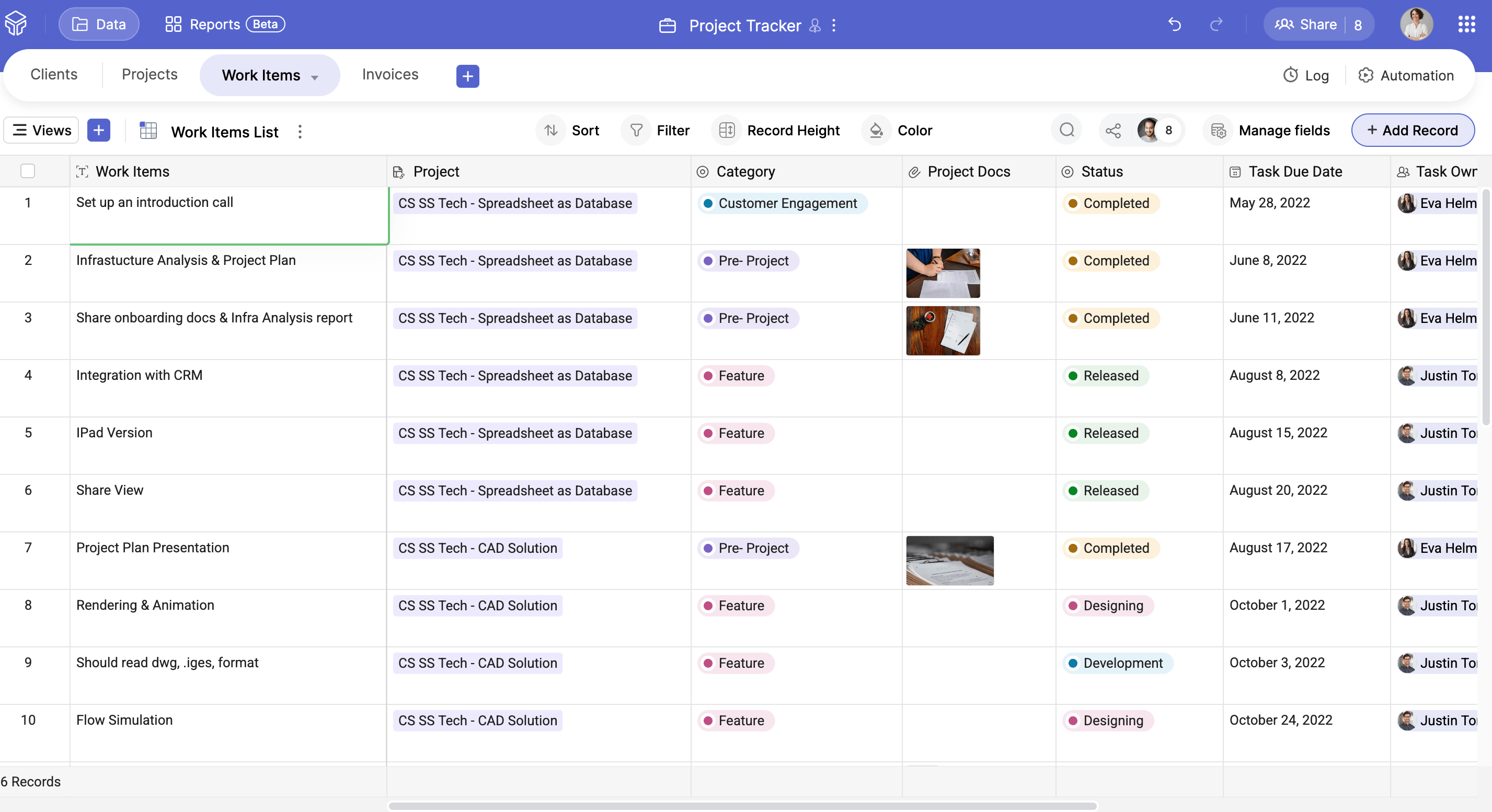
- Kanban view to track pipeline stages and progress
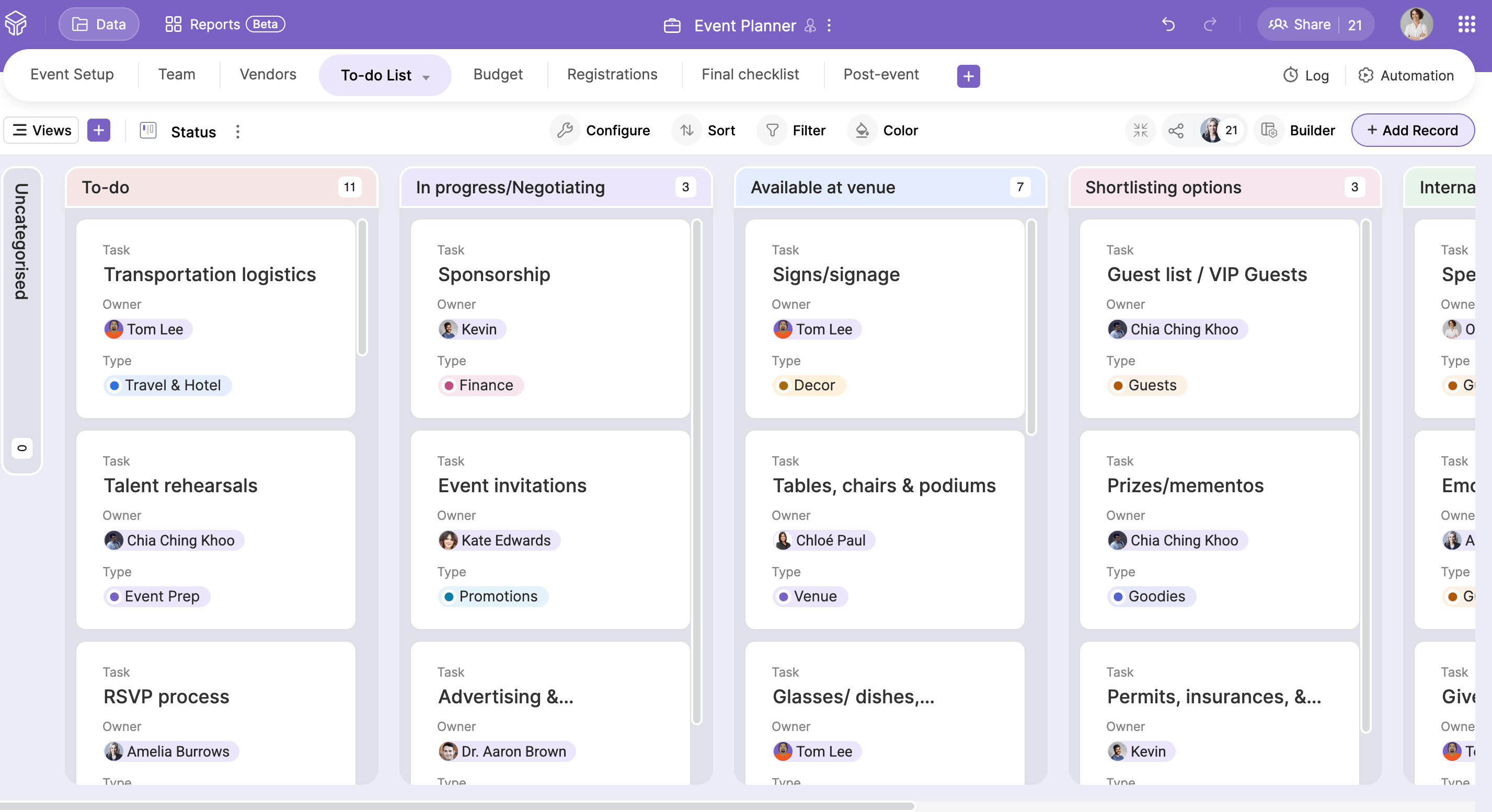
- Calendar view to manage deadlines and schedules
- Gallery view for visual assets and media
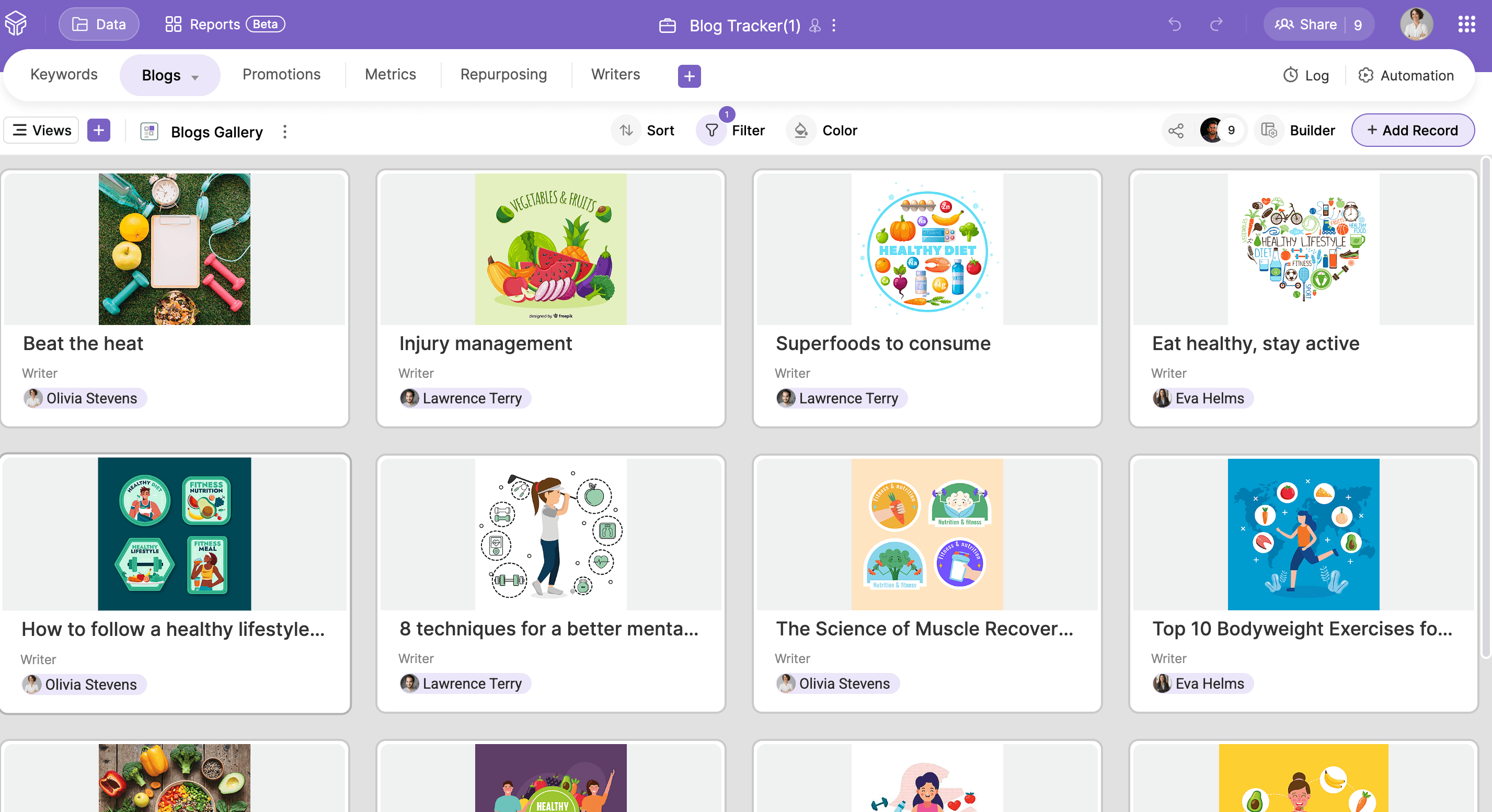
- Form view to collect structured input from your team
7. Automate your workflows
Set up trigger-based automations without any coding. For example, automatically update an order status when a linked shipment is marked as delivered, or notify the team when stock falls below a set threshold.
8. Control who sees what
Invite your team and assign one of five roles to each collaborator: Manager, Editor, Data Maintainer, Commenter, or Viewer. You can also share specific views instead of the full base, which is useful for external partners or clients.
How Zoho Tables makes this transition easy
Zoho Tables is built specifically for teams that want to move beyond spreadsheets without moving into complex technical territory.
Here's what makes the migration straightforward:
- Familiar interface: The default view looks like a spreadsheet. Your team won't feel lost on day one.
- Direct import: Bring in your Excel or CSV files without reformatting. Zoho Tables maps columns to fields.
- AI-assisted setup: For new use cases in the future, describe your use case to Zia, Zoho’s built-in AI assistant, and it will generate a base with tables, fields, and relationships already configured.
- Templates: Choose from 65+ prebuilt templates for marketing, HR, operations, and more. Start with a template and customize it to match your process.
- Free trial: Try all premium features for 15 days before committing to a paid plan.
Key takeaways
- Know when to make the move: If your team is dealing with duplicated data, version conflicts, slow files, or no access control, your spreadsheet has become a bottleneck, not a tool.
- Databases bring structure spreadsheets can't: Unlike flat rows and columns, a relational database connects data across tables, so your campaigns, tasks, and team members all link together meaningfully.
- Audit before you migrate: Map out your data types, duplicates, and relationships before importing anything. A few minutes of planning prevents a lot of cleanup later.
- Different roles, different views: Grid, Kanban, Calendar, Gallery, and Form views let every team member work in the format that suits them, without disrupting anyone else's data.
- Automation reduces manual work: Trigger-based workflows, like updating a status when a linked record changes, eliminate repetitive tasks without writing a single line of code.
- Control who sees what: Role-based access and shareable views mean the right people see the right data, whether they're a team member, manager, or external partner.
Converting a spreadsheet into a database is about giving your team a system that actually keeps up with the way you work. Zoho Tables is a practical place to start. It bridges the gap between the spreadsheets your team already knows and the structured database your work actually needs.
Start your free trial with Zoho Tables today and convert your first spreadsheet into a database.
 Haripriya S
Developer turned marketer. Balancing parenting and marketing, and loving every bit of it.