
Creating Transfers and Reversals
A transfer is the movement of funds from your account to a connected account. Transfers are created when you split an incoming payment among your sellers using the Zoho Payments API.
Create Transfers
Transfers can be created at the time of the payment or after the payment. Here’s how:
At the time of payment
Pass the split details during payment creation using the Session Creation API. The transfer is processed automatically once the payment is received. Refer to the API documentation for details.
After a payment - Via API
Use the Transfers API to assign a split to an existing payment after it has been received, using the Payment ID. Refer to the Split Payments API documentation for details.
After a payment - Via Dashboard
You can assign a split to an existing payment after it has been received, using the Payment ID. To do this:
- Go to the Payments module and select the payment you’ve received.
- Click Transfer at the top.
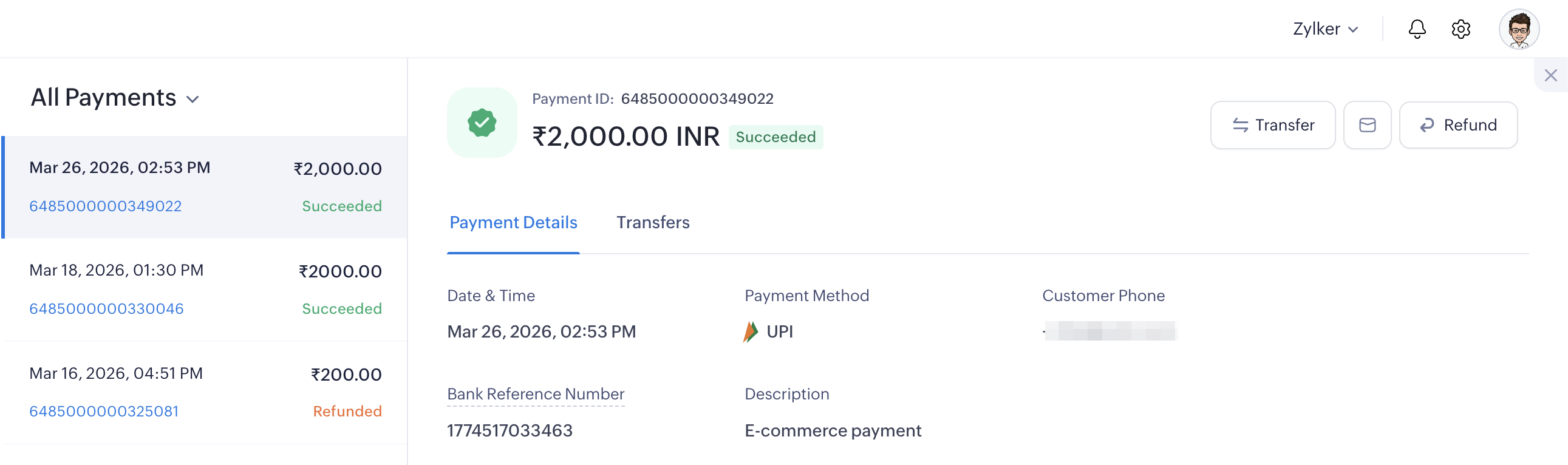
- In the pop-up, select the Connected Account to which you’d like to transfer the payment.
- Enter the Amount you’d like to transfer to the chosen account based on the Available Payment Amount. You can create a full or partial transfer.
- Provide a Description and click Confirm Transfer.
The transfer will be processed.
Insight: To split the payment across multiple connected accounts, repeat the steps above and create a new transfer for the same payment.
View Transfers
To view all transfers:
- Go to Split in the left navigation and click Transfers.
- Go to the Overview tab to view all transfers across your connected accounts.
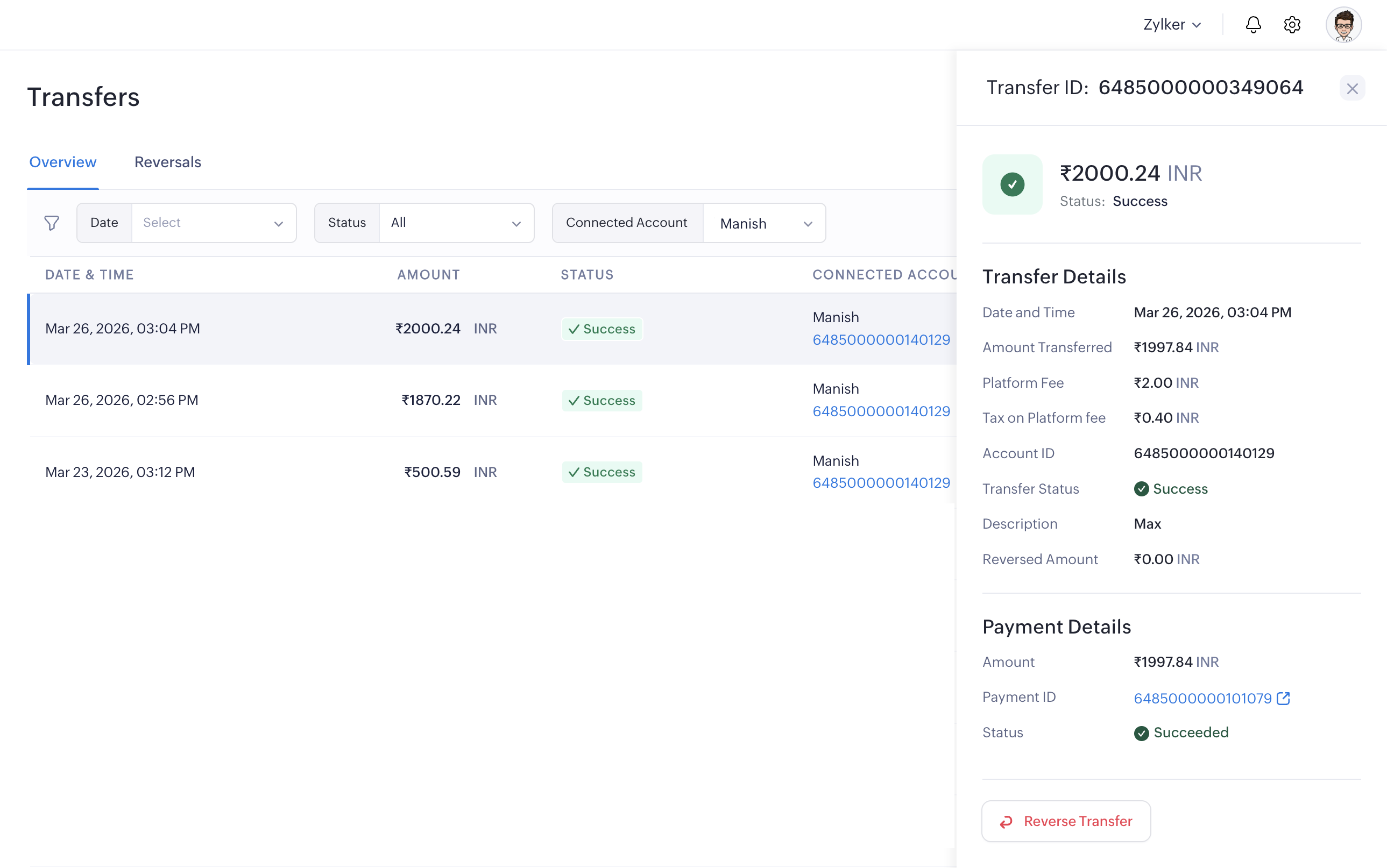
- Each transfer shows the Date and Time, Amount, Status, Connected Account, and Transfer ID.
- Click on any transfer to view its full details in a details panel.
Transfer Details
This section displays the Date and Time, Amount Transferred, Platform Fee, Tax on Platform Fee, Account ID, Transfer Status, Description, and Reversed Amount (if any).
Insight: A platform fee is applied to each transfer. The fee and any applicable tax are deducted from the transfer amount before it is credited to the connected account.
Payment Details
This section displays the Payment Amount, Payment ID, and Status. You can click the Payment ID to view the actual payment in the Payments module. You will also be able to reverse a transfer here.
Transfer Statuses
Transfers can have the following statuses:
- Success: The transfer has been completed and the connected account has been credited.
- Failed: The transfer could not be completed. Contact support for assistance.
Reverse Transfers
A transfer reversal credits the transfer amount back to your account and debits the connected account’s balance.
To reverse a specific transfer:
- Go to Split Payments and click Transfers.
- Select the transfer you want to reverse.
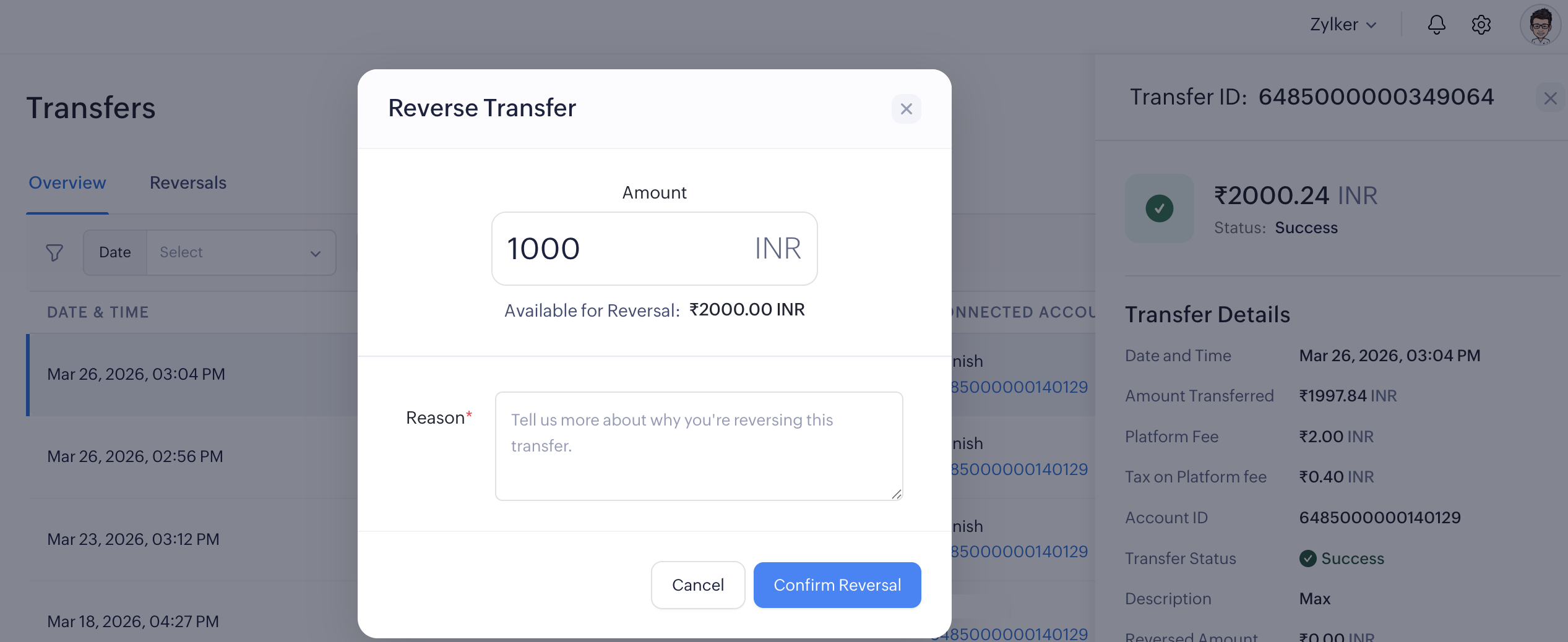
- In the transfer detail panel, click Reverse Transfer.
- Enter the Amount you want to reverse based on the amount Available for Reversal. To reverse the full transfer, enter the total transfer amount.
Note: You can reverse a transfer partially or in full. The remaining amount, if any, stays with the connected account.
- Enter a Reason and click Confirm Reversal.
The transfer will be reversed.
Warning: A transfer reversal cannot be undone. Please review the reversal amount carefully before confirming.
To reverse transfers via refund:
When issuing a refund to a customer, you can also choose to reverse all transfers associated with that payment at the same time. To do this:
- Go to the Payments module and select the payment you want to refund.
- Click Refund.
- In the refund pop-up, check the Reverse all transfers option to reverse all transfers linked to this payment along with the refund. Partial refunds are not supported.
- Click Confirm.
This will reverse all transfers associated with the payment. Individual transfer amounts will be debited from the respective connected accounts and credited back to your account.
View Reversals
To view all transfer reversals:
- Go to Split Payments and click Transfers.
- Click the Reversals tab.
Each reversal shows the Date, Reversal Amount, Connected Account, and the original Transfer ID it is linked to.

 Walkthrough of Zoho Payments personalized to your business needs