
Refunding Payments


Successful payments can be refunded back to the customer’s original payment method. Refunds are usually requested by the customer, otherwise, it could be issued either because it was a duplicate payment, any fraudulent activity was detected or any other unspecified reason.
Issue Refunds
You will be able to fully or partially refund a payment and the amount to be refunded will be deducted from your Zoho Payments account balance. Refunds usually take 5-10 business days to reflect in your customer’s bank.
If your Zoho Payments account doesn’t have sufficient funds to process a refund, the amount can be refunded once payments are received or can be debited from your bank account. Alternatively, you can:
- Issue the refund offline and make a record of it in your system.
- Issue a credit note (if your refund policy allows it and the customer agrees to it). The credit note can then be applied to future purchases.
If you’re unable to issue a refund, learn about the possible reasons for refund failures and how to resolve them.
Note: There’s no fee for refunds, however, the platform fee collected for the actual payment will not be returned. Learn why.
To issue a refund:
- Go to Zoho Payments and then Payments.
- Select a transaction and click Refund in the top right corner.

- Enter the amount.
Insight: You can choose to make a partial or full refund. In case of a partial refund, you will be able to refund the rest of the amount as well after the initial refund has been processed.
- Check the Refund convenience fee amount box to refund the fee when requested by the customer.
- Select the reason from the dropdown and provide a description, if needed.

- Click Proceed.
- Review the details and click Initiate Refund.
Refund receipts (Refund success or failure emails) can be sent to the customers based on your email configuration.
Pro Tip: You can issue a refund from the payment list page as well by clicking the More icon near a payment and selecting Refund from the options.
View Refund Details
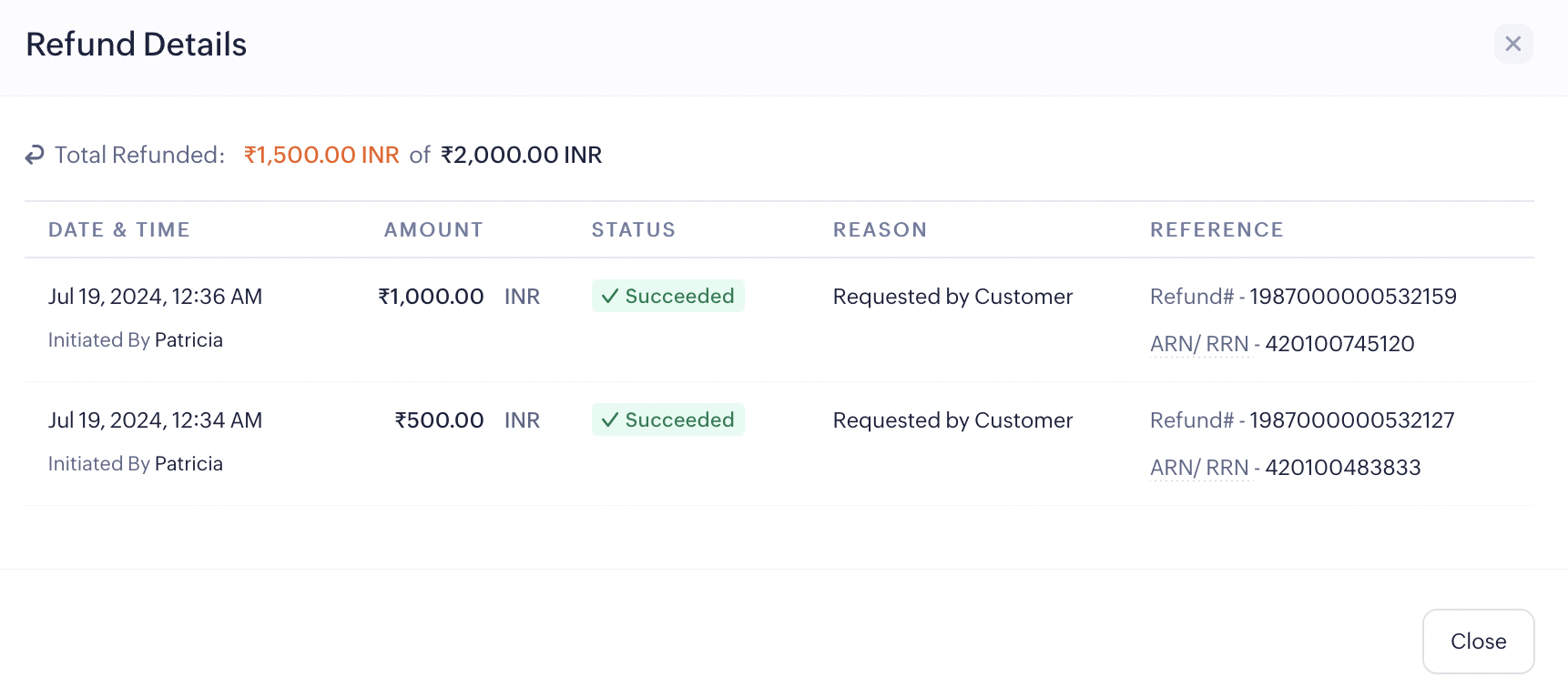
Refund information can be viewed in the transaction’s details page. A mini summary of the refunds will be available when you click View Details near the refund information.
Refund Statuses
The statuses indicate the various stages of the refund, providing insights into its progress.
Initiated: The refund has been initiated from Zoho Payments.
Pending: The refund has been initiated, but yet to receive confirmation from the processor.
Failed: The refund was unsuccessful, likely due to issues with your bank or incorrect card details provided by the customer.
Succeeded: The refund has been successfully processed, and the amount will be credited within 5-10 business days.
Manage Refund Failures
Refunds you issue can sometimes fail if the card expires or due to any unknown errors at the bank’s end.
In such cases, the deducted amount will be deposited back to your Zoho Payments account. You can try initiating the refund later and if it still fails, we recommend that you issue it offline using a payment method of your choice.

 Walkthrough of Zoho Payments personalized to your business needs