
Managing Connected Accounts
A connected account represents a seller, vendor, or service provider on your marketplace. Before you can split payments with a seller, they must be added and verified as a connected account in Zoho Payments. Once added, you can view and manage their details, configure payout preferences, and view all associated transactions from this module.
Add Connected Accounts
To add a new connected account:
-
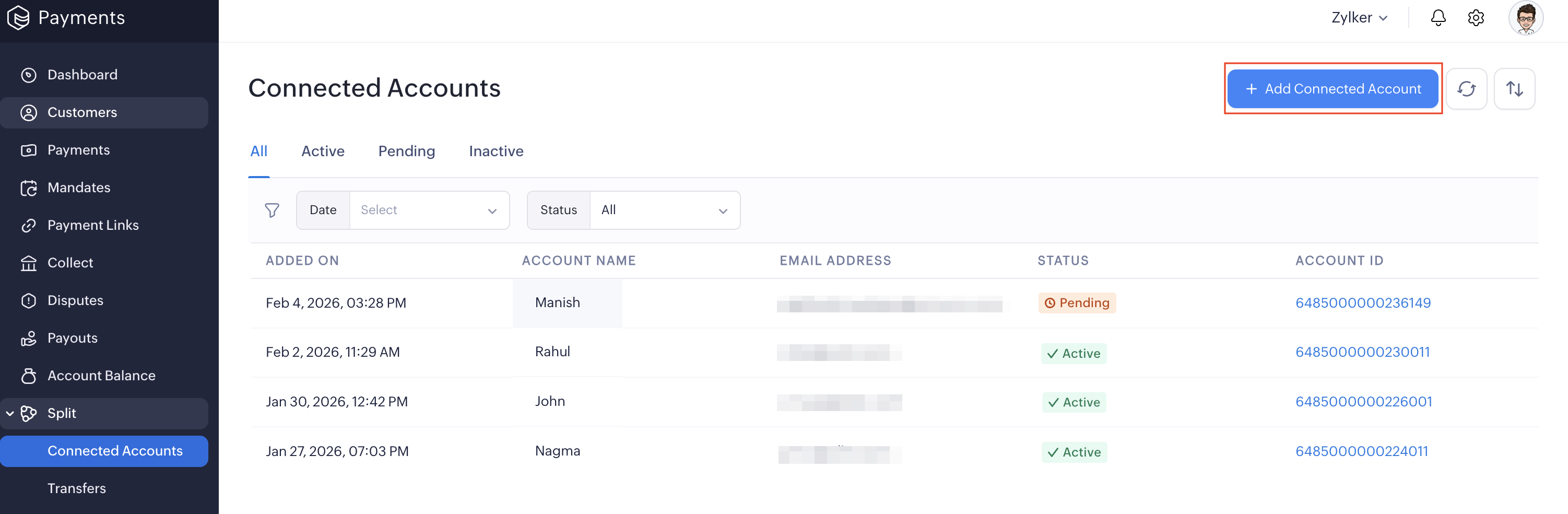
Go to Split and select Connected Accounts.
-
Click + Add Connected Account.
-
Enter the following details in the pop-up:
- Connected Account Details: Enter the Connected Account Name, Business PAN, Email Address, Business Type, and Business Description. Click Save and Next.
- Bank Account Details: Enter the Bank Account Number and IFSC.
-
Click Save, and a new account will be created with a dedicated Connected Account ID.
Note: Once a connected account is added, it is created in the Pending status. It goes through a verification process before it can receive transfers. Once verified, the account is marked as Active and is ready to receive transfers and payouts.
Note: You can add up to 20 connected accounts. If you’d like to add more, contact support.
View Account Details
To view all your connected accounts:
- Go to Split in the left sidebar and click Connected Accounts.
- Your connected accounts are listed by status with the following details: Created Date, Name, Email Address, Account Status, and Connected Account ID.
- Use the Sort and Refresh options to organise or update the list.
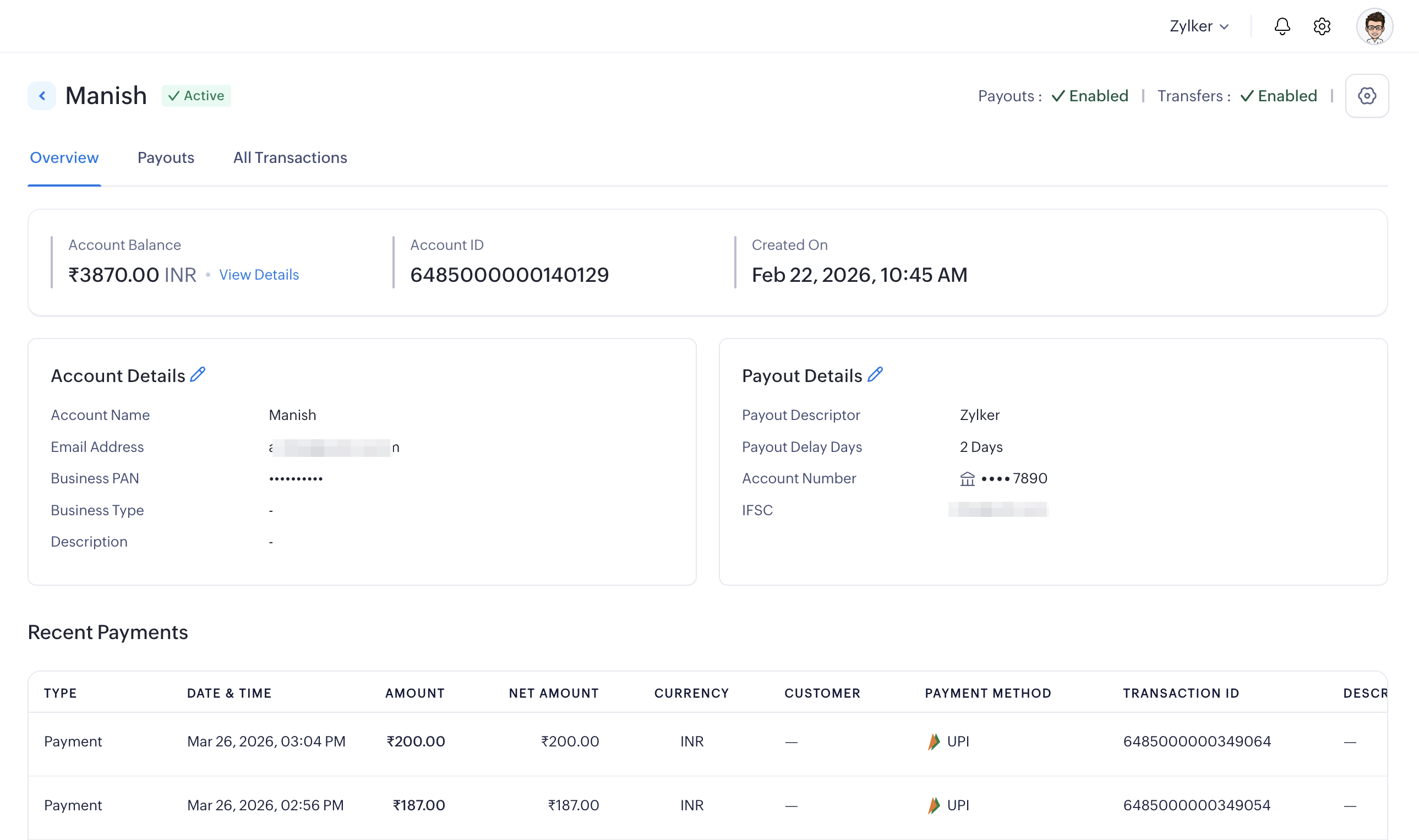
- Click any connected account to view its details. The account detail page has three tabs: Overview, Payouts, and All Transactions.
Overview
In this section, you can view all account details and the status of Transfers and Payouts to the account. The table at the top displays the connected account’s Account Balance, Account ID, and Created On date. Click View Details near Account Balance to view the split up of the total account balance. This includes the amount Available for Payout and the amount Yet to Be Available.
Account Details:
This section shows the account’s Name, Email Address, Business PAN, Business Type, and Description. You can click Edit to update the Name and Email Address. To edit other details, contact support.
Payout Details:
This section displays the Payout Descriptor, Payout Delay Days, Account Number, and IFSC for the bank account linked to this account.
Recent Payments:
The Recent Payments table at the bottom shows the latest payments associated with this connected account, including the Type, Date & Time, Amount, Net Amount, Currency, Customer, Payment Method, Transaction ID, and Payout Status.
Payouts
Note: Payouts are processed only after the connected account has been verified, and payouts have been enabled.
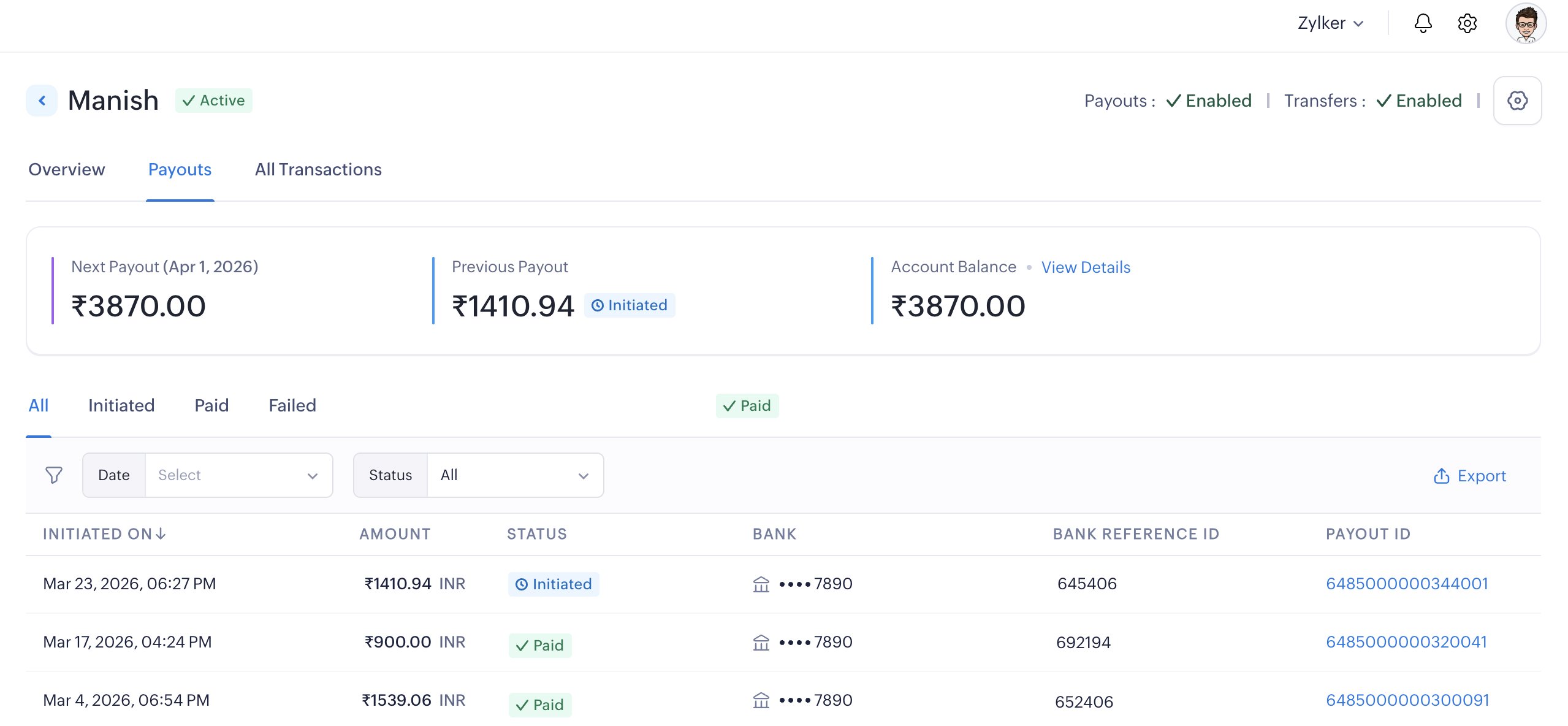
Once a connected account has a settled balance from received transfers, Zoho Payments automatically sends a payout to its registered bank account. You do not need to initiate payouts manually. The Payouts tab provides a complete view of all payouts made to this connected account’s bank, along with a summary of upcoming and previous payout activity.
Note: Payouts become available within T+1 or T+2 business days, depending on the payment method used.
All Transactions
The All Transactions tab gives you a complete record of every transaction associated with this connected account, including all transfers, reversals, and payouts. You can view the list of transactions, export them to your computer, or run filters to view specific details.
Configure Account Preferences
You can enable or disable transfers and payouts or configure payout settings for each connected account.
To configure account preferences:
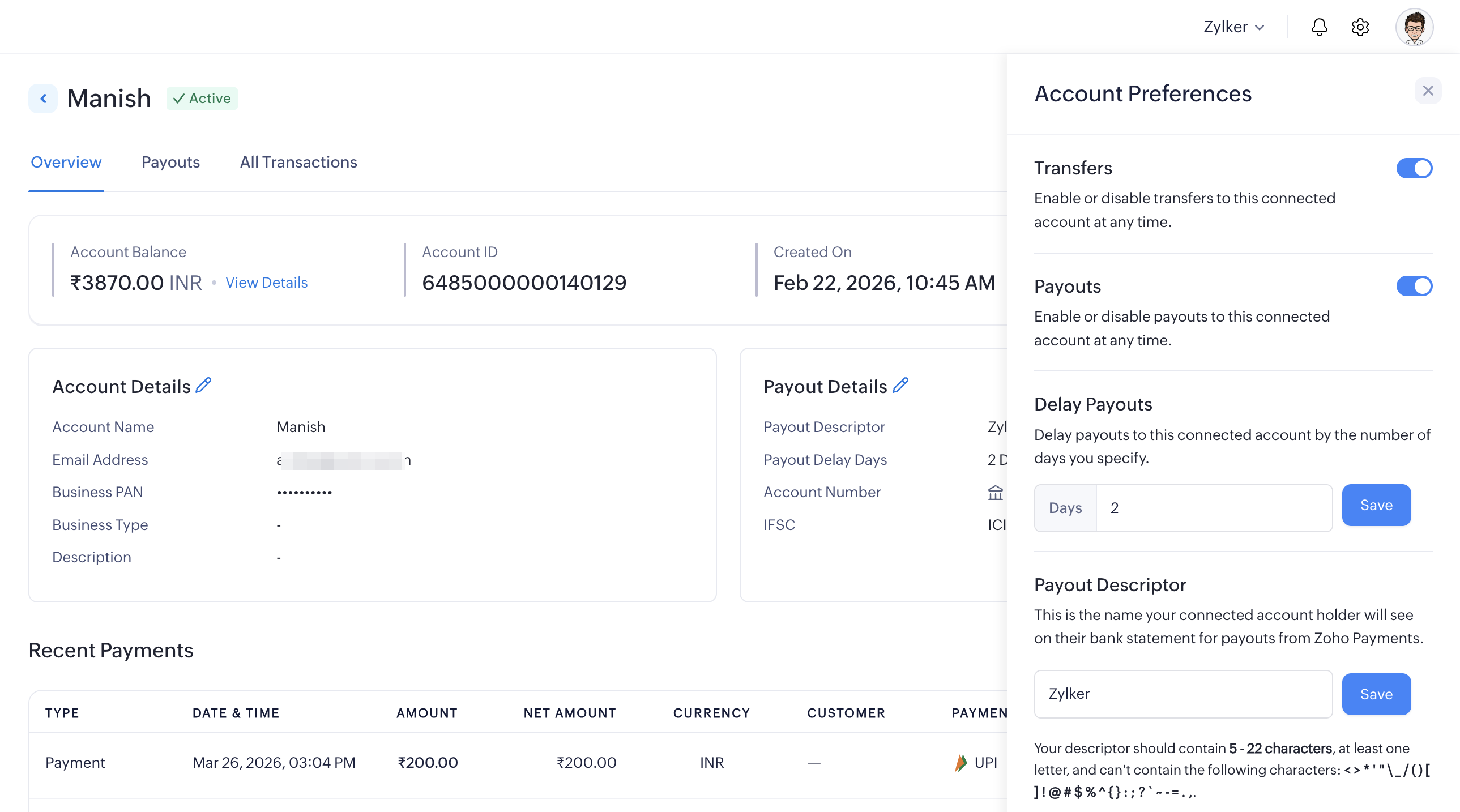
- Go to the connected account and click the Settings icon in the top-right corner.
- Configure the following preferences:
Transfers
Use the toggle to enable or disable transfers to this account. You can re-enable this anytime.
Payouts
Use the toggle to enable or disable all scheduled payouts to their bank account. You can re-enable this anytime.
Note: Once a connected account is verified, payouts and transfers will be enabled by default.
Delay Payouts
You can delay payouts to a connected account by a specified number of days. During this period, the settled balance is held before being sent to the connected account’s bank.
Note: Payouts are made available after T+1 or T+2 business days. Any configured delay will be applied after this period.
Payout Descriptor
The payout descriptor is the name your connected account will see on their bank statement for payouts from Zoho Payments.
Note: The descriptor must be between 5 and 22 characters and contain at least one letter. Special characters are not allowed.
Filter Connected Accounts
You can filter and view connected accounts or search for a specific account using the available filters.
- View accounts by status: Switch between the All, Active, Pending, and Inactive tabs at the top of the list to filter accounts by their status.
- Filter by date: Use the Date filter to filter connected accounts based on the creation date.
 Walkthrough of Zoho Payments personalized to your business needs