
Viewing Virtual Accounts
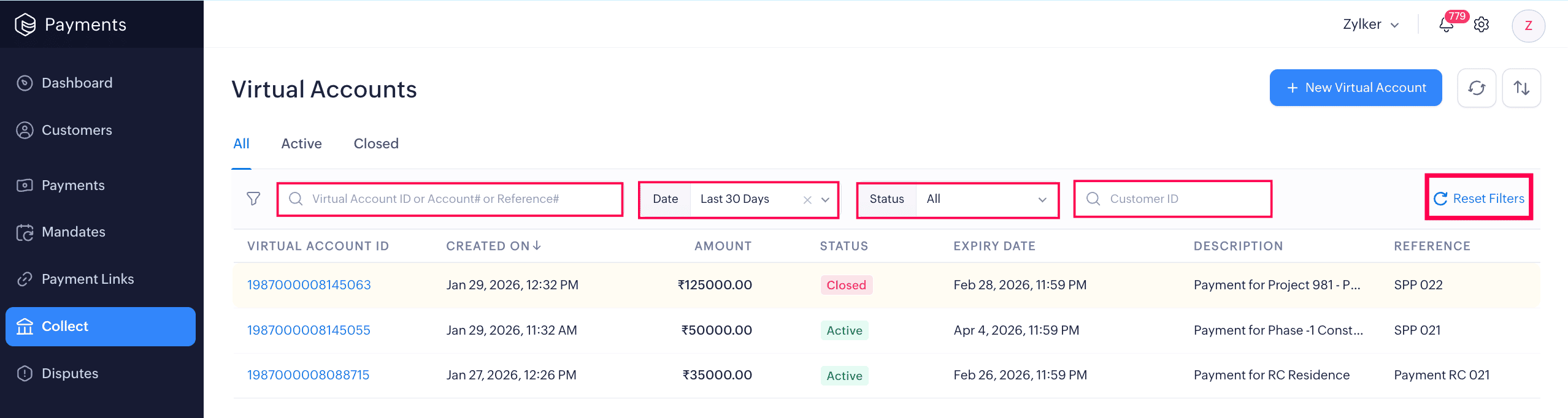
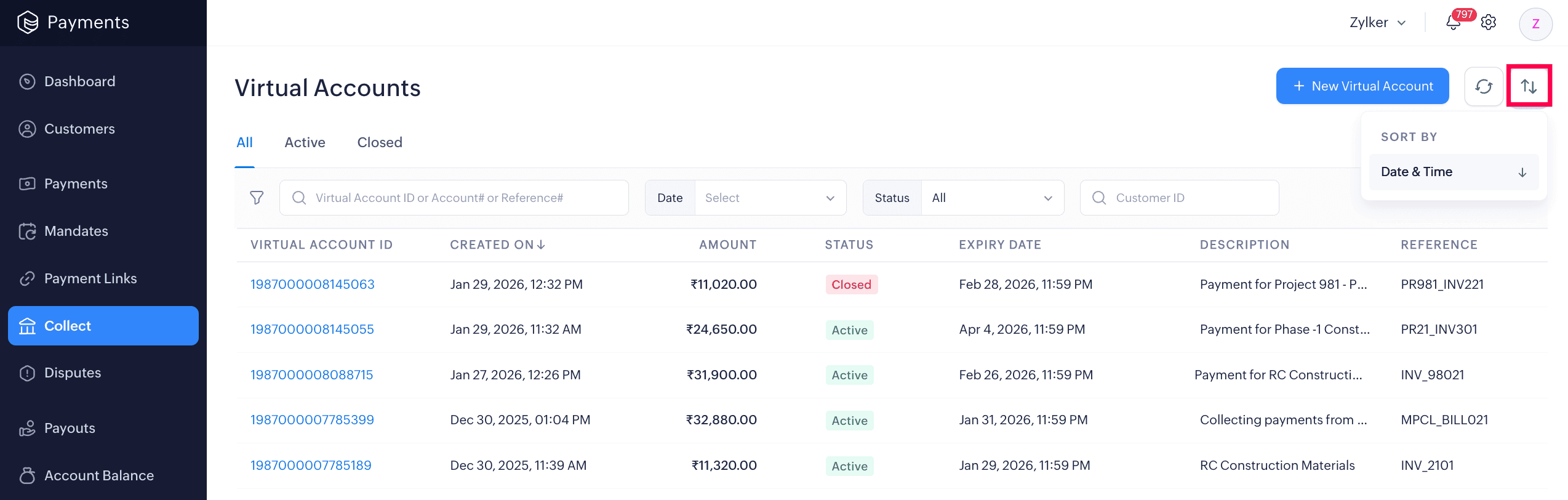
The Collect module in the left sidebar displays all the virtual accounts you have created. The list view shows key details such as Virtual Account ID, Created On Date, Amount, Status, Expiry, Description, and Reference.
You can use the Refresh option at the top of the table to see the updated status of your virtual accounts.
Virtual Account Details
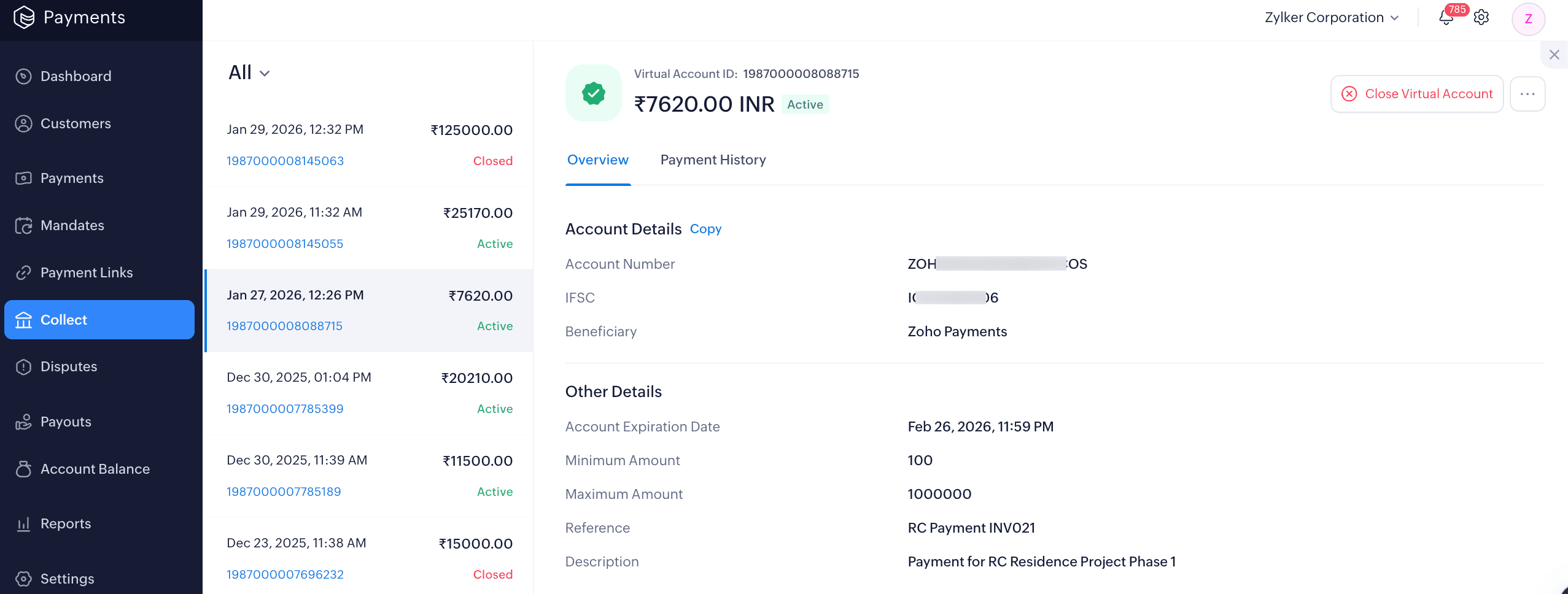
When you click a virtual account, a right pane will open where you can view all the details of the account.
Overview
-
Account Details: View the details of the virtual account, such as the Account Number, IFSC, and Beneficiary. You can click Copy next to the account details to copy and share them with your customers.
-
Other Details: View the information provided while generating the account, including Account Expiration Date, Minimum and Maximum Amounts, Reference, and Description.
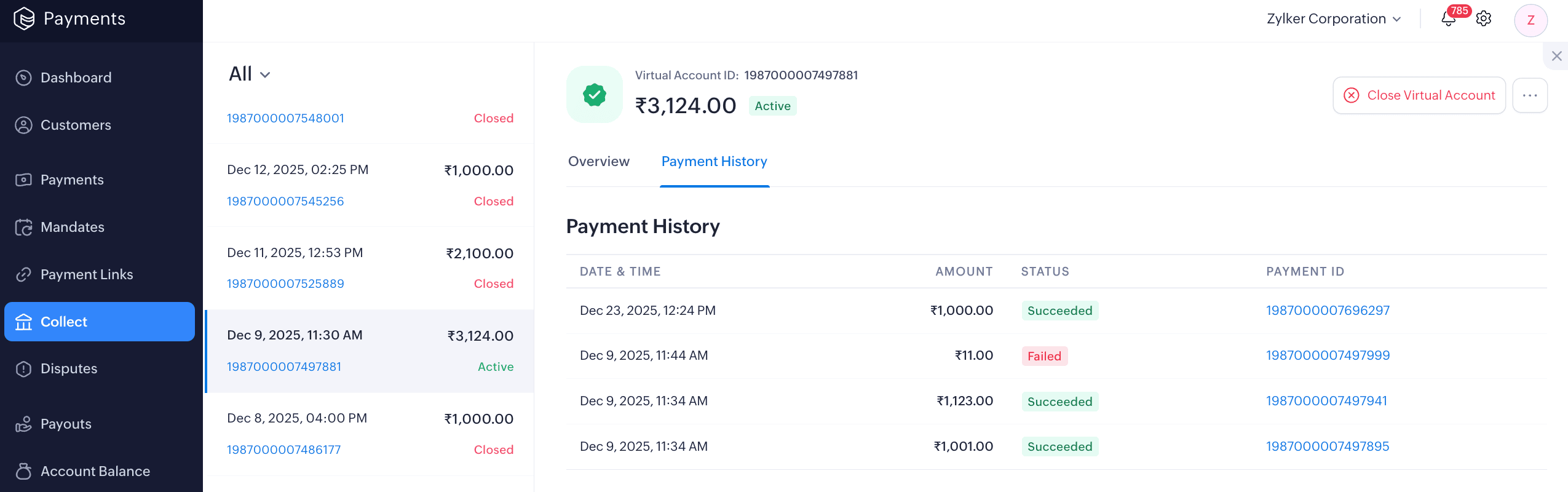
Payment History
View all payments received through the account, including Date & Time, Amount, Status, and Payment ID. Clicking on a payment will take you to the Payments module, where you can view a detailed overview of the transaction.
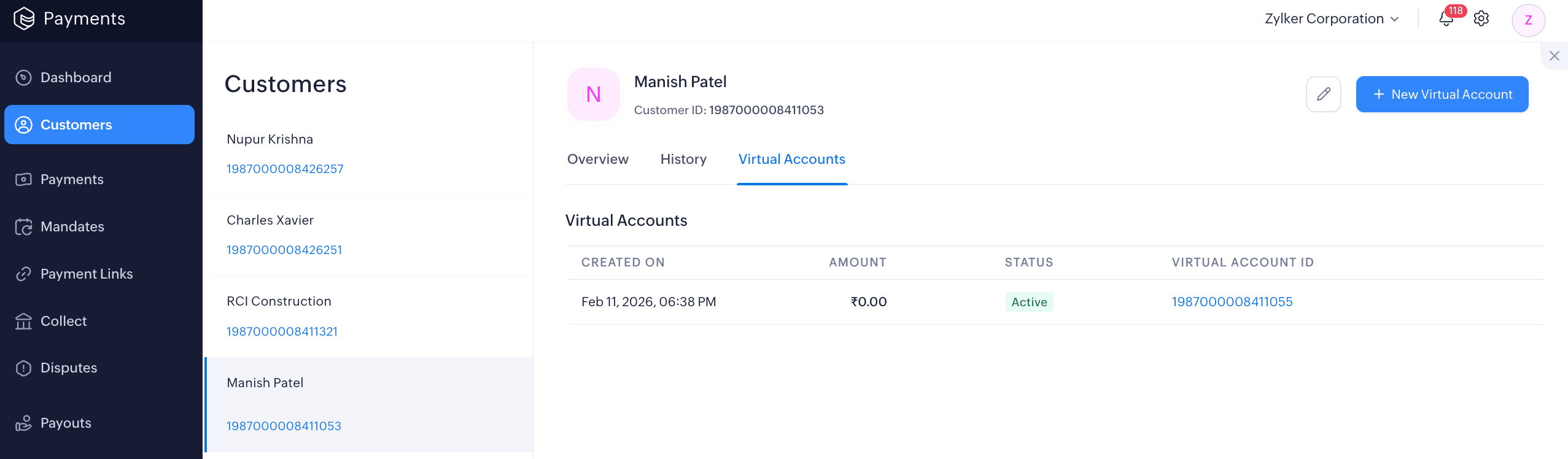
Customers
View all virtual accounts created for a specific customer from the Customers module’s Virtual Accounts tab, including Created On, Amount, Status, and Virtual Account ID. Clicking on a virtual account will take you to the Collect module, where you can view a detailed overview of the account.
Virtual Account Statuses
Virtual accounts are classified into two statuses:
- Active: Virtual account is live and can be used to collect payments.
- Closed: Virtual account has been closed and no further payments can be made.
Filter and Sort Virtual Accounts
You can filter and view virtual accounts or search for a specific account using the available filters.
- View accounts by status: Switch between the status tabs at the top of the list view table to see virtual accounts in each status.
- Search and Filter: Use the search bar or select filters from the dropdown to filter accounts by Virtual Account ID, Customer, Account Number, Reference, Date, or Status.
You can also reset the filter to its default view by clicking the Reset Filters button.
Sort Virtual Accounts
Sort virtual accounts by Date & Time in ascending or descending order.

 Walkthrough of Zoho Payments personalized to your business needs