- HOME
- Product updates
- I just wanted a replacement mug.
I just wanted a replacement mug.
- Last Updated : August 31, 2026
- 25 Views
- 2 Min Read
I ordered a ceramic mug online. When it arrived, one side of the handle had snapped clean off. I thought I'd just request a replacement, and I opened the support form which had the usual questions.
- Order number. Fair enough.
- Email address. Makes sense.
- Product name. Sure.
Then it asked me to choose an Issue Type. I selected Damaged Item.
Next, it asked what I wanted the company to do. I selected Replacement.
So far, so good.
Then I reached the next field.
"Please describe why you're requesting a replacement."
I stared at it for a second. I already had. The form knew the item was damaged. It knew I wanted a replacement.
Between those two answers, it already knew everything that mattered.
Yet there I was, typing:
"The mug arrived cracked."
I couldn't help thinking about how I would build this form differently with Zoho Forms.
What Zoho Forms would have done differently
With Zoho Forms, you can configure a field to auto-fill its own answer based on what the respondent has already told you without asking them to say it again.
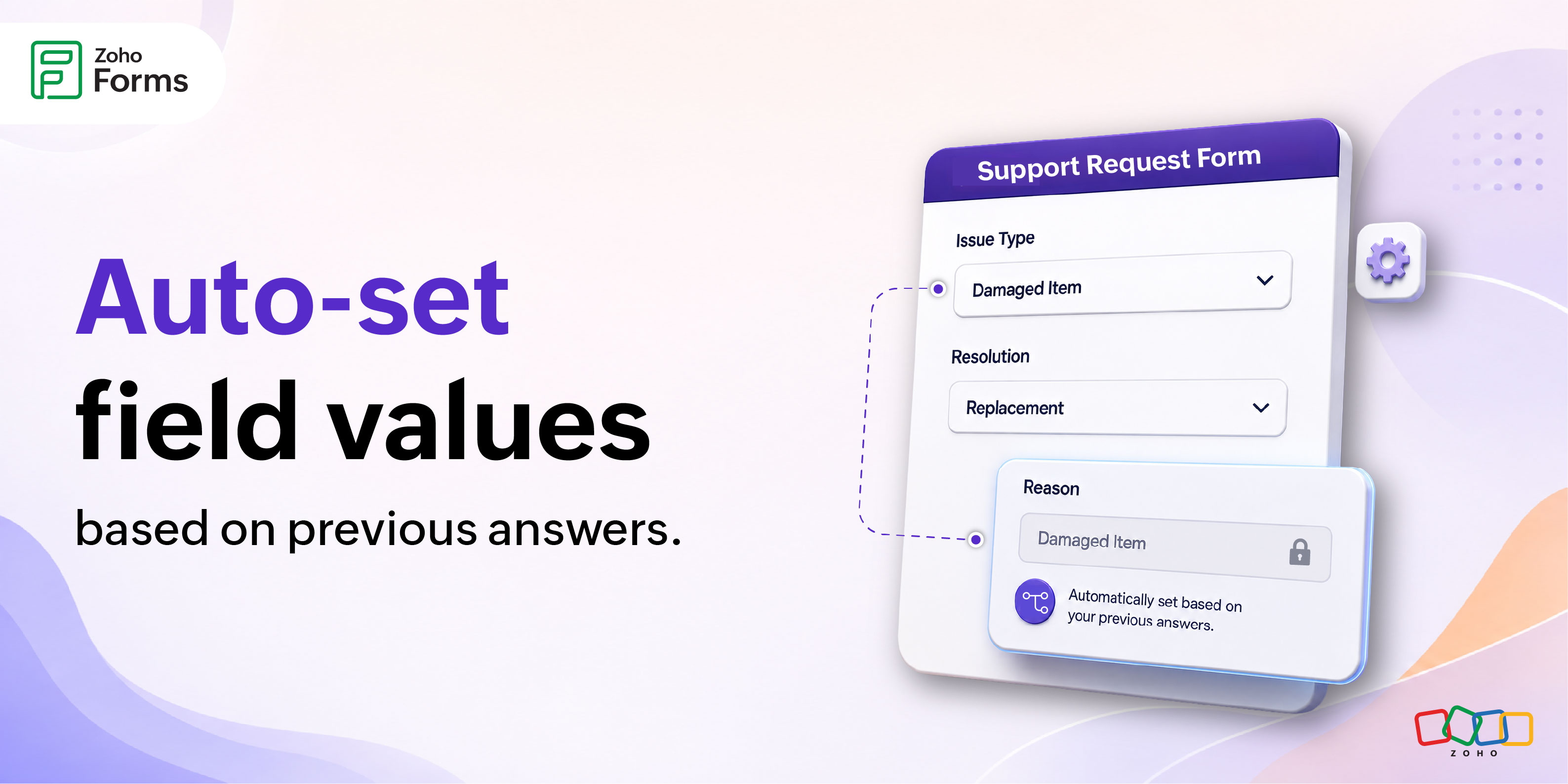
In my case with this form, the moment I select "Damaged Item" as the issue type and "Replacement" as the resolution, the form can automatically set the Reason field to something like "Damaged Item" and either hide it entirely, or show it grayed out so I can see what's been recorded.
The form could be integrated to Zoho Desk, so all the requests submitted via this support request form directly fall into Zoho Desk as tickets along with the image of the broken mug attached in the form.
I never touch this extra field in the form but the ticket still gets the right information.
You get 2 ways to apply this, depending on how much visibility you want to give the respondent.
Set value and hide
The value is filled and the field disappears from the live form. The respondent never sees it. The data is submitted silently in the background.
Set value and disable
The value is filled and the field stays visible but it's grayed out and not editable. The respondent can see what's been recorded for them. Transparent, but locked.
Both options work the same way under the hood. The choice is purely about what you want the respondent to experience.
Field Rules (Advanced Rules) is where it all comes together: your conditions, your target field, and the value your form sets for the target field the moment those conditions are met.
Try it on your next form!
 Samhita V
Samhita is a seasoned product expert at Zoho Forms who blends deep product expertise and user education to help businesses make sense of powerful features without the jargon. Known for her thoughtful storytelling and crisp communication, she adds a subtle creative flair to every piece she writes. With a knack for spotting real-world use cases and adding a touch of fun to her narratives, she’s on a mission to make even the most complex workflows feel approachable. Beyond the desk, she channels her creativity into dance and mural art, finding new ways to infuse her surroundings with color, rhythm, and meaning.