- HOME
- More
- Best practices
- How to handle suspicious email attachments: An employee guide
How to handle suspicious email attachments: An employee guide
- Last Updated : July 2, 2026
- 248 Views
- 5 Min Read

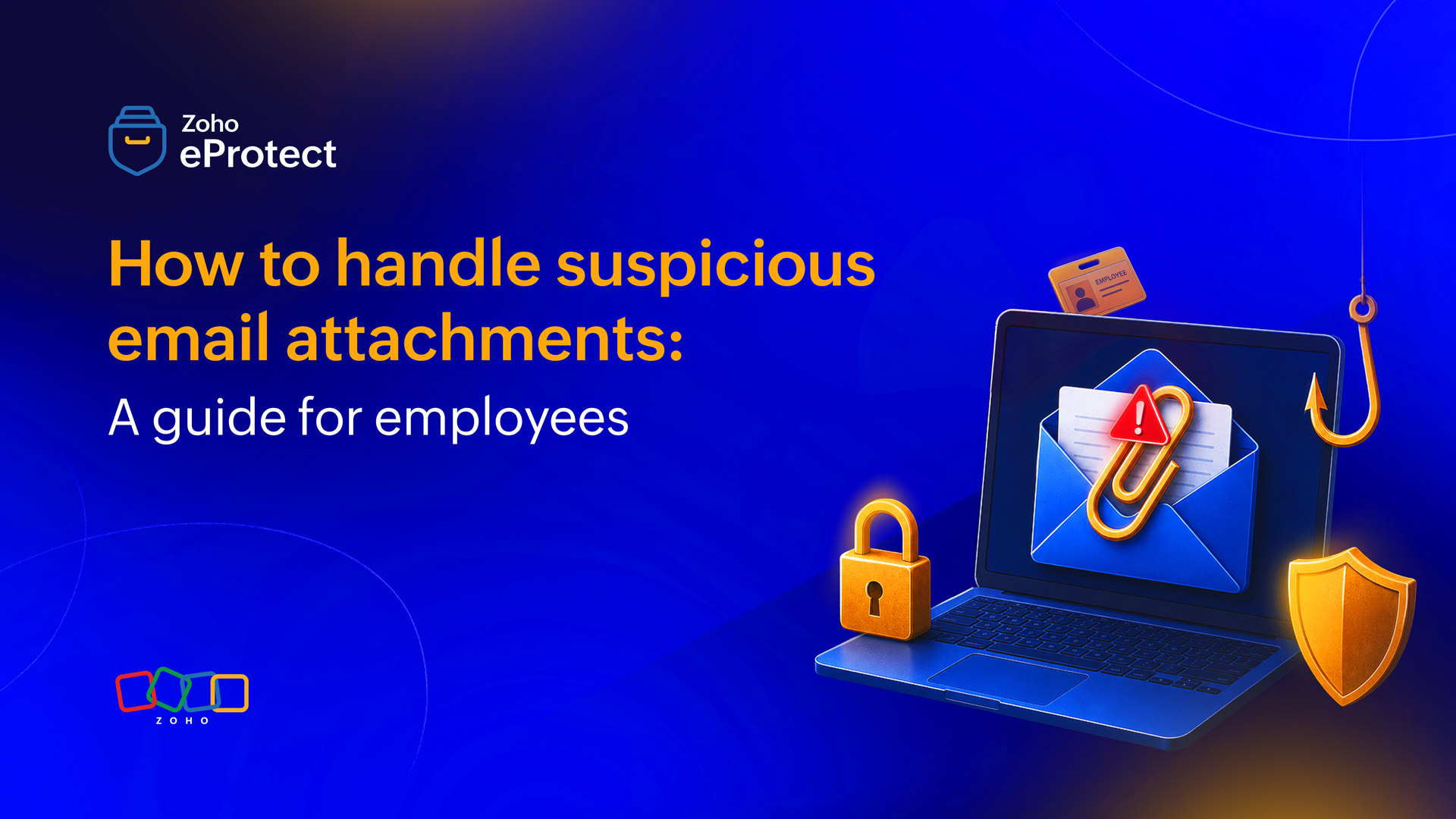
Email has been the preferred delivery mechanism for cyberattacks for decades, and that hasn't changed. What has changed is how sophisticated those attacks look. The days of obvious misspellings and Nigerian prince schemes are mostly behind us. Today's malicious attachments arrive in polished, context-aware emails that can fool even careful people. Knowing what to look for and what to do when something feels off is one of the most practical security skills any employee can have.
Why attachments remain the attack vector of choice
Attackers use email attachments because they work. According to Verizon's 2024 Data Breach Investigations Report, phishing and email-based attacks were involved in a significant share of breaches globally, with malicious attachments consistently ranking among the top initial access methods. A well-crafted file, sent at the right moment, can bypass technical controls, exploit human curiosity, and deliver malware in seconds. Unlike phishing links that require a user to enter credentials, attachments can trigger malicious code the moment they're opened, sometimes even without any further interaction. They also carry an air of legitimacy. An attachment makes it feel like it contains something that needs to be done.
File types that should put you on alert
Most employees know not to open a random .exe file. But attackers know that too, which is why the dangerous files showing up in inboxes today rarely announce themselves that obviously.
Macro-enabled Office files (.docm, .xlsm, .pptm): These look identical to normal Word or Excel documents, but they can execute code as soon as you enable macros. Most often, the file itself prompts you to do so, with a convincing-looking message about "enabling content to view the document."
Disk image files (.iso, .img): These have become popular specifically because they can bypass certain Windows security warnings. A .iso file isn't an attachment in the traditional sense. It mounts as a virtual drive, and anything inside it may not carry the same "Mark of the Web" flags that would normally trigger a warning.
Shortcut files (.lnk): These look harmless and small, but they can point to and execute arbitrary commands on your system.
HTML attachments: Increasingly used to redirect users to credential harvesting pages, effectively turning the email client into a browser pointed at a phishing site.
Password-protected zip files: These deserve special caution. Attackers use the password as a social engineering tool. It creates a sense of confidentiality and prevents email security scanners from inspecting the contents. If someone you don't know is sending you an encrypted archive and handing you the password in the same email, that combination should read as a red flag, not a reassurance.
Red flags in the email itself
The attachment is only part of the picture. The email surrounding it often gives away more than attackers intend.
Pressure and urgency
Urgency is the oldest trick in the book. Phrases such as "respond immediately," "your account will be suspended," "review this before end of day", are commonly used to create panic. Pressure is a manipulation technique designed to prevent you from pausing to think.
Sender details that don't add up
The display name may say your bank or your HR department, but the actual email address behind it tells a different story. Slightly off domain names (paypa1.com, "rn" instead of "m") are worth examining closely, especially on mobile where the full address is often truncated.
Missing or manufactured context
Legitimate senders generally explain what they're sending and why. If a vendor you've never emailed before suddenly sends you an invoice, or a colleague sends a file with no message at all, the absence of normal context is itself a warning. Emails that reference a prior conversation you have no memory of fall into the same category.
What to do when something feels off
The single most important rule: Do not open the attachment to figure out whether it's safe. Opening it is the attack. If something feels wrong, trust that instinct and stop there.
Do not forward the email to a colleague to get a second opinion. If the attachment is malicious, you've now potentially exposed another person's machine. Do not reply to the sender to ask if it's legitimate. If the email is an attack, you've confirmed that your address is active and monitored.
What you should do:
- Do not click, open, enable, or extract anything in or attached to the email.
- Report it through your organization's designated channel.
- Leave the email in your inbox untouched so the security team can investigate it with full headers intact.
- If you opened something before realizing it was suspicious, report that immediately. The faster the security team knows, the faster they can contain any potential damage.
How internal reporting should work
Reporting a suspicious email isn't an overreaction. It's the right call and a good security team will tell you the same. But reporting only helps if the process is fast, easy, and clearly communicated. A button buried in a settings menu or a security alias nobody told you about isn't a reporting process; it's a formality.
What a functional reporting process looks like
Most email clients support a native phishing report button, or your organization may have a third-party add-in for one-click reporting. Either way, employees should be able to flag a suspicious email in under ten seconds without having to open it, copy headers, or write a detailed explanation. The lower the friction, the more reports come in, and more reports means the security team gets earlier visibility into active campaigns.
Once you report, the security team should be able to pull the message from other inboxes across the organization before more people open it, analyze the headers and attachment in a sandboxed environment, and determine whether the threat is isolated or part of a wider campaign targeting your organization.
What happens after you report
Ideally, you hear back. A short confirmation that the email was malicious and has been contained, or that it turned out to be legitimate, closes the loop and reinforces the behavior. When employees report something and hear nothing back, the incentive to report next time weakens. Security culture is built in small moments like these.
When there's no clear process
If your organization doesn't have a visible, accessible reporting channel, that's worth raising with your manager or IT team. It's a gap that leaves both employees and the security team flying blind. In the meantime, forwarding the suspicious email as an attachment to your IT or security contact, rather than just forwarding it normally, which can trigger the threat, is a reasonable interim step.
Why "safe" file types aren't always safe
PDFs and .docx files are both formats people open dozens of times a day without thinking. That familiarity is exactly what makes them useful as attack vehicles.
PDFs can contain embedded JavaScript, malicious links, and exploit code targeting vulnerabilities in PDF readers. A PDF sent from an unknown source asking you to "click here to view the full document" is often a phishing redirect, not a rendering issue.
Standard .docx files can carry malicious macros too, even without the .docm extension. They can also contain embedded objects or links that reach out to remote servers the moment the document opens, sometimes to track whether the file was opened, and sometimes for something worse. The format being familiar doesn't make the file safe. The source and context of the file determine that.
Wrapping up
Handling suspicious attachments well is a shared responsibility between individual awareness and the tools your organization puts in place. Zoho eProtect is an email security solution works at the infrastructure level to filter, analyze, and block email-borne threats before they reach your inbox. The solution catches malicious attachments, flagging suspicious senders, and gives the security team visibility into threats across the organization. Your judgment is the last line of defense. eProtect is the layer behind that enables you with it.