
Installing Zoho CRM Plug-in
How Can I...
Install Zoho CRM Plug-in (in Windows)
Installing the Zoho CRM Plug-in for Microsoft Outlook requires the following steps to be followed:
- Download and Install the Plug-in based on the Microsoft Outlook version (32 bit or 64 bit)
- Activate Zoho CRM Plug-in for users
Note:
- Only users who have the Admin login for the system in which Microsoft Outlook is available can install the plug-in.
- You must have valid Zoho login details to connect to Zoho CRM.
- Before installing, the Microsoft Outlook application should be closed in your system.
Download and Install Zoho CRM Plug-in
If you are updating the existing plug-in to a new version, you need to uninstall the plug-in and install it again. Please make sure that you close the application before uninstalling it.
To download and install the Zoho CRM Plug-in
- Log in to your Zoho CRM account.
- Go to Setup > Marketplace > Microsoft > Zoho CRM Plug-in for Microsoft Outlook.
- In the Outlook Plug-in page, select the Microsoft Outlook version from the drop-down list.
You can check the the version for Microsoft Outlook in your system. - Click Download to get the installation file.
- Run the ZohoCRM_Plugin_for_Microsoft_Outlook.exe file.
- In the Welcome to the Installation Wizard dialog, click Next.
- In the License Agreement dialog box, read the license agreement and click Yes to accept the license agreement.
- In the Choose Destination Location dialog box, browse the directory and click Next.
The installation will take a few seconds.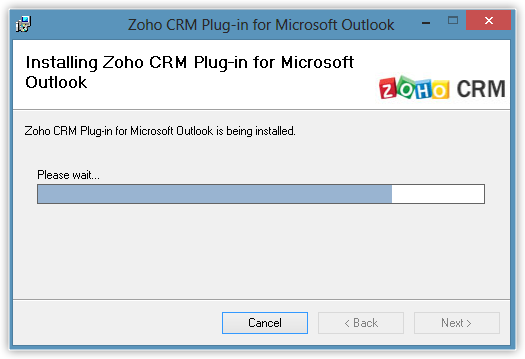
- In the Installation Completed dialog box, click Finish to complete the installation.
Note:
- The default destination directory is C:\Program Files\ZOHO\Zoho CRM Plug-in for Microsoft Outlook
Uninstalling Zoho CRM Plug-in
To uninstall the Zoho CRM Plug-in
- Select Start > Control Panel.
- In the Control Panel page, click Add/Remove Programs.
- In the Add/Remove Programs dialog box, select the Zoho CRM Plug-in for Microsoft Outlook and remove the program.
Note:
- If Microsoft Outlook is already running, you need to close the application before uninstalling it.
Install Zoho CRM Plug-in (in Mac)
Installing the Zoho CRM Plug-in for Microsoft Outlook requires the following steps to be followed:
- Download and Install the Plug-in for Microsoft Outlook based on the Microsoft Outlook version.
- Activate Zoho CRM Plug-in for Microsoft Outlook for users.
Note:
- You must have valid Zoho login details to connect to Zoho CRM.
Download and Install Zoho CRM Plug-in
If you are updating the existing Zoho CRM Plug-in for Microsoft Outlook, please make sure that you close the application and install the new one.
To download and install the Zoho CRM Plug-in for Microsoft Outlook
- Log in to your Zoho CRM account.
- Go to Setup > Marketplace > Microsoft > Zoho CRM Plug-in for Microsoft Outlook.
- In the Outlook Plug-in page, select the Microsoft Outlook for Mac 2011 & 2016 from the drop-down list.
You can check the the version for Microsoft Outlook in your system. - Click Download to get the installation file.
- Unzip the Zoho_CRM_Plug-in_for_Microsoft_Outlook.zip file.This will contain Zoho_CRM_Plug-in_for_Microsoft_Outlook.pkg file
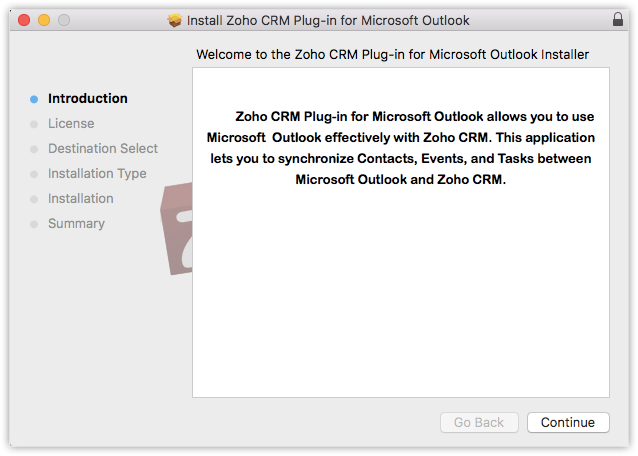
- Click Continue.
- In the License Agreement dialog box, read the license agreement and click Continue > Agree to accept the license agreement.
- After installing, access the application from the menu bar when Microsoft Outlook is open.
If the icon is not visible, launch the Zoho CRM Plug-in for Microsoft Outlook from Applications.
Uninstalling Zoho CRM Plug-in
To uninstall the Zoho CRM Plug-in for Microsoft Outlook
- Quit the Microsoft Outlook application from the Menu bar.
- Remove Zoho CRM Plug-in for Microsoft Outlook from the Applications folder in Mac.